barista
Health Warn
- License — License: MIT
- Description — Repository has a description
- Active repo — Last push 0 days ago
- Low visibility — Only 5 GitHub stars
Code Fail
- rm -rf — Recursive force deletion command in .github/workflows/release.yml
- network request — Outbound network request in Tests/usage_check.py
- Hardcoded secret — Potential hardcoded credential in Tests/windows_update_check.py
- network request — Outbound network request in Tests/worker_check.mjs
Permissions Pass
- Permissions — No dangerous permissions requested
No AI report is available for this listing yet.
Keeps your Mac awake while the work brews. A menu-bar app for timers, commands, and AI agents like Claude Code and ChatGPT Codex.
Barista ☕
Keeps your Mac awake while the work brews. A free, open-source Mac menu-bar app for people, commands, and AI agents. Also on Windows and Linux. Website · What’s new
Keep your Mac awake for a timer, until an app quits, or while a command or agent is actually working. Independent tasks share one power assertion; one task finishing never ends somebody else’s session.

What’s included
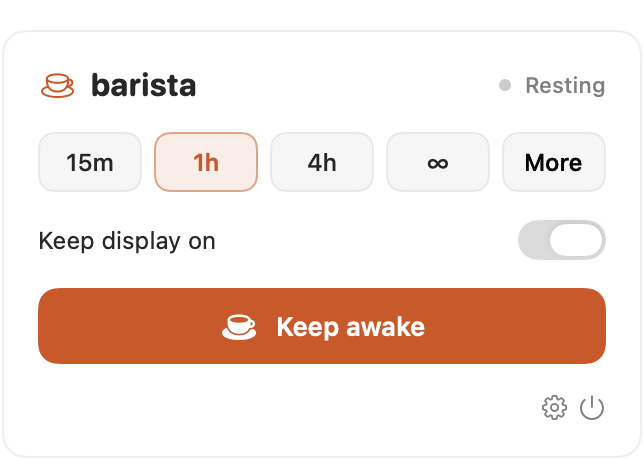
- A coffee-cup menu-bar control with one simple panel: pick 15m, 1h, 4h, or ∞ and press Keep awake. More has custom minutes, an end time, and “while an app runs.”
- Right-click the cup for one-click timers. Option-click toggles your last session. Or turn on One-click mode in Settings, and a plain click turns keeping awake on and off.
- One-click Claude Code, ChatGPT Codex, and Cursor support: Settings → Agents → Connect. Your Mac stays awake while the agent works and can sleep once it finishes. No MCP setup needed. (Codex asks you to trust the hooks once with
/hooks.) - Cowork and the ChatGPT app: these apps have no hooks, so Barista keeps your computer awake while they’re busy (judged by their CPU use, including Cowork’s VM) and lets it sleep once they’ve been quiet for 5 minutes. Switch each off in Settings → Agents.
- Usage & Limits: one window (panel, right-click menu, or Settings) with your Claude plan’s session and weekly limits, your ChatGPT plan’s limits and credits, and token usage per agent. Session and weekly limits show their pace: a mark where even use would be by now, and whether it’s on course to last until it resets or when it runs out. Limit alerts tell you when a limit is running out early, at 80% and 95%, when it’s used up, and when it resets. Barista reads both plans’ limits from your own accounts every few minutes, using Claude Code’s and Codex’s saved logins read-only (each can be turned off in Settings → Agents); Claude’s also come from a small status line Barista adds to Claude Code (it keeps your own if you have one). Cursor doesn’t share its limits with other apps.
- Usage tracking: sessions and tokens per agent and model for today, this week, and this month, with an estimated API-price cost, in Settings → Usage, the panel footer,
barista usage, and thebarista_usageMCP tool. Read from Claude Code’s and Codex’s own logs on your Mac; Cursor reports turns and active time through its hooks. Nothing is uploaded. Costs are estimates at API list prices, not what your subscription charges. Details: docs/USAGE.md. - Projects and the usage report: active time, sessions, tokens, models, and estimated cost per project (grouped by Git repository, so worktrees count with their main checkout), in Usage & Limits and
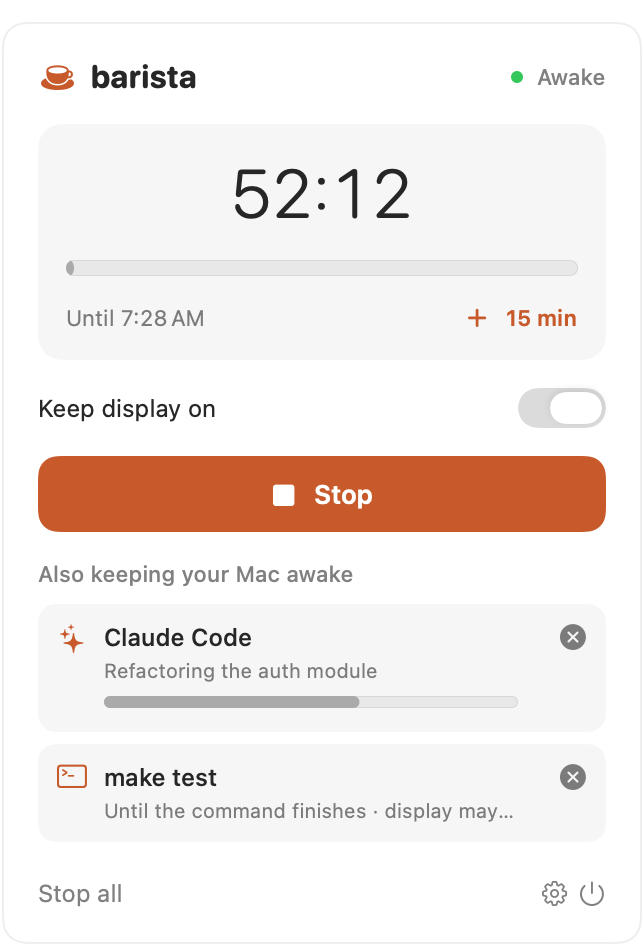
barista usage --period week. Projects and History (tabs in Usage & Limits on a Mac, a window from the panel on Windows) show time per project, time per day, and every project's agents and models, updating live. Select a day to see just that day, right-click a number to copy it, show a project's folder, and export a CSV, web page, PDF, or (Mac) image. A 7-day chart in the menu-bar popover or panel opens History, and a Monday notification sums up last week.barista report(and Linux) opens the same report in your browser. Nothing is uploaded. - Tasks that keep the Mac awake (agents, commands, watched apps) appear in the panel with live progress and individual stop buttons, and in the right-click menu. The menu bar shows your own timer’s time left, or how many tasks are running. Settings shows the last sessions.
- Task-owned sessions: commands renew their own short leases and release them on exit. Agents heartbeat during work and release when done. A missing heartbeat or watched process exit ends the session automatically.
- Schedule: keep your Mac awake during set hours, such as weekdays 8–5, by the system clock (Settings → Schedule).
- Separate display control. Agent/command sessions allow the display to sleep by default.
- Battery protection: stops awake sessions at 20% while on battery by default, with a configurable cutoff. Your actual work continues; awake sessions do not restart automatically.
- Launch at login, configurable global shortcut, Option-click quick toggle, optional completion notifications, and saved preferences.
- A bundled CLI and stdio MCP server. No third-party runtime, API key, cloud account, simulated input, or network listener.
- Automatic updates on Mac and Windows. With update checks enabled, Barista installs the latest stable release once it is 24 hours old, verifies the download, and relaunches with your active sessions. Turn automatic updates off or check now in Settings → Updates.
Install
Download Barista.dmg, open it, and drag Barista into Applications. Barista is signed and notarized by Apple, so it opens like any other app.
Or install from Terminal, which also connects Claude Code and Codex for you. AI agents can run it too (see llms.txt):
curl -fsSL https://baristatime.app/install.sh | sh
The script installs the latest release to Applications after checking it against the release’s SHA-256, then runs barista setup. Already installed? Run barista setup (inside Barista.app/Contents/Helpers/) to connect any agents you’ve added since.
Starting with 0.1.2, automatic updates are on for everyone who has update checks enabled. You can still click Update in the Mac panel to install sooner. Copies running 0.1.1 or earlier need their usual one-time manual upgrade.
Windows and Linux
Barista also runs on Windows 10/11 and Linux (x86_64 and arm64), built in Rust from rust/. It's the same Barista: a coffee cup in the notification area (Windows) or system tray (Linux) with quick timers, your tasks, Stop all, battery protection, launch at login, and notifications, plus the same barista CLI, barista run, MCP server, and one-click Claude Code and Codex hooks. Agents and scripts work the same on every platform.
Windows: download Barista-Setup.exe from the latest release (it asks whether to install for just you or for everyone on the PC), or in PowerShell (no administrator rights needed):
irm https://baristatime.app/install.ps1 | iex
Linux:
curl -fsSL https://baristatime.app/install.sh | sh
Both check the download against the release’s SHA-256, install barista and barista-app (Windows: %LOCALAPPDATA%\Programs\Barista, added to your PATH and Start menu; Linux: ~/.local/bin, plus an app-menu entry), and run barista setup. On Windows, Barista 0.1.2 and later automatically updates the installed or portable copy in place after the release is 24 hours old. An all-users installation can prompt for administrator approval. On Linux, the menu announces updates and you can rerun the installer. Or download barista-<version>-windows-x86_64.zip or barista-<version>-linux-<arch>.tar.gz from the latest release.
On Linux the tray icon is a StatusNotifierItem (no GTK needed), shown by KDE Plasma, Ubuntu, Xfce, and most desktops; on stock GNOME install the AppIndicator extension, and on trays that only support XEmbed (i3bar, dwm, tint2) run snixembed. Left-click or right-click the cup for the menu; the time left appears in the icon’s tooltip. Without a graphical session (a server, WSL, SSH), barista-app runs headless and the CLI, hooks, and MCP keep working. Linux keeps the computer awake through the desktop’s power service (GNOME, KDE, and others) and a systemd-logind idle inhibitor; Windows uses a system power request (it shows in powercfg /requests).
What’s different from the Mac app: on Windows, clicking the cup opens a panel much like the Mac’s; on Linux it opens a menu. Neither has an end-time picker or “while an app runs” (use barista start --pid for that) or a global shortcut. Linux updates download from the release page.
Build and run
Requires macOS 13+ and Swift 6 command-line tools. No package dependencies.
zsh scripts/build-app.sh
open build/Barista.app
For a universal Intel + Apple Silicon bundle:
zsh scripts/build-app.sh --universal
Move build/Barista.app to Applications for everyday use. The app opens its panel on a normal launch; agent-triggered launches stay in the background. The power icon quits the app. Stop ends only your own timer; Stop all stops every awake session without terminating work.
Open Settings from the gear icon, the right-click menu, or with ⌘, while Barista is active. Press ⌘W to close the front Settings or Usage & Limits window and leave timers running. Press ⌘Q to quit Barista and end its sessions. The default shortcut is Control–Option–Command–C. Change it in Settings. The first time Barista runs from Applications, it adds itself to macOS Login Items. At login a tiny bundled helper opens it quietly in the menu bar. Turn this off in Settings → Launch at login; it stays off. macOS may ask you to approve it in System Settings → General → Login Items. Notifications request permission only when you enable them.
Claude Code
Choose Settings → Agents → Claude Code → Connect, or run (the CLI is /Applications/Barista.app/Contents/Helpers/barista, or build/barista in a source checkout):
barista setup                   # connects Claude Code and Codex, whichever are set up
barista hooks install           # Claude Code only; also: status | uninstall
This adds Barista hooks to ~/.claude/settings.json and leaves your other settings and hooks in place. A backup is saved next to the file as settings.json.barista-backup. Each conversation gets its own session: a prompt starts it, tool calls renew it, and it ends when Claude finishes its turn or exits. If Claude finishes while commands it started in the background are still running (shown as “Waiting” in Claude Code and T3), the session stays on until they exit. If you stop it in Barista, it stays stopped until your next prompt. If you move the app or a hook goes missing, Settings shows Repair.
ChatGPT Codex
Choose Settings → Agents → ChatGPT Codex → Connect, or run barista hooks install --agent codex (or barista setup). This adds the same hooks to ~/.codex/hooks.json, used by Codex in the ChatGPT app and the Codex CLI.
Codex asks you to approve new hooks once: type /hooks in Codex and trust Barista’s hooks. After that, each Codex task keeps your Mac awake while it works, shown as “Codex · ”.
Cursor
Choose Settings → Agents → Cursor → Connect, or run barista hooks install --agent cursor (or barista setup). This adds hooks to ~/.cursor/hooks.json: a prompt starts a session, tool calls and replies renew it, and it ends when the agent stops. Cursor reloads hooks on its own. Each turn is also recorded for usage tracking (time and model, no prompts or code). Cursor doesn’t write token counts to disk, so Barista shows Cursor turns and active time rather than tokens; Cursor’s token and cost data is only available to Enterprise team admins through Cursor’s Admin API. Cursor documents hooks for its editor; its command-line agent may not run them.
Use from a terminal or agent
# Automatically keep awake for exactly the lifetime of a command.
build/barista run --name "Build and test" -- make test

# Acquire an independent session; prints its ID.
build/barista start --name "Research agent" --minutes 5

# Renew and publish progress. Replace SESSION_ID with the returned ID.
build/barista heartbeat SESSION_ID --ttl 300 --progress 0.5 --message "Checking sources"
build/barista stop SESSION_ID
build/barista status --json

# Tokens and estimated cost per agent: today, this week, this month (or --period all).
build/barista usage
build/barista usage --period week --json
build/barista report
See the agent guide for MCP setup, all commands, ownership rules, JSON responses, hard limits, and sandbox considerations. Settings also has Copy CLI path and Copy MCP setup.
Releasing
The version lives in one place: Sources/BaristaCore/Version.swift. scripts/build-app.sh stamps it into the app, and barista version prints it.
- Bump
BaristaVersion.current(for example0.0.1→0.0.2). - In
CHANGELOG.md, rename Unreleased to## [0.0.2] - YYYY-MM-DDand start a new empty Unreleased section above it. CI fails, and nothing is released, until the new version has an entry. - Commit and push to
main.
The Release workflow notices the new version, runs the checks, builds a universal app, and publishes v0.0.2 on GitHub Releases. The release notes are that version’s CHANGELOG.md entry, followed by install instructions. The release includes:
Barista-<version>.dmgandBarista.dmg(the same disk image; the website links to the stable name)Barista-<version>.zipandBarista-<version>.zip.sig, which the in-app updater usesbarista-<version>-windows-x86_64.zip,barista-<version>-linux-x86_64.tar.gz, andbarista-<version>-linux-arm64.tar.gz, built fromrust/(which reads the same version), plus copies without the version forinstall.shandinstall.ps1SHA256SUMS.txt
The Mac app checks the ZIP signature. Windows checks the Ed25519 signature on SHA256SUMS.txt, then matches the versioned installer against its signed SHA-256 before running it. The private key is the BARISTA_UPDATE_KEY Actions secret (a backup is in the maintainer’s Keychain as “Barista update signing key”), and the public key is UpdateSignature.publicKey in Sources/BaristaCore/UpdateCheck.swift. The workflow refuses to publish if they don’t match. To package a disk image locally: pip install dmgbuild==1.6.5, then zsh scripts/make-dmg.sh. Pushes that don’t change the version don’t create a release. Automatic updates use the GitHub release publication time. A sleeping or offline client catches up on a successful check after the deadline. A device still needs to be able to write its install location.
Every push to main also attaches a universal Barista.zip to its CI run (kept for 30 days), so you can try any commit without releasing it.
Limits and privacy
This prevents idle sleep. It does not override closing a laptop lid, choosing Sleep, shutdown, or a depleted battery. Timers use wall-clock deadlines, so manual sleep does not pause them. Watched-app sessions last exactly as long as the app runs (no time cap) and track process lifetime, not whether the app is doing useful work. Use the command runner or agent heartbeats for precise job lifetimes.
Agent leases default to five minutes and an eight-hour hard cap. Commands renew a 45-second lease every ten seconds, tied to the runner’s PID and process start time. TTL and hard limits cannot exceed 24 hours. An explicit Stop or battery cutoff cannot be reversed by a heartbeat. Never reacquire automatically to override a user’s Stop.
Sessions are visible and controllable in the app. The local control socket is restricted to your user account; no TCP port is opened. History stores only the last 20 task names, start/end times, and completion reasons in local preferences. Command arguments/output are not recorded. Active sessions are never restored after an app restart. You can clear history or disable agent access in Settings.
Barista makes four kinds of network request, and each can be turned off:
- Your Claude plan’s limits. The Barista app asks Anthropic for them at most every 5 minutes, using Claude Code’s saved login (read-only: Barista never refreshes, stores, or logs it). On macOS, Barista reads the login with Apple’s
securitytool, the way Claude Code does, so macOS normally doesn’t ask for Keychain access. Turn this off in Settings → Agents. - Your ChatGPT plan’s limits. The same, asking ChatGPT with Codex’s saved login, read-only. Barista keeps only the limits from the answer, not your email or account ID. Turn this off in Settings → Agents.
- Updates. Barista checks GitHub’s public releases API daily, rechecks at the publication deadline, and retries failed requests. Mac and Windows download and verify eligible updates automatically when checks are enabled. With checks on, the app also downloads LiteLLM's public model price list once a day so cost estimates cover new models. These requests send no identifiers, usage, or session data. Turn automatic checks off in Settings → Updates.
- The active-user count. Once a day the app tells baristatime.app that a copy is running: its version, whether it’s a Mac, Windows, or Linux, and whether this is its first ping today, this week, this month, and ever. There is no install ID, and nothing about you, your computer, or your usage is sent; the server doesn’t keep your IP address. That is how Barista’s daily, weekly, and monthly users are counted. docs/ACTIVE-USERS.md has every detail, and the server’s code is worker/index.js. Turn it off in Settings → Updates → Help count active users.
Local builds are ad-hoc signed. Release builds are signed with Developer ID and notarized by the Release workflow (BARISTA_SIGN_IDENTITY and scripts/notarize.sh). Intel binaries are cross-compiled; testing on an Intel Mac is recommended before a public release.
Verify
swift build
swift run BaristaChecks --power
python3 Tests/agent_integration.py
python3 Tests/usage_check.py --bin-dir .build/debug   # usage, limits, and pace, against docs/USAGE.md
node Tests/worker_check.mjs                            # the website's /api/ping (no network)
For the Windows and Linux build (Rust 1.89+; no system libraries needed):
cd rust && cargo test --workspace && cargo build --workspace && cd ..
python3 Tests/agent_integration.py --bin-dir rust/target/debug --service rust/target/debug/barista-app
python3 Tests/portable_smoke.py --bin-dir rust/target/debug   # also runs on Windows
BaristaChecks covers session expiration, independent owners, display aggregation, heartbeat expiry/hard caps, process reuse, battery protection, custom input, history, and concurrent real Unix-socket requests. --power briefly creates real macOS sleep-prevention assertions and confirms cleanup. The Python suite uses an isolated service with fake power assertions to exercise the CLI, command runner, JSON output, MCP handshake/tools/errors, user stops, and crash recovery.
Run local-socket integration checks outside a network-restricted command sandbox; a sandbox can prohibit even private Unix sockets. These checks need no administrator privileges. To test a different binary directory, use python3 Tests/agent_integration.py --bin-dir PATH.
License
MIT. See LICENSE.
Reviews (0)
Sign in to leave a review.
Leave a reviewNo results found