obsidian-claude-code
Health Gecti
- License — License: MIT
- Description — Repository has a description
- Active repo — Last push 0 days ago
- Community trust — 13 GitHub stars
Code Basarisiz
- child_process — Shell command execution capability in main.js
- os.homedir — User home directory access in main.js
- process.env — Environment variable access in main.js
Permissions Gecti
- Permissions — No dangerous permissions requested
Bu listing icin henuz AI raporu yok.
Full-featured terminal for Obsidian - Run AI CLI tools (Claude, Gemini, OpenAI), vim, git directly in your sidebar
ClaudeTerm



🚀 Full-featured terminal for Obsidian
Run AI CLI tools (Claude, Gemini, OpenAI, OpenCode), vim, git directly in your sidebar
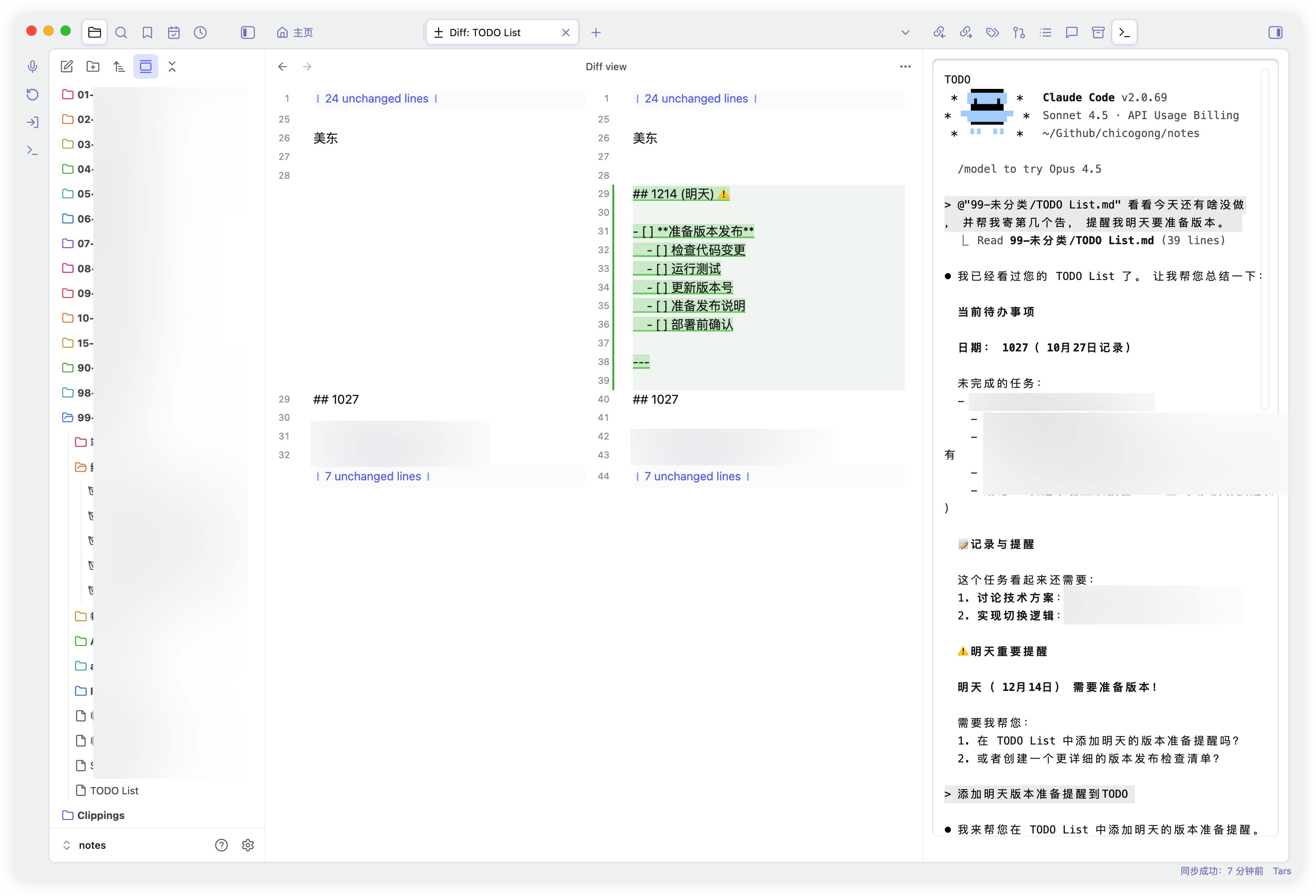
🎬 What Can You Do?
🤖 AI-Powered Note-Taking
Run all major AI CLI tools side-by-side with your notes:
# Claude Code - AI pair programming
claude
claude -p "Help me refactor this code"

# Google Gemini CLI
gemini "Summarize my meeting notes"

# OpenAI ChatGPT / Codex
chatgpt "Generate unit tests for this function"

# OpenCode - open-source coding agent
# Install OpenCode first, then launch it like any other interactive CLI.
opencode
ClaudeTerm is a general PTY terminal rather than a vendor-specific integration. OpenCode needs no plugin adapter: if opencode works in your system terminal and is available on the configured shell PATH, it works inside ClaudeTerm as well.
Perfect workflow:
- Write notes about a problem in Obsidian
- Press
Cmd+Shift+Tto open terminal - Ask AI for help without leaving your notes
- Copy AI's response back to your notes
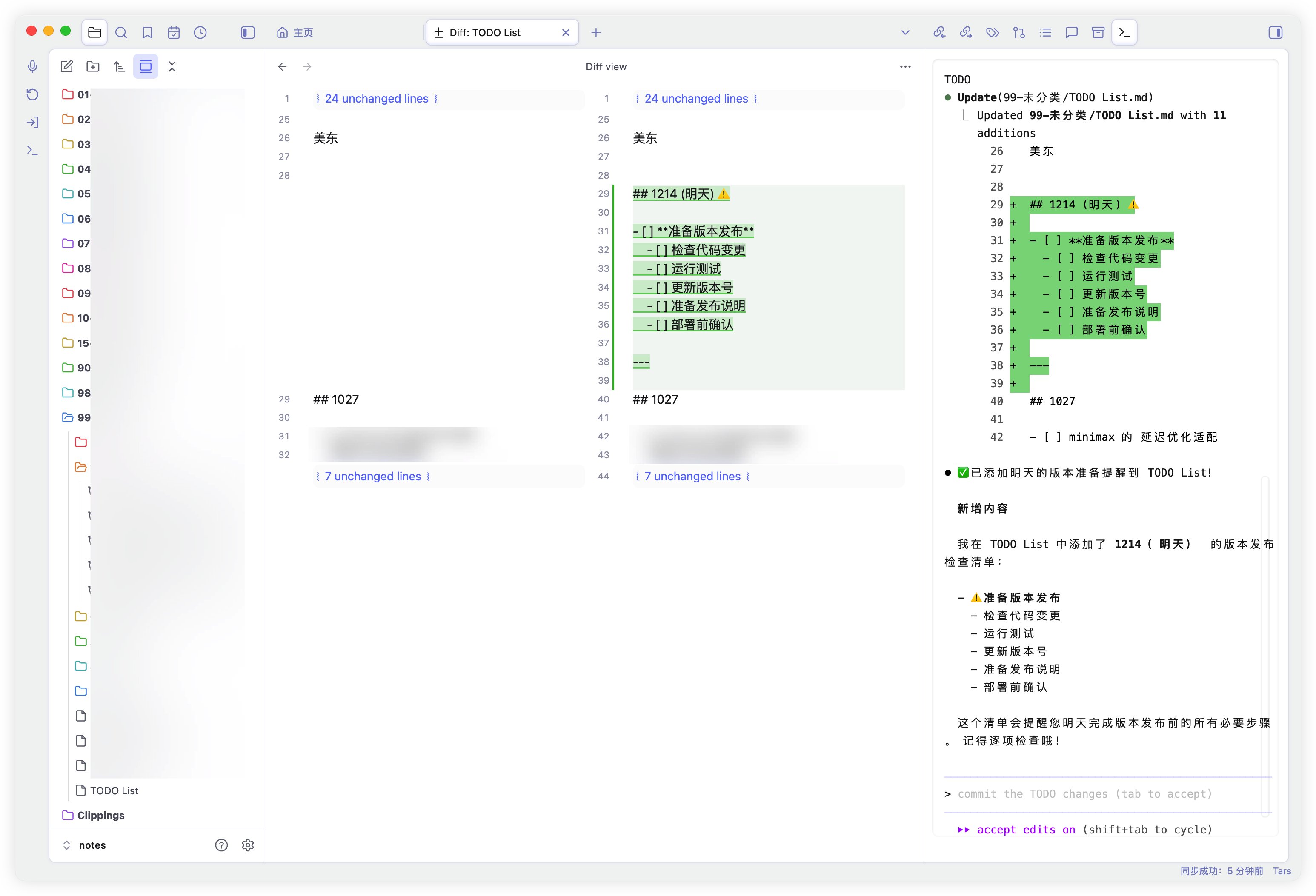
🔄 Perfect with Obsidian Git Plugin
Install Obsidian Git for automatic version control:
Install Obsidian Git Plugin:
- Go to
Settings→Community plugins→Browse - Search for "Obsidian Git"
- Click
InstallandEnable
- Go to
Visual Git Operations:
- Obsidian Git provides a visual interface for Git
- Auto-commit and sync on schedule
- View changes with built-in diff viewer
- Stage/unstage files with clicks
Use ClaudeTerm for Advanced Operations:
- When you need git commands, ClaudeTerm is right there
- Quick
git statusto check changes - Run custom git commands when needed
- Edit commit messages in vim/nano
Perfect combo:
- ✅ Obsidian Git handles automatic syncing
- ✅ ClaudeTerm for when you need terminal control
- ✅ Both work together seamlessly
- ✅ Best of both worlds: GUI + CLI
💻 Full Terminal Experience
Run any command just like in a native terminal - vim, python, npm, docker, and more. All tools work seamlessly.
📦 Installation
Step 1: Install Prerequisites
Check if Python 3 is installed:
python3 --version
# Should show: Python 3.x.x
If not installed:
- macOS:
brew install python3 - Ubuntu/Debian:
sudo apt install python3 - Other Linux: Use your package manager
Step 2: Install ClaudeTerm Plugin
Method A: Using BRAT (Recommended for beginners)
Install BRAT plugin first:
- Open Obsidian
- Go to
Settings→Community plugins - Click
Browseand search for "BRAT" - Install and enable BRAT
Add ClaudeTerm via BRAT:
- Go to
Settings→BRAT - Click
Add Beta plugin - Enter:
chicogong/obsidian-claude-code - Click
Add Plugin
- Go to
Enable ClaudeTerm:
- Go to
Settings→Community plugins - Find "ClaudeTerm" and toggle it ON
- Go to
Method B: Manual Installation (Step by step)
Step 1: Find your vault's plugin folder
- Open Obsidian
- Right-click any note →
Show in system explorer/在系统中显示 - You'll see your vault folder open
- Look for the
.obsidianfolder:- macOS/Linux: Press
Cmd+Shift+.to show hidden files - Windows: Enable "Show hidden files" in File Explorer
- macOS/Linux: Press
- Open
.obsidian→pluginsfolder
Your path should look like:
- macOS:
/Users/YourName/Documents/Obsidian/YourVault/.obsidian/plugins/ - Linux:
/home/YourName/Documents/Obsidian/YourVault/.obsidian/plugins/ - Windows:
C:\Users\YourName\Documents\Obsidian\YourVault\.obsidian\plugins\
Step 2: Download the plugin
Option A: Using Git (Recommended)
Open Terminal/Command Prompt and run:
# Navigate to plugins folder (replace with your actual path)
cd /Users/YourName/Documents/Obsidian/YourVault/.obsidian/plugins/

# Clone the repository
git clone https://github.com/chicogong/obsidian-claude-code.git claudeterm

# Done! The 'claudeterm' folder is now created
Option B: Download ZIP
- Go to https://github.com/chicogong/obsidian-claude-code
- Click green
Codebutton →Download ZIP - Extract the ZIP file
- Rename the extracted folder to
claudeterm - Move the
claudetermfolder to.obsidian/plugins/
Step 3: Verify files
Open the claudeterm folder and make sure you see these files:
claudeterm/
├── main.js           ✓ Must have
├── manifest.json     ✓ Must have
├── styles.css        ✓ Must have
├── pty_proxy.py      ✓ Must have
└── README.md         (optional)
Step 4: Enable the plugin
- Restart Obsidian (completely close and reopen)
- Go to
Settings→Community plugins - Look for "ClaudeTerm" in the list
- Toggle it ON (the switch should turn purple)
- You should now see a terminal icon in the left ribbon!
Troubleshooting:
If ClaudeTerm doesn't appear in the plugin list:
- Check folder name is exactly
claudeterm(lowercase, no spaces) - Make sure files are directly in
claudeterm/, not in a subfolder - Close Obsidian completely and reopen
- Check if
manifest.jsonexists and is valid
Step 3: Configure ClaudeTerm
Open Settings:
Settings→ClaudeTerm
Choose a theme:
- Light (default) - Clean and professional
- Dark - Easy on the eyes
- Custom - Design your own colors
Configure behavior:
- ✅ Auto-cd to note directory (Recommended ON)
- Terminal opens in current note's folder
- Perfect for running commands related to your notes
- ✅ Auto-cd to note directory (Recommended ON)
🚀 How to Use
Opening the Terminal
Method 1: Ribbon Icon (Easiest)
- Click the terminal icon (📟) in the left sidebar
Method 2: Command Palette
- Press
Cmd+P(Mac) orCtrl+P(Windows/Linux) - Type "Open Terminal"
- Press Enter
Method 3: Keyboard Shortcut (Fastest)
- Set it up in
Settings→Hotkeys - Search for "ClaudeTerm"
- Recommended:
Cmd+Shift+TorCtrl+Shift+T
Available Commands
Customize shortcuts in Settings → Hotkeys:
| Command | What it does | Suggested Shortcut |
|---|---|---|
| Open Terminal | Open or focus terminal | - |
| Toggle Terminal | Show/Hide terminal | Cmd+Shift+T |
| Focus Terminal | Jump to terminal | Cmd+K Cmd+T |
| Clear Terminal | Clear screen | - |
| Restart Terminal | Restart shell | - |
Terminal Features
Auto-cd to note directory:
# When editing: Projects/MyApp/notes.md
pwd
# → /vault/Projects/MyApp

# Perfect for project-specific commands!
npm test
git status
All terminal features work:
- ✅ Interactive commands (vim, nano, htop)
- ✅ Colors and formatting
- ✅ Tab completion
- ✅ Command history (↑/↓ arrows)
- ✅ Ctrl+C to cancel
- ✅ Copy/paste
🎨 Themes & Customization
Built-in Themes
Light Theme (Default)
- Professional look
- Perfect for daytime use
- Matches Obsidian's light mode
Dark Theme
- Easy on the eyes
- Great for nighttime
- Matches Obsidian's dark mode
Custom Theme
Full control over terminal colors:
- Enable custom theme in settings
- Customize each color:
- Background & Foreground
- Cursor & Selection
- All 16 ANSI colors (black, red, green, etc.)
- Preview changes instantly
- Reset to defaults anytime
🔧 Troubleshooting
Terminal won't open
Problem: "Failed to start Python proxy"
Solution:
- Check Python installation:
which python3 - If not found, install Python 3
- Restart Obsidian
- Try opening terminal again
Plugin not showing up
Check these:
- ✅ Folder name is
claudeterm(notobsidian-claude-code) - ✅ Files exist:
manifest.json,main.js,pty_proxy.py - ✅ Plugin is enabled in settings
- ✅ Restart Obsidian
Terminal looks weird
Solutions:
- Try switching themes (Light ↔ Dark)
- Resize Obsidian window
- Use "Restart Terminal" command
- Check if Python 3 is working:
python3 --version
Characters appear twice
Already fixed in current version!
If you still see it:
- Update to latest version
- Use "Restart Terminal" command
🗺️ Roadmap
✅ Completed Features
- Full terminal emulation (PTY support)
- All AI CLI tools (Claude, Gemini, OpenAI)
- Git integration (perfect with Obsidian Git)
- Custom themes (Light/Dark/Custom)
- Auto-cd to note directory
- Keyboard shortcuts
🔮 Coming Soon
- Windows support - Using conpty/winpty
- Multiple tabs - Switch between terminals
- Session persistence - Remember state on restart
- Visual git diff - See changes in Obsidian UI
- AI shortcuts - Quick commands for AI tools
- Terminal profiles - Save different configurations
💡 Tips & Tricks
Combine with Obsidian Git
Install Obsidian Git plugin alongside ClaudeTerm:
- Obsidian Git auto-syncs your vault
- Use ClaudeTerm to review changes:
git diff - Stage specific changes:
git add -p - Commit with detailed messages
- Perfect workflow for version control!
Use with AI CLI Tools
Claude Code:
claude           # Interactive mode
claude -p "..."  # One-shot prompt
Gemini CLI:
gemini "question"
gemini -m gemini-pro "complex task"
OpenAI:
chatgpt "question"
openai "generate code for..."
Quick File Editing
# Edit in vim
vim notes.md

# Edit in nano (easier for beginners)
nano notes.md

# Quick changes
echo "# New note" > temp.md
🤝 Contributing
Contributions welcome!
Found a bug? Open an issue
Have an idea? Start a discussion
Want to help?
git clone https://github.com/chicogong/obsidian-claude-code.git
cd obsidian-claude-code
# Edit code
# Test in Obsidian (Cmd+R to reload)
# Submit PR
See ARCHITECTURE.md for technical details.
📄 License
MIT License - see LICENSE
Free to use, modify, and distribute!
🙏 Credits
Built with:
- xterm.js - Terminal emulator
- Obsidian - Note-taking platform
- Obsidian Git - Git integration
Supports:
- Claude Code - AI coding assistant
- Google Gemini - AI assistant
- OpenAI - AI platform
- OpenCode - open-source coding agent
Inspired by obsidian-terminal
Made with ❤️ for developers who live in Obsidian
Yorumlar (0)
Yorum birakmak icin giris yap.
Yorum birakSonuc bulunamadi