safari-browser-use
Health Uyari
- License — License: MIT
- Description — Repository has a description
- Active repo — Last push 0 days ago
- Low visibility — Only 5 GitHub stars
Code Gecti
- Code scan — Scanned 12 files during light audit, no dangerous patterns found
Permissions Gecti
- Permissions — No dangerous permissions requested
Bu listing icin henuz AI raporu yok.
Apple Events–powered Safari browser automation for Codex, Claude Code, Copilot, and Cursor—control existing tabs with no extension, companion app, or Node.js.
Control your existing Safari 26 tabs with AI agents — no browser extension or companion app required.






Overview
Safari Browser Use gives AI agents such as Codex, Claude Code, GitHub Copilot,
Cursor, Kiro, CodeBuddy, WorkBuddy, and Qoder safe, visible control of the
Safari tabs you already have open. It preserves your current sessions and logins
while exposing a synchronous JavaScript REPL and a Playwright-style browser API.
It connects through the Apple Events support built into macOS.
Plugin mode does not require Node.js, npm, a Safari extension, a companion app,
Xcode, or an Apple Developer certificate. The Skill-only mode uses the Node.js
runtime available to the agent to preserve its script session between calls.
[!NOTE]
Safari version support: Safari Browser Use supports Safari 26 and earlier
through Apple Events. Starting with Safari 27 beta, WebKit includes an
official Safari MCP server that lets any MCP-compatible agent connect
directly throughsafaridriver --mcp. Safari 27 users should prefer Apple's
native server. See
Introducing the Safari MCP server for web developers.
Demo
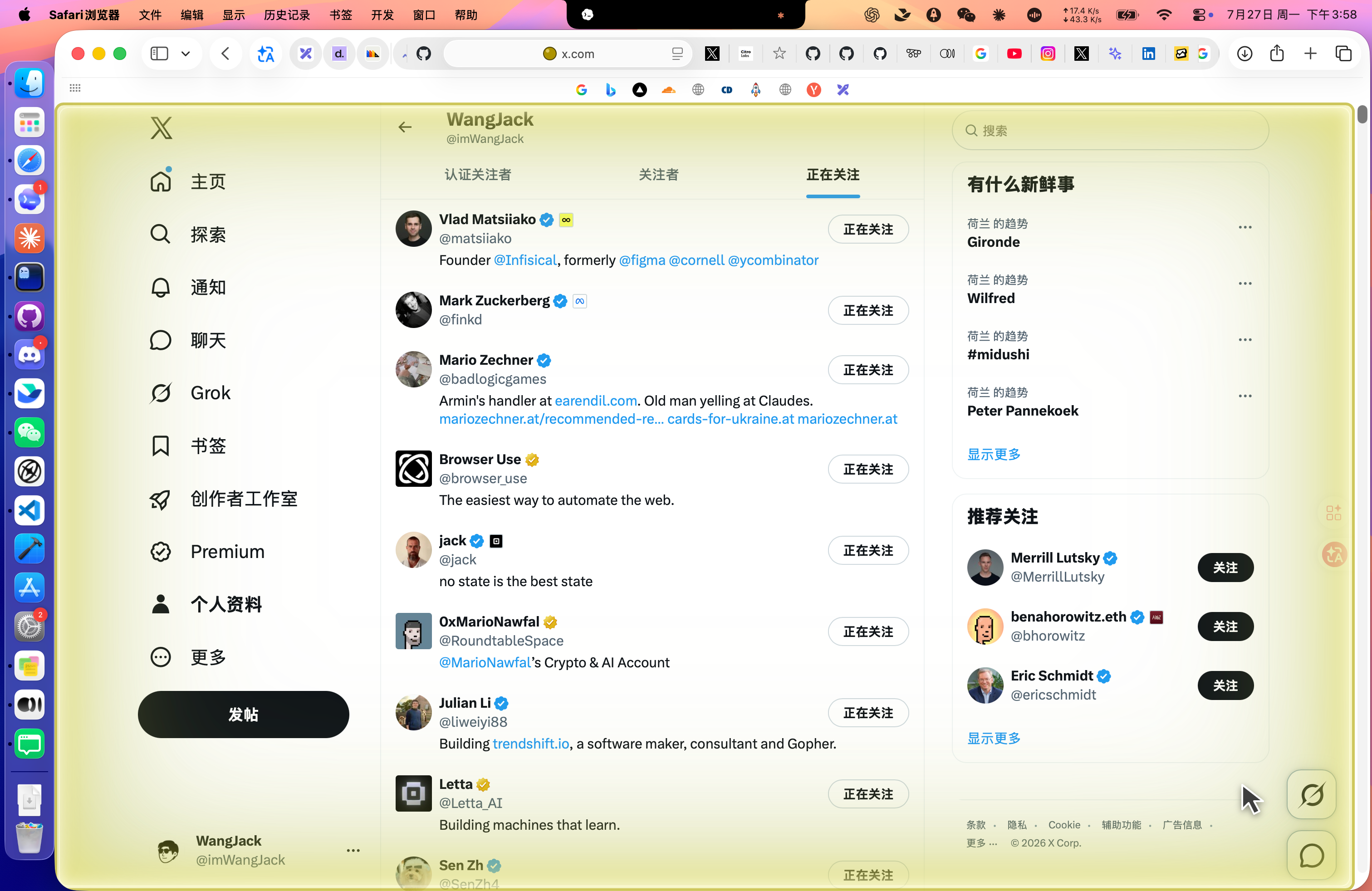
An AI agent inspecting an existing Safari tab with the visible control indicator enabled.
Installation
1. Plugin — one-line prompt with client routing
Paste this one-line prompt into a supported agent. It names the concrete route
for each client, so the agent must not assume that every client has the same
plugin installer:
Install Safari Browser Use from https://github.com/citrolabs/safari-browser-use using the current client's plugin installer when supported: use `codex plugin marketplace add` then `codex plugin add` for Codex, `claude plugin marketplace add` then `claude plugin install` for Claude Code, `copilot plugin install citrolabs/safari-browser-use:plugins/safari-browser-use` for GitHub Copilot CLI, `codebuddy plugin marketplace add` then `codebuddy plugin install` for CodeBuddy or WorkBuddy, `qoder plugins marketplace add` then `qoder plugins install safari-browser-use` for Qoder, import this GitHub repository as an Agent Plugin/Power through Kiro's Add Custom Power flow for Kiro, and use the documented local checkout for Cursor; verify the result instead of claiming success. Stop after installation, then tell me whether to reload plugins or start a new session and give me one example request.
This is one routing prompt, not one universal shell command. Kiro requires a
user-visible Power import, and Cursor currently uses the local checkout below;
the agent must report those steps rather than claim that a background install
already happened.
2. Skill — one-line command
For agents that do not support plugins, install the standalone control-safari
Skill:
npx skills add citrolabs/safari-browser-use --skill control-safari -g
Select the target agent when prompted, then start a new agent session. This
installs the script-driven Skill without the MCP plugin.
Manual plugin commands
Codexcodex plugin marketplace add citrolabs/safari-browser-use
codex plugin add safari-browser-use@citrolabs
Start a new Codex task after installation.
Claude Codeclaude plugin marketplace add citrolabs/safari-browser-use --scope user
claude plugin install safari-browser-use@citrolabs --scope user
Run /reload-plugins after installation.
copilot plugin install citrolabs/safari-browser-use:plugins/safari-browser-use
Start a new Copilot CLI session after installation.
CodeBuddy / WorkBuddycodebuddy plugin marketplace add citrolabs/safari-browser-use
codebuddy plugin install safari-browser-use@citrolabs
Run /reload-plugins after installation.
qoder plugins marketplace add citrolabs/safari-browser-use
qoder plugins install safari-browser-use
Run /plugins reload or start a new Qoder CLI session after installation.
Kiro loads the root Agent Plugins package as a Power. In Kiro → Powers → Add
Custom Power, choose Import power from GitHub and enter:
https://github.com/citrolabs/safari-browser-use
Until the plugin is available in Cursor Marketplace, install it from a local
checkout:
git clone --depth 1 https://github.com/citrolabs/safari-browser-use.git
mkdir -p "$HOME/.cursor/plugins/local"
cp -R safari-browser-use/plugins/safari-browser-use "$HOME/.cursor/plugins/local/"
Restart Cursor after installation.
First-Time Setup
Before using browser automation, enable JavaScript from Apple Events in Safari.
Safari Browser Use cannot inspect or interact with web pages while this setting
is disabled.
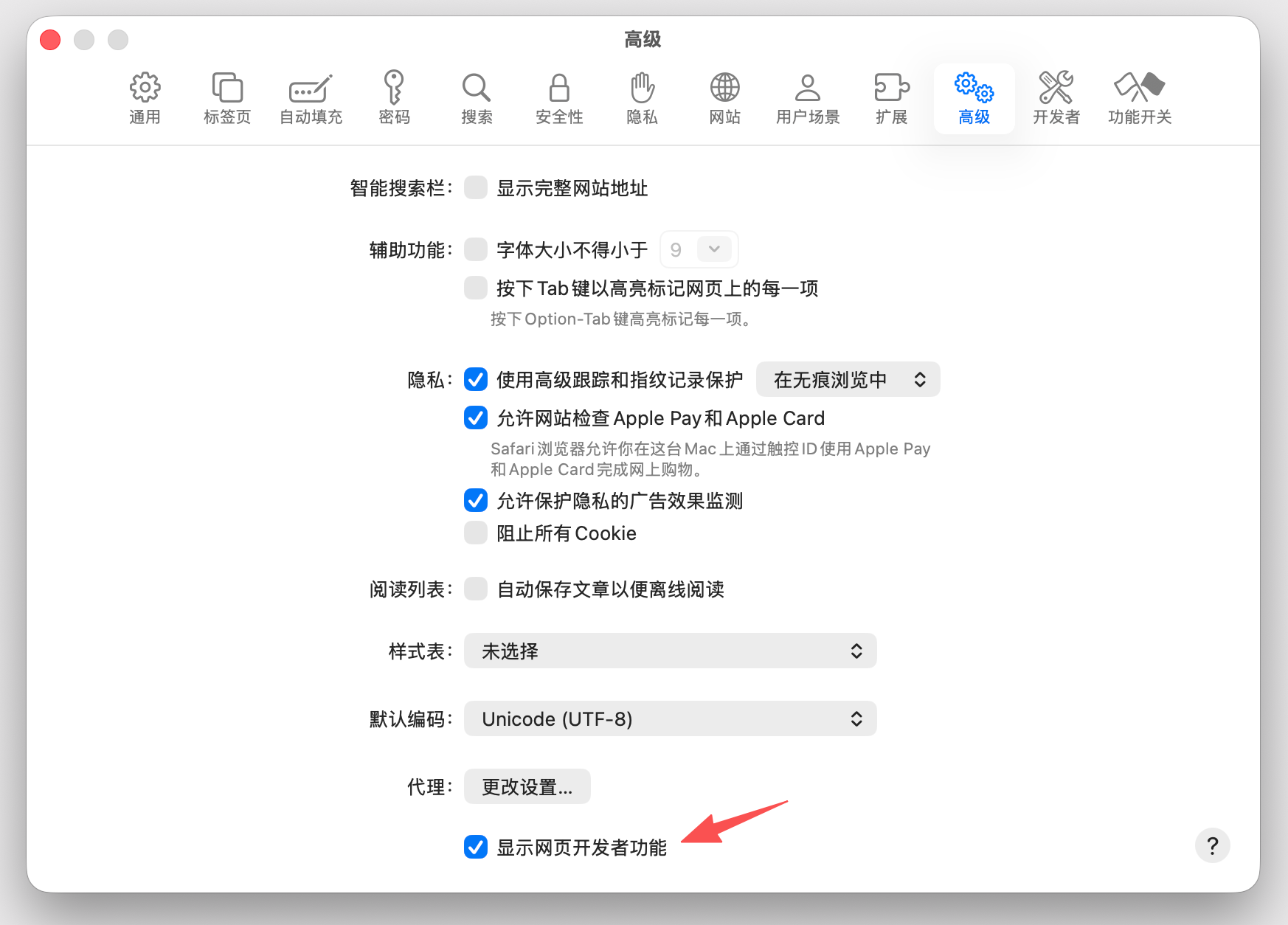
- Open Safari Settings → Advanced, then enable
Show features for web developers.
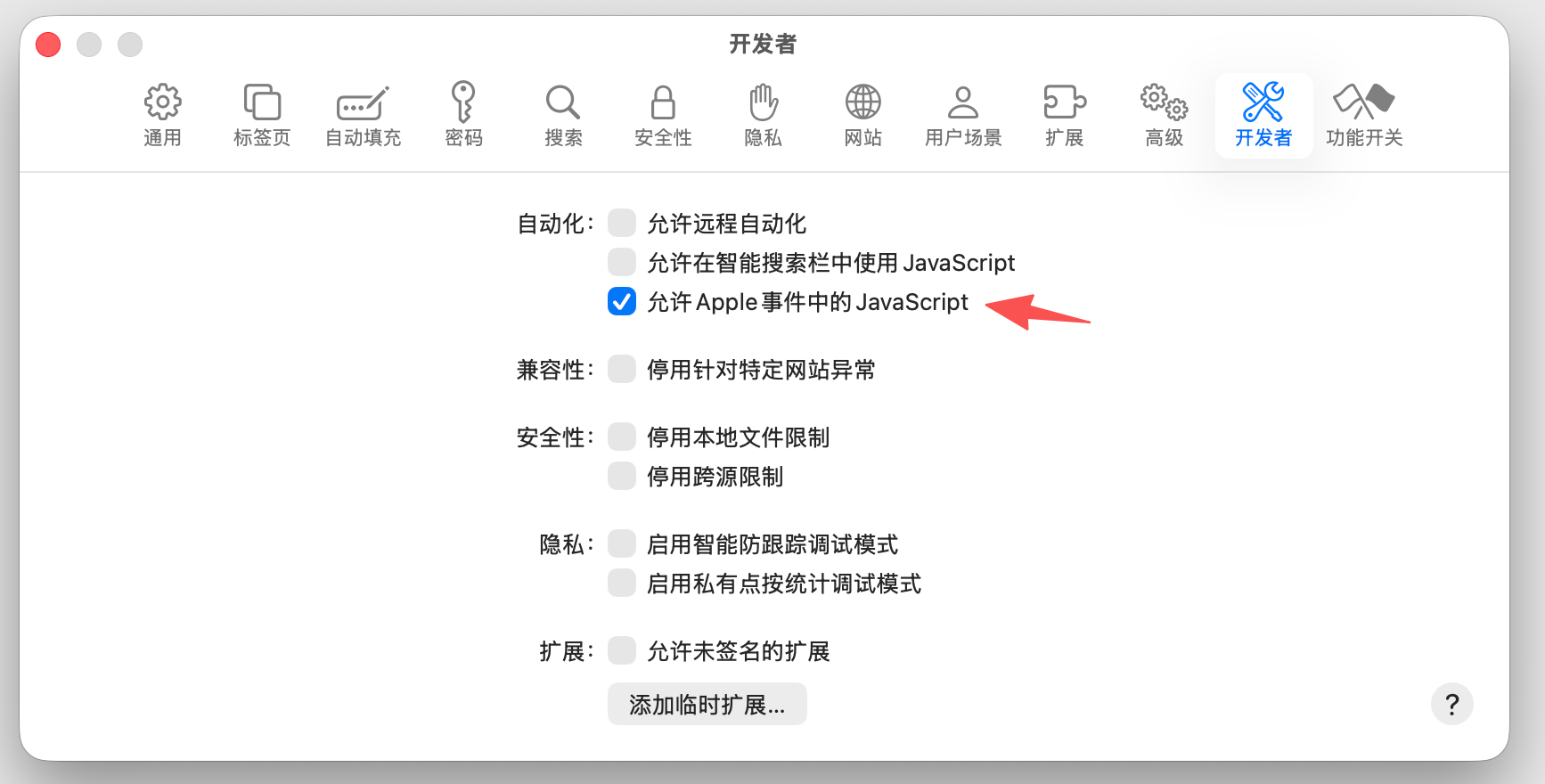
- Open Safari Settings → Developer → Automation, then enable
Allow JavaScript from Apple Events.
Safari also asks for macOS Automation permission the first time the plugin
controls it. Approve that request only when you intend to let the current
client automate Safari.
Quick Start
Open Safari, then ask your agent:
Use Safari Browser Use to inspect my current Safari tab and summarize the
page. Do not click or type anything.
The agent checks the connection, selects the active tab, and reads a structured
DOM snapshot. Variables persist between JavaScript cells until the transport
session is reset.
Selecting or operating a tab adds a non-interactive perimeter glow and visible
fake cursor to the controlled page. They share one control lifecycle: both are
removed with browser.release() when the task ends and clear automatically
after 60 seconds without tab activity. Navigation-capable operations restore
the indicator in the new page before the same browser call returns.
Highlights
| Feature | What it provides |
|---|---|
| 🌐 Existing Safari session | Work with your open tabs, cookies, and signed-in state |
| ⚡ Persistent synchronous REPL | Reuse variables and browser state across tool calls |
| 🎭 Playwright-style API | Locate elements by role, label, text, test ID, or attribute |
| ✨ Visible control indicator | See a perimeter glow and fake cursor while AI control is active |
| 🔌 Plugin and Skill-only modes | Use native plugins or the standalone Agent Skill |
| 🛡️ Deliberate interactions | Inspect first, target unique elements, and verify every action |
Safety
Safari Browser Use can inspect and interact with pages through your existing
browser session. Consequential actions—such as sending a message, submitting a
form, making a purchase, changing account settings, or deleting data—require
clear user authorization.
The control glow makes active automation visible, while browser.release(),
REPL reset, server shutdown, and the inactivity lease ensure that control does
not remain attached indefinitely.
Support
Found a bug or have an idea? Open an
issue or explore
more projects from CitroLabs.
Built for humans who want AI agents to work with the browser they already use.
License
Safari Browser Use is available under the MIT License.
Yorumlar (0)
Yorum birakmak icin giris yap.
Yorum birakSonuc bulunamadi