orglet
Health Warn
- License — License: AGPL-3.0
- Description — Repository has a description
- Active repo — Last push 0 days ago
- Low visibility — Only 5 GitHub stars
Code Fail
- exec() — Shell command execution in apps/desktop/src/browser/detect.ts
- process.env — Environment variable access in apps/desktop/src/browser/detect.ts
- exec() — Shell command execution in apps/desktop/src/browser/engine.ts
Permissions Pass
- Permissions — No dangerous permissions requested
No AI report is available for this listing yet.
A small team of AI workers on your own computer. Give each a name, a role and its own instructions, then hand them work in a normal chat.

Orglet
Your own small team of AI workers, on your computer.



What
Orglet is a desktop app where you keep a few AI workers, each with a name, a role and their own instructions, and give them work in a normal chat.
- Use the AI plan you already pay for. Workers can run on the Claude Code, Codex, Cursor Agent or Gemini CLI account you are signed in to, so there is no extra API bill.
- Keep your data on your computer. No Orglet account, no Orglet server. Chats, workers and files live in a local database.
- Made for one person. Freelancers, solo founders and anyone who uses ChatGPT or Claude every day and wants a bit more structure.
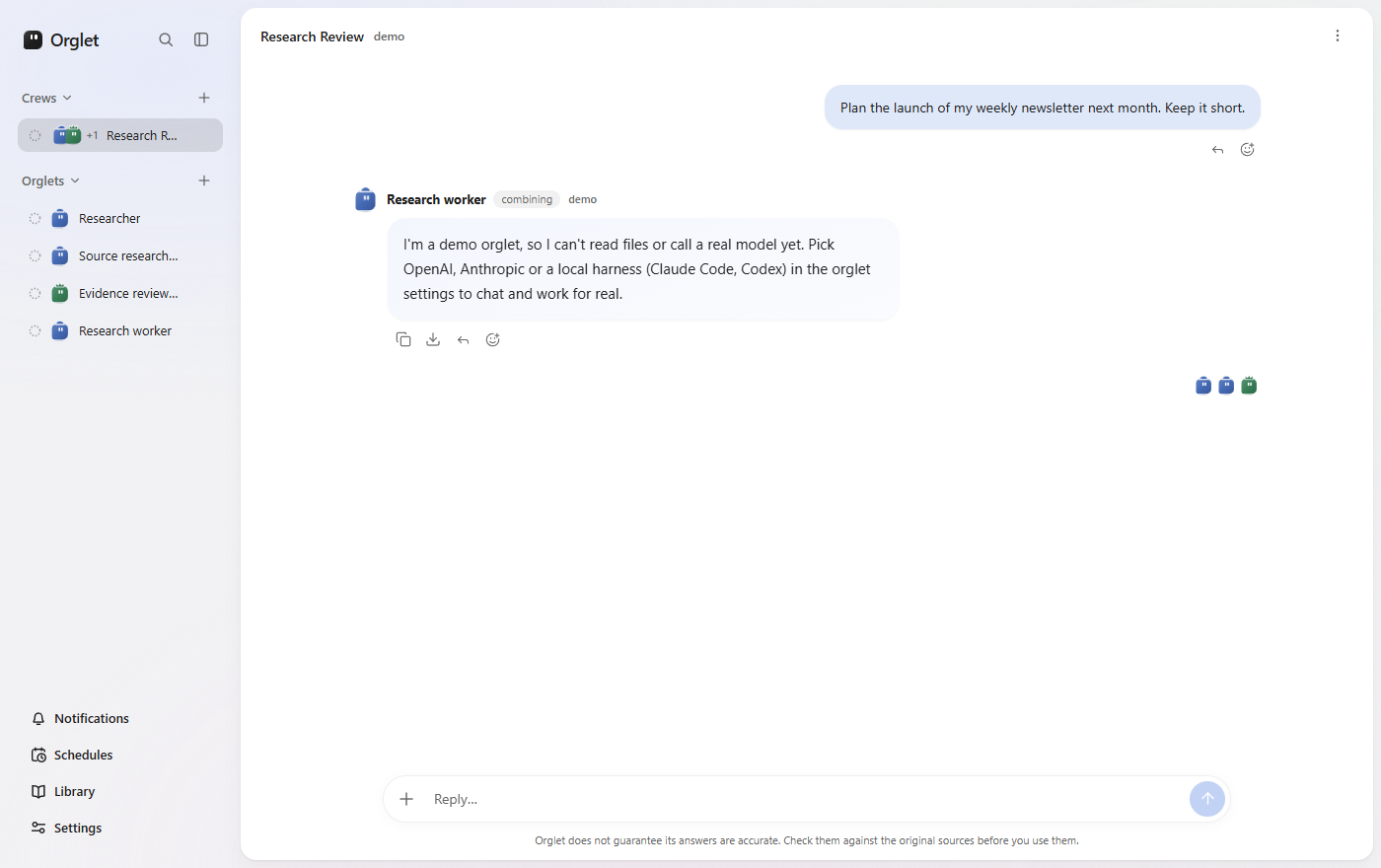
Click a team or worker in the sidebar to open that chat. One live conversation each; a new message is a turn, not a new task. Team chats plan, run members as hidden jobs, and bring one report back. Internal jobs stay under Details. In a group chat of several orglets, a message that tags nobody goes to everyone, or, with Tacet downloaded, to the one orglet it clearly fits, which the message then names (how). How it works.
Reply to a saved user or worker message to give the next turn a precise reference, or react without starting a run. Team messages appear in Details with the same actions. Reactions and reply links stay with the local chat and its backup; a reaction alone does not change permissions or dispatch work.
Choose an orglet's model from the message box. The picker shows one model name; its menu includes the exact model IDs. Chat controls.
Forward a message, yours or an orglet's, to up to five other chats at once, with a note if you like. Each chat gets it as your message and its orglet answers. Files go along only when you tick them. How forwarding works.
Orglet is early. Expect rough edges, and check answers against your own sources before you rely on them.
Chat answers can hold a complete HTML or code document, up to 262,144 characters. Structured reports keep their own summary and evidence limits. Chat guide.
| 💬 Chat with a worker | Click a worker. One live thread — a new message is a turn, not a new task. |
| 👥 Chat with a team | Click a team to open its chat. Members stay in the roster. One live thread per team. Type @name to tag who should take that turn. The lead plans, assigned members work, one report comes back. How it works. |
| 📎 Attach files safely | A worker only reads the files you attach to that chat. Open any attached file to see what is in it: text and code with line numbers, Markdown, CSV tables, JSON trees, images, video, audio and PDF pages. Workers read the text of a PDF (invoices, contracts, statements), pulled out on your computer. Images and screenshots are shown to connections that can see them; a connection that cannot says so. Video and audio are still preview-only. Which connections see images. |
| ✏️ Edit and mark up files | Edit an attached text or code file with find and replace, mark up a screenshot with a pen, highlighter, arrows, boxes, labels and a crop, or mark up a PDF and type notes onto its pages. Saving adds a new version to the chat next to the original, which never changes. Ask about this puts it on your next message. How. |
| 📄 Reports as documents | Ask for a report and it opens like a file. Copy it as plain text or Markdown, or download it. |
| 🔁 Repeat work on a schedule | Schedules send the same request every day, on weekdays, every week or every few hours while Orglet is open, with an optional cap on what a day of runs may cost. If the computer was off, missed runs become one catch-up you can run or skip; the next time stays on the calendar. A schedule can instead start when a new file lands in a folder you pick, or only when orglet run calls it; those fire only while the app is open and never replay what happened while it was closed (how). Each run shows in the sidebar under its orglet or crew, named after the schedule, and Orglet tells you when it is done, with a system notification if you are in another app (where). An hourly schedule's runs finish quietly; download Tacet in Settings → Chat, a small model that runs on this computer, and a run whose answer has something new tells you anyway (how); it also loads notes worded differently from your message (how) and asks before a browser or desktop step it reads as risky, on top of the rules (how). A schedule can have its own working folder, picked in its form at a level you choose, so a daily "run the tests" works; its changes wait for your review unless you turn that off (how). Deleting a schedule keeps its past runs as chats (how). |
| 📚 Reuse what works | Save skills and notes that workers use in later chats. |
| 🗂️ Stay tidy | Archive a chat to start over, and undo it from the toast. Archive or delete workers and teams. Archived chats, orglets and crews wait at the end of their sidebar section and can clear themselves after 7 or 30 days. |
| 🌐 Your language | US English by default, with UK English and Vietnamese in Settings. |
Workers can run through a local CLI, an API key, or Demo:
| Option | What you need | Cost |
|---|---|---|
| Claude Code on this computer | Claude Code installed and signed in | Your Claude plan |
| Codex on this computer | Codex installed and signed in | Your ChatGPT plan |
| Cursor Agent on this computer | Cursor Agent CLI installed and signed in | Your Cursor plan |
| Gemini CLI on this computer | Gemini CLI installed and signed in (Sign in with Google, or its own API key) | Your Google account's Gemini allowance |
| OpenAI, Anthropic, Grok (xAI) or OpenRouter API | An API key saved in Settings | Pay per use, with limits you set |
| OpenCode Zen API | A Zen API key saved in Settings | Pay per use from your Zen balance. Orglet does not track Zen spending or apply its task budget; set a spending limit in the OpenCode Zen console |
| OpenCode Go API | A Go API key saved in Settings (a separate connection from Zen) | Your Go subscription and its 5-hour, weekly and monthly limits, not Orglet budgets |
| Ollama on this computer | Ollama running locally | Local, no Orglet budget |
| Any OpenAI-compatible server (LM Studio, Groq, DeepSeek, Mistral, a company proxy) | A name, a base URL and, if the server needs one, an API key, added in Settings | Free when the server is on this computer or a private network; otherwise the price per 1M tokens you enter, or held as an unknown charge until you enter the real cost |
| Demo | Nothing | Free, sample replies only |
Each API or harness worker can use a model ID from that provider's own list (cached 24 hours in the local database) or a typed custom ID. Catalog names such as GPT-4.1 mini are suggestions, not a lock. If the list is empty or fails to load, you can still type an ID. When the cached list marks the selected (or suggested) model as deprecated, the picker shows a quiet chip; a sunset date appears only if that provider's API included one (OpenAI shutdown_date). Anthropic, xAI and harness lists have no native dates, so Orglet does not invent them. OpenCode Zen and Go have no default model: pick one from that plan's own list; a custom connection has none either, and both start on the first model their list offers. Orglet calls them over the chat/completions endpoint only, so models the OpenCode docs put on another endpoint (Claude, GPT, Gemini and some others) are listed as Not supported instead of being sent the wrong request. Details: model-list-fetch.md.
Settings → General sets the theme, the accent colour and the two fonts. The interface asks for SF Pro first and falls back to Inter, which ships with the app along with JetBrains Mono, so text always renders; either can be swapped for a family you have, with a preview in the picker and, for the code font, a light and a dark sample with real syntax colours. Details: technical guide.
A worker remembers its chats. It keeps short lines about how you like things done, which files you mean and what was decided, and carries them into the next chat. Every memory is on the worker's own page (Edit → Memory), where you can correct, pin or delete it; an answer says which ones it used. A line learned from a web page, a file or another worker waits for your review first. Details: memory.
A worker also learns from the feedback it already gets. When you keep asking it to revise, give its answers a thumbs-down, or its reports keep failing a check, its next chat shows the evidence and it may propose one sentence for its own instructions: a card with the sentence before and after and the chats it came from, which always waits for your click, even with automatic app changes on. Apply is a worker revision with Undo; Dismiss means it will not ask again for that reason. Details: self-improvement.
The orglet command talks to the local backend from a terminal: orglet send "Summarise this" --to Researcher --file notes.txt sends a message into that chat and prints the answer, and orglet read, list, status and open do what they say. Run orglet on its own to pick an orglet and chat using a real connection. One mascot sits beside the version, model and current directory, with small mascots for orglets and a group icon for crews. The picker has a search input and separate Orglets and Crews sections with counts; the conversation stays above an input between two rules. Model requests and observed tools appear in time order; completed steps collapse and the active text carries a sweeping highlight. Ctrl+O expands steps and answer details, Ctrl+G shows agents, Left on an empty draft picks an orglet or crew, and Page Up/Down scrolls. Ctrl+J adds a line, paste stays in the draft until you send, and / opens a command menu. You can keep typing while waiting: Ctrl+Q shows queued messages and Ctrl+Z takes the last one back for editing. Press Ctrl+C twice to leave; typing or Esc dismisses the first hint. /open and /help work immediately. If Orglet is stopped, the command starts its backend without opening the desktop; /open or orglet open opens it when needed. Ctrl+N creates an orglet or crew; Left on a highlighted list entry opens Edit/Delete. /new, /edit and /delete also open keyboard forms, with entity icons and connection details. Deletion needs the exact name; past chats remain readable. JSON configuration commands also work in scripts. Keys, chats and files stay in the app; connection setup, permissions and folder grants stay in the desktop. On Windows, Settings → About → Add to PATH installs it. Details: the orglet command.
Ctrl+K searches every message you sent and every answer, in every chat, along with the names of chats, orglets and crews, on this computer only. A result opens the chat at that message. Details: search.
On Windows you can also select files in File Explorer and choose Send to → Orglet: Orglet asks which chat, then puts the files in its message box. orglet://chat/Researcher and orglet://new?to=Researcher&text=… links open a chat or prefill a message; they never send. Details: Send to and orglet:// links.
Settings → MCP adds MCP servers by hand, run on this computer or remote, so an orglet can use other services such as GitHub or a database. An orglet uses only the servers picked in its settings and asks you in the chat before it calls a tool; secret values are encrypted on this computer. Details: MCP servers.
Browser → Read pages in a chat's permissions lets its orglets open and read web pages in a real Chrome or Edge that Orglet starts without a window, with a profile of its own, never your everyday one. Read and act also lets them click, type and choose on those pages; anything that could send, pay, buy or delete stops and asks you first, every time, and they never type a password or card number. You watch it work inside Orglet, with the orglet's cursor on the page, take it over right there or open the page in a real Chrome window, and hand it back. Pages on this computer or your network open only when you allow that exact address, and a profile you signed in to yourself opens only the sites you list. Details: Orglet's browser.
Desktop apps in a chat's permissions, on Windows, lets its orglets read the windows of apps you add to that chat, and at Read and act press buttons, fill in fields and pick from lists in them. They work through UI Automation in the background: your mouse and keyboard stay yours and no window jumps to the front. Anything that could send, delete, save over a file or close an app asks you first; password fields, password managers, Orglet itself and apps running as administrator are out of reach. Details: Desktop apps.
Settings → Data backs the workspace up, restores it, and deletes what you no longer want kept: the chat history, the knowledge your workers built up, what they remembered, the sources you imported, or everything at once. Nothing there touches your API keys or your own files. Restoring a backup after deleting the chat history brings those chats back, and on a new computer you pick each attached file again, since a backup holds no file contents. Details: technical guide.
Settings → Local harnesses always shows Claude Code, Codex, Cursor Agent and Gemini CLI as not installed, found on disk, signed in (ready) or sign-in error. Found on disk is not ready to run. If sign-in fails, the screen gives the CLI login command to copy; Orglet does not switch to Demo.
API keys are encrypted with your system's secure storage and never reach the app's interface.
Orglet has no account and no server of its own. Requests go only to the provider or local tool you choose for a worker, using attached files and workspace folders you explicitly grant. If a worker submits a malformed report, Details shows the invalid field and Orglet allows one report-only correction without repeating completed file operations.
Start here: the user guide, one short page per part of the app, or the getting started walk-through. The docs map lists how-it-works pages, product decisions, and ship records. Product fit is product.md. How to run and test is technical-guide.md. How a worker's reads, searches, edits and commands appear in the chat, and where the diff of what it changed lives, is worker-actions.md.
Agent tools and permissions explains task permissions, workspace grants and revocation. A worker's Permissions tab and a chat's Details → Tool permissions are the same controls: switches for attached sources, data checks and public web reads, and one dropdown for the working folder (no folder, read, read and edit, or read, edit and run). A control a worker cannot use yet is disabled with the reason beside it. Core can edit that folder, create folders and move, rename or delete files in it, and run isolated checks through private copies and conflict checks; a deleted file is kept in a private backup that Details can restore. API workers and the CLI tool bridge dispatch through these handlers; native CLI permission enforcement still needs live verification. Git workspace roots use separate worktrees based on the current files, including uncommitted edits. Web searches go to Exa by default (free without a key, with a rate limit) or to DuckDuckGo, chosen in Settings → Web search, where an optional Exa key lifts the limit; only the query is sent, and a failed search says why instead of switching engines. With Tacet downloaded (Settings → Chat), the message box offers, in one line under it, a permission the message seems to need and the chat does not have, with the step that turns it on; nothing turns on by itself (how).
Chat sources → Check data reads one or two CSV, JSONL or Parquet files on this computer: for each column it shows what the column holds (number, date or text), its empty cells, its different values and its number range, then names identical rows, negative numbers, cells that do not fit their column and dates that do not exist, by row number. For a task with two CSV, JSONL or Parquet sources, Chat sources → More checks → Compare with an answer key lets you choose the file to compare, the answer key file, the ID column and the two value columns. The local checker reports matched/total and accuracy only when IDs align one-to-one and values have compatible types. It saves source hashes and the selected columns with the result. Run the checker before sending a new review turn; an earlier report stays unchanged. A team review can require this checker as evidence, but its result is only the selected exact-match calculation, not a challenge's official metric or proof that the task is solvable. See technical-guide.md for limits and incomplete results.
Team progress shows who is doing each unfinished assignment, a short description, and who they are waiting for. Expand a long description to read the full assignment. Details → Files and processes keeps conflicts, saved output and unknown outcomes visible after a restart. After checking the current files, you can retire an interrupted attempt without retrying its effects or marking it successful.
API team leads can inspect a granted workspace read-only before assigning paths, record blocker resolutions, and reassign unfinished work within the turn's existing permissions. Reassignment retains dependencies and file ownership, with at most two attempts per assignment. A blocker report is saved for review but does not unlock dependent work; file assignments with no changes remain unfinished. Saved runs identify who actually completed a reassigned result.
A mistyped team-message recipient gets an error with the valid participants so the worker can correct it in the same run. Structured reports can cite completed workspace process IDs for command checks; unsupported checks stay unassessed instead of discarding completed files.
A workspace_read result has an evidence ID that a worker can cite in a finding about that file. Orglet checks the saved read, grant and unchanged file hash before accepting the report; a later edit requires another read. Details and backups retain the relative path and hash, but no local file path or contents. Uncited workspace observations remain visible as unverified limitations, and blocked QA work stays blocked for the lead to repair.
When a worker or team lead needs a material choice before continuing, it can pause the current chat turn with a short question. Choosing an option or answering in the composer resumes that same run; the decision stays visible in Details. Answering does not extend workspace or network permissions. A restored backup retains the question history but cannot resume its excluded checkpoint.
An API worker or team lead can also record how it understands the current turn: the goal, constraints stated by the user, assumptions it has made, and checks it plans to run. The latest goal appears in chat; the full record is in Details. Planned checks are intentions, not evidence that a check passed.
You can send a changed request while a worker or team is running. Orglet saves it as the next revision immediately, cancels the older run, and waits until that run has stopped before dispatching the new one. Already integrated files stay in history; uncertain effects and conflicts still need inspection. If the app closes while switching, the saved request waits for an explicit resume rather than replaying an unknown action.
An orglet edits a private copy of the working folder, and by default its changes wait for you when it finishes: the answer arrives with Files changed … · Not in your folder yet · Review, which opens the diff with Apply (every file, or only the ones you leave ticked) and Discard changes. A message sent before you decide continues in the waiting copy, so one review covers both turns. Turn off Review before applying in the chat's permissions to apply as soon as a run finishes; crews and group chats always do. See Review before the folder changes.
When workspace commands run, chat shows a short count from their saved exit states: exit code 0, failed, or unfinished. File conflicts and uncertain tool calls remain visible beside that count; Details retains the commands, output and recovery controls. When a command that ran after the last edit fails, the changes wait: the chat shows the answer, names the command and its exit code with its output one click away, and offers Apply anyway, Ask to fix or Retry. With no file changes there is nothing to hold back, so the answer arrives with a line naming the failed command. A planned check in the turn goal is still only a plan until evidence is recorded.
If an API request fails or its provider omits usage, Orglet keeps the budget reservation and shows it under Settings → Cost & limits. After checking the provider's usage page or invoice, you can record the actual USD charge, including zero only when confirmed. The original hold and adjustment remain in local history and backups; Orglet never guesses that a failed request was free.
Install
Latest GitHub Release includes a signed Windows Setup.exe and a ZIP containing the signed app. The release page shows the version and assets available now; build from source if you need the current main branch instead.
Windows releases are signed with Certum. A new certificate can still trigger a SmartScreen warning; check that the publisher is Open Source Developer Xuan An Nguyen. macOS CI signs when Developer ID credentials are available and notarizes only when Apple credentials are also available; check that artifact's CI run before relying on Gatekeeper approval.
| Platform | Status |
|---|---|
| Windows | Public release target. Signed Squirrel Setup and a ZIP containing the signed app are on the latest release. SmartScreen may still warn while the certificate builds its reputation. See windows-release-gates.md. |
| macOS | ZIP of Orglet.app from pnpm make on a Mac, or a signed/unsigned ZIP from macOS CI depending on available credentials. A signed build needs notarization credentials too before Gatekeeper approval is verified. Release 0.7.2 includes an Apple silicon (arm64) ZIP verified as signed, notarized and stapled. No Intel Mac download is available. See macos-packaging.md. |
| Linux | ZIP from pnpm make on Linux, or the orglet-linux-zip CI artifact. Release 0.7.2 includes an x64 ZIP. CI builds it and starts it headless, but daily use on a real Linux desktop has not been verified; treat it as experimental. See linux-packaging.md. |
| iOS and Android | Not started. The shape under discussion is a companion to a desktop workspace, not a port: a phone cannot run a worker. See mobile.md. |
Updates
A Windows install from Setup.exe updates itself. It checks GitHub Releases shortly after launch and every few hours, downloads a new version in the background, and then offers a restart: an Update button appears beside Settings in the sidebar, and the notice stays in Notifications with the same restart. If you skip it, the next launch uses the new version. Settings → About shows the version you run, lets you check by hand or turn automatic updates off, and lists what changed in each release. The ZIP build, macOS and Linux cannot update themselves; the same tab links to the releases page instead. Versions 0.2.3 and earlier have no updater, so install the next release by hand once. Details in the technical guide.
Dev
You need Windows, macOS or Linux, Node 24.19 or newer and pnpm 11.19.0.
pnpm install --frozen-lockfile
pnpm dev
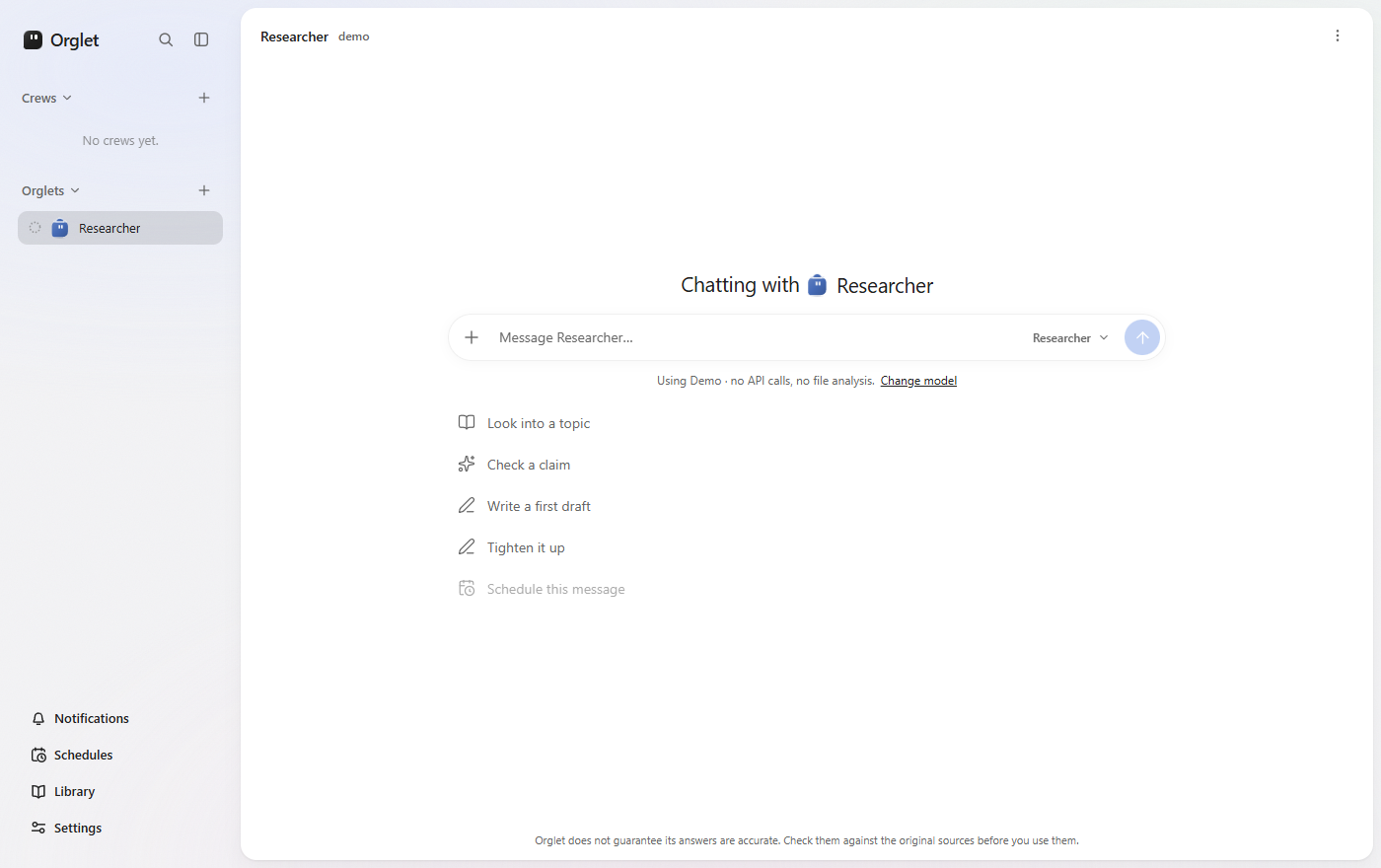
The Researcher worker starts on Demo, so you can try the app without any account. Connect a model under the message box leads to a real one.
To run the checks and build a package under out/make:
pnpm typecheck
pnpm test
pnpm make
On Windows that writes a ZIP and Squirrel Setup (unsigned). On macOS it writes a ZIP of Orglet.app. Local macOS makes stay unsigned unless APPLE_SIGNING_ENABLED=true and a Developer ID identity is in the keychain; CI signs when secrets exist. Notarization is a separate Apple ID / API key step.
Contributing
Issues and pull requests are welcome. Read CONTRIBUTING.md first; it covers setup, checks, the pull request flow, and how to work with an AI coding agent in this repo. Coding agents should start at AGENTS.md. Contributions need the Contributor License Agreement, and everyone follows the Code of Conduct. Report security problems privately as described in SECURITY.md.
Questions and ideas go to Discussions.
License
Orglet is free software under the GNU Affero General Public License v3.0. You can use, study, change and share it. If you share Orglet, or let other people use a changed version over a network, you must also share the source under the same license.
For a commercial license without those terms, contact [email protected].
Copyright (C) 2026 Nguyen Xuan An (CodePawl).
Tool access is checked by core against both the run's frozen permissions and the task's current permissions. Reducing permissions cancels active work; restored backups do not restore tool grants. See tool permissions.
Team assignments record an expected output, dependencies and editable resources. Independent work can run in parallel; overlapping resources are serialized, and a dependent worker waits for a committed prerequisite result.
The Windows workspace backend provides bounded file operations and isolated command processes in private copies. Public web tools require a separate task capability. The desktop controls and guarded integration of edited files are delivered separately; see agent tools.
Ask a worker to set the app up and it proposes rather than acts: a new orglet, a crew, a template, a skill, a schedule or a setting each arrive as a card in the chat that you apply or dismiss, through the same validation the dialogs use. A per-orglet switch can apply the safe ones automatically with Undo; raising a limit or anything proposed after reading the web, files or other workers' messages still waits for your click, and keys, connections, permissions and backups cannot be proposed at all. See proposing app changes.
Team workers can exchange durable questions, responses, blockers and handoffs within one turn. The lead resolves blockers or reassigns unfinished work to an existing member without expanding its permissions. See worker messages.
Workspace edits are integrated from private copies with version checks. Conflicts and interrupted writes remain visible and block automatic replay. Git workspaces use private worktrees; the original checkout is not used for worker commands. API workers and the three CLI adapters share the core tool dispatcher.
Reviews (0)
Sign in to leave a review.
Leave a reviewNo results found