cv4vs-agents
Health Warn
- License — License: GPL-3.0
- Description — Repository has a description
- Active repo — Last push 0 days ago
- Low visibility — Only 6 GitHub stars
Code Fail
- spawnSync — Synchronous process spawning in .claude/skills/cv4vs-run/driver.mjs
- process.env — Environment variable access in .claude/skills/cv4vs-run/driver.mjs
Permissions Pass
- Permissions — No dangerous permissions requested
No AI report is available for this listing yet.
Agentic coding inside Visual Studio — Claude Code with a rich chat pane, an interactive terminal, and the IDE (editor, solution, debugger) exposed to the agent over MCP.
cv4vs Agents — Claude Code for Visual Studio

Claude Code inside Visual Studio.
Built by a developer, for developers. Made in Italy. 🇮🇹




A Visual Studio 2022 / 2026 extension that brings the Claude Code CLI inside the IDE — a rich
chat experience plus an interactive terminal, both wired into Visual Studio's editor,
solution, debugger and build system.
It is not a fork of the CLI. It drives the real claude.exe (installed via npm,@anthropic-ai/claude-code); the binary is never bundled. Version differences are handled by
feature-detection, not by pinning a CLI version.
Design philosophy: lazy and fast. Nothing is built, read or started until you actually look at
it. The chat holds nothing in memory — the transcript is read from the session file on demand,
newest page first, older pages only as you scroll, and heavy blocks (images, sub-agent transcripts,
full diffs) only when you open them. Same for the rest: services, the MCP server and the panes
themselves start on first use, not on solution load. Long sessions and large solutions stay as light
and quick as an empty one.
Status: work in progress. This README is a living overview of what the extension does.
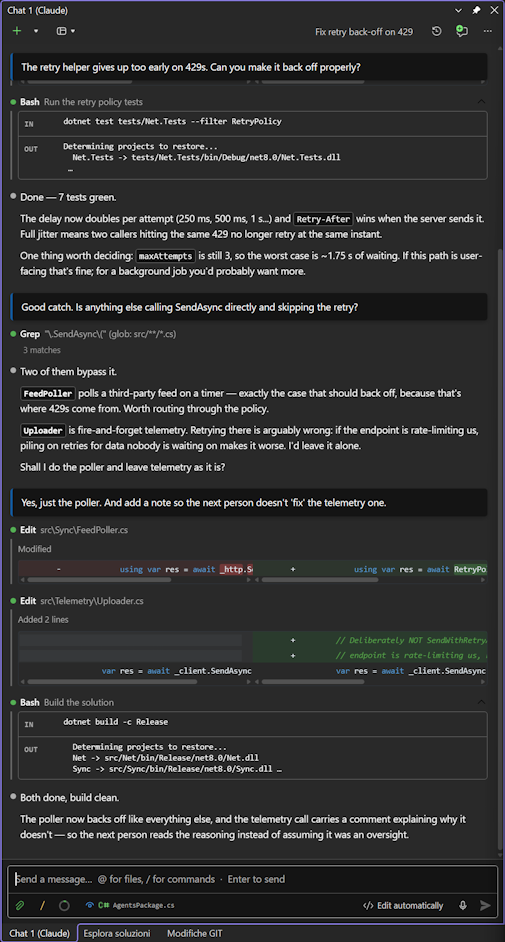
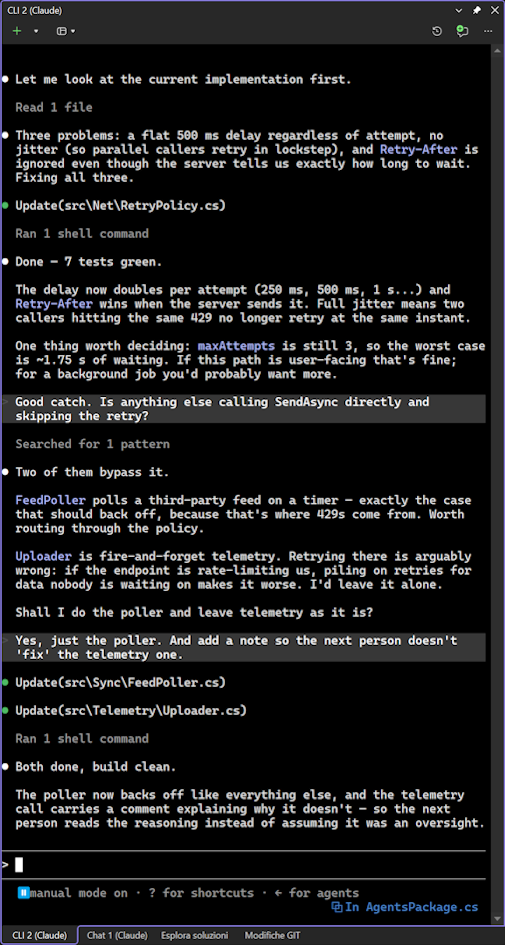
The same conversation in both panes: the rich chat on the left (inline diffs, tool rows, the
editor file attached to the prompt) and the real CLI on the right. One session store — open it
in either, or in VS Code.
Requirements
| Visual Studio | 2022 or 2026 (17.0+), any edition — on Windows 10 1809 or later |
| Claude Code CLI | installed separately — see below |
Quick start
1. Install the Claude Code CLI — the extension drives it, and never bundles it:
winget install Anthropic.ClaudeCode
# or: npm install -g @anthropic-ai/claude-code
Other platforms and installation methods are in Anthropic's
official setup guide.
2. Install the extension — from the
Visual Studio Marketplace,
or search cv4vs Agents in Extensions → Manage Extensions inside the IDE.
Then, in Visual Studio: View → cv4vs Agents → Claude. Type in the chat, or open a CLI
pane for the interactive terminal. The IDE tools (navigation, diagnostics, debugger) are wired
up automatically — nothing to configure.
No CLI installed? The pane says so and links to the setup guide, instead of failing silently.
Preview builds
Release candidates are tagged vX.Y.Z-rcN and published on the
Releases page with the .vsix attached —
they are not on the Marketplace, which takes neither a suffixed version nor a second upload of one
already published. Double-click the file to install.
Two things to know before trying one. They receive no automatic updates: a .vsix installed by
hand has no gallery behind it to check. And every preview of a release carries the same version
number — the -rcN suffix lives on the tag, because a VSIX manifest version is digits only — so
installing rc2 over rc1 is refused as already installed. Uninstall the previous preview first,
from Extensions → Manage Extensions.
Stable releases carry no .vsix: install them from the Marketplace, where updates arrive on their
own.
Features
- Two panes — a rich WebView2 chat and a real terminal (ConPTY),
both multi-instance and dockable side by side, each on its own session. - 51 MCP tools — Visual Studio's own navigation, references, rename,
diagnostics, build and the live debugger (breakpoints, stepping, locals, evaluate) handed to
the agent. Not text search over source: the IDE's semantic, running view of your program. - Review changes in VS's own diff — every Edit/Write shows as an inline diff,
and opens in Visual Studio's native, editable side-by-side diff: save (Ctrl+S) to accept or
close to reject, the CLI applies it only if you saved. - Clickable file references — when Claude writes
ClientEvents.cs:208(or a
range,Stats.cs:35-48, or a whole list,Package.cs:124,185,202) the reference becomes a link that
opens the file in VS — a range selects those lines, and every line in a list is its own link. It
works in plain prose, not just in markdown links — neither is true in the VS Code extension or
Claude Desktop. ~270 extensions out of the box, extendable from Options; code blocks stay untouched,
and clocks, host:ports and version numbers never become dead links. - Read a response aloud — a speaker button on each answer reads it out with the system voice
(Web Speech, no extra install); click to pause, click to resume. The markdown is spoken as plain
prose — no "asterisk asterisk", no code blocks recited. - The same sessions as VS Code and the terminal — no separate database: it reads and writes the
CLI's own session store, so a conversation started in the VS Code extension or in a terminal shows
up here, and vice versa. Resume, fork and rename all work on those shared files, so you can switch
editor mid-project without losing context. - It knows what you're looking at — the file open in the editor (and your
selection) rides along with the prompt, shown as a chip you can click to jump back to it. One
toggle turns the sharing off when you'd rather it didn't. - Jump between panes — a toolbar list of every open pane, Chat and CLI together, each with its
title and kind. Docked panes hide each other behind tabs; this is how you find the one you want. - Sub-agent panel — a chip shows how many sub-agents are running; click it
for a live list with per-agent Stop and Stop-all, so a fan-out never gets away from you.
Background/async agents are tracked too: the turn is "finished" only once they are. - Any Anthropic-compatible provider — profiles inject per-pane
environment variables (z.ai/GLM, MiniMax, DeepSeek, OpenRouter, Ollama…); the IDE tools keep
working. - Analytics tabs — full-window views under View → cv4vs Agents, all reading the local session
files with no telemetry:- Statistics — a navigable tree (All → Profile → Folder → Project →
Days/Sessions) driving summary tiles, an activity heatmap and per-day/per-model charts. - Usage — each profile's live plan and rate-limit windows, read from the CLI.
- Context usage — for any historical session, how it fills the model's
context window: a memory-map, category table and expandable trees (memory files, agents, skills,
MCP tools), fetched read-only by resuming the session.
- Statistics — a navigable tree (All → Profile → Folder → Project →
- Plugin manager — install from a marketplace, enable/disable what you have,
add marketplaces — from Installed / Available / Marketplaces tabs, without leaving the chat. - Talk to it — dictate the prompt instead of typing it: a mic button in the composer transcribes
as you speak (Web Speech API; hidden when the platform doesn't support it). - Hot-swap — model, permission mode and interrupt change on the live process, never a restart.
- Restore panes on solution open (opt-in) — reopen the panes you
had for a solution, each back on its own session. Off by default: opening a solution shouldn't
start agents you didn't ask for. - Tune it to your taste — 25 options across General, Chat and Debug: what
the chat shows, how diffs render, which keys send, the starting permission mode, autosave,
upload and@-picker filters, log verbosity. - It tells you when it needs you — with several panes working
at once, the one waiting on a permission raises a VS info bar, or an OS toast when you're outside
Visual Studio. Clicking it takes you to that pane, focus already on the question. - Nothing hidden — set the log level to
Traceand the Output window
shows every wire: the NDJSON traffic to and fromclaude.exe, the chat bridge, and each MCP tool
call. Every line is tagged with the pane it came from ([chat#2],[cli#1]), so several open panes
stay readable in the one Output window. Silent by default; invaluable when something misbehaves or
you're filing a bug. - Lazy and fast — nothing is read, built or started until you look at it: services, the MCP
server and the panes themselves start on first use, and the transcript is paged in as you scroll.
Why
I live in two editors. VS Code is light and quick, and Claude Code feels right at home there.
But when the work gets serious — a large solution, a real refactor, a debugger session that has
to just work — I reach for Visual Studio 2022/2026. For that kind of code, VS is, hands down,
the better tool.
There was only one thing missing: Claude, inside Visual Studio. Not in a browser tab, not in
another window — right there, next to the code, the solution, the debugger.
Everyone had the same advice: "just use the CLI", "use Claude Desktop", "use the chat in VS Code".
And they're all good — each of them has something I genuinely like: the raw power of the terminal,
the polish of the desktop app, the rich in-editor chat. But not one of them had everything
together, in the one place I actually work: Visual Studio.
So I stopped waiting for it to exist and rebuilt it, my way — the terminal and the rich chat,
both belonging to Visual Studio, wired into its editor, solution, debugger and build. Everything I
liked, under one roof.
And then, watching Claude work, a question kept nagging at me. Claude is astonishingly capable —
yet it navigates code with almost primordial tools: grep to find a symbol, a text Edit to
rename it. I've done that by hand. It's slow, and it's how you introduce bugs — miss one call
site, rename the wrong match. Meanwhile, in my IDE, Find All References and Rename Symbol are
native, exact, one keystroke away. So I asked the obvious question: why not give Claude that same
superpower?
The same goes for debugging. When something's wrong, I don't guess from reading the source — I set
a breakpoint, step through, evaluate an expression, watch the values change. That's how you know
what the code actually does. Why should Claude be blind to it? So I gave it that too.
That's what the MCP tools here are: they hand Visual Studio's own understanding of your code —
navigation, references, rename, diagnostics, and the live debugger (breakpoints, stepping,
locals, evaluate) — straight to Claude. Not text search over source, but the IDE's real, semantic,
running view of your program.
One more thing kept bothering me, and it wasn't about code at all. Claude fans work out to
sub-agents — several at once, off doing their own thing — and the chat just… sits there. Are they
still running? Have they finished already? What is that one actually doing? And if I've changed my
mind, how do I stop it? I found myself staring at a spinner with no idea whether to wait or give up.
So sub-agents got their own little panel: how many are alive, what each is doing right now, how long
it's been at it, and a Stop button next to every one of them. Not a progress bar — the truth.
Because what I really wanted was simple: a partner as sharp as me 😉 (maybe sharper), working the
IDE the way I do. This is that project. This is the why.
And yes — I built this CLI/chat for Claude with Claude. There's something funny about that, and
it was a genuinely fun little adventure: watching it sometimes deny things about itself, only to
turn around and build them. That's just part of the LLM game. The code here was written with
Claude's help.
Since 27 July 2026 the extension is self-hosting. It is developed inside itself: no VS Code, no
external terminal, no other editor — the Chat and CLI panes in the screenshots above are the ones
writing the next version. Which is also the toughest test there is: every rough edge turns up in the
day's work, not in a bug report.
On 10 August 2026 it debugged itself. Claude hit a bug, set a breakpoint through the extension's
own MCP tools — in the very Visual Studio instance hosting the pane it was typing into — stepped
through the live process, read the locals, found it, fixed it. The debugger was inspecting the
program that was running the debugger. It worked, which was somehow the surprising part. I mostly
watched. Almost as good as me 😏
— Daniele Corsini (Frank Lupo)
Two panes, one extension
The extension registers two dockable tool-window types, both multi-instance — open as many
Chat panes and as many CLI panes as you like, side by side, each on its own independent session,
docking as tabs. A busy dot on each pane's caption tracks which ones are working.
- Chat pane — a rich WebView2 UI (TypeScript + Lit). Drives
claude.exein headless mode over
the NDJSON stream-json control protocol. Exposes the IDE to the CLI via an in-process MCP server. - CLI pane — the interactive Claude Code CLI rendered with a real terminal (ConPTY), launching
claude.exe --ide. Reaches the same IDE tools over the WebSocket MCP channel.
Model, permission mode and interrupt are hot-swapped on the live process — changing them never
kills the CLI. The process respawns only for what truly can't change at runtime (working directory,
resuming another session, fork).
Profiles. Each pane can run on a different provider — native Claude, GLM/z.ai, or any other
Anthropic-compatible host — and the IDE tools work the same either way.
See Options → Profiles.
Chat features
Composer
- Multi-line prompt with Send/Stop, Enter-to-send (or Ctrl+Enter, configurable),
Shift+Enter for a newline. - Write while it is still answering — the message is held until the turn ends, then sent. Its
bubble appears straight away, greyed out so it does not read as already sent, and drops into place
below the reply it was waiting on, so each answer stays under the question that prompted it.
Stopping the turn discards what is still waiting, since the model was never given it. - Slash-command palette — a lightning button opens a unified palette; typing
/filters. It
lists the CLI's slash/skill commands plus built-in actions (Attach, Mention, Clear, Switch model,
Settings, Manage plugins, Open Claude in Terminal, Help, Report a problem). @mentions — inline file picker over the whole project tree: no depth limit, and the
filter matches the path, not just the file name, soui/compnarrows before you type a name.
Honours.gitignore, your own ignore patterns, and git'score.excludesFile.- Attachments — upload files/images from the computer, or paste image data straight into the
composer; removable attachment chips. Images are sent as images, PDFs as documents, the rest as text. - Prompt history — recall previous prompts with ↑/↓ (shell-style).
- Voice input — dictation via the Web Speech API (pulsing mic while recording; hidden when
unsupported). - Model switcher & controls — pick the model; toggle extended Thinking, Fast mode, an
Effort slider, and auto-switch-on-flag. - Notice bar — info/success/warning/error messages above the composer (e.g. rate-limit notices).
Conversation
- Tool rows — collapsible tool call/result rows; click a file to open it in VS; inline tool
errors (toggleable). On an Edit the selection lands on the lines that changed — taken from the
patch the CLI itself computed, so it is right even after the edit has been applied and the file
touched again (Select lines when opening file). - Inline diffs — Edit/Write rows show a diff (configurable context lines /
ignore-whitespace), expandable to a full-screen viewer with four view modes — split
(side-by-side), unified, patch, and auto, which switches between split and unified by
available width; an Open in Visual Studio button opens it in VS's native side-by-side diff.
There you review — and edit — the proposed change with the full editor, then save (Ctrl+S) to
accept it or close the tab to reject; the CLI applies the edit only if you saved. - Full Markdown rendering — tables, lists, blockquotes, links, and fenced code blocks rendered
with syntax highlighting (highlight.js) across all common languages. - Everything is copyable — a copy button on every message, tool row and code block, so any part
of the conversation can be lifted out as plain text. - Image lightbox and a welcome screen for empty chats.
- Cost and elapsed time, per turn — the spinner counts the seconds while the turn runs (and
while it is thinking); when it lands, the hover-actions row carries what the turn cost. Agent rows
do the same for their own run. Enable with Show cost and duration. - Back to the latest message — scrolling up puts a button in the corner that returns you to the
bottom of the transcript. - Lazy history — the transcript is read from the
.jsonlon demand: the newest page (batch of- first, older pages only as you scroll up, and heavy blocks (images, sub-agent transcripts, full
diffs) fetched only when opened. Nothing is held in memory up front — long sessions open fast and
stay light.
- first, older pages only as you scroll up, and heavy blocks (images, sub-agent transcripts, full
Sub-agents
- Sub-agent chip — while agents are running it shows a live count of active sub-agents; click the
button for a popover listing each one with a Stop, plus Stop-all — so you can see how many agents are
in flight and stop them. Background/async agents are tracked correctly (the turn's "finished" waits
for them). - Sub-agent transcripts are replayed in history. Collapsed rows show the last 3 steps; expanding
fetches the full run — see Sub-agents.
Permissions
- Permission-mode selector in the toolbar — Manual / Edit automatically / Plan /
Auto / Bypass (Bypass is gated behind an option). - Permission prompts & AskUserQuestion — an inline approval banner for tool use with
per-session/project "allow" suggestions, and interactive answering ofAskUserQuestion. The Ask
answer can be structured — several questions in one panel, each single- or multi-select — not
just a plain yes/no. Once answered, the row is compact by default (only what you picked); turn off
Compact Ask answers in Options to keep every option listed with your pick highlighted.
Context, usage & stats
A gauge in the composer shows how full the context window is; clicking it opens what is filling it,
your plan's rate limits, and historical usage — aggregated locally from the session files, with no
telemetry. See Context, usage & statistics.
Sessions
- Session manager — list, select-to-resume, inline rename, delete (with confirmation).
The list is always read fresh from the.jsonlfiles on disk each time you open it — no cached
index that can go stale — so a session started or renamed elsewhere (VS Code, the CLI) shows up
immediately. It stays fast by reading files in parallel with head+tail 64 KB windows, never
loading whole files. - Fork — fork a conversation into a new session from any user message.
- Session info — from the pane's … menu: the session's title, id and
.jsonlpath, the working
directory and profile, and whichclaude.exeis running it — path, version and PID. Chat panes add
what the page currently weighs. The first thing to open when something is running against the wrong
session, the wrong folder, or the wrong CLI. - AI-generated titles, session picker, and a New split button (default Chat or CLI,
configurable). - Restore panes on solution open (opt-in) — reopens the panes you had open for a solution,
each on its own session and profile, when you reopen that solution. State is saved per-solution;
a removed profile falls back to native, a deleted session opens fresh. Chat sessions restore
exactly; CLI terminals resume via a session id the extension assigns up front (so even a fresh
terminal is tracked). The panes come back in saved order, but not at their exact dock position —
see Known Issues.
Plugins
- Plugin manager — Installed / Available / Marketplaces tabs; install,
enable/disable, refresh, add a marketplace.
IDE integration
- IDE context badge — a chip above the composer showing the active file; click opens it at the
selection. An eye icon toggles whether the file/selection is shared with the session. - Post-edit diagnostics (experimental, off by default) — after Claude edits a file, feed back the
new errors/warnings that edit introduced (diffed against the Error List before the edit). The idea
is to close the edit → error → fix loop without a manual build, as the VS Code extension does. It is
currently unreliable in Visual Studio: VS only analyses files open in an editor, so right after the
edit the Error List is usually still empty and Claude gets nothing. Until that's solved, ask Claude to
read the errors — theide_get_diagnosticsMCP tool works, because it runs once the Error List has
settled. Enable via Options → Chat → Send post-edit diagnostics.
Pane attention notifications
With several chat panes open — or Visual Studio in the background — you'd otherwise have no way to
know which pane needs you. The extension draws your attention only when you're not already
looking at that pane:
- A pane needs input (a blocking permission /
AskUserQuestion): notified always — the model
is waiting on you. - A turn finishes: notified when you're elsewhere. Background/async sub-agents are handled
correctly — the "finished" notice waits until the agents actually complete, not the moment the
main turn returns.
How it reaches you depends on where you are:
- Inside Visual Studio, on another pane/editor → a VS InfoBar on the main window
("Chat #N needs your input" / "Chat #N finished") with a Go to pane action. - Outside Visual Studio (another app, another monitor, a tiling window manager) → an OS toast
— layout-proof, so it shows regardless of how your windows are arranged. Clicking the toast
brings VS to the front and activates the right pane. - Already on the pane (it's the active frame and VS has the OS focus) → nothing; you can see it.
The InfoBar / toast lands your focus on the open ask (its first choice), not the hidden textarea, so
you can answer immediately. It clears when you answer, click into the pane, or use "Go to pane".
Note: the docked VS tab caption can't carry this state the way VS Code's editor title does (VS
derives it from the window name), which is why the extension uses an InfoBar + OS toast instead.
Other
- CLI banner — a bar shown if the CLI process exits unexpectedly.
- Open Claude in Terminal — launch an interactive CLI session.
Authentication & security
The extension does not handle login, authentication or credentials — the CLI does. It only
launches and drives claude.exe; sign-in and token storage stay entirely on the CLI side, exactly
as they would from a plain shell. There are two ways to authenticate:
- Native Claude — log in the normal way, from a terminal: run
claude(or use Open Claude in
Terminal / a CLI pane) and follow the CLI's own/loginflow. The extension never sees or stores
your credentials. - A provider (GLM/z.ai, a gateway, any Anthropic-compatible host) — authenticate through the
usual environment variables (ANTHROPIC_BASE_URL,ANTHROPIC_AUTH_TOKEN, …), set at the OS level
or per pane via profiles.
Either way the extension holds no secrets of its own — it inherits whatever the CLI and the process
environment provide. One caveat: a profile's environment variables — an ANTHROPIC_AUTH_TOKEN
among them — are saved as plain JSON under %LOCALAPPDATA%. See
Settings and data for every file the extension writes and where.
MCP tools (the IDE, exposed to Claude)
An in-process MCP server hands the agent Visual Studio's own view of your code — 58 tools across
navigation, editing, build, the live debugger and IDE state — with nothing to configure. They are
language-agnostic by design: wired through Roslyn language services or language-agnostic VS/DTE
APIs, never a C#/VB-only path. There is no list of supported languages — whatever your Visual
Studio can do on a file, the agent can ask for; what it gets back depends on the language service
and the workloads you have installed.
Every tool is listed and described in MCP tools.
Options
All settings live under Tools → Options → cv4vs Agents, split into four pages — General,
Chat, Debug and Profiles (see Two panes, one extension).
Every setting is documented in docs/options.md.
Visual Studio persists them in its own settings store; profiles, per-solution state and caches
go to %LOCALAPPDATA% — see Settings and data.
What differs from the official VS Code extension
This extension aims for parity with Anthropic's VS Code extension where it makes sense, but Visual
Studio is a different host, so several things are done differently — or don't exist there:
- Two distinct panes (Chat + CLI), multi-instance. Open several chats and terminals side by
side, each on its own session, docking as tabs. The Chat pane (WebView2 + SDK-MCP) and the CLI
pane (ConPTY +--ideWebSocket) are deliberately separate startup paths. - Our own MCP tool suite for Visual Studio. The 58 tools above wrap VS's navigation, build and
debugger (start/step/breakpoints/inspect/hot-reload) and Error List — capabilities specific to
the VS host, built language-agnostic via Roslyn reflection and DTE, not tied to C#/VB only. - Sub-agents you can see and control. Their tool calls are grouped under the Agent row that
spawned them (last 3 steps, expand for the full run) instead of being interleaved into the
transcript, and a chip in the composer counts the ones still running — click it to stop any of
them, or all. See Sub-agents. - Pane attention notifications. With several panes open (or VS in the background), an InfoBar or
a layout-proof OS toast tells you which pane needs input or has finished — the VS docked tab can't
carry that state the way VS Code's editor title does. - Native
.jsonlsessions. Sessions are read directly from the CLI's~/.claude/projects/<folder>/*.jsonl(head+tail reads to avoid loading huge files); rename appends
acustom-titleentry, fork writes a new JSONL — no separate session store. - Lazy, memory-light history. The chat holds nothing in memory: the transcript is read from the
.jsonlon demand — the newest page loads first, older history pages in only as you scroll up,
and heavy blocks (images, sub-agent transcripts, full diffs) are fetched only when you actually
open them. A very long session opens fast and stays light instead of loading the whole conversation
up front. - Deep VS integration for viewing changes. Opening a file lands you in the real editor (optionally
on the referenced lines); Edit/Write changes open in Visual Studio's native, interactive
side-by-side diff — not a static rendered diff — so you review and edit with the full editor, then
save (Ctrl+S) to accept or close the tab to reject (the CLI applies the edit only if you
saved). - Context gauge + Usage/Context/Statistics dialogs rendered
natively in the chat, including historical statistics across the current chat, the whole project,
or all projects together.
Not implemented (yet): a rewind/checkpoint feature — the closest is Fork.
Architecture & build
How it's built (VS package, WebView2 chat, ConPTY terminal, in-process MCP server), the
performance choices behind the lazy history, and how to build the VSIX from source:
see Architecture & build.
Known issues
See docs/KNOWN_ISSUES.md for current limitations (mostly Visual Studio shell constraints).
Support
- Report a bug: bug report form
— also under View → cv4vs Agents → Help & Feedback, which pre-fills the version for you - Request a feature: feature request form
- Feedback: tell us how it's going
- Marketplace listing: cv4vs Agents
- Website: www.corsinvest.it
Taking part here means following our Code of Conduct.
Problems in claude.exe itself belong to
the CLI's own tracker — this extension drives
the CLI, it doesn't ship it.
Credits
Artwork by filocorsa — thank you.
Trademarks
Claude and Claude Code are trademarks of Anthropic, PBC. Visual Studio is a trademark
of Microsoft Corporation. This is an independent extension by Corsinvest Srl, not affiliated with
or endorsed by either company; the names are used only to describe what it works with.
License
GPL-3.0-only — Copyright Corsinvest Srl.
Reviews (0)
Sign in to leave a review.
Leave a reviewNo results found