sudoplz
Health Warn
- License — License: MIT
- Description — Repository has a description
- Active repo — Last push 0 days ago
- Low visibility — Only 9 GitHub stars
Code Fail
- Hardcoded secret — Potential hardcoded credential in tests/test_credentials.py
Permissions Pass
- Permissions — No dangerous permissions requested
No AI report is available for this listing yet.
Give Claude Code, Cursor, and other AI coding agents the ability to run sudo with case-by-case GUI approval. Passwords encrypted with your SSH key; no passwordless sudo required.
sudoplz
Give Claude Code, Cursor, and other AI coding agents the ability to run sudo — with case-by-case GUI approval, no passwordless sudo, no /etc/sudoers allowlists.
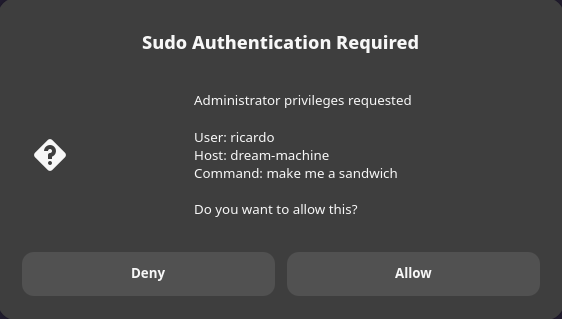
Your sudo password is encrypted to your SSH public key and only decrypted after you approve a dialog showing the exact command about to run. Deny the dialog and nothing happens.
Why
Coding agents can't handle interactive terminal prompts. Ask Claude Code to run sudo apt install foo and you get sudo: Authentication failed. The common workarounds all have problems:
- Passwordless sudo gives the agent — and anything else running as your user — unrestricted root.
/etc/sudoersallowlists require predicting every command the agent will ever need. No case-by-case review.- Manual copy-paste is tedious and breaks the agent's flow.
sudoplz plugs into sudo -A, so the agent runs sudo -A <command>, you see a dialog with the exact command, and you click Allow or Deny. Works for any command without pre-declaring what's permitted.
This threat model assumes a personal workstation with an encrypted disk and a passphrase-protected SSH key. Not appropriate for shared or production systems.
Installation
- Use traditional
sudo, notsudo-rs.sudo-rsdoesn't support askpass. Check withsudo --version— it should say "Sudo version 1.x.x". If you're onsudo-rs, switch:sudo update-alternatives --install /usr/bin/sudo sudo /usr/bin/sudo.ws 100 sudo update-alternatives --config sudo # pick sudo.ws - Make sure you have an Ed25519 or RSA SSH key. ECDSA and DSA keys are not supported.
- Install system dependencies:
age— required for SSH-backed password storage and TOTP.sudo pacman -S age/sudo apt install age/brew install age.zenityon Linux — provides the GUI approval dialog. Pre-installed on most GNOME-based distros;sudo apt install zenityif missing. Not needed on macOS (uses AppleScript).
- Install from PyPI with
uv:
This putsuv tool install sudoplzaskpassandsudoplzon your PATH. (For development: clone the repo and runuv tool install .instead.) - Point
SUDO_ASKPASSat the installed binary (add to~/.bashrc,~/.zshrc, etc.):export SUDO_ASKPASS="$(which askpass)" - Store your sudo password:
sudoplz set
Usage
Your agent (or you) runs sudo -A <command>. A dialog pops up showing the command. You approve or deny.
sudo -A apt install foo
Gotcha: sudo -n explicitly disallows prompting and will never trigger askpass. Always use -A.
Test the integration with:
sudoplz test
Security
Encryption at rest
New passwords use age encryption with an Ed25519 or RSA SSH key. The encrypted
payload, original key path, and creation time are stored together in~/.config/sudoplz/credential.json with 600 permissions. Key preference for new
credentials is Ed25519, then RSA. Adding another key does not change how an
existing credential is decrypted.
Without an SSH key, passwords use the system keyring with creation-time metadata
in the same credential file. A decryption failure never falls back to an older
password. Replacement and clearing retire previous storage; an empty record
prevents legacy credentials from being rediscovered after clearing.
Existing ~/.sudo_askpass.age and RSA ~/.sudo_askpass.ssh credentials are imported
on first use, preserving their original modification time. If both exist, the
newest file is selected. Legacy RSA keys can use OpenSSH or PEM format. A legacy
keyring entry has no reliable creation time: run sudoplz set again to use it with
expiration enabled. Keep the original SSH key available during migration.
Defense in depth
Encryption alone doesn't cover every abuse path — anything running as your user can in principle request decryption. The askpass script runs these checks on every invocation; any failure means no decryption:
- Caller path whitelist. Only decrypts when the caller's working directory is on an allowlist (home,
/tmp, etc.). Blocks invocations from unexpected locations like/var/tmp/malicious. - Caller process whitelist. Parent process must be on an allowlist (sudo, your shell, your IDE, your deploy tool). Keeps arbitrary binaries from invoking askpass directly.
- User confirmation. A GUI dialog asks for approval on each decryption, so any sudo elevation you didn't initiate is visible and can be denied.
- Rate limiting. Configurable max-attempts-per-hour and lockout window. Contains runaway scripts and brute-force attempts.
- Password expiration. Retrieval is refused after the configured age (default: 1 week), including keyring credentials. Expiration does not destroy stored data or revoke stolen copies; use
sudoplz clearto remove stored credentials.
Configure these in ~/.config/sudoplz/config.json — an example is shipped as askpass-config.json in the repo; copy it and edit. Unknown settings, invalid types, and invalid ranges are rejected; malformed policy never silently falls back to defaults.
Why age for Ed25519?
Ed25519 is a signing algorithm (EdDSA), not encryption. OpenSSL handles RSA encryption directly, but Ed25519 keys can't do asymmetric encryption at all. age was designed to work with SSH keys including Ed25519.
SSH key unlocking
Passphrase-protected SSH keys are unlocked in memory using cryptography[ssh].
Askpass requests the passphrase through a hidden GUI prompt, or a hidden terminal
prompt in headless sessions. The decrypted identity is piped to age; it is never
written to a temporary key file or placed in command arguments.
Unlocking is per invocation. When TOTP and the password use the same identity,
askpass prompts once during that invocation. There is no session-wide passphrase
cache and no ssh-agent requirement: age does not support ssh-agent.
A fully non-interactive session cannot unlock a passphrase-protected key. SupplyingTOTP authorizes the request but does not unlock the SSH key.
Commands
sudoplz set        # Store password (terminal prompt; expires per config, 1 week default)
sudoplz set-totp   # Store password with TOTP verification (headless)
sudoplz totp-setup # Set up TOTP for headless sessions
sudoplz get        # Check if password exists
sudoplz clear      # Remove password
sudoplz test       # Test sudo integration
sudoplz config --show  # View validated policy
sudoplz audit      # Show recent askpass usage
Headless/SSH usage with TOTP
For servers or SSH sessions without a display, authenticate with TOTP.
Initial setup (run once from a GUI session)
sudoplz totp-setup
Prints a TOTP secret and an otpauth:// URL to add to your authenticator app.
Setting a password from a headless session
sudoplz set-totp
Enter your 6-digit TOTP code, then your password.
Using sudo with TOTP
When DISPLAY isn't set, askpass prompts for a TOTP code:
# Interactive — prompts for TOTP code
sudo -A command

# Non-interactive — pass TOTP via environment
TOTP="123456" sudo -A command
Development checks
Install age, ssh-keygen, and openssl, then run:
uv run --group dev ruff check .
uv run --group dev mypy src
uv run python -m unittest discover -s tests -v
Tests use temporary SSH keys, dummy credentials, and an in-memory keyring.
Credits
The idea — an SSH-key-encrypted sudo password served via SUDO_ASKPASS, gated by a confirmation dialog — is from GlassOnTin/secure-askpass. That project is dormant; sudoplz is a substantially rewritten and cleaned up fork. Thanks to @GlassOnTin for the original idea.
License
MIT — see LICENSE.
Reviews (0)
Sign in to leave a review.
Leave a reviewNo results found