TurboJedi
Health Pass
- License — License: MIT
- Description — Repository has a description
- Active repo — Last push 0 days ago
- Community trust — 44 GitHub stars
Code Fail
- rm -rf — Recursive force deletion command in .github/package.sh
- rm -rf — Recursive force deletion command in install.sh
Permissions Pass
- Permissions — No dangerous permissions requested
No AI report is available for this listing yet.
Turbo Vision viewer of the systemd journal, scriptable in Lua, with an MCP server for AI agents
TurboJedi
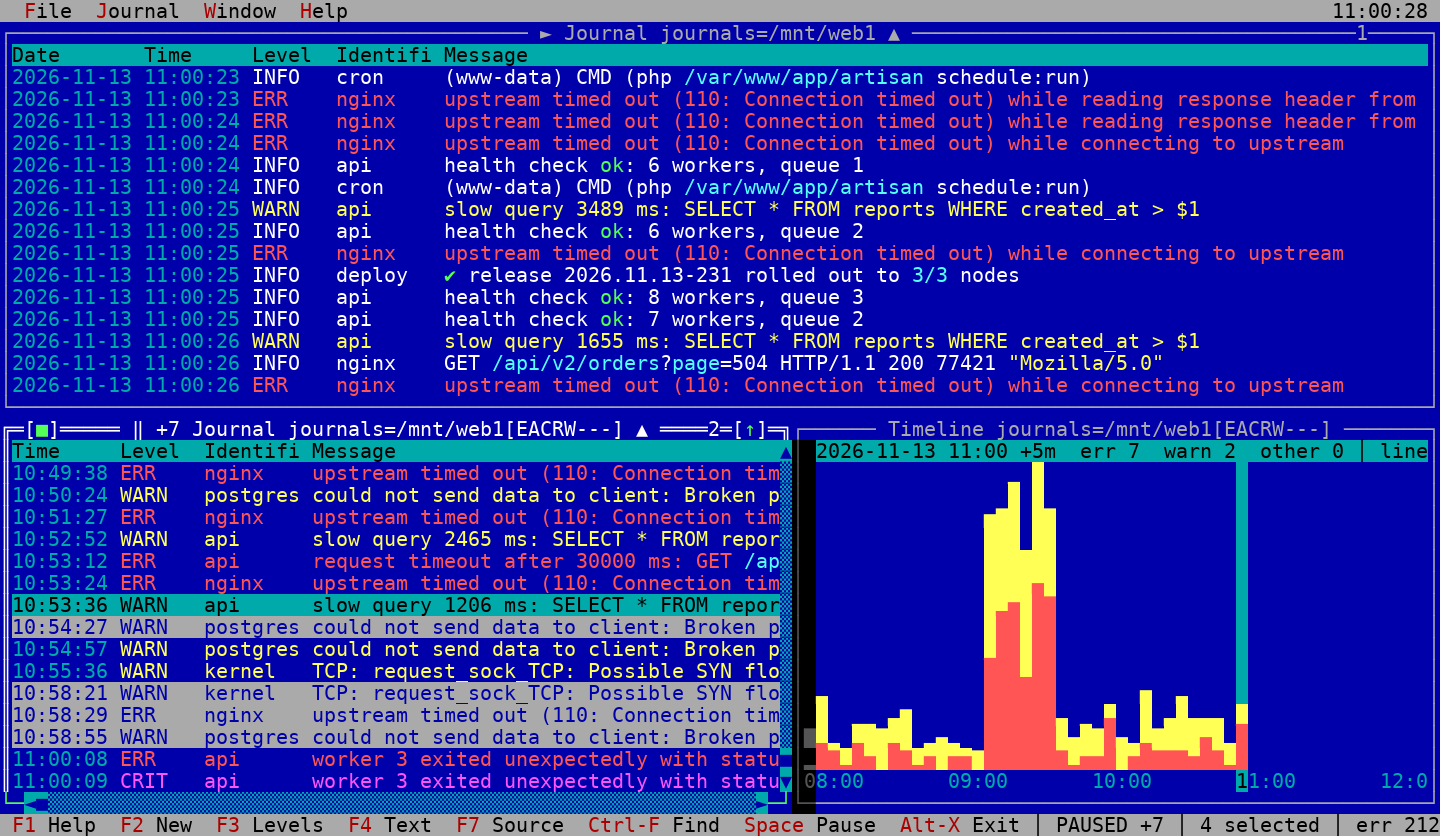
Turbo Journald Interface (J[e]DI) — a Turbo Vision viewer of the systemd journal. Every window is a journal client of its own:
its filter goes to the journal as a query, so a window of one unit or of errors only reads just those
entries, while other windows follow the whole system next to it.
It is scriptable in Lua 5.4: plugins make the Actions menu of an entry and watch the journal as it comes, see
PLUGINS.md. It is open to AI agents as well: turbojedi-mcp.py, a server of the Model Context Protocol,
gives Claude Code, Codex or another agent the windows you have open, over SSH; the agent finds and points at entries
on your screen, you act, see MCP.md.
Built on magiblot/tvision, libsystemd, PCRE2, Lua 5.4 and libcurl.
Features
- Windows with journals and filters of their own: journals of this machine, of every machine or of a directory,
one mounted from another machine over SSH or NFS as well,
levels, source (unit, identifier, command, transport, boot, user, machine, PID,
anyFIELD=VALUE), time range, and text, plain or a regular expression of PCRE2, to show or to leave out - Follows the tail, Space pauses; scrolling past the oldest line brings the older entries in. The title of every
window tells it: ► follows, ‖ is paused, ‖ +12 has 12 entries come meanwhile; a click on the sign pauses or follows.
A paused window that is full keeps
its lines and marks, the new entries are counted and come in when it follows again - The newest entries at the bottom or on top, like
journalctl --reverse, for every window of its own; the lines of
a message stay under it, the title ends with ▲ or ▼ and a click on it turns the order - Columns to choose: date, time, level, host, unit, identifier, PID; UTC, milliseconds, wrapped messages, hidden heading,
the newest on top - Highlighting of messages by rules: built-in ones for times, addresses, identifiers, paths, quoted text, key=value
and the words that matter, or any rule file of grc; colors of the escape sequences
a message comes with are shown under the rules, the rest of the sequences are taken out - Find with highlighting, next and previous, on into the older entries past the oldest line
- Clone of a window with its lines, filter, selection and place: one stays where it is, the other goes elsewhere;
a timeline is cloned with its counts, step and scale - List of the windows to go to, narrowed down by a filter
- Go to a time, and every other window to the time of the selected line: what happened elsewhere at that moment
- Details of an entry with all its fields, a field there opens a window narrowed to it
- Actions of an entry by plugins in Lua 5.4: Alt-F10, A, F11, Shift-F10 or a right click opens the menu of what the
plugins offer for it, each item named with its plugin. The plugins of the package only look: the status and the
unit file of the unit of the entry and its process in top, the route, lookup, whois, ping and path of an address,
a core dump in coredumpctl and gdb, the attacks on the SSH server in a watch; fail2ban, block devices, Asterisk, alerts
and a chat are in the examples. Plugins ask
with dialogs, run commands in the background, in a window or on the terminal, ask web services over HTTP and keep
sockets and timers going, see PLUGINS.md - Watches of plugins: entries of a filter as they come, a status and lines of each in a list, F12; Watch 1/3 * in the
status line tells about new ones, an important one brings the list up with a bell - AI agents: every instance offers its workspace on the system bus, and
turbojedi-mcp.pygives it to an agent such
as Claude Code or Codex over SSH: the windows, the entry under the cursor, the marked entries, queries of the journal
and the watches. The agent marks entries, puts the cursor on one, takes a window to a moment or opens one, the status
line tells it; it runs nothing, the user acts. See MCP.md, the interface itself in DBUS.md - Selection with the keyboard or the mouse, copy to the clipboard (OSC 52 over SSH), export to a file
- Timeline: entries of the filter of a window by intervals of time, errors, warnings and the rest stacked
in a column per interval; a column takes every journal window to its time - Layouts: all windows with their filters, columns and places, saved to and opened from INI files;
the last one comes back on the next start - Check for updates in the Help menu: asks GitHub for the latest release only when chosen, shows it
with the command of the install script; nothing goes to the network otherwise. Its answer has the choice
of a check on start, once a day and only about a newer release, kept in$XDG_CONFIG_HOME/turbojedi/update.ini;
the first start without that file asks for the choice once, Yes or No
Installation
Ready packages of every release are on the releases page:
Debian 12 and 13, Ubuntu 22.04, 24.04 and 26.04, Fedora 44, RHEL 9 and 10 (and their rebuilds), Amazon Linux 2023,
openSUSE Tumbleweed and Leap 16 on amd64 and arm64, Arch Linux on amd64. GitHub Actions builds each of them in a container
of its distribution. The script takes the one that fits:
curl -fsSL https://raw.githubusercontent.com/cyanide-burnout/TurboJedi/master/install.sh | sh
It asks for sudo when not run as root, TURBOJEDI_VERSION=0.6 before sh takes that release instead of the latest one.
Run again, it updates TurboJedi and leaves it alone when that release is installed already. After an upgrade of the
distribution it puts the package of the same release built for the new one; Check for updates tells about it as well.
Raspberry Pi OS of 64 bits is Debian on arm64 and has packages; on 32 bits (armhf) TurboJedi builds from the sources.
By hand:
sudo apt install ./turbojedi_<version>_<distribution>_<arch>.deb
sudo dnf install ./turbojedi-<version>-1.<dist>.<arch>.rpm
sudo zypper install --allow-unsigned-rpm ./turbojedi-<version>-1.<tumbleweed|leap16>.<arch>.rpm
sudo pacman -U turbojedi-<version>-1-x86_64.pkg.tar.zst
Alpine has no systemd, so there is no journal to show. Elsewhere TurboJedi builds from the sources.
Building
Debian packages: build-essential cmake pkg-config libsystemd-dev libncurses-dev libpcre2-dev liblua5.4-dev libcurl4-openssl-dev,libgpm-dev for the mouse in the Linux console, and grc for its rule files if they are wanted
git submodule update --init
make
sudo make install
A clone is updated with its submodule, a plain git pull leaves tvision where it was untilgit submodule update --init:
git pull --recurse-submodules
make
make builds tvision in Import/tvision/build first, and again what has changed in it after the submodule has
moved. make install puts the executable to /usr/local/bin, the manual page to /usr/local/share/man/man1 and the
plugins to /usr/local/share/turbojedi, PREFIX and DESTDIR move them. Without libgpm the build goes on, with the mouse in terminal emulators only; the mouse
of the Linux console needs the gpm service running.
libcurl serves Check for updates and the requests of plugins. Lua 5.4 is needed; distributions name its pkg-config module in
their own ways, lua5.4, lua54 or lua, any of them of version 5.4 is taken.
About, --help and Check for updates link to the repository on GitHub the clone comes from, its origin, so a fork links
to itself and checks its own releases. A copy without git or a clone of another host has none, make REPOSITORY= leaves
it out on purpose and make REPOSITORY=https://github.com/owner/name names another one.
Debian package
sudo apt install debhelper
make deb
make deb builds turbojedi_<version>_<arch>.deb and its -dbgsym next to the directory of the project, with
the files in /usr. The version comes from git describe the way the program shows it: v0.1-3-gabcdef becomes0.1+3+gabcdef.
make deb DISTRIBUTION=amd64 builds for another architecture, with the cross compilers and the libraries of
that architecture in place:
sudo dpkg --add-architecture amd64
sudo apt update
sudo apt install crossbuild-essential-amd64 libsystemd-dev:amd64 libncurses-dev:amd64 libpcre2-dev:amd64 libgpm-dev:amd64 libcurl4-openssl-dev:amd64 liblua5.4-dev:amd64
RPM package
sudo dnf install rpm-build gcc-c++ make cmake systemd-devel ncurses-devel pcre2-devel gpm-devel libcurl-devel lua-devel
make rpm
make rpm builds rpmbuild/RPMS/<arch>/turbojedi-<version>-1.<dist>.<arch>.rpm for Fedora, RHEL and Amazon Linux,
with the version the same way. RHEL 9 and its rebuilds have lua-devel in CRB: sudo dnf config-manager --set-enabled crb. openSUSE takes the same
packages from zypper with lua54-devel and gcc-PIE, gives no tag of its own
and gets it by make rpm DIST=tumbleweed or DIST=leap16.
Arch Linux package
sudo pacman -S --needed base-devel cmake git pkgconf gpm curl lua54
make arch
make arch builds arch/turbojedi-<version>-1-<arch>.pkg.tar.zst with makepkg, as a user other than root.
Packages of a release
A tag v* makes GitHub Actions build all the packages and put them to its release. The notes of the release are the
section of CHANGELOG.md for its version, written before the tag.
Usage
turbojedi [options] [FIELD=VALUE ...]
| Option | |
|---|---|
-t, --identifier ID |
entries of SYSLOG_IDENTIFIER |
-u, --unit UNIT |
entries of a systemd unit, .service is assumed without a suffix |
-U, --user USER |
entries of a user, by name or number |
-p, --priority LEVEL |
entries up to LEVEL: emerg … debug or 0 … 7 |
-k, --kernel |
kernel messages only |
-S, --since TIME |
entries from TIME on |
--until TIME |
entries up to TIME |
-b, --boot |
entries of the current boot |
-D, --directory DIR |
journal files of DIR in the first window |
-m, --merge |
journals of every machine there are in the first window, like journalctl --merge: other machine IDs in /var/log/journal and /var/log/journal/remote of systemd-journal-remote |
-n, --lines N |
history to start with, 1000 by default |
-r, --reverse |
the newest entries on top in the first window, like journalctl --reverse |
-H, --highlight NAME |
highlighting rules: builtin (default), off, a rule file of grc such as conf.log, or a path |
-c, --layout FILE |
windows of a saved layout |
--clipboard-copy COMMAND |
command of sh that takes copied lines on its standard input, over $TURBOJEDI_CLIPBOARD_COPY |
TIME is 2026-10-23 19:00[:00], 2026-10-23, 19:00, now, today, yesterday, tomorrow or a relative
one as journalctl takes it: -1h, +30m, -1h 30min, -2days, 5min ago (us, ms, s, min, h, d, w,M, y and their longer names).
Reading the whole journal needs root or the systemd-journal group, others see their own entries only.
Copy (Ctrl-Ins, and Copy in the details) goes to the clipboard of the terminal by OSC 52 or to a clipboard tool
of the desktop. A command of your own takes the lines instead, such as remote-copy.sh of
RemoteClipboard that brings them home over an SSH socket:
export TURBOJEDI_CLIPBOARD_COPY="$HOME/remote-copy.sh"
turbojedi
When the command exits with an error or does not finish in 3 seconds, the clipboard of the terminal takes the
lines as usual. Input lines of the dialogs keep the clipboard of Turbo Vision, pasting is up to the terminal.
Under sudo the command runs as root, while the clipboard belongs to you: remote-copy.sh looks for the socket
of $USER, and sudo leaves TURBOJEDI_CLIPBOARD_COPY and SSH_TTY out of the environment. Give the command
by the option and let it go back to your user, sudo -u sets USER and HOME of that user:
sudo turbojedi --clipboard-copy "sudo -u $USER $HOME/remote-copy.sh"
Your shell puts in $USER and $HOME before sudo starts.
Journals of other machines
A journal directory mounted from another machine opens with -D or Shift-F7 like any other directory, with the filters,
the history, the timeline, the details and Alt-G. /var/log/journal opens as it is, with the directories of machine IDs
in it; a machine that keeps its journal in memory only (Storage=volatile) has it in /run/log/journal. A network file
system or FUSE tells nothing about appended entries and new files, TurboJedi looks at the files every second instead and
opens the journal again after a rotation.
Over SSH with sshfs, as a user of the group systemd-journal on that machine or as root:
mkdir -p ~/journals/web1
sshfs -o ro,reconnect,cache=no,ServerAliveInterval=15 admin@web1:/var/log/journal ~/journals/web1
turbojedi -D ~/journals/web1
fusermount -u ~/journals/web1
cache=no lets the appended entries in at once, sshfs keeps what it knows about a file for 20 seconds otherwise and they
come in by those steps. With reconnect the files open before the connection broke cannot be read anymore, the windows
open their journals again when it is back and go on after their last lines.
Over NFS, exported read-only by that machine in /etc/exports:
/var/log/journal monitor.example.com(ro,no_subtree_check)
and mounted where TurboJedi runs:
sudo mkdir -p /mnt/journals/web1
sudo mount -t nfs -o ro web1:/var/log/journal /mnt/journals/web1
turbojedi -D /mnt/journals/web1
The files are root:systemd-journal with mode 0640 and NFS compares numbers: the user who reads them needs a group with
the GID systemd-journal has on that machine, root reads them only with no_root_squash in the export. A mount of NFS ishard unless told otherwise: while the server is away, and during its grace period of 90 seconds after a start, the windows
wait for it the way every program on that mount does, and go on when it answers.
A window per machine, each with its directory chosen by Shift-F7, puts several machines side by side: Alt-G takes every
window to the time of the selected line, and a layout keeps their directories for the next start.
Keys
| Key | |
|---|---|
| F1 | keys |
| F2 | new window with the filter of the command line |
| Shift-F2 | clone of the focused window: its lines, filter, find, selection and place, or the counts, step, scale and cursor of a timeline; both go on with the journal on their own |
| F3 | levels |
| F4 | text filter |
| F7 | source |
| Shift-F7 | journals: of this machine, of every machine or of a directory |
| Ctrl-T | time range |
| Ctrl-K | columns |
| Ctrl-W | wrap long messages |
| Ctrl-R | the newest entries on top or at the bottom; the title ends with ▲ when they are at the bottom, ▼ when on top, a click on it turns the order too |
| Ctrl-L | highlighting rules |
| Ctrl-F, Ctrl-N, Ctrl-P | find, next, previous |
| Ctrl-G | go to a time |
| Alt-G | every other window goes to the time of the selected line |
| Ctrl-Z | undo navigation: back along the moves of the window, every move of the cursor by the keys or the mouse, Ctrl-G, Alt-G and a find, the last 64 of them; marks and lines are not undone; also Alt-Left and Alt-Backspace |
| Ctrl-Y | redo navigation: forward again where Ctrl-Z has come from, also Alt-Right; a new move after Ctrl-Z drops the way ahead |
| Alt-T | timeline: entries of the filter of the window by intervals of time; Left and Right move, Enter takes every journal window to the interval, + and - change the step, L the scale |
| Up, Down, PgUp, PgDn, Home, End | move the cursor, it starts on the newest line of the screen; on the newest line the window follows, anywhere else it pauses |
| Enter, double click | details of the entry under the cursor, Enter on a field there opens a window with it added to the filter |
| Alt-F10, A, F11, Shift-F10, right click | actions of the plugins for the entry under the cursor, see PLUGINS.md; A is for Terminal of macOS, which keeps F10 and F11 for itself |
| Space | pause or follow, also a click on ► or ‖ in the title |
| Shift+arrows, mouse | select lines from the cursor, Esc drops the selection and the marks, the cursor stays |
| M, Insert | begin marking from the cursor, the keys mark the lines they pass; M again ends it and they stay marked, so lines apart are marked one stroke after another. Begun on a marked line it takes the marks off instead. No Shift is needed, which Terminal of macOS and some others keep for themselves |
| Click | put the cursor on a line, the marks stay; in a stroke of M the click goes on with it as the keys do. Ctrl+click marks a line or takes its mark off, Shift+click and dragging select |
| Ctrl-Ins | copy the selected lines or the line under the cursor |
| Ctrl-E | export the selected lines or all of them |
| F8 | clear the window |
| Ctrl-O, Ctrl-S | open, save a layout; both start at the layout opened or saved last, Save offers its file again |
| F5, Ctrl-F5, F6, F9, Alt-F3 | zoom, size, next, tile, close |
| Alt-0 | list of the windows to go to, the one used before is under the cursor |
| F12 | watches of plugins with their status, Enter shows the lines of one, Delete or Backspace removes it, U turns their times to UTC and back |
| Alt-X | exit |
Layouts
A layout is an INI file with a [journal] section per window of the journal ([window] in older layouts):
[journal]
bounds = 0 0 120 28
unit = nginx.service
text = timeout
regex = yes
levels = EACRW---
highlight = conf.log
columns = date,time,level,identifier,pid,millisecond
Keys: bounds, directory, merge, unit, identifier, command, transport, boot, user, machine, pid, match (repeatable),since, until, text, regex, exclude, case, levels (letters EACRWNID of the levels shown, dashes
for the hidden ones), highlight and columns (date, time, level, host, unit, identifier, pid, utc,millisecond, wrap, headless, reverse).
A timeline is a [timeline] section with bounds, the keys of the filter it counts, step (seconds of an interval,0 lets the window choose one that fits) and scale (linear or log):
[timeline]
bounds = 0 28 120 42
unit = nginx.service
levels = EACRWNID
step = 3600
scale = log
The list of watches of plugins is a [watchlist] section with its bounds, the lines of a watch a [watchlines] section
with bounds and the plugin and key of the watch, which find it when the layout opens; a watch without a key is
found by its title and index among the watches of the same plugin and title in the order they have been set; the watches
themselves are kept by their plugins in a [watches] section, see PLUGINS.md, which has utc = yes when
their times are of UTC:
[watchlist]
bounds = 5 8 115 26

[watchlines]
bounds = 7 9 117 27
plugin = tetrapack
key = context:41d48349-56d6-4e73-b2b9-bb45e9df0c97
title = Context 41d48349-56d6-4e73-b2b9-bb45e9df0c97
Highlighting
Rules are those of grc: regexp= with colours= for the match and its groups,count=once, more or stop, entries apart by lines of - or =. Rule files come from ~/.grc,/usr/local/share/grc and /usr/share/grc, or by a path. Colors go over the color of the level, light ones for
the blue window; rules of several lines (count=block) and replacements are left out. The built-in rules are
written the same way in Source/JournalHighlighter.cpp.
Plugins
The Actions menu of an entry, Alt-F10, A, F11, Shift-F10 or a right click, is made by plugins in Lua 5.4 from/usr/share/turbojedi/plugins, /usr/local/share/turbojedi/plugins and ~/.config/turbojedi/plugins. The package
brings plugins that only look:
010-systemd.lua: the status of the unit of the entry in a window or to the clipboard, its unit file, its process
in top020-network.lua: an item for every address of the message, its route, lookup, whois, ping, path or a copy are chosen
there, the ones whose programs are installed030-coredump.lua: for an entry of systemd-coredump, what coredumpctl knows of that dump, a copy of it, its stack in
gdb040-ssh.lua: a watch of the attacks on the SSH server of this machine while TurboJedi is open, an address a line
with its failures and the user names it has tried; a login after failures or a flood of tries brings the list of
watches up with a bell
Plugins that change things, or that would come up by chance, are examples in /usr/share/turbojedi/examples and are not
run by themselves: 100-fail2ban.lua; 100-storage.lua, the device, mounts, udev and SMART of a block device an
entry of the kernel or smartd names; 100-asterisk.lua, the calls, channels, endpoints, AORs, modules and dialplan of an entry
of Asterisk, shown, traced in the journal, hung up or reloaded through asterisk -rx; 100-alert.lua, watches of the
journal by rules of ~/.config/turbojedi/alert.conf, while TurboJedi is open; 100-chat.lua, the entry or the
marked ones sent to Slack, Mattermost, Rocket.Chat, Discord, Telegram or ntfy through a webhook told in~/.config/turbojedi/chat.conf.
The fail2ban example bans or unbans an address of the entry, after asking for the jail and a confirmation; it needs
root. A link to it turns it on and follows the updates of the package, for the whole machine:
sudo mkdir -p /usr/local/share/turbojedi/plugins
sudo ln -s /usr/share/turbojedi/examples/100-fail2ban.lua /usr/local/share/turbojedi/plugins/
or for root alone:
sudo mkdir -p /root/.config/turbojedi/plugins
sudo ln -s /usr/share/turbojedi/examples/100-fail2ban.lua /root/.config/turbojedi/plugins/
TurboJedi reads plugins at start, it takes the plugin when started again. The items are there when fail2ban-client
is in PATH and the message of the entry has an address. Removing the link takes it away, a link left behind by
a removed package is told about at start. A build installed bymake install has the example in /usr/local/share/turbojedi/examples.
How to write a plugin: PLUGINS.md.
AI agents
turbojedi-mcp.py is a server of the Model Context Protocol: an agent on your machine starts it over SSH and sees the
TurboJedi you have open on the server, its windows, cursor, marks, watches and the journal. The agent points, you act:
it marks entries, moves the cursor, takes a window to a moment or opens a window of its own, and API: ... in the
status line tells you so; it never runs the actions of the plugins or commands. With Python 3 and dbus-python on the
server:
claude mcp add turbojedi -- ssh server turbojedi-mcp.py
How to connect Claude Code, Codex or another client, and what to ask: MCP.md. The interface on the system
bus, for scripts of your own: DBUS.md.
Last layout
On exit the layout is kept in $XDG_CONFIG_HOME/turbojedi/last.jedi (~/.config/turbojedi/last.jedi)
and opened on the next start, unless a layout or filter options are given.
Reviews (0)
Sign in to leave a review.
Leave a reviewNo results found