avibe
Health Pass
- License — License: MIT
- Description — Repository has a description
- Active repo — Last push 0 days ago
- Community trust — 453 GitHub stars
Code Pass
- Code scan — Scanned 12 files during light audit, no dangerous patterns found
Permissions Pass
- Permissions — No dangerous permissions requested
No AI report is available for this listing yet.
Your AI agent army, commanded from Slack/Discord/Telegram/Wechat/Lark. Stream Claude Code, OpenCode, or Codex in real-time — from anywhere.
Avibe
Your AI colleagues, present in Slack, Discord, Telegram, WeChat & Lark.
No laptop. No IDE. Just vibes.



Supported Platforms



Supported Agents



The Pitch
You're at the beach. Phone buzzes — production's on fire.
Old you: Panic. Find WiFi. Open laptop. Wait for IDE. Lose your tan.
With Avibe: Open Slack, Discord, Telegram, or WeChat. Type "Fix the auth bug in login.py". Watch Claude Code fix it in real-time. Approve. Sip margarita.
AI works. You live.
Install in 10 Seconds
curl -fsSL https://avibe.bot/install.sh | bash && vibe
Open source — view the script on GitHub. The short URL is a 307 redirect to that file.
That's it. Browser opens -> Follow the wizard -> Done.
Need to open the Web UI from another device or a remote server? Run:
vibe remote
We recommend the WSL setup on Windows because it has the best compatibility.
- Recommended: Run Avibe with WSL from Scratch
If you are new to WSL, this guide explains:
- where to install WSL
- which terminal window to use
- where to run the Avibe install command
- how to launch Ubuntu and open the Web UI
What Ships Today
Not an agent framework. Not a hosted coding VM. Avibe is the local-first Agent OS that brings the AI agents already running on your machine into the Web and chat surfaces where you already collaborate.
- Chat apps become collaboration spaces: Slack, Discord, Telegram, WeChat, and Lark / Feishu.
- Real agents, no middleman: Today's first-class backends are Claude Code, OpenCode, and Codex.
- Thread = session: Start five threads, run five isolated agent jobs, resume later.
- Web setup, not token archaeology: Local wizard, dashboard, routing, and health checks.
- Remote UI when you need it:
vibe remoteopens your local Web UI through a secure avibe.bot tunnel. - Walk away without losing the loop: Completion notifications and the Agent Harness keep work moving while you live your life.
Why This Exists
| Problem | Solution |
|---|---|
| Claude Code is amazing but lives in a terminal | Slack/Discord/Telegram/WeChat/Lark can become the collaboration surface |
| Context-switching kills flow | Stay in one app |
| Start on desktop, continue on phone | Resume the exact agent session from the current project in seconds |
| Can't code from phone | Yes you can |
| Multiple agents, multiple setups | One chat app, any agent |
Supported Agents:
- Claude Code — Deep reasoning, complex refactors
- OpenCode — Fast, extensible, community favorite
- Codex — OpenAI's coding model
Meet Vibey

Lives in your Slack, Discord, Telegram, Lark, or WeChat. Reads the room. Picks up where you left off. Asks the right question when it's not sure. Goes quiet when you're heads-down. Ships at 2am because that's when the vibe hits — then leaves a note about what it touched.
Avibe is the wire. Vibey is the colleague on the other end.
Forgets nothing. Holds opinions. Says thanks when you fix its bugs.
Why Avibe over OpenClaw?
| Avibe | OpenClaw | |
|---|---|---|
| Setup | One command + web wizard. Done in 2 minutes. | Gateway + channels + JSON config. Expect an afternoon. |
| Security | Local-first. Socket Mode / WebSocket only. No public endpoints, no inbound ports, minimal attack surface. | Gateway exposes ports. More moving parts, more attack surface. |
| Token cost | No extra reasoning loop in the middleware. Tokens go to your chosen agent, not to a second assistant layer. | Every message carries a long system context for maintaining agent persona, IM tooling, and orchestration plumbing. Tokens burn on overhead before your actual task even starts. |
OpenClaw is a personal AI assistant — great for casual chat, but its always-on agent loop makes it expensive for real productivity workloads. Avibe is not an agent framework. It is a local-first collaboration runtime for the AI agents you already trust: the agent stays itself, your data stays local, and the colleague experience comes from putting the agent into the same communication flow where human work already happens. Coding is the first strong workload, not the product boundary. Every token goes straight to your task.
Highlights
Setup WizardOne-command install, guided configuration. No manual token juggling.
|
DashboardReal-time status, health monitoring, and quick controls.
|
Channel RoutingPer-channel agent configuration. Different projects, different agents.
|
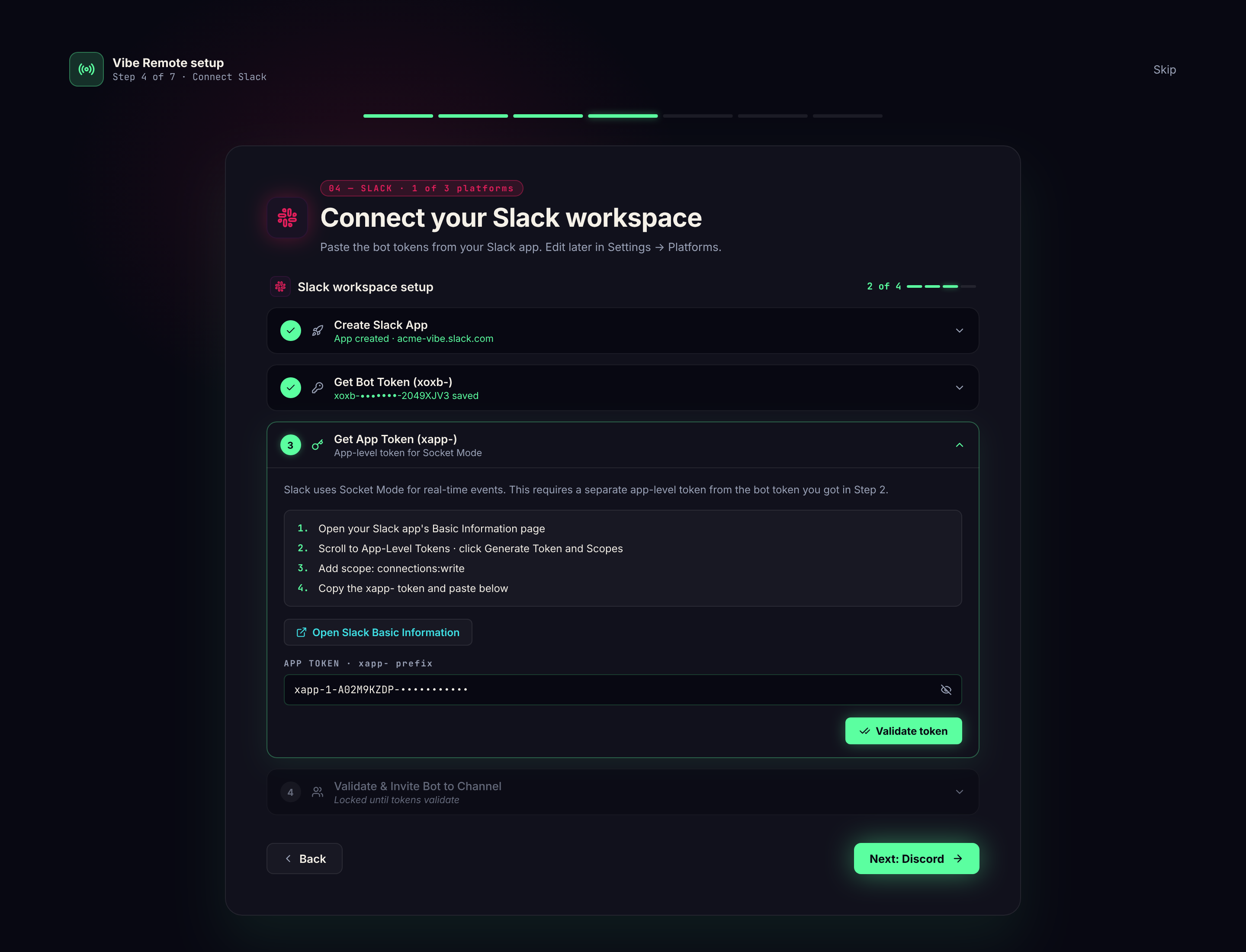
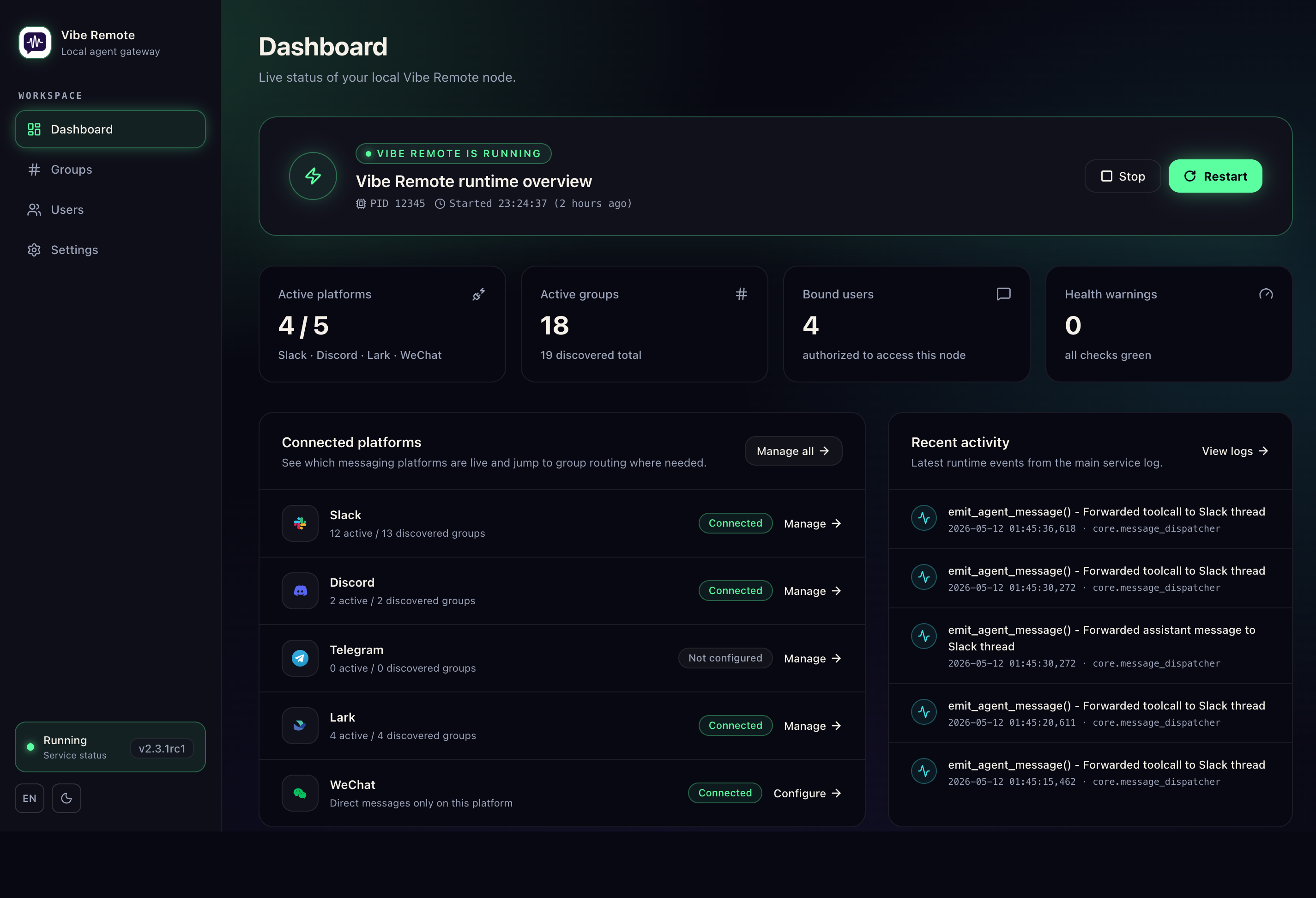
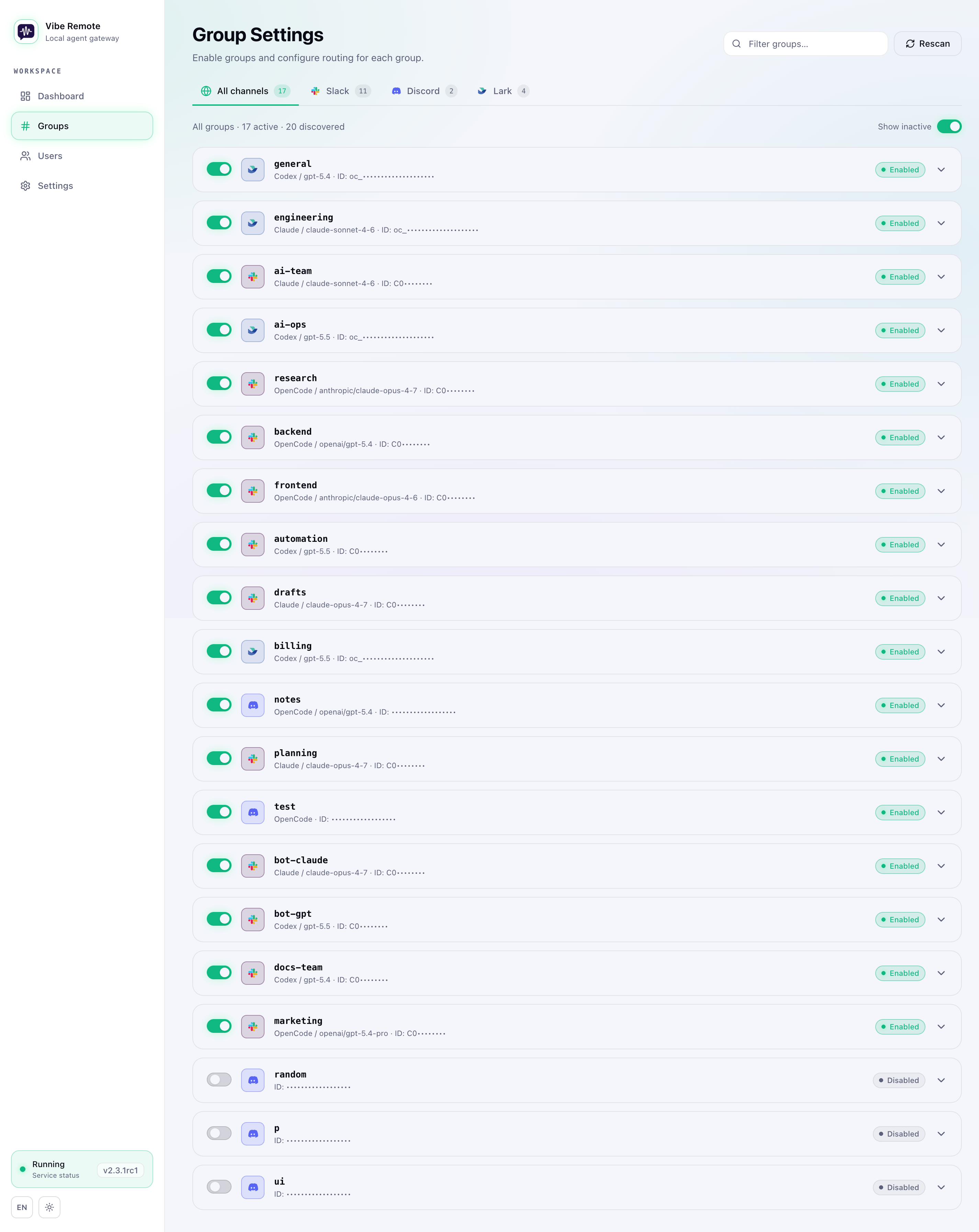
Instant Notifications
Get notified the moment your AI finishes. Like assigning tasks to employees — delegate, go do something else, and come back when the work is done. No need to babysit.
Thread = Session
Each Slack/Discord/Telegram/WeChat/Lark chat scope is an isolated workspace. Open 5 chats, run 5 parallel tasks. Context stays separate.
Resume Anywhere
Laptop closed. Commute started. Production still needs you.
Avibe lets you reopen real agent sessions from your current working directory across Claude Code, OpenCode, and Codex. Pick the latest session, jump from desktop to mobile, and keep going without re-explaining the task, hunting for an old thread, or losing the thread of thought.
Interactive Prompts
When your agent needs input — file selection, confirmation, options — your chat app pops up buttons or a modal. Full CLI interactivity, zero terminal required.
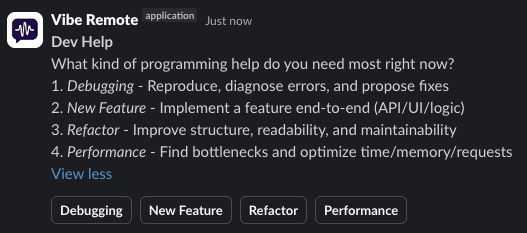
Harness
Avibe gives agents a real harness: a small set of durable tools they can combine to work on their own timeline, more like a colleague than a command you have to babysit.
Think of it like giving your AI colleague a task board, a calendar, and a notification center:
vibe agent runstarts one concrete Agent Run. It can be synchronous when you want an answer now, or async when the agent should keep working in the background.vibe tasksaves time-based work: "run this every morning", "remind me tonight", "check this once after lunch".vibe watchwaits for the world to change: a PR review, CI result, deployment, file, log line, or long-running process.vibe runslets the agent inspect what happened, continue from a run, or cancel work when the situation changes.
The important part is that you do not have to memorize all of that. Agents can learn these primitives and use them as building blocks.
Ask in normal language:
- "Watch this PR and come back when there is actionable review feedback."
- "Run this deployment check every weekday morning and post the summary here."
- "Start a separate investigation session for this incident, but report the conclusion to this channel."
- "Kick off three background checks and keep track of their run IDs."
- "If CI fails, summarize the logs; if it passes, tell me whether the PR is mergeable."
That is the Harness: the agent can leave the current chat turn, wait, return, branch, retry, and keep records without inventing fragile shell scripts or making you poll manually.
📡 Your Machine, In Your Pocket — Powered by avibe.bot
Your Avibe runs on your machine. You don't sit in front of it 24/7.
You're on a plane. At a café. Holding someone else's borrowed laptop. The bot just pinged you that a job needs attention — and the control panel is back home.
vibe remote
One command. Your local Web UI becomes reachable from any browser on Earth — through a secure avibe.bot tunnel.
- 🌍 Your own
you-app.avibe.bot— 30-second sign-in, your slug for life - 🔒 Fail-closed at every join — Auth, routing, host checks default to "deny"
- 📱 Mobile-aware UI — Thumb-friendly layout, designed for borrowed screens
- ⏱ 24-hour sessions — Cookie auto-renews mid-session, no sudden logouts
No VPN. No port forwarding. No "wait what's my IP again." No public webhooks pointed at your laptop. Your data plane stays on your machine; avibe.bot is just the control-plane handshake.
Your agents work on your machine. You command them from your pocket.
How It Works
┌──────────────┐             ┌──────────────┐             ┌──────────────┐
│     You      │   Slack     │              │   stdio     │  Claude Code │
│  (anywhere)  │   Discord   │    Avibe     │ ──────────▶ │  OpenCode    │
│              │   Telegram  │ (your host)  │ ◀────────── │  Codex       │
│              │   WeChat    │              │             │              │
│              │   Lark      │              │             │              │
└──────────────┘             └──────────────┘             └──────────────┘
- You type in Slack/Discord/Telegram/WeChat/Lark: "Add dark mode to the settings page"
- Avibe routes to your configured agent
- Agent reads your codebase, writes code, streams back
- You review in your chat app, iterate in thread
Your data never leaves your machine. Avibe runs locally and connects via Slack Socket Mode, Discord Gateway, Telegram Bot API long polling, WeChat polling, or Lark WebSocket.
Commands
| In chat | What it does |
|---|---|
@avibe /start |
Open control panel |
/stop |
Kill current session |
| Just type | Talk to your agent |
| Reply in thread | Continue conversation |
Pro tip: Each thread = isolated session. Start multiple threads for parallel tasks.
Detailed references:
Instant Agent Switching
Need a different agent mid-conversation? Just prefix your message:
Plan: Design a new caching layer for the API
That's it. No menus, no commands. Type AgentName: and your message routes to that agent instantly.
Per-Channel Routing
Different projects, different agents:
#frontend    → OpenCode (fast iteration)
#backend     → Claude Code (complex logic)
#prototypes  → Codex (quick experiments)
Configure in web UI → Channels.
CLI
vibe          # Start everything
vibe status   # Check if running
vibe stop     # Stop everything
vibe doctor   # Diagnose issues
vibe task     # Create and manage scheduled tasks
vibe watch    # Manage background waiters
vibe agent    # Manage and run Avibe Agents
vibe runs     # Inspect Agent Run records
Detailed references:
Prerequisites
You need at least one coding agent installed:
OpenCode (Recommended)curl -fsSL https://opencode.ai/install | bash
Required: Add to ~/.config/opencode/opencode.json to skip permission prompts:
{
  "permission": "allow"
}
npm install -g @anthropic-ai/claude-code
npm install -g @openai/codex
Security
- Local-first — Avibe runs on your machine
- Socket Mode / WebSocket — No public URLs, no webhooks
- Your tokens — Stored in
~/.avibe/, never uploaded. Existing installs keep~/.vibe_remote/as a compatibility path. - Your data — Stays on your disk, sent only to your chosen AI provider
Uninstall
vibe stop
uv tool uninstall avibe-os
uv tool uninstall vibe-remote
rm -rf ~/.avibe ~/.vibe_remote
Roadmap
- Slack support
- Discord support
- Telegram support
- WeChat support
- Lark (Feishu) support
- Web UI setup wizard & dashboard
- Per-channel agent routing
- Interactive prompts (buttons, modals)
- File attachments
- SaaS Mode
- Avibe Coding Agent (one agent to rule them all)
- Skills Manager
- Best practices & multi-workspace guide
Docs
- Official Docs — Quickstart, platform guides, agent setup, troubleshooting, and AI-readable install instructions
- CLI Reference — Command-line usage and service lifecycle
- Install via AI Agent — Give this to Claude Code, Codex, or OpenCode for guided setup
- Incus Tenant Scaffold — Create isolated Avibe tenants on one Incus host
- Slack Setup Guide — Detailed setup with screenshots
- Discord Setup Guide — Detailed setup with screenshots
- Telegram Setup Guide — BotFather setup, token validation, and chat discovery
- WeChat Setup Guide — Follow the in-app wizard (
vibe→ choose WeChat) - Lark Setup Guide — Follow the in-app wizard (
vibe→ choose Lark)
Stop context-switching. Start vibe coding.
Install Now · Setup Guide · Report Bug · Follow @alex_metacraft
Built for developers who code from anywhere.
Reviews (0)
Sign in to leave a review.
Leave a reviewNo results found