KOBridge
Health Warn
- License — License: NOASSERTION
- Description — Repository has a description
- Active repo — Last push 0 days ago
- Low visibility — Only 5 GitHub stars
Code Fail
- rm -rf — Recursive force deletion command in scripts/build-aria2.sh
Permissions Pass
- Permissions — No dangerous permissions requested
No AI report is available for this listing yet.
macOS app to manage KOReader on a jailbroken Kindle over SSH: backups, reading stats, highlights to Obsidian and Anki, send ebooks, patches and fonts.

KOBridge
A macOS and Linux app that manages KOReader on a jailbroken Kindle over Wi-Fi, using SSH instead of a USB cable.
Back up the Kindle, read your statistics, export highlights to Obsidian and Anki, and send books from your computer.
Install Features Setup Privacy Questions Build





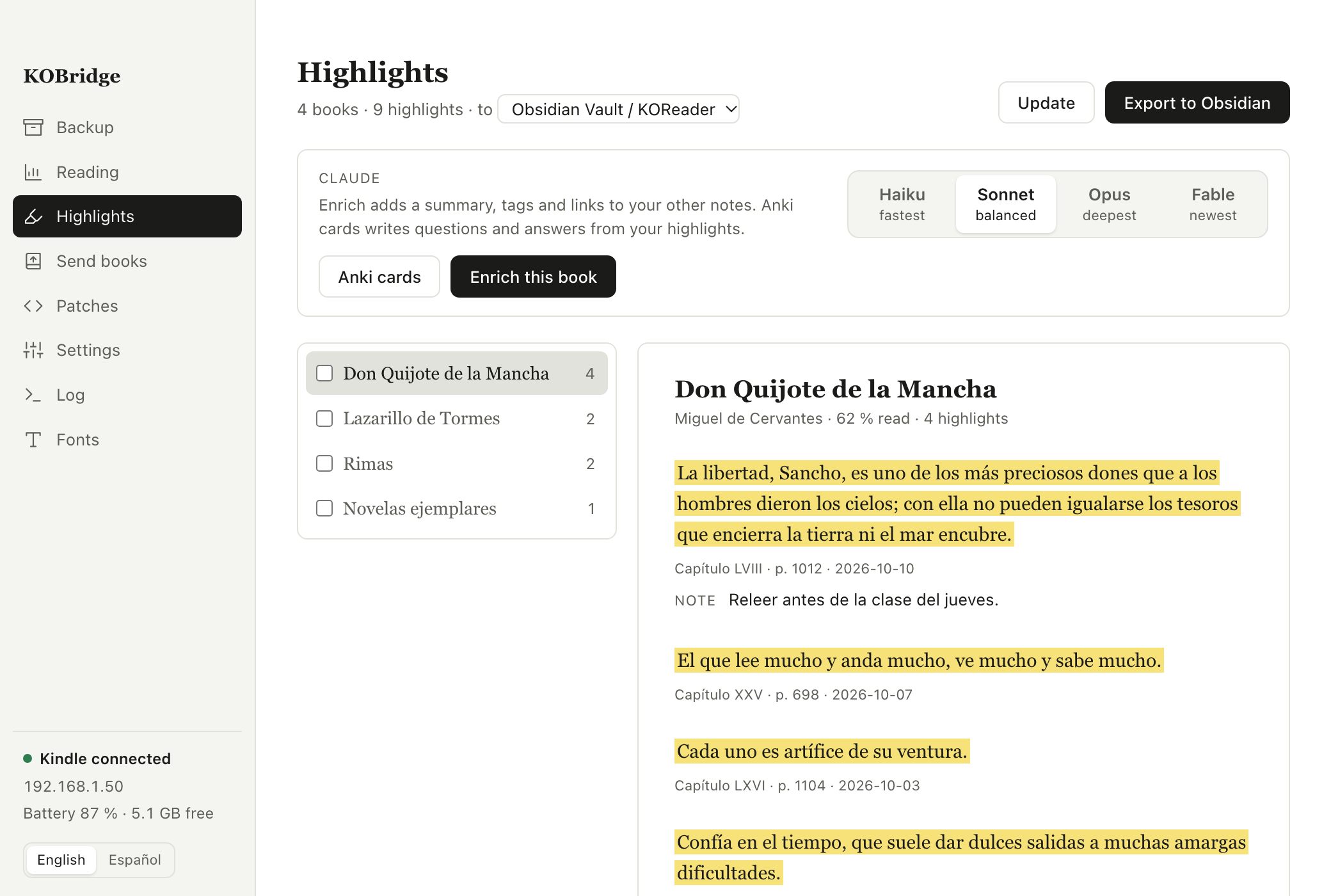
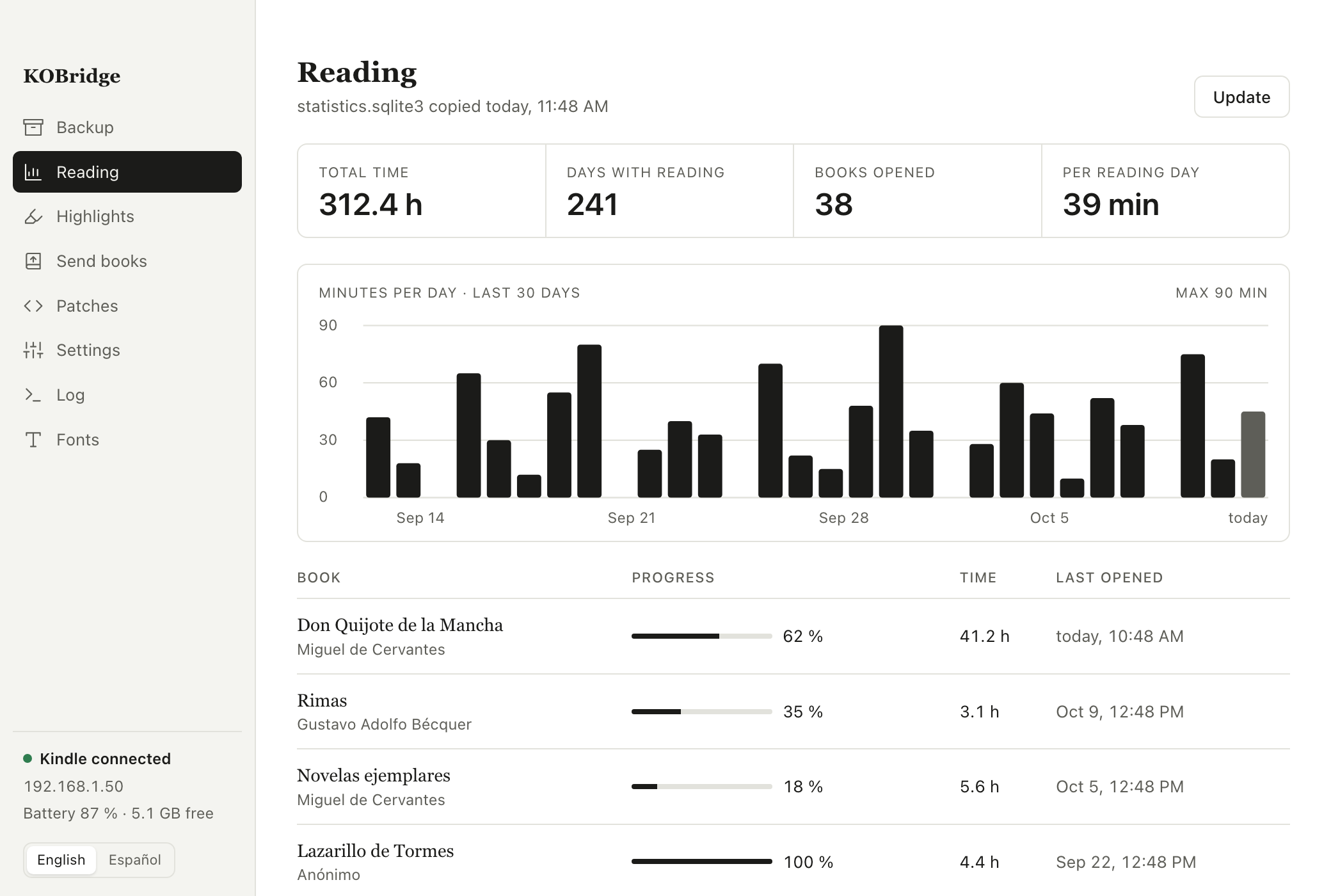
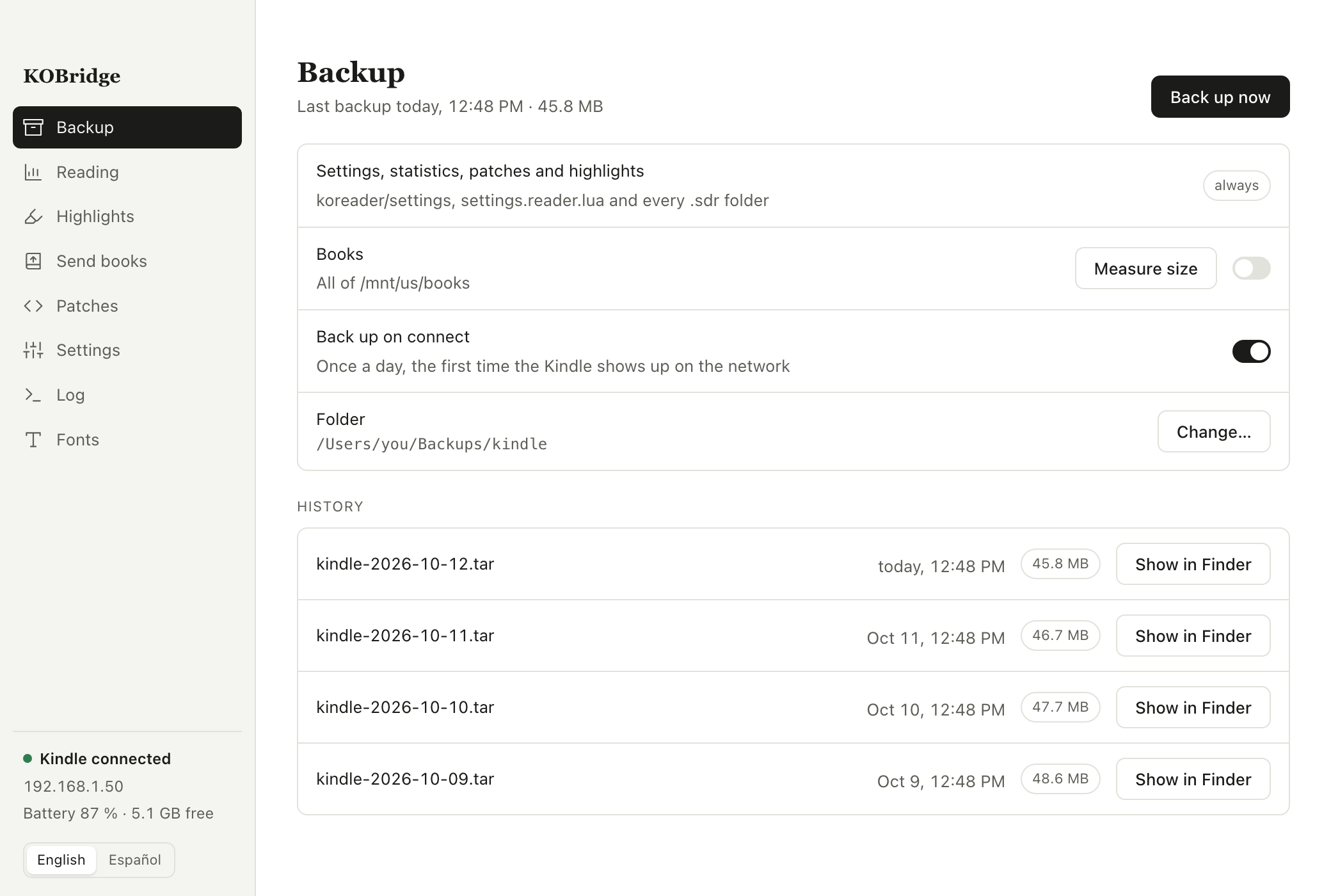
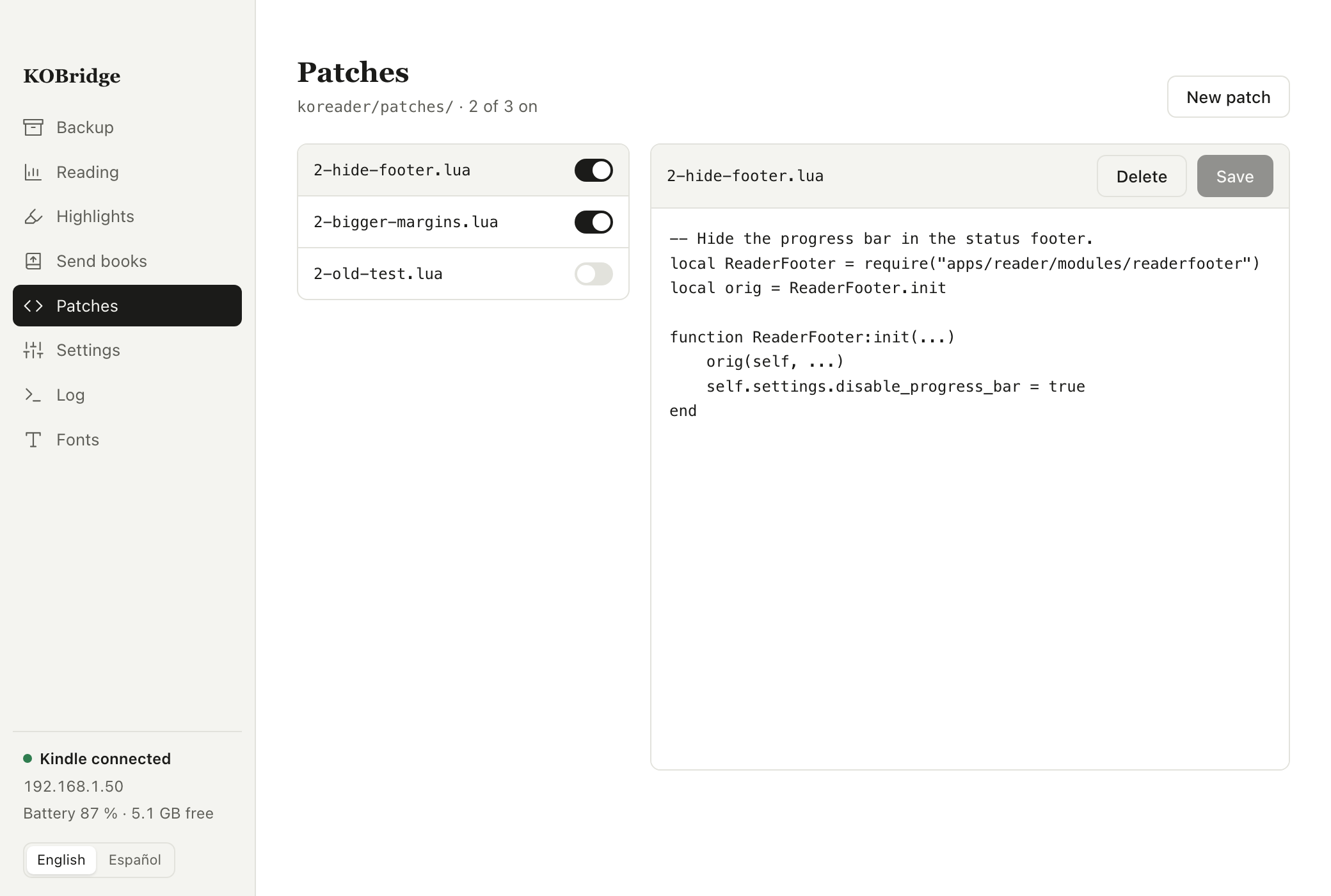
KOBridge is a desktop app for people who read with KOReader on a Kindle and keep their notes on a Mac or a Linux computer. It connects to the SSH server built into KOReader, so you can back up the device, see your reading statistics, export highlights, send ebooks and fonts, and edit KOReader settings without plugging in a cable. The app is built with Tauri 2, Svelte 5 and Rust, and it takes about 6 MB on disk. The interface is in English and Spanish, and you switch between them in Settings (⌘, on a Mac, Ctrl+, on Linux).
Everything it does
Highlights and notes
- Obsidian export. KOBridge reads the highlights and notes of every book and writes one Markdown note per book into your Obsidian vault, plus a
Libros.mdindex with progress and last reading date. It finds your vaults from Obsidian's own list, or creates a new vault if you don't have one. - Safe re-export. Each highlight gets an Obsidian block id (
^kob-1a2b3c4d). When you export again, the app adds only the new highlights at the end of the note and leaves the text you wrote by hand untouched. - Summaries with Claude. If you have Claude Code installed, the app can add a summary, tags and links to related notes in your vault to each book note. You pick the model, Haiku, Sonnet, Opus or Fable, and the app limits Claude to reading and editing files inside the vault.
- Anki flashcards. Claude can turn the highlights of one or more books into question and answer cards. The app saves them as a text file that Anki imports into one deck per book, and importing the same book again updates the cards instead of duplicating them.
Reading statistics
- Dashboard. The app copies KOReader's
statistics.sqlite3and shows total hours read, days with reading, minutes per day for the last 30 days, and progress and time spent per book. - Offline. KOBridge keeps a local copy of the statistics and highlights, so you can browse them while the Kindle is off.
Backup
- One file per backup. KOBridge copies KOReader settings, statistics, user patches and the
.sdrfolders that hold your highlights into a.tarfile on your Mac. You can include the books too. - Size estimate. Before a backup, the app measures the real size with
duand the Wi-Fi speed, so it can tell you how long the backup will take. - Daily backup. If you turn it on, the app backs up once a day, the first time the Kindle shows up on the network.
Books, fonts and KOReader settings
- Send books. Drag EPUB, PDF, MOBI, AZW3, FB2, CBZ, DjVu or TXT files onto the window, or pick them from a dialog, and the app copies them to
/mnt/us/books. - Fonts. Upload and delete
.ttfand.otffonts in/mnt/us/fonts. - User patches. List, edit, create, turn on and turn off the Lua user patches in
koreader/patches. - Settings files. Edit
defaults.custom.luaandsettings.reader.lua. The app only savessettings.reader.luawhile KOReader is closed, because KOReader overwrites that file when it exits. - Live log. Follow
crash.logas KOReader writes it, filter it, and show a message on the Kindle screen withfbink.
Store
- Storefront catalog. The Store view lists the plugins, user patches and fonts from the Storefront catalog, with search and sorting by stars or by last update. It keeps a copy of the catalog, so the list opens without internet.
- Install, update and remove. The app downloads with aria2, checks that a plugin has
_meta.luaandmain.lua, and sends it over SSH into a new folder that replaces the old one only when the copy finished. It records each install inStorefront_installs.lua, the same list Storefront keeps, so Storefront on the Kindle sees the same installs and updates. - A backup first. Every install, update or removal starts with a full backup, which shows up in the Backup view. The app only changes plugins while KOReader is closed, because KOReader rewrites Storefront's list when it exits.
Install
macOS
First, download the .dmg from the latest release and drag KOBridge into Applications.
Second, open the app. KOBridge isn't signed with an Apple Developer ID, so macOS blocks it the first time. Right-click KOBridge in Applications and choose Open, or remove the quarantine flag in Terminal:
xattr -dr com.apple.quarantine /Applications/KOBridge.app
Third, when macOS asks whether KOBridge can find devices on your local network, allow it. Without that permission the app can't reach the Kindle, even when ssh kindle works in Terminal. You can change it later in System Settings, under Privacy & Security, Local Network.
The sidebar shows whether the app found the Kindle, its IP address, the battery level and the free space. If it can't find the Kindle, open Details to see the SSH error.
Linux
The latest release has a .deb for Debian and Ubuntu, and an .AppImage for other distributions. Both are built for x86_64 on Ubuntu 22.04.
sudo apt install ./KOBridge_*_amd64.deb
# or
chmod +x KOBridge_*_amd64.AppImage && ./KOBridge_*_amd64.AppImage
The app needs the ssh and ssh-keygen commands in /usr/bin, which come with the openssh-client package.
Set up the Kindle
KOBridge stores no IP addresses or passwords. It runs the ssh command of your computer with the host name kindle, so the whole connection lives in ~/.ssh/config. You do these steps once.
The Settings view (⌘, or Ctrl+,) walks you through the same steps. It can create the key, copy it to a Kindle connected over USB, add the kindle entry to ~/.ssh/config, and test the first connection. The sections below explain what each step does, if you prefer to do it by hand.
1. Start the SSH server in KOReader
First, connect the Kindle to Wi-Fi. Second, in KOReader open the tools menu (the gear icon) and go to Network, then SSH server. Third, tap Start SSH server. The server listens on port 2222 and the user is root.
Network info in the same menu shows the IP address of the Kindle. Write it down for step 3.
2. Create an SSH key and copy it to the Kindle
KOReader accepts public keys in koreader/settings/SSH/authorized_keys on the Kindle. Create a key just for the Kindle on your computer:
ssh-keygen -t ed25519 -f ~/.ssh/id_ed25519_kindle -C kindle
Then copy the contents of ~/.ssh/id_ed25519_kindle.pub into koreader/settings/SSH/authorized_keys on the Kindle. The simplest way is to connect the Kindle over USB and paste the line into that file with a text editor. If the file doesn't exist, create it.
You can also turn on login without a password in the SSH server menu, connect once and copy the key over SSH. If you do, turn that option off as soon as you finish, because it leaves the Kindle open to anyone on your network.
3. Add the Kindle to ~/.ssh/config
Add this block to ~/.ssh/config and replace the IP address with the one of your Kindle:
Host kindle
  HostName 192.168.1.50
  Port 2222
  User root
  IdentityFile ~/.ssh/id_ed25519_kindle
  IdentitiesOnly yes
If the Kindle joins more than one Wi-Fi network, it gets a different IP address on each one, and SSH can pick the address that answers. Replace the HostName line with these Match blocks, and put them before Host kindle:
Match originalhost kindle exec "nc -z -G 1 192.168.1.50 2222 2>/dev/null"
  HostName 192.168.1.50
Match originalhost kindle exec "nc -z -G 1 10.0.0.70 2222 2>/dev/null"
  HostName 10.0.0.70

Host kindle
  HostKeyAlias kindle
  Port 2222
  User root
  IdentityFile ~/.ssh/id_ed25519_kindle
  IdentitiesOnly yes
SSH tries the addresses in order and uses the first one with port 2222 open. On Linux, replace nc -z -G 1 with nc -z -w 1. HostKeyAlias kindle makes SSH keep one fingerprint for every address, so it doesn't ask again each time you change networks.
4. Test the connection
Run this in Terminal:
ssh kindle 'cat /mnt/us/koreader/git-rev'
The first time, SSH asks you to confirm the fingerprint of the Kindle, and you answer yes. KOBridge can't answer that question for you, so run this test before you open the app. If the command prints the KOReader version, the setup is done.
Default folders
The app saves backups in ~/Backups/kindle and exports highlights to ~/Documents/Obsidian Vault/KOReader. You can pick another vault in Highlights and another backup folder in Backup.
Anki cards go to ~/Downloads/KOReader Anki <date>.txt, with a deck called KOReader::<book> for each book. Open Anki once to create your profile before you import them. The Open in Anki button opens the import dialog.
Private by default
KOBridge has no account, no analytics and no tracking. The app only connects to your Kindle over SSH. Your highlights leave your Mac only when you press Enrich or Anki cards, and then Claude Code sends them to Anthropic under your own Claude login.
When Claude edits a note, the app runs claude -p inside your vault with only the Read, Glob, Grep and Edit tools. If the vault doesn't use git, the app saves a .kob.bak copy of each note before Claude edits it.
What you need
- A Mac with Apple Silicon, or a Linux computer with x86_64. The release has no Intel Mac build, but you can build one from source.
- A jailbroken Kindle with KOReader installed. Follow the KOReader installation guide for Kindle if you don't have it yet. KOBridge was tested with KOReader v2026.07.1 on Kindle firmware 5.18.5.
- Claude Code, signed in, for summaries and Anki cards. Everything else works without it.
- Anki to import the flashcards.
Questions
Does it work with a Kindle that isn't jailbroken?
No. KOBridge talks to the SSH server that comes with KOReader, and KOReader only runs on a jailbroken Kindle.
Does it work with Kobo or PocketBook?
It hasn't been tested. The app expects the Kindle paths /mnt/us/books and /mnt/us/koreader, so other devices need code changes.
Can it restart KOReader after I change a patch or a font?
No. KOReader only restarts when it asks for it from inside, so you restart it on the Kindle yourself.
Why does the message on the Kindle screen disappear?
The message that fbink writes stays on screen until KOReader redraws the page.
Build it yourself
You need Rust and Bun. On macOS you also need the Xcode Command Line Tools. On Linux you need the WebKitGTK libraries that Tauri lists in its prerequisites, and .github/workflows/linux.yml shows the exact apt packages.
git clone https://github.com/danihrndzld/KOBridge.git
cd KOBridge
bun install
bunx tauri dev            # run the app in development mode
bunx tauri build          # build the .app and .dmg in src-tauri/target/release/bundle
bun run check             # check Svelte and TypeScript types
The Rust tests live in src-tauri:
cd src-tauri
cargo test                              # tests that don't need the Kindle
cargo test -- --ignored --nocapture     # tests against a real Kindle and Claude Code
The app runs aria2c from your PATH when you have one, and otherwise the copy inside the app. bunx tauri dev and bunx tauri build need that copy, so build it once with ./scripts/build-aria2.sh, which compiles aria2 1.37.0 into src-tauri/binaries/.
The --ignored tests use your Kindle over SSH. They create test files in /tmp and in koreader/patches on the Kindle, and they delete them when they finish.
License
KOBridge uses the PolyForm Noncommercial License 1.0.0. You can read, change and share the source code, and you can use the app for any purpose that isn't commercial, e.g., personal reading, study, hobby projects, schools and charities. Selling the app or using it inside a commercial product needs separate permission, so open an issue if you want to ask.
Copyright 2026 Daniel Hernández.
The app bundles an unmodified build of aria2 1.37.0, which is licensed under the GPL 2.0 or later. Its license is in licenses/aria2-COPYING inside the app, and scripts/build-aria2.sh shows how it is built from the release source.
Reviews (0)
Sign in to leave a review.
Leave a reviewNo results found