chatballs
Health Gecti
- License — License: AGPL-3.0
- Description — Repository has a description
- Active repo — Last push 0 days ago
- Community trust — 12 GitHub stars
Code Gecti
- Code scan — Scanned 12 files during light audit, no dangerous patterns found
Permissions Gecti
- Permissions — No dangerous permissions requested
Bu listing icin henuz AI raporu yok.
AI customer support platform

Chatballs
AI customer support platform
An AI platform that talks to your customers for you: it answers in messengers, email and web chat, and hands your team only the hard questions.




Telegram channel · Website · Help center
Table of contents
Overview
Chatballs takes over the first line of customer conversations. An AI agent answers from your knowledge base in Telegram, MAX, email and the chat on your website. When the agent is not confident or the customer asks for a person, the conversation goes to your team together with a notification.
The platform installs on your own server with a single command. Customer data stays with you. You connect the AI model with your own key.
Installation
Requirements
| Server | Linux, x86_64 |
| Software | Docker with the Docker Compose plugin |
| Ports | 80 and 443 open |
| Ports for calls | 3478 (UDP and TCP) and the UDP range 49160–49999 |
A domain is not needed to start. The installation opens by the server's IP address; the domain is set later in the settings.
Step 1. Start the stack
Download compose.yaml from the release page and bring the stack up:
curl -fsSL https://github.com/dartdavros/chatballs/releases/latest/download/compose.yaml -o compose.yaml
docker compose up -d --wait
Nothing else needs to be configured. There is no .env file: instance secrets are generated on first start and kept in a Docker volume. Everything else is configured in the UI.
What happens on first start:
- Instance secrets are generated: signing key, database role passwords, encryption key, TURN secret.
- PostgreSQL with pgvector and Redis start.
- Database migrations run.
- The application, background worker, frontend and Caddy gateway start.
Step 2. First-run wizard
Open http://<server IP>/ in a browser. The wizard asks for:
- the organization name;
- the owner's name, email and password;
- whether to install demo data to explore the product on an example.
You are then signed in as the owner.
Step 3. Configure in the UI
Everything else is done in Settings.
| Section | What to do |
|---|---|
| Platform | Set the installation domain. The gateway issues a Let's Encrypt certificate on its own and switches to HTTPS. Outgoing SMTP mail is configured here as well: it is needed for employee invitations and password recovery. |
| Integrations | Connect an AI model provider: OpenRouter, any OpenAI-compatible service or a local model. A demo provider that needs no key is available for a first look. Then connect entry points: a Telegram bot, a MAX bot, a mailbox over IMAP/SMTP or a web widget for your site. |
| Agents | Create an AI agent: who it is, how it speaks, what rules it follows. Choose the model. Attach articles from the knowledge base. |
| Employees | Invite your team by email, assign roles and groups. |
The home screen shows a launch checklist: create an agent, connect an entry point, invite employees.
Website widget
After creating a web widget, add one tag to your site:
<script src="https://<your domain>/chat-widget.js" data-widget-key="<widget key>" async></script>
The chat opens in an isolated window on top of the site.
Calls
Calls work right after the installation. Between browsers the conversation goes directly; when one side sits behind strict NAT or on a VPN it goes through the relay, which starts together with the stack on the same address. Nothing to configure: the relay addresses appear in Settings → TURN for calls on their own, derived from the installation address, and are only changed if you run your own server.
Open on the firewall:
- 3478/udp and 3478/tcp — the relay itself;
- 49160–49999/udp — the conversation ports (two per call).
Networks that allow nothing but port 443 will not reach the relay on 3478. They need TURN over TLS on 443, which means a separate public address (443 on the main one belongs to the web gateway) or an external TURN service — its addresses go into the same settings.
External file storage (optional)
By default files are stored in a Docker volume. In Settings → Storage the installation can be switched to any S3-compatible storage. Already uploaded files are migrated automatically.
Updating
When a new release is out, the installation administrator sees a banner in the interface and updates with one button; the same lives in Settings → Platform → Updates. The installation updates itself on the server: it downloads the release compose.yaml, pulls the images and restarts the services, with about a minute of downtime.
Manually, from the server console: download the new release's compose.yaml over the old one and restart:
docker compose pull && docker compose up -d --wait
Migrations run automatically. Secrets and data stay in their volumes.
Features
The AI agent answers customers on its own
Set up in minutes: who it is, how it speaks, what rules it follows. It answers only from your knowledge and does not make things up. If the data is missing, it says so honestly and offers to bring in an employee.
Smart handoff to a person
When the agent cannot find an answer or the customer asks for a real person, the conversation goes to operators right away with a notification. Every conversation has three modes: AI answers, an employee answers, paused.
All channels in one window
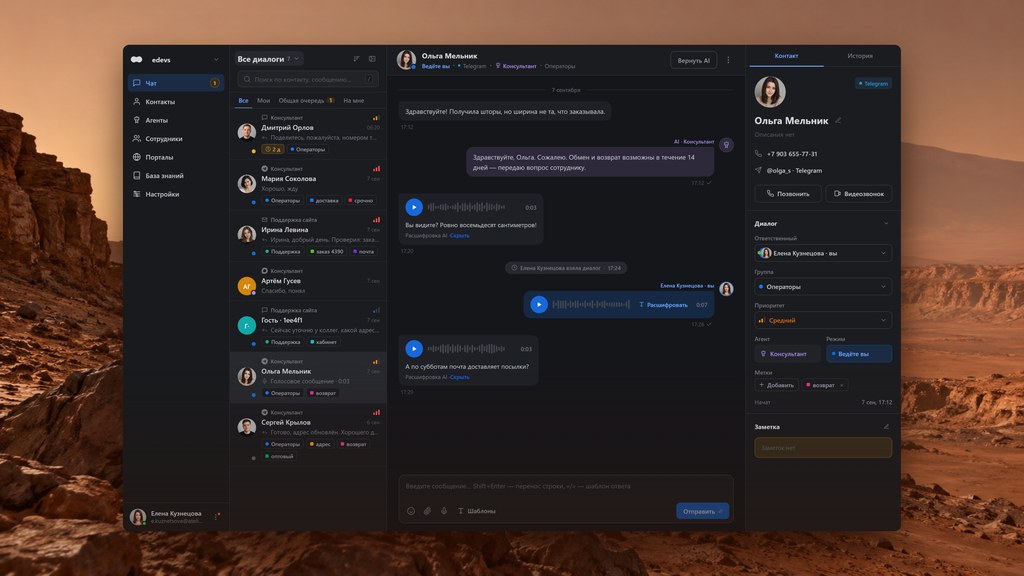
Telegram, MAX, email and website chat land in a single conversation list. The employee sees where the customer came from and replies in the same channel.
Knowledge base with semantic search
Articles, categories, file import, attachments. The agent finds what it needs by meaning, not only by matching words. If the provider offers no embeddings, search falls back to full text without losing functionality.
Public help center
A portal with your articles on your own domain and in your own look. Categories, article revisions, usefulness ratings from readers. The agent answers from the same articles: editing an article changes the bot's answers immediately.
Website chat in one tag
The widget is installed with a single line of code and runs in an isolated window. Voice messages, files, calls. Allowed domains and abuse protection are configured in the UI.
Audio and video calls from the chat
The customer and the employee call each other straight from the conversation without third-party services. Works in the web widget, Telegram and MAX. A relay is available for difficult networks.
Operator workspace
Priorities, colored labels, conversation notes, assignment to an employee, reply templates. Voice messages with on-demand transcription. Files and images. Sound notification on a new message.
One customer profile
One person from different channels is collected into a single profile. Duplicates are merged manually with a reason and can be reverted. The customer list exports to CSV.
Team and access
Owner, administrator and employee roles. Invitations by email. Visibility groups: an employee sees the conversations of their groups and those they are responsible for. Two-factor protection with TOTP. A full activity log with filters.
Employee notifications in messengers
Waiting conversations and new messages reach the employee in Telegram or MAX. Linking is done from the profile with a one-time code.
Your own server and your own AI model
Installs with one command, data stays with you. Connect any AI model provider with your own key: OpenRouter, an OpenAI-compatible service, a local model.
Customer data protection
Phone numbers, email addresses and long numeric identifiers are stripped from text before it is sent to the AI model. Integration tokens, SMTP passwords, S3 keys and TOTP secrets are stored encrypted in the database.
Troubleshooting
The stack does not start: port 80 or 443 is busyThe gateway publishes ports 80 and 443. Free them, or bind the gateway to a specific IP with the CHATBALLS_WEB_LISTENING_IP variable.
This is expected until a domain is set. Enter the domain in Settings → Platform. Make sure the domain's DNS record points to the server and ports 80 and 443 are reachable from outside: without that the certificate cannot be issued.
The certificate is not issued after changing the domainCertificates are issued on demand, at the first request to the domain. Open the domain in a browser and wait a few seconds. If that does not help, check the gateway log:
docker compose logs gateway
The organization already exists. Sign in at the installation address with the owner account. If the password is lost, use email recovery: outgoing mail must be configured for that.
Invitations and emails are not sentCheck SMTP in Settings → Platform. There is a button to send a test email. Typical causes: wrong port, TLS turned off, an app password instead of the account password.
The agent does not answer customersCheck in order:
- The agent status is Active, not Draft.
- The agent has an AI model provider selected. Without it no answer is possible.
- The provider in Integrations has the Connected status. Run the check to refresh it.
- The conversation is not switched to Operator or Paused mode.
Open the integration and run the check. For bots the usual cause is a wrong token or an unreachable proxy. For email: wrong IMAP or SMTP parameters. Integration errors also arrive as notifications.
Messages from Telegram or MAX do not arriveThe background worker polls the bots. Make sure it is running:
docker compose ps worker
docker compose logs worker
Between browsers a call goes directly; behind strict NAT and on a VPN it goes through the relay. Check that the coturn container runs (docker compose ps coturn) and that 3478/udp, 3478/tcp and the 49160–49999/udp range are open on the firewall. The addresses in Settings → TURN for calls must not be empty: they are derived from the installation address, so that address has to be set first.
Schema objects belong to another role. Normalize ownership and rerun the migrations:
docker compose exec -T postgres psql -v ON_ERROR_STOP=1 -U chatballs_bootstrap -d chatballs -f /chatballs-reassign-ownership.sql
docker compose run --rm init
With local storage, files live in the chatballs-media volume. Check free disk space. With S3, open Settings → Storage: it shows the last connection error and the migration status.
Check that the widget status is Published and the site's domain is in the allowed list. The key in the data-widget-key attribute must match the key from the widget settings.
docker compose ps
All services should be healthy or running. Application readiness is available at /api/v1/health/ready/.
The chatballs-secrets volume holds the encryption key. Without it, integration tokens, SMTP passwords, S3 keys and two-factor secrets become unreadable. The chatballs-secrets-platform and chatballs-secrets-schema volumes hold the database role passwords: without them the stack cannot connect to its own database. Include all three volumes in backups together with the database and files.
Copy the chatballs-postgres, chatballs-media, chatballs-secrets, chatballs-secrets-platform and chatballs-secrets-schema volumes. A database dump can be taken as well:
docker compose exec -T postgres pg_dump -U chatballs_bootstrap chatballs > backup.sql
License
Chatballs is distributed under the GNU Affero General Public License v3.0. You may use, modify and self-host it freely. If you modify it and offer it to others as a service, you must publish your changes under the same license.
Yorumlar (0)
Yorum birakmak icin giris yap.
Yorum birakSonuc bulunamadi