SentriPet-AI
Health Uyari
- License — License: MIT
- Description — Repository has a description
- Active repo — Last push 0 days ago
- Low visibility — Only 5 GitHub stars
Code Gecti
- Code scan — Scanned 12 files during light audit, no dangerous patterns found
Permissions Gecti
- Permissions — No dangerous permissions requested
Bu listing icin henuz AI raporu yok.
A desktop pet that shows how much of your AI plan is left (Claude, Codex, Copilot…) and nudges you to use it before it resets. Windows · macOS · Linux
SentriPet
English | 繁體中文


A desktop pet that shows how much of your AI plan is left — and nudges you to use it before it resets.
SentriPet finds the AI tools on your computer (Claude, Codex, Copilot…) and turns each one into a little pet
that shows the quota left and when it resets, so you don't keep opening Settings → Usage. When a weekly quota
is about to reset with plenty left, the pets get nervous and remind you to use it instead of letting it go to waste.
Runs on Windows, macOS and Linux.
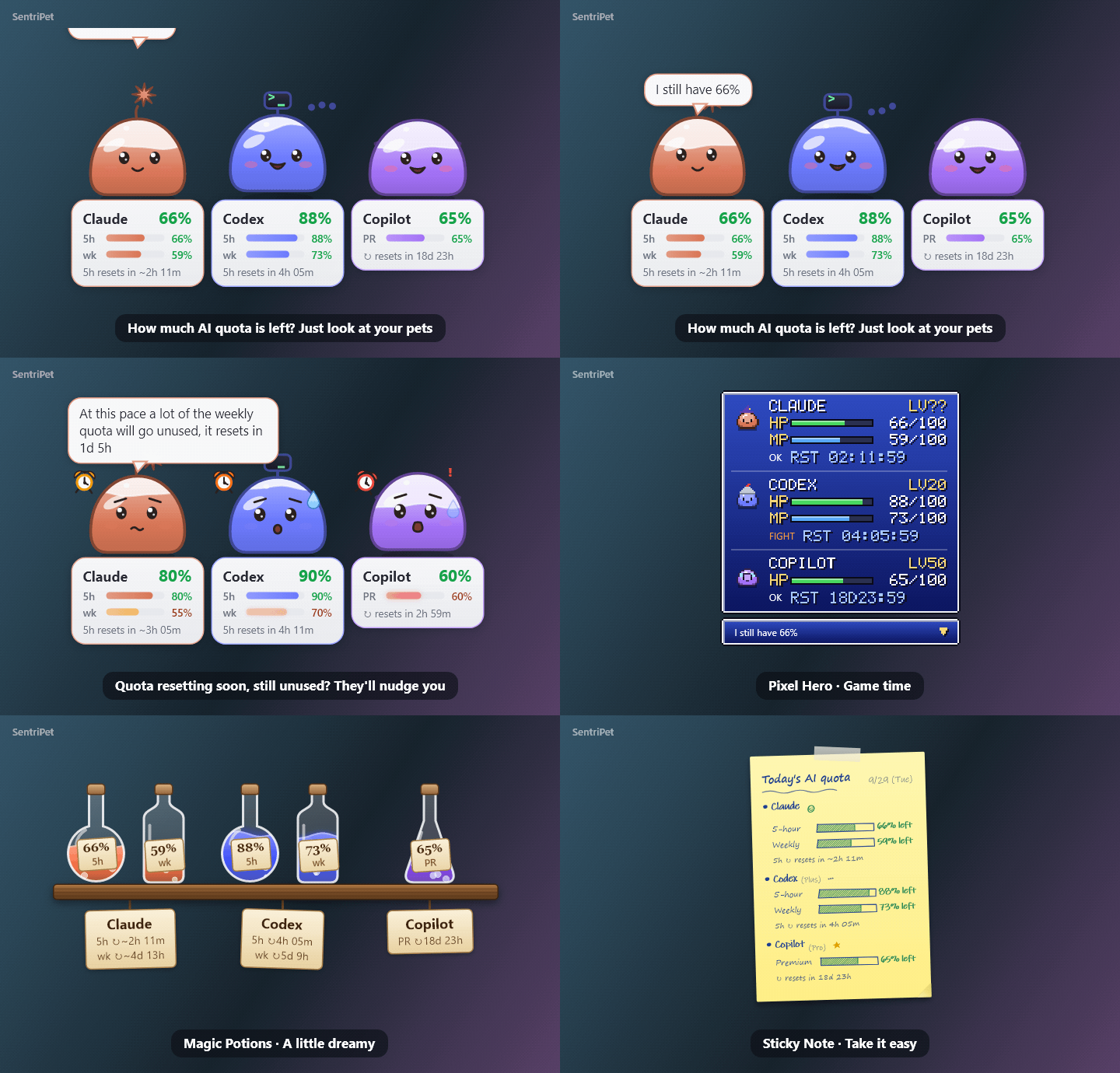
Why SentriPet
- See what's left at a glance — the big number is the shortest quota (e.g. 5 hours), the bars below are the weekly ones, with a reset countdown
- "Use it before it resets" nudges — besides warning you when a quota runs low, SentriPet tells you when you're about to waste a weekly quota
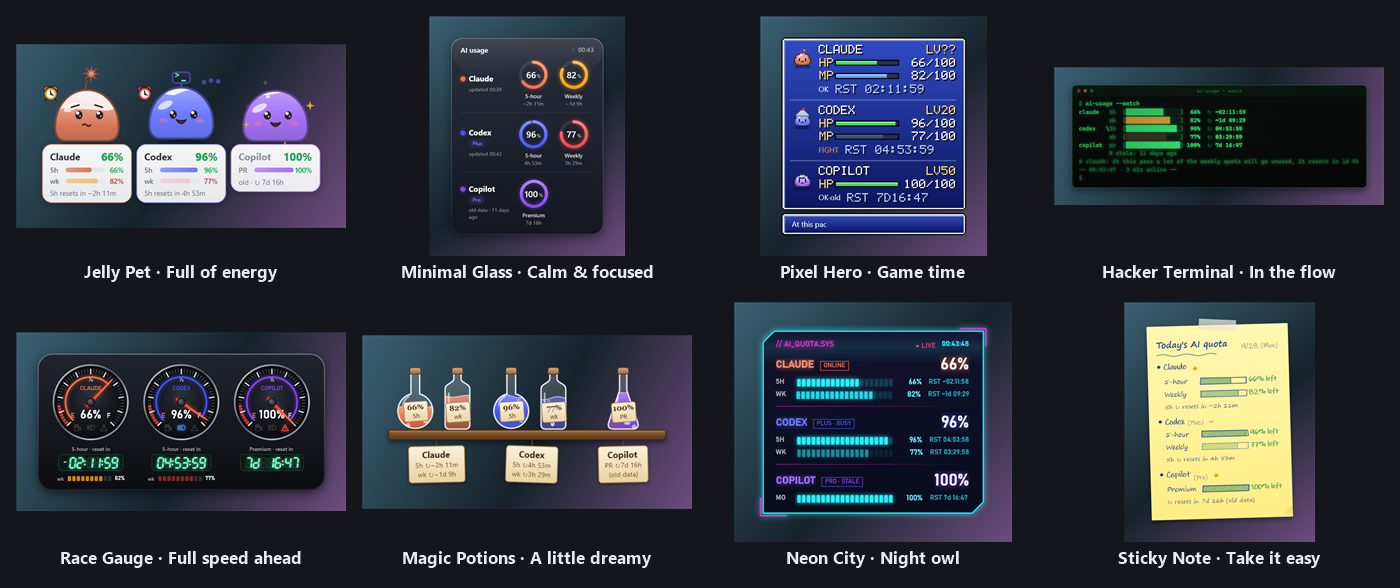
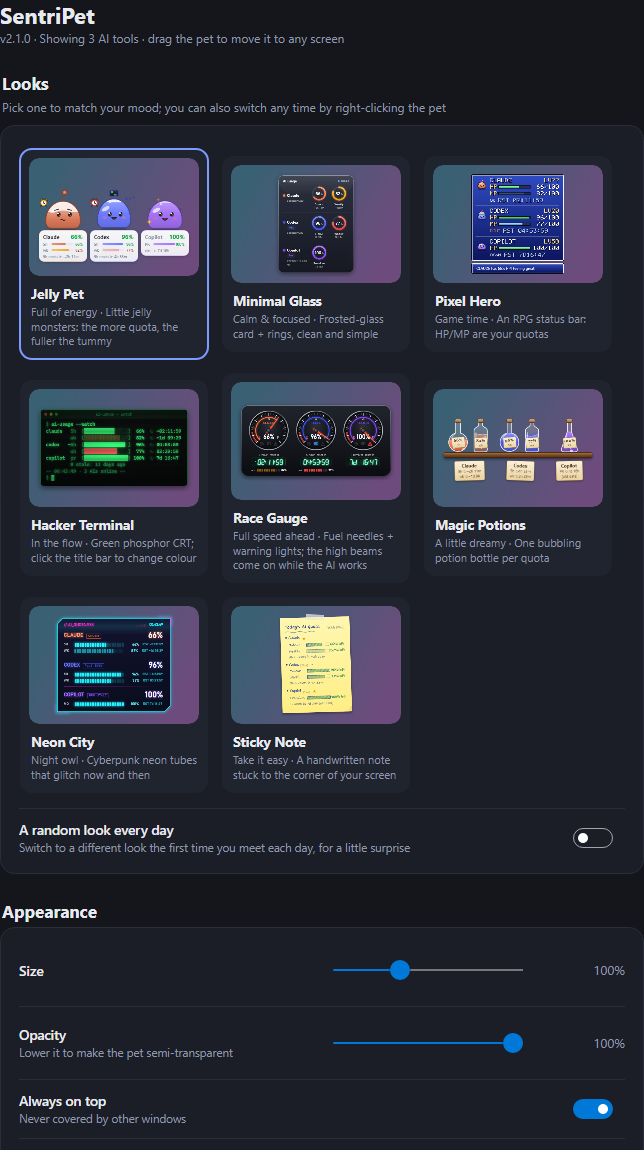
- Eight looks to match your mood: jelly pets, frosted glass, pixel RPG, hacker terminal, race gauges, magic potions, neon city, sticky note
- Claude, Codex, Copilot, Ollama out of the box, anything else through a small JSON plugin
- Private by design — reads only the usage numbers the tools keep on your computer; never reads or sends your sign-in credentials
- Five languages: English, 繁體中文, 简体中文, 日本語, 한국어 (follows your system language)
- Drag it to any screen; starts at sign-in; hides itself while you watch videos or play in full screen
- Light: about 110 MB of memory and well under 1% CPU
Screenshots
Eight looks (right-click the pet → Change look)
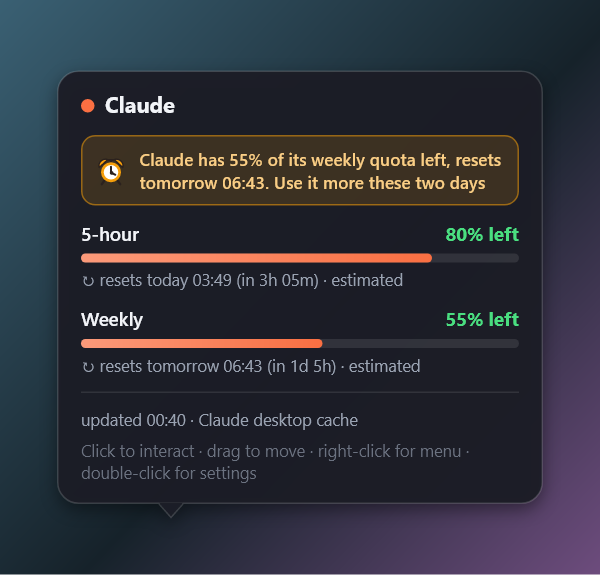
Hover over a pet for every quota, its reset time, where the numbers come from and how fresh they are.
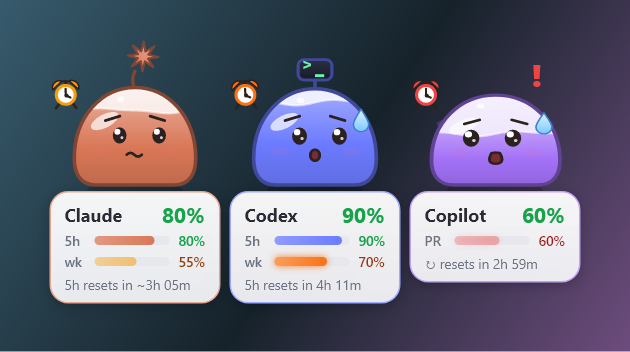
Quota about to expire unused? The pets get nervous (sweat, alarm clocks, blinking bars) and the card says so.
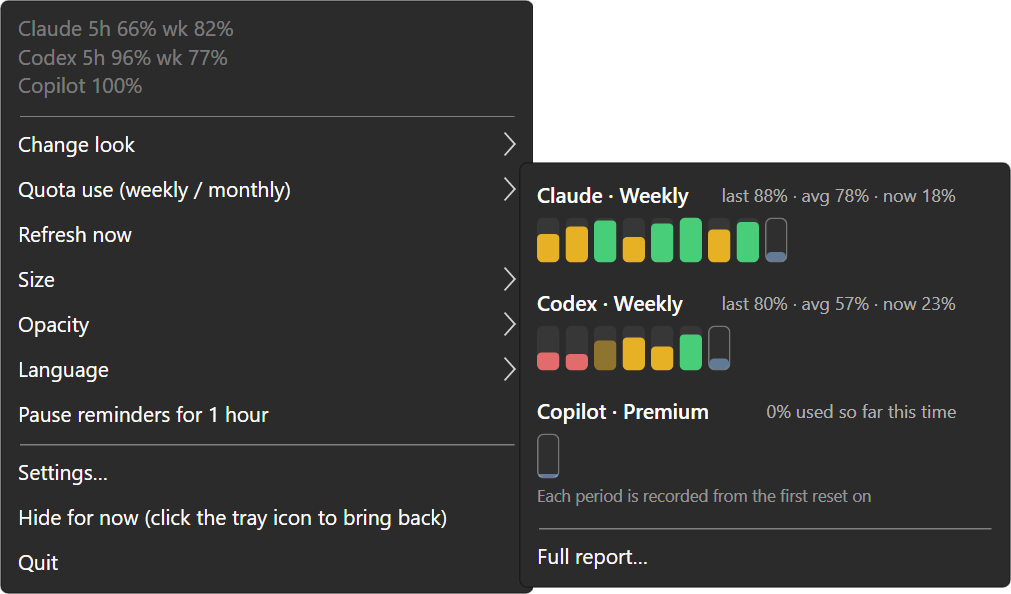
Right-click menu and settings (double-click the pet to open the settings)
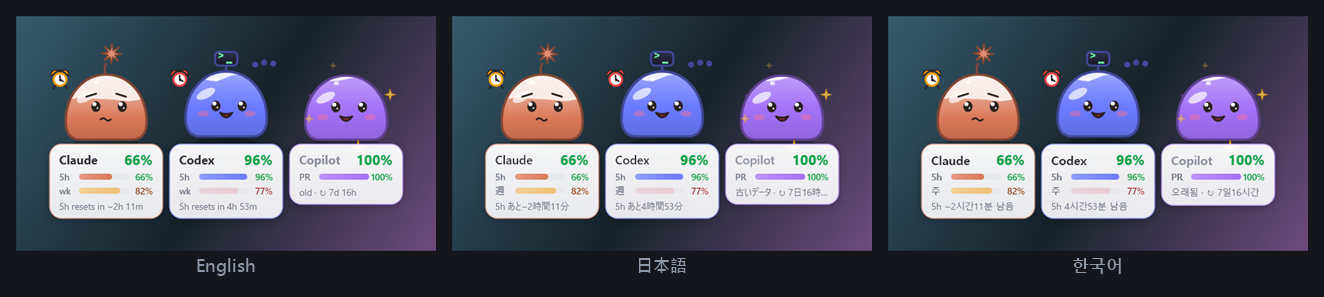
Languages (right-click menu → Language)
Install
With a package manager (recommended)
Windows (Scoop) — the pet appears right after the install; update with scoop update sentripet.
scoop bucket add sentripet https://github.com/daven55663/SentriPet-AI
scoop install sentripet
macOS (Homebrew) — installs to Applications; update with brew upgrade --cask sentripet.
brew tap daven55663/sentripet https://github.com/daven55663/SentriPet-AI
brew install --cask sentripet
SentriPet is not signed with an Apple Developer ID; the Homebrew cask removes the download quarantine,
so macOS does not block it as coming from an unidentified developer.
Download
Get the latest version from Releases:
| System | File | Requires |
|---|---|---|
| Windows | SentriPet-<version>-win-x64.zip |
Windows 10 / 11 |
| macOS, Apple silicon (M1–M4) | SentriPet-<version>-osx-arm64.zip |
macOS 12 or later |
| macOS, Intel | SentriPet-<version>-osx-x64.zip |
macOS 12 or later |
| Linux | SentriPet-<version>-linux-x64.tar.gz |
x64, X11 or XWayland desktop |
Each package contains everything it needs; you don't have to install .NET.
Windows
- Unzip
SentriPet-<version>-win-x64.zipinto a folder you keep (e.g.%LOCALAPPDATA%\Programs\SentriPet). - Run
SentriPet.exe. If Windows says Windows protected your PC, click More info → Run anyway (the program is not code-signed). - The pet appears in the bottom-right corner, with a jelly icon in the system tray. SentriPet adds itself to the
Start menu and starts when you sign in (you can turn that off in its right-click menu).
From source (needs the .NET 10 SDK): git clone this repository and runinstall.cmd; it builds SentriPet, installs it to %LOCALAPPDATA%\Programs\SentriPet and starts it (uninstall.cmd removes it).
macOS
- Unzip the package for your Mac (
osx-arm64for Apple silicon,osx-x64for Intel) and dragSentriPet.appinto Applications. - First start: because the app is not signed with an Apple Developer ID, macOS blocks it. Run this once in Terminal:
or open it once (it gets blocked), then go to System Settings → Privacy & Security, scroll down and allow SentriPetxattr -dr com.apple.quarantine /Applications/SentriPet.app
(up to macOS 14 you can also right-clickSentriPet.app→ Open). Not needed when you install with Homebrew. - The pet appears on your desktop with a jelly icon in the menu bar (not in the Dock). macOS may ask whether SentriPet may send notifications.
Linux
tar xzf SentriPet-<version>-linux-x64.tar.gz
cd SentriPet-<version>-linux-x64
./install.sh
install.sh installs to ~/.local/share/sentripet, adds SentriPet to the application menu and starts it (no root needed).
- The background is transparent on desktops with a compositor (GNOME, KDE, Xfce and most others).
- On GNOME, the tray icon needs the AppIndicator and KStatusNotifierItem Support extension; without a tray, use the pet's right-click menu.
- Notifications use
notify-send(Debian/Ubuntu:sudo apt install libnotify-bin). - There is no Claude desktop app for Linux: to see Claude's usage, turn on Connect the Claude Code status line (see the FAQ).
Update and uninstall
- Update:
scoop update sentripet/brew upgrade --cask sentripet(quit SentriPet first: right-click → Quit).
A downloaded copy: replace the files with the new version (on Linux, runinstall.shagain). Your settings are kept. - Uninstall: turn off Start at sign-in in the right-click menu → Quit, then
scoop uninstall sentripet/brew uninstall --cask sentripet, or delete the program and its settings folder (see File locations).
Using SentriPet
First start
SentriPet looks for AI tools on your computer and every one it finds becomes a pet that says hello. To read the usage it needs:
- Claude — the Claude desktop app running (it records the usage every 15 minutes; while you use Claude Code, SentriPet
estimates the usage in between), or Settings → AI services → Connect the Claude Code status line for the official
numbers straight from Claude Code (the only way on Linux) - Codex — the Codex app, the VS Code extension or the
codexCLI, signed in with a ChatGPT account - Copilot — Copilot CLI used at least once (it leaves a quota cache)
Settings → AI services shows why an AI was not detected; anything else can be added with a plugin.
Controls
| Action | What happens |
|---|---|
| Drag | Move it (snaps to screen edges); the position is remembered |
| Click | The pet answers |
| Hover | Details: every quota, reset times, data source |
| Right-click | Menu: change look (each look with its mood, or leave it to fate), language, size, opacity, move to screen, click-through… |
| Double-click | Settings |
| Tray / menu-bar icon | Left click shows/hides the pet; right click opens the menu (turn click-through off here). The jelly in the icon is as full as your lowest quota; a blue dot means an AI is working |
Settings
| Section | What you can do |
|---|---|
| Looks | Live previews of the eight looks; a random look every day |
| Appearance | Size, opacity, always on top, hide in full screen, click-through, talking, power saving |
| AI services | What was detected for each AI and the numbers it reads; turn AIs on or off; Codex refresh rate; Claude weekly reset time, the Claude Code status line, live estimate |
| Reminders | Quota notifications, "nudge me to use up weekly quota", warning and critical thresholds |
| General | Language, start at sign-in, open the settings / log / program folder |
Reading the pets
- The big number is always the shortest quota (5 hours for Claude and Codex), so it doesn't jump between the 5-hour
and the weekly quota; the weekly quota is the small bar. The face follows the tightest quota: happy with plenty left,
sweating when it runs low, asleep when it's used up. - The line below is the reset countdown and says which quota it is (
5h resets in 2h 11m). - A ≈ in front of a number (~ on Windows) marks an estimate: between two records of the Claude desktop app,
SentriPet estimates Claude's usage from Claude Code's token counts. - Numbers that are getting old (say, Copilot CLI not used for a while) are marked old.
"Use it before it resets"
When a weekly or monthly quota is about to reset with a lot left, the pets nudge you to use it. There's no extra text on
the widget: the bar that's about to expire blinks and the pet's face changes; the hover card has the details.
| Until the reset | Left | The pet |
|---|---|---|
| 2 days | 30% or more | The bar blinks slowly; raised eyebrows, glances at its alarm clock; says something about once an hour |
| Last day | 10% or more | Faster blinking, mouth open, sweating, jumps when the alarm rings; about every 25 minutes |
| Last 6 hours | 5% or more | Fast blinking, trembling, the alarm rings non-stop; about every 12 minutes |
Each new level shows one notification (not repeated after a restart). The pets never interrupt while an AI is working, and
don't nudge while the 5-hour quota is used up (you couldn't use it anyway). Turn it off in the right-click menu or in Settings → Reminders.
Languages
English, 繁體中文, 简体中文, 日本語 and 한국어. Auto (the default) follows your system's display language.
Switch in the right-click menu → Language or in Settings → General; it changes right away. The Claude weekly reset
time can be typed in any of them: Thu 23:00, 週四 23:00, 周四 23:00, 木曜日 23:00, 목요일 23:00.
Translations live in src/Lang/<language>.json (the Traditional Chinese text in the code is the key; keep {0}, {name}
and the like). The tests check that every sentence is translated and the placeholders match.
FAQ
Claude isn't detected / says it can't find usage records
Start the Claude desktop app and it starts recording. On Linux there is no desktop app: turn on Connect the Claude Code status line.
What does "Connect the Claude Code status line" do?
After every reply Claude Code hands the official usage and reset times to its status line command. With this option on,
SentriPet sets itself as that command in ~/.claude/settings.json (backing the file up to settings.json.sentripet-backup
first) and keeps the official numbers:
- On Linux this is how SentriPet reads Claude's usage; on Windows and macOS the reset times become the official ones instead of estimates.
- Your own status line keeps showing (SentriPet runs your original command); without one, the status line shows the quota left.
Turning the option off restores your settings exactly. - The numbers update while you use Claude Code; usage from claude.ai, the phone or the desktop app shows up the next time you use Claude Code.
- Needs a Pro or Max plan (with an API key Claude Code doesn't provide these numbers).
Claude's reset time is a little off
The Claude desktop app's records don't include reset times, so SentriPet estimates them from the history. Connect the Claude
Code status line for the official times, or type the time shown on Claude's Settings → Usage page once into
Settings → AI services → Claude weekly reset time (e.g. Thu 23:00).
The pet is in the way
Turn on Click-through in the right-click menu and clicks go straight through it (turn it off from the tray icon).
You can also make it smaller or move it to another screen.
The pet disappeared in full screen
That's Hide in full screen (Windows, Linux); it comes back when you leave full screen, or turn it off in Settings → Appearance.
On macOS full-screen apps live in their own space, where the pet doesn't show anyway.
I hid it by accident
Click the tray icon, or start SentriPet again (a second start brings the running pet back).
Where the numbers come from
Everything stays on your computer. SentriPet never reads or sends sign-in credentials.
| AI | Source | How often |
|---|---|---|
| Claude | The Claude desktop app's own plan-usage-history.json (the same numbers as Settings → Usage), plus the token counts in Claude Code's local transcripts (numbers only, never the content); with the status line connected, the official usage and reset times Claude Code hands to it |
The desktop app writes about every 15 minutes; in between, SentriPet estimates from Claude Code's tokens (calibrated on your own history, about 1 percentage point off in tests); the status line updates after every Claude Code reply |
| Codex | The official codex app-server (account/rateLimits/read), plus the rate limits in ~/.codex/sessions |
Every 5 minutes by default; the local records update live while you use Codex |
| Copilot | Copilot CLI's quota cache | When you use Copilot CLI |
| Ollama | http://127.0.0.1:11434 (no quota, shows the loaded models) |
30 seconds |
| Others | Gemini CLI, Cursor, Windsurf, LM Studio… are detected and listed in the settings; add their usage with a plugin | — |
Other AIs (plugins)
Put a JSON file in the settings folder's providers directory and a new pet appears. A plugin can run a program that prints
JSON, call an HTTP API, or read a JSON file. See examples/providers/README.md
(Settings → AI services → Open plugins folder copies the examples there).
Development
SentriPet is written in C# (.NET 10) with Avalonia: one code base for Windows, macOS and Linux.
The Windows-only 1.x version (WPF) is in the git tag v1.4.0.
src/Core, src/Providers    usage model, one data source per AI, reminders, translations (no UI code)
src/Lang                   translations
src/Tests                  core tests
xplat/SentriPet.Desktop    the app: 8 looks, hover card, settings page, tray, per-system integration (Integration.cs)
xplat/SentriPet.Tests      runner for the core tests
bucket/, Casks/, packaging/winget/   Scoop, Homebrew and winget manifests (written by packaging/update-manifests.py)
With the .NET 10 SDK:
dotnet build SentriPet.slnx -c Release
dotnet run -c Release --project xplat/SentriPet.Desktop            run it
dotnet run -c Release --project xplat/SentriPet.Desktop -- --dev   separate settings, never touches autostart
xplat/package.sh win-x64                                           package (also osx-arm64, osx-x64, linux-x64)
- A new look: a class deriving from
Themeinxplat/SentriPet.Desktop/Themes, added toThemeCatalog.All. - A new built-in AI: a class deriving from
Providerinsrc/Providers, added toProviderRegistry. --lang enforces a language;--dev --show-detail claudekeeps one hover card open for 45 s.--snapshot <dir>draws every look, the hover cards, the bubble and the settings page with sample data to PNG (no display needed);--demo <file.gif> --lang enmakes the demo at the top of this page.--probe <file>writes a detection and usage report.
| Tests | What | Checks |
|---|---|---|
xplat/SentriPet.Tests |
Core, every data source (sample files and local fake servers, never your real data), reminders, translations, the Claude Code status line | 396 |
SentriPet --selftest <file> |
The eight looks, the pets' faces, hover card and placement, bubble, menu, settings page, languages, tray icon, autostart, notifications, single instance, the demo GIF | 86 |
SentriPet --dev --smoke-test <file> |
Runs the real app for 15 s: window shown, on screen, bottom-right on first start, animating, tray icon, no errors | 7 |
On every push, CI builds and runs all tests on Windows,
macOS and Linux (on Linux the smoke test runs on a virtual display), renders the screenshots and builds the packages.
Pushing a v* tag runs the Release workflow: every package is built on its own system and
self-tested before the release is published; then the Scoop, Homebrew and winget manifests are updated and SentriPet is
installed through Scoop and Homebrew and self-tested again (Package managers).
The development log (in Chinese) is docs/DEVLOG.md.
File locations
| Windows | macOS | Linux | |
|---|---|---|---|
| Program | %LOCALAPPDATA%\Programs\SentriPet\ (Scoop: ~\scoop\apps\sentripet\) |
/Applications/SentriPet.app |
~/.local/share/sentripet/ |
| Settings and log | %APPDATA%\SentriPet\ |
~/Library/Application Support/SentriPet/ |
~/.config/SentriPet/ |
| Plugins | %APPDATA%\SentriPet\providers\ |
~/Library/Application Support/SentriPet/providers/ |
~/.config/SentriPet/providers/ |
| Autostart | SentriPet in the registry key HKCU\…\Run |
~/Library/LaunchAgents/com.sentripet.app.plist |
~/.config/autostart/sentripet.desktop |
| Menu entry | SentriPet in the Start menu |
— | ~/.local/share/applications/sentripet.desktop |
The settings file is settings.json, the log logs/app.log.
License
MIT © 2026 歐育典
Yorumlar (0)
Yorum birakmak icin giris yap.
Yorum birakSonuc bulunamadi