mavlink-mcp
Health Uyari
- License — License: MIT
- Description — Repository has a description
- Active repo — Last push 0 days ago
- Low visibility — Only 6 GitHub stars
Code Basarisiz
- spawnSync — Synchronous process spawning in integrations/pi/mavlink-mcp.ts
- process.env — Environment variable access in integrations/pi/mavlink-mcp.ts
Permissions Gecti
- Permissions — No dangerous permissions requested
Bu listing icin henuz AI raporu yok.
MAVLink MCP server: let Claude, Codex or any AI agent fly ArduPilot drones over MAVLink. Missions, camera vision, SITL, safety-gated. pip install mavlink-mcp
mavlink-mcp




A MAVLink MCP server that lets an LLM agent fly an ArduPilot drone. Give Claude, Codex or any MCP
client a task in plain English, and it plans the mission, flies it, looks through the drone's
camera and decides what to do next, all over MAVLink. Works against ArduPilot SITL, so you can
try it with no hardware.
New here? GETTING_STARTED.md walks a fresh machine from install to a
first SITL flight, with Claude Code or Codex.
What it can do
- Fly a whole mission from one prompt. Arm, take off, fly the route, then land or come home.
- See through the camera. Frames go straight to the model, so it can survey an area,
inspect something, or find what you asked for and photograph it. - Work in a loop. Fly, look, decide, fly again, until the task is done.
- Report what actually happened. Every reply ends with state read from live telemetry, so
the agent tells you what the drone did, not what it was asked to do.
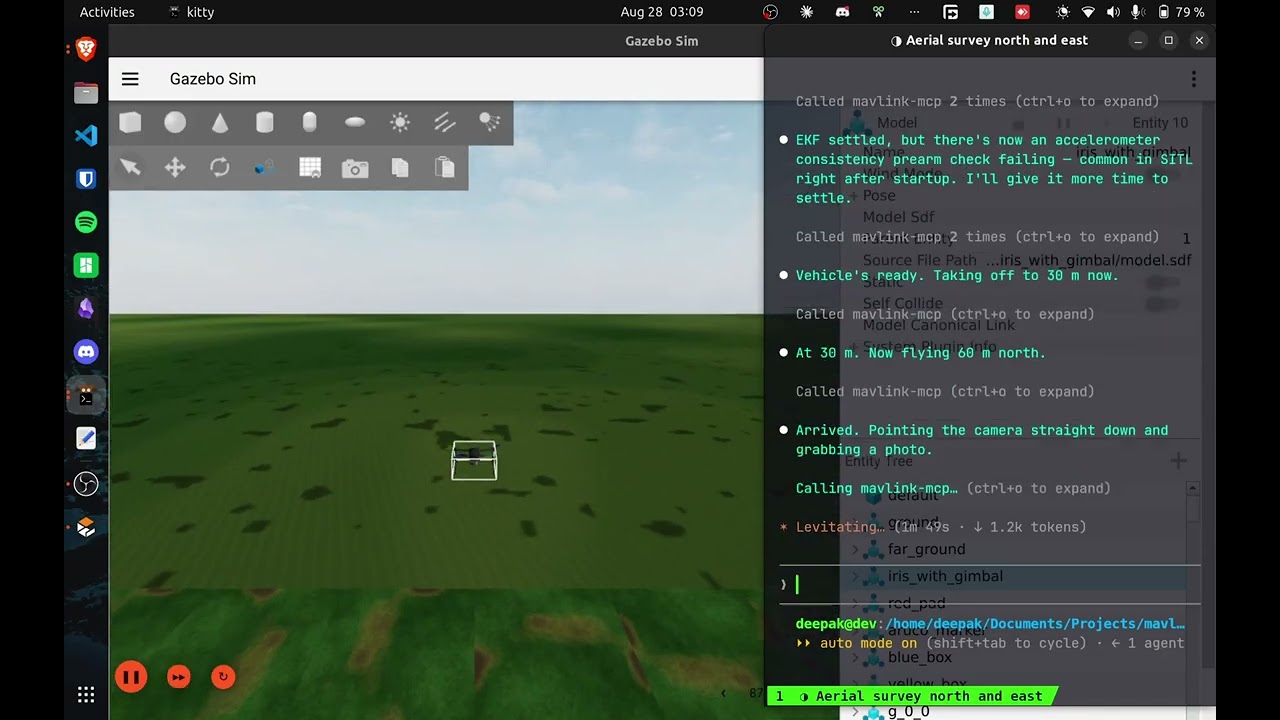
Watch the demo on YouTube: a mission flown
from one prompt, and a site survey.
Flight tools are off until you pass --enable-actuation. Read Safety before you do.
Architecture
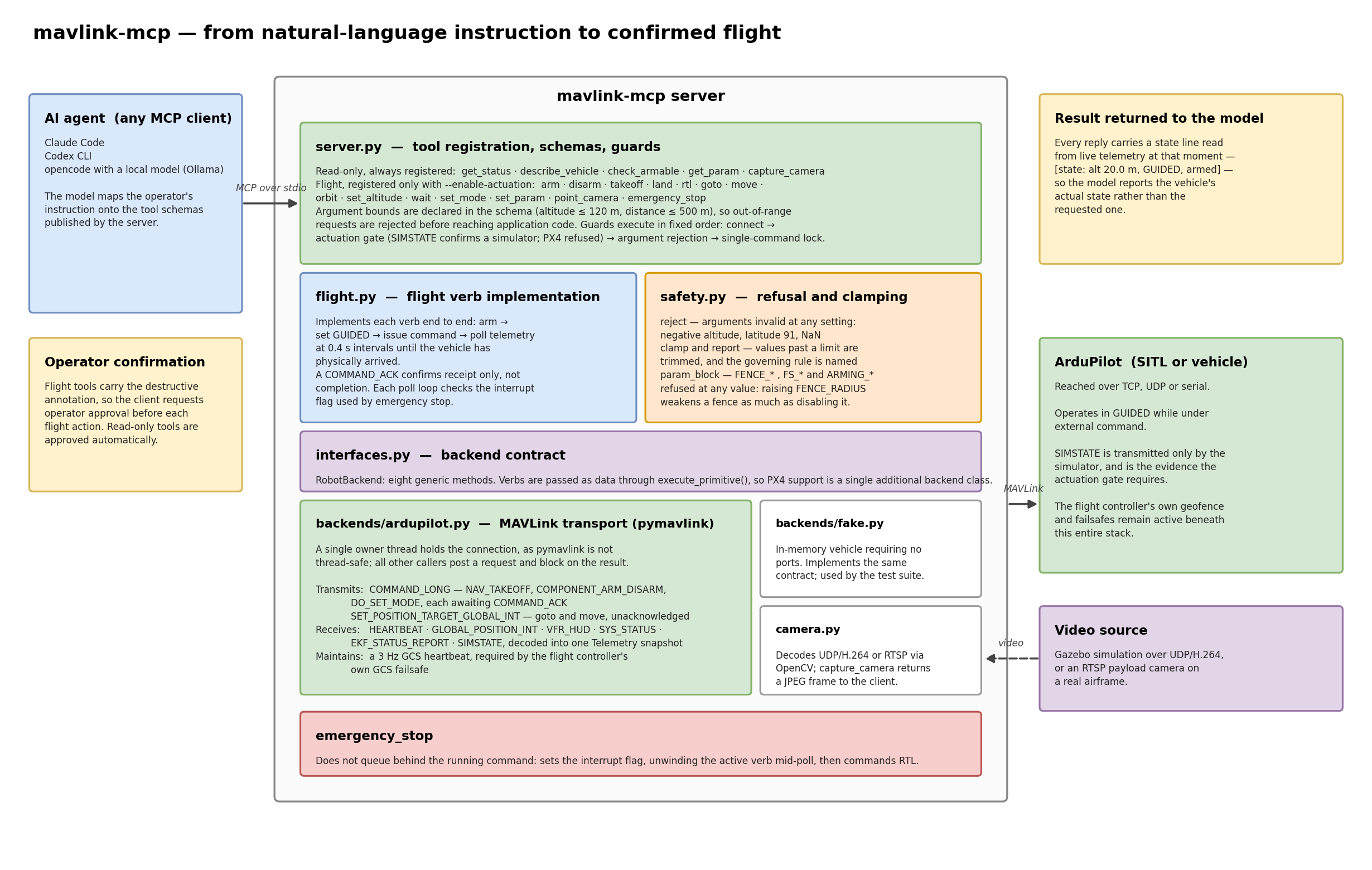
An editable copy lives at docs/architecture.drawio.
Status
Solid in simulation (beta): covered by the unit suite and flown by pytest -m sitl against
ArduPilot SITL: the read-only tools, arm/disarm/takeoff/land/rtl/goto/move/orbit/wait, set_param with the safety guards, the geofence + GCS-heartbeat failsafe. The Gazebo
camera path is exercised manually (see below), not by the SITL suite.
Working, less battle-tested: the HTTP transport, --camera over rtsp:///udp://, the pi
bridge. Not yet flown on real hardware.
Planned: a PX4 backend via MAVSDK. PX4 is detected from its heartbeat today, but flight is
refused until the backend lands. See
STATUS.md.
Install
Needs Python 3.10+. To actually fly you also need ArduPilot SITL built (ArduPilot's
SITL on Linux guide); the optional
Gazebo camera needs Gazebo Harmonic + the world. The server itself
starts without either; the link opens lazily on the first tool call.
Either install puts the mavlink-mcp command on your PATH, which is what the MCP client
configs below call:
pip install mavlink-mcp # add "mavlink-mcp[camera]" for an RTSP camera (Gazebo: see below)
Or from source, to hack on it:
git clone https://github.com/deepak61296/mavlink-mcp.git
cd mavlink-mcp
pip install -e .                  # add ".[camera]" for an RTSP camera (Gazebo: see below)
If mavlink-mcp isn't on your client's PATH (e.g. it lives in a venv), give the configs the
absolute path to it instead of the bare command name.
Try it against SITL
Start ArduCopter SITL (no MAVProxy, so the server owns the link):
cd ~/ardupilot
python3 Tools/autotest/sim_vehicle.py -v ArduCopter --no-mavproxy -I0
Wire it into your MCP client. For Claude Code it is one command:
claude mcp add --transport stdio drone -- mavlink-mcp --enable-actuation
claude mcp list          # check it's registered;  /mcp inside Claude Code shows it connected
The -- is required; it stops Claude parsing --enable-actuation as its own flag. Default scope is
local (this project only); --scope project writes a shared .mcp.json instead. Or configure it by
hand with .mcp.json in the project root (Claude Desktop uses the same shape):
{
  "mcpServers": {
    "drone": { "command": "mavlink-mcp", "args": ["--enable-actuation", "--camera", "gazebo"] }
  }
}
Codex CLI (~/.codex/config.toml):
[mcp_servers.drone]
command = "mavlink-mcp"
args = ["--enable-actuation", "--camera", "gazebo"]
# Codex asks before every flight tool by default, because they are marked destructive.
# Set this to "approve" only if you want it to fly unattended (a simulator, say).
default_tools_approval_mode = "auto"
pi ships no MCP client of its own, so there is a
bridge extension in this repo:
MAVLINK_MCP_ARGS="--enable-actuation" pi -a -e integrations/pi/mavlink-mcp.ts
Every tool is annotated, so a client can tell the difference between reading telemetry and
moving an aircraft: the read-only tools declare readOnlyHint and get auto-approved, the
flight tools declare destructiveHint and prompt.
Argument limits travel in the tool schema, so a client rejects an impossible request before
it reaches an aircraft: takeoff(altitude_m=-20) comes back as a validation error, not as
a clamped flight. The bounds come from your config, so the model sees the envelope it is
actually flying in.
Then ask it something like "take off to 20 m, fly 40 m north, orbit here at 15 m, take a photo, then RTL."
No SITL? mavlink-mcp --backend fake --enable-actuation runs an in-memory drone with no ports.
With a camera, in Gazebo
For a drone that can actually see something, there is a Gazebo field (roads, cars,
buildings, markers) in ardupilot_gazebo_ai:
git clone https://github.com/deepak61296/ardupilot_gazebo_ai.git
cd ardupilot_gazebo_ai && bash scripts/setup_plugin.sh && bash scripts/sim_up.sh
It needs Gazebo Harmonic and an NVIDIA GPU. Reading the Gazebo stream also needs Ubuntu'spython3-opencv rather than the [camera] wheel, which has no GStreamer; the
getting-started guide has the venv recipe.
then, in another terminal:
mavlink-mcp --enable-actuation --camera gazebo
Ask the agent to take off, point the camera down, fly north and take a photo, and it gets
back a picture of the field.
On a real vehicle
Nothing here has been flown on hardware yet, so treat this as the configuration you would
start from rather than a tested recipe.
Two things change from SITL, and they are configured independently. The autopilot link and
the camera are separate streams that happen to come off the same aircraft:
mavlink-mcp \
  --conn serial:/dev/ttyACM0:57600 \
  --camera rtsp://192.168.1.10:8554/cam \
  --enable-actuation --allow-real-vehicle
--conn:serial:/dev/ttyACM0:57600for a USB/telemetry radio, orudp:...if a
router is already fanning the link out. If a GCS is also connected, read
Running alongside a GCS first: one MAVLink endpoint serves one
client.--camera: your camera's own RTSP URL, which the operator has to supply; the server
has no way to discover it. Unlike--camera gazebo, RTSP is read through OpenCV's FFMPEG
backend, so the plainpip install ".[camera]"wheel is enough, no GStreamer build
needed. Try--camera file:<some.jpg>first to confirm your client renders images at all.--allow-real-vehicle: required. Actuation is refused on anything that does not
identify itself as a simulator (see Safety), and the connection string is never
what decides that.
Running alongside a GCS
The server owns the link. ArduPilot SITL, like a typical serial flight controller, serves a
single MAVLink client, so you can't point mavlink-mcp and a ground station at the same
endpoint; the second one connects but never sees a heartbeat. To run both, fan the stream out with
mavlink-router (or mavproxy) and give each
consumer its own routed UDP port:
# one FC in, two UDP endpoints out
mavlink-routerd -e 127.0.0.1:14550 -e 127.0.0.1:14560 /dev/ttyACM0:57600
Then mavlink-mcp --conn udp:127.0.0.1:14560 while your GCS takes 14550.
Tools
Read-only (always on): get_status, describe_vehicle, check_armable, get_param,capture_camera.
The server also finds out what it's talking to on its own: describe_vehicle reports the
autopilot and firmware version (from AUTOPILOT_VERSION), the vehicle type from the
heartbeat, sensor health from SYS_STATUS, the fence, and the protocol capabilities,
all read from the vehicle rather than from configuration. The same info is published as MCP
resources (mavlink://vehicle, mavlink://telemetry) for clients that read those.
Flight (need --enable-actuation): arm, disarm, takeoff, land, rtl, goto, move,orbit, wait, set_altitude, set_mode, set_param, point_camera, emergency_stop.
movetakes north/south/east/west, the four diagonals (northeast/…), or forward/back/left/right,
plus a distance. Blocks until it arrives.orbitflies one full circle of a given radius around the current position, holding altitude.takeoff/goto/move/orbit/land/rtlall block until the vehicle actually gets
there;rtlreturns once it is down and disarmed, not when the mode switches. Every
reply ends with a[state: alt X m, MODE, armed]line read from live telemetry.emergency_stopinterrupts a running flight command (the blocking tool unwinds
immediately) and then commands RTL. The RTL itself may wait behind at most one in-flight MAVLink exchange
(each is hard-bounded at a few seconds).- Flight commands run off the event loop, so
get_statusandemergency_stopstill answer
immediately while the vehicle is in the middle of a long move. capture_camerareturns the frame as an MCP image, so a multimodal model can look at it. Point--cameraatgazebo, anrtsp://URL, orfile:<path>.file:is handy for a first
test: point it at any JPEG and check your client actually renders what the drone "sees".
Every other tool returns text, so the flight and telemetry tools work with any model; onlycapture_cameraneeds a multimodal client (Claude, Codex).
Note on --camera gazebo: that stream is H.264 over UDP, which OpenCV can only read
through GStreamer, and the opencv-python wheel is built without it. Use Ubuntu'spython3-opencv (and numpy<2 with it) for the Gazebo camera. rtsp:// and file:
work fine with the wheel.
Safety
- Actuation is off unless you pass
--enable-actuation. Without it, only the read-only tools
exist, and a read-only server never writes to the flight controller, not even failsafe
setup: connecting and reading status leaves the vehicle's configuration untouched. - Even then, flying needs the vehicle to prove it is a simulator: ArduPilot SITL streams a
SIMSTATEmessage, real firmware never does. NoSIMSTATE, even from a real FC that mavlink-router happens to route to127.0.0.1, means every flight tool (emergency_stopincluded) is refused
until you pass--allow-real-vehicle. The connection string is never trusted for this. - Flight tools are refused on anything that isn't a multirotor (a Plane or Rover heartbeat gets
telemetry tools only), and on PX4 until its backend exists. set_paramrefuses writes to the safety-net parameter families at any value (FENCE_*,FS_*,ARMING_*, battery failsafes,FORMAT_VERSION,SYSID_*), not just "off" values,
because a fence is weakened as easily by raisingFENCE_RADIUSas by zeroingFENCE_ENABLE.
Opt out with--allow-unsafe-params.- Altitude is clamped to a limit and to the vehicle's fence; horizontal targets are pulled back
inside the geofence.get_statusreports whether the horizontal clamp is actually active
(it needs a home fix and a readable fence radius) instead of failing silently. - No disarm while airborne, no takeoff while flying, no move/goto before armed and airborne.
When altitude is unknown because the position stream is lost, these checks fail closed. - With actuation enabled, the server enables the FC geofence and a GCS-heartbeat failsafe, so
the vehicle returns to launch on its own if the agent or link dies.describe_vehiclelists
exactly which parameters were written at connect. - Timed-out commands cannot fire late: a flight command that already reported failure is
cancelled before it can reach the vehicle afterwards.
None of this replaces a human with a kill switch on a real flight.
Options
| Flag | Env | Default | Meaning |
|---|---|---|---|
--conn |
MAVLINK_MCP_CONN |
tcp:127.0.0.1:5760 |
MAVLink endpoint (SITL, udp:..., serial:/dev/ttyACM0:57600) |
--enable-actuation |
off | register the flight tools | |
--allow-real-vehicle |
off | allow actuation on a vehicle that has not proven it is a simulator | |
--allow-unsafe-params |
off | let set_param disable fences/failsafes |
|
--camera |
MAVLINK_MCP_CAMERA |
none | gazebo[:port], rtsp://..., udp://..., file:<path> |
--backend |
MAVLINK_MCP_BACKEND |
auto |
auto (detect from heartbeat), ardupilot, fake |
--config |
MAVLINK_MCP_CONFIG |
none | TOML config file, see below |
--transport |
stdio |
stdio or http |
|
--host |
127.0.0.1 |
bind address for --transport http. No auth exists on the HTTP transport, so a non-loopback bind is refused at startup; front it with an authenticating proxy instead |
|
--port |
8000 |
port for --transport http |
The link opens lazily on the first tool call, so the server starts fine before SITL is up.
Instead of flags you can keep everything in one TOML file. It keeps the MCP client
entry short, and it is the only place to tune the safety limits:
# drone.toml. Run with: mavlink-mcp --config drone.toml
[connection]
uri = "tcp:127.0.0.1:5760"

[safety]
enable_actuation = true
max_takeoff_alt_m = 50      # clamp on top of the vehicle's own fence
max_orbit_radius_m = 100

[camera]
source = "gazebo"
Flags and env vars override the file.
Autopilot support
The default backend is auto: the server reads the autopilot type from the first heartbeat.
ArduPilot works today and is what the test suite flies. PX4 is recognised from its heartbeat
and flight is refused on it until the PX4 backend (MAVSDK) lands; the read-only tools are
plain MAVLink and should work, but nothing here has been run against PX4 yet; see
STATUS.md.
scripts/mission_demo.py is a small example that drives the server over MCP and flies a mission.
Tests
pytest                      # unit tests, no vehicle needed
pytest -m sitl              # flies a real mission against SITL (~5 min)
The sitl suite is opt-in because it needs ArduCopter SITL listening onMAVLINK_MCP_TEST_CONN (default tcp:127.0.0.1:5760). It drives the server over the real
stdio protocol and flies a full mission, which is the only way most of the interesting
failures show up at all.
Start SITL for it with no MAVProxy, so the server owns the link:
python3 Tools/autotest/sim_vehicle.py -v ArduCopter --no-mavproxy -I0
That matters more than it looks: ArduPilot SITL serves exactly one MAVLink client on its
TCP port. A second connection is accepted at the socket level and then never receives a
heartbeat, so a stray MAVProxy or a second server makes the vehicle look dead rather than
busy.
License
MIT
Yorumlar (0)
Yorum birakmak icin giris yap.
Yorum birakSonuc bulunamadi