Shipyard
Health Gecti
- License — License: Apache-2.0
- Description — Repository has a description
- Active repo — Last push 0 days ago
- Community trust — 24 GitHub stars
Code Gecti
- Code scan — Scanned 12 files during light audit, no dangerous patterns found
Permissions Gecti
- Permissions — No dangerous permissions requested
Shipyard is a local-first development dashboard that lets you manage projects, tasks, git repositories, and native terminal sessions directly from your web browser.
Security Assessment
Overall Risk: Medium. According to its documentation, this tool runs entirely on localhost, stores data in local JSON files, and claims to have no telemetry. However, the application requires executing local shell commands and interacting with the local filesystem to provide its core git, terminal, and project management features. This inherently requires elevated trust, as it has the potential to access sensitive data on your machine. The automated code audit supports the developer's claims: no dangerous code patterns were found across 12 scanned files, no hardcoded secrets were detected, and no dangerous permissions are requested.
Quality Assessment
The project appears to be well-structured and actively developed. It was last updated today, indicating ongoing maintenance. It uses modern, reliable technologies like React 18, Fastify 5, and TypeScript 5. The repository is properly documented with a detailed README and uses the permissive Apache-2.0 license. While it is relatively new and has a small community footprint with 24 GitHub stars, all standard health and quality checks passed perfectly.
Verdict
Safe to use, though users should exercise standard caution inherent to granting a new local application access to their file system and shell.
Local-first development dashboard: manage projects, tasks, git, and terminals easily. No cloud, no accounts, just localhost
Shipyard
Local development dashboard — manage projects, tasks, git, and terminals from your browser.







Why Shipyard
- Local-first -- runs entirely on
localhost. No cloud services, no accounts, no telemetry. Your data stays on your machine as plain JSON files. - Complements your editor -- Shipyard is not an IDE. It sits alongside VS Code (or whatever you use) and gives you a bird's-eye view of all your projects, tasks, and git status in one place.
- Cross-platform -- works on Linux, macOS, and Windows. Launches native terminals, file managers, and VS Code with one click.
- AI-ready -- optional Claude integration for task analysis and chat, plus an MCP server so Claude Desktop or Claude Code can read your projects and tasks directly.
Features
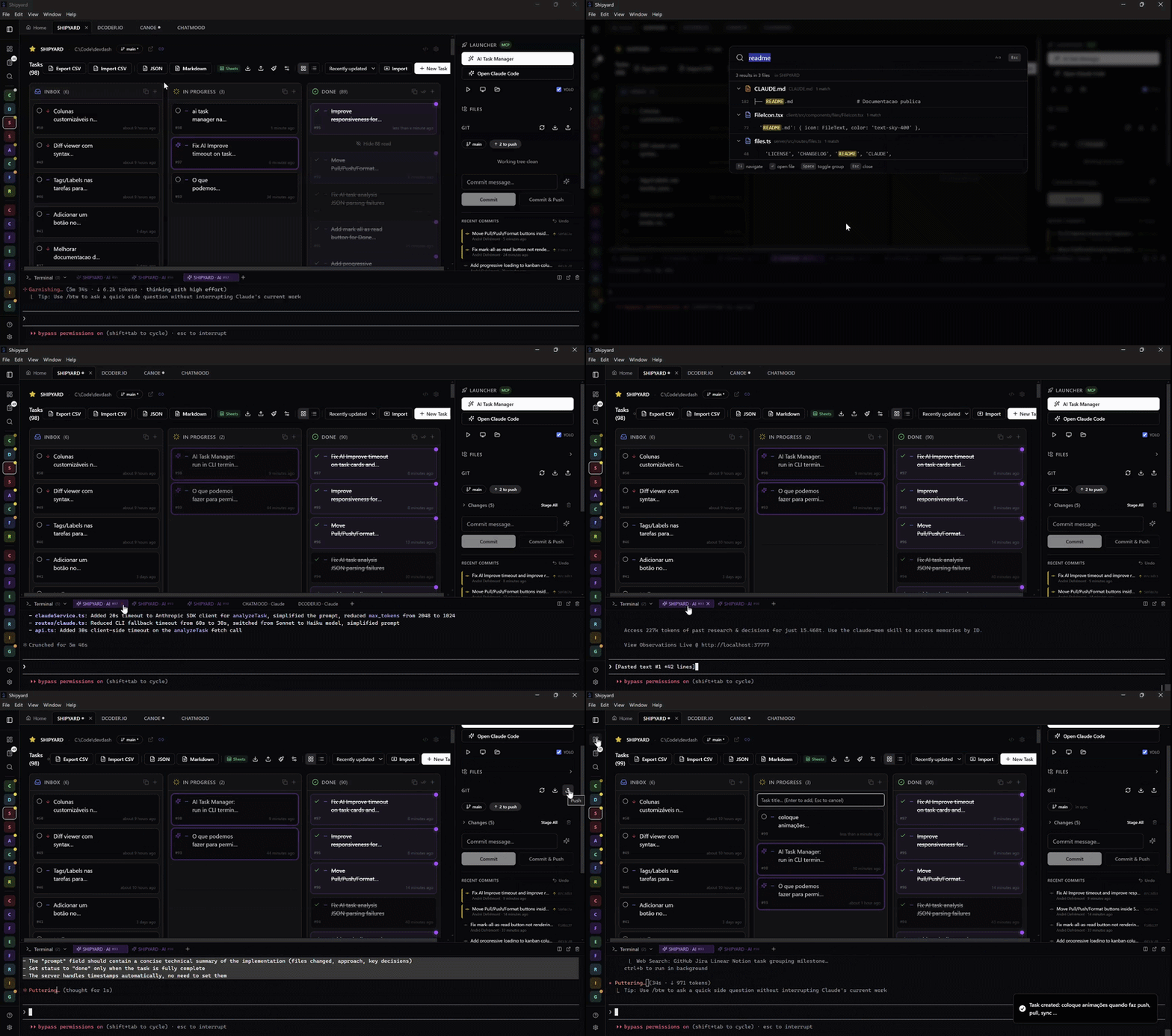
Dashboard -- See all your projects at a glance with live git status, branch info, tech stack detection, and task counts. A "Working On" banner shows in-progress tasks across all projects.
Kanban Board -- Per-project task management with drag-and-drop columns (Inbox, In Progress, Done). Priority levels, descriptions, and technical prompts for each task. A global task view across all projects is also available.
Git Panel -- Stage, unstage, commit, push, pull, view diffs, and browse commit history without leaving the browser. Live indicators show unpushed commits, unstaged changes, and untracked files.
Terminal Integration -- Launch Claude Code, dev servers, shells, VS Code, or your file manager with one click. Optionally run terminals directly in the browser via xterm.js (requires node-pty).
File Explorer -- Browse project files in a tree view with lazy loading. Preview markdown, code, and images in a dialog.
Claude AI -- Chat with Claude in the workspace sidebar with full project context (tasks, git, files). AI-powered task analysis generates descriptions and implementation prompts automatically. Requires your own Anthropic API key.
MCP Server -- Expose Shipyard as a Model Context Protocol server. Claude Desktop, Claude Code, or any MCP client can list projects, manage tasks, and read git status. Secured with OAuth 2.1 + PKCE.
Google Sheets Sync -- Bidirectional sync of tasks with a Google Sheet via Apps Script. Auto-push on changes, auto-pull every 30 seconds, with per-task merge based on timestamps. No Google API keys needed.
Export -- JSON backup and Markdown export (checklist, table, or detailed format) for sharing with teams or clients.
Multi-tab Workspace -- Open multiple projects simultaneously in tabs, switch instantly between them.
Command Palette -- Ctrl+K to quickly search and jump to any project, task, or action.
Download
Pre-built desktop installers are available on the Releases page:
| Platform | File |
|---|---|
| Windows | Shipyard-Setup-x.x.x.exe |
| macOS (Apple Silicon) | Shipyard-x.x.x-arm64.dmg |
| macOS (Intel) | Shipyard-x.x.x-x64.dmg |
| Linux | Shipyard-x.x.x.AppImage or .deb |
Or run from source:
Quick Start
Prerequisites
Install and Run
git clone https://github.com/defremont/Shipyard.git
cd Shipyard
pnpm install
pnpm dev
Open http://localhost:5421.
Automated Setup (optional)
The setup scripts install dependencies and optionally create launch shortcuts:
| OS | Command |
|---|---|
| Linux / macOS | chmod +x setup.sh && ./setup.sh |
| Windows | setup.cmd |
Launch Shortcuts
| OS | Command | Description |
|---|---|---|
| Any | pnpm dev |
Starts client (port 5421) + server (port 5420) |
| Linux / macOS | ./devdash.sh |
Starts server and opens browser |
| Windows | devdash.cmd |
Starts server and opens browser |
Shell alias (Linux/macOS):
# Add to ~/.bashrc or ~/.zshrc
alias shipyard='cd /path/to/Shipyard && ./devdash.sh'
Integrated Terminal (optional)
The in-browser terminal requires node-pty, which is listed as an optional dependency. If it fails to compile during install, everything else works normally -- terminal launchers will open native OS terminals instead.
First Run
On first launch, Shipyard shows a setup wizard that walks you through adding projects, explains the core features, and provides a quick reference. You can skip it and configure projects later in Settings.
How It Works
Dashboard
The home screen shows all your registered projects with live git indicators (branch, uncommitted changes, unpushed commits). The "Working On" section highlights in-progress tasks across all projects. Click any project to open its workspace in a tab.
Workspace
Each project opens in a tabbed workspace with two panels:
- Left (3/4): Kanban board with drag-and-drop between Inbox, In Progress, and Done columns
- Right (1/4): Quick Launch buttons, Claude context tools, file explorer, and Git panel
Task Workflow
Create tasks with a title, description, priority, and optional technical prompt. The prompt field is designed for implementation details -- causes, files, solutions -- that can be copied directly to an AI coding assistant.
Tasks track timestamps for each stage (inbox, in-progress, done) automatically.
Terminal Launchers
Shipyard detects your OS and opens native terminals:
| Action | Linux | macOS | Windows |
|---|---|---|---|
| Terminal | gnome-terminal | Terminal.app | Windows Terminal (wt.exe) |
| VS Code | code |
code |
code |
| File manager | xdg-open | open | explorer.exe |
Terminal titles follow the pattern [project-name] Type (e.g., [my-app] Dev, [my-app] Shell).
On Windows, terminals use cmd.exe (not bash) to avoid triggering WSL.
Stack
| Layer | Technology |
|---|---|
| Frontend | React 18 + Vite + TypeScript + Tailwind CSS + shadcn/ui |
| Backend | Fastify 5 + TypeScript (via tsx) |
| Data | JSON files (no database) |
| Monorepo | pnpm workspaces (client + server) |
Desktop App
Shipyard can be packaged as a standalone desktop app using Electron. The server runs as a child process, and data is stored in the OS-appropriate app data directory.
pnpm dist:win     # Windows (.exe installer)
pnpm dist:mac     # macOS (.dmg)
pnpm dist:linux   # Linux (.AppImage + .deb)
Features: system tray icon, single-instance lock, auto-start server.
Data and Privacy
All data is stored locally in a data/ directory as plain JSON files. Nothing is sent to any cloud service.
- Projects: registered paths and cached metadata
- Tasks: one JSON file per project
- Claude API key: encrypted with AES-256-GCM on disk, never exposed to the browser
- Sync config (Google Sheets URLs): stored only in your browser's localStorage, not on the server
Portability
You can move your data between machines by:
- Export/Import -- download tasks as JSON, import on the other machine
- Google Sheets -- both machines sync to the same spreadsheet
- Cloud folder -- symlink
data/to a Dropbox/OneDrive/iCloud folder - Private git repo -- version the
data/directory
Google Sheets Sync
Sync a project's tasks bidirectionally with a Google Sheet using a free Apps Script web app. No Google API keys or OAuth setup required.
Setup
- Create a new Google Sheet
- Open Extensions > Apps Script
- Replace the default code with the script below
- Click Deploy > New deployment > Web App
- Set Execute as: Me, Who has access: Anyone
- Copy the deployment URL
- In Shipyard, open a project and click the Sheets button in the task board header
- Paste the URL, click Test, then Save
Apps Script
const HEADERS = ['id', 'title', 'description', 'priority', 'status', 'prompt', 'updatedAt'];

function doGet(e) {
  const action = (e && e.parameter && e.parameter.action) || 'read';
  const sheet = SpreadsheetApp.getActiveSpreadsheet().getActiveSheet();

  if (action === 'ping') {
    return jsonResp({ ok: true, rows: Math.max(0, sheet.getLastRow() - 1) });
  }

  const data = sheet.getDataRange().getValues();
  if (data.length < 2) return jsonResp({ tasks: [] });

  var headers = data[0].map(function(h) { return String(h).toLowerCase().trim(); });
  var tasks = [];
  for (var i = 1; i < data.length; i++) {
    var row = data[i];
    if (!row.some(function(c) { return String(c).trim(); })) continue;
    var task = {};
    headers.forEach(function(h, idx) { task[h] = String(row[idx] || ''); });
    if (task.title) tasks.push(task);
  }
  return jsonResp({ tasks: tasks });
}

function doPost(e) {
  try {
    var payload = JSON.parse(e.postData.contents);
    var tasks = payload.tasks || [];
    var sheet = SpreadsheetApp.getActiveSpreadsheet().getActiveSheet();
    sheet.clear();
    sheet.appendRow(HEADERS);
    for (var i = 0; i < tasks.length; i++) {
      var t = tasks[i];
      sheet.appendRow(HEADERS.map(function(h) { return t[h] || ''; }));
    }
    if (HEADERS.length > 0) sheet.autoResizeColumns(1, HEADERS.length);
    return jsonResp({ success: true, updated: tasks.length });
  } catch (err) {
    return jsonResp({ error: err.message });
  }
}

function jsonResp(data) {
  return ContentService
    .createTextOutput(JSON.stringify(data))
    .setMimeType(ContentService.MimeType.JSON);
}

// Auto-update updatedAt when editing cells manually
function onEdit(e) {
  var sheet = e.source.getActiveSheet();
  var row = e.range.getRow();
  if (row < 2) return;
  var headers = sheet.getRange(1, 1, 1, sheet.getLastColumn()).getValues()[0];
  var col = headers.indexOf('updatedAt');
  if (col === -1) return;
  if (e.range.getColumn() === col + 1) return;
  sheet.getRange(row, col + 1).setValue(new Date().toISOString());
}
How Sync Works
- Auto-push: every task change pushes to the sheet after a 2-second debounce
- Auto-pull: polls the sheet every 30 seconds and merges changes silently
- Merge logic: per-task comparison using
updatedAttimestamps. The newest version wins. New tasks from either side are preserved. - Manual push/pull: buttons in the task board header for on-demand sync
- The backend is a stateless proxy -- it validates the Apps Script URL and forwards requests
Multi-machine Workflow
- Machine A: configure the sheet URL, push tasks
- Machine B: install Shipyard, add the same project, configure the same sheet URL, pull
- Both machines stay in sync via the shared spreadsheet
Project Structure
shipyard/
├── client/                  # Frontend (port 5421)
│   ├── src/
│   │   ├── components/      # UI components (shadcn/ui)
│   │   ├── hooks/           # React Query hooks
│   │   ├── lib/             # API client, sync providers, utilities
│   │   └── pages/           # Dashboard, Workspace, Tasks, Settings, Help
│   └── public/
├── server/                  # Backend API (port 5420)
│   └── src/
│       ├── routes/          # REST + WebSocket + MCP endpoints
│       └── services/        # Git, tasks, terminals, Claude, MCP
├── electron/                # Desktop app wrapper
├── data/                    # Local data (auto-created, gitignored)
├── setup.sh                 # Linux/macOS setup
├── setup.cmd                # Windows setup
├── devdash.sh               # Linux/macOS launcher
└── devdash.cmd              # Windows launcher
Contributing
- Fork the repository
- Create a feature branch
- Make your changes
- Run
pnpm devand test manually - Submit a pull request
The project uses CLAUDE.md as internal architecture documentation. Update it when adding routes, components, or changing data models.
UI components are built with shadcn/ui. To add a new component:
npx shadcn@latest add <component>
Star History
License
Yorumlar (0)
Yorum birakmak icin giris yap.
Yorum birakSonuc bulunamadi