annorex
Health Uyari
- License — License: MIT
- Description — Repository has a description
- Active repo — Last push 0 days ago
- Low visibility — Only 6 GitHub stars
Code Gecti
- Code scan — Scanned 12 files during light audit, no dangerous patterns found
Permissions Gecti
- Permissions — No dangerous permissions requested
Bu listing icin henuz AI raporu yok.
Review the replies and file changes of your coding agent in a Rex pane, add notes, and send them back. For Claude Code, Pi, and OpenCode on macOS.
Annorex
Annotate the replies and files of a coding agent in a Rex pane, then send your
notes back to the agent.


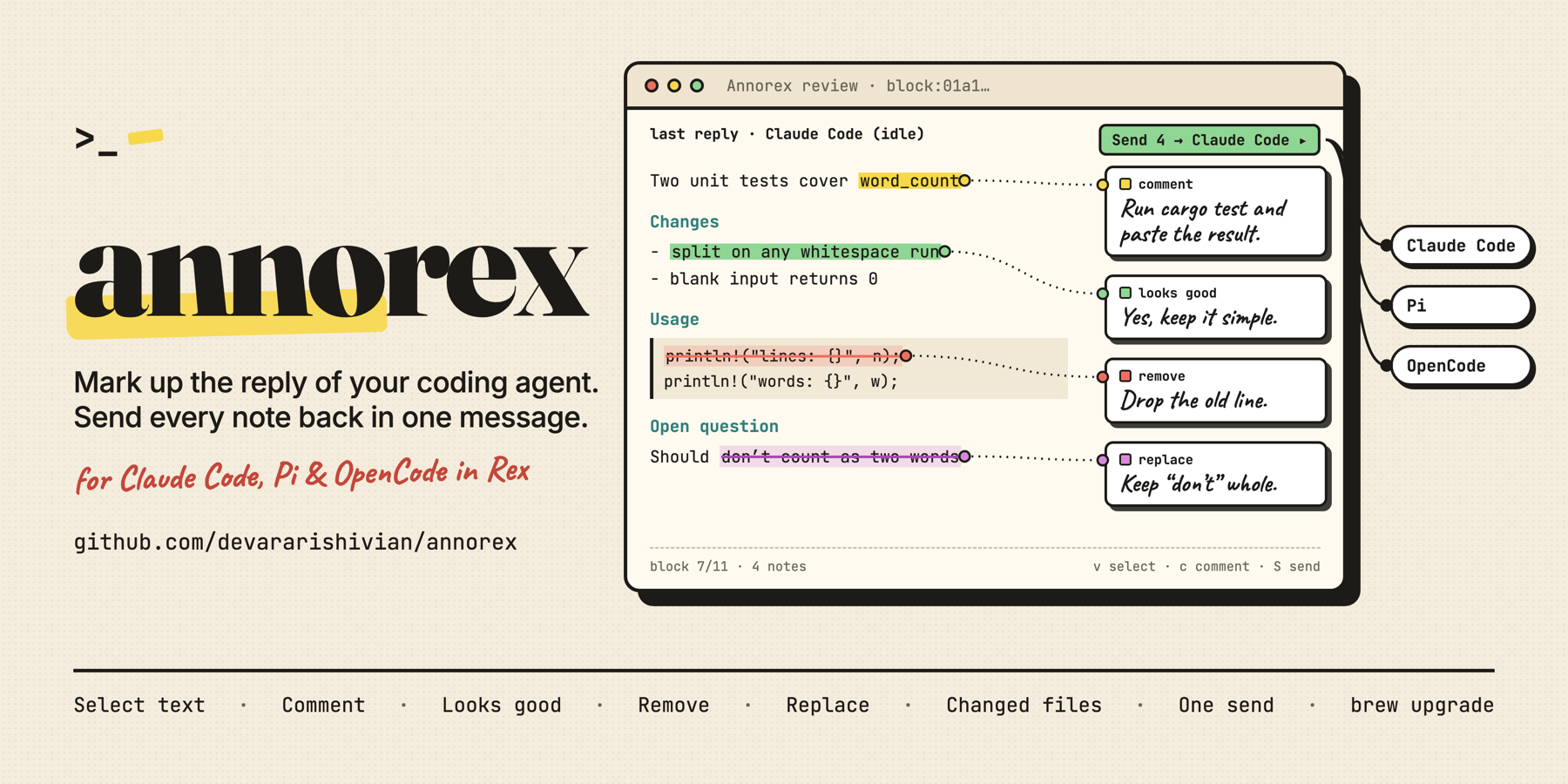
Annorex works with Claude Code, Pi, and OpenCode in Rex on macOS. It opens over the window of the agent. You select
the text that you want to change and write a note on it. One key sends all notes to the agent in one message.
The agent finishes a reply in Rex.
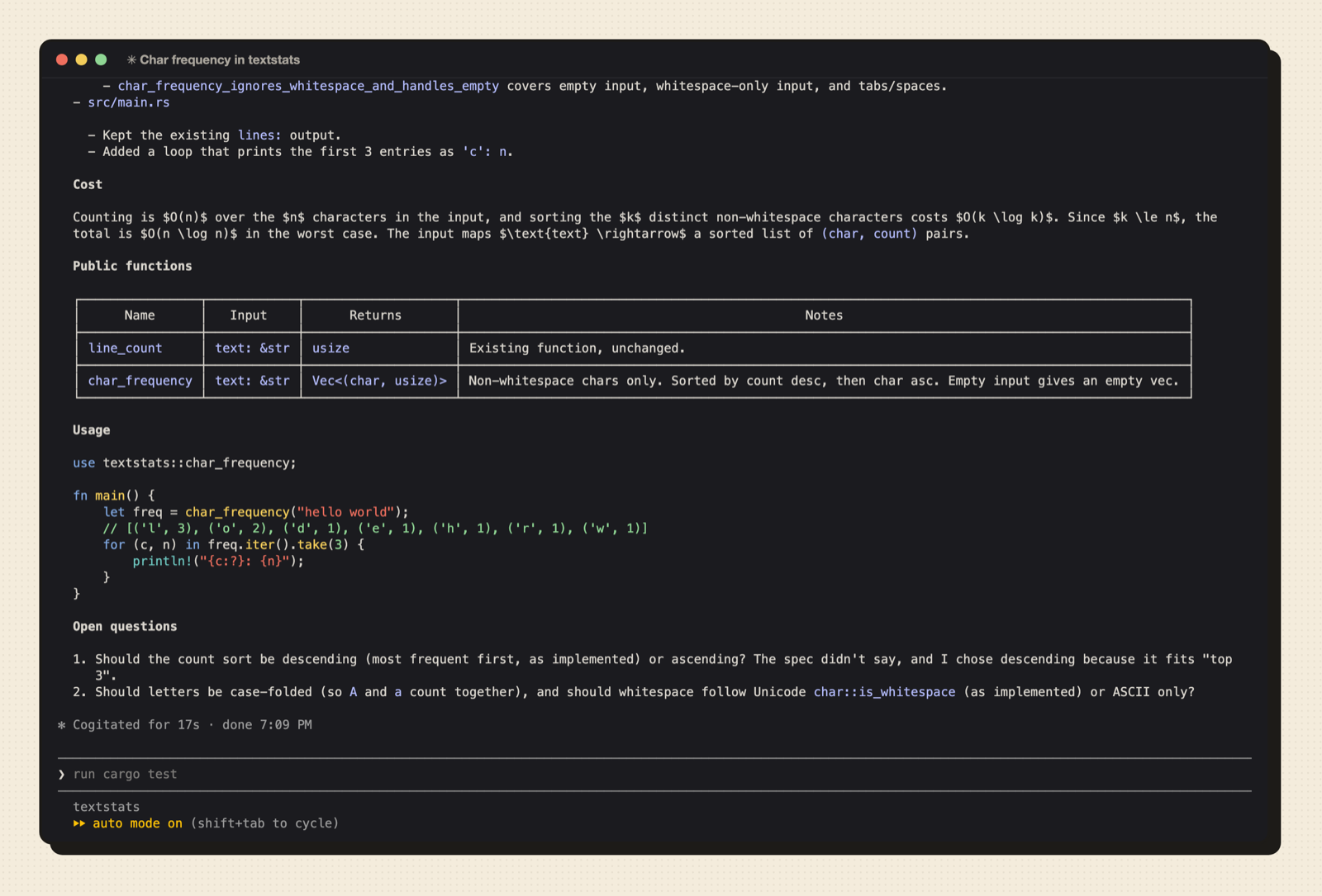
Press
cmd+shift+a. Annorex opens over the window of the agent. Select text withvand the cursor keys. The
action bar shows the four note types.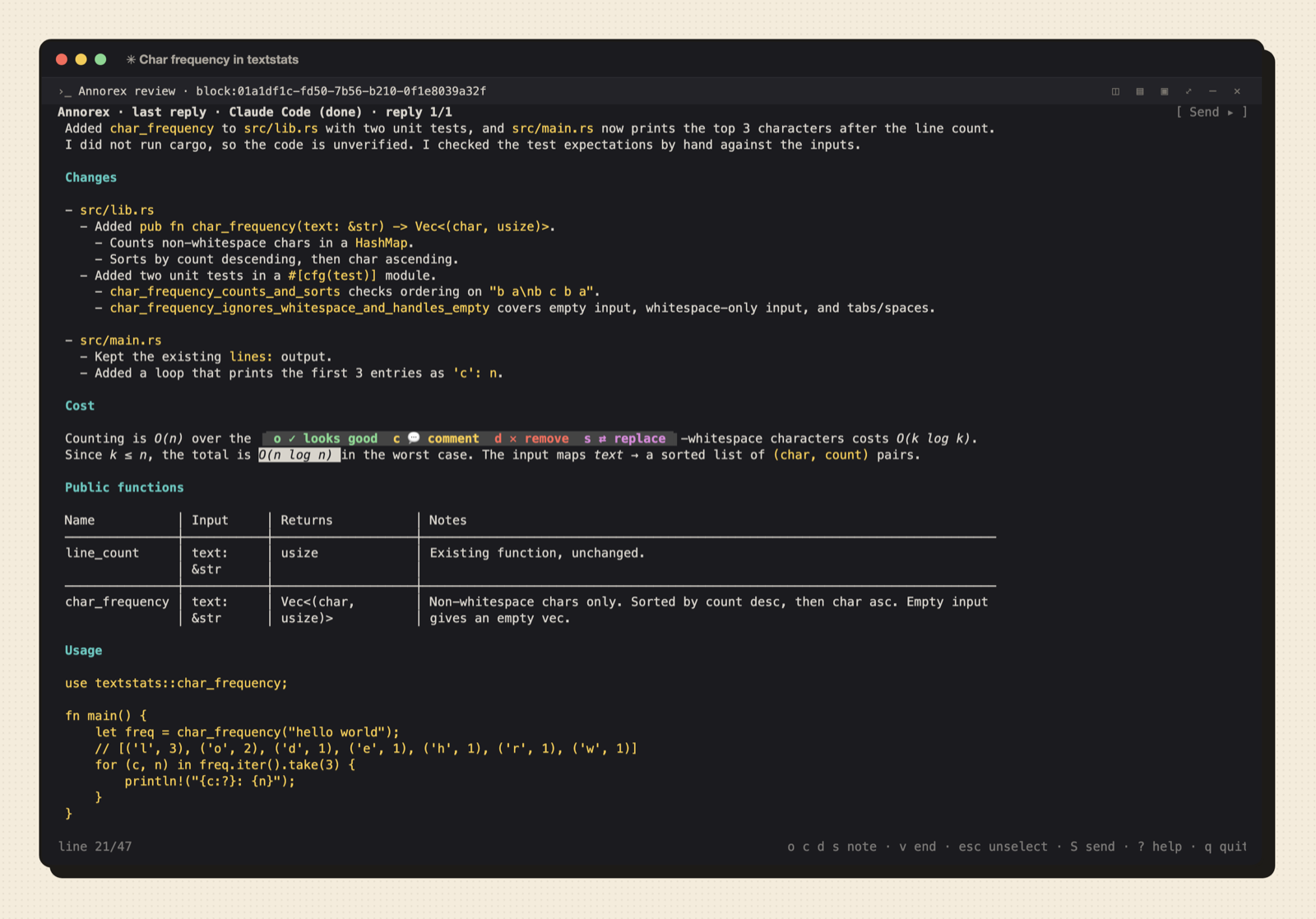
Press
c, write the comment in the note box, and pressenter.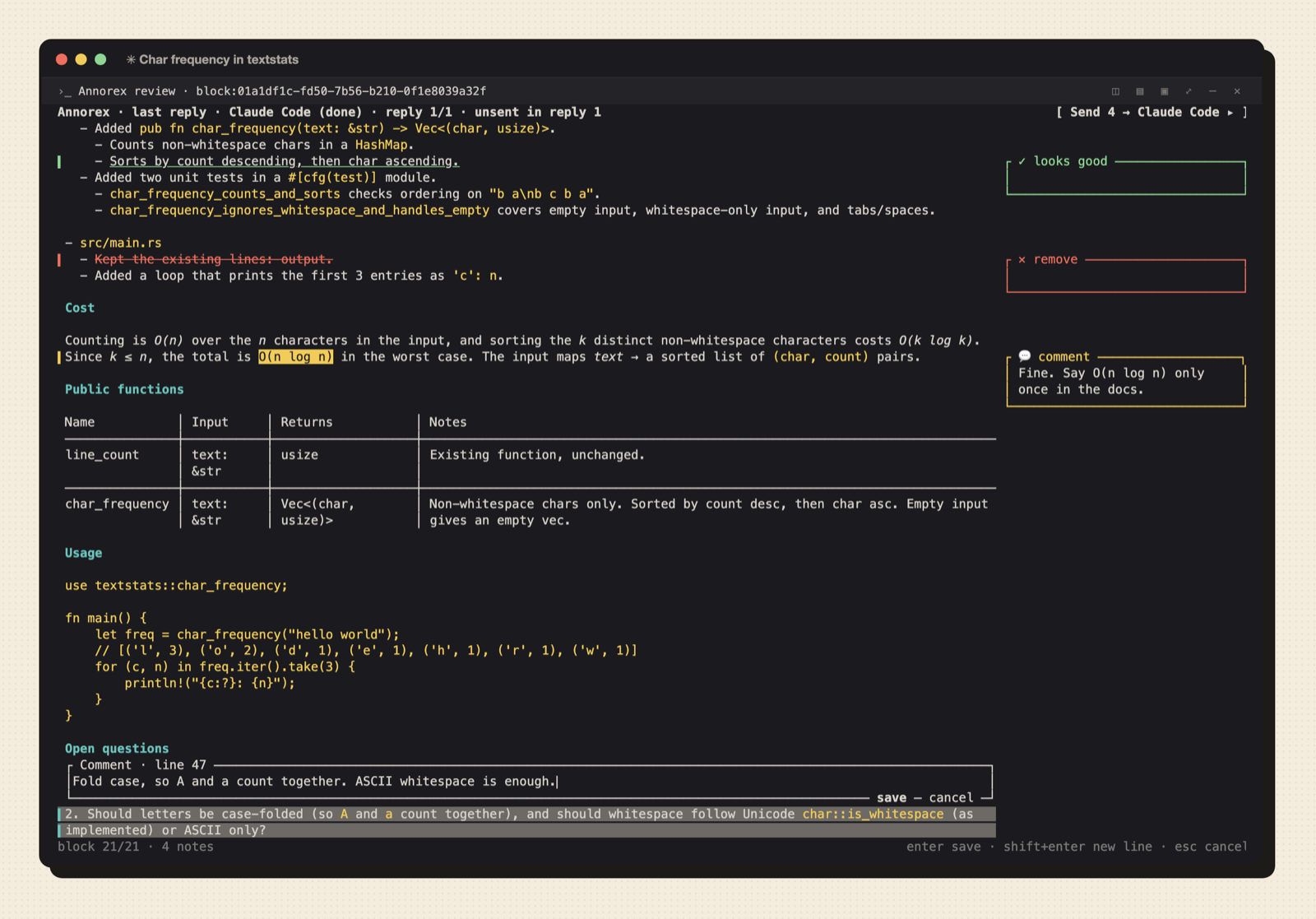
Press
Tto show the file tree. Open a file that the agent changed and write a note on it.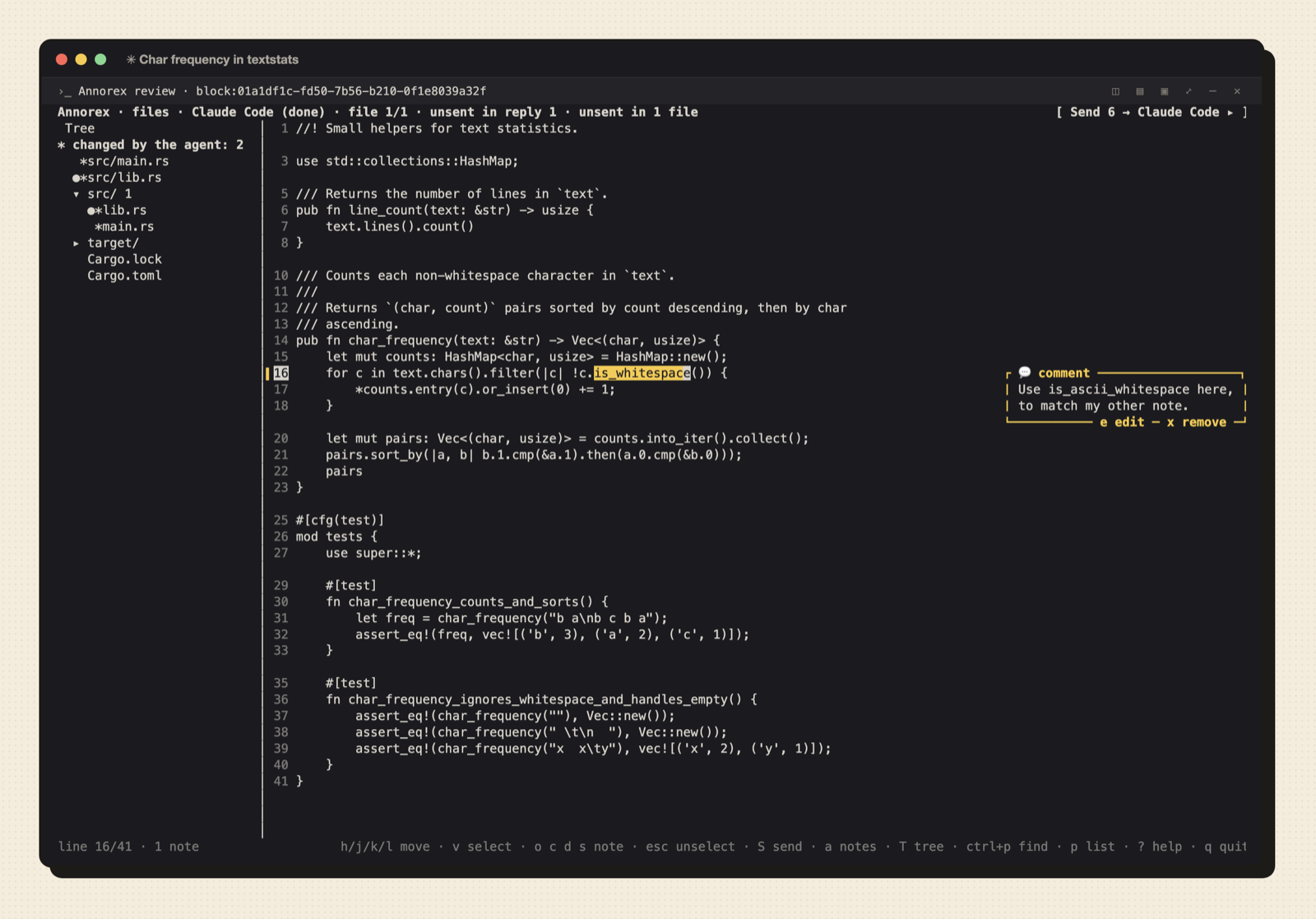
Press
S. Annorex sends all notes in one message and closes. The agent works on the notes.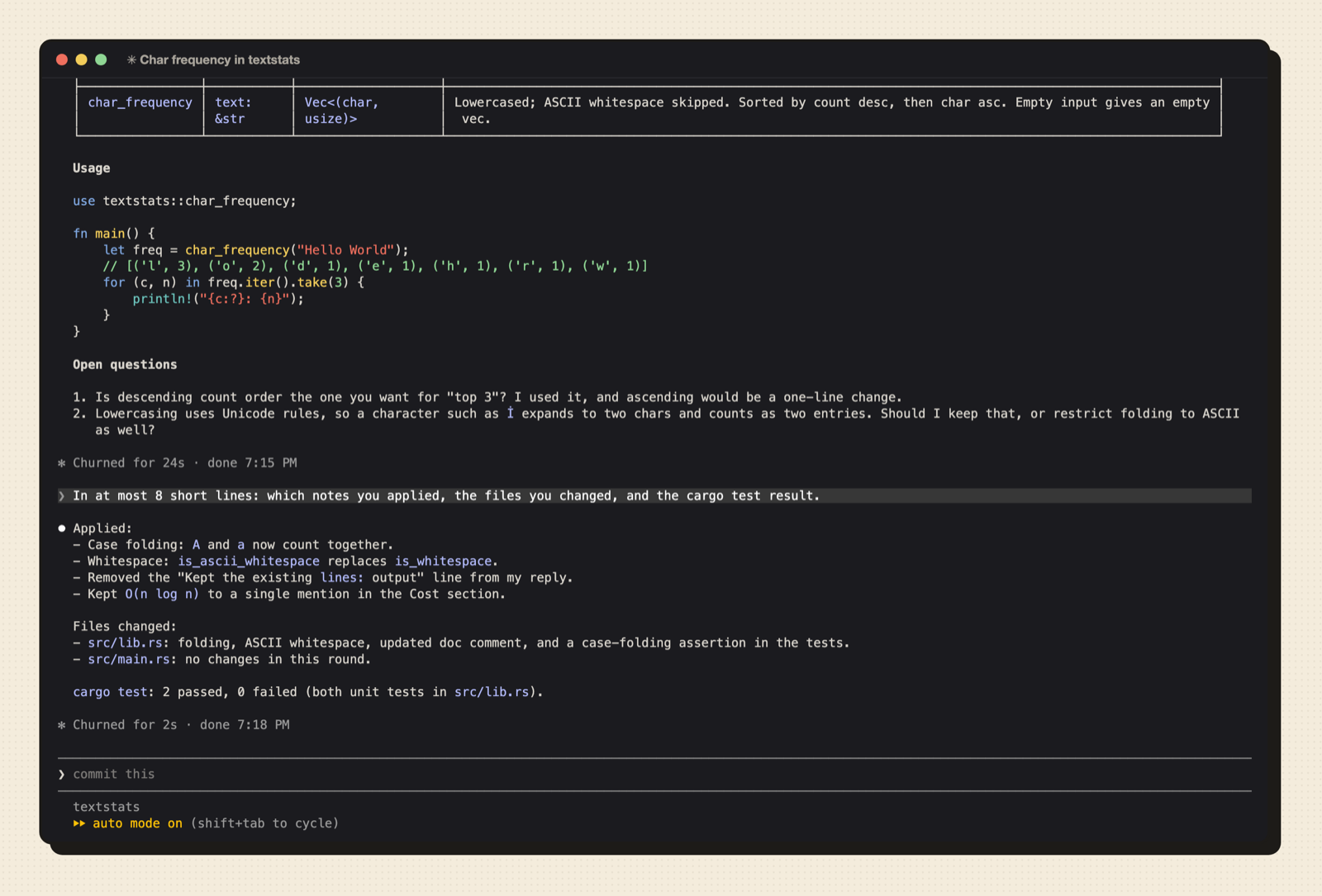
Why
A reply of a coding agent is often long. In the chat box of the agent, it is hard to point at one line of that reply.
You copy the text, add your comment, and repeat this for each point.
Annorex lets you mark the exact text instead. Each note quotes its text, so the agent knows which part you mean. Notes
on many replies and files go to the agent in one message. Annorex deletes your notes from disk only after a send that
it finished.
Install
You need these items:
- Rex on macOS (Apple silicon or Intel).
- Claude Code, Pi 1.5.0 or later, or OpenCode 2.x.
- Rust 1.99 or later, only to build from source.
Install the annorex binary in one of these three ways.
With Homebrew:
brew install devararishivian/tap/annorex
With the shell installer of the release. It puts the binary in $CARGO_HOME/bin, else in ~/.cargo/bin:
curl --proto '=https' --tlsv1.2 -LsSf https://github.com/devararishivian/annorex/releases/latest/download/annorex-installer.sh | sh
From source, with cargo:
cargo install --git https://github.com/devararishivian/annorex --locked annorex
The fully qualified name devararishivian/tap/annorex trusts only the Annorex formula. If you want to trust the whole
tap, run brew trust --tap devararishivian/tap.
For more install options, read Install in the guide.
Set up Rex
Rex has no plugin system. It has custom actions in its Lua configuration file init.lua. Annorex adds two actions.
Write the Lua module
annorex.luabeside theinit.luaof Rex:annorex rex installThe command does not change
init.lua. It prints the path of the binary that Rex starts, afterRex starts:.Add these lines to
init.lua:require("annorex").setup{} rex.bind("cmd+shift+a", "annorex_last") rex.bind("cmd+shift+f", "annorex_files")Run
rex config reload.
The action annorex_last opens the last reply. The action annorex_files opens the files of the work directory of
the agent. The command palette shows them as "Annorex: review the last reply" and "Annorex: review files".
Update
From version 0.2.0, Annorex tells you about a newer release. The viewer shows one banner line:Annorex X is available. Run: HINT. The hint is brew upgrade annorex for a Homebrew install. Otherwise it isannorex update.
Annorex checks at most once each 24 hours, in the background. If the network fails, it shows nothing. The only request
is GET https://api.github.com/repos/devararishivian/annorex/releases/latest.
Run annorex update --check to look for a newer release without an upgrade. Run annorex update to upgrade. The
command
depends on how you installed Annorex:
- Homebrew: it runs
brew upgrade annorex. - Shell installer: it runs the latest installer again.
cargo install: it prints thecargo installcommand. You must run it yourself.
The next time Annorex opens after an upgrade, it writes the new annorex.lua and asks Rex to reload the configuration.
You do not need to run annorex rex install again. If the reload fails, Annorex shows run: rex config reload at the
next open.
To turn off the check, use one of these ways:
- Set
update_check = falseinsetup{}. Use this way for the Rex key actions. - Set the environment variable
ANNOREX_NO_UPDATE_CHECK=1. The variable works when you start Annorex from a shell. This
includesannorex rex openfrom a shell.
Annotate the last reply
- Focus the pane of Claude Code, Pi, or OpenCode.
- Press
cmd+shift+a. Annorex opens over the full window of the agent. - If the agent has two or more replies, choose one in the list and press
enter. The newest reply is selected first.
The list holds the 25 newest replies. Pressplater to open the list again. - Press
jorkto choose a block, or click one. A block is a paragraph, a list item, a heading, a code block, or a
table. - Press
oto mark the block as good orcto comment. Pressdto mark it for removal orsto replace it. - For
cands, type the note in the note box and pressenter.oanddsave at once and need no text.
In the note box, the arrow keys, home, end, ctrl+a, and ctrl+e move the caret. ctrl+left and ctrl+right move
by word. ctrl+w deletes the word before the caret. ctrl+u and ctrl+k delete to the start or the end of the line.
A click in the text moves the caret. The text goes in at the caret.
To annotate a part of a block, press v and move the cursor to select text. This is text mode. Press v again to end
the selection and show the action bar. The action bar has the four note types. You can also drag the mouse over text.
Annotate files
- Focus the pane of the agent.
- Press
cmd+shift+f. Annorex opens with the file tree of the work directory of the agent. - Choose a file in the tree and press
enter. Or pressctrl+pand type a part of its name. - Annotate the file with the same keys as a reply.
- Open more files in the same way. Press
[or]to go to the previous or the next open file.
The tree puts the files that the agent changed since your last prompt at the top, marked with *. When the agent
changes an open file, a banner shows. Press r to read the file again. Your notes move with their text.
Send the notes to the agent
Press S, or click the send button [ Send N → agent ▸ ] in the header. One message holds the notes on all replies
and files. A send gives only the notes that Annorex did not send before.
Before it sends, Annorex makes sure that the agent can take the message:
- A supported agent runs in the pane.
- The agent reported its state to Rex.
- The agent shows no dialog, for example a permission prompt.
- The pane of the agent turned on bracketed paste.
Then Annorex pastes the notes into the input box of the agent and presses Enter. An idle agent starts to work on the
notes. When the agent is busy, Claude Code queues the message. Pi and OpenCode use it to steer the current task. The
send button shows queued or steers while the agent works.
After a successful send, Annorex closes. The sent notes leave the draft on disk, and Annorex deletes an empty draft.
If the send fails, Annorex stays open, keeps your notes, and shows the reason in the footer. If a dialog opens after
the paste, Annorex does not press Enter. Annorex then stays open and marks the notes as sent. Answer the dialog, then
press Enter in the agent pane.
Press P to paste the notes without Enter. Annorex asks first, then pastes and closes. Press Y to copy the notes.S, P, and Y work in the document, the file tree, and the list of notes, but not while you write a note. Annorex
saves your notes after each change. When you close Annorex, it keeps the notes that you did not send. After P or a
held Enter, the notes stay, marked as sent, until you remove them with x.
Keys
Press ? in Annorex to see all keys. This table gives the main keys.
| Key | Function |
|---|---|
j / k |
Go to the next or the previous block |
g / G |
Go to the first or the last block (the start or the end in text mode) |
ctrl+d / ctrl+u |
Scroll half a page |
v / V |
Select characters or lines (text mode) |
h l w b |
Move by character or by word (text mode) |
enter |
Show the action bar for the focused block |
o / d |
Note: looks good or remove. Both save at once and need no text |
c / s |
Note: comment or replace. Both open the note box |
e / x |
Edit or delete the note at the focus |
S |
Send the notes to the agent |
M |
Write a general note, then send |
P |
Paste the notes into the agent input box, without Enter (asks first) |
Y |
Copy the notes |
X |
Discard the notes of the document on the screen (asks first) |
a |
Move the focus to the list of notes |
p |
Open or close the list of replies and open files |
T |
Hide or show the file tree |
. |
Show or hide hidden files in the tree |
tab |
Move the focus between the tree, the document, and the card rail |
ctrl+p |
Find a file by name |
[ / ] |
Show the previous or the next open file |
W |
Close the file on the screen |
/ |
Find text |
r |
Read the transcript and the files again |
? |
Show the help screen |
esc |
Step back one level. With nothing selected or focused, quit |
q |
Quit when no note box or text input is open. With unsent notes, ask first |
You can change the keys in the configuration file config.toml. The guide lists all keys, the mouse actions, the action
names, and the configuration file: docs/guide.md.
Lua options
setup{} takes two options. The option bin gives the path of the annorex binary. The option update_check = false
turns off the check for a newer release:
require("annorex").setup{ bin = "/path/to/annorex", update_check = false }
Rex runs actions with a short PATH (/usr/bin:/bin:/usr/sbin:/sbin), not the PATH of your shell. Without bin,
the module uses the first of these files that exists:
- The binary that ran
annorex rex install. $CARGO_HOME/bin/annorex, else~/.cargo/bin/annorex./opt/homebrew/bin/annorex, then/usr/local/bin/annorex.~/.local/bin/annorex.
The guide tells more about bin and the error messages of the module: Lua options.
How it works
Annorex has two parts. A small Lua module adds the actions to Rex. A Rust binary does all other work. The binary
reads the transcript of the agent from disk, shows it with Ratatui, and talks to Rex only through the rex command.
It never opens a network port. For the full design, read docs/ARCHITECTURE.md.
Documentation
- docs/guide.md: all keys, layouts, commands, configuration, and troubleshooting.
- docs/ARCHITECTURE.md: the design of Annorex.
- CONTRIBUTING.md: how to build, test, and send a pull request.
Give Annorex a star
If Annorex helps you review the work of your agent, give the repository a star on GitHub. A star helps other Rex users
find Annorex. It also tells us that the work is useful.
Acknowledgements
These projects are the base of the Annorex idea:
- Plannotator by backnotprop. Plannotator started the "annotate, then send
back to the agent" review method. - herdr-annotate and
plannotator-tui by Plannotator and Michael Ramos. These projects do
the same review in a terminal. Annorex uses the transcript readers from plannotator-tui under the MIT License. See
THIRD_PARTY_NOTICES.md. - memex by Nico Ritschel. memex shows how to connect a Rust tool to Rex.
The idea of the full-window layer comes from herdr-annotate and memex, which both cover the screen. Annorex adds the
rule of one review layer for each session. Two more ideas come from plannotator-tui. Annorex tests the Lua module withrex config check on a scratch copy. It finds the window of the agent pane with session.describe_block.
Annorex uses these projects:
- Ratatui draws the terminal interface.
- crossterm reads the keys and the mouse and controls the terminal.
- Rex is the terminal that Annorex runs in. Its custom actions and its
rex
command make the integration possible.
Annorex is an independent project. It has no connection to these projects, and they do not endorse it.
License
Annorex is available under the MIT License. See LICENSE.
Yorumlar (0)
Yorum birakmak icin giris yap.
Yorum birakSonuc bulunamadi