browser-bridge
Health Uyari
- License — License: MIT
- Description — Repository has a description
- Active repo — Last push 0 days ago
- Low visibility — Only 5 GitHub stars
Code Basarisiz
- rm -rf — Recursive force deletion command in .github/scripts/build-extension-zip.sh
- rm -rf — Recursive force deletion command in .github/scripts/build-tarball.sh
Permissions Gecti
- Permissions — No dangerous permissions requested
Bu listing icin henuz AI raporu yok.
Browser-bridge. Let AI agents and scripts control your local browser through a simple CLI or MCP— keeping your sessions, cookies, and credentials local.

Browser Bridge
Features • Quick Start • Install • Token Efficiency • CLI • MCP • Architecture • 中文
Browser as a Tool for Any Agent: Let any AI agent, LLM, or script control your local browser. Use the included CLI, the Claude Code skill, or any integration that speaks the bridge protocol. Your sessions, cookies, and credentials stay local.
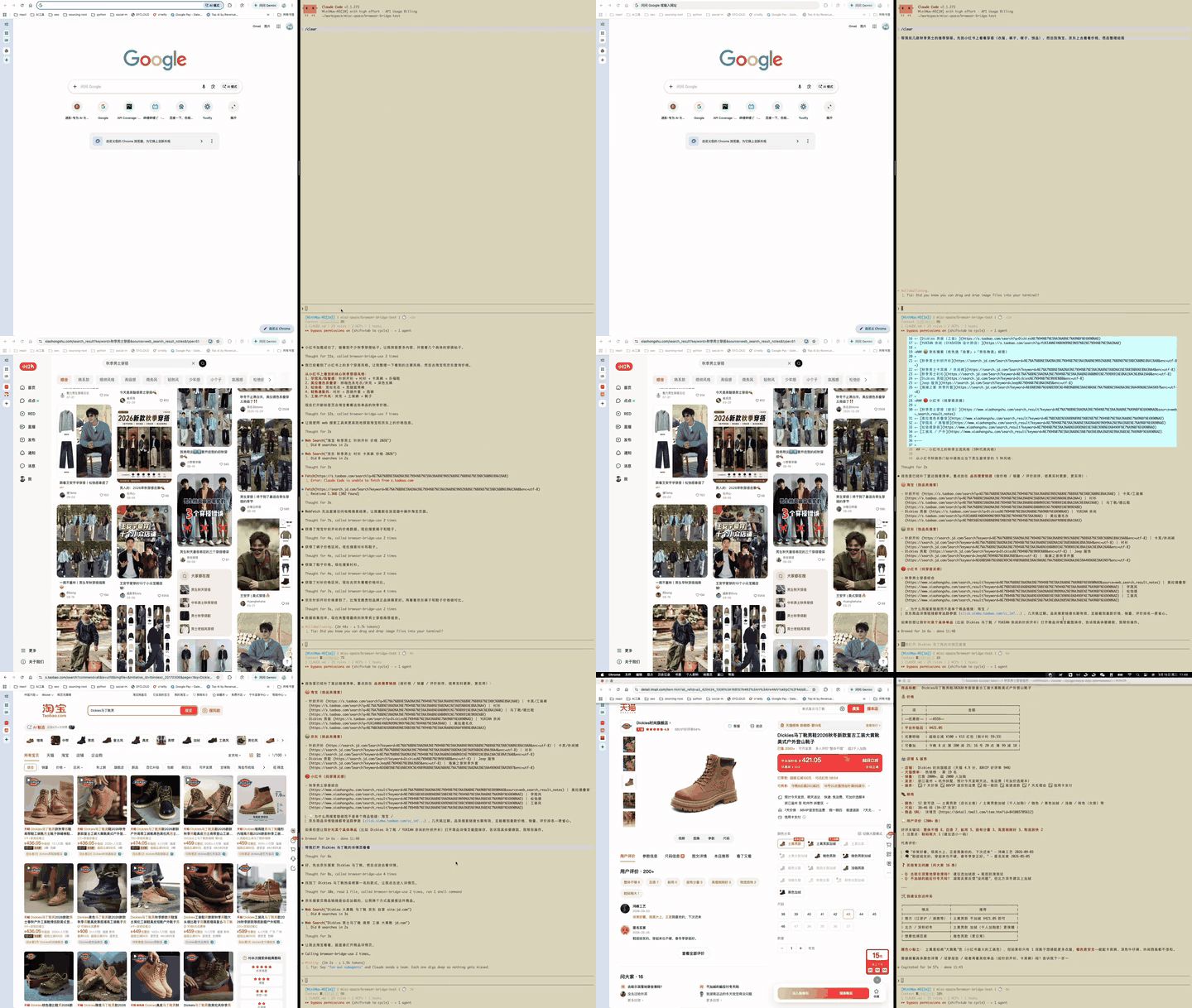
Recommending outfits with an agent
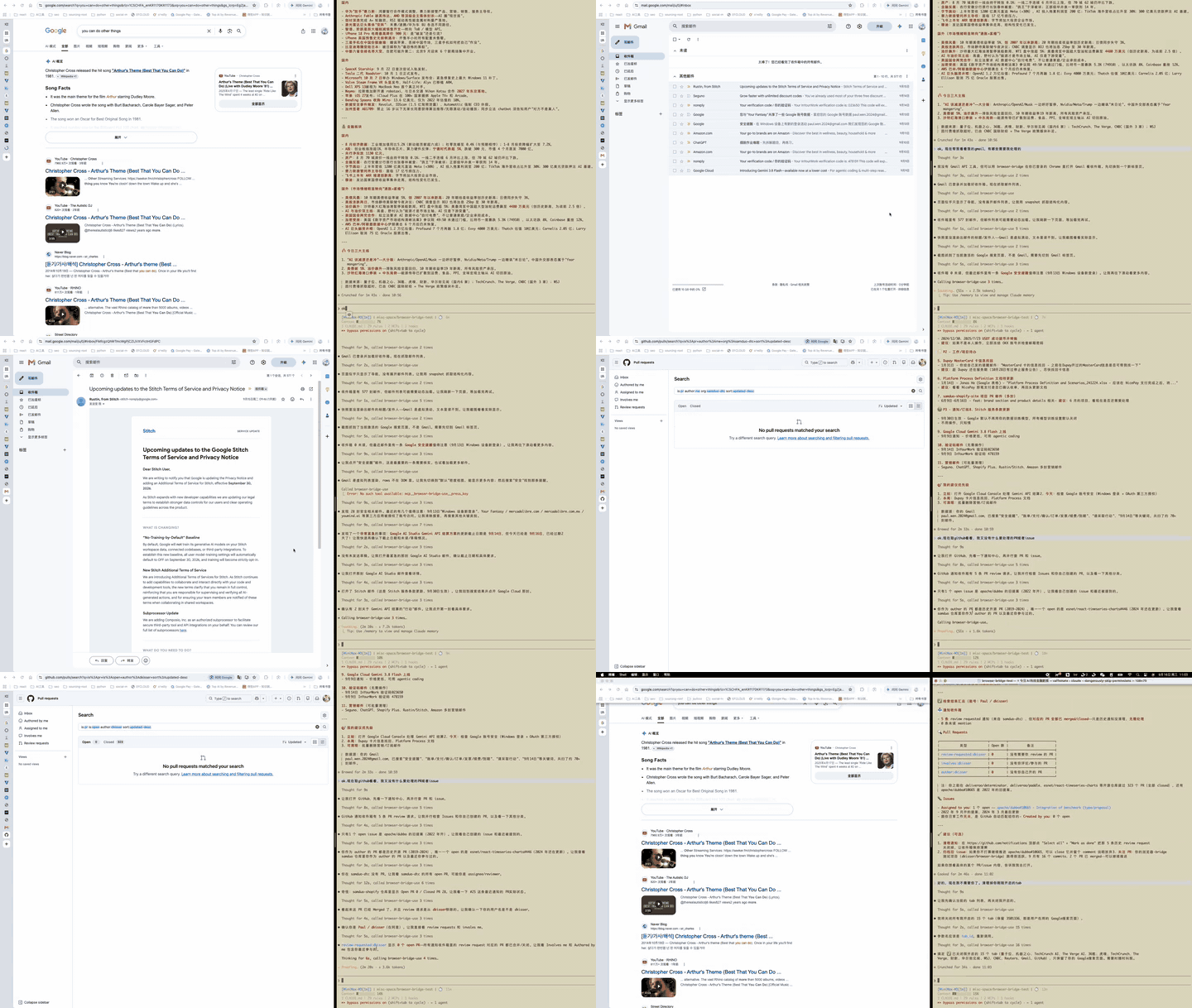
Managing Gmail with an agent
One-line pitch: Browser Bridge turns your local Chrome into a reusable tool for any agent. One browser, any LLM, script, or terminal command — while keeping your data local.
✨ Features
- 🤖 Agent-ready interface — one bridge protocol, consumed via CLI, Claude Code skill, or custom integration.
- 🔒 Local session, local control — reuse your logged-in browser; no cloud browser or cookie sync needed.
- 🔗 MCP server — Streamable HTTP MCP server exposes browser tools to Claude Desktop, Cursor, and other MCP clients.
- 🎯 Token-efficient reads — observe-first snapshots, targeted container reads, and hard output caps keep page noise out of your agent's context window.
🚀 Quick Start
1. Install the bridge and extension
curl -fsSL https://github.com/dkisser/browser-bridge/releases/latest/download/install.sh | bash
Load ~/Browser-Bridge/extension/ as an unpacked extension in Chrome. The bridge services start automatically. Requires Chrome 114 or later (the version that shipped the sidePanel API).
2. Send your first command
# List the connected Chrome instance
bridge browser:list

# Open a new tab and use its id for subsequent commands
bridge --browser <browser-id> tab:new https://github.com
bridge --browser <browser-id> --tab <tab-id> wait:navigation
That’s it. The command travels from CLI → bridge-core → Chrome extension → browser.
3. Use it from any agent
The bridge CLI is just one consumer of the bridge protocol. Browser Bridge ships with a ready-to-use Claude Code skill in ./skills, and anything that can open a WebSocket — for example, an MCP server you build, a custom SDK, or another agent framework — can send commands the same way.
For step-by-step usage, see Use via CLI and Use via MCP below.
📦 Install
Option A: One-line installer (recommended)
curl -fsSL https://github.com/dkisser/browser-bridge/releases/latest/download/install.sh | bash
The installer downloads the runtime, exposes ~/Browser-Bridge/extension/ as a symlink for Chrome, and starts the bridge services. You only need to load the unpacked extension in Chrome.
On macOS, the installer also enables login auto-start: a per-user LaunchAgent runs the services under a supervisor, so they start when you log in and are restarted automatically if they crash. To disable this, pass --no-autostart or run bridge service disable later (bridge service enable turns it back on).
To reinstall the same version, pass --force. To install a specific version, set BB_VERSION=vX.Y.Z.
Option B: One-line installer with Claude Code skill
If you already have Claude Code, clone the repo and run the installer from the project root with --with-skills to install Browser Bridge plus the ready-to-use skill in ./skills:
git clone https://github.com/dkisser/browser-bridge.git
cd browser-bridge
./install/install.sh --with-skills
Use --skills-dir <path> if you want to install skills somewhere other than ~/.claude/skills/. Use --no-skills to explicitly skip skill installation.
By default, the curl installer does not install skills; use --with-skills when you want them.
Option C: Build from source (contributors only)
See the Development section below. You only need this if you are contributing to Browser Bridge.
🎯 Token-Efficient by Design
Agents pay for every character that enters the context window — and noise costs double, spending tokens itself while crowding out signal the session will need later. Browser Bridge treats token efficiency as a design constraint: every read is filtered before it reaches the model.
The tools enforce three mechanisms instead of leaving them to the model's judgment:
- Observe first.
snapshotreturns a budgeted pseudo-tree of interactive elements and headings (typically 3–8K characters) with stable@eNrefs, so every subsequent read has a target. - Read the container, not the page. Follow an
@eNref, or a candidate container from an error message, andget_textonly the node that holds the signal. Rendered text also skips hidden subtrees, scripts, and styles. - Hard caps as guardrails. Results over 100K characters are rejected before they can enter the context window; the rejection reports the exact size, so even a failed dump teaches the model to read narrower.
Measured on 2026-09-15 against a logged-in Chrome (JS string length):
| Page | Full-page HTML | Signal needed | Ratio | Snapshot cost |
|---|---|---|---|---|
| Eastmoney article | 169,318 | 2,318 (article body) | 1:73 | 8,154 |
| GitHub notifications | 303,176 | 364 (notification list) | 1:833 | 3,312 |
| Gmail inbox | 324,078 | 546 (email list) | 1:594 | 2,982 |
The full-page HTML of all three exceeds the 100K cap and would be rejected outright — the signal is 0.1–1.4% of the raw page. Filtering is lossy by design, but the page stays live in your browser, so anything screened out can be re-read at finer granularity at any time.
For the full analysis — why full-page dumps fail, how virtual lists distort the DOM, and the two recurring failure modes — see docs/saving-tokens.md.
🖥️ Use via CLI
The bridge CLI controls a connected Chrome instance through the bridge-core control plane.
Global options
bridge --browser <browser-id> [options] <command>
| Option | Description | Default |
|---|---|---|
--browser <id> |
Target browser instance (required for most commands) | — |
--tab <id> |
Target tab id (all page-level commands require this) | 0 |
--server <url> |
Control plane URL | ws://localhost:3001 |
--timeout <ms> |
Command timeout | 10000 |
--json |
Output structured JSON instead of human-readable text | — |
Common commands
# Service management
bridge service up
bridge service down
bridge service status
bridge browser:list

# Tab management
bridge --browser <browser-id> tab:new https://github.com
bridge --browser <browser-id> tab:list
bridge --browser <browser-id> tab:switch <tab-id>
bridge --browser <browser-id> tab:close <tab-id>

# Navigation and interaction
bridge --browser <browser-id> --tab <tab-id> navigate https://github.com
bridge --browser <browser-id> --tab <tab-id> click "button.login"
bridge --browser <browser-id> --tab <tab-id> type "input#search" "browser bridge"
bridge --browser <browser-id> --tab <tab-id> gettext "h1"
bridge --browser <browser-id> --tab <tab-id> snapshot
bridge --browser <browser-id> --tab <tab-id> screenshot
Example workflow
# 1. Start services and find a connected browser
bridge service up
bridge browser:list

# 2. Open a tab and capture its id
bridge --browser <browser-id> tab:new https://news.ycombinator.com
# => {"tabId": 12345, ...}

# 3. Drive that tab explicitly
bridge --browser <browser-id> --tab 12345 gettext "a.title"
bridge --browser <browser-id> --tab 12345 click "a.title"
bridge --browser <browser-id> --tab 12345 wait:navigation
See bridge --help for the full command list.
🤖 Use via MCP
Browser Bridge exposes a Streamable HTTP MCP server inside bridge-core (3003 by default). Once bridge service up (or bun run dev:core) is running, add http://localhost:3003/mcp to any MCP client that supports Streamable HTTP.
Start the MCP server
bridge service up
The MCP endpoint is available at http://localhost:3003/mcp.
Configure your MCP client
Any MCP client that supports Streamable HTTP can connect to Browser Bridge. Add the following server entry to your client's mcpServers configuration:
{
  "mcpServers": {
    "browser-bridge": {
      "transport": "streamableHttp",
      "url": "http://localhost:3003/mcp"
    }
  }
}
Where to put this block depends on your client:
| Client | Configuration location |
|---|---|
| Claude Desktop | claude_desktop_config.json |
| Claude Code | project-level .claude/mcp.json or user-level ~/.claude/mcp.json |
| Cursor | Cursor MCP settings, typically .cursor/mcp.json |
| Codex (OpenAI) | ~/.codex/config.json under mcpServers |
| Cline / Windsurf / others | the client's own MCP server settings in the same JSON shape |
🏗️ Architecture
┌─────────────┐                                   ┌─────────────────┐
│  CLI / MCP   │ ───▶  bridge-core  (single ────▶  │  Chrome         │
│             │         process: WebSocket          │  Extension      │
└─────────────┘         control plane on           └─────────────────┘
                        3001, MCP on 3003,
                        extension bridge on 3002)
| Layer | Component | Role |
|---|---|---|
| Inbound adapters | CLI / MCP | Agent-facing entry points — see CONTEXT.md. Both connect to bridge-core. |
| Control plane | bridge-core | Routes commands to the extension. Listens on 3001 (WebSocket), 3002 (extension), 3003 (MCP) — three loopback ports in one process. |
| Browser | Chrome Extension | Receives messages and executes browser actions. |
See docs/architecture-diagram.html for the full diagram.
🛠️ Development
The steps below are for contributors/developers only. End users do not need to install
bunorgit.
# 1. Install dependencies
bun install

# 2. Start bridge-core (CLI/WebSocket/MCP control plane + extension bridge)
bun run dev:core

# 3. In another terminal, build the extension
bun run dev:extension

# 4. Load apps/extension/dist/ as an unpacked extension in Chrome

# 5. Run the CLI
bun run cli
📂 Project Structure
Browser-Bridge/
├── apps/
│   ├── bridge-core/    # Control plane: CLI/MCP/extension in one process
│   ├── cli/            # CLI entrypoint (one bridge protocol consumer)
│   └── extension/      # Chrome Extension (Manifest V3, Vite)
├── packages/
│   └── shared/         # Shared constants and utilities
├── install/            # One-line installer scripts
└── docs/               # Architecture diagrams and guides
🧰 Tech Stack
- Runtime & package manager: Bun
- Extension build: Vite + Manifest V3
- Transport: WebSocket
- Type checking: TypeScript (strict)
- Linting & formatting: Biome
- Testing: Bun test runner + Bats for install scripts
🛡️ Security
Browser Bridge drives your everyday, logged-in browser, so safety is enforced where actions execute — in the extension — not at the network edge.
- Paired channel:
bridge pairprints a short-lived pairing code; entering it in the Browser Bridge side panel issues a token that authenticates the extension ↔ bridge-core WebSocket on 3002 (only the token's SHA-256 hash is stored on disk). Unpaired connections are refused, and web pages cannot call the bridge-core HTTP API — CORS is restricted tochrome-extension://origins. - Loopback only: bridge-core binds all three loopback ports (3001 control plane / 3002 extension / 3003 MCP) to
127.0.0.1. For non-local deployments the WebSocket control plane supports API-key auth (BRIDGE_API_KEYS). - Single-user, single-machine: the threat model is one human, one browser, one machine. The control plane does not yet isolate commands/responses between users sharing one server (responses are fanned out to every connected CLI, and command routing keys on the browser ID only) — do not expose it to multiple users until that lands (tracked in
TODO.md). The default auth provider is a no-op placeholder intended only for loopback. - Working-scope policy (see
docs/adr/0006-0009): agents act silently only inside their working scope — tabs they opened plus origins a human approved. Crossing it denies the command immediately with a machine-readable reason (origin_not_approved,approval_required, …) and shows an approval card in the side panel; approve there, then retry. - Hard denials: browser system pages (
chrome://,chrome-extension://,file:,javascript:, …) and the built-in blocklist (including the Chrome Web Store) are rejected with no approval path, so an agent cannot reconfigure the browser. - Human assist: a takeover switch in the side panel rejects every agent command until you release it.
- Sensitive actions: typing into password or credit-card fields and form submission (
typewithsubmit) always require a one-time approval; downloads initiated in agent tabs are paused for your review.
🤝 Contributing
Contributions are welcome. Please open an issue first to discuss significant changes.
📄 License
Yorumlar (0)
Yorum birakmak icin giris yap.
Yorum birakSonuc bulunamadi