clide
Health Uyari
- License — License: MIT
- Description — Repository has a description
- Active repo — Last push 0 days ago
- Low visibility — Only 5 GitHub stars
Code Basarisiz
- os.homedir — User home directory access in scripts/aiterm-mcp-stdio.mjs
- process.env — Environment variable access in scripts/aiterm-mcp-stdio.mjs
- execSync — Synchronous shell command execution in scripts/ci-npm-install.mjs
- fs.rmSync — Destructive file system operation in scripts/ci-npm-install.mjs
- spawnSync — Synchronous process spawning in scripts/generate-nsis-images.mjs
- fs.rmSync — Destructive file system operation in scripts/generate-nsis-images.mjs
Permissions Gecti
- Permissions — No dangerous permissions requested
Bu listing icin henuz AI raporu yok.
Clide — AI SSH terminal desktop app with Claude Code IDE & MCP integration. Tauri · Windows/macOS/Linux



Clide
🔒 Manage servers with Claude Code without leaking passwords or distributing AI public keys



⬇️ Download · Quick Start · Claude Code · Build
Overview
Why Clide?
When using Claude Code for server operations, do these security problems sound familiar?
❌ You must install AI public keys on every server — one leak compromises them all
❌ You must give Claude plaintext passwords — credentials may leave your machine
❌ sudo is awkward — passwordless sudo is a security risk, or you hand root passwords to the AI
Clide uses a local relay architecture to address this:
✅ SSH connections are established and maintained only on your desktop
✅ Passwords and private keys never leave your computer or get sent to third parties
✅ For sudo, you type the password in the left Shell panel (SSH login uses a local prompt) — Claude never sees it
✅ No agent software or extra SSH keys required on remote servers
Claude Code runs locally only. Through IDE bridge + MCP, commands go to the real SSH Shell on the left (same PTY as manual typing). The AI reads terminal output to help you troubleshoot.
The same window provides multi-session SSH terminals, SFTP file browsing, resource monitoring, and Monaco-based remote config editing — ideal for daily ops, incident response, and change management.
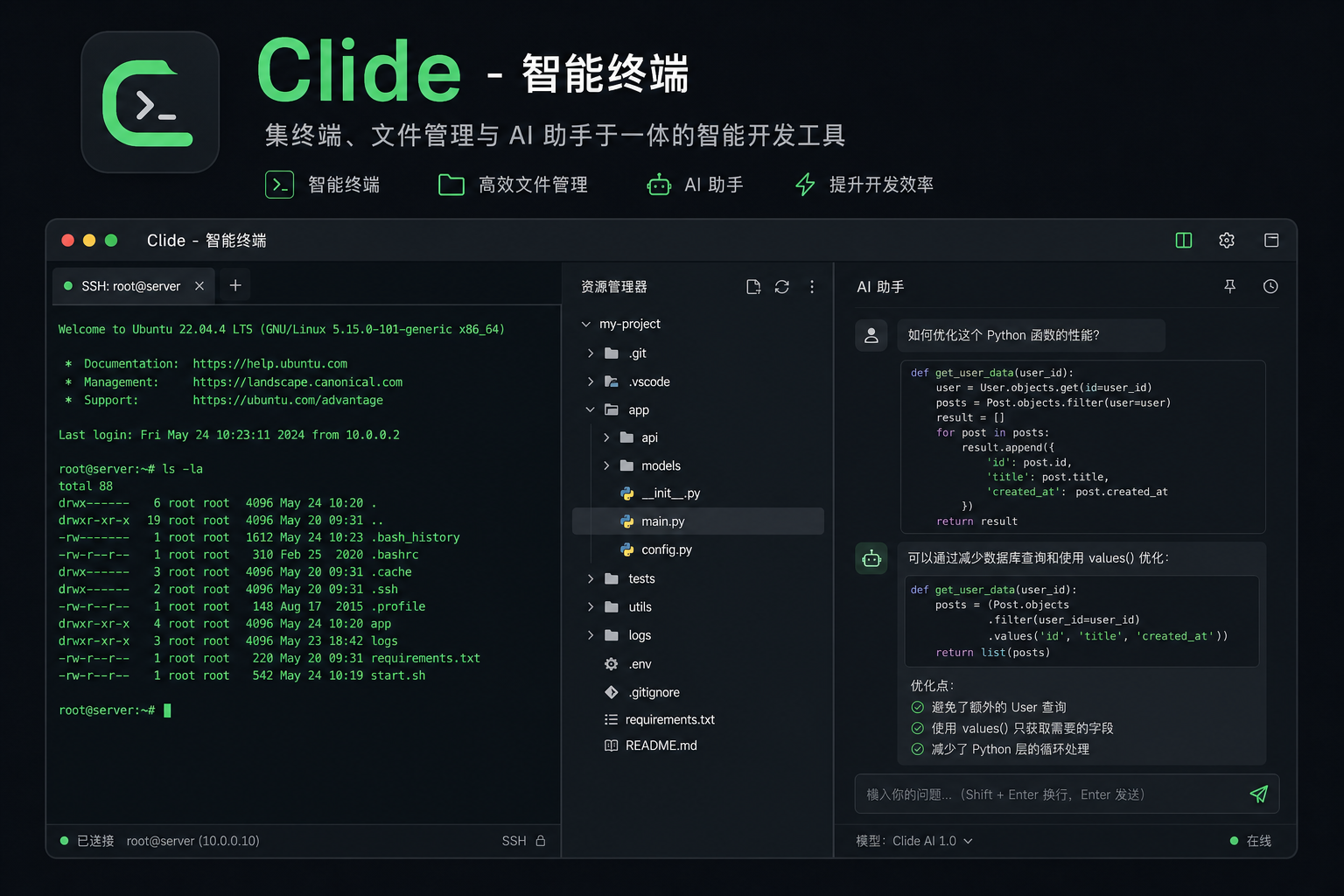
Clide is a desktop ops terminal that pairs a real SSH shell with a local Claude Code copilot — so SREs and backend engineers can let AI troubleshoot servers without handing over passwords, private keys, or root.
👤 Who is this for?
- SRE / DevOps / Platform engineers who run
sudo, tail logs, and fight incidents on many boxes — and want AI help without exposing credentials. - Backend engineers who SSH into production to debug a service, and want Claude to read the live terminal output alongside you.
- Security-conscious teams that can't (or won't) distribute AI public keys to every server or paste root passwords into a chat.
🎬 See it in action — a 60-second walkthrough of the AI driving the left shell is in docs/demo-recording.md. (Recording slot ready — drop
docs/assets/demo.gifin place to embed it inline here.)
Keywords: ops terminal · AI troubleshooting · Claude Code · MCP · SSH · secure sudo · SRE · Tauri desktop app
🔄 How Clide compares
| SSH client + Claude in another window | Claude Code direct SSH | Clide | |
|---|---|---|---|
| AI sees live terminal output | ❌ Copy-paste by hand | ✅ Yes | ✅ Yes, same PTY you type in |
| Server credentials | ✅ Stay with you | ❌ Keys on every server or password to AI | ✅ Stay with you — AI never touches them |
sudo / 2FA |
✅ You handle it | ❌ Hard to do safely | ✅ Type in left shell, AI never sees it |
| Agent / extra keys on servers | ✅ None needed | ❌ Required | ✅ None needed |
| One window for shell + files + AI | ❌ No | ⚠️ Partial | ✅ Yes |
Clide keeps the security model of a traditional SSH client and adds the AI context of direct Claude Code SSH — without the credential exposure.
Table of Contents
- Features
- Download & Install
- Quick Start
- Claude Code & MCP Integration
- MCP Tools
- Architecture
- Build from Source
- Project Structure
- Releases
- Tech Stack
- License
Features
🖥️ SSH Terminal
|
📁 Remote Files
|
📊 Resource Monitoring
|
🤖 Claude Code Ops Assistant
|



Download & Install
Get the latest build from Releases:
| Platform | Format | Notes |
|---|---|---|
| Windows | .msi / .exe |
WebView2 required (usually preinstalled on Win10/11) |
| macOS | .dmg |
Separate builds for Apple Silicon (aarch64) and Intel (x86_64); use v0.1.21+ (earlier builds had MCP startup issues) |
| Linux | .deb / .AppImage |
WebKitGTK and related deps (see Linux troubleshooting) |
Linux troubleshooting
.debv0.1.20 and earlier: If the app exits immediately with no window, upgrade to v0.1.21+ (MCP resource path fix).
If there is no window or click does nothing, run from a terminal to see errors:
# After .deb install (binary usually in /usr/bin, assets in /usr/lib/Clide/)
clide

# Or AppImage
chmod +x Clide_*.AppImage
./Clide_*.AppImage
Missing libraries on Ubuntu/Debian:
sudo apt update
sudo apt install -y \
  libwebkit2gtk-4.1-0 \
  libgtk-3-0 \
  libayatana-appindicator3-1
On Wayland, try an X11 session or:
GDK_BACKEND=x11 clide
Debug logging:
RUST_LOG=debug clide
Prerequisites
| Component | Purpose |
|---|---|
| Claude Code CLI | AI chat and MCP tools (Anthropic login required) |
| Node.js 20+ | Source build / MCP stdio scripts only |
Quick Start
- Install — Download Clide from Releases
- Configure SSH — Add server profiles in the sidebar (host, port, user, key or password — credentials stay in the app, not with the AI)
- Connect shell — Double-click a profile; log in in the left terminal (password / 2FA)
- Enable AI — Install and log in to Claude Code CLI; confirm IDE bridge is ready in the sidebar
- Troubleshoot — Describe the issue to the AI, e.g. “check disk and load on this machine”; Claude calls
runShellCommand; you see command and output on the left; entersudopassword in the shell when needed
Example:
  You: This machine is almost out of disk — help me investigate
  AI:  → runShellCommand("df -h") → runs in left shell, output returned
  AI:  → runShellCommand("sudo du -sh /var/* | sort -rh | head")
  You: Type sudo password in left shell (AI cannot see it)
Claude Code & MCP Integration
Clide is a local ops copilot: it does not hold SSH credentials; MCP operates on shell sessions you already opened.
| Claude Code direct SSH | Clide | |
|---|---|---|
| Where Claude runs | Local or on each server | Local only |
| Server credentials | Keys everywhere or password to AI | You log in via UI; AI never sees them |
sudo |
Hard to do safely | Type in left shell |
| Command visibility | Depends on tool | Same xterm as manual ops |
Integration is non-invasive — no global shell config changes:
| Method | Description |
|---|---|
| IDE bridge | With AI enabled, WebSocket on 127.0.0.1, writes ~/.claude/ide/*.lock |
| In-app chat | Starts Claude with --ide and MCP config |
| Project MCP | Repo includes .mcp.json; register via Settings → “Register MCP” |
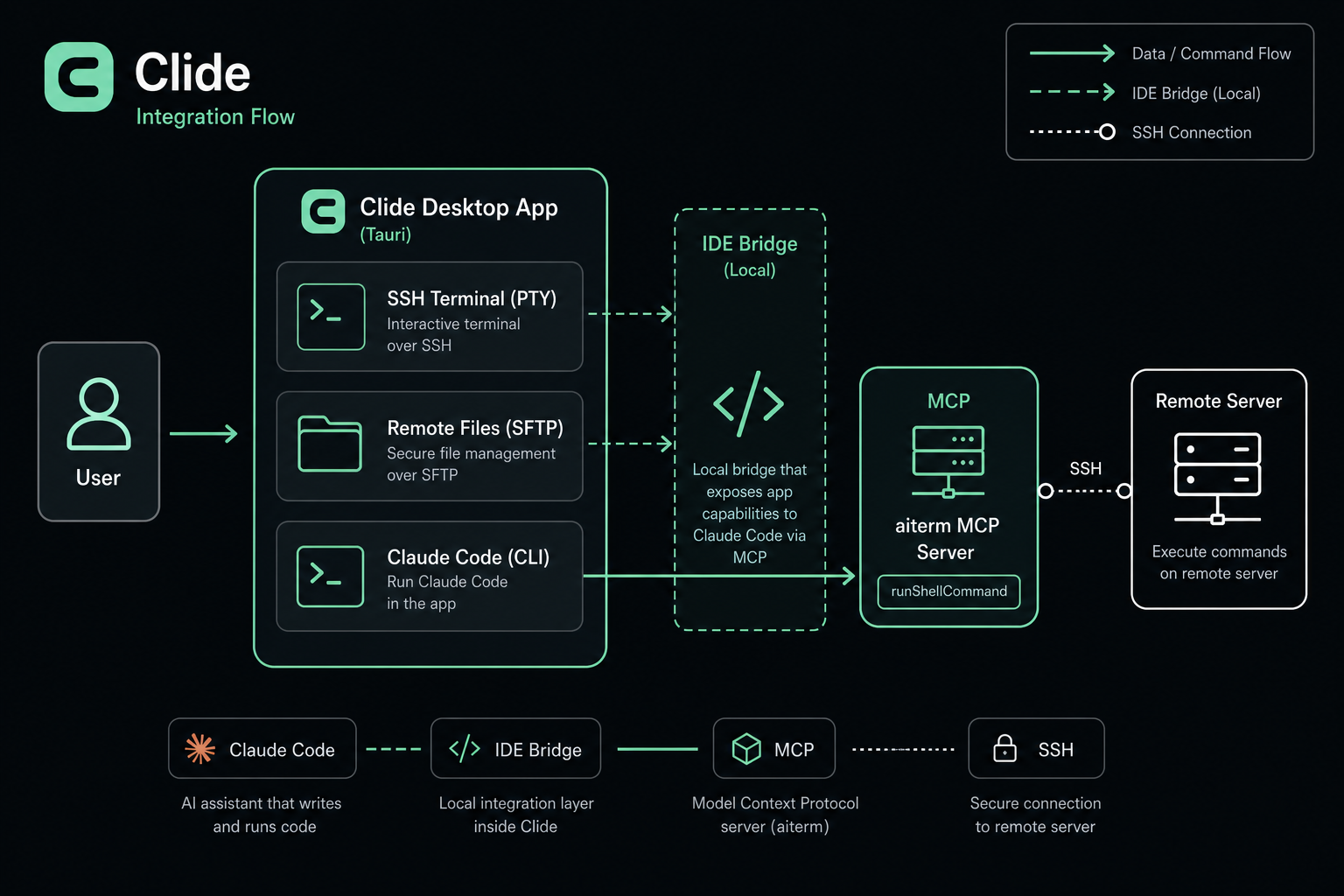
- Start Clide and keep the IDE bridge connected, or
- In your project:
claude mcp add -s project(see.mcp.json)
MCP Tools
The aiterm MCP server exposes these tools for Claude Code in IDE mode:
| Tool | Purpose |
|---|---|
listServerProfiles |
List all SSH profiles |
listActiveConnections |
List active connections |
getFocusedServer |
Current focused server profileId |
getTerminalContext |
Recent terminal output |
connectServer / disconnectServer |
Connect / disconnect SSH |
runShellCommand |
Run command in profile PTY |
listRemoteFiles / readRemoteFile |
Browse / read remote files |
getWorkspaceFolders / getOpenFiles |
Workspace and open files |
getCurrentSelection |
Editor selection |
Use stable
profileIdfrom tool responses — not session name, hostname, or shellId.
Architecture
flowchart LR
  subgraph Desktop["Clide Desktop (Tauri 2)"]
    UI["Next.js UI"]
    PTY["PTY / SSH"]
    SFTP["Remote Files"]
    Bridge["IDE WebSocket Bridge"]
  end

  CLI["Claude Code CLI"]
  MCP["MCP aiterm"]

  UI --> PTY
  UI --> SFTP
  UI --> Bridge
  CLI -->|"--ide"| Bridge
  Bridge --> MCP
  MCP -->|"runShellCommand"| PTY
  MCP -->|"readRemoteFile"| SFTP
Build from Source
Requirements
- Node.js 20+
- Rust stable
- Platform deps: Tauri Prerequisites
Development
git clone https://github.com/DLbury/clide.git
cd clide

npm ci
npm ci --prefix view

# Next.js HMR + Tauri desktop window
npm run dev:tauri
Production build
npm ci
npm ci --prefix view
npm run build:tauri
Installers: src-tauri/target/release/bundle/
Rounded icons
node scripts/generate-rounded-icons.mjs
Project Structure
clide/
├── view/              # Next.js frontend (React, Tailwind, xterm, Monaco, Dockview)
├── src-tauri/         # Rust / Tauri backend (SSH, PTY, Claude bridge, MCP)
├── scripts/           # MCP stdio helpers
├── docs/assets/       # README images
├── .mcp.json          # Claude Code project MCP config
└── package.json       # Tauri CLI entry
Releases
First-time GitHub Actions setup
- Repo Settings → Actions → General
- Actions permissions → Allow all actions
- Workflow permissions → Read and write permissions
- Approve workflows if prompted
Tag a release
git tag v0.1.47
git push origin v0.1.47
Or run the Release workflow manually on Actions. See .github/workflows/release.yml.
Tech Stack
| Layer | Stack |
|---|---|
| Desktop | Tauri 2, Rust (russh, portable-pty) |
| Frontend | Next.js, React, Tailwind CSS, xterm.js, Monaco, Dockview |
| AI | Claude Code CLI, MCP, WebSocket IDE protocol |
License
Copyright © 2026 DLbury
Star History
Clide · AI Ops Terminal · Claude Code · Secure SSH & sudo
If Clide saves you a late-night incident or two, consider ⭐ starring the repo
and sharing it with a fellow SRE who still pastes root passwords into a chat.
Yorumlar (0)
Yorum birakmak icin giris yap.
Yorum birakSonuc bulunamadi