threejs-devtools-mcp
Health Pass
- License — License: MIT
- Description — Repository has a description
- Active repo — Last push 0 days ago
- Community trust — 119 GitHub stars
Code Pass
- Code scan — Scanned 12 files during light audit, no dangerous patterns found
Permissions Pass
- Permissions — No dangerous permissions requested
No AI report is available for this listing yet.
Three.js MCP server — inspect and edit scenes, materials, shaders, lights in real time from any AI agent
threejs-devtools-mcp


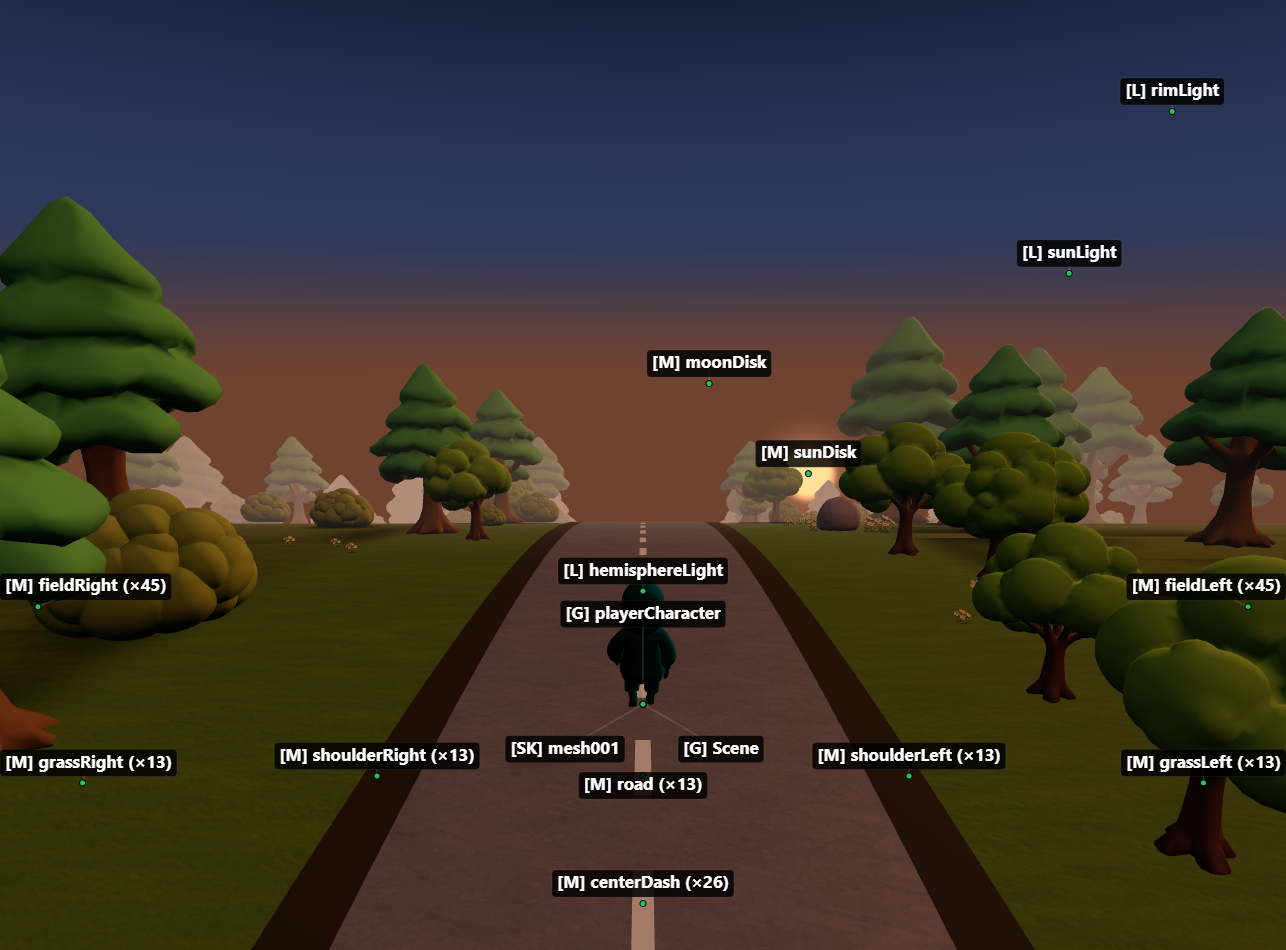
MCP server for inspecting Three.js scenes in real time, trying changes live in the browser, and turning them into code. 69 tools cover objects, materials, shaders, textures, animation, performance and memory, plus website audits, video frame capture and Playwright helpers.
Zero changes to your project. Works with vanilla Three.js and React Three Fiber, on WebGLRenderer and WebGPURenderer.
Setup
1. Add the MCP server
Claude Codeclaude mcp add threejs-devtools-mcp -- npx threejs-devtools-mcp
Add to claude_desktop_config.json:
{
  "mcpServers": {
    "threejs-devtools-mcp": {
      "command": "npx",
      "args": ["-y", "threejs-devtools-mcp"]
    }
  }
}
Add to .cursor/mcp.json in your project:
{
  "mcpServers": {
    "threejs-devtools-mcp": {
      "command": "npx",
      "args": ["-y", "threejs-devtools-mcp"]
    }
  }
}
Or use the HTTP transport — see Cursor setup guide.
WindsurfAdd to ~/.codeium/windsurf/mcp_config.json:
{
  "mcpServers": {
    "threejs-devtools-mcp": {
      "command": "npx",
      "args": ["-y", "threejs-devtools-mcp"]
    }
  }
}
Add to .vscode/mcp.json:
{
  "servers": {
    "threejs-devtools-mcp": {
      "command": "npx",
      "args": ["-y", "threejs-devtools-mcp"]
    }
  }
}
Add to opencode.json in your project:
{
  "$schema": "https://opencode.ai/config.json",
  "mcp": {
    "threejs-devtools-mcp": {
      "type": "local",
      "command": ["npx", "-y", "threejs-devtools-mcp"],
      "enabled": true
    }
  }
}
2. Start your dev server and open the browser
Start your Three.js dev server as usual (npm run dev). The MCP server auto-detects the port from package.json and opens a browser at localhost:9222 with the devtools bridge injected.
Keep the browser tab open. The MCP server talks to your scene through a WebSocket bridge. Close the tab = tools stop working.
3. Ask the AI about your scene
"show me the scene tree"
"why is my model invisible?"
"try the car in red"          ← live preview, nothing saved
"keep it"                     ← written into your code
"audit this site for mobile"
"record a 5-second clip at 60 fps"
Look now vs. change the code
Every tool is labelled, so you and the AI always know what touches your files:
| Tools | Your code | |
|---|---|---|
| Inspect | scene_tree, material_details, web_audit, screenshots… |
untouched |
| Live preview | set_material_property, set_light, set_camera… |
untouched; lost on page reload |
| Debug visual | wireframe, bounding boxes, helpers, overlay | untouched; never needed in code |
| For code | pending_changes, gltf_to_r3f |
the AI writes this into your source |
Every live-preview change is recorded. pending_changes returns each one as before → after with ready-to-paste code (vanilla Three.js and React Three Fiber) and where to find it in your project. revert_changes undoes them in the browser.
For websites and videos
web_audit: checks for a blurry canvas (pixel ratio, missing resize), battery drain (rendering while idle or off-screen), heavy textures (oversized, not KTX2), expensive shadows, wrong color space and too many draw calls. Each finding comes with the fix.capture_frames: records a frame sequence for promo clips and reels. Time is virtualised, so the output is perfectly smooth at 30/60 fps even if your scene renders slowly. You get theffmpegcommand for MP4/WebM.
Skills
Ready-made workflows show up as slash commands in Claude Code, Cursor and other clients: inspect-scene, try-look, apply-to-code, web-perf-audit, prepare-video, debug-invisible, playwright-setup.
Playwright & Puppeteer
Three ways to connect, same tools in all of them: your own browser (default), a Chrome launched by the server (HEADLESS / CDP_PORT, shareable with Playwright MCP), or your own tests:
import { attachDevtools, waitForScene, threeCall } from 'threejs-devtools-mcp/playwright';

await attachDevtools(context, { connect: false });
await page.goto('http://localhost:5173');
await waitForScene(page);
expect((await threeCall(page, 'object_details', { name: 'Car' })).visible).toBe(true);
See Browsers, Puppeteer & Playwright.
In-browser overlay
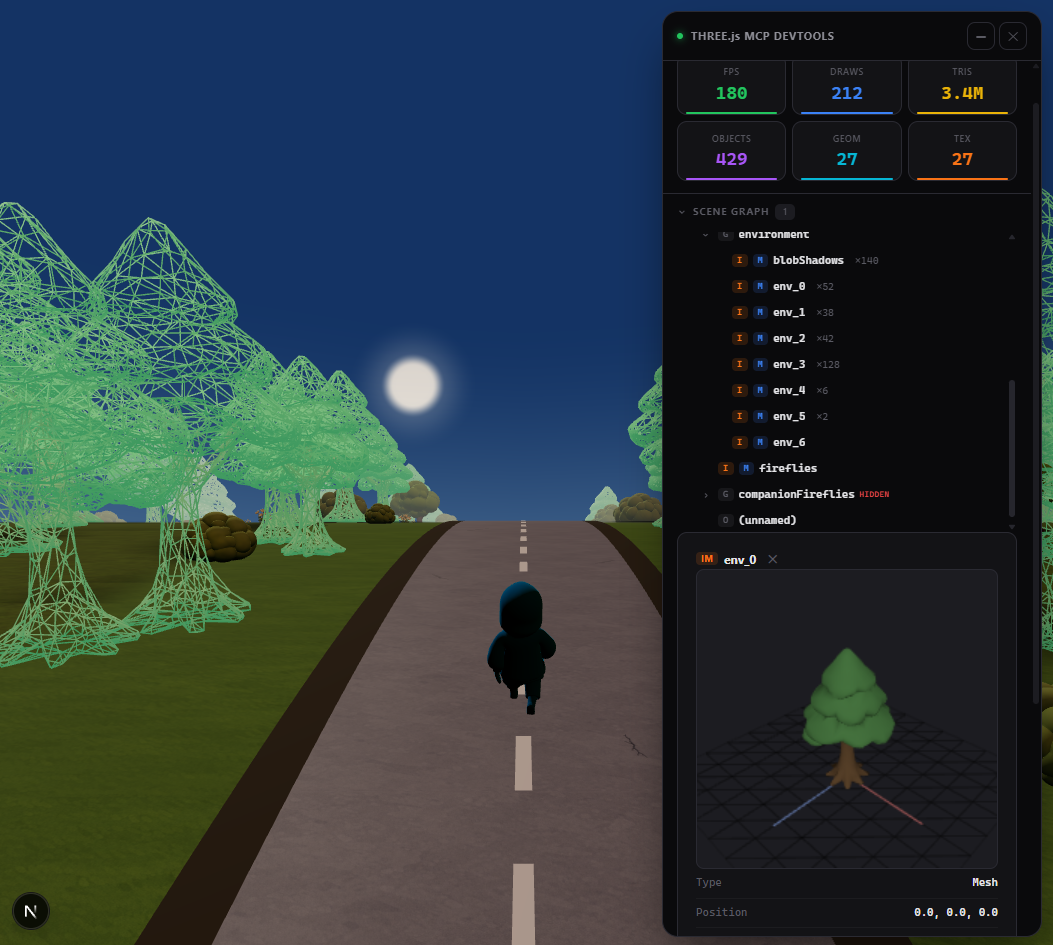
A built-in devtools panel with live performance stats, interactive scene graph, material editor, and 3D object preview. Activated automatically or via the toggle_overlay tool.
Tip: name your objects
Unnamed objects show as (unnamed) in the scene tree. Named objects are easier to find and modify:
// Three.js
mesh.name = "player";
// React Three Fiber
<mesh name="player" geometry={geometry} material={material} />
Documentation
- Tools reference — all 69 tools by mode, skills, parameters
- Browsers, Puppeteer & Playwright — connection modes, e2e tests, CI tips
- Advanced setup — animations, scene export, configuration, transports
- Cursor setup — step-by-step guide for Cursor
- Token-efficient workflow — best practices for saving context
License
MIT
Reviews (0)
Sign in to leave a review.
Leave a reviewNo results found