yap
Health Warn
- No license — Repository has no license file
- Description — Repository has a description
- Active repo — Last push 0 days ago
- Community trust — 44 GitHub stars
Code Fail
- process.env — Environment variable access in .agents/skills/compare-screenshots/scripts/visual-parity-diff.eval.mjs
- process.env — Environment variable access in .agents/skills/compare-screenshots/scripts/visual-parity-diff.mjs
- spawnSync — Synchronous process spawning in apps/cli/src/main.test.ts
- process.env — Environment variable access in apps/cli/src/main.test.ts
- process.env — Environment variable access in apps/cli/src/mcp-media.test.ts
Permissions Pass
- Permissions — No dangerous permissions requested
No AI report is available for this listing yet.
Local screen recording and agent-assisted video editing for Claude Code, Codex and other AI agents on macOS.
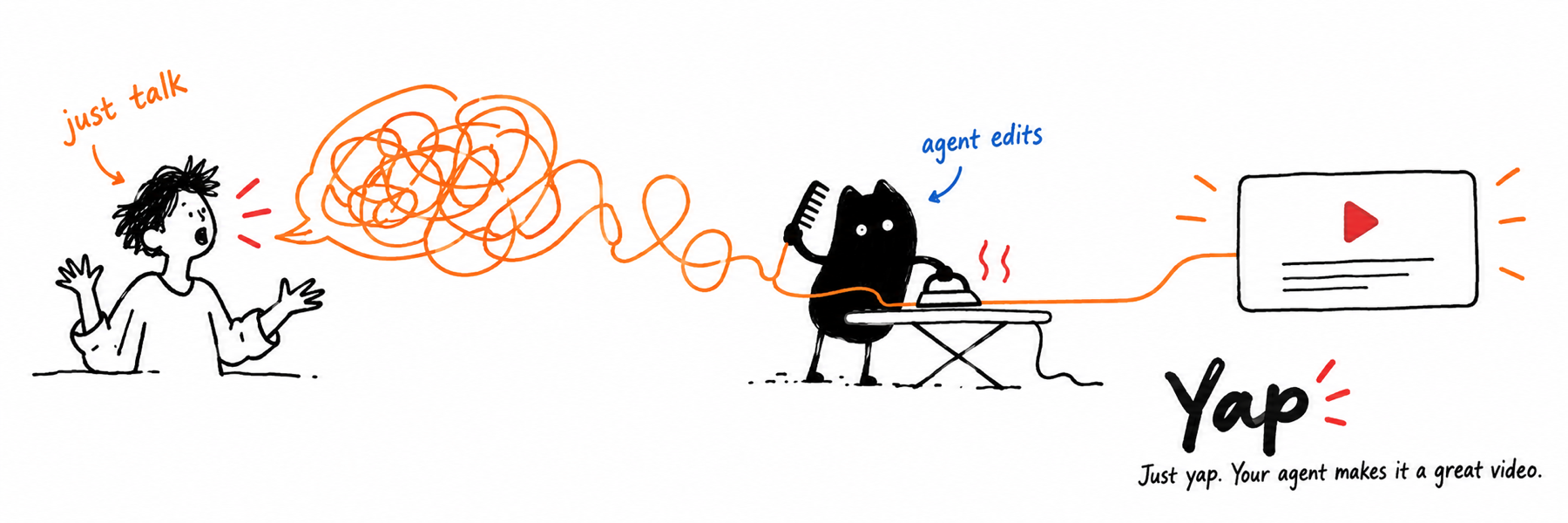




Yap is a tool your AI agent uses to help you communicate.
Some ideas are faster to show than to write: a bug you can see, a product you
want to demo, an update for your team, a story for your podcast. With Yap you
just talk and show. Record your screen or camera, or drop in any video, and say
it however it comes out. Your agent turns it into what you meant.
Screen recording, transcripts, video editing and audio cleanup all serve that one
job: getting your ideas across clearly. Yap gives Claude Code, Codex, or any
agent harness the eyes, ears and hands to work with video. Your agent decides
what makes your point land.
Just yap. Your agent makes it a great video.
Get started → Your agent can install it for you.
Communication in both directions
Show your agent. Instead of typing three paragraphs about a bug or a design,
record it and talk. Your agent sees what was on screen at the exact moment you
said "this", hears what you meant, and acts on it.
Get your point across. When the audience is people, your agent turns your
rough take into something worth their time: cut to the point, captioned, cleaned
up and in the right format for where it's going.
What people make with it
- Messages for coworkers. Async updates, walkthroughs and code-review
narrations that come back tight, with chapters, a summary and captions. - Bug reports and feedback for your agent. "Watch me do this" becomes
instructions your agent can follow. - Launch and demo videos. One take of you showing the product becomes a
polished demo, cut per audience or per platform. - Podcasts and talks. Clean audio, consistent loudness, highlight clips with
captions, and transcripts your agent can turn into show notes or a post. - You, at your best. Rehearse a pitch and get evidence on pacing and filler
words, keep your best take, or fix a misspoken word in your own voice.
The full picture, including what's possible today and what isn't yet, is in
positioning.
How it works
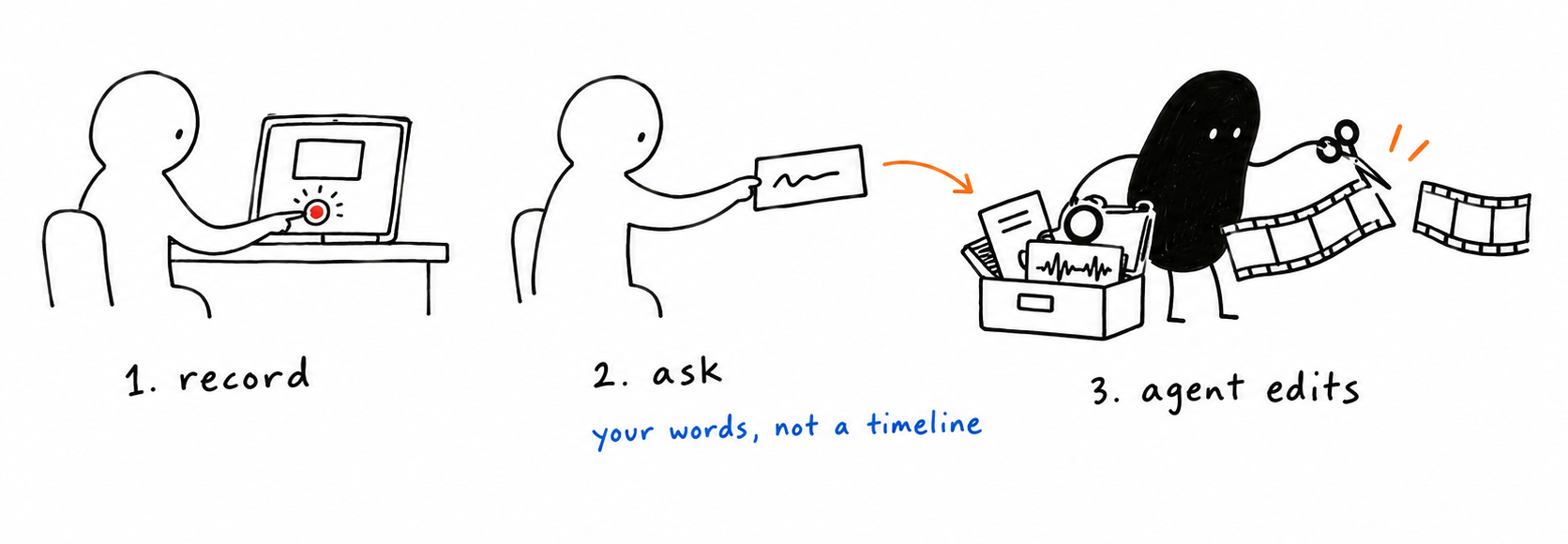
- Yap. Record from the menu bar (screen, microphone, system audio and an
optional camera), let your agent start a recording, or hand it a video you
already have. - Ask your agent in plain words, for example "Cut this into a tight 60-second
demo with captions" or "Here's the bug, fix it." Attach a reference video if you
have a style in mind. - Your agent makes it clear. It reads the transcript, looks at the frames and
listens to the audio to understand what you said. Then it acts on it, or cuts
around the stumbles, adds what you asked for, reviews the result and exports
the final video.
Don't like a choice? Say so in one more sentence. Every edit is a revision you
can undo.
Things you can ask for
"Watch this recording of the checkout bug and fix it."
"Tighten this into a 60-second product demo. Cut the dead air and false starts."
"Make a vertical version for X with big, punchy captions."
"Here's a launch video I love. Match its pacing and caption style."
"I said 'version three' at 0:42 but meant 'version two'. Fix it in my voice."
"Zoom in when I open the settings panel, fade out at the end, export 1080p."
"Clean up the background hum and give me an M4A of just the narration."
"I practised my pitch on camera. How's my pacing, and where did I ramble?"
"Turn yesterday's podcast episode into three captioned clips and show notes."
"Make a two-minute update for my team from this recording, with a summary."
What your agent gets
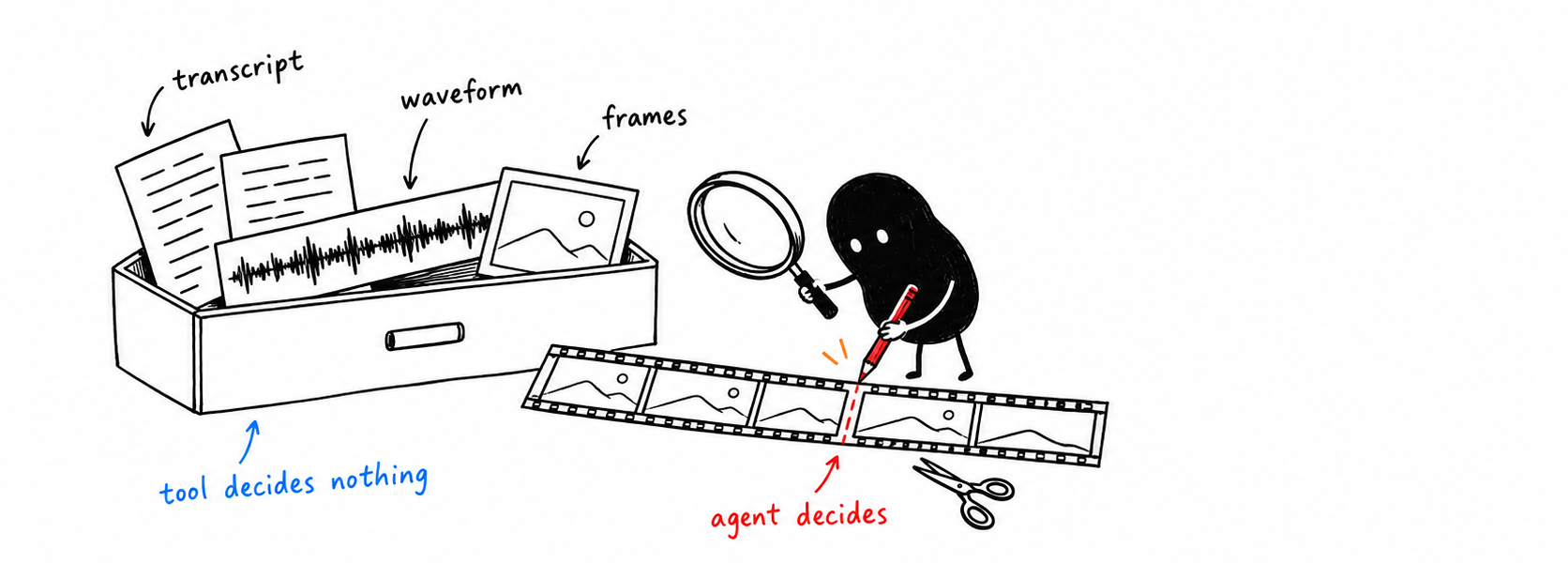
Every capability is there to help the message land. Yap itself makes zero
editorial decisions and has no built-in agent; your agent makes them all. Yap
hands it evidence about what you said and showed, plus precise operations, so the
result follows your intent instead of a built-in house style.
| What your agent can use | |
|---|---|
| See and hear | Local transcription with word timings and search, frames and storyboards, waveforms and spectrograms, scene and cursor events, speaker turns, loudness measurement |
| Cut and arrange | Multi-range cuts, takes from several recordings, layers and picture-in-picture, canvas and aspect changes, retiming, undo and history |
| Polish | Captions seeded from the transcript in your own fonts, zoom and crop, fades and gain curves, noise reduction, music and room tone |
| Fix a word | Regenerate a misspoken phrase in the speaker's own voice with a local model |
| Deliver | MP4 video, WAV or M4A audio, SRT/VTT captions, and editable project packages |
Everything runs on your Mac. Recordings, transcripts and voice models stay local.
Your originals are never touched
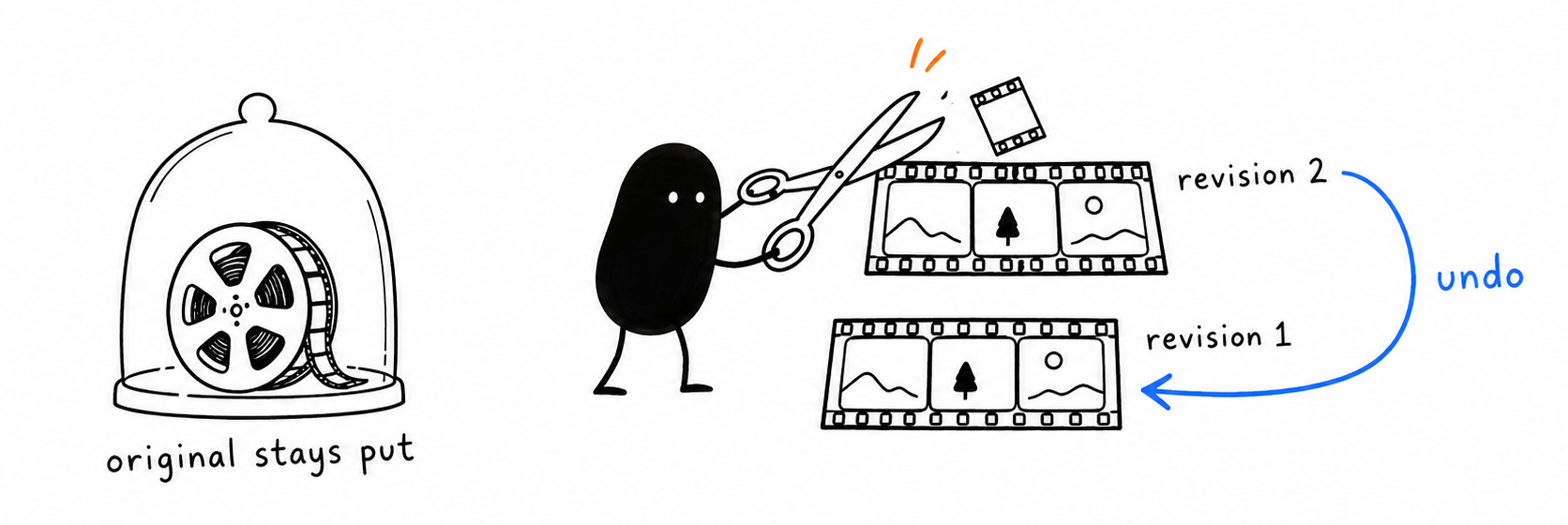
Edits are non-destructive. The agent works on revisions of a project, and the
source recording stays byte-for-byte as you captured it. Any revision can be
previewed, compared, undone or restored, so letting an agent edit carries no risk.
Get started
Requires Apple Silicon and macOS 26 or newer.
The zero-effort route is to let your agent install it. Open Claude Code or Codex
and say:
Install Yap (the Mac app, which sets up the yap CLI and skill) by following
https://justyap.io/llms.txt
Then record something and ask for the video you want.
Your agent installs the app; the app installs the rest. The agent setup
below is what it follows.
Agent setup
These steps are written for the agent doing the install, so they're precise.
Linux containers can exercise the portable CLI contracts but cannot run the native
app or capture macOS media.
1. Install the app from the latest release
Use the latest stable GitHub release,
not a source build. Download its SHA256SUMS, release.json and the ZIP thatSHA256SUMS names (Yap-macos-arm64.zip) together, and runshasum -a 256 -c SHA256SUMS before extracting. Check the receipt's architecture,
minimum macOS version and signing status.
Extract with ditto -x -k <zip-path> <new-directory>. If Yap.app is already in/Applications or ~/Applications, quit it and replace that copy; otherwise install
at ~/Applications/Yap.app. The app runs only from one of those two folders. Node is
bundled; consumers do not need Bun, Node or Swift.
The skill's installation procedure holds the
executable commands. Releases are not notarized: a download made with curl is never
blocked, while a browser download needs Open Anyway in System Settings → Privacy &
Security. Never remove quarantine attributes. Installation does not grant capture
permissions.
2. Open the app; it installs the rest
open ~/Applications/Yap.app (or the copy you replaced). With Set up my agents
on (the default), the app installs and keeps current, at every launch including the
relaunch after an update:
- the
yapcommand at~/.local/bin/yap, plus a marked PATH line in the login
shell profile when no startup file already puts~/.local/binon PATH; - the consumer skill for every agent harness it finds, replacing any
global skill namedyapwith the copy bundled in the app.
Don't copy a launcher or run npx skills add yourself. If cli.status orskill.status reports a problem, the installation procedure and the
skill lifecycle hold the manual fallback.
Start a fresh agent session so the skill is discovered ($yap for Codex, /yap for Claude).
3. Verify before operating
~/.local/bin/yap cli.status
~/.local/bin/yap skill.status
~/.local/bin/yap capture.status --help
~/.local/bin/yap service.health
Use the full path in the session that installed Yap; the PATH line reaches only new
login shells.
Operation help returns its schema without launching the app. service.health
checks the installed runtime and may launch the app's local service; it does not
start recording. Save yap --help to a file when discovering operation names,
then request help for only the operation you need. Parse each operation's JSON
envelope, including failures; a successful request can still describe pending or
failed background work. Follow the skill for pinned revisions, retry identities
and verification of delivered media. Report the result to the user as a short
checklist: release tag, app location, command, skill and service health.
Releases
Download the app from GitHub Releases.
The release notes describe release limitations and
link to agent setup. Built binaries are release assets;
source control retains their reproducible inputs rather than generated app bundles.
Version tags trigger a verified GitHub release. The build and release guide
explains version ownership, CI hooks and personal source installs.
Contributing
Product boundary
This project makes zero editorial decisions. It only provides primitives.
Recording, transcription, search and detection supply evidence. The caller (your
agent) decides what to change and submits explicit operations. Defaults fill
parameters within a requested operation; they never authorize another treatment
or an automatic edit. Original media remains intact.
Development verifies those primitives with explicit fixture operations. A user's
recording is reusable test input, not an invitation to edit it or ask its owner
for personal keep/remove judgments.
Where things belong
- Native app: recording controls and the service child's lifetime.
- Service: composition of domain owners, native work and public delivery.
- CLI/MCP: adapters over the shared protocol
and local client. - Core: immutable assets, acquisitions, revisions, jobs and publication.
- Composition: pure authoring, exact clocks and compiled plans.
- Native media: capture, physical sample support and plan execution.
The prepared voice worker executes the separately owned
local inference runtime.
The FFmpeg dependency owner prepares relocatable
media tools and their redistribution inputs.
Optional runtime assembly preserves local
dependency layers; the speaker primitive supplies anonymous source
observations through explicit optional model/runtime preparation and shared
retained-evidence owners.
The conditional alignment worker preserves the
supplied-text interpretation and full native operands of its pinned provider.
The website is the public download page, with the same
instructions as plain text for agents.
The consumer yap skill teaches external agents
how to edit for the user with the toolkit. Repository development skills live
separately under .agents/skills; they are not a product operation catalog.
README artwork lives in .github/readme.
Development and evidence
Follow the working principles. The root manifest
owns build and check commands; package manifests own narrower checks and dependencies.
The build guide explains native prerequisites and why building,
installing and packaging are separate actions.
Build from source on macOS
Source builds target Apple Silicon on macOS 26 or newer. Install Xcode (including
the macOS SDK and command-line tools), Bun at the version pinned inpackage.json, and Node at the version in .node-version. From the repository
root, run:
export DEVELOPER_DIR=/Applications/Xcode.app/Contents/Developer
bun install --frozen-lockfile
node scripts/release.mjs prepare
bun run build
release.mjs prepare downloads and verifies the pinned build inputs, prepares
FFmpeg and the denoiser, and builds the pinned Sparkle framework intodist/sparkle. The same step repairs a fresh checkout; no manually installed
Sparkle framework or Homebrew packages are required. Release signing needs the
separate credentials described in the release guide.
For focused checks, use the package commands in the owning manifests. The full
macOS app check also needs the native SDK and the prepared Sparkle framework;
portable CLI tests do not prove that native build.
Verification tools explain how to reuse existing
fixtures, integration journeys and research. The fixture guide
explains retained media and original-byte authority; the workbench
is a capture target, not an editing interface.
Agent evaluations run the consumer skill in disposable Docker
containers with separate response grading. They complement native/media proof;
portable CLI checks do not establish macOS capture readiness.
Specs and evidence separate future proposals, closed rationale
and historical observations. Current behavior comes from the owning code and
its README. A historical pass is scoped evidence, and an unchecked old plan is
not an active implementation request.
Reviews (0)
Sign in to leave a review.
Leave a reviewNo results found