elop-crew
Health Uyari
- License — License: NOASSERTION
- Description — Repository has a description
- Active repo — Last push 0 days ago
- Low visibility — Only 5 GitHub stars
Code Basarisiz
- fs.rmSync — Destructive file system operation in account.mjs
- os.homedir — User home directory access in account.mjs
- process.env — Environment variable access in account.mjs
- network request — Outbound network request in account.mjs
- exec() — Shell command execution in agents.mjs
- os.homedir — User home directory access in agents.mjs
- process.env — Environment variable access in agents.mjs
- fs.rmSync — Destructive file system operation in cloud.mjs
- process.env — Environment variable access in cloud.mjs
- network request — Outbound network request in cloud.mjs
- crypto private key — Private key handling in cloud.mjs
- os.homedir — User home directory access in desktop/hooks-setup.cjs
- process.env — Environment variable access in desktop/hooks-setup.cjs
- fs module — File system access in desktop/hooks-setup.cjs
- process.env — Environment variable access in desktop/main.cjs
- fs module — File system access in desktop/main.cjs
- network request — Outbound network request in desktop/main.cjs
- spawnSync — Synchronous process spawning in desktop/release.cjs
- process.env — Environment variable access in desktop/release.cjs
- network request — Outbound network request in desktop/release.cjs
Permissions Gecti
- Permissions — No dangerous permissions requested
Bu listing icin henuz AI raporu yok.
ELOP Crew ? the AI Agent Monitor for Claude Code: a local dashboard and desktop app for every Claude Code session on your machine, grouped as project, leader and agents. Claude Code only, for now.
ELOP Crew
AI Agent Monitor for Claude Code (formerly Agent Monitor)
English | 한국어
A local dashboard for every Claude Code session running on this machine, grouped as
project → leader → agents. No dependencies (Node 18+), read-only, listens on 127.0.0.1 only.
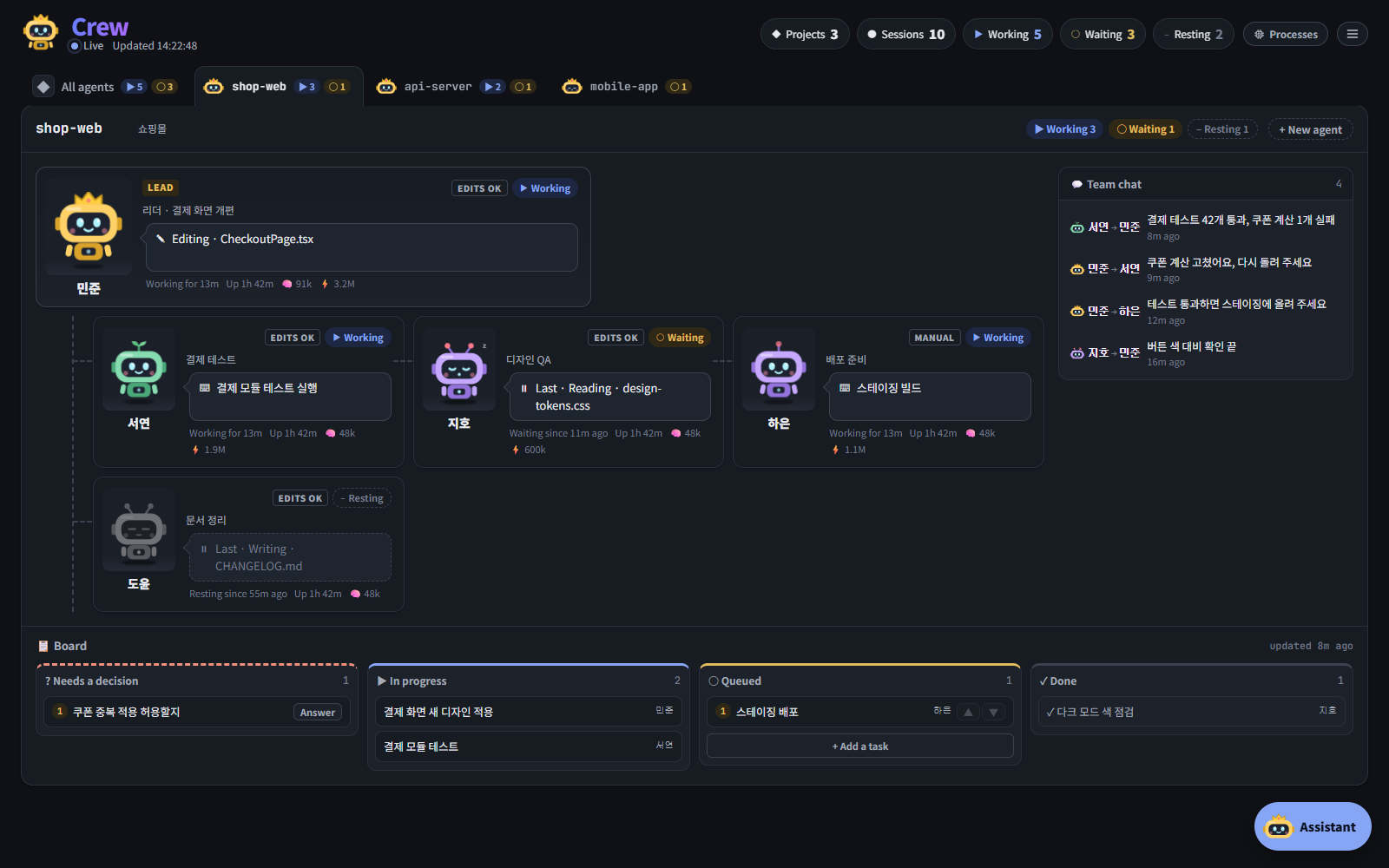
Demo data: the project, names and tasks are made up.
npm start # http://127.0.0.1:4777 (override with PORT=…)
Or install the desktop app: a window of its own and the tray, no terminal needed.
Downloads for Windows and macOS, and what the monitor does, are at crew.elopstudio.com.
Claude Code only, for now. It reads Claude Code's own session files and hooks, and the agents it runs are Claude Code'sclaude program; other coding agents (Codex, Gemini CLI, Cursor…) are not supported yet.
ELOP Crew is made by ELOP Studio and works with Claude Code. It is not affiliated with or endorsed by Anthropic;
Claude and Claude Code are trademarks of Anthropic.
☰ at the right of the header opens the menu: the language, the theme, Claude account, ELOP Crew Cloud
(this PC's link to crew.elopstudio.com, for the phone app) and About.
The page is in English by default. Switch to Korean with EN / 한국어 in the menu (remembered in the browser) or openhttp://127.0.0.1:4777/?lang=ko. The theme is System (as the computer is set), Light or Dark, also remembered;
in the desktop app its own header, title bar and settings window follow the pick too. Every list to pick from (mode,
model, effort, a folder, a sort, the hotkey…) opens as the page's own, in the theme's colours rather than the system's,
with its groups and a tick on the current one; ↑↓, Enter and Esc work as in a system list.
About in the menu says what the program is, its version, who makes it (ELOP Studio), where the source code
lives, where to report a problem, and its licence (PolyForm Noncommercial, with the full text). Its Shortcuts tab
lists every key the page answers to — approvals and questions, the agent dialog, the project tabs — and, in the desktop
app, the app's own (show or hide the window, zoom, reload, back and forward).
What you see
- One tab per project. Each tab shows the leader's robot and how many sessions are working (▶) or waiting (○).
The selected tab is kept in the URL (#project-name) and in the browser. Drag a tab to reorder the projects (or
Ctrl + Shift + ← / → on a focused tab); the all-agents view follows the same order, and it is saved asorderinconfig.json. - Counts in the header. Pointing at (or focusing) a count — projects, sessions, working, waiting, resting —
lists what it counts: the projects, or the agents with their project, each with its robot's face. A click on an agent opens its dialog, and a click on a
project opens its tab. The list stays while the pointer goes down to it (and a moment after it slips off), and is not
redrawn under it while it is open. - Project names. A project is named after its folder. ✎ next to the name at the top of its section gives it another
name on the page (up to 40 characters), saved asnameinconfig.json; the folder stays as it is and shows when the name
is pointed at. Emptied, the folder's name is back. - Org chart. The leader (crowned robot) sits on top; the other agents hang below it.
Each card shows the session's current action in a speech bubble, how long it has been in its state, and its uptime. - Processes. Processes in the header, with a count, opens what the agents have running: each agent
itself (the claude process) and every shell, dev server, MCP server and background task it started, grouped by agent
and heaviest first (CPU or memory), with how long each has been running. An agent's totals and its share of the chart
count the agent and what it started. Each card shows ⚙ N too, red when it uses a lot of CPU. End stops one (and what it
started) after asking — only a session's own descendants, never the session itself or anything else on the PC. The
monitor's own helpers (hooks, the permission tool) are left out unless asked for; command lines are masked. A chart
above the list shows the last 15 minutes live, each agent's share stacked (the five busiest, the rest as one), with
the whole PC as a dashed line to switch on; hover for the values at any moment. CPU is a share of the whole PC; memory
is what Task Manager shows — what a process has to itself, not the shared system files counted again in each. - Working in another project. A card started in one project that has just changed files in another git repository
(within 30 minutes) gets ↗ other-project; that project's tab lists it under Working here from other projects, and
a click goes back to where it belongs. Only file-changing tools count, not reading; the page gets the project's folder
name, never the file's path. - Names. Every agent also gets a person's name — Tom, Mark, … in English, 민준, 서연, … in Korean — so
-7fand-74are easy to tell apart. The name is derived from the session id, so it is the same in every
browser and on every poll, and no two agents share one. Once given, an automatic name is kept
(.runtime/names.json, by session id, names only, for a month after it was last seen): a restart, an agent coming or
going, or a name picked for another agent leaves it alone. Only a name picked for another agent that is the very same
moves it to a new one. Pin a name withnamesinconfig.json. - Board (optional). The project's tasks in progress, queued (numbered), done, and decisions waiting on a human.
- Team chat. Who messaged whom, as one-line summaries.
- Subagents. A card shows
🤖 2while that many of its subagents (the Agent tool) are running; the agent's dialog has a
Subagents tab listing the recent ones — kind, purpose, last action, tool calls — and opens any of them as its own
live conversation (masked like the main one). - Minimise. _ (Minimise) at the top right of an agent's dialog, next to ✕ (Close), folds it into a bar along
the bottom of the page — one chip per agent,
with its robot, name and state (!while it waits for you). A click on a chip opens that agent again on the same tab,
with the message you had started still in the box; a click on the open one folds it away. Switching from one chip to
another puts the agent you leave on the bar too. Ctrl + 1 … 9 does the same as a click on the chip with that number,
even while you are typing (the approval keys use Alt, so the two never clash). × takes an agent off the bar,
✕ in its dialog does the same, and an agent whose session ends drops off by itself. Drag a chip to change the
order (or Ctrl + Shift + ← / → on a focused chip); the numbers follow, and the order is kept in the browser. The
bar lists session names only; unsent messages stay in the page and are never saved. - Message box. Like the AI chat apps: it starts one line high and grows with the text (up to about eight lines, then
it scrolls). Enter sends, Shift + Enter starts a new line (Ctrl + Enter sends too). Inside the box sit the
attachments, 📎 to attach files, the monitor agent's mode and model, and the round ↑ send button, faint
while there is nothing to send. In an agent's dialog the box stays at the bottom and grows upwards; the conversation
above it scrolls with the dialog (one scrollbar), with Stop and End agent kept in view at its top. Where the
message will be delivered (at once, after this turn) is on the send button's tooltip; only a problem shows, inside the
box. The new-agent dialog takes its first message in the same box. - Copy. A code block in a reply (a command, a snippet) has a copy button at its top right, and a whole reply has one
at its bottom right when it is pointed at, for a command written in the text. The assistant's chat has them too. - Images from tools. An image a tool returned (a screenshot read with Read, an image an MCP tool made) shows under that
tool's result in the conversation; a click opens it full size. It is read from the session's transcript when the page
asks for it and is not kept. It is shown on this PC only: an image cannot be masked, so the phone app's relay never
carries it. - Attachments up close. A click on an attached file — in the box before sending, or in the conversation — opens a
preview: images and text files show in place, a PDF in the viewer, anything else can be downloaded. Sent files are
read back through the page's token, only from the monitor's own uploads folder, and are kept there for a day. - Run a command. A message that starts with
!is run as a command, like!in Claude Code — for what an agent
cannot do itself (a permission check blocks it, or a VS Code session whose mode the page cannot change). It runs on
this PC in the agent's folder, as you, with no permission check: Git Bash on Windows (PowerShell if there is none),
your login shell on macOS and Linux. It is stopped after 2 minutes and gets no input, so a command that asks for a
password fails instead of waiting. The output shows above the box, and the agent gets it as a message —<bash-input>,<bash-stdout>,<bash-stderr>, the way Claude Code hands over a command you ran; very long output
keeps its start and end. Nothing of it is saved. This works for monitor agents and VS Code sessions alike.
The page polls every 3 seconds (every 15 seconds while the tab is hidden).
What it reads
| Source | Used for |
|---|---|
~/.claude/sessions/<pid>.json |
Session name, working directory, busy/idle, start time. Entries whose process is gone are dropped |
~/.claude/projects/*/<sessionId>.jsonl |
Only the last 768 KB — the latest tool action and the summary line of messages sent to other sessions |
| the same transcripts, and their subagents' | Read through once a day, then only what is appended — the token counts of replies and nothing else, for “tokens today” |
boards/<project>.json |
The task board and per-session roles, written by the project's leader — optional |
config.json |
Project labels, leader assignment, tab order — optional (see config.example.json) |
the process list (Windows: Win32_Process, with the private working set from Win32_PerfRawData_PerfProc_Process; macOS: ps) |
What each session started — name, command line (masked), CPU, memory, start time — only while a page asks, at most every few seconds; the last 15 minutes of totals kept in memory for the chart |
~/.claude.json |
The signed-in account (name, e-mail, organisation) and the usage Claude Code last saved — only while the account dialog is open |
~/.claude/.credentials.json |
The Claude sign-in token and plan, to ask Anthropic for the usage — only while the account dialog is open |
A project is the folder name of the git root above a session's working directory. The leader is the session
named in config.json; without one, it is the session that sent the most messages (at least 3).
The leader is told who its team is. When it gets a prompt, the UserPromptSubmit hook adds the project's other
sessions to it — the name to message each one with (what ListAgents and SendMessage use, which is not the name on
the page for a monitor agent), its names on the page, whether it is a monitor agent or a VS Code session, its state,
role and last action. It is added only when the team or a role changed since the leader was last told, and never to
any other session.
What it never reads, and what it shows
~/.claude/sessions/*.keyand settings files are never opened..credentials.jsonis opened only by the
account dialog (below); its token goes toapi.anthropic.comand nowhere else, and is never stored or logged.- The cards, tabs, board and state API carry no user prompts, conversation text, tool results or message bodies:
a tool action is reduced to its kind plus a short label (a file name or the command's own description), and
web lookups show neither the URL nor the query. Socket addresses never reach the page. - The one exception is the conversation view in an agent's detail dialog, which follows that session's
transcript live, like the VS Code panel. It is streamed only while the dialog is open, needs the page's token,
is never stored or logged, and is masked on the way out: e-mail addresses, phone numbers, resident registration
and card numbers, and anything that looks like a key, token or password become[email],[secret]and so on.
Long letter-and-digit runs (a full commit hash, say) are masked too. - Requests whose
Hostis not127.0.0.1,localhostor[::1]are refused (421), so a web page cannot
reach the API by pointing its own domain at this machine (DNS rebinding). - All of this stays on the PC unless you link it for the mobile app: then what the app
asks for (the same API, conversation view included) goes through crew.elopstudio.com's relay.
States
| Shown as | Meaning |
|---|---|
| ▶ Working | The session is busy — the robot is typing |
| ○ Waiting | Idle for less than 30 minutes — the robot is dozing |
| – Resting | Idle for 30 minutes or more — the robot is greyed out |
| ! Asking | A request or question waits for you (here or in VS Code) — the robot's eyes are wide open, it hops, and an orange ! sits over its head instead of the dozing z; the card's border pulses |
State is never carried by colour alone: every state also has a symbol, a word, a face and a motion.
Approvals from the page (optional)
Permission prompts can be answered from the monitor instead of VS Code. Claude Code runs hooks/bridge.mjs
on every PermissionRequest; the request shows up at the top of the page, naming the agent that asked:
- Tool prompts — Allow, "Always allow: …" (the same choices VS Code offers), Deny, Deny and stop.
- Questions (
AskUserQuestion) — pick the options or type your own answer, then send. - Plans (
ExitPlanMode) — Approve plan or Keep planning. - Answer in VS Code hands any of them back to the normal prompt.
- A card stays as you left it while other requests come and go or it moves into an agent's open dialog and back: the
options you picked and what you typed are kept. A VS Code session's request goes back to VS Code after 60 seconds;
if you had started answering it here, its card says so for a few seconds instead of vanishing. - Keys — the first open request shows a number on each button; press it (Alt+number while typing a message).
In a question, numbers pick options, ↑↓ moves between questions, and Enter sends.
The same hook, onPostToolUseandStop, tells the page each session's permission mode (MANUAL, AUTO, …); onNotificationit notices a prompt VS Code is showing, and onUserPromptSubmitit tells a leader its team (above)
and tells every session the language the monitor is set to (EN / 한국어), so it writes to you in that language — once,
and again whenever you switch. The page sends its language with each poll; the server keeps it in memory only.
Add this to ~/.claude/settings.json (merge with any hooks you already have):
"hooks": {
  "PermissionRequest": [{ "matcher": "*", "hooks": [{ "type": "command", "command": "node \"C:/dev/claude-agent-monitor/hooks/bridge.mjs\"", "timeout": 90 }] }],
  "PostToolUse": [{ "matcher": "*", "hooks": [{ "type": "command", "command": "node \"C:/dev/claude-agent-monitor/hooks/bridge.mjs\"", "async": true, "timeout": 10 }] }],
  "Notification": [{ "hooks": [{ "type": "command", "command": "node \"C:/dev/claude-agent-monitor/hooks/bridge.mjs\"", "async": true, "timeout": 10 }] }],
  "UserPromptSubmit": [{ "hooks": [{ "type": "command", "command": "node \"C:/dev/claude-agent-monitor/hooks/bridge.mjs\"", "timeout": 10 }] }],
  "Stop": [
    { "hooks": [{ "type": "command", "command": "node \"C:/dev/claude-agent-monitor/hooks/bridge.mjs\"", "async": true, "timeout": 10 }] },
    { "hooks": [{ "type": "command", "command": "node \"C:/dev/claude-agent-monitor/hooks/inbox.mjs\"", "asyncRewake": true, "timeout": 604800 }] }
  ]
}
- The second
Stophook (inbox.mjs) delivers messages typed on the page. After each turn it waits in the background
for up to a week, so even a session resting for days wakes up when a message arrives; it stops when the session
ends. Earlier installs waited 30 minutes (before 0.2.9) or a day (before 0.2.12), after which a resting session
could not be reached — the desktop app offers to update them. A session with nobody waiting (its last turn ended
under an older hook, or before the wait ran out) only gets the message when it next ends a turn: the message box
says so, and saying something to it once in VS Code makes it reachable again. - Nothing changes unless someone is looking at the page: with no visible page, or with the monitor not running,
the hook answers nothing and the normal VS Code prompt appears right away. - A request nobody answers goes back to VS Code after 60 seconds.
- Answers need a token the server creates at every start (in the page, and in
.runtime/bridge.jsonfor the hook).
Another web page cannot read it, so it cannot approve anything. - Pending requests live in memory only. The command or file path is shown on the page so you can judge it,
and is never written to disk or logged.
Claude account
Claude account in the menu shows who Claude Code on this PC is signed in as, the plan, and how much of its limits
is used: the current 5-hour session and the week, with when each resets. The numbers come from the same place as
Claude Code's /usage. Anthropic turns callers away when that is asked often, so the monitor asks at most every five
minutes (Refresh: once a minute), and after a refusal it waits longer each time, up to 30 minutes. Meanwhile — and
whenever Anthropic cannot be reached — it shows the newest numbers it has, with the time they are from. Those survive a
restart: .runtime/usage.json in the data folder keeps the percentages, reset times and when they were checked, tied to
the account by a one-way hash of its id — no e-mail, no token. A limit whose reset time has passed shows 0 % until the
new number comes in.
- Switch account signs out and opens
claude auth loginin a window of its own — a console on Windows, Terminal
on macOS — which opens the browser; finish there. The page waits until you are signed in or that window is closed. - Sign out runs
claude auth logout. Every Claude Code session on the PC — VS Code and the monitor's
agents — stops working until you sign in again.
Claude Code keeps its own credentials: the monitor stores no account, e-mail or token of its own.
In the desktop app the same numbers sit in the title strip (세션 45% · 주간 29%, a click opens this dialog) and the tray
tooltip, yellow past 80 % and red past 95 %; a desktop notification says so once at 80 % and once at 95 % for each limit, until it resets. Each card shows the tokens that
session and its subagents used today (⚡ 11M; the breakdown on hover and in the details), and the account dialog lists
the agents that used the most.
An agent that has shown no sign of activity for 10 minutes while working is marked STUCK? and notified once.
For the monitor's own agents the details offer Stop and carry on: the turn is stopped and the same session is asked
to continue. A VS Code session has to be stopped in its panel (Esc).
The page cannot set a VS Code session's permission mode, model or effort — VS Code runs it, and hooks have no way
to change them. Take over in the monitor, above its conversation, carries the conversation on as a monitor agent
in the same folder, under the same name and permission mode, where all of those can be set and the turn stopped. It
is a copy (claude --resume <id> --fork-session), so the VS Code session can stay open without the two writing to one
transcript; close it in VS Code if you will not use it. While it stays open, its card says IN MONITOR and its
dialog points to the monitor agent instead of offering to take it over again — a session is taken over once. It
cannot be taken over while it is working (the copy would start with a tool call still open); wait for the turn to
end. A copy taken over just before the monitor restarts, before its first turn, forks again on its next message.
Both copies work on the same folder, so keep to one of them.
The mobile app (optional)
The ELOP Crew app on your phone reaches the monitor on your PCs through crew.elopstudio.com:
its agents as contacts, a chat with each, their conversations, and answers to permission requests and questions.
ELOP Crew Cloud in the menu links this PC to your account there; you sign in with GitHub or Google. The monitor
is free on any number of PCs; a plan is how many of them the app can reach (Free 1, Pro 3, Team 10).
- Link this PC makes a new Ed25519 key pair and shows a code such as
KXQ4-7MTR, and openscrew.elopstudio.com/activatewith it. Sign in, check the page shows the same code, and press Link. The monitor
notices within a few seconds. A code lasts ten minutes. Only link a code your own monitor is showing. - Once linked, every request to the server is signed with the private key. There is no password or token. The server
keeps only the public key. - Unlink this PC tells the server and deletes the key. A PC removed on the web account page finds out on its next
check (at least every ten minutes) and deletes its key too.
cloud.json in the data folder keeps the server, the device id and the private key, and nothing about the person.
Their name and plan are asked for when the dialog is open and kept in memory only. The server is told only what kind of PC
it is ("Windows PC", "Mac"; not the hostname, which often carries a name, and you can rename it on the account page),
the operating system and the monitor's version.
The relay. While linked, the monitor keeps a WebSocket to crew.elopstudio.com (the desktop app, or Node 22 or
later; the dialog says whether the app can reach this PC now). The app's calls come through it and are answered by
this monitor's own API, as the page's are. What the app sees and sends — agents, conversations, messages, files,
approvals, commands — therefore passes through that server, encrypted in transit (TLS) and not stored or logged
there, but not end-to-end encrypted. The monitor keeps two things to itself: its Claude sign-in (/api/account/*)
and its linking (/api/cloud*). It adds its local token to each call and takes it out of every answer, so the
token never leaves the PC. Unlink this PC stops the relay. The site's
privacy page lists what it keeps.
Without a link the monitor never contacts crew.elopstudio.com. CAM_URL points it at another server (for development:http://127.0.0.1:8790).
Agents the monitor runs itself
+ New agent (in a project's header, in each project's section on the all-agents tab — that project's folder already picked — or at the top of that tab) starts an agent without VS Code, the way the
VS Code extension does it: the monitor runs the installed claude program in headless mode
(claude -p --input-format stream-json --output-format stream-json --include-partial-messages) in the folder you pick,
on your own Claude Code login. Its dialog's conversation tab is the full chat:
- Name and Look in the dialog are optional. The name has a field per language, Korean and English: both empty
gives an automatic name (a matched pair, so it follows the page's language), one filled gives that name in both, and
two give one per language. The same fields are on every agent's info tab, which shows only names you picked, so
saving something else there never fixes the automatic one. The look is one of eight
colours and a headgear (antenna, twin, headphones, sprout, bolt), with a live preview. The crown is not on offer:
it marks the leader, and a monitor agent that becomes the leader wears it in its own colour; - What it does is one line of your own on what the agent is for (say, "infrastructure and CI/CD"), up to 80
characters. It shows under the agent's name at the top of its dialog. Any agent's line, a VS Code session's too, can
be written or changed on the dialog's info tab, next to its name and look, and a VS Code session that is taken
over keeps it; - replies stream in as they are written; tool calls open to show input and result;
- permission prompts and questions arrive in the conversation through
hooks/permission-mcp.mjs
(--permission-prompt-tool) and wait for your answer — there is no VS Code to fall back to; - Stop ends the current turn (the process is ended; the next message resumes the same session with
--resume); - Mode and Model (the pills in the message box) change the running agent at once, even in the middle of a turn. ALL OK
(bypassPermissions) works too: agents start with--allow-dangerously-skip-permissions, which makes that mode
available without turning it on. Models: the default, the newest of a family (Fable, Opus, Sonnet,
Haiku), a fixed version (Fable 5.1, Opus 5.5, Sonnet 5.5, Haiku 4.5), or Other… for any model name.
Effort (low, medium, high, extra high, max, or Claude Code's default) is the third pill and changes at once too; - attached images go into the message as images; other files by path;
- Slash commands: a message that starts with
/opens a list of Claude Code's commands for the agent's folder,
the same ones it offers in the terminal and in VS Code: the built-ins (/compact,/context,/usage,/model,/effort,/clear,/init,/code-review…), your own and the project's skills and commands, and
plugins'. It filters as you type the name. ↑↓ pick, Tab puts the command in the box, Enter does too and sends one that
takes nothing after its name, and Esc closes the list. Claude itself runs the command, and its answer shows in the
conversation./modeland/effortmove the pills, and/clearstarts a new conversation (the old one stays on
disk). The list comes from claude: a claude is started in that folder only to ask for it, without hooks, MCP servers
or a message, so no session is made and nothing is used up, and the list is kept for 5 minutes. The commands that only
mean something in a terminal (colours, the focus view) are left out. The assistant's chat has the same list. A VS
Code session's box does not, since the text only reaches that session as a message; - End agent asks first: Keep in archive and end, or Just end. Either way it stops and leaves the page, and its
transcript stays in~/.claude/projects. The archive (.runtime/archive.json, up to 100) keeps who it was (name, look,
what it does, folder, mode, model, effort) and which conversation it had, never what was said. Keeping it asks for a
name and a note of your own (both optional, say "login bug, half done" and where it left off), so it is easy to find later; - Carry on an earlier conversation… in the New agent dialog lists the archive and the chosen folder's earlier
conversations: the newest 30 with anything said in them, each with Claude's own title or the first thing asked (masked),
read from the folder's transcripts and not kept. These can be VS Code's or a terminal's too. Picking one starts an
agent on that conversation. One from the archive comes back under its old name and look, as itself, and leaves the
archive (× takes one out without bringing it back). One still open in VS Code is copied, as Take over does, so
the two never write to one transcript. One already open in the monitor cannot be picked. A search box above the lists
finds one by its name, note, agent, folder or title;
The list of these agents survives a restart. .runtime/agents.json keeps who each one is (folder, name, what it does, look,
permission mode, model, session id) and never what was said. When the server starts again they come back stopped,
their conversation read back from the transcript, and the next message resumes the same session. One that was in the
middle of a turn when the monitor went away — quit, crash or an app update — carries on by itself: it is told the monitor
restarted and asked to pick up where it left off, in the language it was using with you. One whose turn had ended less
than 2 minutes before is asked whether that turn was waiting for this restart — say it started the installer of a new
version and ended its turn — and, if so, to check that it worked and tell you; otherwise it just says so. The list keeps
when each agent's last turn ended for this.
An agent whose turn fails because Claude Code is not logged in any more (a login that ran out, a switch to another
account) is stopped, since a claude that keeps running keeps the login it started with, and its conversation says it
will carry on by itself. Once Claude Code is logged in again, it is started afresh and told to pick up where it left
off. It is tried once with the login there is, in case it failed on an old one, and after that only when the login
changes, so a login that still does not work is not tried over and over. A message sent to it by hand goes at once. An agent whose turn fails at the usage limit ("You've hit your session limit · resets 4:50pm") is asked to carry on just after the time that message gives (without one: after half an hour, then longer each time); one that ended on the limit before a restart is picked up from its conversation, at once if the reset has passed. The assistant, held by the same limit, cannot say so itself, so the monitor puts the reset time and the agents waiting for it in its chat.
End agent also removes it from that list.
claude takes a while to start, so the monitor starts it as soon as an agent is created, and when the dialog of a
stopped agent is opened — by the time the first message is written it is ready. Quick start leaves out your MCP
servers and connectors, which starts faster still. Set "claudePath" in config.json if the program is not found.
The assistant
The round button at the bottom right (labelled Assistant where there is room) opens a chat with the monitor's own
assistant: one fixed monitor agent (Sonnet by default) that looks after all the others. It is not shown with any
project and works in a folder of its own under .runtime/assistant, so it does not touch your code unless you ask.
Its message box is the conversation tab's, with files to attach. The settings button beside minimise, at the top of the
chat, opens its settings under the header: its permission mode, model and effort; what it may do (below); and its
look: one of the eight colours and a headgear, the crown it wears by default among them (an agent's crown means the
leader, but the assistant is never on the cards). The look is kept with it and drawn on the button, at the top of the
chat and on its requests.
Replies appear as they are written. Claude often hands a reply over in a few big pieces (after a tool call, hundreds of
characters at once), so the chat lets each piece out over a moment, as if typed, and catches up within about a second.
It works through tools only it has (hooks/assistant-mcp.mjs, used without a prompt): status (every project with
its folder, and every agent: what it is on, stuck, failed or waiting-for-login ones; the requests waiting, with how long
a VS Code session's has before it goes back to VS Code; whether Claude Code is logged in; the plan's usage),
conversation (the last of one agent's conversation: what it was asked, said and ran, and what failed),
send_message to an agent, nudge a stuck monitor agent, answer_request on a waiting permission request, and
notify_user. Anything else it wants to do asks you like any agent.
- Answering for you. A permission request reaches it at once — a VS Code session's goes back to VS Code after a
minute, and it used to hear of one only after two. It allows, without asking, work inside the agent's own project
folder that can be undone: reading and editing the project's files, builds, tests and the project's own scripts, its
dependencies, local git that can be undone (add, commit, a branch, stash), its dev server. It leaves to you, with what
it recommends, any push or history rewrite, deletes beyond build output, anything outside the project, credentials,
deploys, money and anything it cannot tell is safe, and every question or plan; it can never answer its own
requests. Each answer it gives appears in the chat with its reason. - Speaking up. The monitor tells it, at most every 15 seconds and only while it is free, about: each permission
request; a question or plan waiting more than 2 minutes; an agent that finished a turn of a minute or more, failed
one, or looks stuck; Claude Code logged out, back, or as another account, and the monitor agents waiting for it; the
plan passing 80 % and 95 %. It reads the conversation where it matters, handles what it safely can, suggests the next
step, and alerts you only when you are needed: a highlighted line, a badge on the button and a desktop notification
with its face on it. - The login. While Claude Code is logged out the assistant cannot work either, so the monitor itself puts the alert
in its chat, and what happened meanwhile is passed on once the login is back. The account is known to it only as
logged in or not, and whether it is the same as before (a hash kept in memory): no address or name reaches the model. - What it may do (its settings; kept in
config.jsonunderassistant, and held by the monitor, not only told
to it). Answering requests: off — it answers none and tells you what it recommends; reading only — it may
allow only what changes nothing (reading, listing, searching, git status/diff/log/show, tests; one command, no
chaining or redirection); in the project (the default) — as above. Whatever is picked, it can never allow a push or
history rewrite, a recursive delete, a publish or deploy, or anything about secrets. It is told about: each of
permission requests, questions and plans, finished work, failed turns, stuck agents, the login and the plan's usage
can be switched off; each one it is told costs a turn. - These events cost tokens only when one happens; nothing about them is written to disk.
Desktop app
desktop/ packages the monitor as a Windows and macOS app: no terminal, and nothing depends on VS Code staying open.
The notes below are written for Windows; what differs on a Mac is under macOS.
Install. Run ELOP Crew Setup <version>.exe (build it with npm run dist, below). It installs for the current
user — no admin rights — and starts. The installer is not code-signed, so Windows SmartScreen may warn: More info → Run anyway.
First run. If Claude Code's settings do not have the monitor's hooks yet, the app offers to add them
(~/.claude/settings.json; only the monitor's entries are added or replaced, a backup is kept assettings.json.before-agent-monitor). With Node.js on the PATH the hooks run on it; without, they run on the app
itself. So a new PC needs only Claude Code, installed and signed in.
The window.
- No Windows title bar. A thin title strip on the window buttons' line holds ← → ⟳, − 100% + and ⚙ settings;
drag it to move the window. Zooming (buttons, Ctrl + wheel, Ctrl + − / 0 / =) scales the page only — the strip
stays put — and is remembered. Alt + ← / → and F5 work too; project tabs are history entries. - The window opens where it was left, at the same size, maximised if it was — after a restart or an update too. If
that place is on no screen any more (a monitor unplugged), it opens at the default size on the main screen. - Closing the window keeps the monitor in the tray, with its agents running (or quits, if you turn that off).
- Something waiting for you: while requests wait, the taskbar button and the tray icon carry an orange dot and the
tray tooltip counts them. A new request flashes the taskbar and sends a desktop notification if the window is not in
front; so do an agent that looks stuck and a limit passing 80 % or 95 %. Clicking a notification opens the window. - A shortcut from anywhere (Ctrl + Alt + J by default) brings the window up with the keys on the page, so the number
keys answer the first request at once; pressing it again hides the window. If another program has it, the app takes
the next free one — pick another in the settings. - Updates: an installed app checks GitHub Releases at start and every six hours, downloads a new version in the
background and installs it on the next restart — or at once, from the tray or the settings.
Settings (⚙ in the strip, or the tray): start at login · close to the tray · the window shortcut · the data folder
(open or change it) · the Claude Code hooks (state, install / update) · updates (check, install) · version, the about dialog,
and open the page in the browser.
Tray: open · settings · about · quit (quitting also stops the monitor agents).
- The server runs inside the app. If a monitor is already answering on the port (
npm startin a terminal), the app
shows that one instead of starting another. - The data folder (
config.json,boards/,.runtime/) defaults to~/.claude-agent-monitor; point it at the folder
your leaders write their boards to.MONITOR_HOMEdoes the same fornpm start. - The hooks find the running monitor through
~/.claude-agent-monitor/bridge.json, wherever it runs from. - From Agent Monitor. The app was called Agent Monitor before. An update keeps everything: the app's settings stay in
the folder of the old name (%APPDATA%\Agent Monitor, on a Mac~/Library/Application Support/Agent Monitor), and on
Windows the install folder, the program file (Agent Monitor.exe, which the hooks and the start-at-login entry point at)
and the start-at-login entry stay as they were; the shortcuts are renamed.
macOS.
- Install. Open
ELOP-Crew-<version>-arm64.dmg(Apple silicon) or-x64.dmg(Intel) and drag the app to
Applications. Started from anywhere else, it offers to move itself there first: the hooks remember where the app is. - From Agent Monitor. The new download is
ELOP Crew.app, beside the oldAgent Monitor.app; it uses the same
settings. Once the old app is deleted, the new one offers to install the hooks again (they pointed into the old app);
turn start at login on again in the settings if it was on. - The app is not signed with an Apple Developer ID, so the first start is refused ("cannot verify the developer").
Open it once with right-click → Open, or allow it in System Settings → Privacy & Security → Open Anyway. - The window buttons (red, yellow, green) sit at the left of the title strip. The shortcuts use ⌘ where Windows uses
Ctrl (⌘ − / 0 / =, ⌘R); the window shortcut is ⌃⌥J by default. - The menu bar icon does what the tray does. Requests waiting show as a number on the Dock icon, and a new one bounces it.
Clicking the Dock icon brings the window back; ⌘Q quits and stops the monitor agents. - Updates: macOS installs an update only into a signed app, so the Mac app checks GitHub Releases as on Windows but
only tells you a new version is out (a notification, the menu, the settings) and opens the release page to download it. - Hooks: an app started from the Finder does not see your shell's PATH, so it asks your login shell where
nodeis
(nvm, fnm, Homebrew). Without Node.js the hooks run on the app itself, as on Windows.
Build it yourself:
cd desktop
npm install          # Electron and electron-builder, only for the app — the monitor itself stays dependency-free
npm start            # run it from source
npm run try          # this checkout beside the installed app, to test before a release (below)
npm run dist         # dist/ELOP Crew Setup <version>.exe
npm run dist:mac     # on a Mac: dist/ELOP-Crew-<version>-{arm64,x64}.{dmg,zip}
npm run try opens a test app next to the installed one: its own port (4799), profile and data folder, marked
TEST in the header and the tray. It starts from a copy of the installed app's names, looks, tab order, boards and last
usage numbers, but not its agent list, and it sends no notifications, takes no global shortcut, installs no hooks and
does not ask Anthropic for usage. Approvals and page messages keep going to the installed app, whose hooks are untouched.
The Windows installer is built on Windows and the Mac app on a Mac.
To release a version the installed apps pick up: raise version in desktop/package.json, thenGH_TOKEN=<a token that may write releases> npm run release. It builds the installer and uploads it with latest.yml
to a GitHub release of that version; the apps find it within six hours, or at once with Check now in the settings.
For the Mac, run GH_TOKEN=… npm run release:mac on a Mac for the same version: it adds the disk images, the zips andlatest-mac.yml to that release.
Either one creates the release if it is not there yet (push the commit first: the tag is made from it on GitHub), and adds
to it however long ago it was published, so the two can be run hours apart.
Demo reel
tools/reel/ records the short vertical video (1080×1920, 18 s) used on Instagram: a pile of Claude windows, then the
robots up close, the team chat, a request waiting for an answer, and the name at the end. It runs the real page on made-up
data — no session, conversation or account of this PC appears in it.
cd tools/reel
npm install          # ffmpeg, only for this tool; Electron comes from desktop/
npm run record       # out/reel.mp4, and a few stills in out/stills/ to check it
The scenes, captions and timing are in reel.html; the demo projects and agents in demo-server.js.
Board format
See boards/example.json.
statusis one ofrunning | queued | blocked | done;ordersets the queue position.decisionsholds questions for a human,{ "title": "…", "status": "open" }(answered from the page:answeredwith ananswer), and records of decisions already made,{ "text": "…", "by": "-7f", "at": "<ISO time>" }.
Records are listed after the questions, newest first, as decided — who and when, nothing to answer — and the
column's count is the questions still waiting.rolesmaps a session to a short role, e.g.{ "-0f": "auth · simulation" }.sessionand the keys ofrolesmay be a short name (-0f), a full session name or a nickname (Tom,민준).boards/*.jsonandconfig.jsonare local state and are not committed.
Made by ELOP Studio

Built and maintained by ELOP Studio (이롭스튜디오).
License
PolyForm Noncommercial 1.0.0. Free for personal use and for other noncommercial purposes — study,
hobby projects, research, and noncommercial organisations such as schools and charities. Commercial use needs a
separate licence from ELOP Studio.
Versions up to 0.2.4 were released under MIT; a copy obtained under MIT keeps those terms. From 0.2.5 on, this
licence applies.
Yorumlar (0)
Yorum birakmak icin giris yap.
Yorum birakSonuc bulunamadi