hivemux
Health Warn
- License — License: MIT
- Description — Repository has a description
- Active repo — Last push 0 days ago
- Low visibility — Only 5 GitHub stars
Code Fail
- rm -rf — Recursive force deletion command in docs/preview/features.sh
- rm -rf — Recursive force deletion command in docs/preview/make.sh
Permissions Pass
- Permissions — No dangerous permissions requested
No AI report is available for this listing yet.
See and switch between every Claude Code session from one tmux sidebar
 hivemux
English · 한국어 · hivemux.dev · Docs
Run five Claude Code sessions at once and always know which one needs you.
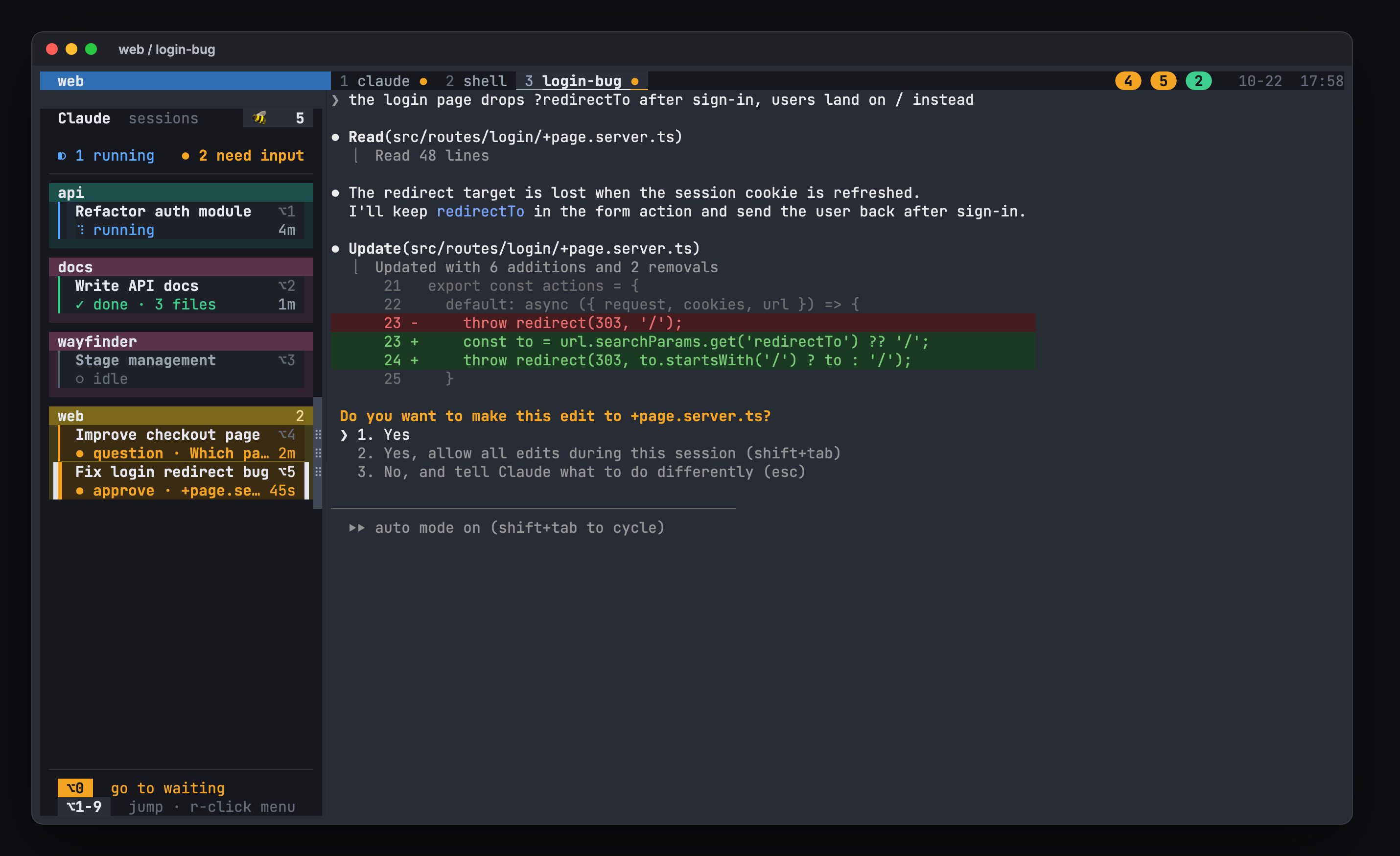
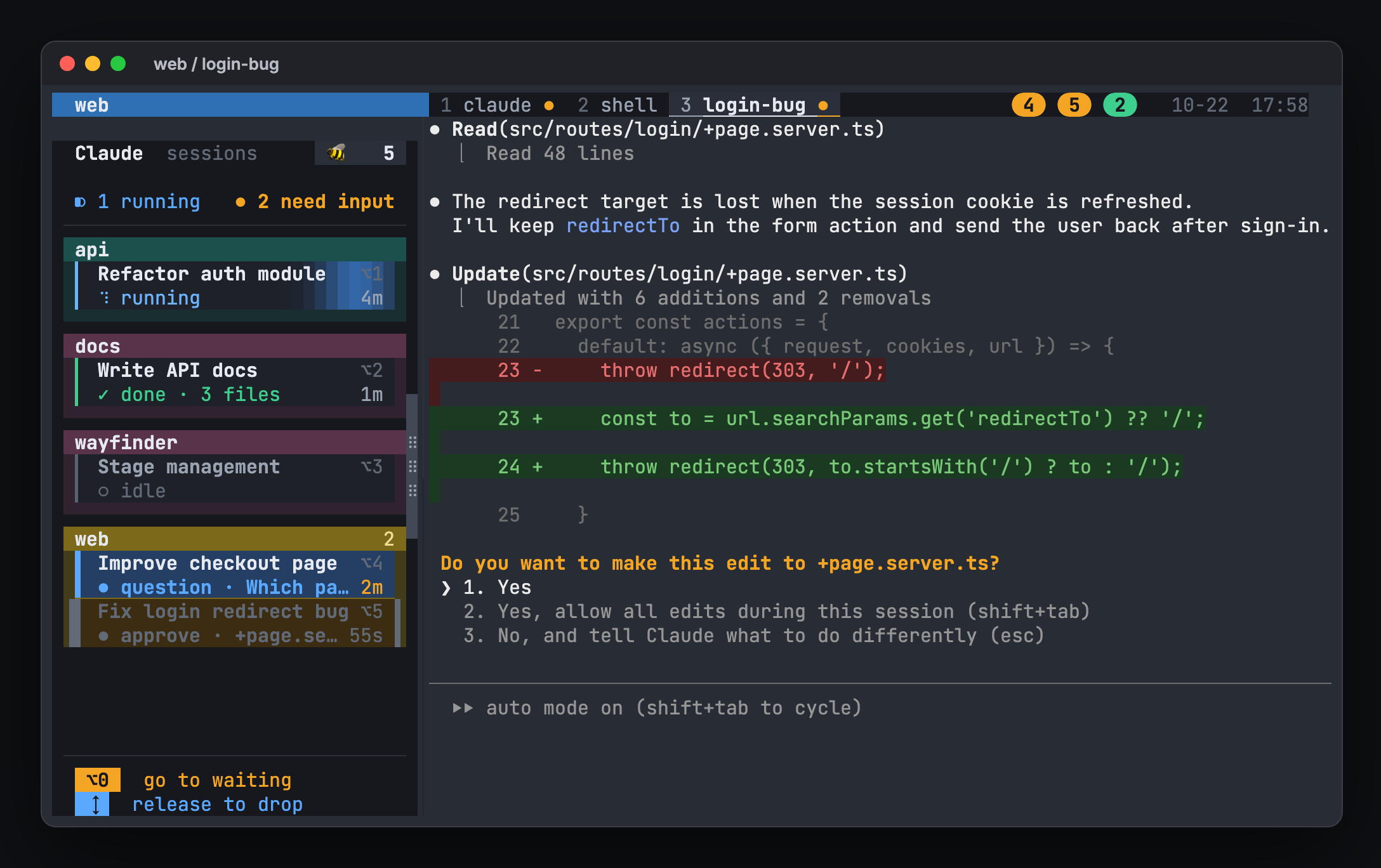
hivemux adds a sidebar to every tmux window that lists every Claude Code session
in every tmux session: what it is working on, whether it is running, waiting for
your approval, or done, and for how long. Press Option+3 to jump to the third
one, or Option+0 to jump to whichever has waited longest. Close the terminal or
reboot the Mac and everything comes back, with each Claude resumed in its pane.
Features
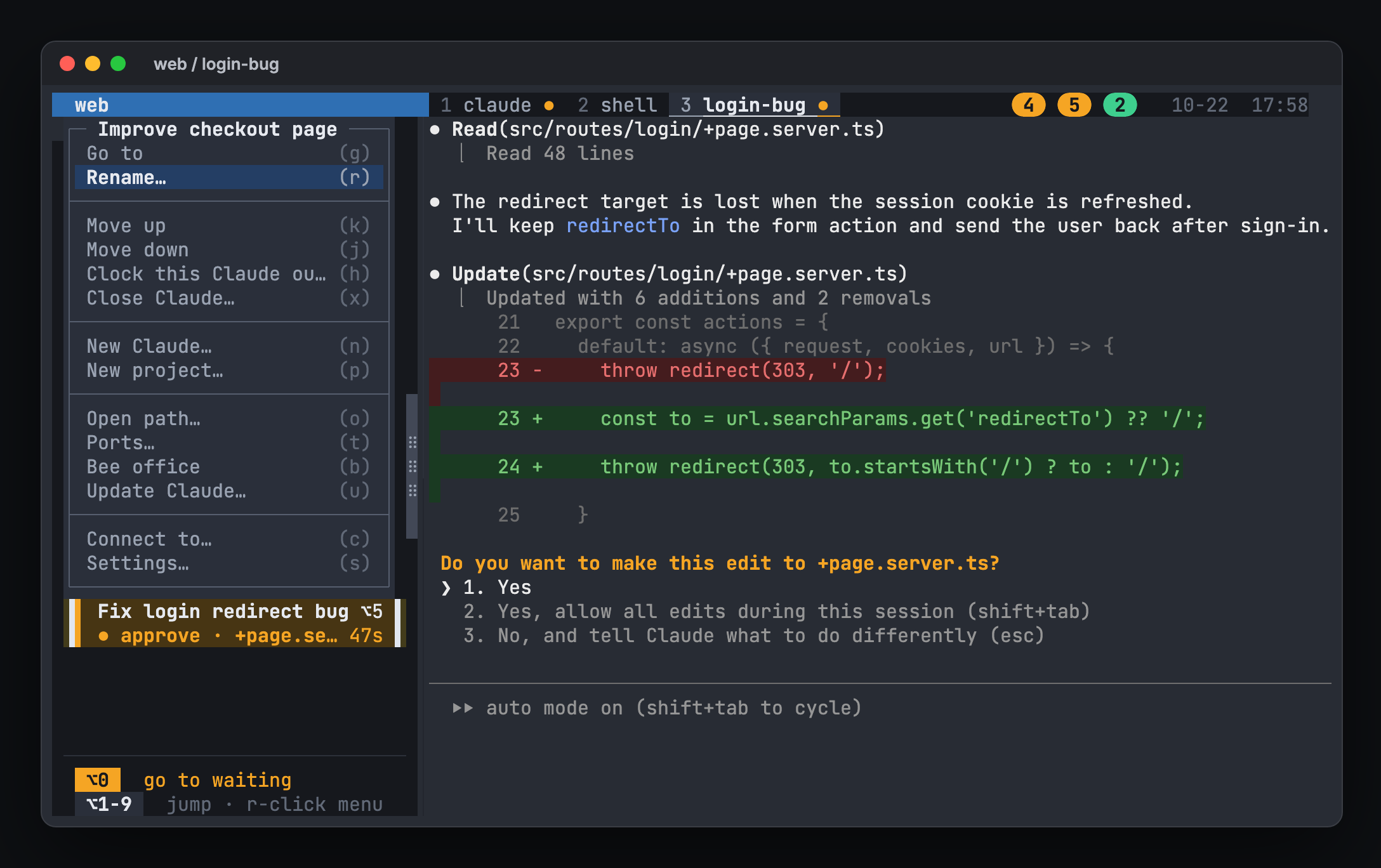
- One board for every session. A box per project in its own color, with a
card per Claude showing live state and elapsed time. Running cards glow,
waiting cards pulse amber, and the one you are in has a white line on each
side. Widen the sidebar for 2 or 3 columns; a long list scrolls with the wheel. - Notifications. A macOS notification when a task needs input or finishes,
except the one you are looking at. Turn it off in Settings. - Jump anywhere.
Option+1..9,Option+0(oldest waiting), or click a card. - Pickup board. Like the order board at a food court, the right of the top
status line shows a round number badge (the task'sOptionnumber) for every
task, in any project, that needs input (amber) or finished and is not seen
yet (green). A waiting one blinks until you answer, a finished one for its
first 10 seconds. Click a badge to go there; a finished one leaves once you
look at it. - Bee office. Every Claude session as a bee in a little office: watch who
works, who waits for you, and who is done at a glance. See The bee office. - Why it waits, and answer from the office. A waiting card says what it
waits for: an approval (with Claude's own one-line description of the
command, or the file), a plan, a question, or an error; a finished one says
how many files the turn changed, and one whose turn ended with background
agents still at work says "2 agents running" until it really finishes. In
the bee office, click the waiting bee's bubble and press the answer there. - Clock out, clock in. Stop every Claude for the night and bring them all
back in the morning, in the same conversations, while the bees go home to a
village and walk back to work. - Task names. Shows Claude's own conversation title. Double-click a card
(or right-click → Rename) to rename it; hivemux sends/renameto that Claude (waits if it is busy). - Your order. Drag a card to reorder tasks, or a project header to reorder
projects.Option+Nnumbers and the top window list follow the same order. - Survives everything. tmux keeps sessions alive when the terminal closes;
tmux-resurrect restores layouts after a reboot and hivemux runsclaude --resume <id>in the right pane. - Claude Code updates. Right-click → Update Claude (or
hivemux update-claude)
checks for a newer version and, once you confirm, updates Claude Code (with
brew if it came from Homebrew; up to date, it just says so), then restarts each
pane's Claude on the new version in the same conversation. One that is working,
waiting for you, or on a screen restarts later, once it is done and off screen. - Projects.
hm ~/code/apiopens one tmux session per folder with a named
Claude window and a shell window. - Open paths Claude mentions.
Option+Olists file paths from the pane's
recent output; Enter opens it at the line in the editor chosen in Settings
(VS Code, Cursor, Zed, Sublime Text or the text editor). From a screen
attached from another Mac, VS Code and Cursor open it on that Mac over Remote-SSH,
and Tab (default app) copies it to that Mac and opens it there.hivemux open <file>
does the same, so a screenshot Claude made shows up on the laptop you work from. - From your phone. Optionally turns on Remote Control for every session, so
the Claude app shows and drives the same sessions. - Polite installer. Adds marked blocks to your configs and removes exactly
those onhivemux uninstall.
The bee office
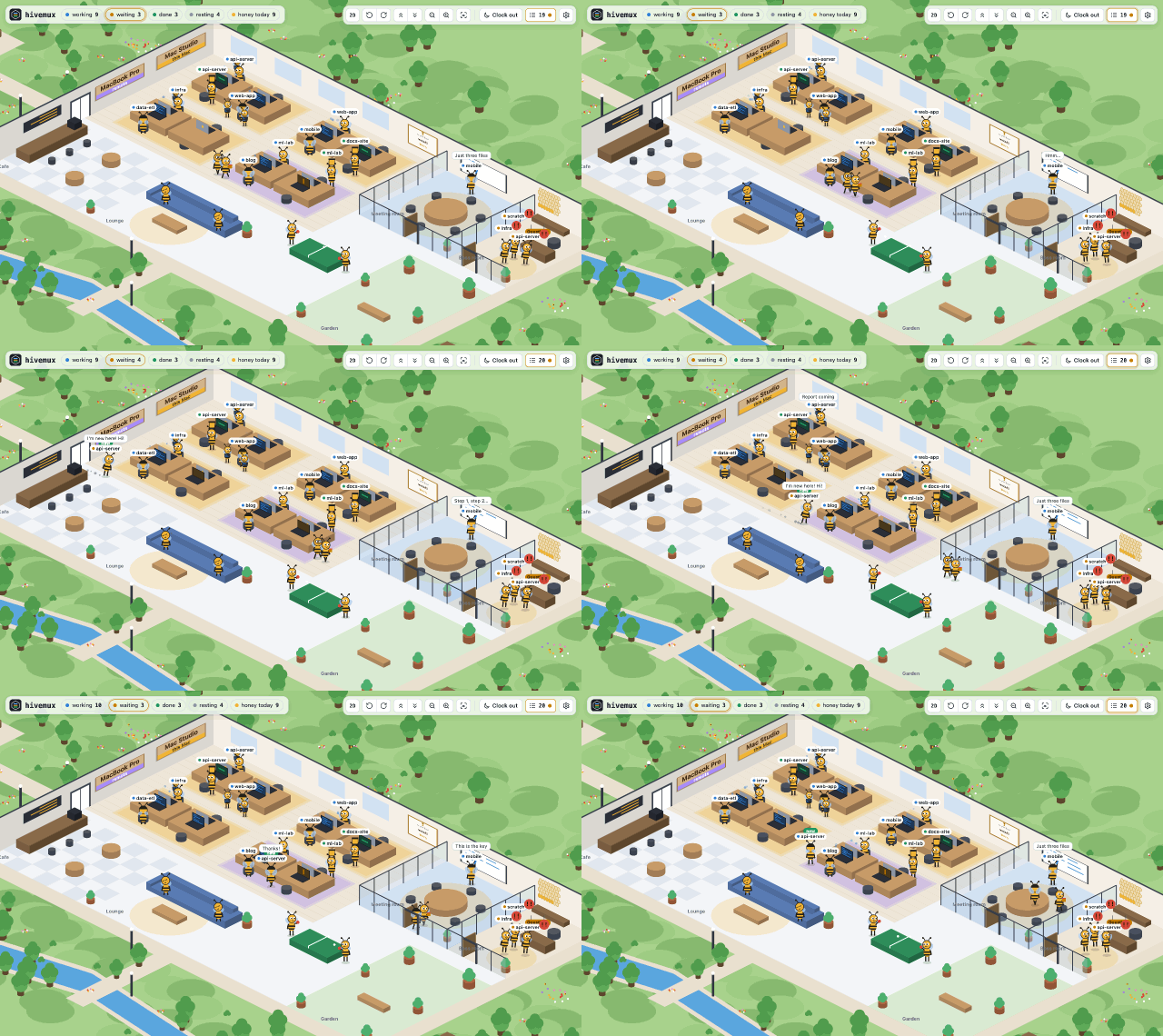
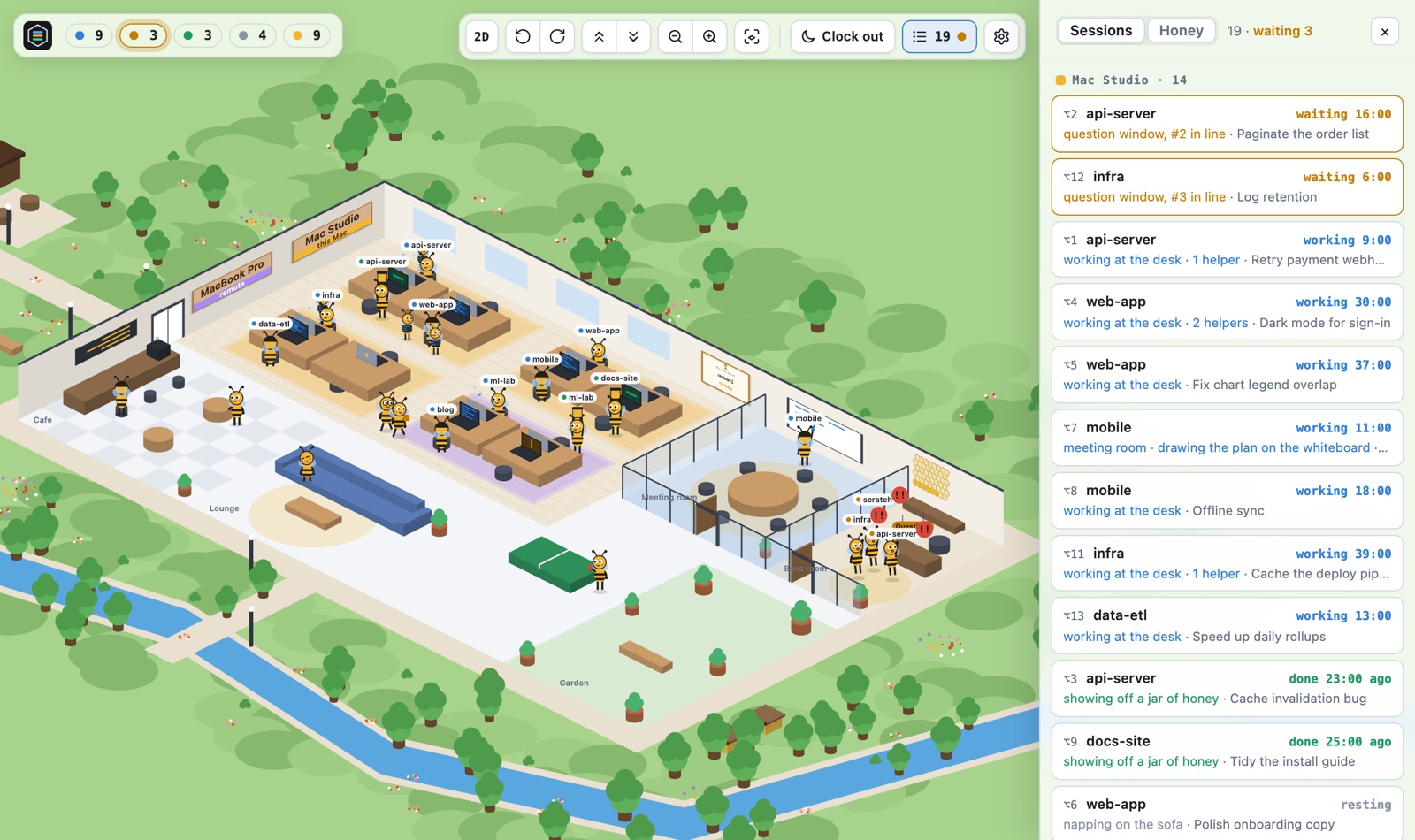
The 🐝 button at the top of the sidebar (or prefix B, the right-click menu,hivemux office) opens a window where every Claude session is a bee:
- Working bees type at their desks, with tiny helper bees beside them for
subagents. A Claude in plan mode plans at the meeting room whiteboard. - Waiting bees run to the question window in the boss room, line up, and pop
out in front of the window when one has waited a while. - Done bees hold up a jar of honey; once you have looked, they fill a cell of
the honeycomb and rest in the lounge. A full comb goes into a jar on a shelf. - Click a bee to jump to its session. The ☰ button (or
L) opens the session
list as a drawer, right or left (Settings); its Honey tab ranks bees by the
honey they made today, this week and this month, and the month's best hangs
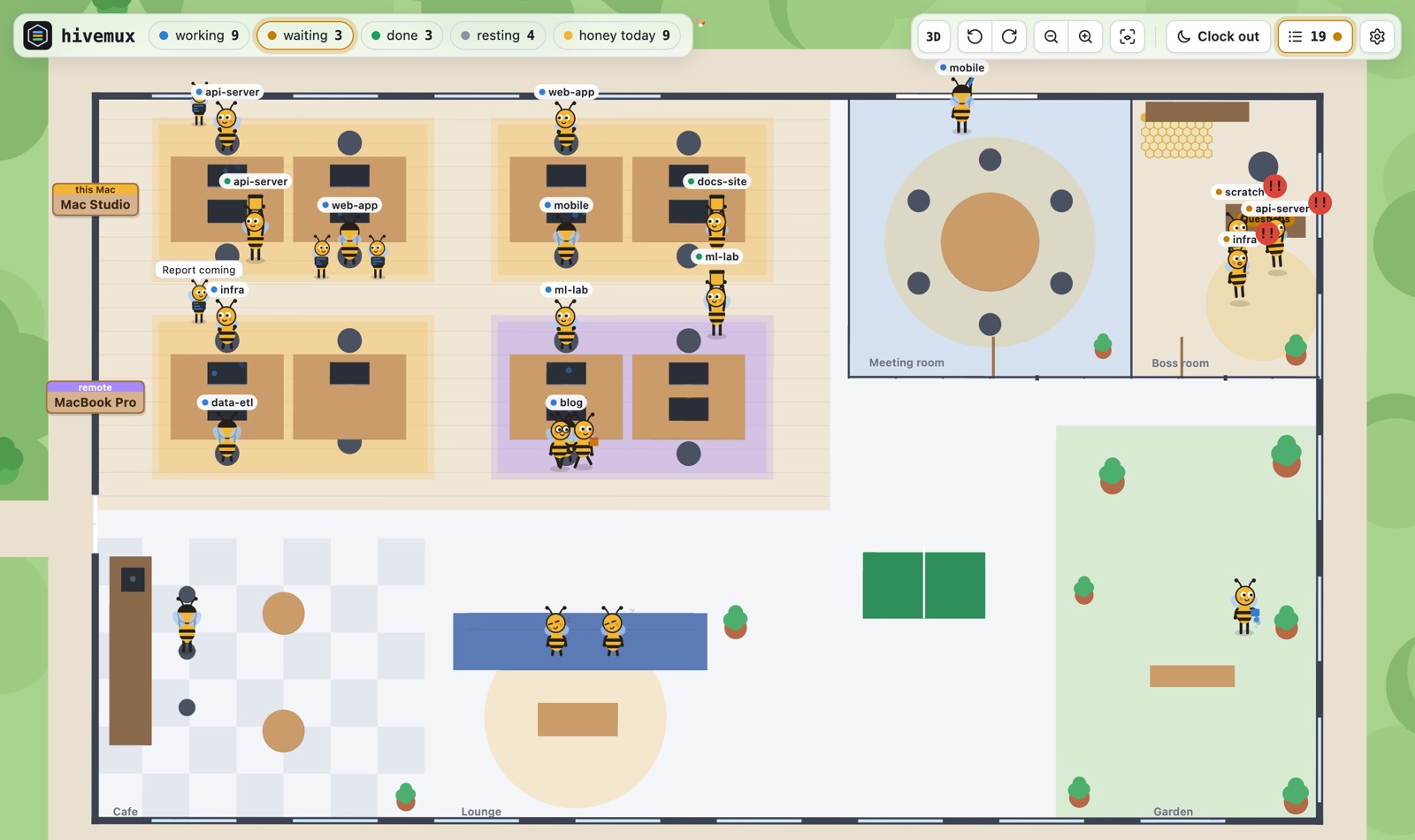
on the wall in a frame. - Turn, tilt and zoom with the mouse (a turn pivots on the point you pressed),
or switch to 2D for the same office seen from straight above. Zoom far out
and the office sits on a tiny planet. - Macs connected with
hivemux connectget desks of their own, on a carpet of
their color with a name plaque on the wall. - Without the Swift compiler for the window app, it opens as an app window in
Chrome, Edge, Brave, Whale, Vivaldi or Chromium (no tabs or address bar),
else in the browser. If the office server goes away, the page says it is
reconnecting and keeps trying; the office window starts the server again.
Answering from the office
A bee waiting for you holds up a big bubble with why: ✋ an approval (the
command's description Claude wrote, or the file it wants to change), 📋 a
plan, ❓ a question, ✎ an MCP server asking, ⚠ an error. Click the bubble (or
the bee) and the card shows the same choices as the terminal: press one and it
is answered there. A choice that takes words (Type something, Tell Claude what
to change) opens a box; several questions go one by one, then a review. It
works for bees of a connected Mac too. Nothing is pressed if the screen has
changed meanwhile.
Clock out, clock in
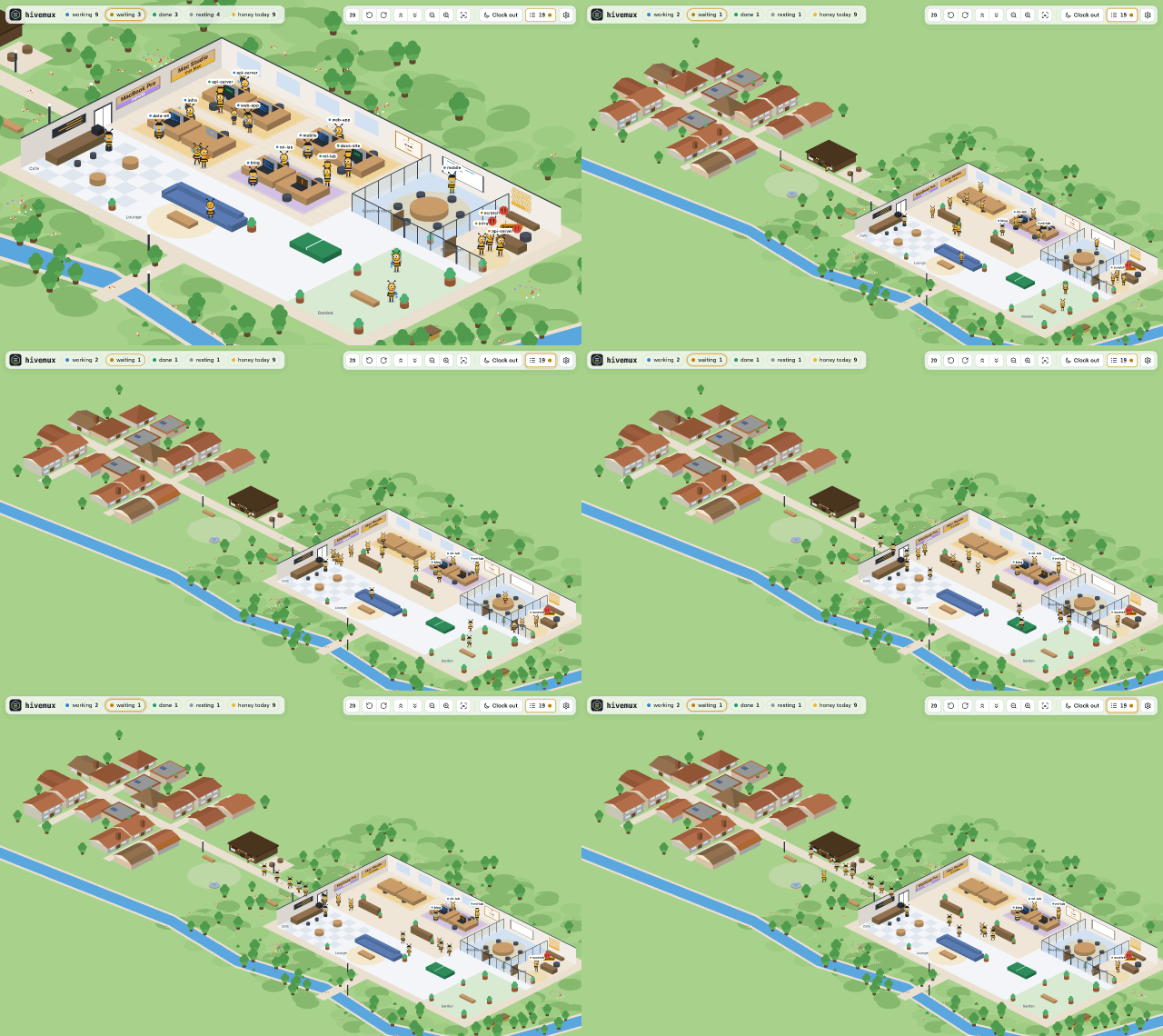
The 🌙 Clock out button (or right-click on empty sidebar space → Clock
everyone out…) stops your Claudes for the night, Mac by Mac or all at once. The
bees clap and walk past the yard to their own houses. A Claude still working or
waiting for you works overtime and goes once done. Clock in and every one comes
back in the same conversation (claude --resume) while the bees walk to work.
A reboot while clocked out leaves them home.
One Claude or one project can also go home on its own while the rest work on:
right-click its card → Clock this Claude out…, or a project's name → Clock this
project out… Its card stays in the sidebar, dimmed ("home · right-click to
clock in"); right-click it → Clock in brings it back in the same conversation
(a plain click does nothing, so a slip while picking a project is harmless).
Clocking everyone in brings it back too.
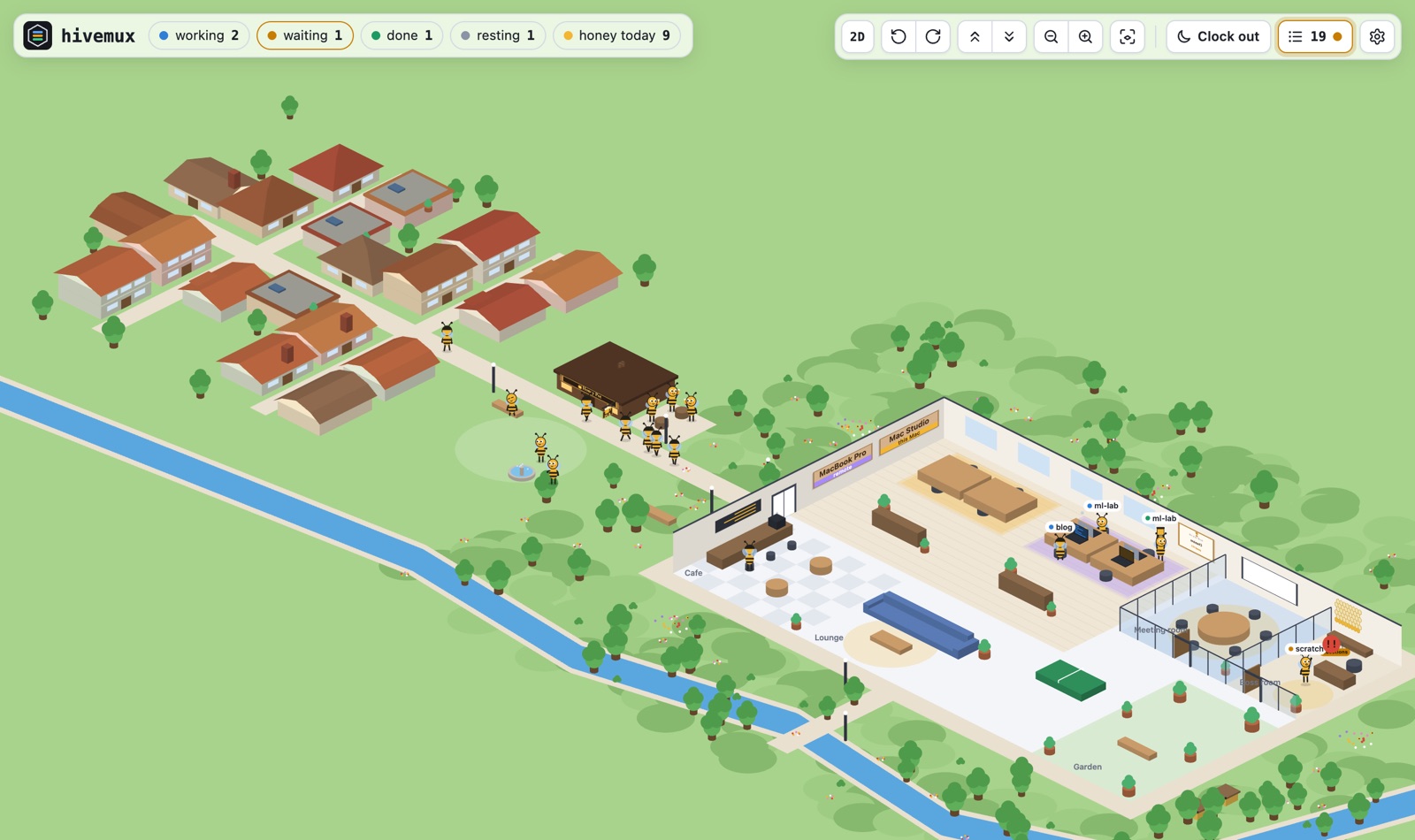
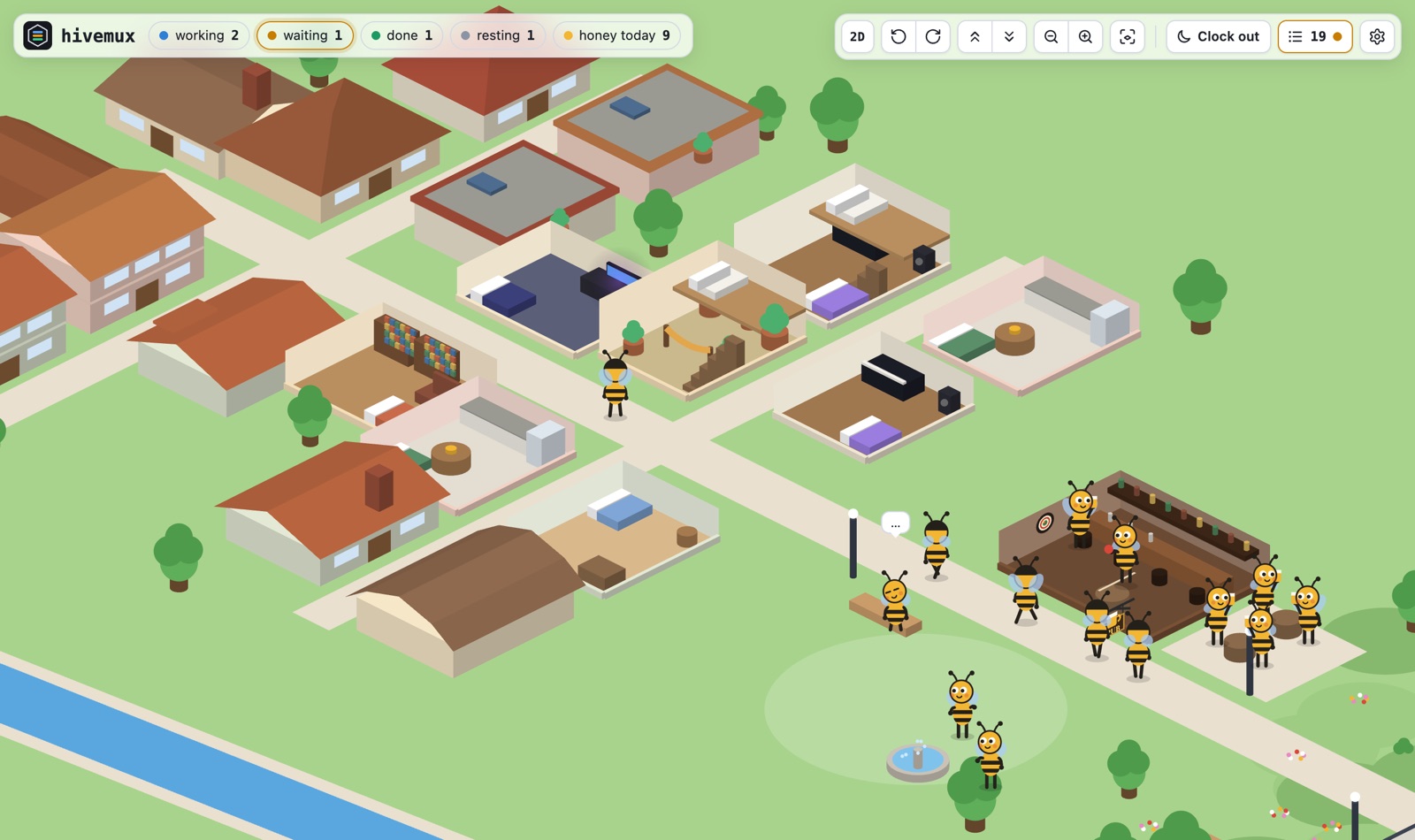
Off work the bees go out before bed: beer on the terrace of the Honey Pot pub
(or darts inside), a ball game or a bench in the park, or home. From 11 pm
everyone sleeps. Every house is different outside and in; hover one to look in
and see who lives there, click to keep it open.
A bee is a project and the Claude's name in it, so it stays the same bee across/clear and new conversations. A new name is hired and walks in as new;
closing that Claude (/exit, right-click its card → Close Claude…, or its
window for ten minutes) or its project is leaving: the bee holds up a box of
its things and walks out by the elevator saying goodbye. The same name coming
back is rehired, into the same house.
Requirements
- macOS (Linux likely works but is untested)
- tmux 3.3+, jq, git, python3 (Xcode Command Line Tools)
- Claude Code logged in
- Ghostty recommended (any terminal works if you start
tmuxyourself)
Install
curl -fsSL https://hivemux.dev/install.sh | bash
This clones hivemux into ~/.local/share/hivemux/src and runs hivemux setup.
Homebrew:
brew install esteban-eg-kim/tap/hivemux
hivemux setup
hivemux setup asks three questions (all default to yes):
| Question | What it changes |
|---|---|
| Recommended keys | prefix Ctrl+A (Claude Code uses Ctrl+B), | / - splits |
| Ghostty attaches to tmux | command = hivemux-attach in Ghostty config |
| Remote Control for all sessions | remoteControlAtStartup in ~/.claude/settings.json |
It also downloads tmux-resurrect and tmux-continuum (or uses yours from~/.tmux/plugins) and registers eleven Claude Code hooks. Run hivemux doctor to
check everything. Use --yes to accept defaults, --no-keys, --no-ghostty,--no-remote to skip parts. The screen language follows your shell; pick it with--lang=en or --lang=ko, and change it later in the sidebar's right-click menu → Settings.
Update
brew update && brew upgrade hivemux && hivemux setup    # Homebrew
curl -fsSL https://hivemux.dev/install.sh | bash   # git install: same command
hivemux setup again is safe: it replaces its own blocks and hooks (a new version
may add hooks), reloads the running tmux and restarts the sidebars, so you keep
working in the same sessions. Claude sessions started before the update pick up
new hooks once restarted. Claude Code itself: right-click → Update Claude
(hivemux update-claude). hivemux version shows the installed version; see
CHANGELOG.md for what changed.
Quick start
- Open Ghostty. You are inside tmux; the sidebar is on the left.
hm ~/code/apiopens project api with Claude running in window 1.hm ~/code/webopens a second project. The first keeps working.- Watch the sidebar.
Option+0takes you to whatever is waiting for you. prefixthenShift+Cadds another named Claude to the current project.- Close Ghostty whenever you like. Open it again and you are back where you were.
Keys
| Key | Action |
|---|---|
Option+1 … 9 |
jump to that Claude (any session) |
Option+0 / prefix Space |
oldest waiting Claude, else oldest unseen finished one |
| click card / project name | jump · double click a card: rename. A project whose Claude windows are all closed stays listed ("no Claude") until you close it |
| right click | menu. On a task: go to, rename, move up/down, clock this Claude out, close Claude, new Claude, new project. On a project name: rename, close project, clock this project out / in, new Claude, new project. On empty space: new project, clock everyone out / in. Every menu ends with Open path…, Ports…, Bee office, Update Claude…, Connect to… and Settings. Choose with the mouse, ↑↓ Enter or the letter shown; Esc closes |
| menu → Close Claude | asks, then closes that Claude: its pane, or its window when nothing else is in it; a project's last window keeps its shell. Not resumed again, like /exit; claude --resume still continues the conversation |
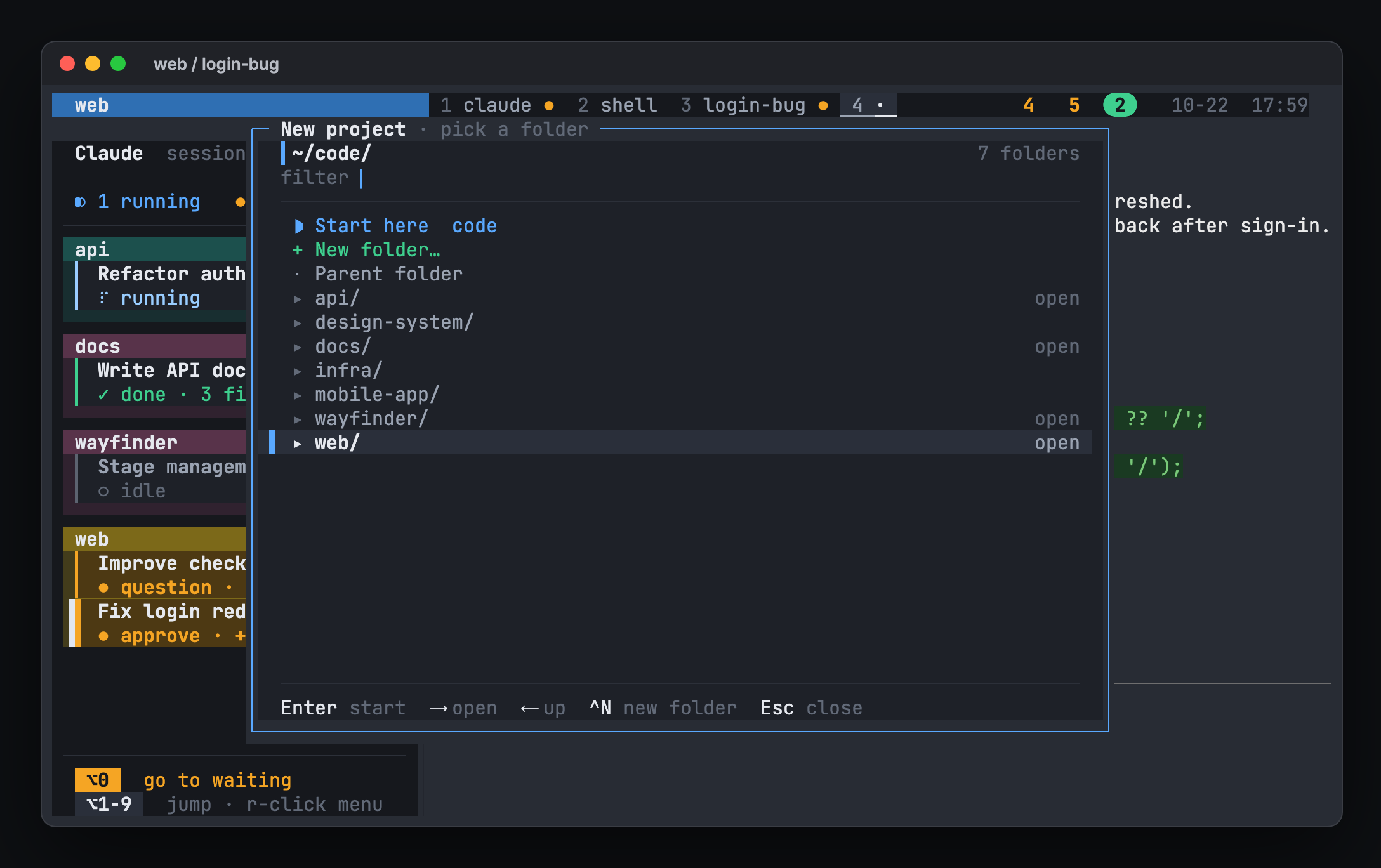
| menu → New project | folder browser in the middle: Enter starts the selected folder (like hm), → / ← in and out, type to filter, Ctrl+N new folder |
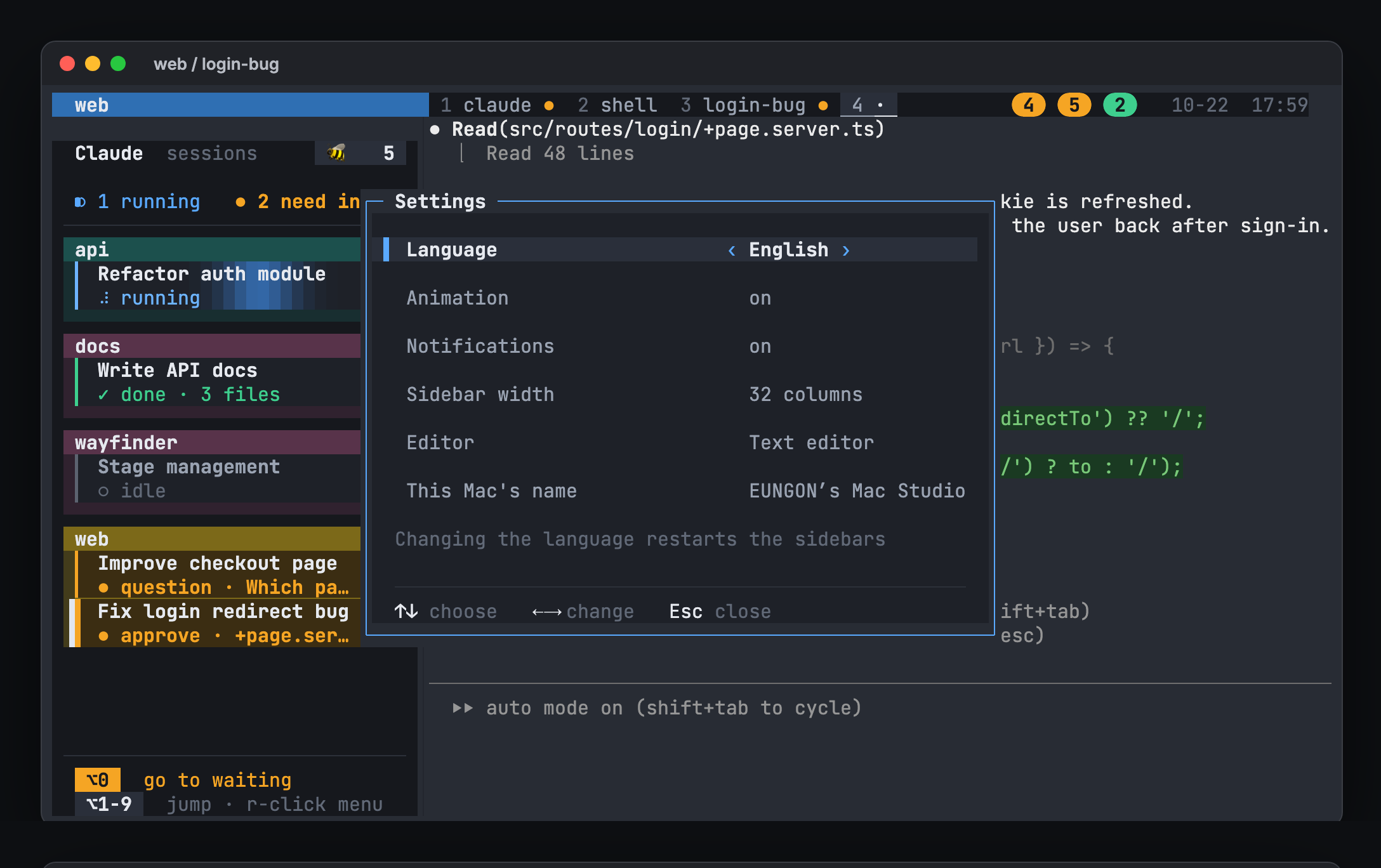
| menu → Settings | language (한국어 / English), animation, notifications, sidebar width, editor for Open path, this Mac's name (shown in the bee office and on remote screens); applied at once and saved |
| drag card / project header | reorder tasks / projects |
prefix Shift+↑ / ↓ |
move the current task up / down (at a project's edge, the project moves) |
Option+O / menu → Open path |
open a file path from recent output (Enter editor from Settings, Tab default app, ^F Finder, ^Y copy) |
Option+W / menu → Ports |
dev server ports forwarded between Macs (Enter opens in the browser of the Mac they reach, ^Y copies the address) |
prefix Shift+C |
new window with a named Claude in this folder (asks the name in a popup) |
| menu → Connect to… | another Mac's hivemux in a new Ghostty window (hosts added with hivemux connect --add) |
prefix Shift+H |
connect to the last remote host again |
prefix Shift+B |
open the bee office window (also the 🐝 button at the top of the sidebar) |
prefix Shift+R |
Remote Control server window (start new sessions from the phone) |
prefix b |
hide / show sidebars |
prefix s / prefix Shift+S |
session list / full tree |
| drag the sidebar grip | resize; width is saved. Wider: project boxes in 2–3 columns |
| mouse wheel on the sidebar | scroll when the list does not fit (shared by every window) |
prefix is Ctrl+A with the recommended keys, otherwise tmux's Ctrl+B.
Work from another Mac
Keep the work running on one Mac (say, the one at the office) and continue it
from another (a laptop): the laptop attaches to the first Mac's tmux over ssh and
sees the same sidebar and sessions. If the connection drops, the work goes on.
Local work on the laptop stays as it is; the remote one opens in its own window.
On the Mac you connect to: install hivemux, turn on System Settings →
General → Sharing → Remote Login, and keep it from sleeping when idle.
On the Mac you connect from:
hivemux connect --add [email protected]    # check and remember (--mosh to use mosh)
hivemux connect [email protected]          # or: right-click → Connect to…, prefix Shift+H
The first time, --add (or "+ Add a host…" in the Connect to… list) asks you to
trust the host and for your login password there once, then adds this Mac's ssh
key there (making one if there is none), so later connections need no password.
The host is anything ssh takes: a Host from ~/.ssh/config, user@address,
or a device name on a VPN. On the same network name.local works; from outside,
a VPN such as Tailscale on both Macs is the simple way
(opening ssh to the internet with port forwarding is not recommended).
- The remote window shows
⇄ <Mac name>at the right of the status line, before the clock. - A dropped connection reconnects by itself: a box in the middle counts down to the next try
(Entertries now,Ctrl+Cstops);prefix ddetaches and closes the window. - Notifications from the remote tasks show on this Mac.
- Dev servers started there (
npm run devin a remote pane) are forwarded to
the same port on this Mac'slocalhostwhile connected; a port taken here
goes to the next free one.Option+W(or menu → Ports) lists them on either
Mac; Enter opens one in the browser of the Mac you connect from.HIVEMUX_PORTS=0turns it off. Ctrl+Vin a remote Claude pane pastes the image on this Mac's clipboard (a
screenshot taken here, say): it is copied over and shows up as[Image #1].
Both Macs need hivemux 0.1.26 or later.hivemux open <file>in a remote pane (or Tab in theOption+Opopup) copies the
file to this Mac and opens it with its default app, so a screenshot Claude made
there shows up here. The 🐝 button there opens the bee office here. Both Macs
need hivemux 0.1.29 or later.- With
--mosh(ormin the menu → Connect to… list), the session survives
sleep and network changes by itself, but notifications do not pass through
mosh; the list marks such a host "mosh · no notifications". Both Macs needbrew install mosh; if it stops at "Nothing received from server on UDP
port", allow incoming connections formosh-serverin the other Mac's firewall. - Two screens on the same project share it: switching windows on one moves the other.
- While a remote screen looks at a window, its sidebar keeps still (no pulsing
cards, no status line spinner): every animation frame would go over the network.
How it works
| Layer | Job |
|---|---|
| Ghostty | draws. Every window runs hivemux-attach, which attaches to tmux |
| tmux | keeps processes alive when the terminal closes |
| tmux-resurrect + continuum | saves layouts every 5 minutes, restores on first launch |
| Claude Code hooks | write session id and state onto the tmux pane (hivemux-hook) |
| sidebar | reads that state every second and draws the board (hivemux-sidebar-view) |
| bee office | a small local server (hivemux-office) serves the office page to its window; hivemux-bees keeps the roster and the honey ledger, hivemux-shift clocks out and in |
On restore, hivemux-panes maps saved panes to Claude session ids and typesclaude --resume <id> in each. Sessions you ended with /exit are not resumed,
and none are while you are clocked out.
Troubleshooting
hivemux doctor                         # check dependencies and wiring
hivemux-panes list                     # panes hivemux will resume after reboot
tmux set -g @hivemux-anim off          # stop animations (to keep them off: menu → Settings)
tmux set -g @hivemux-fps 15            # fewer animation frames, less CPU (default 30)
hivemux-sidebar respawn                # restart every sidebar
touch ~/tmux_no_auto_restore           # skip restore on next launch
More in the illustrated guide: docs/guide.en.html (한국어); download it and open it in a browser.
Uninstall
hivemux uninstall
Removes the hivemux blocks from ~/.tmux.conf, Ghostty config and ~/.zshrc,
and the hivemux hooks from Claude Code settings. Saved layouts and backups stay
in ~/.local/share/hivemux.
License
MIT. hivemux is an independent project and is not affiliated with or endorsed
by Anthropic. "Claude" and "Claude Code" are trademarks of Anthropic.
Reviews (0)
Sign in to leave a review.
Leave a reviewNo results found