simple-html-editor
Health Gecti
- License — License: MIT
- Description — Repository has a description
- Active repo — Last push 0 days ago
- Community trust — 17 GitHub stars
Code Basarisiz
- exec() — Shell command execution in demo/digimedia/assets/js/imagesloaded.js
- network request — Outbound network request in demo/digimedia/assets/js/owl-carousel.js
- exec() — Shell command execution in demo/digimedia/vendor/jquery/jquery.min.js
- exec() — Shell command execution in demo/digimedia/vendor/jquery/jquery.slim.min.js
Permissions Gecti
- Permissions — No dangerous permissions requested
This tool is a lightweight WYSIWYG JavaScript HTML editor that enables full document editing (including head and body sections). It integrates with AI agents and the Model Context Protocol (MCP) to provide intelligent content generation and code editing capabilities.
Security Assessment
Overall risk: Low. The tool does not request any dangerous system permissions or contain hardcoded secrets. The automated scanner flagged shell command execution and network requests in several files; however, these alerts are false positives triggered by minified third-party demo assets (jQuery, Owl Carousel, and ImagesLoaded) included purely for template previews. The core editor code relies on standard browser APIs without executing local system commands. It does make outbound network requests to AI providers like OpenRouter or local Ollama instances, but this is expected behavior for its AI features and requires explicit user configuration.
Quality Assessment
The project is actively maintained, with its most recent push occurring today. It is fully licensed under the permissive MIT license, allowing for broad usage and modification. Community trust is currently low but present, represented by 17 GitHub stars. The documentation is comprehensive, offering multiple live demos, clear setup instructions, and helpful security guidance (such as configuring CORS for local and production environments).
Verdict
Safe to use, as the flagged security warnings are false positives from standard demo dependencies, though you should ensure strict CORS policies if deploying the AI features in a production environment.
Simplest and smallest WYSIWYG with AI Agent web content editor, entire document, body and head, no dependencies.
Simple HTML Editor with AI Agent
A lightweight, customizable WYSIWYG JavaScript HTML content editor with AI Agent and MCP (Model Context Protocol) capabilities for modern web applications. Provides a robust and intuitive content editing experience with AI-powered assistance.
Allows you to edit the content of previously created templates or designs while maintaining the original design. Unlike other editors, it allows editing the entire document including both body and head sections, without using deprecated execCommand().
Key Features
- Integrated AI Agent with MCP (Model Context Protocol) support for intelligent content editing
- Full document editing (body and head sections)
- Modern implementation (no deprecated execCommand)
- Comprehensive undo/redo system
- Advanced image handling with preview and resizing
- Link management with target control
- Source code editing capability
- AI-assisted code editing and generation with streaming responses
- MCP server integration for extended AI capabilities
- Restorable dynamic content
- Touch-enabled drag interface
DEMO

Once the editing is finished, I save the changes I receive in an index.html file to replace the downloaded one.
Demo:
Demo template collection:
To try out the AI, you can create an account at https://openrouter.ai and use a free model, or install Ollama locally. Note that CORS configuration is always required for browser-based AI integrations.
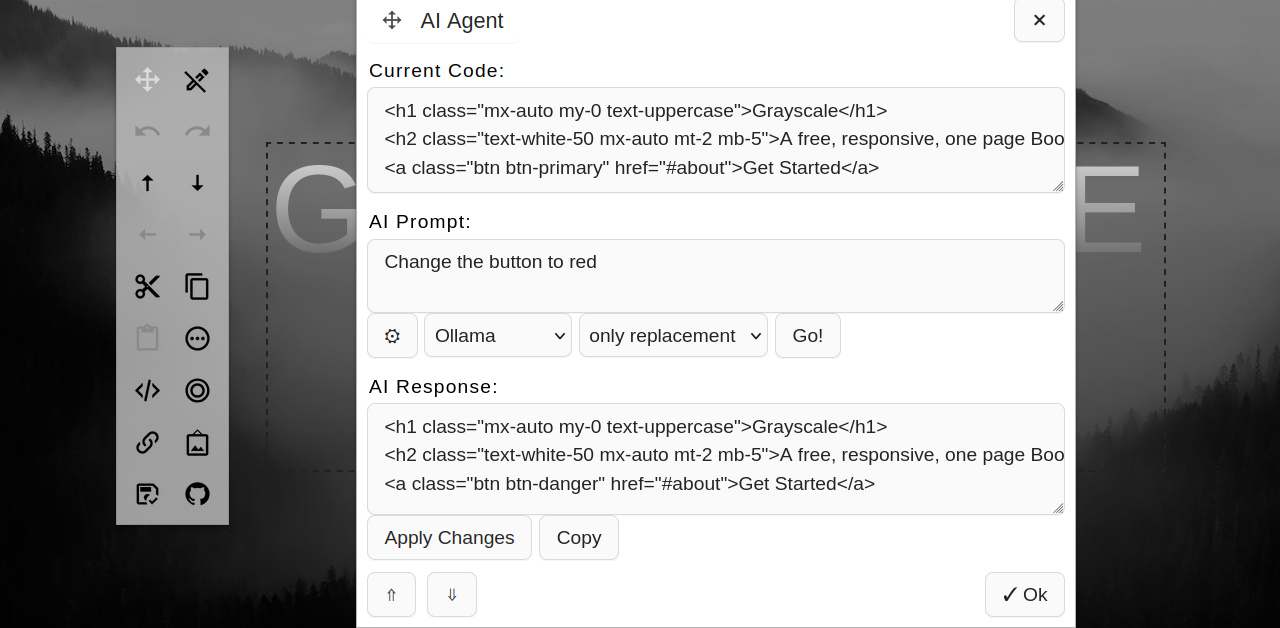
Ollama CORS Configuration
Ollama does not enable CORS by default. To use it with ClientAgentJS, start Ollama with the appropriate CORS headers:
OLLAMA_ORIGINS="*" ollama serve
Or set the environment variable permanently:
# Linux/macOS
export OLLAMA_ORIGINS="*"
ollama serve

# Windows
set OLLAMA_ORIGINS=*
ollama serve
For production environments, restrict origins to your specific domain instead of *:
OLLAMA_ORIGINS="http://localhost:*" ollama serve
MCP and CORS
MCP servers also need to support CORS when accessed from the browser. Many MCP servers are designed to run as local processes and are not built for direct browser access.
Options:
- Run MCP servers locally: A server on
localhostaccessed from a page also onlocalhostis same-origin and avoids cross-origin restrictions entirely. - Host your own MCP servers: Configure them to include the appropriate
Access-Control-Allow-Originresponse headers. - Route through a backend proxy: Forward browser requests to MCP servers through your own proxy, keeping the MCP servers unexposed.
When adding an MCP server in the configuration panel, verify that the endpoint either supports CORS or is running on localhost.
Getting Started
Installation
You can include the editor in your project using either the CDN or by downloading the files directly:
CDN Installation
<link rel="stylesheet" href="https://cdn.jsdelivr.net/gh/FranBarInstance/simple-html-editor@master/simplehtmleditor.min.css">
<script src="https://cdn.jsdelivr.net/gh/FranBarInstance/[email protected]/simplehtmleditor.min.js"></script>
Local Installation
- Download
simplehtmleditor.min.cssandsimplehtmleditor.min.js - Include them in your project
Basic Setup
The editor code must be wrapped in a div with the id ncsedt-implement and placed at the end of your page immediately before the closing </body> tag. This includes both the .js and .css files.
Basic setup with default options:
<!-- ncsedt-implement:before -->
<div id="ncsedt-implement">
    <link rel="stylesheet" href="https://cdn.jsdelivr.net/gh/FranBarInstance/[email protected]/simplehtmleditor.min.css">
    <script src="https://cdn.jsdelivr.net/gh/FranBarInstance/[email protected]/simplehtmleditor.min.js"></script>
    <script>
        window.addEventListener('DOMContentLoaded', function () {
            var editor = new ncSimpleHtmlEditor({
                // Default AI model profile (optional - user can configure via UI)
                defaultModel: {
                    id: 'default-ollama',
                    name: 'Local Ollama',
                    provider: 'openai-compatible',
                    model: 'llama3.2',
                    apiKey: '',
                    baseURL: 'http://localhost:11434/v1',
                    systemPrompt: 'You are a helpful assistant for HTML editing.'
                },
                // ClientAgentJS options (optional)
                agentOptions: {
                    storageType: 'local', // or 'sessionStorage'
                    storageKey: 'ncsedt_agent_config'
                }
            });
            editor.start();
        });
    </script>
</div>
<!-- ncsedt-implement:end -->
The ncsedt-implement:before comment helps detect dynamic changes that should be removed before saving.
Options
IMPORTANT: Do not enter the API key in the settings, as this poses a security risk. There is an option to configure the model in the editor.
var options = {
    // Selector for editable content, default "body"
    editableContentSelector: "body",

    // Enable linear undo/redo history (non-linear history possible when false)
    usesLinearUndoHistory: true,

    // Time window in milliseconds for grouping multiple changes into a single history entry
    mutationGroupingWindowMs: 200,

    // Number of toolbar columns, by default null, as set in css
    toolbarCols: null,

    // Save button, disable on click in milliseconds
    saveTimeout: 500,

    // Maximum image size in bytes (large base64 images degrade DOM performance)
    maxImageSizeBytes: 1200000,

    // Default AI model profile (optional - pre-configures the AI agent)
    defaultModel: {
        id: 'default-ollama',
        name: 'Local Ollama',
        provider: 'openai-compatible',
        model: 'llama3.2',
        apiKey: '', // Leave empty for local Ollama
        baseURL: 'http://localhost:11434/v1',
        systemPrompt: 'Never modify the element with id ncsedt-implement. Only process and return what comes after INPUT:'
    },

    // ClientAgentJS configuration options
    agentOptions: {
        storageType: 'local',        // 'local' or 'sessionStorage'
        storageKey: 'ncsedt_agent_config',  // Key for storing profiles
        agentsMd: null,              // Optional: path to custom AGENTS.md file
        dialogClass: null            // Optional: custom CSS class for dialogs
    },

    // Additional prompts for AI
    additionalPrompts: {
        "name": 'Instructions...'
    },

    // Custom prompts for AI
    customPrompts: {
        "translate": 'Translate to English',
        "traduce": 'Traduce a Español',
    },

    // Active buttons and toolbar order
    // Available buttons: edit, undo, redo, up, down, previous, next, cut, copy, paste, head, code, text, agent, link, image, save, profiles, mcp, github
    toolbar: ['edit', 'undo', 'redo', 'up', 'down', 'previous', 'next', 'cut', 'copy', 'paste', 'head', 'code', 'text', 'link', 'agent', 'image', 'save', 'profiles', 'mcp', 'github'],
};

var editor = new ncSimpleHtmlEditor(options);
Editable selector
The editor is designed to edit the whole page (body) but there is no problem to edit a specific selector:
var editor = new ncSimpleHtmlEditor({
    editableContentSelector: "#id",
});
For editableContentSelector: ".class" only the first element found will be editable.
AI Agent and MCP Configuration
The editor uses ClientAgentJS for AI capabilities. You can pre-configure a default model or let users configure it through the UI.
Pre-configure a default model
var editor = new ncSimpleHtmlEditor({
    defaultModel: {
        id: 'my-profile',
        name: 'OpenRouter Free',
        provider: 'openai-compatible',
        model: 'qwen/qwen-2.5-coder-32b-instruct:free',
        apiKey: 'your-api-key',
        baseURL: 'https://openrouter.ai/api/v1',
        systemPrompt: 'Never modify the element with id ncsedt-implement. Only process and return what comes after INPUT:'
    }
});
Supported providers: openai-compatible, anthropic, google, openai
User configuration via UI
Users can configure their own AI profiles through the built-in configuration panel:
- Add the
profilesbutton to the toolbar - Click the ⚙️ (Model) button in the AI dialog, or click the
profilestoolbar button - Add your API key and model settings in the configuration panel
MCP Servers (optional)
The editor supports Model Context Protocol (MCP) servers for extended AI capabilities. Add the mcp button to the toolbar to configure MCP servers.
Create a custom button
var options = {
    buttons: {
        help: {

            /*
             * Same a key name: "help"
             */
            name: 'help',

            /*
             * Image for toolbar icon
             */
            icon: 'help.png',

            /*
             * Alt text
             */
            title: 'Help',

            /*
             * Set when the button is disabled, in this case never
             */
            disabled: function () { return false },

            /*
             * On click action
             */
            action: function () {
                var link = document.createElement('a');
                var ncsedt = document.querySelector('#ncsedt-implement');

                link.setAttribute('href', 'https://github.com/FranBarInstance/simple-html-editor');
                link.setAttribute('target', '_blank');
                ncsedt.appendChild(link);
                link.click();
            }
        }
    },

    /*
     * Add the button at the end of the toolbar
     */
    toolbar: ['edit', 'undo', 'redo', 'up', 'down', 'previous', 'next', 'cut', 'copy', 'paste', 'head', 'code', 'text', 'link', 'agent', 'image', 'save', 'profiles', 'mcp', 'github', 'help']
};

var editor = new ncSimpleHtmlEditor(options);
disabled
Disabled is called whenever there are changes in the editor so that you can determine when to disable the button, an example is the isUndoButtonDisabled function of the undo button, which is disabled whenever editing is not active and enabled if the history is not empty:
ncSimpleHtmlEditor.prototype.isUndoButtonDisabled = function () {
    return !this.isEditingEnabled() || !this.hasUndoHistory();
};

ncSimpleHtmlEditor.prototype.hasUndoHistory = function () {
    return this.historyUndo.length > 0;
};
Restorable
You can mark tag as "restorable" to restore dynamic changes, such as a "preloader".
There are two ways to do this, with the tag "ncsedt-restorable" or with the attribute "data-ncsedt-restorable".
To mark a code block as "restorable" we use the tag "ncsedt-restorable":
<ncsedt-restorable>
    <div class="preload">
        ...
    </div>
</ncsedt-restorable>
To mark a tag as "restorable" we use the attribute data-ncsedt-restorable:
<div class="preload" data-ncsedt-restorable="true">
To understand what "restorable" does, let's imagine a "preload" plugin that needs a DIV with a class at the beginning of BODY:
<div class="preload"></div>
When the plugin is executed the code has changed dynamically and may look similar to this:
<div class="preload done"></div>
Saving the template will also save the .done class and the preload will not be executed again.
It will not work with dynamic changes that are executed before loading the editor code.
Removable
You can mark code block as "removable" to remove block on save.
The following code block will be removed when saving the template:
<ncsedt-removable>
    <div>
        ...
    </div>
</ncsedt-removable>
AI Prompts
The editor supports two types of AI prompts:
Additional Prompts
Additional prompts are predefined prompts that modify the AI's behavior. They are applied before the user's prompt.
additionalPrompts: {
    "only replacement": 'Instructions:\n Provide only what is requested, including all code or text that does not change, without additional comments, without Markdown. The div id ncsedt-implement code must never be modified.'
}
Custom Prompts
Custom prompts are predefined prompts that users can quickly select from the AI agent dialog. These are stored as key-value pairs where the key is displayed in the dropdown menu and the value is the prompt text that will be inserted into the prompt field.
customPrompts: {
    "translate": 'Translate to English',
    "traduce": 'Traduce a Español',
}
When a custom prompt is selected from the dropdown, its value is automatically inserted into the prompt textarea, making it easy to reuse common instructions.
Events
The editor provides several events that you can listen to for extending functionality:
Core Events
editorstart: Fired after the editor initialization is completeeditorchanges: Fired when changes affect the editor's statecontentchanges: Fired when editable content is modifiedfocusedchange: Fired when the focused element changes
Dialog Events
showModal: Fired when any dialog is displayedclick: Fired for various button interactionschange: Fired when file inputs or form fields are modified
Usage Example
editor.addEventListener('contentchanges', function(e) {
    console.log('Content was modified');
});
The editor provides several events that you can listen to for extending functionality:
Core Events
editorstart: Fired after the editor initialization is completeeditorchanges: Fired when changes affect the editor's statecontentchanges: Fired when editable content is modifiedfocusedchange: Fired when the focused element changes
Dialog Events
showModal: Fired when any dialog is displayedclick: Fired for various button interactionschange: Fired when file inputs or form fields are modified
Usage Example
editor.addEventListener('contentchanges', function(e) {
    console.log('Content was modified');
});
Functions
- isEditingEnabled(): Determine if editing is active, true/false.
- getCurrentFocusedElement(): Get the current element that has the focus.
- getPreviousFocusedElement(): Get the previous element that had the focus
- getEditable(): Get editable element.
- getClipboard(): Get clipboard content, can be null.
- getDocumentHTML(selector = null): Get the HTML with the current changes, If no selector is indicated, the complete document.
Overwrite save function
var editor = new ncSimpleHtmlEditor({
    buttons: {
        save: {
            action: function () {

                /*
                 * Disable editing mode to remove elements that
                 * should only be in edit mode.
                 */
                editor.editOff();

                /*
                 * Get HTML to save
                 */
                var html = editor.getDocumentHTML();

                // Your code to save the html here.

                /*
                 * Restore editing mode.
                 */
                editor.editOn();
            }
        }
    }
});
CDN Files Location
For backward compatibility, minified files are included in both the root directory and dist/:
simple-html-editor/
├── simplehtmleditor.min.js      # Root (legacy, CDN compatible)
├── simplehtmleditor.min.css     # Root (legacy, CDN compatible)
└── dist/
    ├── simplehtmleditor.min.js  # Preferred location
    └── simplehtmleditor.min.css
The root files are maintained for existing CDN users. For new implementations, use the dist/ path:
<link rel="stylesheet" href="https://cdn.jsdelivr.net/gh/FranBarInstance/simple-html-editor@master/dist/simplehtmleditor.min.css">
<script src="https://cdn.jsdelivr.net/gh/FranBarInstance/simple-html-editor@master/dist/simplehtmleditor.min.js"></script>
Limitations
The editor works on more than 90% of modern templates without the need to modify the template.
There are issues with dynamically generated content, such as animations, preloading, etc. Some plugins modify tag attributes dynamically so that the modified attributes are saved when the template is saved.
License
MIT License
Yorumlar (0)
Yorum birakmak icin giris yap.
Yorum birakSonuc bulunamadi