Aquilum
Health Warn
- No license — Repository has no license file
- Description — Repository has a description
- Active repo — Last push 0 days ago
- Community trust — 73 GitHub stars
Code Warn
- Code scan incomplete — No supported source files were scanned during light audit
Permissions Pass
- Permissions — No dangerous permissions requested
No AI report is available for this listing yet.
Fast local-first Markdown knowledge base for Windows with live preview, search, graph, Dataview, book reader, and MCP
Aquilum
A fast, local-first knowledge base for Windows.
Plain Markdown on your disk, with a focused editor, instant search, links, queries, and a built-in book reader.
Download the latest version · Installation · Русский
Your knowledge stays yours
Aquilum opens a folder you choose and works directly with the .md files inside it. There is no required account, proprietary note format, or cloud database. Notes and attachments remain usable in other tools, and you can back them up or synchronize them with any service you trust.
The desktop interface is built with Tauri and React; disk access, indexing, search, and queries run in Rust. The result is a responsive workspace that keeps its source of truth on your computer.
A tour of Aquilum
1. Return to the same workspace
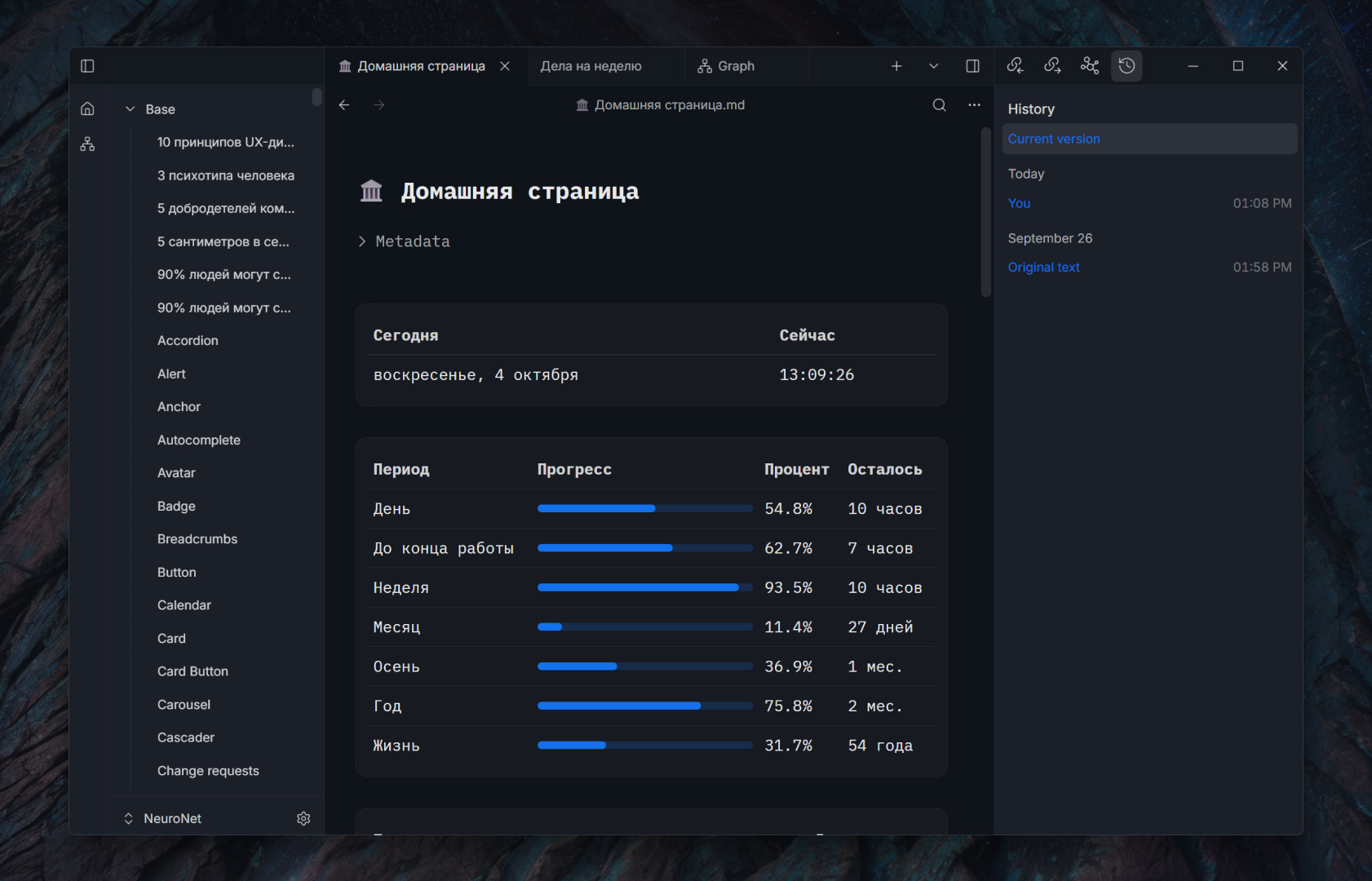
Aquilum restores the working context around your notes, not just the last open file. Reorderable tabs, back and forward navigation, and the document tree let you move between several lines of thought without losing your place. You can choose any note as the vault home page and turn it into a dashboard that mixes ordinary Markdown with live TABLE, LIST, and TASK queries.
The history panel shown on the right records how a note changed and where each edit came from. You can inspect a visual diff, create named versions at meaningful milestones, restore a complete earlier version, or reverse one selected change. This history complements the files on disk: the current document is still an ordinary .md file that remains usable outside Aquilum.
2. Search the entire vault while you type
Global search is backed by a local full-text index and returns matching notes as you type. Every result includes surrounding text, so you can judge a match before opening it; keyboard navigation makes it practical to move through a long result list quickly. Search indexes are maintained separately for each vault and updated when files change, including changes made by another editor.
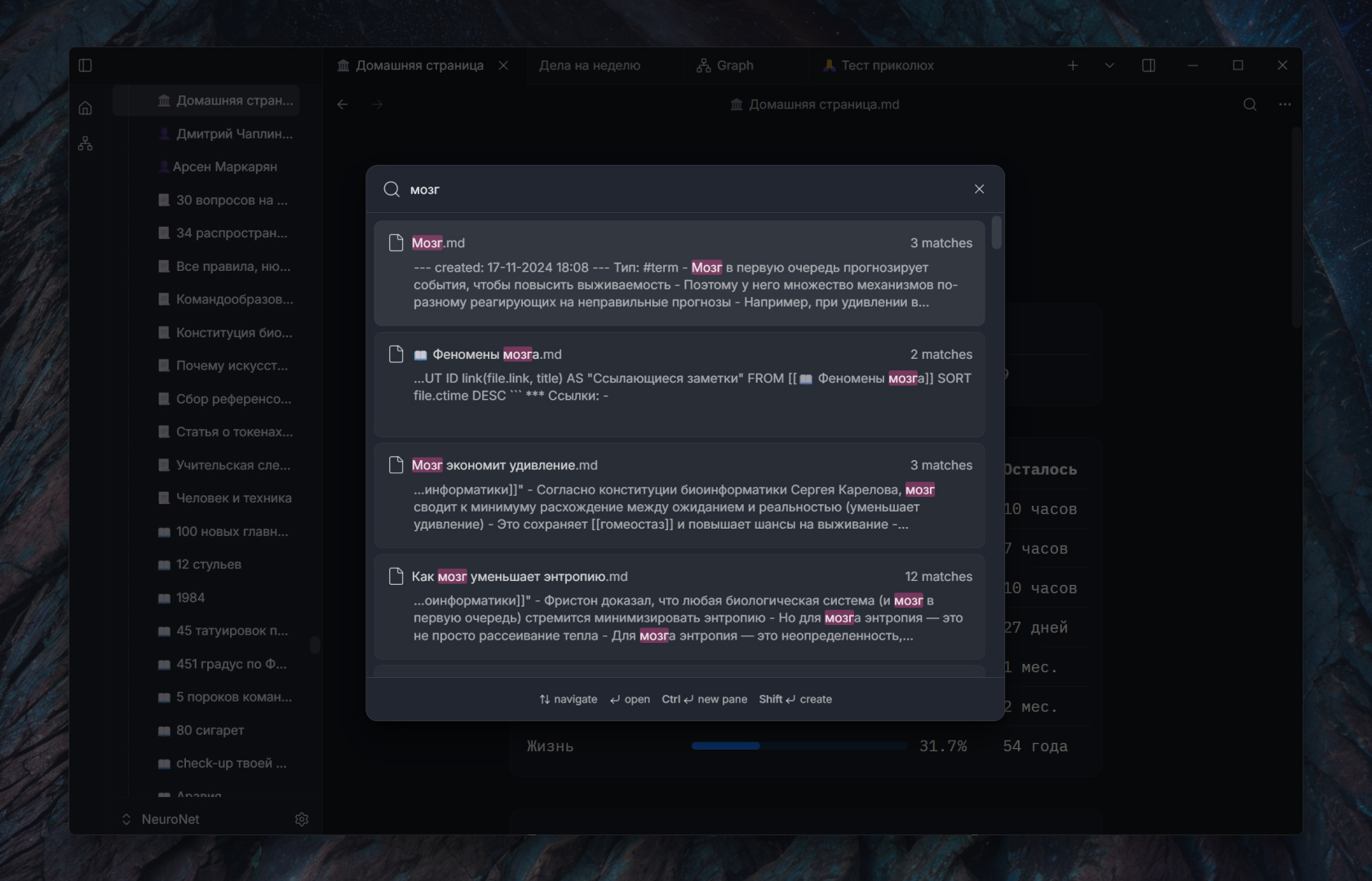
For a narrower task, search inside the current note highlights matches without leaving the editor. Aquilum also indexes typed frontmatter fields, which lets live queries filter and organize notes by structured metadata rather than text alone.
3. Explore links as a knowledge graph
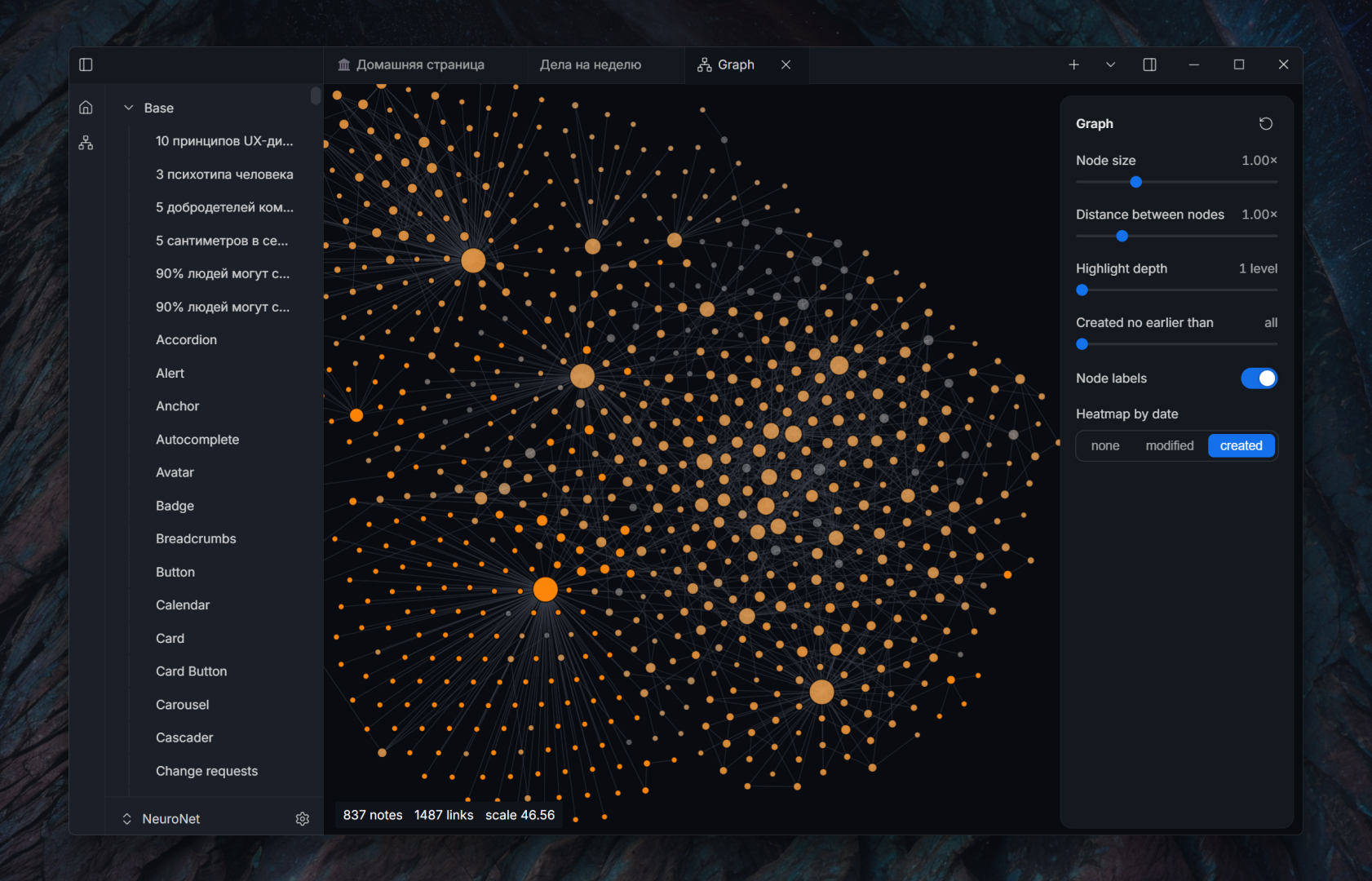
The graph turns wiki links between notes into a navigable map. Pan and zoom across the whole vault, select a node to highlight its neighborhood, and open a note directly from the visualization. Controls for link distance, node size, labels, colors, and date ranges help reduce visual noise when the vault becomes large.
The graph is part of the same navigation system as backlinks, outgoing links, and related-note suggestions. It therefore works both as a broad overview and as a way to answer a focused question: what supports this note, where does it lead, and which nearby ideas have not yet been connected explicitly?
4. Write with live Markdown preview
The CodeMirror editor renders headings, emphasis, links, lists, callouts, code, and embedded content close to their final appearance while you write. Markdown markers are hidden only where that improves readability and reappear when the caret enters the corresponding construct, so the source never becomes inaccessible. A document outline provides quick navigation through long notes, while link completion helps connect the current paragraph to existing material.
The result remains portable Markdown on disk. Nested lists, both numbered-list styles, empty list items, tasks, fenced blocks, frontmatter, and wiki links are preserved as text rather than converted into a private document format. Page covers and book callouts add richer presentation without changing that ownership model.
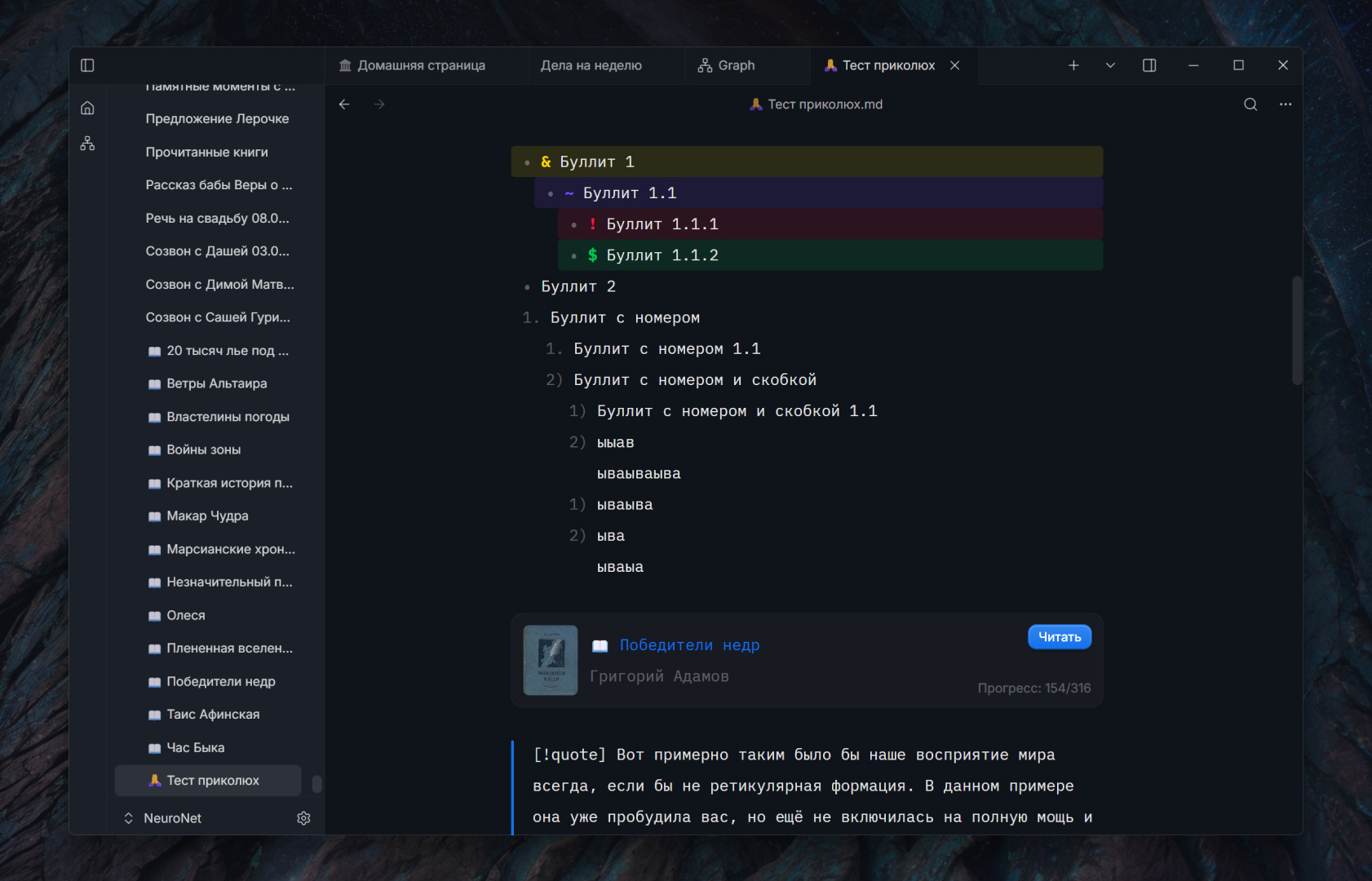
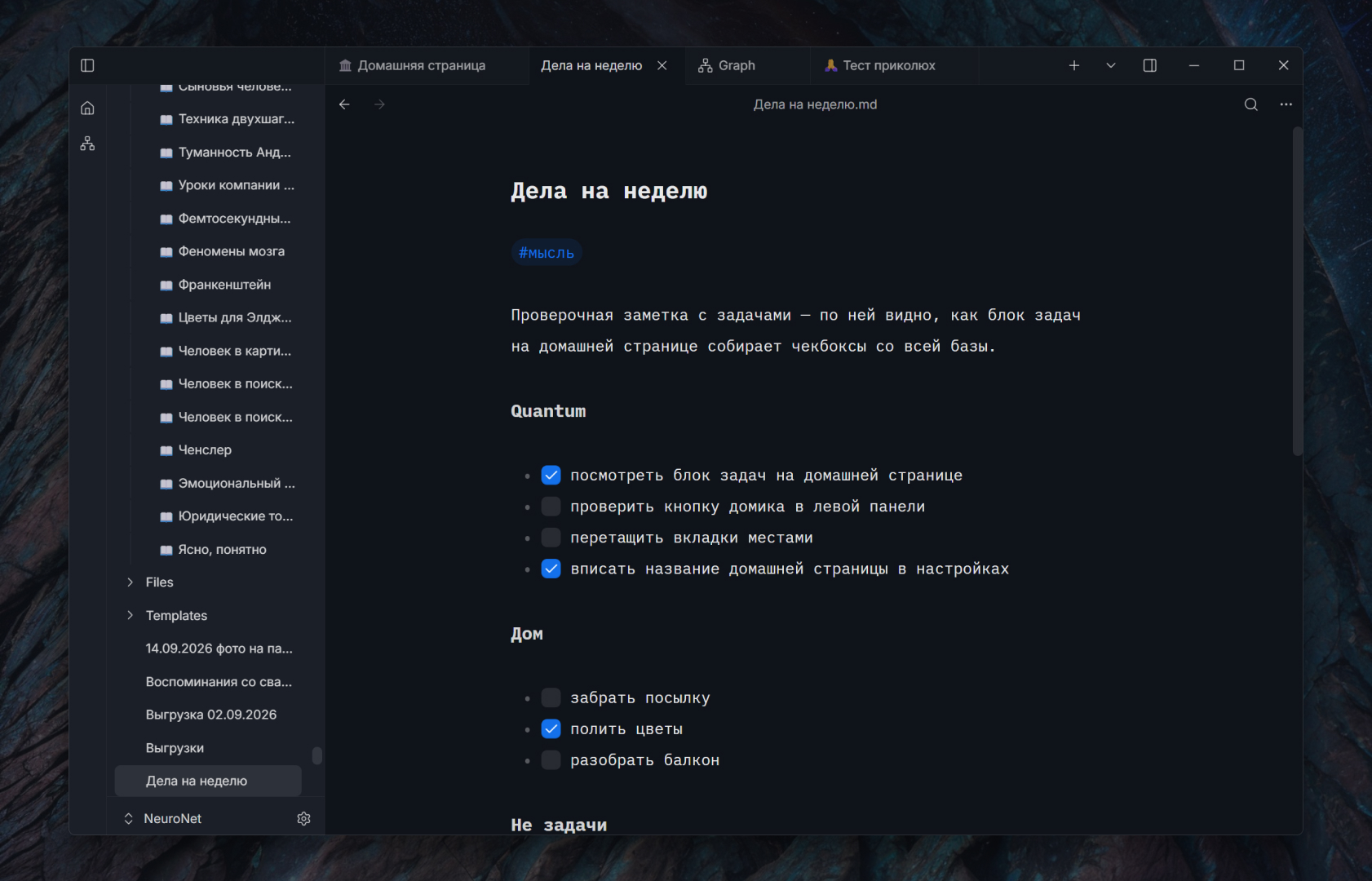
5. Manage tasks without a separate task database
Tasks remain ordinary Markdown checkboxes in the notes where they belong, but behave like interactive controls in the editor. You can complete an item in place, keep project context around it, and use metadata to distinguish areas, statuses, or dates without copying the task into another system.
A live TASK query can collect matching items from many notes into one dashboard. Completing an item in the query result updates the original source note, so the rollup and the underlying project page cannot silently drift apart.
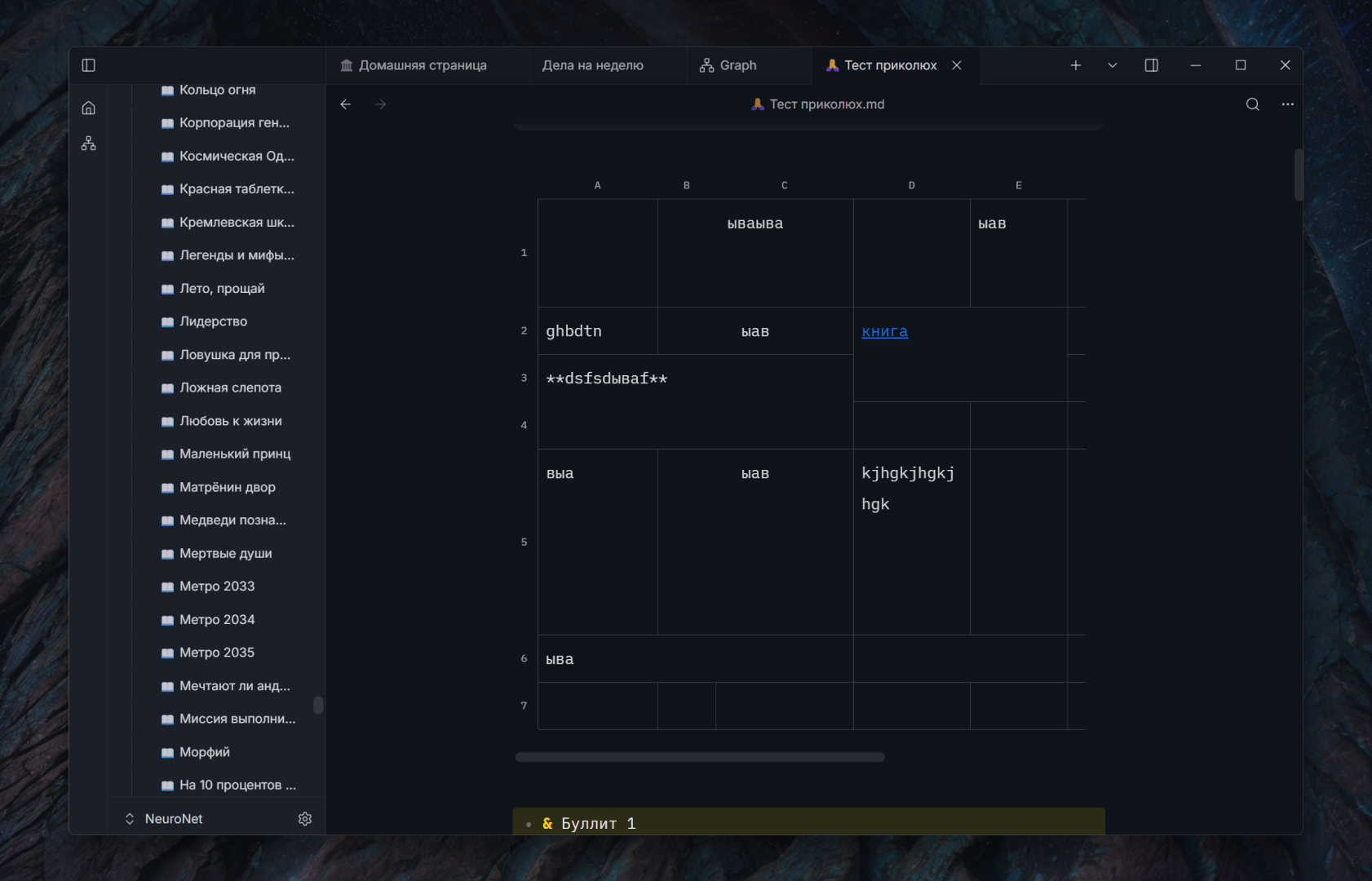
6. Edit structured tables visually
Tables stay readable as Markdown but gain spreadsheet-like interaction where it matters. You can resize columns, select a rectangular range, merge cells, and move rows or columns from visual controls instead of manually repairing separators after every change. Keyboard navigation keeps editing efficient when a table contains many fields.
The editor keeps the visual grid and Markdown source synchronized. That means the table can still be read and versioned as text, while Aquilum handles the error-prone structural edits for you.
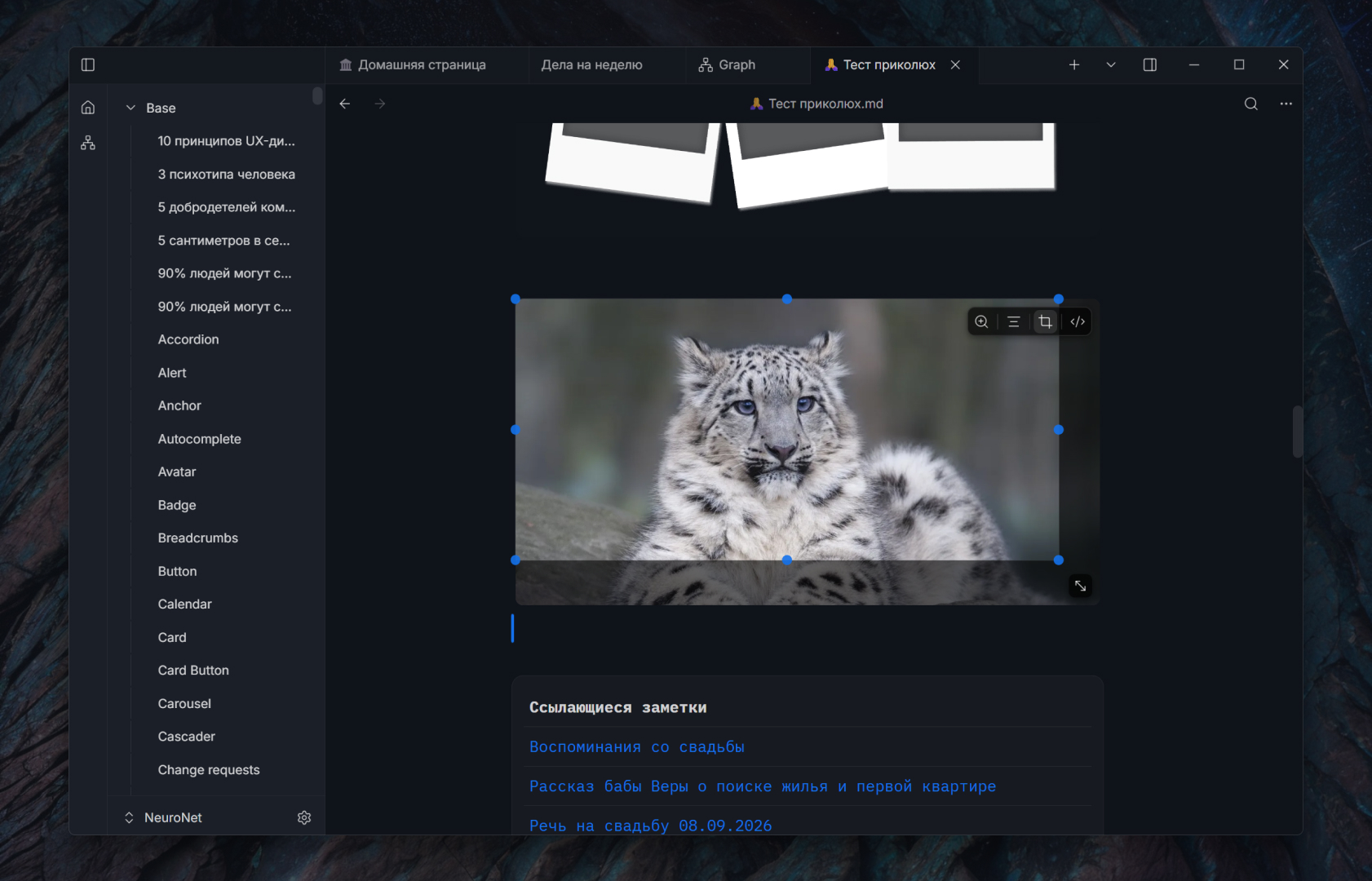
7. Keep media, references, and context together
Paste an image from the clipboard or import an image or video file and Aquilum stores it as a local attachment in the vault. Images can be cropped inside the editor, so preparing a diagram, scan, or illustration does not require a separate round trip through another application. PDFs and other source files can live beside the notes that interpret them.
The link panels below the document show both directions of context: outgoing links reveal what the note cites, while backlinks reveal which other notes depend on it. Related-note suggestions help surface nearby material even before you add an explicit link. Together, media and links make a note a working research surface rather than an isolated page.
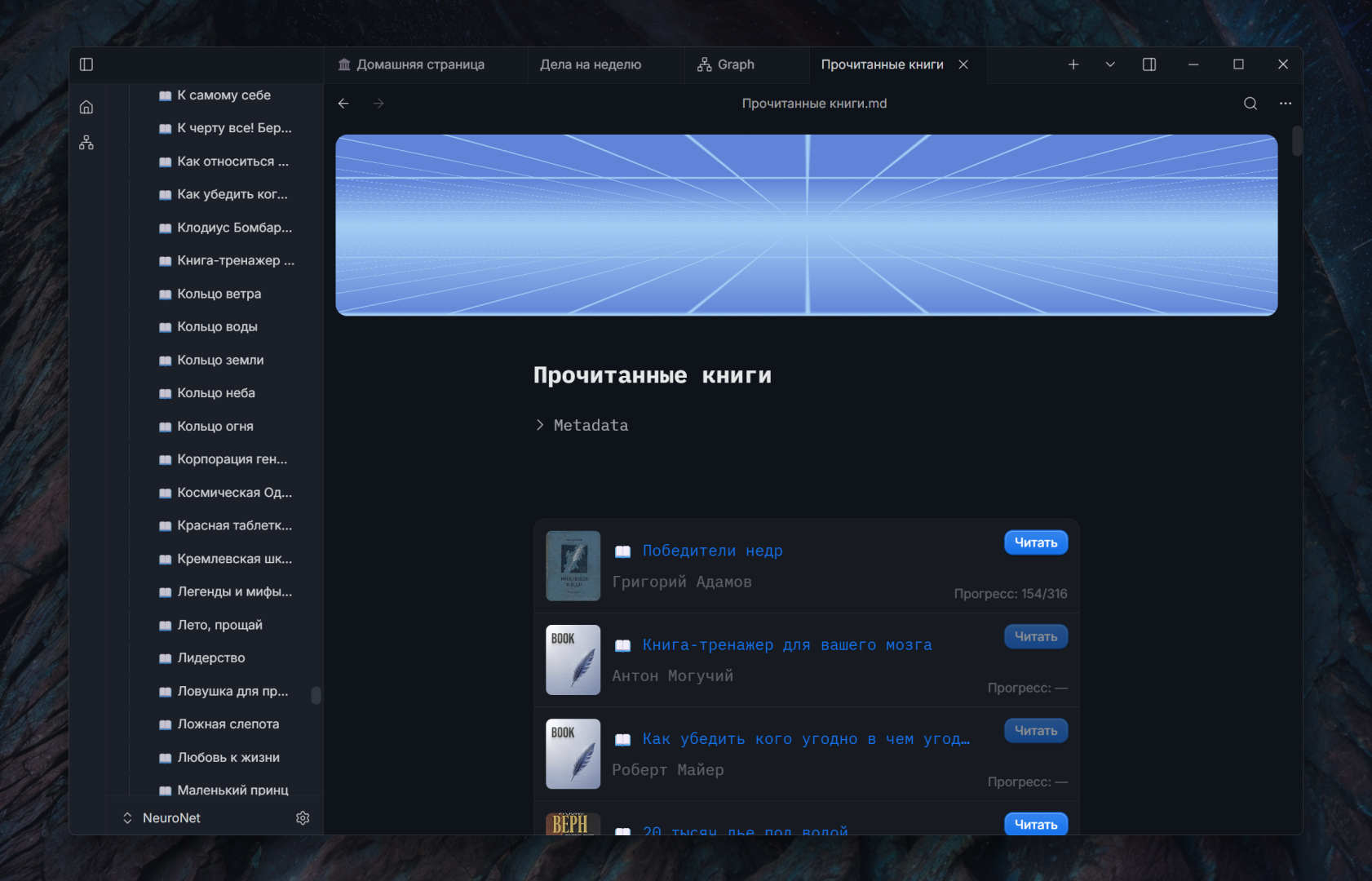
8. Build a local book library
Add EPUB, MOBI, AZW3, and FB2 books without moving reading into a separate cloud service. The library presents covers, authors, formats, and reading progress in one place, while the original book files remain in the vault. Opening a title resumes the saved position, making the library useful for both reference works and long-form reading.
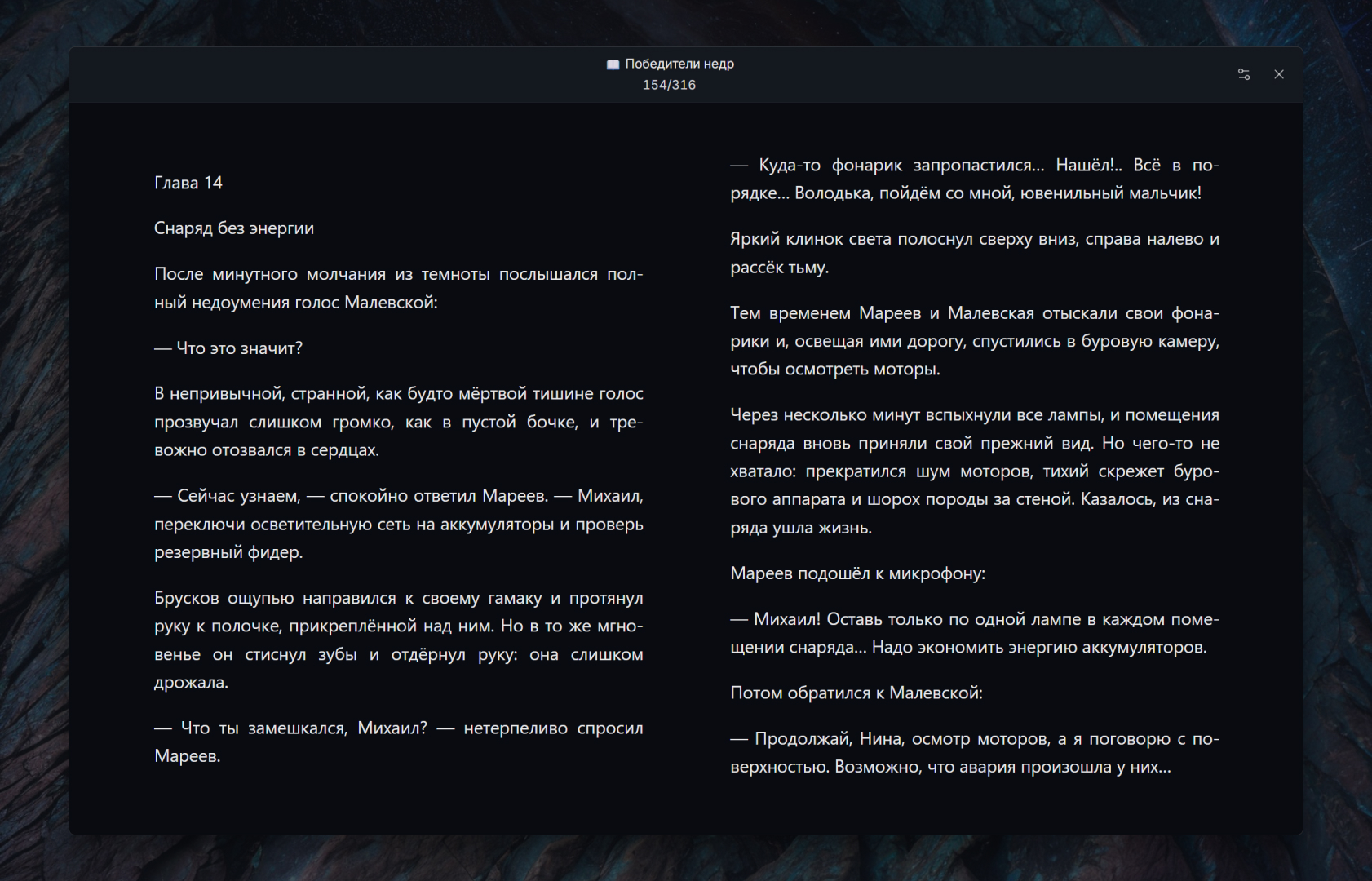
9. Read and collect passages without leaving the vault
The built-in reader provides a focused two-column layout and controls for typeface, text size, line height, content width, alignment, and hyphenation. Reading position and progress stay synchronized with the library, so closing the book does not lose your place.
Selected passages can be saved as quotes in the corresponding book note. From there they become ordinary knowledge-base material: you can annotate them, link them to ideas and projects, find them through search, and include them in queries.
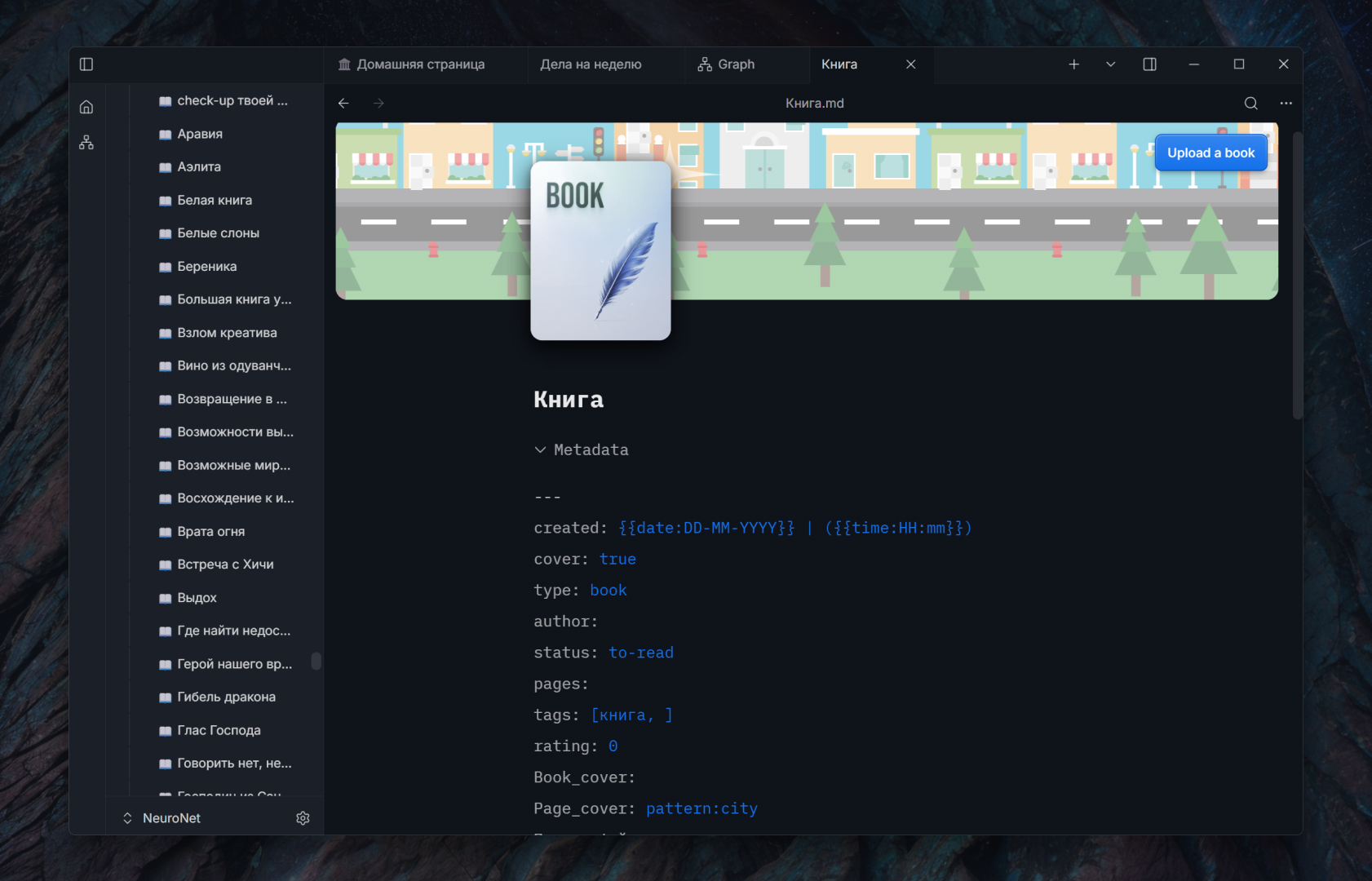
10. Reuse structure with templates and metadata
Templates turn recurring note structures into a repeatable workflow. Search for a template, apply it to the current note, or create a new document from it; date and time placeholders are resolved when the template is used. Starter templates cover ordinary notes and books, while your own templates can represent meetings, research sources, people, projects, or any other repeated format.
The book example shows YAML frontmatter as editable fields rather than an opaque block: cover, author, status, dates, rating, tags, and source file remain structured and searchable. Because the metadata is still stored in the Markdown file, other tools can read it and Aquilum's queries can use it immediately.
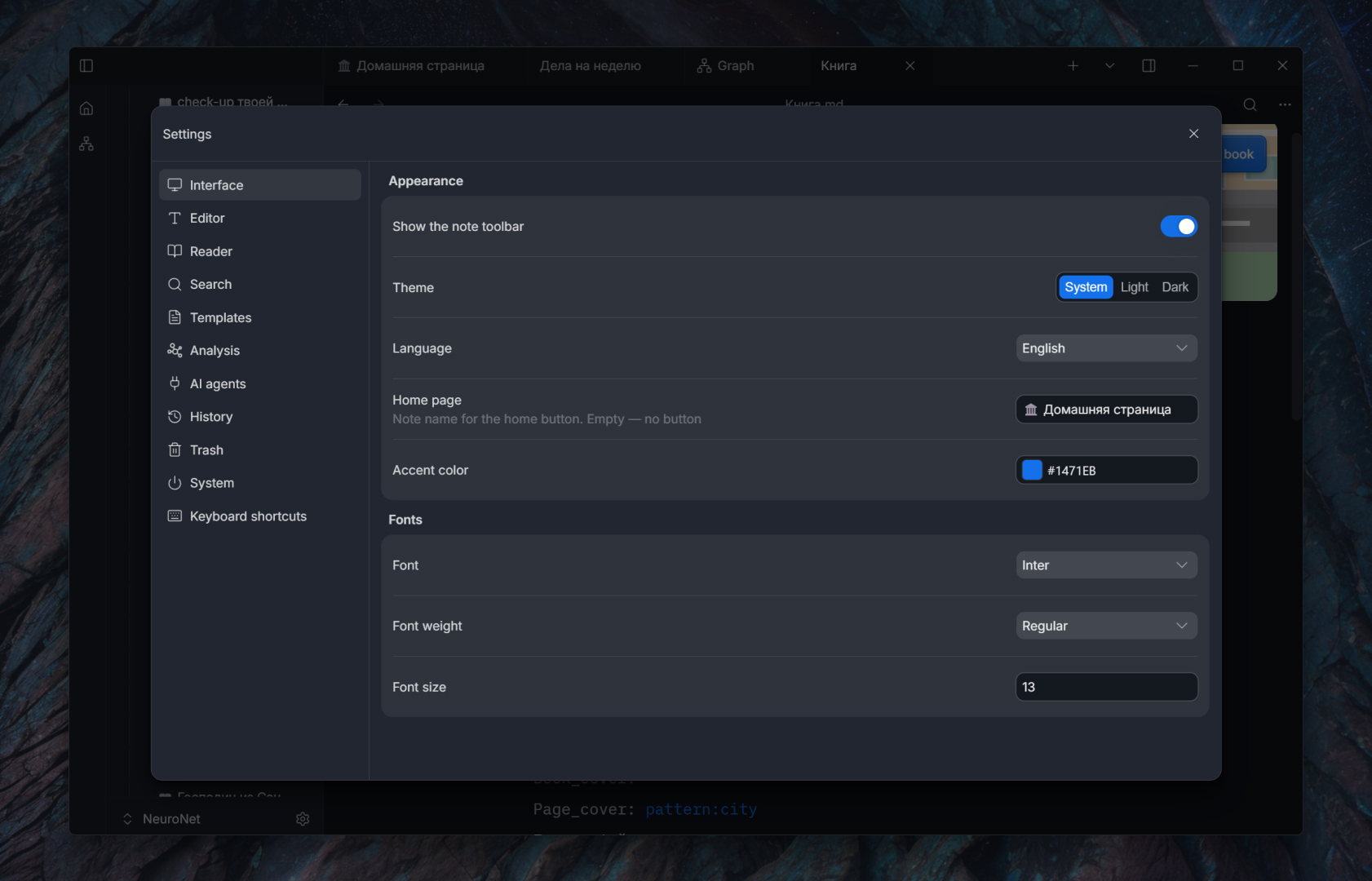
11. Adapt the interface to your way of working
Appearance settings cover the whole working environment rather than a single editor theme. Choose light or dark mode, the interface language, accent color, UI scale, editor and reader fonts, line height, and content width. You can also choose the home note and tune reading separately from writing, so a dense research workspace and a calm book layout do not have to share the same typography.
12. Recover deleted notes and folders
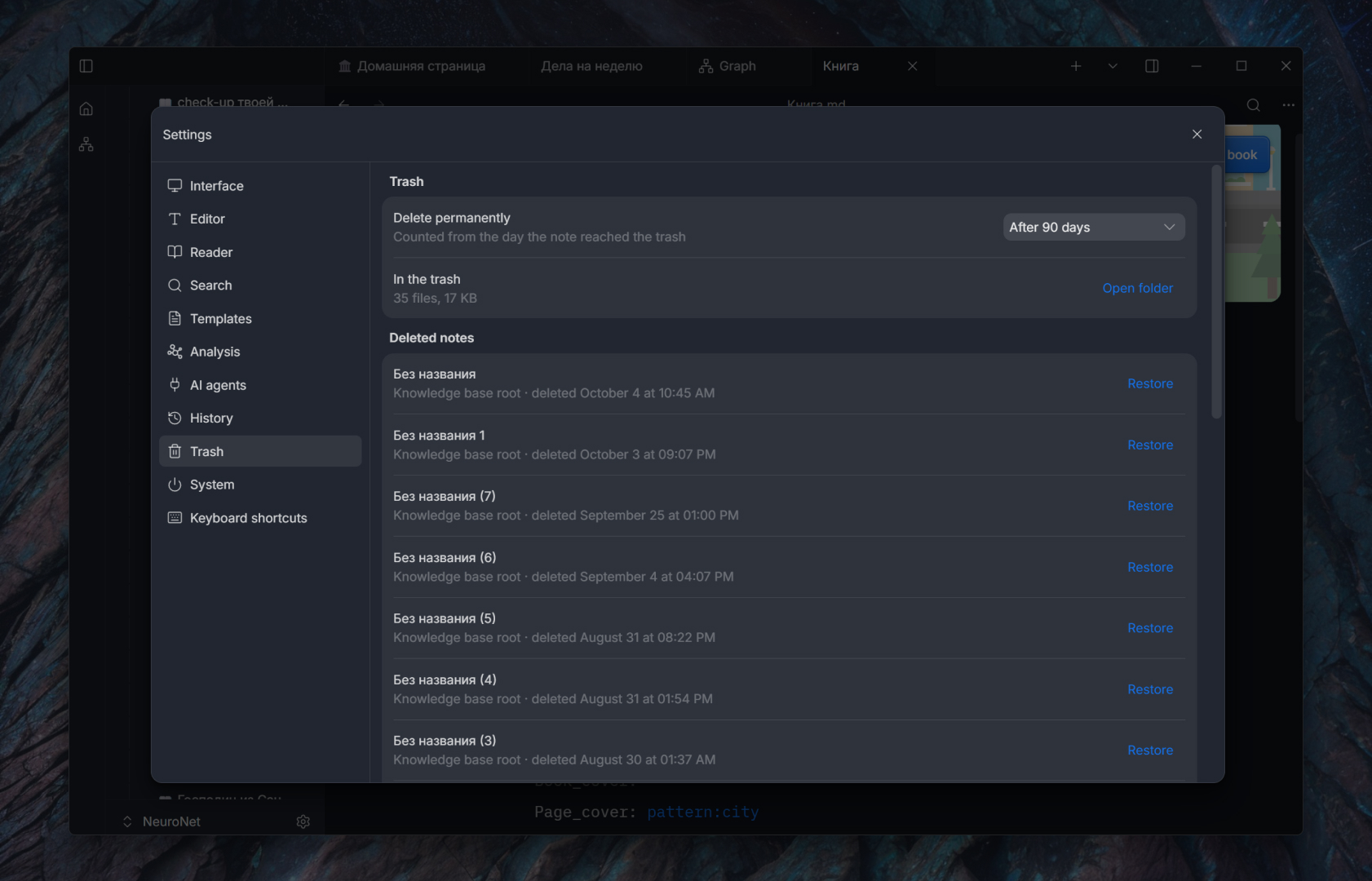
Deleting content does not immediately erase it. Notes and whole folders move to Aquilum's trash, where you can see what was removed and restore it to its previous location. The retention period is configurable, so temporary cleanup and long-term safety can be balanced for the size of your vault.
Trash is one layer of a broader recovery model. Note history handles edits inside a document, while external-change detection protects work made by another editor or an AI agent; if competing changes cannot be merged safely, Aquilum preserves the disputed material in a conflict copy instead of silently discarding it.
Feature overview
Writing and organization
- CodeMirror-based editor with live Markdown preview and document outline.
- Reorderable tabs, restored workspace sessions, and back and forward navigation.
- A file tree for creating folders, renaming, moving, duplicating, and safely deleting notes.
- YAML frontmatter presented as editable fields, plus quick insertion of a metadata starter block.
- Searchable templates that can be applied to the open note or used for a new one, with date and time placeholders and starter note and book templates.
- Images and videos pasted or imported into local attachments, with image cropping inside the editor.
- Multiple independent vaults, each with its own index.
- Note history with edit sources, visual diffs, named versions, full-version restore, and reversal of an individual change.
- Trash with configurable retention and restoration of notes and folders to their previous location.
- External changes are detected and merged safely; when an unambiguous merge is impossible, Aquilum preserves the disputed content in a conflict copy.
Search and discovery
- Full-text vault search powered by Tantivy, with results while you type.
- Search inside the current note with highlighted matches.
- Typed metadata in the index for fast structured filtering.
- Backlinks, outgoing links, graph navigation, and related-note suggestions.
- Source analysis with Wikipedia discovery, candidate selection, and saving results into a note.
- Keyboard shortcuts for creating notes, global search, result navigation, and opening content in a new pane.
Local-first collaboration with agents
Aquilum exposes an optional local MCP server. Compatible AI tools can search and read content, create or precisely edit notes, and work with links, metadata, version history, and trash. An agent can access another connected vault in the background without switching the user's active window or tabs. Documents use a Yjs CRDT model: changes are applied as small edits instead of replacing the entire note, allowing your typing and an agent's work to merge safely. The Markdown file on disk remains the durable source of truth.
Export and portability
- Export a note to an A4 PDF using its rendered appearance.
- Keep ordinary Markdown and attachments in ordinary folders.
- Use your existing backup, version-control, or synchronization workflow.
Installation
- Open the latest release.
- Download
aquilum-app_<version>_x64-setup.exe. - Run the installer and choose a new or existing folder for your vault.
Aquilum installs for the current user and does not require administrator rights. The installer is not currently signed with a Windows code-signing certificate, so SmartScreen may show a warning. Choose More info → Run anyway if you downloaded it from this repository.
Updates
Aquilum checks this public repository for updates at launch. When a newer version is available, it can download it, show progress, verify the signed update package, install it, and restart. Without a network connection, the app starts normally and your local vault remains available.
Requirements
- Windows 10 or Windows 11, 64-bit.
- Microsoft Edge WebView2. It is normally present on Windows; the installer can obtain it when needed.
macOS and Linux builds are not published yet.
Privacy and data locations
Your content remains on your computer:
- notes are
.mdfiles in the vault folder you selected; - attachments and books live in that vault;
- settings, window state, search indexes, and other rebuildable application data live in Aquilum's application-data directory.
Aquilum does not require a cloud account. Network access is used for update checks and, only when you explicitly use source analysis, for retrieving Wikipedia material. The optional MCP server is local and starts only when enabled.
Feedback
Report bugs and suggest improvements in Issues. Please include the Aquilum version from Settings → System → About, what you expected, what happened, and the steps that reproduce it. Screenshots and a small example vault are useful when they do not contain private information.
About this repository
This public repository contains Windows installers, update manifests, screenshots, and user-facing release information. Application development takes place in a separate private repository.
Reviews (0)
Sign in to leave a review.
Leave a reviewNo results found