command-centre
Health Uyari
- License — License: Apache-2.0
- Description — Repository has a description
- Active repo — Last push 0 days ago
- Low visibility — Only 6 GitHub stars
Code Gecti
- Code scan — Scanned 12 files during light audit, no dangerous patterns found
Permissions Gecti
- Permissions — No dangerous permissions requested
Bu listing icin henuz AI raporu yok.
Understand, measure and manage how AI is transforming your organisation. Works with Claude Code, Claude Cowork and Claude Chat.

Understand, measure and manage how AI is transforming your organisation.
Works with Claude, ChatGPT and Codex.


https://github.com/user-attachments/assets/2dfb1fe4-3fdd-45ce-aad9-a94536c582ad
Command Centre shows whether AI is making your teams more productive, and what that is worth. It covers Claude and ChatGPT for everyday work and Claude Code and Codex for coding, showing the results for each person, each department and the organisation as a whole.
It shows how far people have moved from quick questions to handing over substantial work and whole processes. It finds the recurring work teams have already given to AI, helps turn that work into skills others can use, and shows where coaching or further investment would help most.
Finance and security teams get what they need from the same place. Spend is broken down by person, department, cost centre, model and vendor, with suggestions for doing the same work for less. Prompts are checked for personal data, secrets and risky intent, and a searchable audit trail supports GDPR, the EU AI Act, ISO 27001 and ISO 42001.
Somewhere in your organisation, someone may already have handed an entire process to AI. Command Centre helps you find that work, understand its value, make it repeatable and spread it across the business, with the financial accountability, security and governance needed to do so responsibly.
Who it is for
- Leaders (CIO, COO, CTO, CFO) who need to know whether AI is making teams more productive, and what that is worth.
- Heads of department and team leads who want to see how their people work with AI and where to coach.
- Engineering leaders who want to see what Claude Code and Codex produce and what they cost.
- Finance teams who need AI spend by cost centre and by month.
- Security, privacy and compliance teams who need an audit trail of prompts, alerts on personal data and evidence for GDPR, the EU AI Act, ISO 27001 and ISO 42001.
- The administrator who installs Command Centre and connects Claude, ChatGPT or both.
What it works with
Command Centre works with Claude for Teams, Claude for Enterprise, and ChatGPT Enterprise and Edu. You can connect Claude, ChatGPT or both, and each product sends the following:
| Product | What Command Centre receives |
|---|---|
| Claude Chat | Every conversation: people's prompts in full, the names of the files they attach, the model, the connectors used, and how many artifacts and files Claude made |
| ChatGPT Chat and ChatGPT Work | Prompts, the names of files people attach, the skills ChatGPT used, the model and time of each reply, and spend from OpenAI's hourly cost records |
| Claude Cowork | Prompts, models, tokens and cost, the tools, skills, connectors and subagents used, and the files people upload and Claude produces |
| Claude in Office and Google apps | Prompts in Excel, Word, PowerPoint, Outlook, Google Sheets, Docs and Slides, models and tokens, the tools Claude used, and the names of the documents it changed. Spend is estimated from published prices. |
| Claude Code | Prompts, models, tokens and cost, the tools, skills, connectors and subagents used, active time, lines of code, commits, pull requests and accepted edits |
| Codex | Prompts, models, tokens and cost for each turn, the connectors used, and each action's outcome, including commits |
ChatGPT and Codex support is in preview, and we are looking for organisations on ChatGPT Enterprise or Edu to test it. To take part, say hello in Discussions.
How it integrates shows how each product connects and which plan it needs.
Get started: 1. Try it with sample data · 2. Connect Claude for Teams · 3. Connect Claude for Enterprise · 4. Connect ChatGPT and Codex
Explore: What it does · How it works · Your first ten minutes · Walkthrough video · ChatGPT walkthrough video · FAQ · Documentation
What it does
| Page | What it does | Read more |
|---|---|---|
| Dashboard | Brings together the week's AI activity, productivity, spending and governance risks into an executive briefing, with an organisation-wide risk score and recommendations on where to focus attention. | Product overview |
| Alerts | Identifies personal data, exposed secrets and potentially risky intent in prompts, with supporting evidence to help security teams investigate and prioritise concerns. | Product overview · Detection |
| Productivity | ||
| Work Pulse | Measures how deeply employees delegate everyday work to Claude and ChatGPT, across Claude Chat, Claude Cowork, Claude in Office and Google apps, and ChatGPT Chat and Work, from individual tasks to substantial processes. Compares adoption and delegation patterns across people and departments to identify progress and coaching opportunities. | Product overview · Measured and AI-judged |
| Developer Pulse | Shows how engineers use Claude Code and Codex, the work being produced and its associated costs, helping engineering leaders understand delivery activity, productivity and where AI is contributing to development. | Product overview |
| Use Cases | Discovers recurring business processes emerging from everyday AI activity, identifies opportunities to share successful approaches and helps turn repeated work into reusable skills that can be adopted across teams. | Product overview |
| S&C Board | Provides an organisation-wide view of the skills and connectors employees are using, who owns them and where they are being adopted, helping teams manage and share reusable AI capabilities. | Product overview |
| Spend | ||
| FinOps | Tracks AI expenditure across employees, departments, cost centres, models and vendors, giving finance and technology leaders visibility into spending patterns, allocation and the financial impact of AI adoption. | Product overview |
| Spend Review | Examines what each employee's AI spend is being used for, identifies expensive usage patterns and recommends opportunities to complete similar work more economically. | Product overview |
| Governance | ||
| Audit Log | Maintains a searchable record of prompts and activity from Claude, ChatGPT and Codex, including who accessed prompt content, supporting investigations, accountability and oversight of AI usage across the organisation. | Product overview · Who can read prompts · AI data flow |
| Reports | Produces executive briefings, weekly summaries and supporting evidence for governance and compliance activities, including GDPR, the EU AI Act and relevant ISO standards. | Product overview |
| Admin | Manages users, permissions, organisational settings and subagent visibility, providing the administrative controls needed to operate Command Centre across teams and departments. | Product overview · Roles |
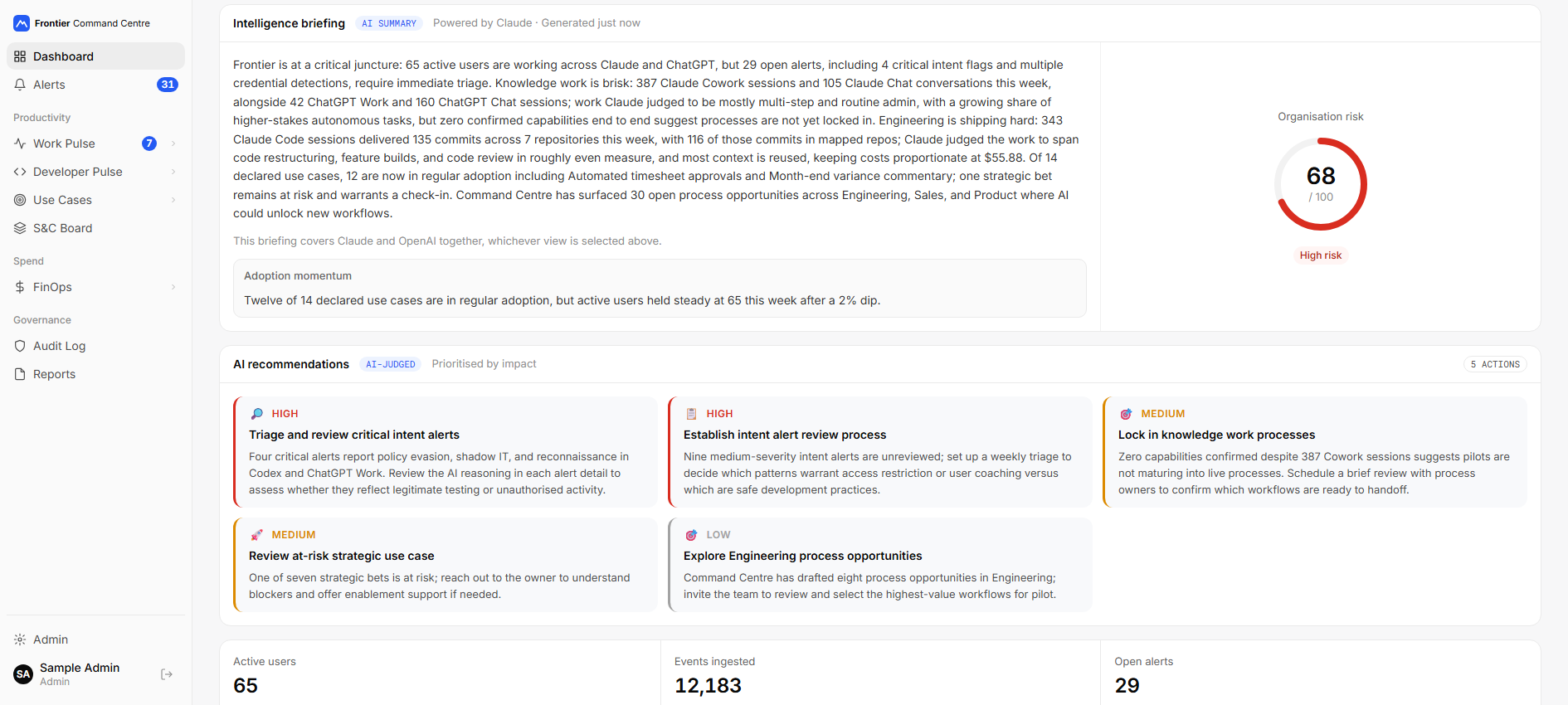
Sample data from Acme Corp, a fictional company. More screenshots are in the product overview.
Read the full product overview, with every page and screenshot.
How it works
Command Centre is two parts that you run, the Hub (the web application you sign in to, which also fetches Claude Chat, ChatGPT and Codex activity from Anthropic's and OpenAI's Compliance APIs) and the collector (which receives the activity Claude Code, Claude Cowork and Claude in Office and Google apps send), plus a PostgreSQL database. Where they run depends on how you use it:
| On your computer | On one server | On AWS or Azure | |
|---|---|---|---|
| For | Trying it with sample data | Your organisation | Your organisation, on managed cloud services |
| Hub and collector | Docker containers | Docker containers | AWS: Amazon ECS on Fargate. Azure: Azure Container Apps |
| Database | A PostgreSQL container, included | The included PostgreSQL container, or your own PostgreSQL | AWS: Amazon RDS for PostgreSQL. Azure: Azure Database for PostgreSQL |
| HTTPS | Not needed (http://localhost) |
A reverse proxy you provide, such as Caddy | AWS: Application Load Balancer. Azure: Container Apps ingress with a managed certificate |
| Secrets | .env |
.env |
AWS Secrets Manager / Azure Key Vault |
| How to set it up | 1. Quick start | Claude: 2. Teams or 3. Enterprise. ChatGPT and Codex: 4 | Running in Azure or AWS |
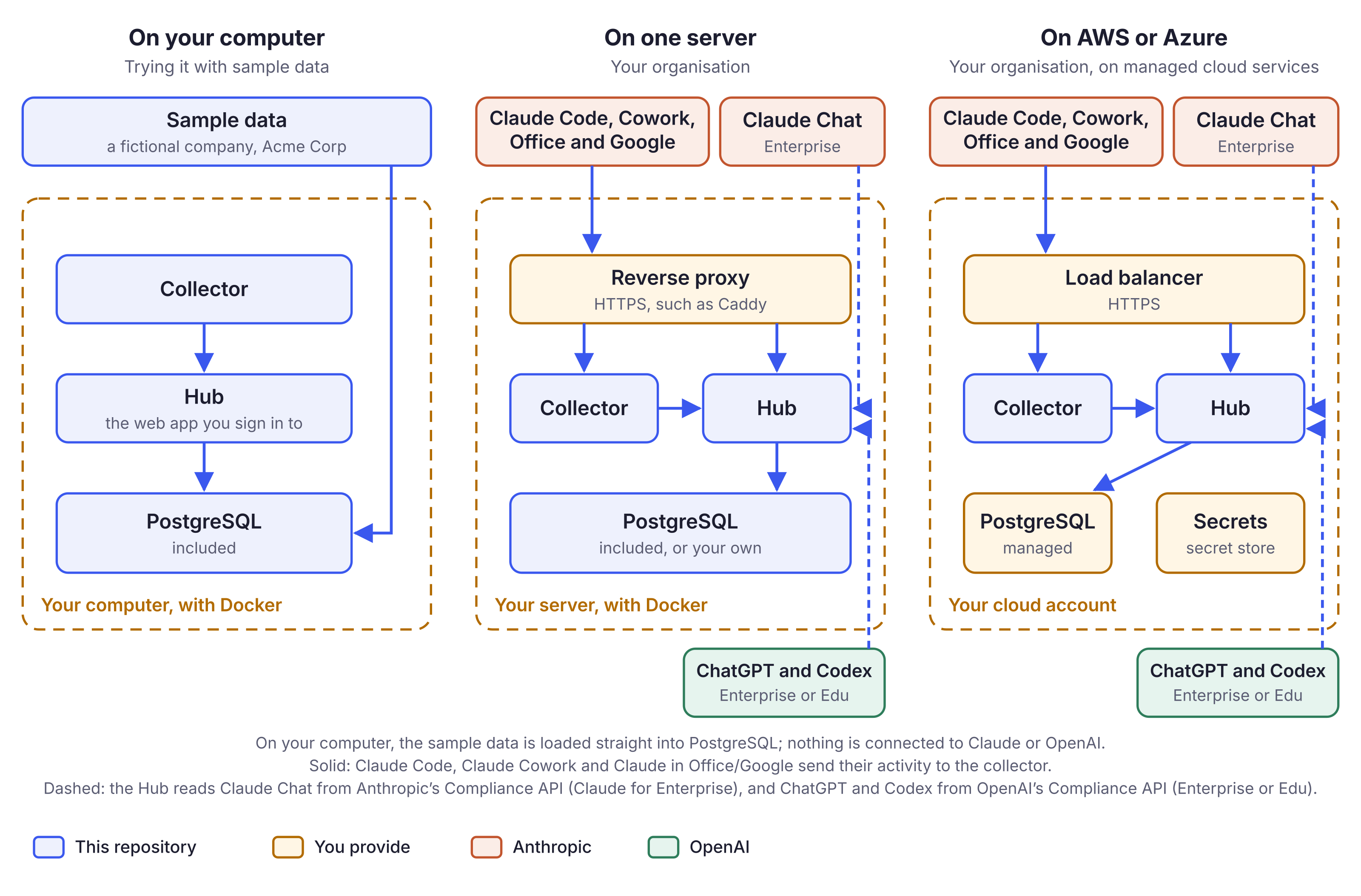
How it integrates
| Product | How it connects | Plans |
|---|---|---|
| Claude Code | OpenTelemetry, set up in Claude Code's managed settings in claude.ai Organization settings | Claude for Teams and Enterprise |
| Claude Cowork | OpenTelemetry, set up in the monitoring settings in claude.ai Organization settings | Claude for Teams and Enterprise |
| Claude in Office and Google apps | OpenTelemetry, set up in Office agents → Monitoring in claude.ai Organization settings | Claude for Teams and Enterprise |
| Claude Chat | Anthropic's Compliance API, using a Compliance Access Key | Claude for Enterprise |
| ChatGPT and Codex | OpenAI's Compliance API, using an OpenAI Admin API key | ChatGPT Enterprise and Edu |
Command Centre's own AI features, such as grading work, briefings and reports, run on Claude through Anthropic's API, using the Claude API key you enter on Admin → Access & Keys, whichever products you connect. They send prompts from every connected product, Claude and OpenAI alike, to Anthropic. AI data flow lists every feature, what it sends and how to switch each one off.
Command Centre sees prompts only after they reach Claude, ChatGPT or Codex: it can flag them, alert on them and control who reads them, but it cannot stop or change them. Command Centre stores what people asked, never the replies of Claude, ChatGPT or Codex.
Measured and AI-judged
Measured figures are counted from the activity of every connected product, such as the number of prompts, spend, lines of code and commits. AI-judged figures are Claude's assessment of that work, such as how deeply someone delegated a task, or which use case a session belongs to. The app labels judged figures as AI judgements. What is measured and what is AI-judged lists each one, and how the AI's judgements are checked.
Your data stays with you
Frontier Command Centre runs on your own computer, server or cloud account, and everything it collects stays there. It sends no telemetry, usage data or heartbeat to anyone. The only outside services it calls are the ones you set up: Anthropic's API for its AI features, Anthropic's Compliance API for Claude Chat, OpenAI's API for ChatGPT and Codex, and your sign-in provider, email server, Slack or GitHub. It stores people's prompts, never the AI's replies. Security and data protection has the detail.
1. Quick start: try it with sample data
This runs Command Centre on your own computer with a fictional organisation's data, so you can see every page before you connect anything. Use it to try Command Centre, not for real work.
What you need
- A computer running Windows 10 or 11, macOS or Linux, with at least 8 GB of memory and 5 GB of free disk space.
- Docker: Docker Desktop installed and running on Windows or macOS. Linux users can use Docker Engine with the Docker Compose plugin.
- Git: Download Git. On macOS, running
gitmay prompt you to install Apple's Command Line Tools. - Ports 3001 and 4318 available on your computer.
- A Claude API key (optional): Required for AI-powered features such as grading work, generating briefings and producing reports. Create a key in a workspace through the Claude Console. Command Centre requires a workspace-associated key. This is the only API key needed for the initial setup.
You can explore Command Centre using sample data without an API key. See What works without a key for the capabilities available.
AI-powered features incur Anthropic API charges. Sample-data evaluation is expected to cost around $5 initially, depending on usage. See indicative costs.
Run the commands below in PowerShell on Windows, or Terminal on macOS and Linux.
Steps
Download Command Centre, then move into its folder. Run every later command from inside this folder.
git clone https://github.com/frontiercc/command-centre.git
cd command-centre
Create your settings file. This command creates
.envfor you. You do not need to edit anything.docker run --rm -v "${PWD}:/app" -w /app node:22-alpine node scripts/setup.cjsStart Command Centre. The first time takes about four minutes while it builds.
docker compose up -d --buildWhen the command finishes, open http://localhost:3001. If the page does not load yet, wait a few seconds and refresh.
Create your admin account. The page asks for a one-time setup token, which Command Centre prints in its log.
On Windows, in PowerShell:
docker compose logs hub | Select-String "setup token"On Windows, in Command Prompt:
docker compose logs hub | findstr /C:"setup token"On macOS and Linux:
docker compose logs hub | grep "setup token"If the log says a token was already printed, wait 10 minutes, run
docker compose restart hub, then run the command again.Load the sample data: Acme Corp, with thirteen weeks of Claude Chat, ChatGPT and Codex activity and about two months of Claude Code, Claude Cowork and Claude in Office/Google activity, graded work, use cases, alerts and spend. Loading takes about two minutes. Create your admin account in step 4 first: once the sample data is loaded, the setup page closes.
docker compose --profile demo run --rm demo-dataReload the page when it finishes: new items, such as FinOps and Use Cases, appear in the sidebar, and the pages fill in over the next few minutes.
Or let Claude Code install it
If you use Claude Code, it can do steps 1 to 5 for you. Docker Desktop must be installed and running. Open Claude Code in an empty folder and paste:
Clone https://github.com/frontiercc/command-centre.git and set up Command Centre
on this machine by following the quick start in its README. Create the settings file
with the setup command, start everything with Docker, and give me the one-time setup
token once it is ready. Wait while I create my admin account, then load the sample data.
Claude Code tells you what it runs and asks before each step. You end in the same place as the steps above.
Completing setup
Select Dashboard in the sidebar. The Dashboard's Get started panel is your checklist from here, and ticks each step off as you do it:
- Add your Claude API key under Admin → Access & Keys. Use its test button, then select Save settings.
- Review how work is classified: check that the three tiers Work Pulse and Developer Pulse use to grade work fit your organisation. In Work Pulse they run from routine tasks to whole processes, and in Developer Pulse from single-step edits to substantial work the engineer supervises. Admins can change both: Tier config in Admin → Work Pulse, and Tiers in Admin → Developer Pulse.
You don't need the panel's other steps for the sample data. They are for running it for your own organisation, as in journeys 2 to 4.
You have finished when
The Dashboard shows Acme Corp's briefing and recommendations, and Work Pulse, Developer Pulse, FinOps and Use Cases are filled in.
Next steps
- Your first ten minutes: what to look at first in the sample data.
- Run it for your organisation: connect Claude (2. Teams or 3. Enterprise), ChatGPT and Codex (4), or both.
- Something not working? See Troubleshooting and FAQ.
Need to start again?
Don't connect your own Claude, ChatGPT or Codex to this installation: the sample data is mixed in with everything, including your own account, so your real figures would be wrong. To start again from empty, run:
docker compose down -v
docker compose up -d
The first command deletes everything Command Centre stored, including the sample data and your admin account; your .env is kept. The second starts a fresh installation. Open http://localhost:3001 and you are taken to setup, with a new setup token in the log (quick start step 4).
2. Connect Claude for Teams
This deployment runs Command Centre within your organisation and connects Claude Code, Claude Cowork and Claude in Office/Google activity, giving you visibility into how employees use Claude, the work they delegate and the value being created across teams.
Before you begin
You need:
- A Linux server accessible to the employees and devices sending telemetry, with Git, Docker Engine and the Docker Compose plugin, at least 8 GB of memory, and 5 GB of free disk space plus capacity for your data. For a cloud deployment, see Running in Azure or AWS instead of steps 1 to 5 below.
- Two HTTPS addresses pointing to the deployment: one for employees to access Command Centre, such as
command-centre.your-company.com, and another for collecting Claude activity through OpenTelemetry, such asotel.your-company.com. Both require valid TLS certificates. - A Claude API key, created within a workspace in the Claude Console, for AI-powered analysis, assessments, briefings and reports. Telemetry collection can operate without this key.
- A Claude organisation Owner or Primary Owner with permission to configure organisation-wide Claude Code, Claude Cowork and Claude in Office/Google telemetry settings.
Steps
Run these commands on the server.
Download Command Centre and create your settings file: quick start steps 1 and 2.
Delete the two localhost lines from
.env:CCC_INSECURE_COOKIES=trueandCCC_ALLOW_INSECURE_COOKIES=true. They are only needed to sign in overhttp://on your own computer.Serve it over HTTPS. Command Centre does not include this: put a web server in front of it. With Caddy, which gets the certificates for you, put this in
/etc/caddy/Caddyfilewith your own addresses:command-centre.your-company.com { reverse_proxy 127.0.0.1:3001 } otel.your-company.com { reverse_proxy 127.0.0.1:4318 }Open ports 80 and 443 on the server's firewall, then run
sudo systemctl reload caddy.Start Command Centre. The first time takes about four minutes while it builds.
docker compose up -d --buildCreate your admin account. Open your
https://sign-in address. The page asks for a one-time setup token, which Command Centre prints in its log:docker compose logs hub | grep "setup token"Add your Claude API key. Open Admin → Access & Keys, enter it in the Claude API Key field, use its test button, then select Save settings.
Connect Claude Code. On Admin → Ingestion, select Edit beside the collector address, enter your collector address, such as
The Claude Code settings, if you would rather copy them from herehttps://otel.your-company.com, and save, so the settings you copy include it. Then select Copy Claude Code settings. In claude.ai, open Organization settings → Claude Code → Managed settings, paste them and save. Claude Code picks them up when it next starts, and each person is asked to approve them the first time.Replace the address with your collector address, and
<your bearer token>with the token shown on Admin → Ingestion:{ "env": { "CLAUDE_CODE_ENABLE_TELEMETRY": "1", "OTEL_EXPORTER_OTLP_ENDPOINT": "https://otel.your-company.com", "OTEL_EXPORTER_OTLP_HEADERS": "Authorization=Bearer <your bearer token>", "OTEL_EXPORTER_OTLP_METRICS_TEMPORALITY_PREFERENCE": "delta", "OTEL_EXPORTER_OTLP_PROTOCOL": "http/protobuf", "OTEL_LOGS_EXPORTER": "otlp", "OTEL_LOG_TOOL_DETAILS": "1", "OTEL_LOG_USER_PROMPTS": "1", "OTEL_METRICS_EXPORTER": "otlp", "OTEL_SERVICE_NAME": "claude-code" } }Connect Claude Cowork. In claude.ai, open Organization settings → Data and Privacy → Monitoring and enter:
Field Value OTLP endpoint Your collector address, such as https://otel.your-company.comOTLP protocol http/jsonOTLP headers Authorization=Bearer <your bearer token>, with a space before the tokenClaude Cowork picks these up when a new session starts. Then, in Organization settings, switch off Cowork in the cloud (under Claude Cowork) and Chat and Cowork unified (under Capabilities): sessions run in the cloud don't currently send their activity reliably. Connect Claude explains why.
If your organisation uses Claude in Excel, Word, PowerPoint, Outlook or Google Sheets, Docs or Slides, open Organization settings → Office agents → Monitoring, select Copy settings from Cowork and save. See Connect Claude.
The settings in steps 7 and 8 send people's prompts, which the Audit Log, personal-data alerts and grading need. Agree this with whoever looks after data protection first. Connect Claude explains every setting and the other ways to roll them out.
You have finished when
A prompt sent from Claude Code, Claude Cowork or Claude in Office/Google appears in the Audit Log within a minute or two. Claude Cowork work is graded within five minutes, and Claude Code sessions within an hour of going idle. Work Pulse and Developer Pulse then fill in.
If nothing arrives, see Troubleshooting and FAQ.
3. Connect Claude for Enterprise
This does everything in journey 2 and adds Claude Chat.
Before you begin
- The same as journey 2, except that you need the Primary Owner of your Claude for Enterprise organisation.
- Command Centre installed on the server, served over HTTPS and with your Claude API key added: journey 2, steps 1 to 6.
Steps
- Connect Claude Code, as in journey 2, step 7.
- Connect Claude Cowork, as in journey 2, step 8.
- Connect Claude Chat. In claude.ai, open Organization settings → API. The Primary Owner turns the Compliance API on there, then creates a Compliance Access Key with the scopes
read:compliance_user_dataandread:compliance_activities. Anthropic shows the key only once. In Command Centre, open Admin → Access & Keys, enter it in the Compliance Access Key field, use its test button to check it works, then select Save settings.
You have finished when
Claude Chat prompts appear in the Audit Log alongside Claude Code and Claude Cowork, within a few minutes. The first sync brings in the last 30 days of Claude Chat.
4. Connect ChatGPT and Codex
Preview. ChatGPT and Codex support is in preview. We are looking for organisations on ChatGPT Enterprise or Edu to test it; to take part, say hello in Discussions.
ChatGPT work then appears in Work Pulse and Codex work in Developer Pulse, graded on the same tiers as Claude's, and their spend appears in FinOps and Spend Review. You can connect OpenAI on its own or together with Claude (journey 2 or 3).
Before you begin
- ChatGPT Enterprise or Edu, and a ChatGPT workspace owner to create an OpenAI Admin API key.
- Command Centre installed on the server, served over HTTPS and with your Claude API key added: journey 2, steps 1 to 6. The collector address is needed only for Claude Code, Claude Cowork and Claude in Office/Google. Command Centre fetches ChatGPT and Codex activity itself. Its AI features still need the Claude API key.
Steps
- Create the key in OpenAI's admin console, with read access to conversation messages, Codex logs, Codex turns and costs. Note your ChatGPT workspace ID and OpenAI organisation ID. ChatGPT spend needs the organisation ID.
- Enter them in Command Centre. Open Admin → Access & Keys → OpenAI (ChatGPT and Codex), fill in the three fields, select Test, then Save settings.
Connect ChatGPT and Codex explains each step, and what to check in OpenAI's console.
You have finished when
The Last sync line under the fields shows ChatGPT and Codex prompts, and they appear in the Audit Log. The first sync reaches back 30 days, oldest first, so on a busy workspace the newest activity can take some hours to arrive.
Questions people ask first
Is it free? Yes. It is open source under Apache 2.0. You pay only for where you run it, and for the Claude API calls its AI features make. See Indicative costs.
Does my data leave my network? No. It runs on infrastructure you control and sends nothing back. See Your data stays with you.
Which plans does it work with? Claude for Teams and Claude for Enterprise, and ChatGPT Enterprise and Edu. Claude Code, Claude Cowork and Claude in Office/Google work on both Claude plans; Claude Chat needs Claude for Enterprise, through Anthropic's Compliance API. ChatGPT and Codex come through OpenAI's Compliance API. See How it integrates.
Do I need a Claude API key? Not to explore the sample data, but yes if you want to bring every feature to life. Grading work, briefings and summaries use your organisation's own key, including when ChatGPT and Codex are your only products.
Can it block risky prompts? No. It sees activity after it reaches Claude, ChatGPT or Codex, so it flags and alerts rather than blocks.
How are departments set? By hand on Admin → Access & Keys, from a CSV under Admin → Ingestion → Pre-populate users, from a department attribute in Claude Code telemetry, or, with single sign-on through Microsoft Entra ID, from the directory with department sync.
Is it an Anthropic or OpenAI product? No. It is an independent open-source project and is not endorsed by Anthropic or OpenAI.
Documentation
| I want to | Read |
|---|---|
| See what to look at first in the sample data | Your first ten minutes |
| Understand everything Command Centre does | Product overview |
| Change how Claude is connected | Connect Claude |
| Connect ChatGPT and Codex | Connect ChatGPT and Codex |
| Run it on AWS or Azure | Running in Azure or AWS |
| Set up every feature, such as single sign-on | Configure Command Centre |
| Know what it costs to run | Indicative costs |
| Review its security, and what is sent to AI | Security and data protection · AI data flow |
| Fix a problem, or update it | Troubleshooting and FAQ · Updating |
| Remove it | Uninstall |
| See every document | Documentation index |
Roadmap
- Integration with Anthropic's Analytics and Admin APIs, for Claude for Enterprise.
- Signing in with SAML.
- Department sync from Google Workspace, beside Microsoft Entra ID.
- A benchmark kit, so you can test Command Centre's AI grading against your own examples.
- Publishing skills drafted in Command Centre to your organisation's skills marketplace, through GitHub.
Vote or add ideas in Discussions.
Status
1.0.0, in October 2026, was the first public release; the current release is 1.3.0, which adds ChatGPT and Codex in preview and department sync from Microsoft Entra ID. Command Centre was built with Claude Code, then reviewed, tested and run in production; it has been in daily use since mid-2026. Several features ship switched off and are turned on from the admin pages: FinOps, Use Cases, the Weekly Digest, Weekly Highlights, human time, Dev Framework Alignment, single sign-on and department sync.
Support
Command Centre is maintained by Lee James, on a best-effort basis with no service level. Ask questions and share ideas in Discussions; report bugs and request features in Issues. Issues stay open until they are fixed, answered or declined with a reason. Requests we are unlikely to build soon are labelled "help wanted", so anyone can pick them up. To report a security issue, follow SECURITY.md rather than opening an issue.
Contributing
Contributions are welcome. CONTRIBUTING.md explains how to run, change and test Command Centre, how to sign the Contributor Licence Agreement, and how we review. If you use an AI assistant, point it at CLAUDE.md.
Contributors
Thanks to the people who built, reviewed and tested Command Centre:
- David Wing (@davidwing-alt)
- Ricardo Sueiras (@indiricardo)
- Steve Bryen (@mesh-stevebryen)
- Vinicius Nava (@viniciusmnava)
- Vitor Avancini (@vitoravancini)
Special thanks to Steve Bryen for his guidance, support and belief in the Command Centre concept from the start.
Licence
Frontier Command Centre is licensed under the Apache License 2.0. The licences of the libraries it uses are listed in THIRD-PARTY-NOTICES.md.
Frontier Command Centre is an independent open-source project. It is not an Anthropic product and is not endorsed by Anthropic, PBC. Claude, Claude Code and Claude Cowork are trademarks of Anthropic, PBC. It is not affiliated with or endorsed by OpenAI. ChatGPT is a trademark of OpenAI.
Yorumlar (0)
Yorum birakmak icin giris yap.
Yorum birakSonuc bulunamadi