GUI-Agent-Harness
Health Gecti
- License — License: MIT
- Description — Repository has a description
- Active repo — Last push 0 days ago
- Community trust — 19 GitHub stars
Code Gecti
- Code scan — Scanned 12 files during light audit, no dangerous patterns found
Permissions Gecti
- Permissions — No dangerous permissions requested
Bu listing icin henuz AI raporu yok.
🦞 Vision-based desktop automation skills for OpenClaw agents on macOS. See, learn, click — any app.
Your AI can finally see the screen — and use it like a human.
Visual memory • One-shot UI learning • Zero hardcoded selectors










🇺🇸 English · 🇨🇳 中文
🔥 News
- [2026-03-30] 📐 ImageContext coordinate system — Replaced dual-space model with
ImageContextclass.detect_all()now returns image pixel coords (no conversion). Cropping is scale-independent.pixel_scalefrombackingScaleFactor(notimg_size/screen_size). Fixes component crop bugs on non-fullscreen images. Tests → - [2026-03-29] 🎬 v0.3 — Unified Actions & Cross-Platform GUI —
gui_action.pyas single entry point for all GUI operations. Platform-specific backends (mac_local.py,http_remote.py) auto-selected via--remote.activate.pyfor platform detection. OSWorld Multi-Apps: 54.3% (44/81). Results → - [2026-03-24] 🧠 Smart workflow navigation — Target state verification with tiered fallback (template match → full detection → LLM). Auto performance tracking via
detect_all. - [2026-03-23] 🏆 OSWorld benchmark (Chrome) — one attempt: 93.5% (43/46), up to two attempts: 97.8% (45/46). Results →
- [2026-03-23] 🔄 Memory overhaul — Split storage, automatic component forgetting (15 consecutive misses → removed), state merging by Jaccard similarity.
- [2026-03-22] 🔍 Unified detection pipeline —
detect_all()as single entry point; atomic detect → match → execute → verify loop. - [2026-03-21] 🌐 Cross-platform support — GPA-GUI-Detector runs on any OS screenshot (Linux VMs, remote servers).
- [2026-03-10] 🚀 Initial release — GPA-GUI-Detector + Apple Vision OCR + template matching + per-app visual memory.
📖 Skills Overview
GUI Agent Skills is organized as a main skill (SKILL.md) that orchestrates 7 specialized sub-skills, each handling a distinct aspect of GUI automation:
7 Skills Powering Visual GUI Automation
| Skill | Description |
|---|---|
| 👁️ gui‑observe | Screenshot capture, OCR text extraction, current state identification. The agent's eyes — always runs first before any action. |
| 🎓 gui‑learn | First-contact app learning — detect all UI components via GPA-GUI-Detector, have the VLM label each one, filter duplicates, save to visual memory. |
| 🖱️ gui‑act | Unified action execution — detect → match → execute → diff → save as one atomic flow. Handles clicks, typing, and all UI interactions. |
| 💾 gui‑memory | Visual memory management — split storage (components/states/transitions), browser site isolation, activity-based forgetting, state merging. |
| 🔄 gui‑workflow | State graph navigation and workflow automation — record successful task sequences, replay with tiered verification, BFS path planning. |
| 📊 gui‑report | Task performance tracking — automatic timing, token usage, success/failure logging for every GUI operation. |
| ⚙️ gui‑setup | First-time setup on a new machine — install dependencies, download models, configure accessibility permissions. |
The main SKILL.md acts as the orchestration layer: it defines the safety protocol (INTENT → OBSERVE → VERIFY → ACT → CONFIRM → REPORT), the vision-vs-command boundary, and routes to sub-skills as needed. The agent reads SKILL.md first, then loads sub-skills on demand.
🔄 How It Works
You: "Send a message to John in WeChat saying see you tomorrow"
OBSERVE  → Screenshot, identify current state
           ├── Current app: Finder (not WeChat)
           └── Action: need to switch to WeChat

STATE    → Check WeChat memory
           ├── Learned before? Yes (24 components)
           ├── OCR visible text: ["Chat", "Cowork", "Code", "Search", ...]
           ├── State identified: "initial" (89% match)
           └── Components for this state: 18 → use these for matching

NAVIGATE → Find contact "John"
           ├── Template match search_bar → found (conf=0.96) → click
           ├── Paste "John" into search field (clipboard → Cmd+V)
           ├── OCR search results → found → click
           └── New state: "click:John" (chat opened)

VERIFY   → Confirm correct chat opened
           ├── OCR chat header → "John" ✅
           └── Wrong contact? → ABORT

ACT      → Send message
           ├── Click input field (template match)
           ├── Paste "see you tomorrow" (clipboard → Cmd+V)
           └── Press Enter

CONFIRM  → Verify message sent
           ├── OCR chat area → "see you tomorrow" visible ✅
           └── Done
"Scan my Mac for malware"
OBSERVE  → Screenshot → CleanMyMac X not in foreground → activate
           ├── Get main window bounds (largest window, skip status bar panels)
           └── OCR window content → identify current state

STATE    → Check memory for CleanMyMac X
           ├── OCR visible text: ["Smart Scan", "Malware Removal", "Privacy", ...]
           ├── State identified: "initial" (92% match)
           └── Know which components to match: 21 components

NAVIGATE → Click "Malware Removal" in sidebar
           ├── Find element in window (exact match, filter by window bounds)
           ├── Click → new state: "click:Malware_Removal"
           └── OCR confirms new state (87% match)

ACT      → Click "Scan" button
           ├── Find "Scan" (exact match, bottom position — prevents matching "Deep Scan")
           └── Click → scan starts

POLL     → Wait for completion (event-driven, no fixed sleep)
           ├── Every 2s: screenshot → OCR check for "No threats"
           └── Target found → proceed immediately

CONFIRM  → "No threats found" ✅
"Check if my GPU training is still running"
OBSERVE  → Screenshot → Chrome is open
           └── Identify target: JupyterLab tab

NAVIGATE → Find JupyterLab tab in browser
           ├── OCR tab bar or use bookmarks
           └── Click to switch

EXPLORE  → Multiple terminal tabs visible
           ├── Screenshot terminal area
           ├── LLM vision analysis → identify which tab has nvitop
           └── Click the correct tab

READ     → Screenshot terminal content
           ├── LLM reads GPU utilization table
           └── Report: "8 GPUs, 7 at 100% — experiment running" ✅
"Kill GlobalProtect via Activity Monitor"
OBSERVE  → Screenshot current state
           └── Neither GlobalProtect nor Activity Monitor in foreground

ACT      → Launch both apps
           ├── open -a "GlobalProtect"
           └── open -a "Activity Monitor"

EXPLORE  → Screenshot Activity Monitor window
           ├── LLM vision → "Network tab active, search field empty at top-right"
           └── Decide: click search field first

ACT      → Search for process
           ├── Click search field (identified by explore)
           ├── Paste "GlobalProtect" (clipboard → Cmd+V, never cliclick type)
           └── Wait for filter results

VERIFY   → Process found in list → select it

ACT      → Kill process
           ├── Click stop button (X) in toolbar
           └── Confirmation dialog appears

VERIFY   → Click "Force Quit"

CONFIRM  → Screenshot → process list empty → terminated ✅
📋 Prerequisites
GUI Agent Skills is an OpenClaw skill — it runs inside OpenClaw and uses OpenClaw's LLM orchestration to reason about UI actions. It is not a standalone API, CLI tool, or Python library. You need:
- OpenClaw installed and running
- macOS with Apple Silicon (recommended) — enables Apple Vision OCR for high-accuracy text detection. Also supports Linux (local or remote VMs via HTTP API, e.g., OSWorld).
- Accessibility permissions granted to OpenClaw/Terminal (macOS only)
The LLM (Claude, GPT, etc.) is provided by your OpenClaw configuration — GUI Agent Skills itself does not call any external APIs directly.
🚀 Quick Start
1. Clone & install
git clone https://github.com/Fzkuji/GUI-Agent-Skills.git
cd GUI-Agent-Skills
bash scripts/setup.sh
2. Grant accessibility permissions
System Settings → Privacy & Security → Accessibility → Add Terminal / OpenClaw
3. Configure OpenClaw
Add to ~/.openclaw/openclaw.json:
{
  "skills": { "entries": { "gui-agent": { "enabled": true } } },
  "tools": { "exec": { "timeoutSec": 300 } }
}
⚠️
timeoutSec: 300is important — GUI Agent Skills operation chains (screenshot → detect → click → wait → verify) can take a while. A 5-minute timeout is recommended. The default is too short and will kill commands mid-execution.
Then just chat with your OpenClaw agent — it reads SKILL.md and handles everything automatically.
🏗️ Architecture
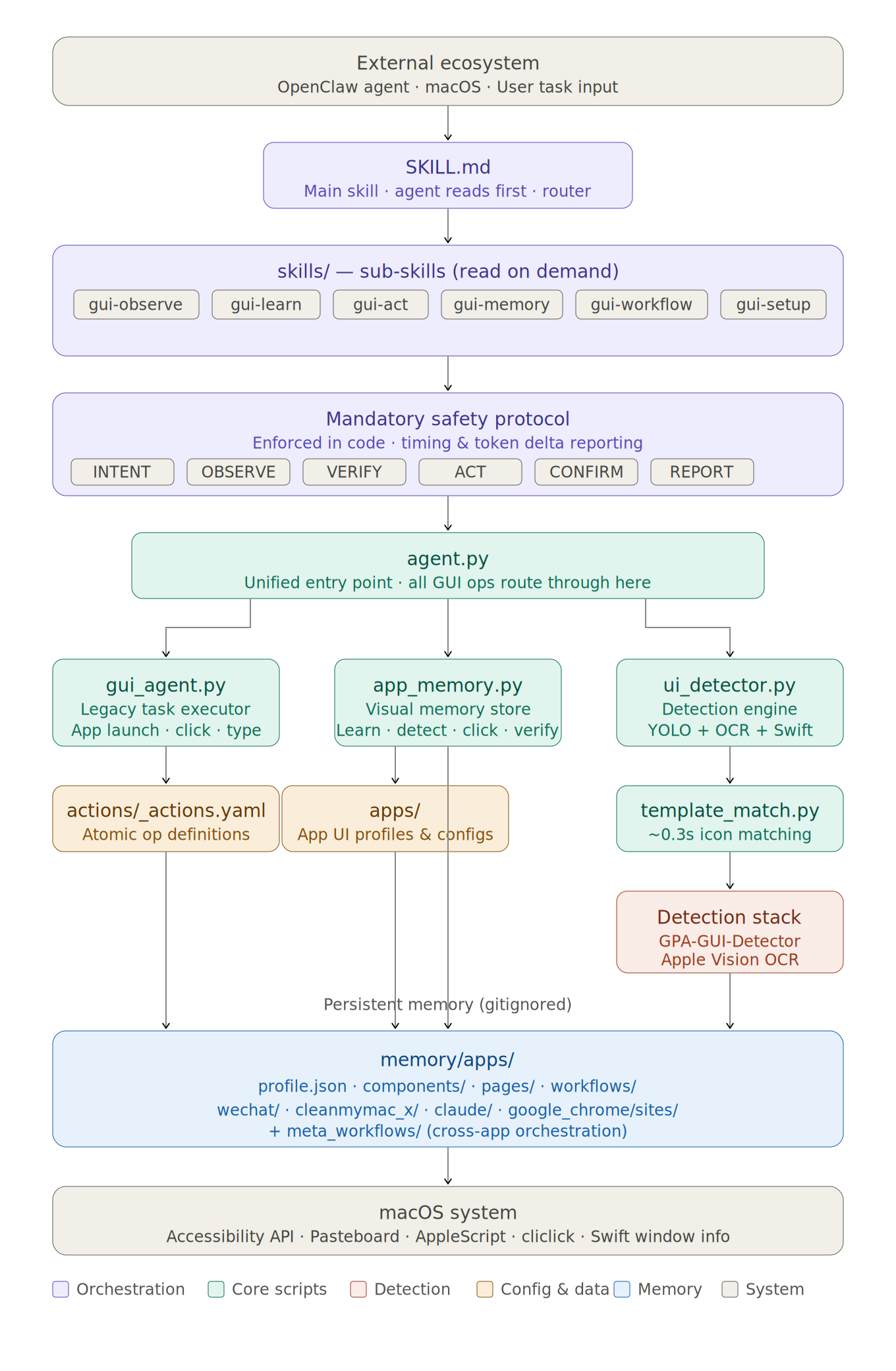
GUI Agent Skills transforms GUI agents from stateless (re-perceive everything every step) to stateful (learn, remember, reuse) through three core mechanisms:
1. Unified Component Memory
Problem: Existing GUI agents treat every screenshot as a fresh perception task — even on interfaces they've seen hundreds of times before.
When a UI element is first detected, GUI Agent Skills creates a dual representation: a cropped visual template (for fast matching) and a VLM-assigned semantic label (for reasoning). This pair is stored in per-app memory and reused across all future interactions.
Detection and annotation:
- GPA-GUI-Detector (YOLO-based) detects UI components → bounding boxes with coordinates, but no semantic labels
- Apple Vision OCR extracts visible text with precise bounding boxes
- VLM (Claude, GPT, etc.) assigns semantic labels to each detected element ("Search button", "Settings icon")
- Result: each component carries both a visual template and a semantic label
Template matching and reuse:
- On subsequent screenshots, stored templates are matched via normalized cross-correlation
- Matches are validated against the target application's window bounds (prevents false positives from overlapping apps)
- Matched components carry their previously-assigned labels — no VLM needed
Activity-based forgetting:
- Each component tracks
consecutive_misses— incremented when a full detection cycle fails to re-detect it - After 15 consecutive misses, the component is automatically removed (cascades through states and transitions)
- Keeps memory aligned with the app's current UI as it updates over time
memory/apps/
├── wechat/
│   ├── meta.json              # Metadata (detect_count, forget_threshold)
│   ├── components.json        # Component registry + activity tracking
│   ├── states.json            # States defined by component sets
│   ├── transitions.json       # State transitions (dict, deduped)
│   ├── components/            # Cropped UI element images
│   │   ├── search_bar.png
│   │   └── emoji_button.png
│   └── workflows/             # Saved task sequences
├── chromium/
│   ├── components.json        # Browser UI components
│   └── sites/                 # ⭐ Per-website memory (same structure)
│       ├── united.com/
│       ├── delta.com/
│       └── amazon.com/
2. Component-Based State Transition Modeling
Problem: Knowing "what's on screen" isn't enough — the agent also needs to know "what happens when I click X."
The UI is modeled as a directed graph of states, where each state is defined by a set of visible components.
State definition and matching:
- A state
s = {c₁, c₂, ..., cₙ}is the set of components currently on screen - States are matched using Jaccard similarity:
J(s, s') = |s ∩ s'| / |s ∪ s'| - Match threshold > 0.7 → identifies current state
- Merge threshold > 0.85 → similar states auto-merge (prevents state explosion)
Transition recording with pending-confirm validation:
- Each click records a transition tuple:
(state_before, component_clicked, state_after) - Transitions are not immediately committed — they accumulate as pending
- Only when a task succeeds are all pending transitions confirmed and written to the graph
- On failure → all pending transitions are discarded (prevents exploratory clicks from polluting the graph)
BFS path planning:
- The accumulated transitions form a directed graph
G = (S, E) - Given current state
sᶜand target statesᵗ, BFS finds the shortest action sequence - Enables direct navigation to any previously-visited state without re-exploration
- No path exists? → falls back to exploration mode with VLM reasoning
// states.json
{
  "state_0": {
    "defining_components": ["Chat_tab", "Cowork_tab", "Search", "Ideas"],
    "description": "Main app view"
  },
  "state_1": {
    "defining_components": ["Chat_tab", "Account", "Billing", "Usage"],
    "description": "Settings page"
  }
}

// transitions.json — click Settings in state_0 → arrive at state_1
{
  "state_0": { "Settings": "state_1" },
  "state_1": { "Chat_tab": "state_0" }
}
3. Progressive Visual-to-Semantic Grounding
Problem: VLMs hallucinate coordinates. Every existing GUI agent asks the VLM to estimate pixel positions — leading to misclicks and cascading failures.
GUI Agent Skills progressively shifts from image-level to text-level grounding as memory accumulates:
Phase 1 — Image-level grounding (unfamiliar interfaces):
- Detector provides bounding boxes, OCR extracts text
- VLM receives the full screenshot to understand the scene
- VLM decides which element to interact with
- Components are annotated and saved to memory
- This expensive process happens only once per component
Phase 2 — Text-level grounding (familiar interfaces):
- Template matching identifies known components on screen
- VLM receives a list of component names (e.g.,
[Search, Settings, Profile, Chat]) — not a screenshot - VLM selects a target by name (e.g., "click Settings")
- System resolves the name to precise coordinates via the stored template
- The VLM never estimates pixel positions
Why this matters:
- No coordinate hallucination — coordinates come exclusively from template matching
- No redundant visual processing — familiar interfaces are handled in pure text space
- Decreasing cost over time — as memory grows, more interactions use text-level grounding, reducing both latency (~5.3× faster) and token consumption (~60-100× fewer tokens per step)
Hierarchical verification during workflow execution:
| Level | Method | Speed | When |
|---|---|---|---|
| Level 0 | Template match target component | ~0.3s | Default first check |
| Level 1 | Full detection + state identification | ~2s | Level 0 fails or ambiguous |
| Level 2 | VLM vision fallback | ~5s+ | Level 1 can't determine state |
Detection Stack
| Detector | Speed | Finds |
|---|---|---|
| GPA-GUI-Detector | ~0.3s | Icons, buttons, input fields |
| Apple Vision OCR | ~1.6s | Text elements (CN + EN) |
| Template Match | ~0.3s | Known components (after first learn) |
🔴 Vision vs Command
GUI Agent Skills uses visual detection for decisions and the most efficient method for execution:
| Must be vision-based | May use keyboard/CLI | |
|---|---|---|
| What | Determining state, locating elements, verifying results | Shortcuts (Ctrl+L), text input, system commands |
| Why | The agent must SEE what's on screen before acting | Execution can use the fastest available method |
| Rule | Decision = Visual, Execution = Best Tool |
Three Visual Methods
| Method | Returns | Use for |
|---|---|---|
OCR (detect_text) |
Text + coordinates ✅ | Finding text labels, links, menu items |
GPA-GUI-Detector (detect_icons) |
Bounding boxes + coordinates ✅ (no labels) | Finding icons, buttons, non-text elements |
| image tool (LLM vision) | Semantic understanding ⛔ NO coordinates | Understanding the scene, deciding WHAT to click |
🛡️ Safety & Protocol
Every action follows a unified detect-match-execute-save protocol:
| Step | What | Why |
|---|---|---|
| DETECT | Screenshot + OCR + GPA-GUI-Detector | Know what's on screen with coordinates |
| MATCH | Compare against saved memory components | Reuse learned elements (skip re-detection) |
| DECIDE | LLM picks target element | Visual understanding drives decisions |
| EXECUTE | Click detected coordinates / keyboard shortcut | Act using best tool |
| DETECT AGAIN | Screenshot + OCR + GPA-GUI-Detector after action | See what changed |
| DIFF | Compare before vs after (appeared/disappeared/persisted) | Understand state transition |
| SAVE | Update memory: components, labels, transitions, pages | Learn for future reuse |
Safety rules enforced in code:
- ✅ Verify chat recipient before sending messages (OCR header)
- ✅ Window-bounded operations (no clicking outside target app)
- ✅ Exact text matching (prevents "Scan" matching "Deep Scan")
- ✅ Largest-window detection (skips status bar panels for multi-window apps)
- ✅ No blind clicks after timeout — screenshot + inspect instead
- ✅ Mandatory timing & token delta reporting after every task
🗂️ Project Structure
GUI-Agent-Skills/
├── SKILL.md                   # 🧠 Main skill — orchestration layer
│                              #    Safety protocol, vision-vs-command boundary,
│                              #    routes to sub-skills as needed
├── skills/                    # 📖 Sub-skills (7 specialized modules)
│   ├── gui-observe/SKILL.md   #   👁️ Screenshot, OCR, identify state
│   ├── gui-learn/SKILL.md     #   🎓 Detect components, label, filter, save
│   ├── gui-act/SKILL.md       #   🖱️ Unified: detect→match→execute→diff→save
│   ├── gui-memory/SKILL.md    #   💾 Memory structure, browser sites/, cleanup
│   ├── gui-workflow/SKILL.md  #   🔄 State graph navigation, workflow replay
│   ├── gui-report/SKILL.md    #   📊 Task performance tracking
│   └── gui-setup/SKILL.md     #   ⚙️ First-time setup on a new machine
├── scripts/
│   ├── setup.sh               # 🔧 One-command setup
│   ├── activate.py            # 🌐 Platform detection — detects OS, prints platform info
│   ├── gui_action.py          # 🎯 Unified GUI action interface (click/type/key/screenshot)
│   │                          #    Auto-selects backend: mac_local or http_remote via --remote
│   ├── backends/              # 🔌 Platform-specific backends
│   │   ├── mac_local.py       #     macOS: cliclick + AppleScript
│   │   └── http_remote.py     #     Remote VMs: pyautogui via HTTP API (e.g., OSWorld)
│   ├── ui_detector.py         # 🔍 Detection engine (GPA-GUI-Detector + OCR + Swift window info)
│   ├── app_memory.py          # 🧠 Visual memory (learn/detect/click/verify/learn_site)
│   └── template_match.py      # 🎯 Template matching utilities
├── memory/                    # 🔒 Visual memory (gitignored but ESSENTIAL)
│   ├── apps/<appname>/        #   Per-app memory:
│   │   ├── meta.json          #     Metadata (detect_count, forget_threshold)
│   │   ├── components.json    #     Component registry + activity tracking
│   │   ├── states.json        #     States defined by component sets
│   │   ├── transitions.json   #     State transitions (dict, deduped)
│   │   ├── components/        #     Template images
│   │   ├── pages/             #     Page screenshots
│   │   └── sites/<domain>/    #   Per-website memory (browsers only, same structure)
├── platforms/                  # 🌐 Platform-specific guides & detection
│   ├── detect.py              #     Platform auto-detection script
│   ├── macos.md               #     macOS-specific tips & workarounds
│   ├── linux.md               #     Linux-specific tips & workarounds
│   └── DESIGN.md              #     Cross-platform architecture design
├── benchmarks/osworld/        # 📈 OSWorld benchmark results
├── assets/                    # 🎨 Architecture diagrams, banners
├── actions/
│   ├── _actions_macos.yaml    # 📋 macOS-specific action definitions
│   └── _actions_linux.yaml    # 📋 Linux-specific action definitions
├── docs/
│   ├── core.md                # 📚 Lessons learned & hard-won rules
│   └── README_CN.md           # 🇨🇳 中文文档
├── LICENSE                    # 📄 MIT
└── requirements.txt
📦 Requirements
- macOS with Apple Silicon (M1/M2/M3/M4) — for local GUI automation
- Linux (Ubuntu 22.04+) — for remote VM automation via HTTP API
- Accessibility permissions (macOS only): System Settings → Privacy → Accessibility
- Everything else installed by
bash scripts/setup.sh
🤝 Ecosystem
| 🦞 OpenClaw | AI assistant framework — loads GUI Agent Skills as a skill |
| 🔍 GPA-GUI-Detector | Salesforce/GPA-GUI-Detector — general-purpose UI element detection model |
| 💬 Discord Community | Get help, share feedback |
📄 License
MIT — see LICENSE for details.
📌 Citation
If you find GUI Agent Skills useful in your research, please cite:
@misc{fu2026gui-agent-skills,
  author       = {Fu, Zichuan},
  title        = {GUI Agent Skills: Visual Memory-Driven GUI Automation for macOS},
  year         = {2026},
  publisher    = {GitHub},
  url          = {https://github.com/Fzkuji/GUI-Agent-Skills},
}
⭐ Star History
Built with 🦞 by the GUI Agent Skills team · Powered by OpenClaw
Yorumlar (0)
Yorum birakmak icin giris yap.
Yorum birakSonuc bulunamadi