realvirtual-MCP
Health Warn
- License — License: MIT
- Description — Repository has a description
- Active repo — Last push 0 days ago
- Low visibility — Only 5 GitHub stars
Code Warn
- network request — Outbound network request in Lib/adodbapi/adodbapi.py
Permissions Pass
- Permissions — No dangerous permissions requested
No AI report is available for this listing yet.
Python MCP Server - AI agent bridge for Unity Digital Twin simulations via MCP protocol
realvirtual MCP Server (Python)
Python MCP bridge that connects AI agents to any Unity project - including digital twins, robotics, and industrial automation.
This server bridges AI agents (Claude Desktop, Claude Code, Cursor, etc.) with the Unity Editor via WebSocket. Unity defines MCP tools in C# using [McpTool] attributes. This server discovers them automatically and exposes them as standard MCP tools.
Works with any Unity project out of the box. When combined with realvirtual (Unity Asset Store), additional tools for industrial digital twins and virtual commissioning are available - motor drives, conveyor control, industrial sensors, PLC signal I/O, and robot inverse kinematics.
You Never Need to Touch This Code
Unlike other MCP servers where you edit Python to add tools, this server is a transparent bridge. All tools are defined in C# inside Unity using simple attributes:
[McpTool("Spawn an enemy")]
public static string SpawnEnemy([McpParam("Prefab name")] string prefab) { ... }
The Python server discovers new tools automatically after Unity recompiles. No Python changes, no server restart, no registration. See the Unity MCP package for how to create custom tools.
AI Agent (Claude Desktop / Claude Code / Cursor)
    |
    | MCP Protocol (stdio or SSE)
    v
This Python Server (FastMCP)
    |
    | WebSocket (JSON, Port 18711)
    v
Unity Editor (C# Package)  -->  github.com/game4automation/io.realvirtual.mcp
Self-Contained
This repository ships with an embedded Python 3.12 runtime and all dependencies pre-installed. No system Python required.
python/              Embedded Python 3.12 (Windows x64)
Lib/                 Pre-installed packages (mcp, websockets, etc.)
unity_mcp_server.py  The MCP server
start.bat            One-click launcher
requirements.txt     Dependency list (for reference)
Quick Start
Automated Setup (via Unity — recommended)
The Unity MCP package can clone and configure this server automatically:
- Install the Unity package via Package Manager (git URL:
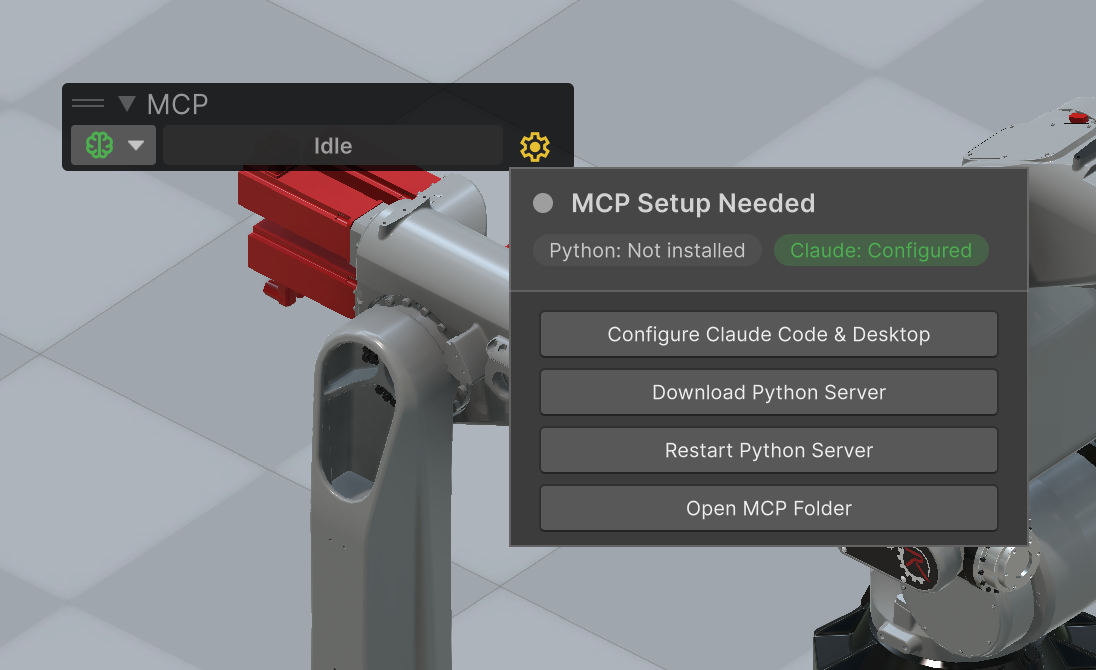
https://github.com/game4automation/io.realvirtual.mcp.git) - Click the gear icon in the Unity MCP toolbar
- Click Clone Python Server — this runs
git cloneintoAssets/StreamingAssets/realvirtual-MCP/ - Click Configure Claude — writes the MCP configuration to Claude Desktop and/or Claude Code
To update later, click Update Python Server (git pull) in the same popup.
Requirements
- git must be installed and available in PATH — git-scm.com
Manual Setup
Clone the repository into your Unity project's StreamingAssets folder:
cd <your-project>/Assets/StreamingAssets
git clone https://github.com/game4automation/realvirtual-MCP.git
To update later:
cd <your-project>/Assets/StreamingAssets/realvirtual-MCP
git pull
Manual Configuration
Claude Desktop (%APPDATA%/Claude/claude_desktop_config.json):
{
  "mcpServers": {
    "UnityMCP": {
      "command": "C:/.../python/python.exe",
      "args": ["C:/.../unity_mcp_server.py"],
      "env": { "PYTHONPATH": "C:/.../Lib" }
    }
  }
}
Claude Code (.mcp.json in project root):
{
  "mcpServers": {
    "UnityMCP": {
      "command": "C:/.../python/python.exe",
      "args": ["C:/.../unity_mcp_server.py"],
      "env": { "PYTHONPATH": "C:/.../Lib" }
    }
  }
}
Replace C:/... with the actual path to your StreamingAssets/realvirtual-MCP/ directory.
Run Manually
start.bat
Or with explicit options:
python/python.exe unity_mcp_server.py --mode stdio
python/python.exe unity_mcp_server.py --mode sse --http-port 8080
python/python.exe unity_mcp_server.py --ws-port 18712
Command Line Options
--mode stdio|sse       Server mode (default: stdio)
--ws-port PORT         Unity WebSocket port (default: auto-discover)
--http-port PORT       HTTP port for SSE mode (default: 8080)
--project-path PATH    Connect to specific Unity instance
--verbose              Enable verbose logging
| Mode | Flag | Use Case |
|---|---|---|
| stdio | --mode stdio (default) |
Claude Desktop, Claude Code |
| SSE | --mode sse |
Network clients, web integrations |
How It Works
Connection Lifecycle
- Startup - Loads tool schemas from cache for instant availability
- Discovery - Connects to Unity via WebSocket, sends
__discover__to get all tools - Registration - Creates FastMCP tool handlers for each discovered Unity tool
- Forwarding - Routes MCP tool calls to Unity via
__call__commands - Watchdog - Background task monitors connection, auto-reconnects after Unity domain reloads
State Machine
| State | Meaning |
|---|---|
| STARTING | Loading cache, not yet connected |
| READY | Connected, forwarding tool calls |
| RELOADING | Unity domain reload detected, buffering calls |
| RECONNECTING | Unexpected disconnect, auto-reconnecting |
| ERROR | Max retries exceeded, failing fast |
During RELOADING and RECONNECTING, tool calls are buffered and replayed after reconnection (up to 30s TTL, 100 message limit).
Multi-Instance Support
When multiple Unity instances are running, the server discovers them via status files in ~/.unity-mcp/. Use --project-path to target a specific instance.
Unity Window Wake-Up
Unity throttles EditorApplication.update to ~2Hz when not focused. The server uses PostMessageW(WM_NULL) to wake Unity's message loop before each tool call, ensuring responsive execution without stealing focus.
WebSocket Protocol
The server communicates with Unity on ws://127.0.0.1:18711/mcp.
Discovery:
{"command": "__discover__"}
// Response: {"tools": [...], "schema_version": "1.0.0"}
Tool Call:
{"command": "__call__", "tool": "sim_play", "arguments": {}}
// Response: {"result": {"status": "playing"}}
Heartbeat:
{"command": "__heartbeat__"}
// Response: {"status": "ok", "tools_count": 65}
Authentication (optional):
{"command": "__auth__", "token": "..."}
// Response: {"status": "ok"}
Available Tools
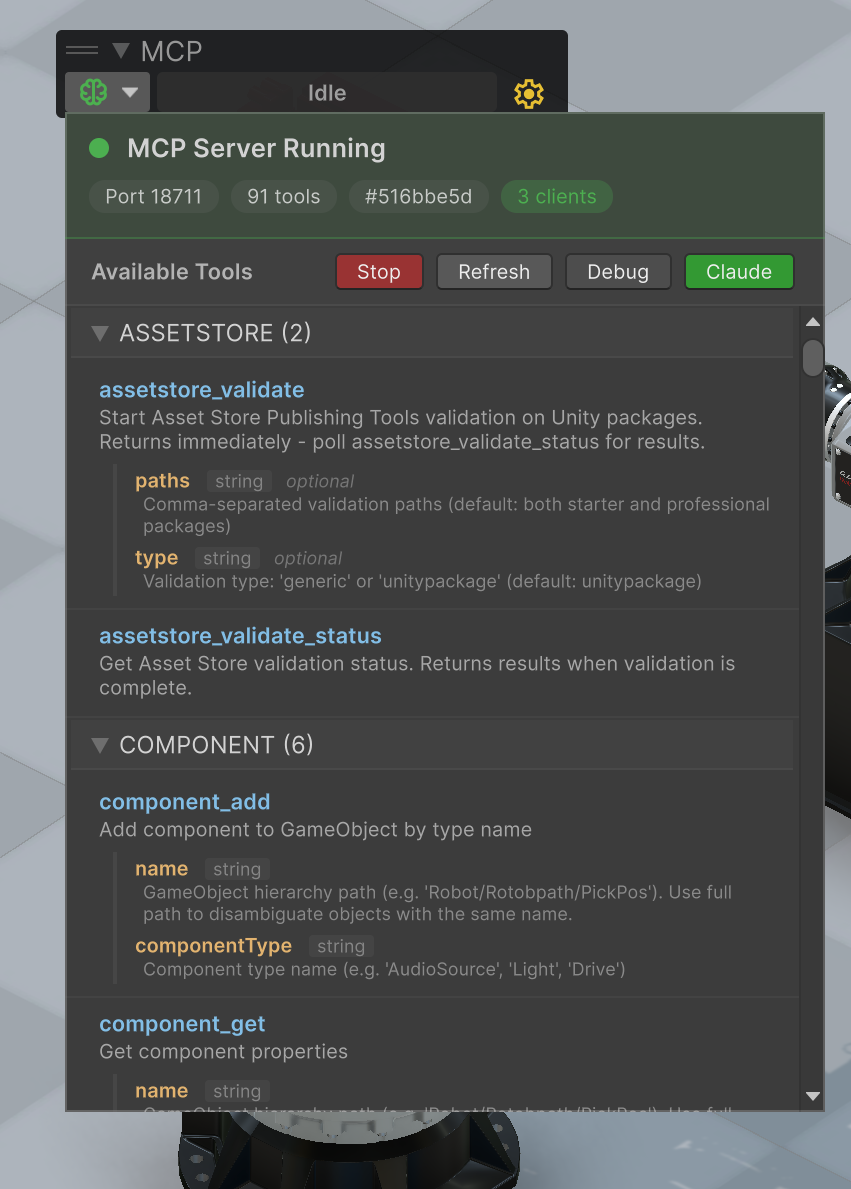
Tools are auto-discovered from Unity. The exact set depends on which Unity packages are installed:
| Category | Examples | Description |
|---|---|---|
| Simulation | sim_play, sim_stop, sim_status |
Control simulation lifecycle |
| Scene | scene_hierarchy, scene_find |
Navigate scene structure |
| GameObjects | game_object_create, game_object_destroy |
Manage objects |
| Components | component_get, component_set |
Read/modify components |
| Transforms | transform_set_position, transform_set_rotation |
Move/rotate objects |
| Editor | editor_recompile, editor_read_log |
Editor operations |
| Screenshots | screenshot_editor, screenshot_game |
Capture images |
| Drives | drive_list, drive_to, drive_stop |
Motion drives* |
| Sensors | sensor_list, sensor_get |
Sensor states* |
| Signals | signal_list, signal_set_bool |
PLC signal I/O* |
*Requires the realvirtual Unity framework.
Two built-in management tools are always available:
unity_status- Connection status and tool countunity_reconnect- Force reconnect and re-discover tools
Using Your Own Python
If you prefer your system Python instead of the embedded one:
pip install -r requirements.txt
python unity_mcp_server.py --mode stdio
Requirements: Python 3.10+, websockets>=12.0, mcp>=1.8.0
Troubleshooting
Server can't connect to Unity
- Ensure Unity Editor is running with the MCP package installed
- Check that port 18711 is not blocked by firewall
- Verify the MCP WebSocket server is running (brain icon in Unity toolbar)
"python.exe blocked by antivirus"
- Add an exception for the embedded
python/python.exein your antivirus - Or use your system Python installation instead
No tools discovered
- Check Unity Console for compile errors
- Use
unity_reconnectto force re-discovery
Debug logging
- Run with
--verboseflag for detailed console output - Debug logs are always written to
%TEMP%/realvirtual-mcp/mcp_debug.log
Unity Package
The C# Unity side of this integration:
github.com/game4automation/io.realvirtual.mcp
Install via Unity Package Manager > Add package from git URL.
Support
This server is provided as-is with no support or service included.
For commercial customers of realvirtual, we offer professional services for digital twin development, virtual commissioning, and LLM/AI agent integration. Contact us at https://realvirtual.io for details.
License
MIT License - Copyright (c) 2026 realvirtual GmbH
See LICENSE for full text.
Links
- Website: https://realvirtual.io
- Documentation: https://doc.realvirtual.io/extensions/mcp-server
- Unity MCP Package: https://github.com/game4automation/io.realvirtual.mcp
- Unity Asset Store (MCP Server): https://assetstore.unity.com/preview/361912/1260684
- Unity Asset Store (Starter): https://assetstore.unity.com/packages/tools/integration/realvirtual-io-digital-twin-starter-6-303030
- Unity Asset Store (Professional): https://assetstore.unity.com/packages/tools/integration/realvirtual-io-digital-twin-professional-6-301340
Reviews (0)
Sign in to leave a review.
Leave a reviewNo results found