openlily
Health Uyari
- License — License: MIT
- Description — Repository has a description
- Active repo — Last push 0 days ago
- Low visibility — Only 5 GitHub stars
Code Gecti
- Code scan — Scanned 12 files during light audit, no dangerous patterns found
Permissions Gecti
- Permissions — No dangerous permissions requested
Bu listing icin henuz AI raporu yok.
A personal voice assistant with a wake word, swappable LLMs (gpt 5.5, opus 4.8, etc), and configurable tools (web search, email, calendar, etc).
openlily
openlily is an Alexa-like personal voice assistant. You talk to it
through your own mic and speakers — voice in → LLM → voice out — and it can answer
questions, explain things, and take actions through tools (web search, browser
automation, email, etc). It runs as a terminal voice CLI on your machine, with an
optional wake word so it sits quietly until you call it.
It's built to be yours: swap the underlying models (LLM, speech-to-text,
text-to-speech), pick a provider you trust, and turn on only the tools you want.
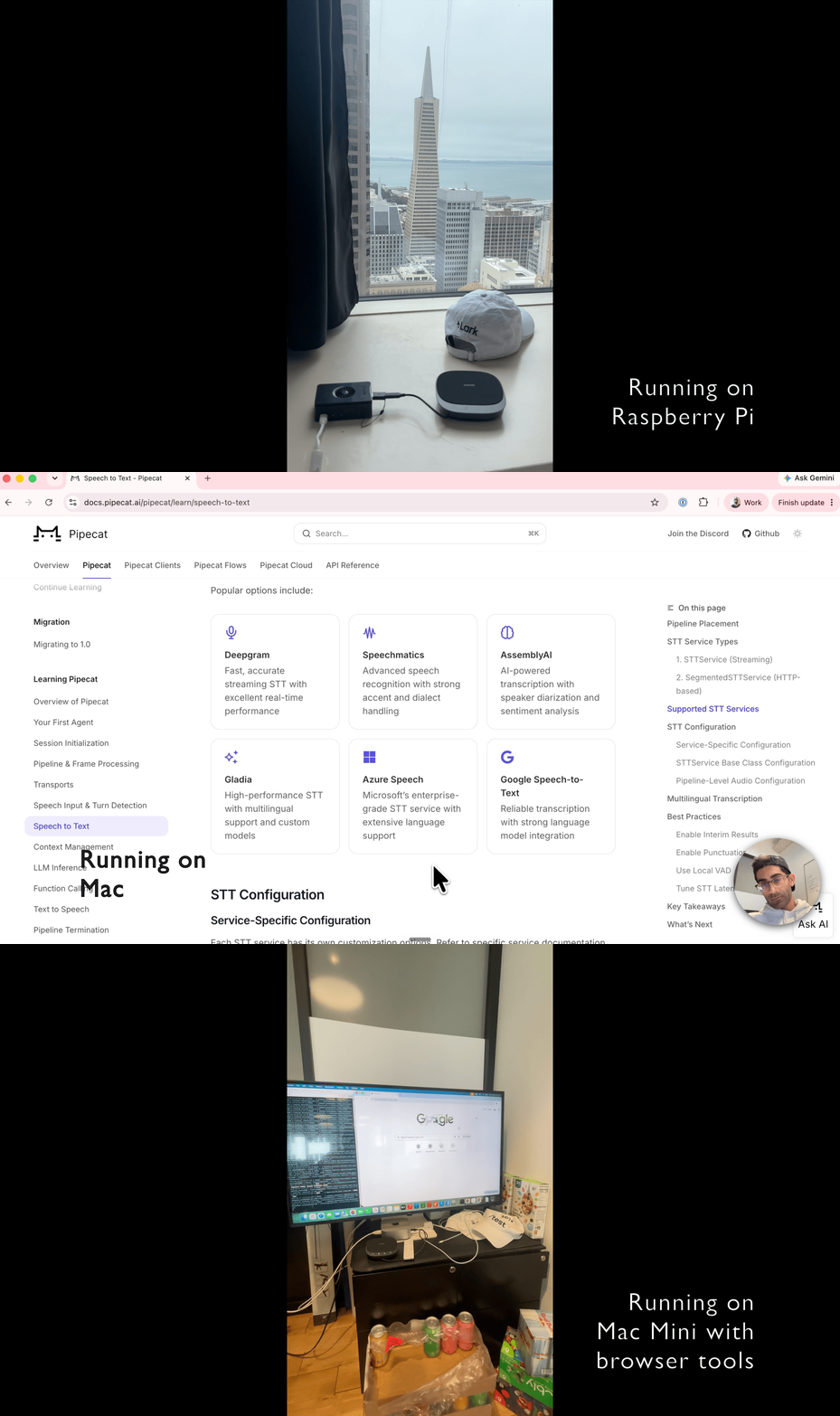
You can also run it on other standalone devices like raspberry pi, mac mini, etc.
Demo
Watch the demo video to see openlily in action.
Features
- Local voice CLI — your mic and speakers are the client; no browser or phone
required. A standalone WebRTC Audio Processing Module (AEC + noise suppression +
AGC) keeps the bot from hearing itself. - Swappable "brains" — run a cascade pipeline (separate STT → LLM → TTS) or a
realtime speech-to-speech model, and choose the provider/model for each piece. - Wake word — an optional always-on, on-device listener (openWakeWord) that
starts a session only when it hears the wake phrase. No cloud, no API key. - On-device turn-taking — Silero VAD + Smart Turn v3 run locally to decide
when you've started and stopped talking. - Tools — web search, real browser automation, and email, each opt-in. You can write custom tools easily.
Setup
Go to the server directory:
cd serverInstall dependencies:
uv syncThe local-audio path needs PortAudio for PyAudio. Install it for your OS:
macOS (Homebrew):
brew install portaudioLinux / Raspberry Pi (Debian, Ubuntu, Raspberry Pi OS):
sudo apt update
sudo apt install portaudio19-dev libportaudio2
On a Raspberry Pi, also make sure your mic and speakers are recognized
(arecord -landaplay -lshould list them). A USB mic/speaker or a USB
audio interface is the simplest setup; pick the right input/output device
in your ALSA/PulseAudio config if you have more than one.On Linux the wake-word stack pulls in
tflite-runtime, which only ships
wheels for Python 3.11. The repo pins that version in.python-version, souv syncwill use it automatically — install it once withuv python install 3.11if you don't have it. (macOS doesn't needtflite-runtime, so it isn't affected.)
The browser tool (if you enable it) launches the Playwright MCP server via
npx, so it needs Node.js. On macOS:brew install node. On Linux /
Raspberry Pi:sudo apt install nodejs npm(or install a current release
from NodeSource if your
distro's packages are old).Configure environment variables:
cp .env.example .envThe fastest path to a working assistant — pick one:
- As-is (default
cartesia_openaibrain): setOPENAI_API_KEYandCARTESIA_API_KEY. That's it. Get a Cartesia key at
cartesia.ai. - OpenAI key only, no Cartesia: switch
default_braintoopenai_realtime
inbrains.yaml(see below) and set justOPENAI_API_KEY. You'll have voice
in and out, just no web search. - OpenAI key only, with web search: use
openai_standardinstead — it runs
entirely on OpenAI (including built-in web search) with onlyOPENAI_API_KEY.
Everything else in
.envis optional and grouped by when you need it. See
Personalizing your assistant for the full menu.- As-is (default
Run it:
uv run bot.py                              # default: wake-word gated local session
uv run bot.py --mode local                 # mic/speakers voice CLI, no wake word
uv run bot.py --mode webrtc                # browser debug UI at localhost:7860
The first run takes longer to start — usually several seconds, and up to a
minute — while Python compiles dependencies and the on-device wake-word/VAD
models download once. The terminal prints a "loading modules" line right away
so you know it isn't stuck; later runs start in a few seconds.
Personalizing your assistant
openlily is meant to be configured to your needs. Three knobs:
1. Choose the models and providers (the "brain")
A brain decides which models do speech-to-text, language, and text-to-speech.
Select one with default_brain in brains.yaml (copy brains.yaml.example;
without the file the default is cartesia_openai):
| Brain | STT | LLM | TTS |
|---|---|---|---|
openai_standard |
OpenAI | OpenAI | OpenAI |
cartesia_openai (default) |
Cartesia (ink-2) | OpenAI | Cartesia (sonic-3.5) |
openai_realtime |
— | OpenAI Realtime (GPT speech-to-speech: STT + LLM + TTS in one) | — |
Which to pick:
cartesia_openai(default) — the most effective overall: intelligent OpenAI
LLM paired with Cartesia's strong speech-to-text and smooth, natural TTS. The
default LLM isgpt-5.4-mini; bump it to a more capable model likegpt-5.5inbrains.yamlfor higher intelligence at the cost of slower replies.openai_standard— the easiest to set up: a single OpenAI API key gets you
everything (STT, LLM, TTS), no second provider.openai_realtime— feels the fastest, since there's no separate STT/TTS
stage, but the speech-to-speech model can be less capable than the latest
non-realtime OpenAI models.
In the same brains.yaml you can override each brain's model names and the TTS
voice without touching code — e.g. point the LLM at a different model, or change
the Cartesia voice ID. Want a provider that isn't listed (a different STT/TTS
vendor, a local LLM)? Adding a brain is a small, self-contained change — see
CONTRIBUTING.md.
2. Turn tools on or off
Tools are opt-in. The browser and email tools are wired in centrally and are
off by default — enable them by uncommenting their entry inGENERIC_TOOL_SETUPS in server/tools/__init__.py.
Each tool only activates if its credentials are present, and a session still runs
fine without them.
- Web search — on by default, and how you get it depends on the brain. The
OpenAI cascade brains (openai_standard,cartesia_openai) use OpenAI's
built-in hosted web search automatically — no extra key. Theopenai_realtime
brain instead calls Exa, so it needsEXA_API_KEY(without it, the realtime
brain just runs without web search). - Browser (Playwright MCP) — drives a real local browser. Needs Node.js/
npx.
Attaches to an already-running browser over CDP rather than launching its own,
so setBROWSER_CDP_ENDPOINT(e.g.http://localhost:9222, from Chrome started
with--remote-debugging-port=9222) to enable it; the browser then persists
across sessions. Without that variable the browser tools are skipped. - Email (Resend) — sends email to your own address. Needs
USER_EMAIL,RESEND_API_KEY, and a verified sender (EMAIL_FROM).
Writing your own tool is also a small change — see CONTRIBUTING.md.
3. Tune the wake word
uv run bot.py (or --mode local-with-wake-word) keeps the process warm and only
starts a session once it hears a wake word, so each session starts fast. Set the
phrase(s) with WAKE_MODELS (comma-separated, defaults to alexa). Built-in
pretrained phrases:
WAKE_MODELS value |
Say |
|---|---|
alexa (default) |
"Alexa" |
hey_jarvis |
"Hey Jarvis" |
hey_mycroft |
"Hey Mycroft" |
hey_rhasspy |
"Hey Rhasspy" |
List several to accept any of them (e.g. WAKE_MODELS=alexa,hey_jarvis), or point
at your own .onnx/.tflite model file by path.
In the local voice CLI the mic is half-duplex gated while the bot is talking, so
it can't be interrupted mid-utterance. Wake-word barge-in (say the wake word to
cut the bot off) is disabled by default; if you want to try it, flipWAKE_WORD_BARGE_IN to True in server/transport_local.py.
Run modes
local-with-wake-word(default) — warm process; an always-on listener owns
the mic and starts a voice session on the wake word, then resumes listening when
the session idles out.local— mic + speakers voice CLI; talk immediately, no wake word.webrtc— browser debug UI atlocalhost:7860.
A session ends itself after a stretch of silence (no one speaking); tune it withIDLE_TIMEOUT_SECS.
What you'll hear
openlily uses a couple of small audio cues so you always know where you are in a
turn, without watching the terminal:
- A rising two-note "ding" when a session becomes ready — after the wake word
(or right at startup inlocalmode). It means you're connected and the mic is
live, so your voice is now being recorded as input. - A soft, low "blip" every few seconds while the bot is working — after you
finish speaking and the request is sent to the LLM, or during a tool call (web
search, browser, email). It's a quiet sign of life so you're not left in silence
while it thinks. - The spoken reply. Once the LLM is done, the blips stop and you hear the
answer through text-to-speech.
Getting help
Running into issues or have questions? Ask in Slack, open an
issue on GitHub, or email [email protected].
Contributing
Architecture, dev setup, and how to add brains and tools live in
CONTRIBUTING.md.
Built with
openlily stands on the shoulders of excellent open-source projects, including:
- Pipecat — the real-time voice agent framework
- LiveKit — the WebRTC Audio Processing Module (AEC/noise suppression/AGC)
- openWakeWord — on-device wake-word detection
- Silero VAD — on-device voice activity detection
- Exa and Resend — web search and email tools
Thanks to their authors and communities.
License
openlily is released under the MIT License, © 2026 Hamilton Labs, Inc.
Yorumlar (0)
Yorum birakmak icin giris yap.
Yorum birakSonuc bulunamadi