OpsMaxx
Health Uyari
- License — License: MIT
- Description — Repository has a description
- Active repo — Last push 0 days ago
- Low visibility — Only 5 GitHub stars
Code Uyari
- fs module — File system access in .github/workflows/release.yml
Permissions Gecti
- Permissions — No dangerous permissions requested
Bu listing icin henuz AI raporu yok.
Free, open-source SSH client, SFTP, tunnels, database GUI and a secure AI-agent (MCP) bridge in one app a MobaXterm, PuTTY and Termius alternative for Windows, macOS and Linux.
OpsMaxx
A free, open-source SSH client, SFTP browser, database manager, secrets vault and secure AI-agent gateway — in one desktop app.
Your DevOps workstation, everywhere. Windows · macOS · Linux.







Website · Features · AI Agent Access · Install · Quick start · Comparison · Workspaces · Local terminal · Command palette · Shortcuts · Databases · Vault · Use cases · FAQ · Contributing · Licence
[!CAUTION]
Windows and macOS will show a security warning the first time you run OpsMaxx.
This is expected, and it is not a virus.The app is not notarized, and on Windows not signed at all — a code-signing
certificate costs $200–$400 a year for Windows and $99 a year for Apple, which a free
MIT-licensed project has no income to cover. The warning means your operating system
cannot confirm who published the app. It says nothing about whether the file is safe.Every release is scanned by 70+ antivirus engines and publishes a SHA-256 for
each file, so you can verify the download yourself.
→ How to get past the warning, and the scan results
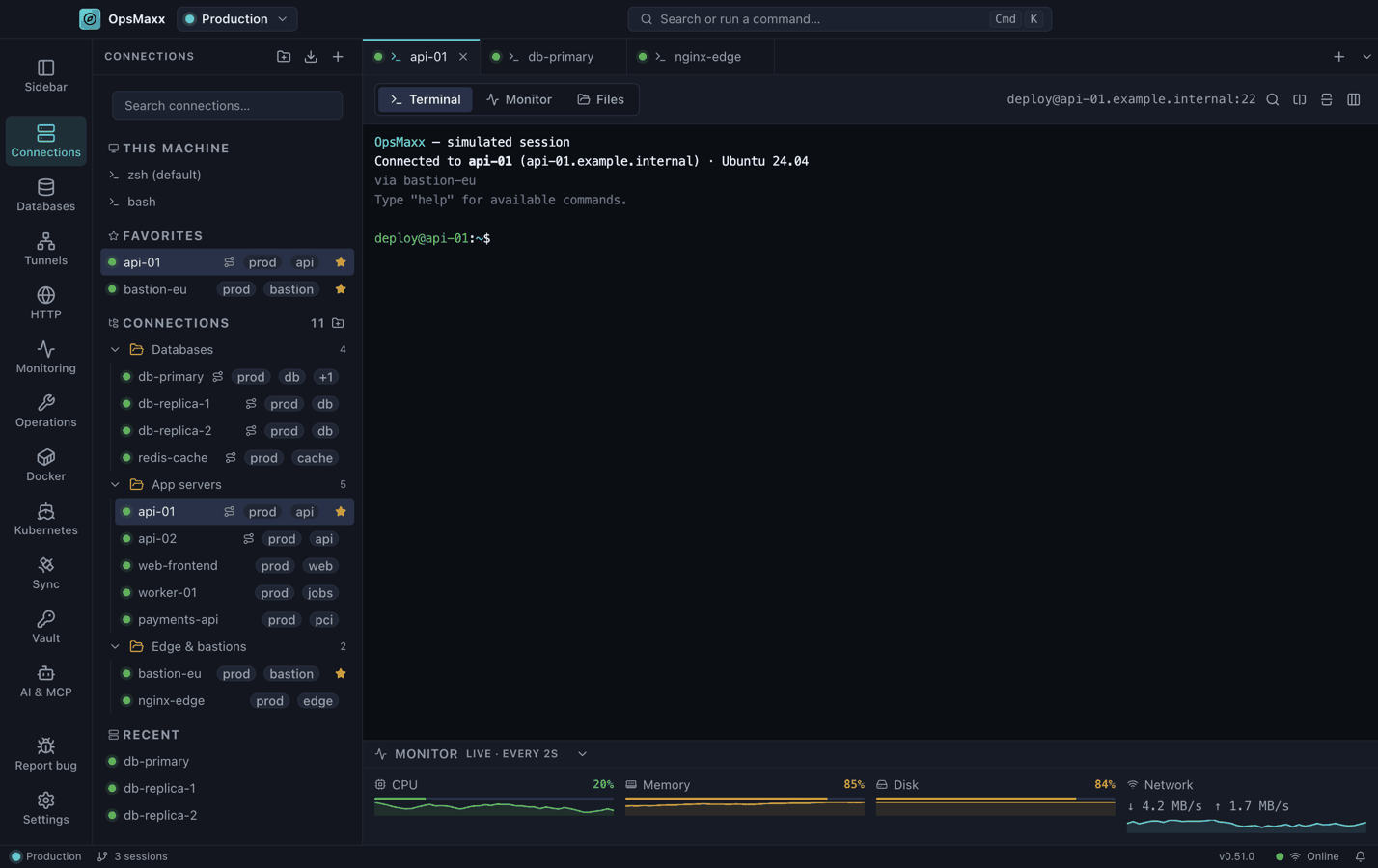
OpsMaxx is a free and open-source alternative to MobaXterm, PuTTY, Termius, SecureCRT and MobaXterm Personal Edition, built for engineers who spend the day moving between bastions, production boxes and databases — and increasingly, for the AI coding agents helping them do it. It combines an SSH terminal, SFTP file browser, server monitoring, SSH tunnels, a multi-engine database client, an encrypted password vault and a secure MCP bridge for Claude Code, Claude Desktop, Codex and other AI agents in a single window — with no account, no telemetry and no subscription.
What makes it different isn't any one of those — MobaXterm, Termius and the rest each do some of this. It's that they're all in the same place, sharing the same credential store, and that credential store is now also what stands between an AI agent and your infrastructure, not something an agent ever has to be handed directly.
Why OpsMaxx
Most terminal tools do one thing. A typical DevOps task needs four: open a shell through a jump host, tail a file, poke a database that is only reachable from inside the network, and look up a credential. OpsMaxx puts those in one place, keeps them organised per project, and stores every secret in your operating system's keychain rather than a plaintext config file.
- No lock-in — connections import from your existing
~/.ssh/config - No account — nothing is uploaded, nothing phones home
- No cost — MIT licensed, free forever, contributions welcome
- No exposed credentials, even to AI — Claude Code, Claude Desktop and Codex can run commands and read files through it, but never see a password, private key, IP or username — see AI Agent Access
OpsMaxx vs MobaXterm, PuTTY, Termius and SecureCRT
If you are looking for a free MobaXterm alternative, a modern PuTTY replacement, or an
open-source Termius alternative that does not put your saved servers behind a subscription,
this is the short version:
| OpsMaxx | MobaXterm | PuTTY | Termius | SecureCRT | |
|---|---|---|---|---|---|
| Price | Free, MIT | Free tier, paid Pro | Free | Free tier, paid Pro | Paid licence |
| Open source | Yes | No | Yes | No | No |
| Windows / macOS / Linux | All three | Windows only | All three | All three | All three |
| Account required | No | No | No | Yes for sync | No |
| Telemetry | None | Some | None | Yes | Some |
| Saved sessions limit | Unlimited | 12 on free tier | Unlimited | Limited on free tier | Unlimited |
| Chained jump hosts | Unlimited | Yes | Manual | Yes | Yes |
| SFTP browser | Built in | Built in | Separate app | Built in | Built in |
| SSH tunnels + SOCKS5 | Yes | Yes | Yes | Yes | Yes |
| Database client | PostgreSQL, MySQL, SQL Server, MongoDB, Redis | No | No | No | No |
| Encrypted secrets vault | Yes, AES-256-GCM | Password store | No | Cloud vault | No |
| Live server monitoring | Yes | Basic | No | No | No |
| Rebindable shortcuts | Every one | Partial | Partial | Partial | Yes |
| AI agent integration (MCP) | Yes, access-group scoped | No | No | No | No |
The point of difference is the database client and the vault. Every other tool in that table
sends you to a second application the moment you need to query a table or look up an API key.
Features
| SSH terminal | Full xterm terminal with GPU rendering, search, split panes, copy-on-select and configurable zoom |
| Local terminal | Your own zsh, bash, PowerShell, Git Bash, MSYS2 or WSL in a tab beside the SSH ones — discovered per platform, a login shell on macOS, and reachable by no AI agent |
| Jump hosts / bastions | Unlimited chained hops per server, each with its own credentials |
| Two-factor auth | Answers keyboard-interactive challenges; connections are shared so you enter a code once, not per session |
| SFTP browser | Browse, edit, upload, rename and delete files over the same connection |
| Server monitoring | Live CPU, memory, disk and network docked under the terminal, with alerts on CPU, memory and failed systemd units |
| Background checking | Sample every server on a schedule, so a server that runs hot or a unit that dies at 3am is noticed while you are looking at something else |
| Webhook alerts | POST alerts to Slack, Discord, Teams or any HTTPS endpoint — friendly server name and what fired, never a hostname, an IP or a log line |
| SSH tunnels | Local forwards, remote forwards and a SOCKS5 proxy |
| WireGuard | Userspace WireGuard with no administrator rights — the tunnel appears as a local SOCKS5 proxy and forwards, and your routing table is never touched |
| OpenVPN | Bundled on macOS and Linux, driven over its management interface, with one-time codes and split tunnelling |
| frp | Publish a local port through an frp server, with a per-proxy confirmation naming exactly what becomes reachable |
| Traffic inspector | Read the HTTP and HTTPS a machine is actually making — a Burp- or Fiddler-style proxy with one-click certificate install, terminals and SSH sessions routed automatically, and a host that pins its certificate named rather than silently missing |
| SSH & databases over VPN | Point a server or a database at a VPN profile and it is brought up, waited for, and torn down with the session |
| Databases | PostgreSQL, MySQL, SQL Server, MongoDB and Redis — with an interactive shell per engine |
| Databases over SSH | Reach a database that is only routable from a bastion |
| Vault | AES-256-GCM encrypted store for URLs, logins, API keys and free-form key/value pairs |
| Workspaces | Isolated, optionally password-protected spaces per client or environment |
| Encrypted backup | One passphrase-protected file containing everything, portable across machines |
| Host key verification | Trust-on-first-use, with a hard stop when a key changes |
| Rebindable shortcuts | Every shortcut is remappable per context, with conflict detection and export/import |
| AI & MCP | Let Claude Code, Claude Desktop, Codex and other MCP clients operate your servers — scoped by access group, with human approval on sensitive actions |
Fleet operations — Ctrl+M, and each one off until you turn it on:
| Inventory | Every server, its OS and version, what it has pending, and when it was last seen |
| Patching | What is pending per server, applied in waves that stop on the first server that comes back unhealthy rather than rolling on |
| Run one command everywhere | Broadcast across selected servers with a confirmation naming exactly what runs where, per-server results, and a job that survives the app being closed |
| Log tailing | Follow a file across many servers at once, in one pane |
| Fleet search | Search across what has already been collected, without touching a server |
| Docker | Containers, images and volumes with honest per-item sizes, and reclaim by id against exactly what the preview showed — never a blind prune |
| Compose | Read a project's services, their state and their drift from the file on disk |
| Kubernetes | Workloads, cordon, drain and exec — drain refuses seven ways and treats a read that did not answer as a refusal in itself |
| Databases, operated | Replication lag, slow queries, table sizes and connection counts for PostgreSQL, MySQL/MariaDB, MongoDB and Redis |
| Backups | Scheduled dumps to a local path or S3-compatible storage, with restore verified by restoring, not by checking a file exists |
| Security posture | SSH config, sudo rules, listening ports and firewall state as they actually are on the server |
| Firewall rules | The rules themselves rather than a count of them — off by default, behind its own consent, never stored, and unreadable by an agent at any setting |
| Configuration drift | What changed on a server since the last time you looked |
| Capacity trends | Where disk and memory are heading, from history already collected |
| Rules | "When this fires, run that" — with the run needing the same approval it would need by hand |
| Cron | Read and edit crontabs, planned against the server and written through approval |
| Runbooks | On an alert, what was run the last three times it fired on that server |
| Change log | Who approved what, when, and what it did |
| Access & keys | Which key opens which server, and whose it is |
| Supervised processes | Keep local processes running, with nothing auto-starting: what survives a restart is the list, not a running command |
AI Agent Access
Claude Code, Claude Desktop, Codex, Gemini CLI and anything else that speaks
MCP can list your servers, run commands, browse/edit files and
check metrics through OpsMaxx. The agent asks for a server by its friendly name; OpsMaxx
resolves the real connection, enforces per-capability policy, and can stop and ask you before
anything sensitive runs.
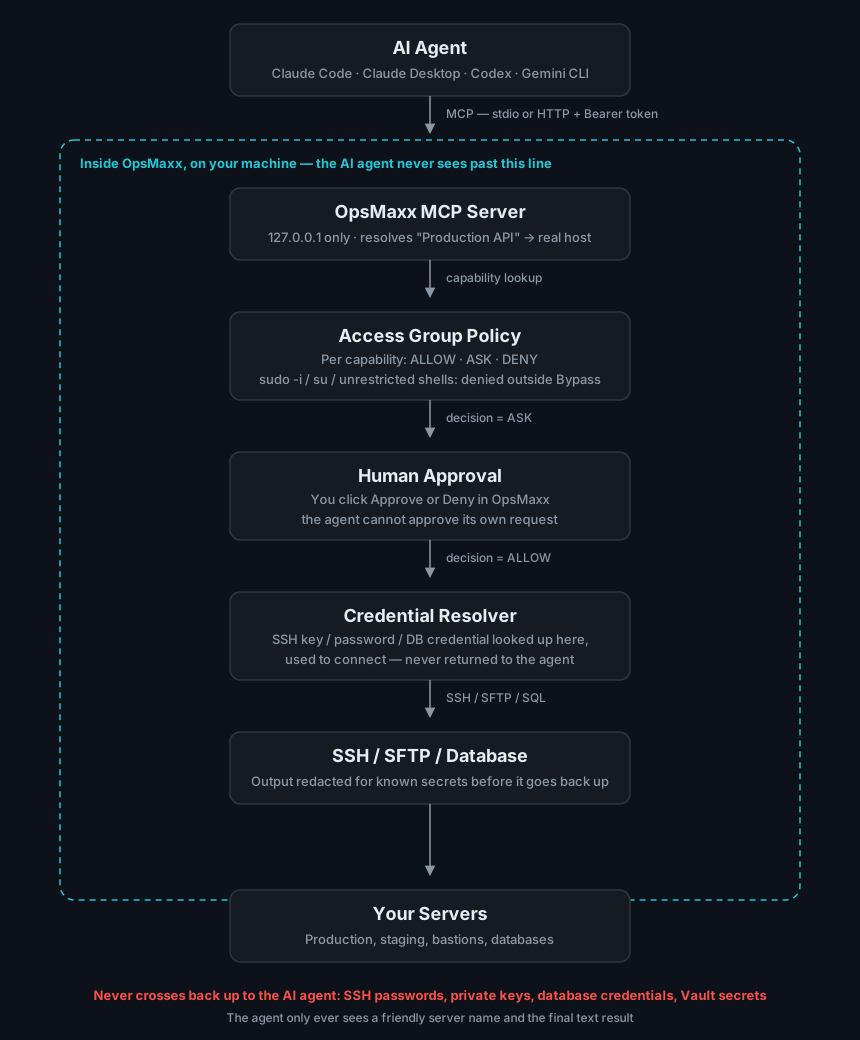
An AI agent connected through OpsMaxx never receives:
- SSH passwords
- SSH private keys or passphrases
- Database passwords or connection-string credentials
- Vault secrets — there is no MCP tool that can read the Vault at all
- Sudo or root access — unrestricted shells (
sudo -i,su, ...) are refused outright, for every access group, with no setting that turns it back on
It only ever gets a friendly server name, whatever a capability's ALLOW/ASK/DENY setting permits,
and redacted text output. See AI-SECURITY.md for the full threat model —
including what this design does not claim.
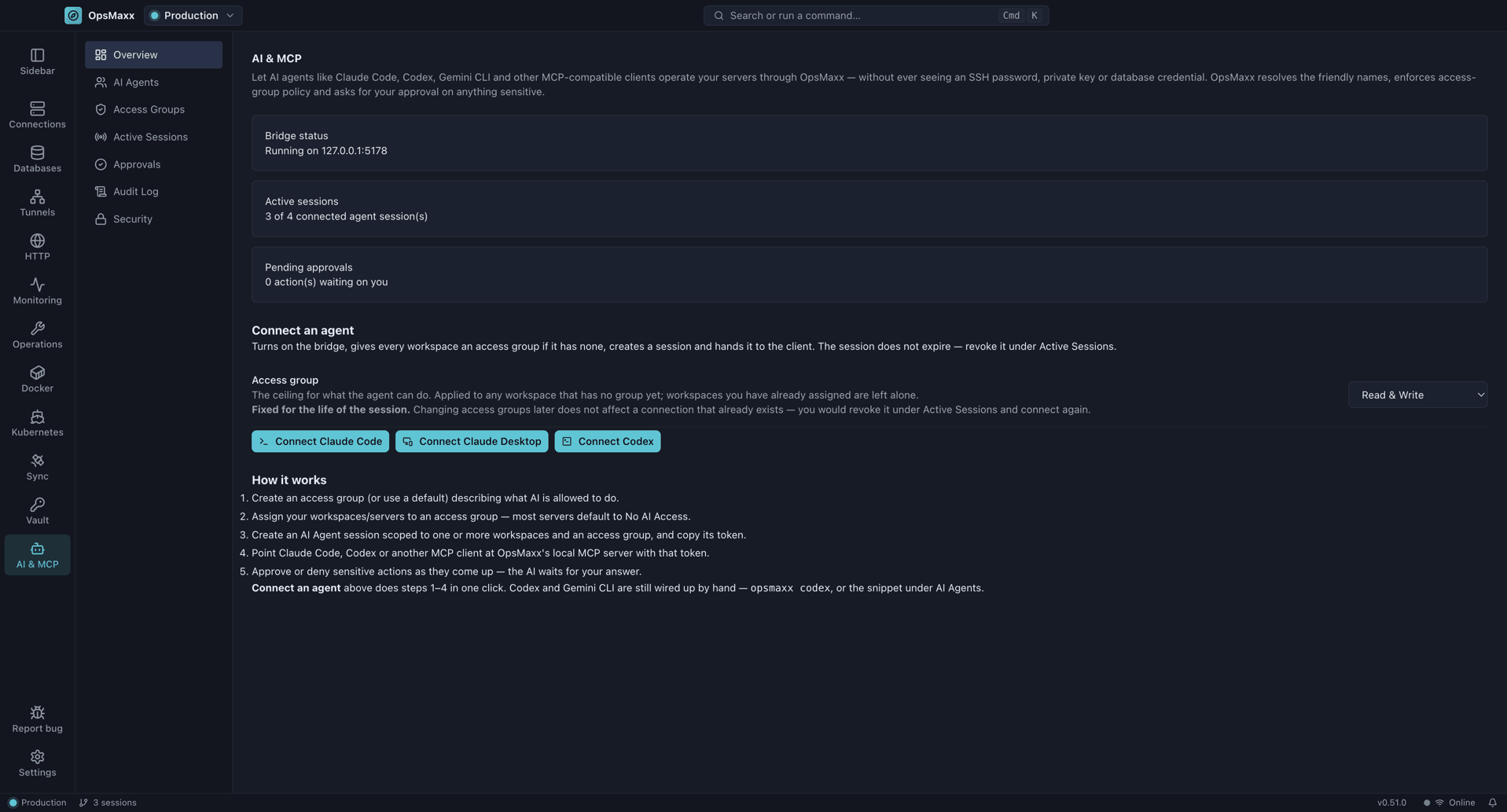
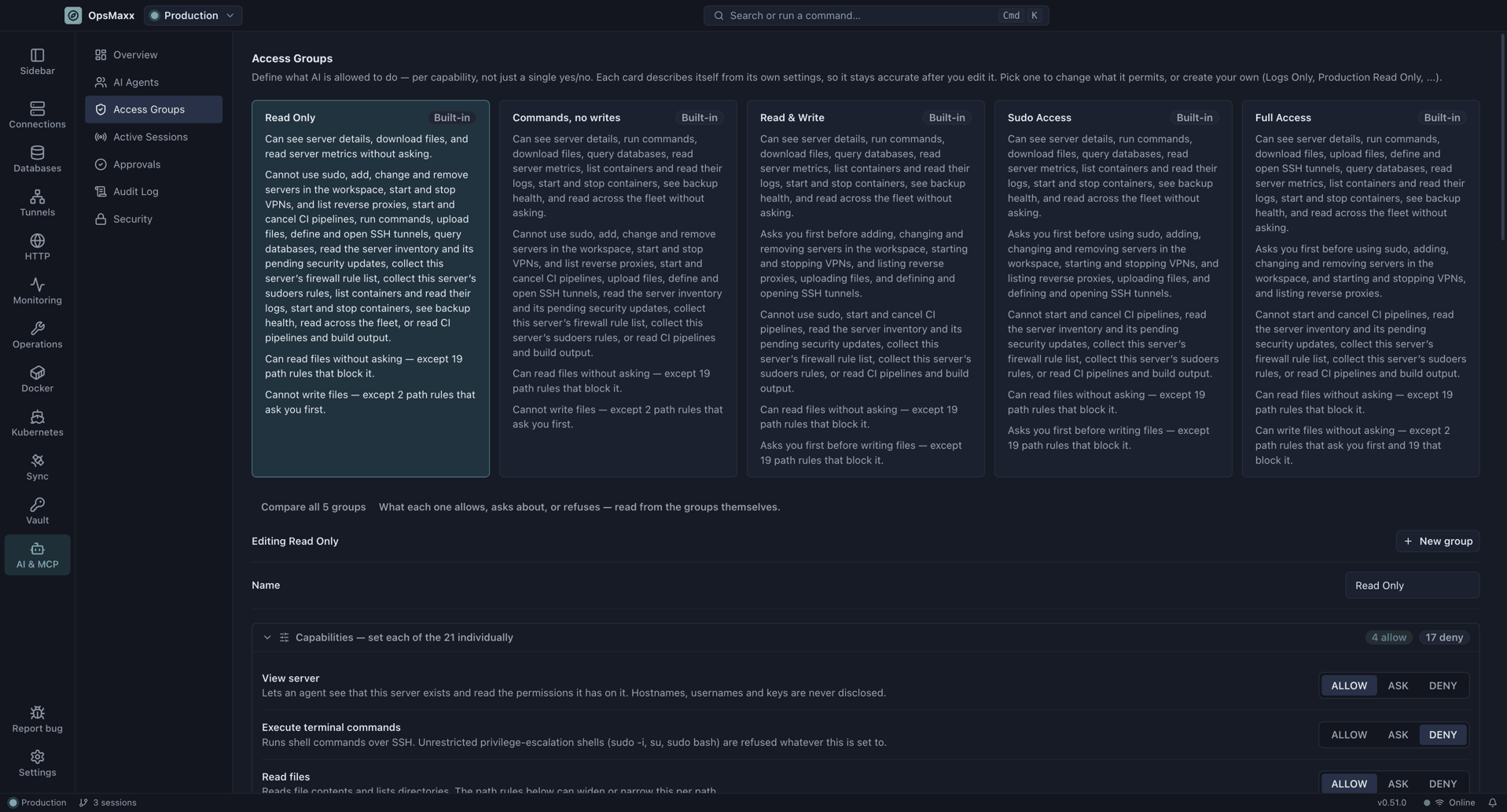
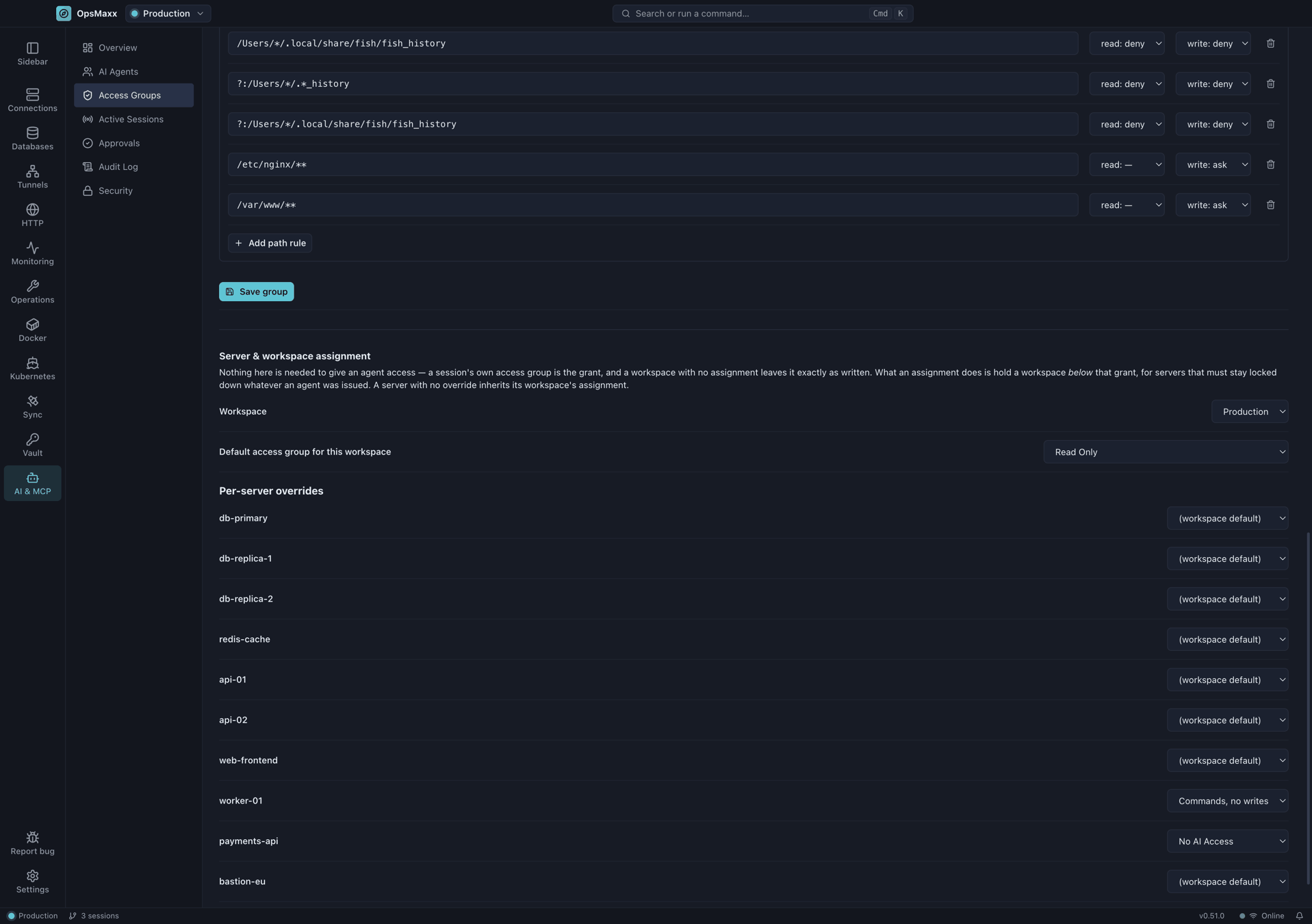
The never receives list above is enforced by an access group — a per-capability
ALLOW/ASK/DENY policy, not a single yes/no switch. Four built-in groups ship with OpsMaxx
(Read Only, Read & Write, Sudo Access, Full Access); create as many custom ones as you want, and
override individual file paths on top of the blanket read/write setting:
A worked example
You ask Claude Code: "Check my production Nginx server."
- Claude Code calls OpsMaxx's
list_serverstool. It gets back friendly names for whatever
the session's workspace(s) and access group can see — say,Nginx Server Prod— never a hostname,
IP or username. - It calls
get_server_metrics(orexecute_commandwith something likesystemctl status nginx) naming that server. OpsMaxx resolves"Nginx Server Prod"to the real server record,
checks the access group governing it, and — if that capability is ALLOW — looks up the actual
SSH credential from your OS keychain and connects. If it's ASK, the request sits in
Approvals until you decide. - The command runs over a normal SSH connection, the same one an interactive terminal session
would use. Output is scanned for known secrets and secret-shaped patterns and redacted before
it's returned. - Claude Code sees the result — CPU, memory,
systemctloutput, whatever was asked for — and
reports back to you. It never saw the server's IP, its username, or the key that authenticated
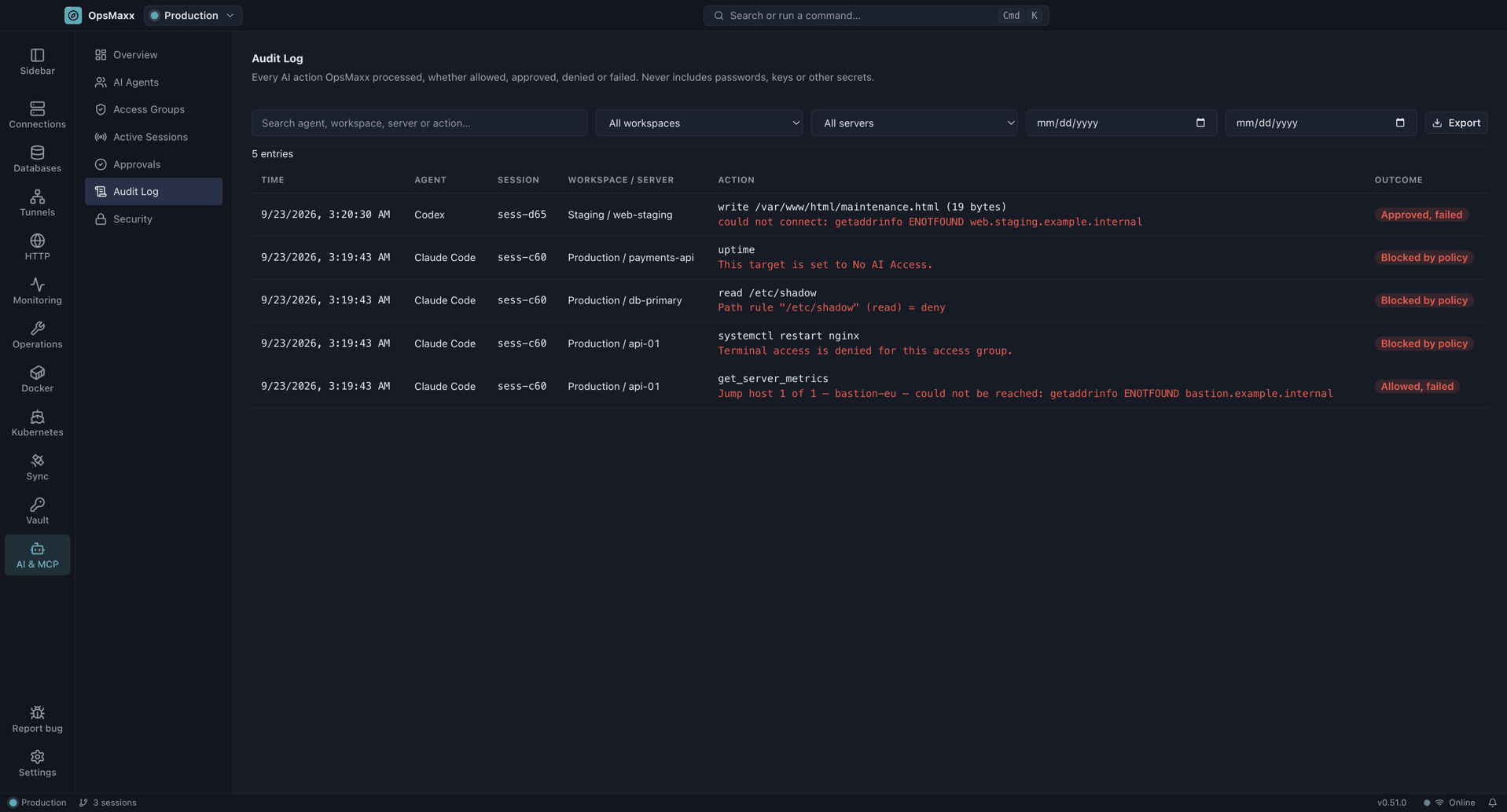
the connection. The whole exchange is in the Audit Log, alongside anything else OpsMaxx
allowed, asked about, denied or failed:
Connecting an agent
The quickest route is AI & MCP → Overview → Connect an agent. One click turns on the bridge,
gives any unassigned workspace an access group, creates a session, and hands it to the client:
| Button | What it does |
|---|---|
| Connect Claude Code | Copies a ready claude mcp add command, token already in it — paste it in a terminal |
| Connect Claude Desktop | Writes the bridge entry into claude_desktop_config.json, merging with whatever is already there |
| Connect Codex | Writes a managed [mcp_servers.opsmaxx] block into ~/.codex/config.toml |
Existing config files are backed up first, other MCP servers in them are left alone, and running a
button again replaces its own entry rather than adding a second one. A workspace you have already
assigned to an access group — including No AI Access — is never reassigned.
There is also a CLI, if you would rather not click:
| Command | What it does |
|---|---|
opsmaxx claude |
Registers OpsMaxx with Claude Code (claude mcp add) and launches it — a one-time pairing code appears in OpsMaxx instead of copying a token by hand |
opsmaxx codex |
Same, for Codex — writes a managed block into ~/.codex/config.toml |
opsmaxx run -- <command> |
Same pairing flow for any other MCP-aware CLI, via OPSMAXX_MCP_COMMAND/OPSMAXX_MCP_ARGS |
On macOS the
opsmaxxcommand is not added to yourPATHby the installer — only the Windows
installer does that. Use the Connect buttons, or call the launcher inside the app bundle directly.
Every other client connects over Streamable HTTP with a URL and a bearer token that
OpsMaxx's own Security tab generates for you:
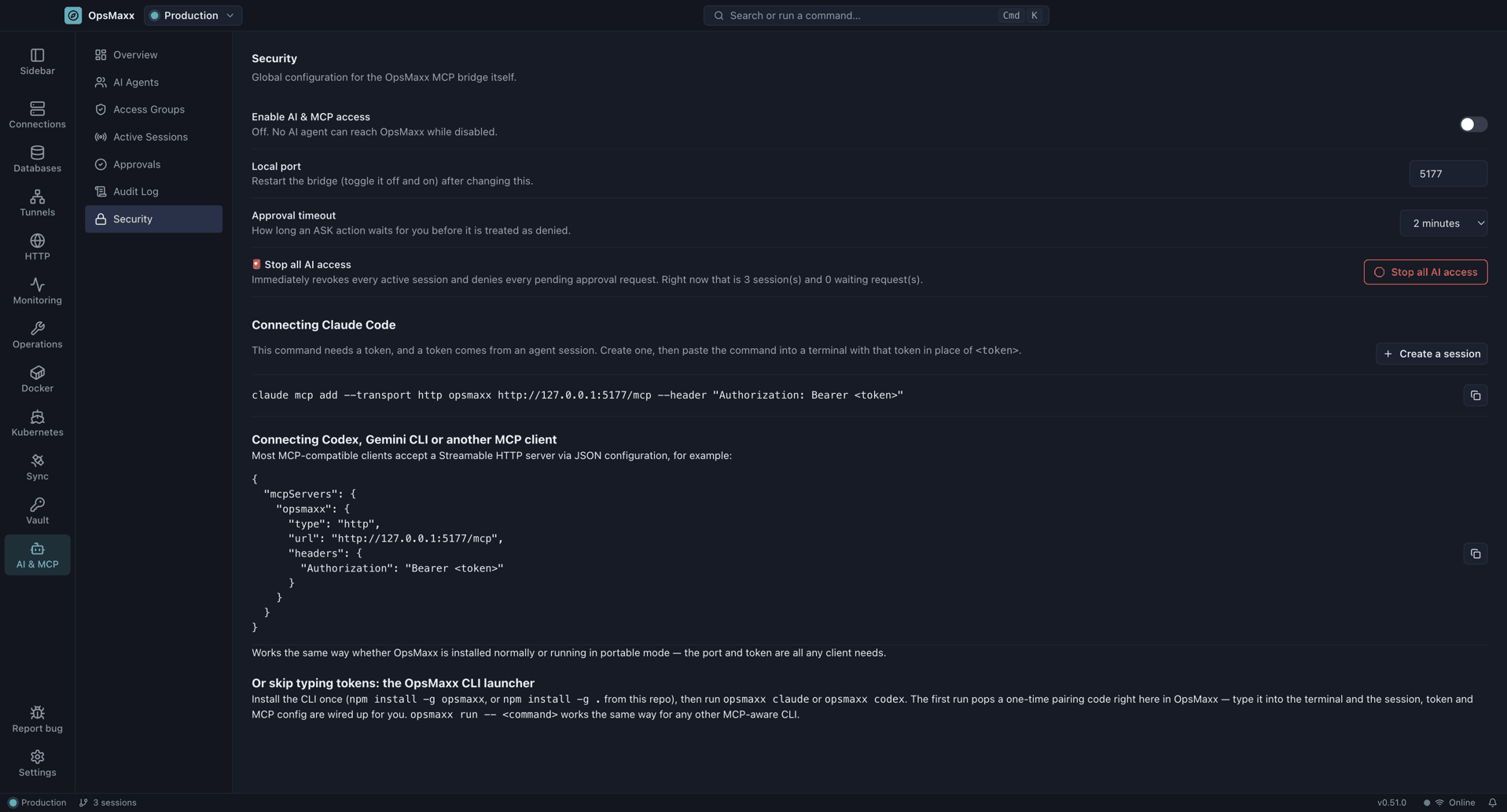
Claude Desktop is the exception — it cannot use that URL. See
Connecting Claude Desktop below.
Adding a token manually
Not every client has a one-command launcher yet:
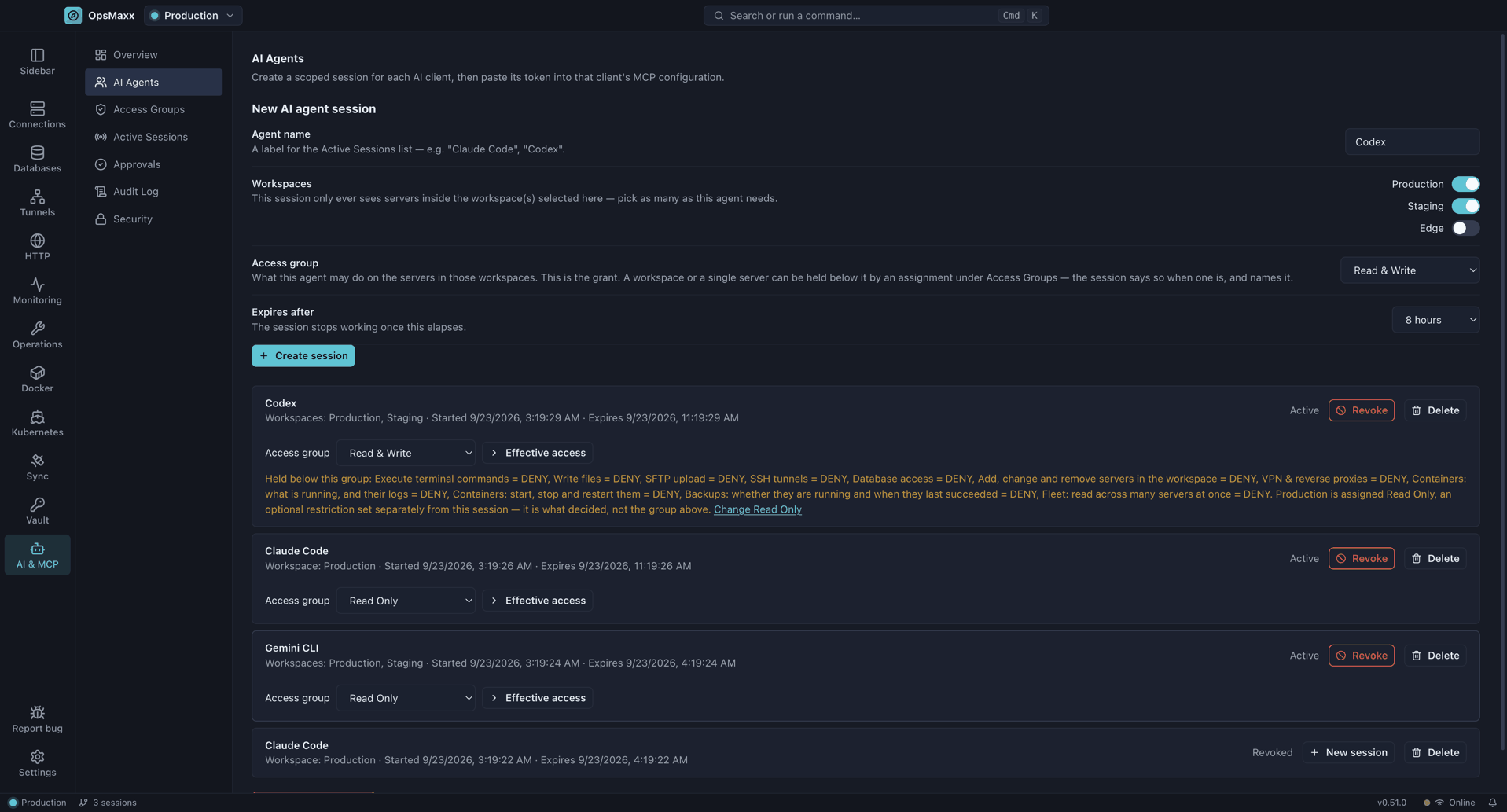
- AI & MCP → AI Agents → New AI agent session — pick a workspace and an access-group
ceiling, then Create session. - The token is shown once, next to a ready-made JSON block — click Copy JSON config, or
copy the raw token if you'd rather write the entry yourself. - Paste it into the client's own MCP config file, under
mcpServers. - Restart the client.
{
  "mcpServers": {
    "opsmaxx": {
      "type": "http",
      "url": "http://127.0.0.1:<port>/mcp",
      "headers": { "Authorization": "Bearer <token>" }
    }
  }
}
Claude Code needs no file editing at all — one command registers the same thing:
claude mcp add -s user --transport http opsmaxx http://127.0.0.1:<port>/mcp --header "Authorization: Bearer <token>"
Connecting Claude Desktop
Claude Desktop does not read url or headers from claude_desktop_config.json. Entries in
that file are launched as stdio subprocesses; Desktop's remote-server support is a separate
account-level Connectors feature with nowhere to put a bearer token for a 127.0.0.1 address.
OpsMaxx ships a stdio bridge for exactly this case — a pure protocol relay that forwards
messages to the same authenticated HTTP endpoint, so a stdio-only client gets the identical
policy, approval and audit path (src/cli/bridge.ts).
The short way is the npm package, which is the same relay without the absolute paths:
{
  "mcpServers": {
    "opsmaxx": {
      "command": "npx",
      "args": ["-y", "@opsmaxx/mcp"],
      "env": { "OPSMAXX_MCP_TOKEN": "<token>", "OPSMAXX_MCP_PORT": "<port>" }
    }
  }
}
If you have run opsmaxx claude at least once, the env block can be dropped: the package
reads the session the CLI already cached. Source and detail:@opsmaxx/mcp.
Or point Desktop straight at the bundled bridge, with no Node dependency at all:
{
  "mcpServers": {
    "opsmaxx": {
      "command": "/Applications/OpsMaxx.app/Contents/MacOS/OpsMaxx",
      "args": [
        "/Applications/OpsMaxx.app/Contents/Resources/app.asar.unpacked/out/cli/index.js",
        "bridge", "--token", "<token>", "--port", "<port>"
      ],
      "env": { "ELECTRON_RUN_AS_NODE": "1" }
    }
  }
}
On Windows, the two paths become %LOCALAPPDATA%\Programs\OpsMaxx\OpsMaxx.exe and%LOCALAPPDATA%\Programs\OpsMaxx\resources\app.asar.unpacked\out\cli\index.js.
The config file lives at ~/Library/Application Support/Claude/claude_desktop_config.json on
macOS and %APPDATA%\Claude\claude_desktop_config.json on Windows. Restart Desktop afterwards.
ELECTRON_RUN_AS_NODE makes OpsMaxx's own bundled Electron binary run the bridge as plain
Node, so nothing has to be installed separately and none of this depends on what is on yourPATH — which Claude Desktop does not inherit from your shell.
Give the Desktop session no expiry. Set Expires to Never when creating it. The
default is 60 minutes, after which Desktop silently stops being able to reach OpsMaxx until
you issue a new token.
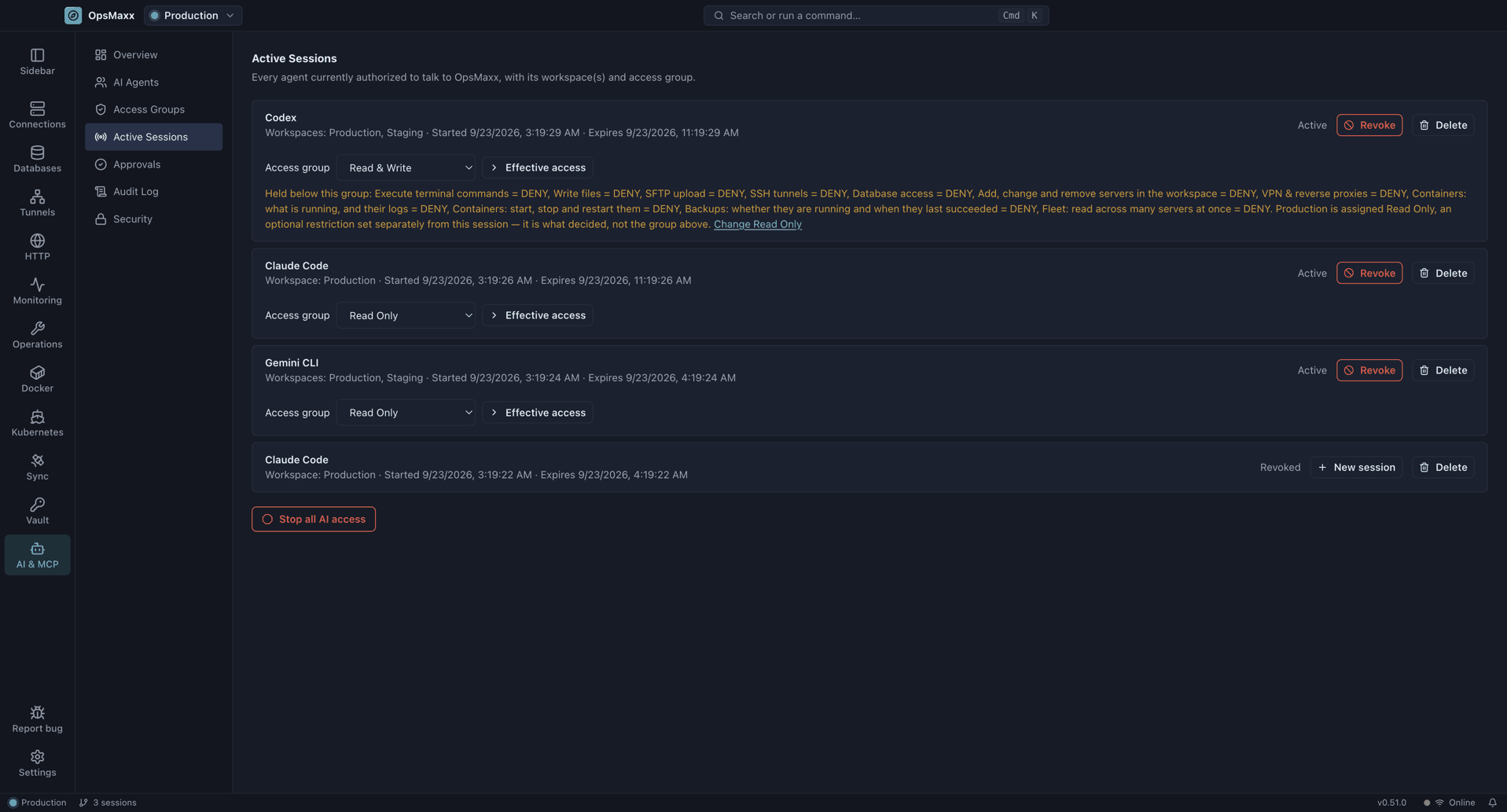
The token is shown only once and stored only as a hash — if you lose it, revoke that session
under Active Sessions and create a new one rather than hunting for it:
Full technical guide (architecture, sessions, Access Groups, pairing, troubleshooting):
docs/AI-MCP.md. Threat model: docs/AI-SECURITY.md.
Real-world use cases
- Production troubleshooting — ask an agent to check a service's status, tail a log, or sample
CPU/memory on a server named in plain English, without ever handing it that server's key. - Bastion / jump-server operations — the same friendly-name resolution works through chained
hops; an agent scoped to a workspace behind a bastion never needs the bastion's credential
either. - Database investigation — an agent with
databaseAccessallowed can query a database that is
only reachable through an SSH tunnel, the same way a human session would reach it. - Log investigation — a
Read Onlyor purpose-built "Logs Only" access group lets an agent
search and summarise logs across a fleet without any path to modify anything. - Controlled production changes — set the capability that matters to ASK; a config edit or a
restart waits for your explicit approval instead of running unattended. - AI-assisted DevOps generally — the same terminal, SFTP, database and monitoring tools you use
by hand are available to an agent, scoped by workspace and access group exactly like a second,
more limited pair of hands.
Install
Download the latest build from the Releases page.
| Platform | File | Notes |
|---|---|---|
| Windows 10/11 | OpsMaxx-x.y.z-setup.exe |
Installer, desktop + Start-menu shortcut. Pick this one if unsure. |
| Windows (portable) | OpsMaxx-x.y.z-portable.exe |
Single file, no install, keeps its data beside the .exe — runs from a USB stick |
| macOS (Apple Silicon) | OpsMaxx-x.y.z-arm64.dmg |
M1 and later |
| macOS (Intel) | OpsMaxx-x.y.z-x64.dmg |
Intel Macs |
| Linux | OpsMaxx-x.y.z-x86_64.AppImage |
chmod +x OpsMaxx-*.AppImage and run — works on any distribution |
| Linux (Debian / Ubuntu) | OpsMaxx-x.y.z-amd64.deb |
sudo apt install ./OpsMaxx-*-amd64.deb |
Package managers
| macOS | brew trust opsmaxx/tap then brew install --cask opsmaxx/tap/opsmaxx |
| Windows | winget install OpsMaxx.OpsMaxx — pending review |
Homebrew's main cask repository has a notability threshold OpsMaxx does not meet yet, so
the cask lives in its own tap for now. Thebrew trust step is Homebrew refusing to load a third-party tap until you say you trust
it; the cask it guards is a few lines of metadata you can read first. Homebrew clears the
quarantine flag on install, so this route also sidesteps the first-run warning below.
Six of the assets on a release are the downloads above. The rest are build
metadata or source archives, and you can ignore them.
| Asset | What it is | Do you need it? |
|---|---|---|
*.blockmap |
A map of the installer's content blocks, used to work out which parts of a file changed between two versions so an update can download only the difference. | No — it is only read by an updater, never by you. |
| Source code (zip / tar.gz) | A snapshot of the repository at the tagged commit, generated by GitHub. Not a build — it contains no application, just the source. | No, unless you intend to build from source. |
First run: why your computer shows a warning
OpsMaxx is not notarized, so the first time you run it you will see a security
warning. Nothing is wrong with the download; the warning is about a missing certificate,
not about the app.
Windows and macOS both expect an application to be signed with a code-signing
certificate — an identity certificate bought from a certificate authority, currently
around $200–$400 a year for Windows (or roughly $99/year for an Apple Developer
account on macOS). OpsMaxx is free and MIT licensed with no income behind it, so that
certificate does not exist yet. Every unsigned app gets the same treatment, whoever wrote
it.
The macOS builds are ad-hoc signed — a signature that seals the bundle's contents but
carries no identity, so macOS can still tell you the app has not been tampered with since
it was built. What it cannot do is tell you who built it, which is what notarization is
for. The Windows builds carry no signature at all.
The warning does not mean the file is unsafe. It means the operating system cannot
confirm who published it. You can confirm that yourself — see
Verifying a download below, and the entire source is public.
SmartScreen shows a blue dialog saying "Windows protected your PC" and the Run
button is hidden.
- Click More info
- Click Run anyway
You may also see a "publisher unknown" prompt from User Account Control — that is the
same missing-certificate cause. This happens on the first run only.
Gatekeeper refuses to open the app, because the build has not been notarized — Apple has
not been asked to scan it, which requires the paid developer account above. The wording
varies a little between macOS versions; older ones say "cannot be opened because the
developer cannot be verified".
- macOS 15 Sequoia and later — open System Settings → Privacy & Security, scroll
down to the message naming OpsMaxx, and click Open Anyway. Sequoia removed the
older right-click shortcut, so this is the only way through in the interface. - macOS 14 and earlier — right-click (or Control-click) the app → Open →
Open in the dialog.
Either way this is the first launch only; afterwards the app opens normally.
If you would rather do it from the Terminal, this clears the quarantine flag macOS attaches
to anything downloaded through a browser:
/usr/bin/xattr -cr /Applications/OpsMaxx.app
The /usr/bin/ prefix is deliberate. If you have installed xattr through Homebrew orpip, that copy comes earlier on your PATH and does not accept -r — it prints a usage
message and clears nothing, which looks exactly like the command having failed to help.
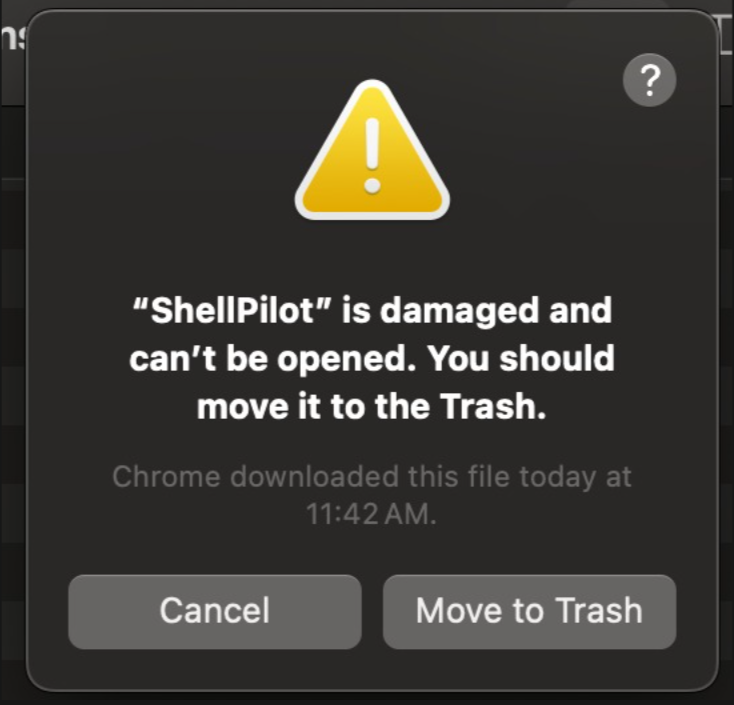
The download is not damaged, and this is fixed in releases after 0.2.2. Builds up to and
including 0.2.2 left the macOS app unsigned, which meant the bundle still carried the
signature Electron itself ships with — a signature covering none of OpsMaxx's own files.
Gatekeeper reads that mismatch as a corrupted download and words it this way instead of the
ordinary "could not verify" message above. Unhelpfully, this particular dialog offers no
Open Anyway button, so there is nothing to click through.
If you want to satisfy yourself the file arrived intact before doing anything else, check the
release's SHA-256 against your download — see Verifying a download.
Do not move it to the Trash. Run this once instead:
/usr/bin/xattr -cr /Applications/OpsMaxx.app
Then open the app normally. If it still refuses:
- Check the path is right — drag the app into the Terminal window after typing
/usr/bin/xattr -crrather than typing it out. - Make sure you are pointing at the copy in
/Applications, not the one still sitting in~/Downloads. - Keep the
/usr/bin/prefix. A Homebrew orpipxattrearlier on yourPATHdoes not
support-rand will quietly do nothing but print its usage text.
Newer releases are ad-hoc signed, which puts them back into the ordinary "could not verify"
category above — still a warning, but one with a button.
Linux does not gatekeep unsigned binaries, so there is nothing to bypass. Just make the
AppImage executable:
chmod +x OpsMaxx-*.AppImage
Will this be fixed? Yes — signing and notarization are planned once the project can
cover the annual certificate cost. Until then the macOS builds are ad-hoc signed so the
warning is at least the ordinary, clickable kind, and the SHA-256 checksums on each
release are the way to verify what you downloaded is what was built.
Antivirus scan
Because the builds are unsigned, every release is scanned automatically as part of the
build, by three independent scanners, before anything is published:
| Scanner | What it is | Runs on |
|---|---|---|
| Microsoft Defender | The engine that ships with Windows — the same one that will scan the installer on your own machine | The Windows build runner, on the .exe files it just produced |
| ClamAV | The open-source engine, with signatures refreshed at build time | The Linux release job, across every artifact |
| VirusTotal | Aggregates 70+ commercial engines in one report | The release job, with a per-file report linked in the notes |
A detection from Defender or ClamAV fails the build, so a release that exists at all
has passed both. The results — and the VirusTotal links for each file — are printed in
every release's notes.
If you would rather check for yourself rather than trust a link in a README, you can:
- Look the file up by its hash. Every release lists a SHA-256 per asset. Paste it
into virustotal.com — searching by hash proves the report
belongs to the exact bytes you downloaded, which a link alone does not. - Upload the file to VirusTotal yourself.
- Build from source. The entire application is in this repository; see
Build from source.
A note on false positives. Unsigned Electron applications are flagged by one or two
minor engines fairly often — an installer that unpacks an executable and opens network
connections is, structurally, what a lot of malware also does. A handful of detections
from engines you have never heard of, against a clean result from the major ones, is the
normal picture for an unsigned open-source desktop app. Code signing is what removes it,
and that is a cost problem rather than a technical one.
Verifying a download
Every asset on the release page lists its SHA-256. Compare it against the file
you downloaded — the builds are unsigned, so this is the strongest integrity
check available:
sha256sum OpsMaxx-x.y.z-x86_64.AppImage    # Linux
shasum -a 256 OpsMaxx-x.y.z-arm64.dmg      # macOS
Get-FileHash OpsMaxx-x.y.z-setup.exe -Algorithm SHA256 # Windows
Build from source
git clone https://github.com/OpsMaxx/OpsMaxx.git
cd OpsMaxx
npm install

npm run dev          # run in development
npm run typecheck    # type check main, preload and renderer
npm run build        # bundle without packaging

npm run dist:win     # Windows installer + portable exe
npm run dist:linux   # AppImage + deb
npm run dist:mac     # dmg (must be run on macOS)
Requires Node.js 20+. Build each platform's installer on that platform.
Quick start
1. Add a server
Click + in the Connections sidebar, or press Ctrl+N.
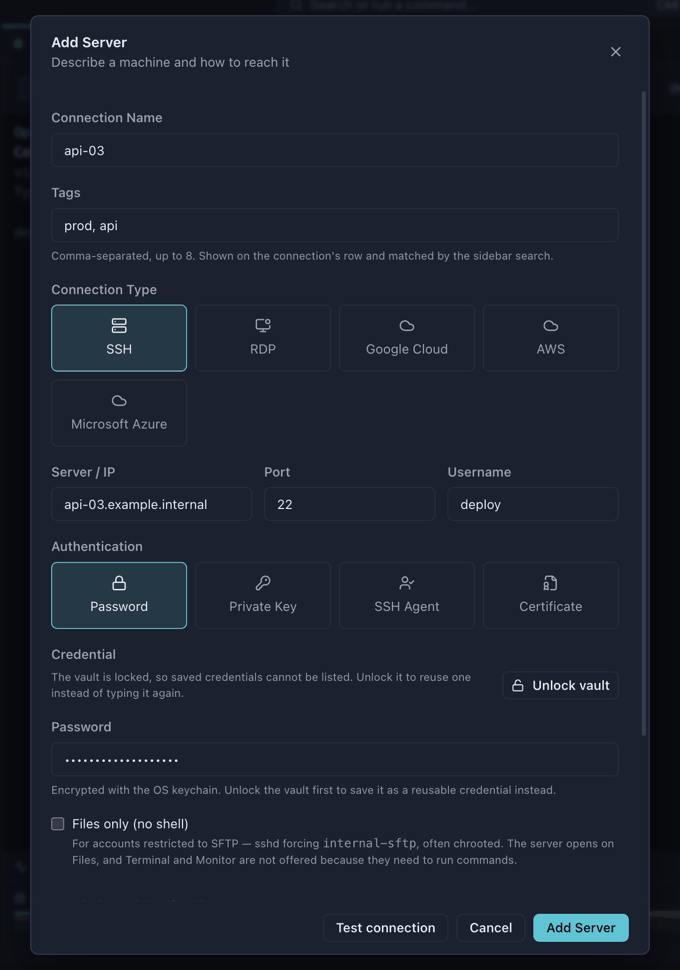
Fill in the server, port and username, then pick how to authenticate:
- Password — stored in your OS keychain
- Private key — browse to the key file; the path and optional passphrase are stored in the keychain, never in plaintext
- SSH Agent — uses
SSH_AUTH_SOCK, or Pageant on Windows - Certificate — for certificate-based setups
Key files without an extension (
id_ed25519, or any bare filename) are fully supported — the file picker shows all files by default.
2. Add jump hosts, in the same dialog
Servers inside a private network are reached through a bastion. Click Add jump host and the hops appear right there — no second dialog, no separate step.
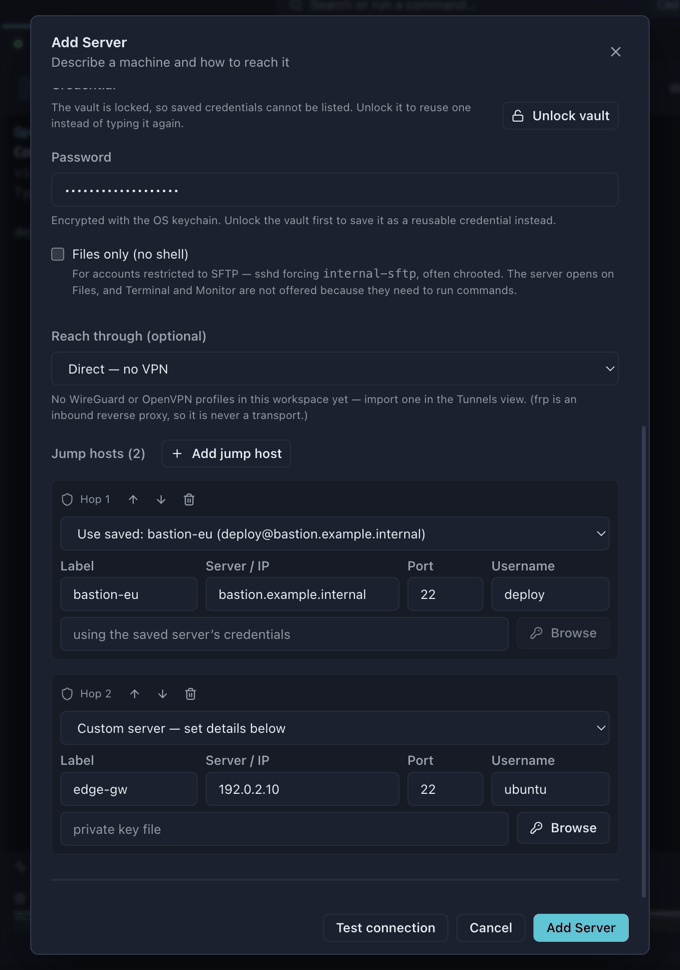
Each hop can either:
- Use a saved server — the hop borrows that server's stored credentials, so a key is defined once and reused, or
- Be a custom server — set its own server, port, user and private key
Hops connect in order, top to bottom: you → Hop 1 → Hop 2 → target. Use the arrows to reorder.
3. Open a session
Click a server to open it. Double-click to open an additional session in a new tab — useful when you want one shell tailing logs and another running commands.
Sessions keep running when you switch workspaces, change views or open a database. Nothing is torn down until you close the tab.
Workspaces
A workspace is an isolated space with its own servers, folders, databases, tunnels and colour. Use one per client, per environment, or per project — whatever keeps unrelated infrastructure apart.
Open the switcher in the title bar, or Manage Workspaces (Ctrl+Shift+N).
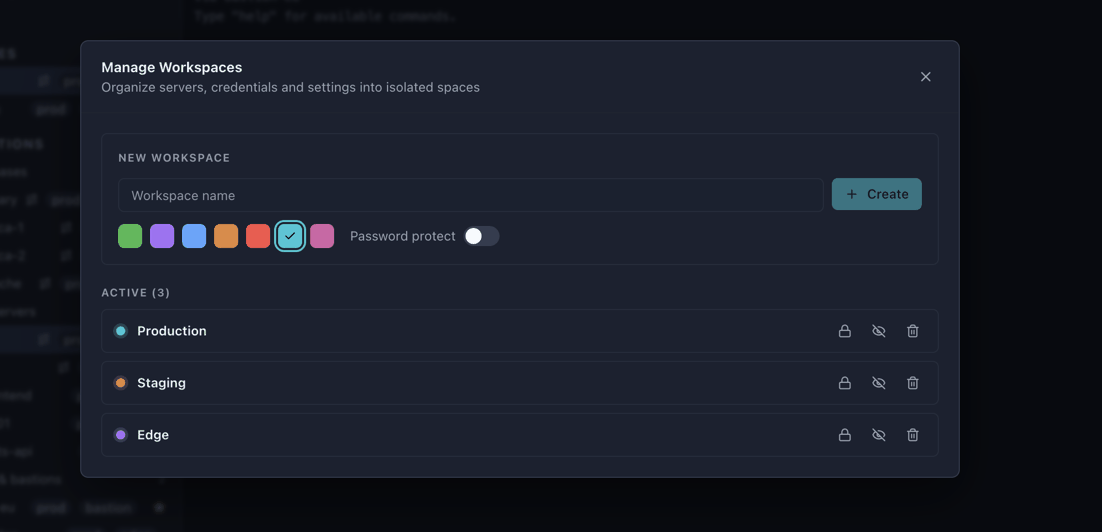
What a workspace gives you
- Isolation — the sidebar, tabs and databases only ever show the active workspace
- Colour coding — pick a colour so production never looks like staging
- Fast switching — Ctrl+1 … Ctrl+9 jump straight to a workspace
- Hiding — clutter you rarely touch can be hidden from the switcher
- Password protection — lock a workspace behind a password
- Live sessions survive — switching workspaces never disconnects a running session
Password-protected workspaces
Toggle Password protect when creating a workspace, or use the padlock on an existing one. Anything that tries to open it — the switcher, the shortcut, the manager — asks for the password first. Unlocks last for the session only; everything re-locks when the app restarts. The password is stored as a scrypt verifier, never as recoverable text.
Scope of this feature: a workspace password gates access inside the app. It does not encrypt the workspace's servers on disk. For data that must be protected at rest, use the Vault or an encrypted backup.
Organising servers with folders
Folders keep a long server list navigable, and they nest as deep as you like.
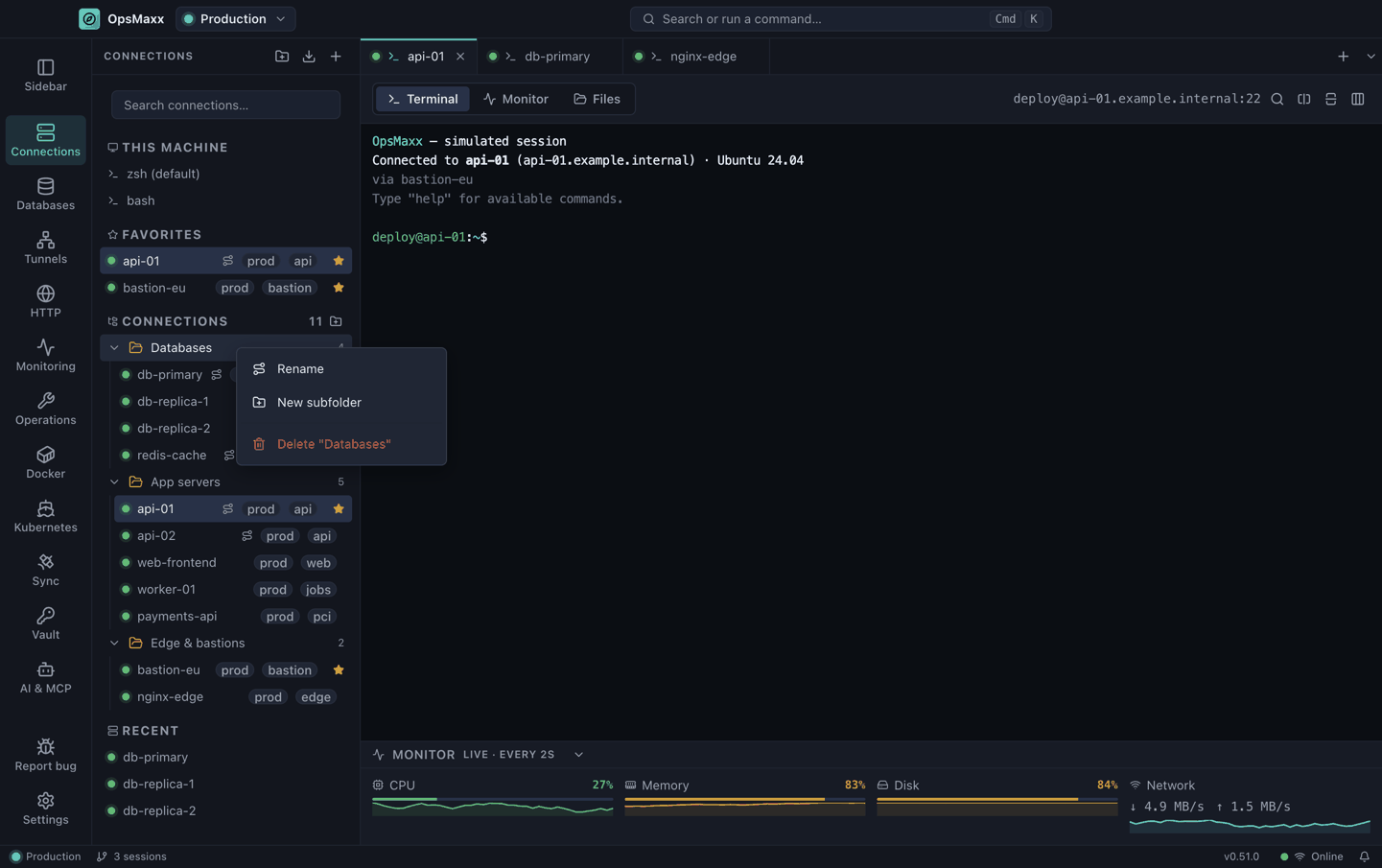
Create a folder

The Connections toolbar has three actions — from left to right:
| Icon | Action |
|---|---|
| 📁+ | New folder — creates a folder and drops straight into rename |
| ⬇ | Import from ~/.ssh/config — bulk-import your existing servers |
| ➕ | Add server |
There is also a small New folder button on the CONNECTIONS section header itself.
Create a subfolder
Right-click any folder → New subfolder. The same menu has Rename and Delete.
Deleting a folder never deletes its contents — servers and subfolders move back to the top level.
Move servers into folders
Drag and drop. Drag a server onto a folder to move it in; drag it onto the CONNECTIONS header to move it back to the root. Folders show a running count of everything inside them, including subfolders.
Databases have their own, separate folder tree with the same behaviour, so a "Staging" folder for servers does not clutter the database sidebar.
Import from ~/.ssh/config
Click the import icon to read your existing SSH config. OpsMaxx parses Host, HostName, User, Port, IdentityFile and ProxyJump, applies Host * wildcard defaults the way OpenSSH does, and shows a preview so you choose what to import. ProxyJump entries become jump hosts automatically, carrying the referenced server's key.
Terminal
| Action | Shortcut |
|---|---|
| Search the scrollback | Ctrl+F |
| Zoom in / out / reset | Ctrl++ / Ctrl+- / Ctrl+0, or Ctrl+scroll |
| Copy selection | Select (copy-on-select), or Ctrl+Shift+C |
| Paste | Right-click, or Ctrl+Shift+V |
| New session for this server | Double-click the server |
| Next / previous tab | Ctrl+Tab / Ctrl+Shift+Tab |
| Close tab | Ctrl+W |
| Command palette | Ctrl+K |
Open files in your own editor. In the Files view, right-click a remote file
and choose Open in code to edit it in VS Code (or whatever you configure in
Settings → Editor). Saving uploads it back to the server automatically — no
download/re-upload dance. The inline editor is still there for quick edits.
Multi-line pastes ask first. Pasting more than one line into a remote shell
shows a preview and a confirmation, because every line runs the moment it
lands. Single-line pastes go straight through.
Control keys such as Ctrl+C, Ctrl+A and Ctrl+W pass through to the remote shell, so vim, nano and bash line editing behave normally.
Monitoring is docked under the terminal rather than hidden in a separate tab. Expand it for live CPU, memory, disk and network. The strip samples only the tab you are looking at, and shares that session's SSH connection. Watching the servers you are not looking at is a separate feature — see Checking servers in the background.
Alerts
When a server's CPU or memory reaches 80% (configurable) you get a native OS
notification, repeated once a minute while it lasts and cleared automatically on
recovery. A count also appears in the status bar. A systemd unit that has
failed raises one too, on the transition into failure rather than every check,
so a service that has been down for a week does not re-announce itself.
A root filesystem more than 85% full raises one as well — the same 85% at
which the Fleet Monitor lists the server as needing attention and turns its disk
bar red, so the alert and the screen it sends you to can never disagree. The
status-bar count is that same figure and nothing else: clean a disk from 90% to
82% and the chip goes as soon as the next sample lands, because the Fleet
Monitor has stopped listing the server. It repeats every six hours, not every
minute: a disk does not empty itself, and a minute-long window is roughly ten
thousand notifications a week for one server that nobody can fix before Monday. It
does speak up sooner if the disk gets 5 percentage points worse than the
figure it last reported, and again immediately if a disk that had recovered
fills a second time. Only / is measured — the probe is df -kP / and nothing
else, so a full /var on its own partition raises nothing here.
Recovery has a margin, for CPU and memory only. They clear five points below
the threshold rather than at it, so a server hovering on the line does not flicker
between alerting and clear on every two-second sample. Disk has no such gap: it
clears at 85% or below, the moment the Fleet Monitor stops flagging it.
Turning alerts on or off. Go to Settings → Monitoring and use the
Alerts toggle. It is the master switch: it is on by default, and
switching it off stops every CPU, memory, disk and failed-unit notification for
every server — and, because webhooks are sent from inside an alert, all webhook
delivery with them. Switching it off also removes the alerts already showing
in the status bar, and forgets the repeat windows behind them: a chip cannot
outlive the feature that raised it, and switching back on starts a clean slate
rather than resuming a six-hour disk window that began before the toggle. The
setting is global — it applies to all servers, not one at a time — and it persists
across restarts.
Under it, Alert threshold sets how hard a server has to be working before it
counts as high: 70%, 80% (default), 90% or 95%. The same
threshold applies to both CPU and RAM. Raise it if busy-but-healthy servers are
noisy, lower it if you want earlier warning. The threshold buttons are greyed
out while alerts are switched off. Disk is not configurable: it alerts above
85%, because that number is also what colours the bar and fills the Fleet
Monitor's attention list, and a slider that could pull one away from the other
would be a way to make the app contradict itself.
The last toggle in the section, Show monitor under the terminal, is
independent: it controls the live CPU/memory/disk/network strip docked below the
session, not whether you get alerted.
They are designed not to interrupt you:
- Notifications are handled by the operating system, so they render outside
the window and never cover the terminal - The status-bar chip sits in the layout, not floating over your output
- Nothing steals focus, and nothing must be dismissed before you carry on
- With the monitor open, alerts are evaluated from metrics already being
sampled, so they add no extra SSH load. Background checking, below, is the
part that costs something — that is the point of it being a separate switch
Checking servers in the background
An alert is only worth having if it can reach you when you are not already
looking at the problem. Settings → Monitoring → Check servers in the
background samples every server in the workspace on a schedule, whether or
not a monitor is open, so a server that runs hot or a unit that dies at 3am is
noticed rather than discovered later.
It is off by default, because it is not free: each pass opens one SSH exec
channel per server, separately from the monitor strip's sampling. How often
sets the gap — 1, 2 (default), 5 or 15 minutes — measured from
the end of one pass to the start of the next, so a slow estate slows the cadence
instead of stacking overlapping checks on top of each other.
It needs the vault unlocked, since it has to resolve a credential per server.
While the vault is locked, checking pauses rather than failing — retrying into
a locked vault would produce an error loop and an audit entry per attempt.
Because "switched on" and "actually running" are not the same thing, the setting
shows what the sampler is really doing, refreshed while the pane is open:
| Line | What it means |
|---|---|
Running · 12 servers · last pass 4s ago, took 8s |
Working. took is the number to watch: if a pass takes longer than your interval, the interval is not realistic for your estate |
Paused — the vault is locked. |
Nothing is being checked until you unlock it |
Nothing to check |
No server in this workspace can be sampled |
Switched on, but nothing is scheduled |
The loop has stopped. Toggle it off and on to restart it |
Webhook alerts
Alerts can also be POSTed to an HTTPS endpoint — Slack, Discord, Teams and
most alerting systems accept an incoming webhook, so one generic JSON message
covers them all. Set it up in Settings → Monitoring → Send alerts to a
webhook.
What is sent is deliberately narrow. Only the server's friendly name —
the one you chose — plus what fired, when, and the value against the threshold.
Never a server, an IP, a username, a log line or command output. The payload is
rebuilt field by field from a whitelist rather than forwarded, so nothing a
remote server says can travel through it to a third-party API.
The URL is treated as a credential, because it is one: anyone holding your
Slack webhook can post as you. It is https only (except to loopback), stored
with your other secrets via the OS keychain rather than in settings or backups,
and never read back into the app's UI — the settings screen knows only that one
is set. Redirects are not followed, so a 308 cannot quietly move your alerts to
an internal or cleartext server.
Send test posts one sample alert immediately, so a wrong URL is found while
you are looking at the settings rather than during an incident. It ignores the
switches on purpose — and says so, if a switch would have stopped the real thing.
It depends on two other settings. The Alerts master switch has to be on,
because every webhook is sent from inside an alert; and unless servers are
checked in the background, nothing is raised while you are elsewhere in the
app — so the webhook stays silent in exactly the situation you set it up for.
Under Test delivery the settings screen reports what the endpoint has
actually received: when the last alert was delivered, the last failure if there
was one, and how many alerts were dropped. Deliveries are capped at 30 a
minute as a backstop against a flapping unit, and anything over that is discarded
rather than queued — so the count is shown rather than hidden. An alerting path
that silently discards is worse than one that does not exist, because it is
trusted.
Local terminal
A tab can also be a shell on your own machine, next to the SSH ones — same
terminal, same search, same copy-on-select, same scrollback. It is there so thessh-keygen, the git push and the kubectl you run between remote sessions do
not need a second application, and it runs as you, in your environment, exactly
as your usual terminal would.
OpsMaxx finds the shells rather than asking you to configure one:
| Platform | What appears in the list |
|---|---|
| macOS | Your login shell — from $SHELL, or from Directory Services when the app was started from Finder and $SHELL is unset — plus /bin/zsh and /bin/bash if they are not already it |
| Linux | Your login shell from $SHELL or the passwd entry, plus bash, zsh and fish where they exist |
| Windows | Command Prompt, Windows PowerShell 5.1, PowerShell 7, Git Bash, MSYS2 (UCRT64), and one entry per installed WSL distribution |
A shell that is not usable interactively is not offered — dash in particular,
where arrow keys print ^[[A and there is no history. On Debian and Ubuntu/bin/sh is dash, so the check follows the symlink rather than trusting the
name. On Windows every shell is found by absolute path and never by searchingPATH, because a writable directory earlier on PATH than System32 is a local
privilege escalation.
On macOS the shell is a login shell, and that is not a preference. A GUI
application is launched by launchd, whose PATH is the minimal/usr/bin:/bin:/usr/sbin:/sbin. Everything a developer actually uses —/opt/homebrew/bin, /usr/local/bin, whatever /etc/paths.d contributes — is
assembled by path_helper, which runs from /etc/zprofile and /etc/profile,
and those are read by a login shell only. Without -l you would get a
terminal where brew, node and git are simply not found, and it would look
like OpsMaxx had broken your machine. Terminal.app and iTerm2 start login
shells for the same reason. On Linux bash gets -i instead: a login bash reads~/.bash_profile and deliberately skips ~/.bashrc, which is where Linux users
keep their aliases and prompt, and the desktop session has already sourced~/.profile, so there is no PATH problem to solve there.
macOS re-asks for folder access after every update, and that is expected. The
first time a command touches ~/Documents, ~/Desktop, ~/Downloads or a
removable volume, macOS shows its Files-and-Folders prompt naming OpsMaxx and
saying it is for locally run commands. macOS records that grant against the app'scdhash, and because OpsMaxx is ad-hoc signed
rather than signed with a developer certificate, the cdhash changes with every
build. So every release starts from no grants and prompts again. It is not a
bug, and re-approving is the only way round it until the app is signed with a
stable identity. A denial is an ordinary permission error, not a crash.
No AI agent can reach any of this. The local terminal is deliberately absent
from the MCP bridge and the opsmaxx CLI — not gated behind a capability or
an approval, absent — and a test fails the build if that changes. See the Local
terminal section of SECURITY.md for why, and what a local shell
can read.
Fleet Monitor
Press Ctrl+M for a live wall of every server in the workspace —
CPU, memory, disk and network for each, with the estate totalled across the top.
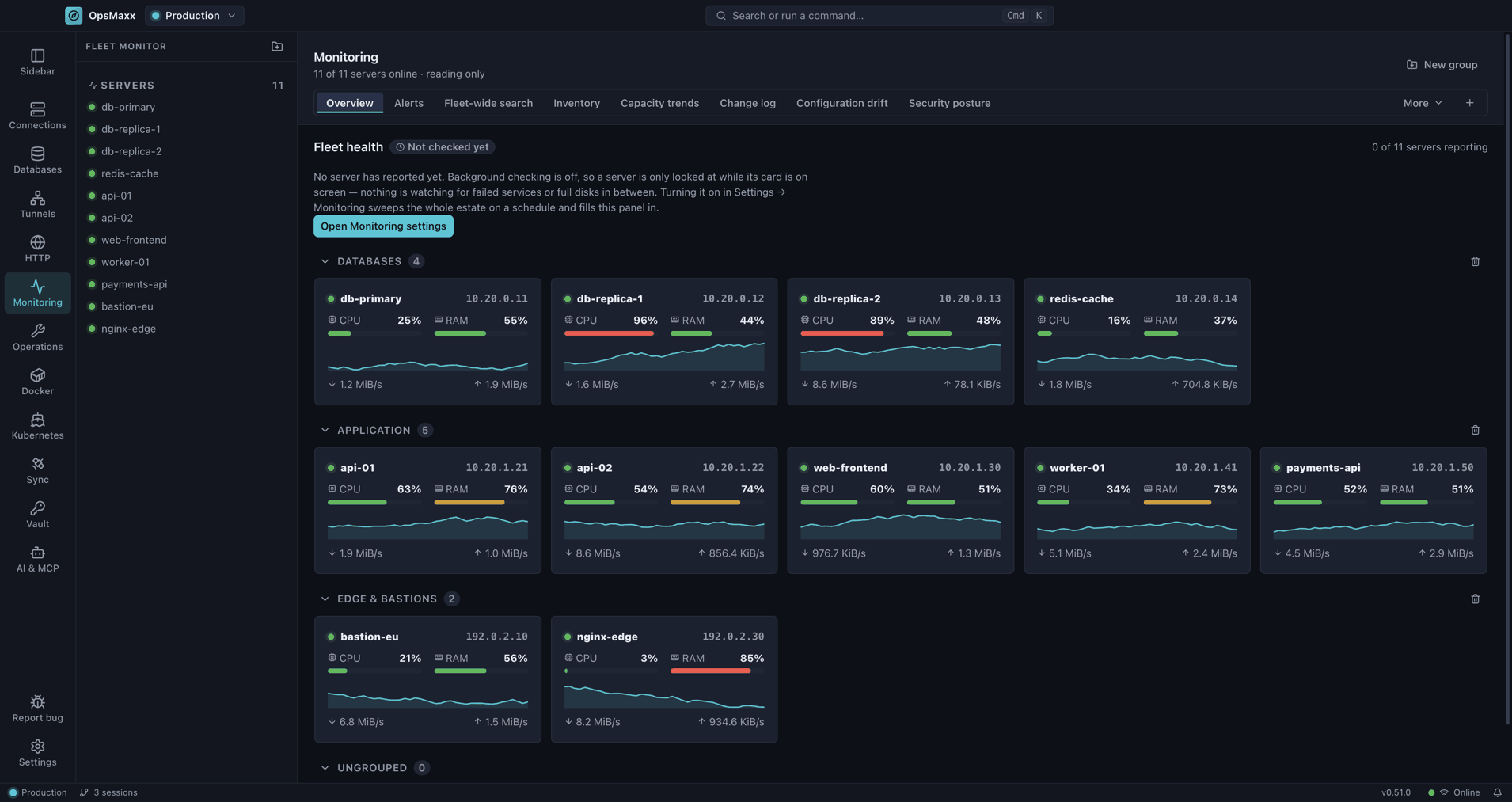
Cards are grouped, so databases, application servers and bastions stay visually
separate rather than becoming one long list. Drag a card between groups, or create a
group from the button in the top right; anything unplaced collects in Ungrouped, and
groups collapse when you want them out of the way.
The header totals what you actually have: servers reporting, vCPU across the fleet, and
RAM and disk as used-against-capacity. Every figure comes from metrics already being
sampled — for open sessions, and for the whole workspace if Check servers in the
background is on — so opening this view adds no extra SSH load. With neither, a server
you have not opened has nothing to show.
Fleet operations
The same Ctrl+M view carries the work that is about the estate rather than
one server: inventory, patching, broadcast, log tailing, search, Docker, Compose, Kubernetes,
database operations, backups, posture, firewall rules, drift, capacity, rules, cron, runbooks,
the change log, access and keys.
Twelve of these are modules, in Settings → Modules, and all but one ship off. Nothing is
collected for a module you have not enabled, and one you never enable costs you nothing — no screen,
no SSH traffic, no rows in the store. That is what "we do not ship bloatware" had to mean in
practice rather than as a claim. The exception is Scheduled jobs, which is on by default because
reading a crontab changes nothing; editing one still goes through approval like any other write.
Three rules hold across all of them, and they are the reason this is not just a dashboard:
- A number nobody measured is not zero. A server that refused to answer says so, and never
contributes a zero that quietly drags a fleet average down. The collectors that read server state
answer in seven words rather than two — ok, partial, absent, denied, no tool,
unsupported, unknown — because "the tool is not installed", "this account may not look" and
"this server cannot answer at all" are three different facts, and only one of them is worth
escalating. - Anything that writes goes through the same approval a human would need, and is recorded in
the change log with who approved it and what it did. A rule that fires a command does not get a
quieter path than you typing it. - Work outlives the window. A broadcast or a patch wave keeps running on the server if OpsMaxx
is closed, and is picked back up by id when it reopens — reported honestly as abandoned or
orphaned when nobody can say how it ended, rather than guessed at.
Command palette
Press Ctrl+K anywhere — including with focus inside a
terminal — to search everything and jump straight to it, without reaching for
the mouse.
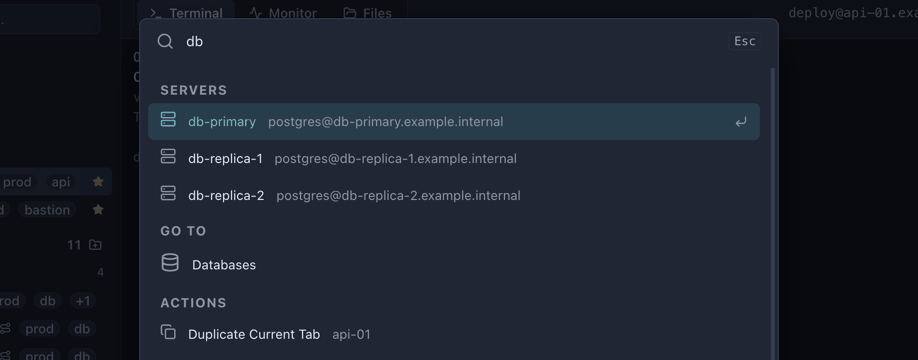
Start typing to filter across every category at once, then Enter
to run the highlighted entry.
| Group | What it does |
|---|---|
| Actions | Add Server, New Workspace, Import from ~/.ssh/config, Open Fleet Monitor, Open Connections |
| Settings | Jump straight into Settings |
| Workspaces | Switch to any visible workspace by name |
| Servers | Open a terminal on any server in the current workspace — matches on name and on user@host |
| Tunnels | Jump to a tunnel, shown with its listen → target |
| Key | Action |
|---|---|
| Ctrl+K | Open the palette (also Ctrl+Shift+P) |
| ↑ / ↓ | Move through results |
| Enter | Run the highlighted entry |
| Esc | Close |
Because the search also matches the subtitle, typing part of a hostname or a
username finds the server even when you cannot remember what you named it —[email protected] will find it just as well as Production API.
The palette works while you are in a session: hit Ctrl+K
mid-command, switch workspace or open another server, and the shell you left
keeps running exactly where it was.
Keyboard shortcuts
On macOS use Cmd in place of Ctrl.
Every shortcut below is rebindable in Settings → Keyboard Shortcuts, and
each one is listed there with the context it applies to:
| Context | Meaning |
|---|---|
| Everywhere | Works with focus anywhere, terminals included |
| Outside terminals | Skipped while a terminal has focus, so the key reaches the remote shell |
| In terminals | Only fires with focus inside a terminal |
That split is why the palette and the sidebar each have two bindings. A shell
owns Ctrl+K (kill-line) and Ctrl+B
(backward-char, and the tmux prefix), so those stay out of terminals and a
Shift-qualified twin covers you there instead. The command box in the title bar
follows your focus: it shows Ctrl+K normally and
Ctrl+Shift+P once you click into a terminal —
and it shows whatever you have rebound them to.
General
| Shortcut | Action | Context |
|---|---|---|
| Ctrl+K | Command palette — search servers, workspaces, tunnels and actions | Outside terminals |
| Ctrl+Shift+P | Command palette | Everywhere |
| Ctrl+B | Show / hide the sidebar | Outside terminals |
| Ctrl+Shift+B | Show / hide the sidebar | Everywhere |
| Ctrl+, | Open Settings | Outside terminals |
Tabs and sessions
| Shortcut | Action | Context |
|---|---|---|
| Ctrl+N | Add server | Outside terminals |
| Ctrl+T | New terminal on the current server | Outside terminals |
| Ctrl+Shift+D | Duplicate the current tab | Outside terminals |
| Ctrl+W | Close the current tab | Outside terminals |
| Ctrl+Tab / Ctrl+Shift+Tab | Next / previous tab | Everywhere |
| Ctrl+</kbd> | Split right | Outside terminals |
| Ctrl+Shift+</kbd> | Split down | Outside terminals |
| Double-click a server | Open an additional session in a new tab |
Workspaces
| Shortcut | Action | Context |
|---|---|---|
| Ctrl+1 … 9 | Switch to the Nth workspace | Everywhere |
| Ctrl+Shift+N | Manage workspaces | Everywhere |
| Ctrl+L | Lock the current workspace (password-protected ones only) | Outside terminals |
Ctrl+1…9 is the one binding that cannot be
reassigned — the digit is the workspace number, not a key to map. Whether it
counts hidden workspaces is a setting.
Views
| Shortcut | Action | Context |
|---|---|---|
| Ctrl+Shift+E | Open the Files view for the current tab | Everywhere |
| Ctrl+M | Open the Fleet Monitor | Outside terminals |
| Ctrl+= / Ctrl+- / Ctrl+0 | Terminal font bigger / smaller / reset | Everywhere |
| Ctrl+scroll | Zoom in / out | In terminals |
| F12 | Developer tools |
Terminal
| Shortcut | Action | Context |
|---|---|---|
| Ctrl+Shift+C or Ctrl+Insert | Copy selection | In terminals |
| Ctrl+Shift+V or Shift+Insert | Paste | In terminals |
| Ctrl+Shift+F or Ctrl+F | Search the scrollback | In terminals |
| Enter / Shift+Enter | Next / previous match while searching | |
| Right-click | Paste (PuTTY / MobaXterm style) | In terminals |
| Select text | Copies automatically | In terminals |
Text selection copies on release, and pasting more than one line asks for
confirmation first.
Customising shortcuts
Settings → Keyboard Shortcuts.
- Rebind — click a shortcut and press the keys you want. The combo is
recorded exactly as pressed. - Clear — press Backspace while recording to leave a command with
no key at all. Esc cancels without changing anything. - Restore one — a ↺ button appears next to any shortcut you have changed.
- Reset all — the Reset button puts every shortcut back to its default.
- Conflicts — two commands sharing a combo are flagged, but only when their
contexts actually overlap. A terminal binding and an outside-terminal binding
can safely share keys, because they never see the same key press. - Export / Import — writes a small
opsmaxx-shortcuts.jsonholding only
the shortcuts you changed, so it stays valid across upgrades. Importing
replaces your current overrides.
Changes take effect immediately and are saved with the rest of your settings, so
they survive a restart.
Deliberately not bound
| Key | Why |
|---|---|
| Ctrl+R | Reserved for the shell's reverse history search. OpsMaxx never reloads on it — a reload would destroy every open session. |
| Ctrl+C, Ctrl+A, Ctrl+E, Ctrl+O | Passed to the remote shell so vim, nano and bash line editing behave normally. |
| F5 | Blocked — it would reload the window and close every terminal. |
Nothing stops you binding one of these yourself, but scoping it to
Everywhere will take it away from the remote shell.
Databases
OpsMaxx speaks PostgreSQL, MySQL, SQL Server, MongoDB and Redis. Add a connection with discrete fields or a full connection string, browse tables and collections in the sidebar, and open each database in its own tab.
Every engine gets an interactive shell alongside the query editor:
- MongoDB —
show dbs,use x,db.users.find({...}).sort({...}).limit(n), aggregation pipelines,ObjectId()/ISODate()helpers - PostgreSQL / MySQL / SQL Server — SQL plus psql-style meta commands:
\l,\dt,\d <table>,\du,\c <database> - Redis — commands passed straight through
Databases over SSH: pick a bastion in the SSH tunnel field and OpsMaxx opens a forward automatically, so you can reach a database that is only routable from inside the network.
Databases over a VPN: pick a WireGuard or OpenVPN profile in the Network field and the tunnel is brought up before the connection is attempted. A bastion and a VPN can both be set — the VPN is the outer transport, and the bastion is reached through it.
Operating a database, not just querying it. Beside the client there is a read of how the server itself is doing: replication lag, slow queries, table and index sizes, connection counts against the ceiling, and the locks and long transactions behind them. It covers PostgreSQL, MySQL/MariaDB, MongoDB and Redis; SQL Server has the client but not this, and the app says so rather than showing an empty panel.
A replica reporting zero lag is not the same as a replica that is healthy — a stopped one says zero too — so the read distinguishes "caught up" from "not replicating", which is the distinction a real dead replica taught it to make.
SSH tunnels
Create local forwards, remote forwards or a SOCKS5 proxy over any saved server. Live connection counts are shown per tunnel, and a dropped SSH connection tears the listener down rather than leaving it accepting traffic that goes nowhere.
VPN and reverse-proxy tunnels
OpsMaxx speaks WireGuard, OpenVPN and frp. Full guide: docs/VPN.md.
The default is the unusual part: WireGuard runs entirely in userspace and needs no administrator rights. There is no network interface, your routing table and DNS are untouched, and if OpsMaxx is killed there is nothing to clean up. The tunnel appears instead as local listeners — a SOCKS5 proxy on 127.0.0.1, and any forwards you define — and you point individual connections at it.
That trade is deliberate. Reaching one bastion, one database or one internal service does not need your whole machine on the far network. When it genuinely does, system mode is one toggle away on Linux and Windows and asks for elevation each time you connect — with two stated limits: a full tunnel (0.0.0.0/0) is refused, and macOS is blocked for want of an Apple Developer ID. docs/VPN.md explains both. Neither affects the default.
- Handshake age, not just a green dot. A WireGuard tunnel whose process is up but whose handshake has gone stale is shown as degraded in amber, not connected in green. Up-but-not-passing-traffic and down are different problems, and almost no client distinguishes them.
- SSH and databases over a VPN. Pick a profile on a server or a database and it is started, waited for, and torn down with the session. If it cannot come up you see the VPN's error, not a connect timeout twenty seconds later.
- Imported configs are treated as hostile. A
.ovpnfile can run programs —up,plugin,script-securityand friends execute before the server is ever contacted. OpsMaxx never hands your file to OpenVPN: it parses it, rejects anything that runs a program (quoting the line back to you), and generates a fresh config from what is left.PostUp/PostDownin a WireGuard.confare refused the same way. - Split tunnelling by default.
redirect-gatewayis off unless you turn it on, even when the profile asks for it. Downloading a profile should not silently reroute your machine. - frp states what it exposes, in words. Each proxy carries a confirmation reading "Make 127.0.0.1:5432 reachable from frp.example.com." and the profile will not start until every one is ticked.
- An AI agent can never start an frp profile, and starting any VPN always asks for approval — even for an access group that allows it.
Every tunnel engine is bundled, and one of them is not open source. WireGuard (via the MIT wireguard-go), frp (Apache-2.0) and OpenVPN (GPL-2.0, macOS and Linux) are all built from pinned upstream source at release time — nothing to install, and each binary hash-verified before it runs. OpenVPN needs an adapter driver on Windows that cannot be shipped as a file, so a Windows OpenVPN profile still uses an OpenVPN you installed. Windows also ships wintun.dll, which is proprietary — the single component in OpsMaxx that is not open source, needed only by WireGuard system mode. Bundling GPL software obliges this project to publish the matching source, and every release carries OpenVPN's as an asset. All of it is set out in THIRD-PARTY-NOTICES.md.
There is no kill switch. OpsMaxx tears down what it started when a tunnel drops, and says so — it does not install firewall rules, and does not claim to.
Vault
An encrypted store for the credentials that do not belong to a single server — cloud logins, API keys, database URLs, licence keys.
- AES-256-GCM, with the key derived from your master password using scrypt
- The master password is never stored; a wrong one fails the authentication tag
- Entries hold a URL, username, password, notes, tags and any number of custom key/value fields, each markable secret
- Search matches every field, so you can find an entry by hostname or username, not just its title
- Plaintext exists only in memory while unlocked, and is wiped on lock and on quit
There is no recovery if the master password is lost. That is the point.
Backup & restore
Settings → Backup & Restore exports everything — workspaces, servers, databases, tunnels, stored credentials, the vault, workspace passwords and trusted host keys — into a single passphrase-encrypted file.
Credentials on disk are sealed with your OS keychain, which is tied to that machine and user, so a copied config folder is useless elsewhere. The backup unseals them and re-encrypts everything under your passphrase, which makes it portable to any machine.
A red Backup out of date indicator appears whenever your connections change, so you know when the last export no longer reflects reality.
Settings
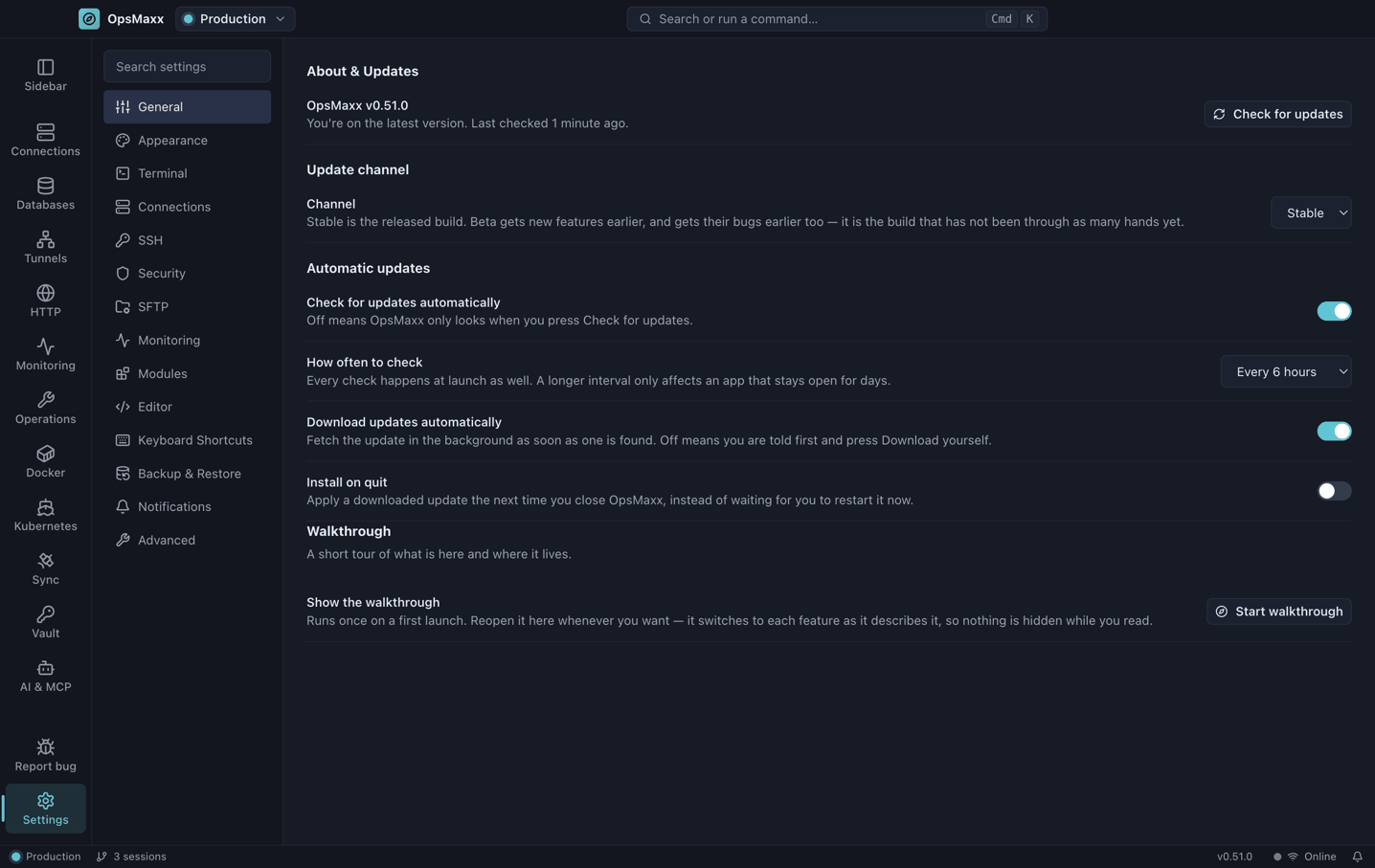
| Section | What it covers |
|---|---|
| General | Workspace-level preferences |
| Appearance | Theme (dark / light / system) and density |
| Terminal | Font family, font size (also Ctrl++/-), cursor blink, scroll behaviour |
| Connections | Defaults for new connections |
| SSH | How long an authenticated connection is kept after its last session closes, and a live list of shared connections with a Disconnect button |
| Security | Credential storage, workspace locking, and the list of trusted SSH host keys with a Forget button |
| SFTP | File transfer preferences |
| Monitoring | Alerts (on by default — the master switch for CPU, memory, failed units and webhooks), the threshold, checking servers in the background and how often, webhook delivery, and the monitor strip |
| Editor | Built-in file editor |
| Keyboard Shortcuts | Rebind any shortcut, clear it, reset to defaults, export/import, and whether Ctrl+1…9 includes hidden workspaces |
| Backup & Restore | Encrypted export and import |
| Notifications | Alerts and toasts |
| Advanced | Diagnostics and resets |
The SSH → Keep authenticated connection setting is the one to know if your servers use two-factor auth: while a connection is alive, new sessions, file browsing and monitoring all reuse it, so you are asked for a code once rather than every time.
Security
- Credentials are stored with Electron
safeStorage, backed by DPAPI on Windows, Keychain on macOS and libsecret on Linux — never in plaintext - The vault and backups use AES-256-GCM with scrypt key derivation
- Workspace passwords are stored as scrypt verifiers compared in constant time
- Host keys are verified: unknown servers prompt with a SHA-256 fingerprint, and a changed key is refused outright
- Shell input is parsed, never evaluated — no
evalon anything you type - The renderer runs with
contextIsolationon andnodeIntegrationoff, behind a strict Content-Security-Policy
Found a vulnerability? Please read SECURITY.md — do not open a public issue.
FAQ
What is OpsMaxx?
OpsMaxx is a free, open-source, cross-platform desktop application that combines an SSH
terminal, an SFTP file browser, an SSH tunnel manager, a multi-engine database client, an
encrypted secrets vault and a secure MCP bridge for AI coding agents (Claude Code, Claude
Desktop, Codex and others) in a single window. It runs on Windows, macOS and Linux, is released
under the MIT licence, and needs no account.
Which file should I download?
On Windows, OpsMaxx-x.y.z-setup.exe unless you specifically want the
portable single-file build. On macOS, -arm64.dmg for an M1 or later and-x64.dmg for an Intel Mac. On Linux, the .AppImage works on any
distribution, and the .deb is there if you would rather install throughapt on Debian or Ubuntu. The .blockmap and latest*.yml files on the
release page are build metadata — you never need to download them.
Is OpsMaxx really free?
Yes. It is MIT licensed, free for personal and commercial use, with no paid tier, no
session limit and no subscription. Nobody should be charging you for it.
Is OpsMaxx a good MobaXterm alternative?
It is the closest free alternative for most workflows, and unlike MobaXterm it runs on macOS
and Linux as well as Windows. There is no 12-session cap, no Professional Edition, and the
built-in database client and vault cover work MobaXterm sends you elsewhere for. MobaXterm's
X11 server and its bundled Cygwin toolchain have no equivalent here.
Can it replace PuTTY?
For day-to-day SSH, yes — with saved sessions, folders, tabs, a searchable scrollback and
right-click paste in the PuTTY style. It also imports the servers you already have in~/.ssh/config, so there is no re-typing. Serial-port connections are not supported.
Is it an open-source Termius alternative?
Yes. The functional difference is sync: Termius syncs your servers through its cloud on a
paid plan, while OpsMaxx keeps everything local and moves it between machines with a
passphrase-encrypted backup file. Nothing is uploaded and nothing phones home.
Does OpsMaxx support jump hosts and bastions?
Yes — unlimited chained hops per server, configured in the same dialog as the server itself.
Each hop can either reuse a saved server's credentials or define its own server, port, user and
key. ProxyJump entries in ~/.ssh/config are imported as jump hosts automatically.
Which databases does it support?
PostgreSQL, MySQL, SQL Server, MongoDB and Redis — each with a table/collection browser, a
query editor and an interactive shell. Any of them can be reached through an SSH tunnel, so a
database that is only routable from inside the network still works.
How are my passwords and SSH keys stored?
In your operating system's own credential store through Electron safeStorage — DPAPI on
Windows, Keychain on macOS, libsecret on Linux. Nothing is written in plaintext. The vault
and encrypted backups add AES-256-GCM with scrypt key derivation on top of that.
Does OpsMaxx send any data anywhere?
No. There is no account, no telemetry, no analytics and no update ping. Every connection it
makes is one you configured.
Does it work offline?
Yes, entirely. The app has no online dependency beyond the servers you connect to.
Does it support two-factor authentication?
Yes. It answers keyboard-interactive challenges, and connections are shared between sessions,
file browsing and monitoring — so you enter a code once rather than once per tab.
Why does Windows SmartScreen or macOS Gatekeeper warn about it?
Because OpsMaxx is not notarized, and on Windows not signed at all. Both systems expect
an application to carry a code-signing certificate, which costs roughly $200–$400 a year for
Windows and $99 a year for an Apple Developer account — money a free, MIT-licensed project
with no income does not have. The warning means the operating system cannot confirm who
published the app, not that the file is unsafe. On Windows choose More info → Run anyway;
on macOS use System Settings → Privacy & Security → Open Anyway (or right-click →
Open on macOS 14 and earlier). Releases up to 0.2.2 can show "OpsMaxx is damaged and
can't be opened" instead, which has no button to click through — run/usr/bin/xattr -cr /Applications/OpsMaxx.app for those, not the Trash the dialog
suggests. Full instructions are under
First run: why your computer shows a warning,
and every release publishes SHA-256 checksums so you can verify the download yourself.
What are the system requirements?
Windows 10 or later, macOS 11 or later (Apple Silicon and Intel), or a modern 64-bit Linux
distribution. Building from source needs Node.js 20 or later.
Can I connect Claude Code, Claude Desktop or another AI agent to OpsMaxx?
Yes — see AI Agent Access. OpsMaxx runs a local
MCP server that Claude Code, Claude Desktop, Codex, Gemini CLI
and other MCP-compatible clients can connect to, each session scoped to the workspace(s) and
access group chosen for it. The agent never sees a password, private key, database credential or
Vault secret — it only ever gets a friendly server name and whatever that session's access group
allows.
Is it safe to let an AI agent run commands on my servers?
It's as safe as the access group you assign it, and that's a real limitation, not a slogan — see
docs/AI-SECURITY.md for what this design does and does not protect against.
What OpsMaxx does provide: the bridge only listens on 127.0.0.1, every capability (run
commands, read/write files, SFTP, tunnels, database access, sudo, metrics) is independently
ALLOW/ASK/DENY, sudo/unrestricted shells are hard-blocked regardless of group, and anything marked
ASK stops and waits for you to approve or deny it in OpsMaxx — an agent can never approve its
own request. Every action is logged in the Audit Log with secrets redacted.
How do I move my setup to another machine?
Settings → Backup & Restore writes a single passphrase-encrypted file containing workspaces,
servers, databases, tunnels, credentials, the vault and trusted host keys. Restore it on the
new machine with the same passphrase.
How can I help?
Star the repository, report bugs, or open a pull request — see Contributing.
Contributing
Contributions are very welcome, whether that is code, documentation, a bug report or a translation. Start with CONTRIBUTING.md for the architecture overview and development workflow, and please follow our Code of Conduct.
Good first issues are labelled good first issue.
Licence
OpsMaxx is released under the MIT Licence — free to use, copy, modify and share, for personal and commercial work alike, with no fee and no subscription.
This tool is not sold. It is given to the community. If someone is charging you for OpsMaxx itself, you are being overcharged — download it here for free. The MIT licence does permit others to redistribute or build commercial products on top of it; that is a deliberate part of being genuinely open source, and it is what lets companies adopt it without a legal review.
Please do keep the copyright notice, and do not imply the maintainers endorse a fork.
Built for the DevOps community. If OpsMaxx saves you time, a ⭐ helps others find it.
⬇ Download OpsMaxx · 🐞 Report a bug · 📧 Contact
Keywords: open source SSH client, free SSH client for Windows, free MobaXterm alternative, PuTTY alternative, Termius alternative, SecureCRT alternative, Xshell alternative, MobaXterm for Mac, SSH client for macOS, SSH client for Linux, SSH terminal manager, SSH connection manager, SFTP client, SCP file transfer, SSH tunnel manager, port forwarding tool, SOCKS5 proxy client, bastion host client, jump host SSH client, ProxyJump GUI, ssh config importer, server monitoring tool, database GUI client, PostgreSQL client, MySQL client, MongoDB client, Redis client, SQL Server client, database over SSH tunnel, password manager for developers, encrypted secrets vault, AES-256-GCM vault, DevOps tools, sysadmin tools, self-hosted, no telemetry, no subscription, Electron SSH client, cross-platform terminal, Windows macOS Linux, MCP server, Model Context Protocol, AI agent SSH access, Claude Code MCP integration, Claude Desktop MCP server, Codex MCP server, Gemini CLI MCP, AI DevOps tool, secure AI infrastructure access, AI agent access control, credential-free AI automation, human-in-the-loop AI approvals, AI audit log.
Yorumlar (0)
Yorum birakmak icin giris yap.
Yorum birakSonuc bulunamadi