entangle
Health Gecti
- License — License: MIT
- Description — Repository has a description
- Active repo — Last push 0 days ago
- Community trust — 20 GitHub stars
Code Basarisiz
- rm -rf — Recursive force deletion command in docs/demo-seed.sh
- rm -rf — Recursive force deletion command in install.sh
Permissions Gecti
- Permissions — No dangerous permissions requested
Bu listing icin henuz AI raporu yok.
Move your Claude Code history, memory, and sessions between machines (Linux/macOS/Windows), with paths fixed automatically.
entangle
Hand a live coding session to anyone.
Claude Code, OpenAI Codex, and opencode. Encrypted, no account, three spoken words.


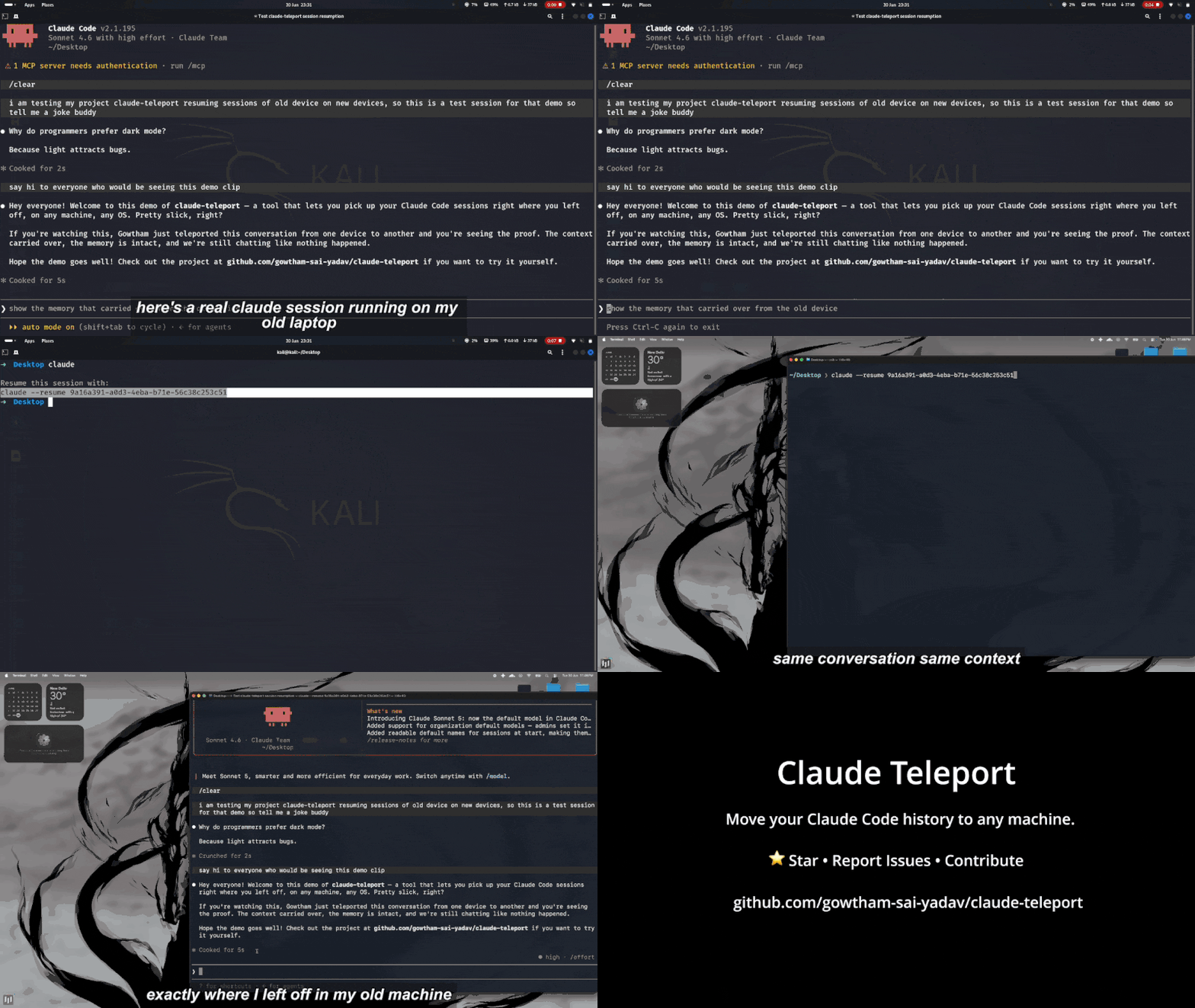
Teleporting a quantum state takes two things: a pair of entangled particles, and
one short message sent the ordinary way. Neither is enough on its own.This is the same trick, for your work. Two machines, and three words said out loud.
Your coding sessions live only on the machine that made them. So the day you want to
hand a conversation to a teammate, or move to a new laptop, you are stuck: copying the
folder by hand does not work, because every session is pinned to the exact path your
project sat at, and that path is different everywhere else.
entangle makes it one command. Send a live session straight to someone with a short
code they type in, or pack your whole history and carry it to a new machine, with every
path rewritten so the conversation opens where it left off.
It works across coding agents, not just one. A Claude Code session goes to Claude Code,
a Codex session to Codex, an opencode session to opencode - listed together, shared the
same way. (Opening one tool's session inside another is a different problem, and not
one this solves yet.)
It is private by construction. Nothing is uploaded, there is no account and no server in
the middle; a direct transfer is end-to-end encrypted, likely secrets are scrubbed before
anything leaves your machine, and your login never travels at all.
Renamed. This project was
claude-teleportuntil it outgrew a single vendor.
The old command still works and still updates itself; it will tell you how to switch.
Install
macOS and Linux:
curl -fsSL https://gowthamsai.in/install.sh | sh
With Homebrew:
brew install gowtham-sai-yadav/tap/entangle
Windows (PowerShell):
irm https://gowthamsai.in/install.ps1 | iex
Each one fetches the right prebuilt binary, verifies its checksum, and puts it on your PATH. Confirm with entangle version.
With Go:
go install github.com/gowtham-sai-yadav/entangle@latest
This installs into $(go env GOPATH)/bin (usually ~/go/bin). If the command is not found afterward, that folder is not on your PATH yet: echo 'export PATH="$HOME/go/bin:$PATH"' >> ~/.zshrc && source ~/.zshrc.
Direct download: grab the file for your machine from the latest release (...-darwin-arm64 for Apple Silicon, -darwin-amd64 for Intel Macs, -linux-amd64, or -windows-amd64.exe), then on macOS/Linux chmod +x it and move it onto your PATH.
From source:
git clone https://github.com/gowtham-sai-yadav/entangle
cd entangle && go build -o entangle .
Start here: the interactive cockpit
The quickest way in is to just run:
entangle
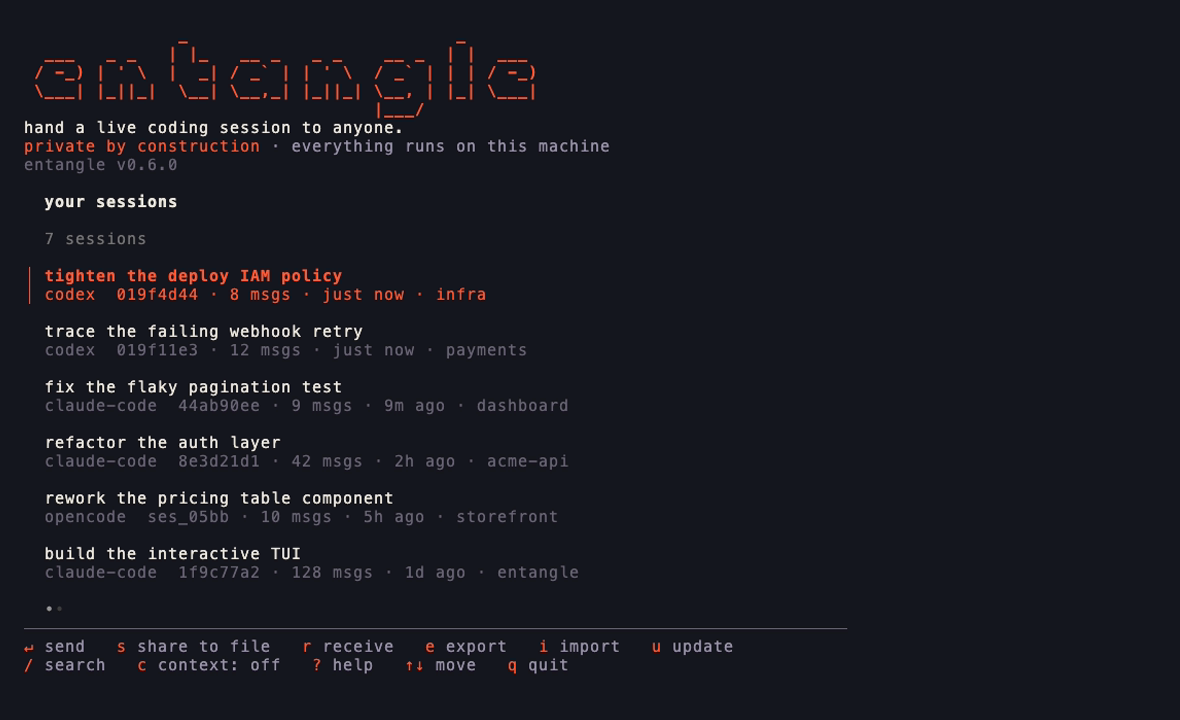
With a terminal attached, that opens a full-screen cockpit: your sessions in a searchable list, with every action a keypress away. Send one to a teammate over an encrypted code, share it to a file, receive one, export or import a backup, or update in place, all without remembering a single flag. Press ? for what each key does. Run entangle tui to open it explicitly; piped or scripted, the same binary behaves like a normal CLI.
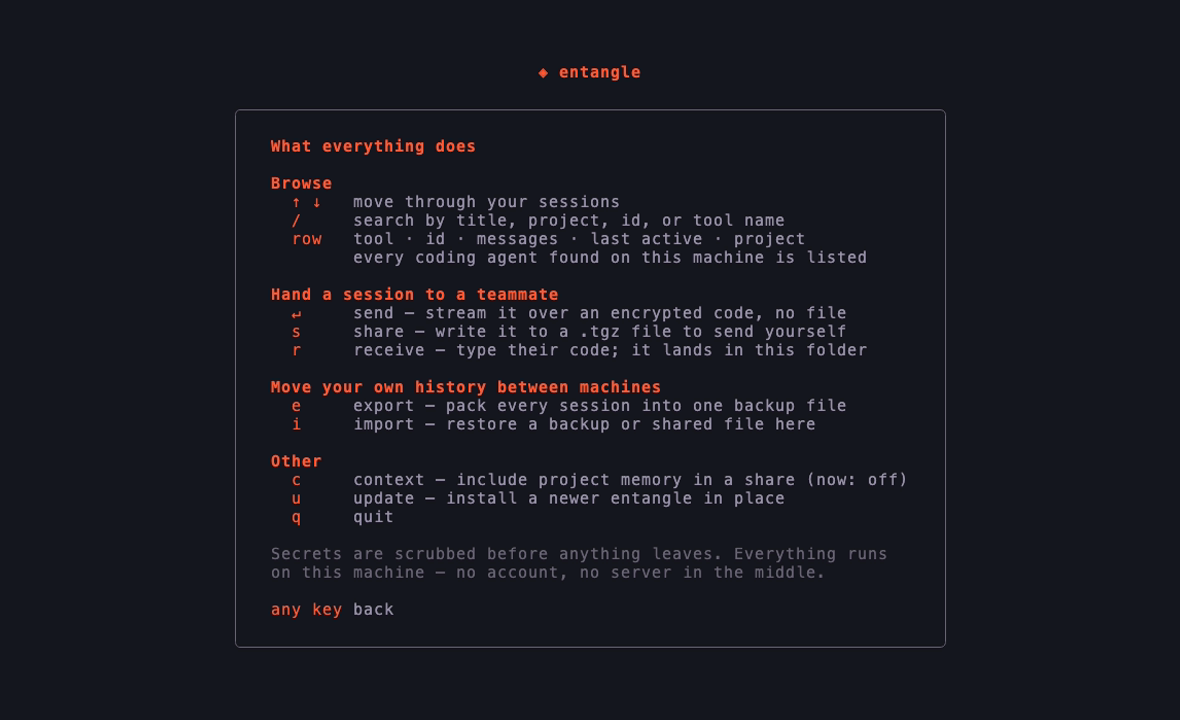
Prefer typing the commands yourself? Everything below works on its own too.
Share a session with a teammate
Hand one conversation to someone else, with all its context intact, so they can carry it forward. Find the session first:
entangle sessions
Then send it one of two ways.
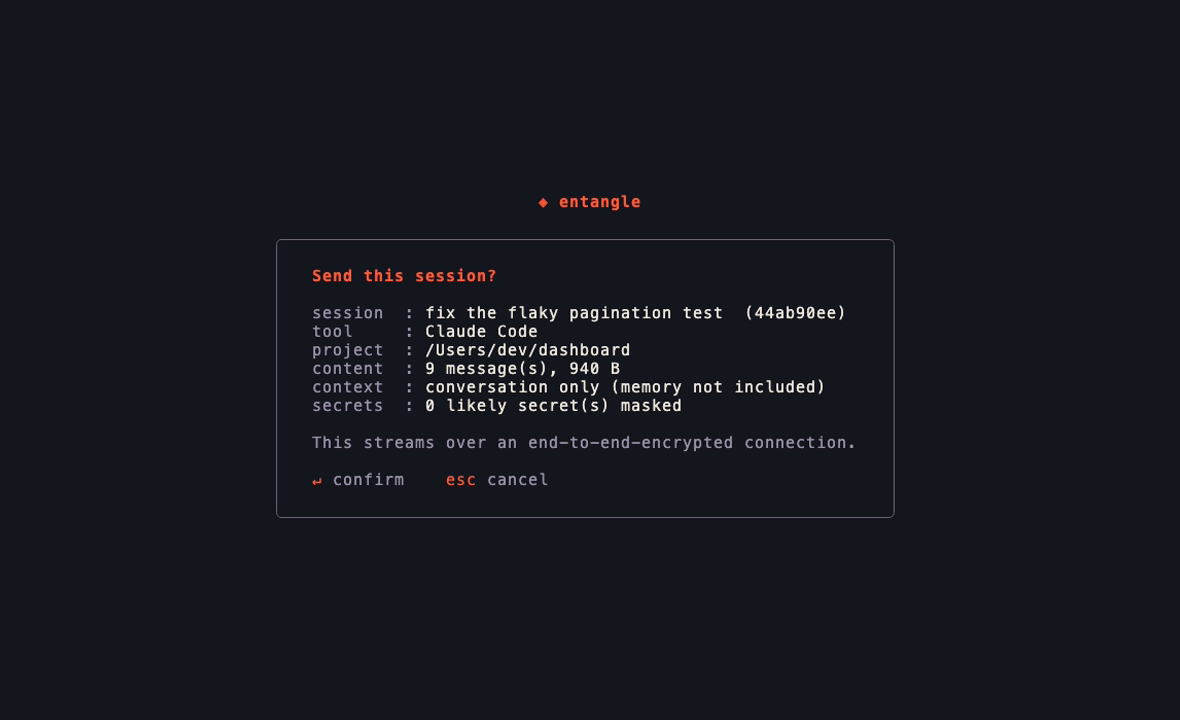
Straight across, by code (no file to move, nothing uploaded anywhere):
entangle send <id>
You read out the short code it prints; they run entangle receive <code> from their copy of the project. The transfer is end-to-end encrypted, so no server can read it.
As a file, if they are not around right now:
entangle share <id>
They import it later with entangle import <file>.
Either way, likely secrets (keys, tokens, passwords) are scrubbed before anything leaves your machine, and your login is never included. --last picks your most recent session, and --with-context also includes the project's memory files.
Move to a new machine
Moving all of your work to a new computer is two commands, one on each.
On the old machine, pack everything into a file:
entangle export
Copy the file it creates to the new machine any way you like: AirDrop, a USB stick, scp.
On the new machine, install Claude Code and sign in once, then restore:
entangle import entangle-backup-*.tgz
It shows you every project and where it will land, asks you to confirm, fixes the paths, and checks your sessions are resume-ready. Add --dry-run to preview without writing anything, and --map /old/path=/new/path if it guesses a location wrong.
Then open a project and carry on:
cd ~/path/to/your/project
claude --resume
Your login does not transfer, on purpose. Credentials are locked to each machine, so just sign in once on the new one.
Prefer clicking?
entangle gui
opens a small wizard in your browser to pick a bundle and import it. Everything stays on your machine.
In your editor
Prefer to stay in VS Code? The entangle extension adds the same actions to the Command Palette, a status-bar button, and a sidebar: send a session by code, receive one, share to a file, or browse your sessions. It drives the CLI under the hood and offers to install it for you on first use, so the extension is all you need.
Updating
entangle update
checks for a newer release and swaps the binary in place. (brew upgrade entangle works too, or re-run whichever installer you used.)
What moves, and what doesn't
Moves: your sessions, project memory, settings, prompt history, and the portable parts of ~/.claude.json, all re-pathed for the new machine.
Never moves: your login. Credentials are machine-locked and deliberately left out.
Skipped: caches, telemetry, and other throwaway files that rebuild themselves.
Different operating systems
Import runs on the destination, so it detects the OS and translates everything, including Windows drive letters and backslashes. Linux and macOS paths look like /home/you or /Users/you; Windows uses C:\Users\you. You do not have to do anything special, it just works in any direction.
Safe by default:
- It never overwrites an existing file. It merges and tells you what it skipped;
--overwritebacks up each replaced file first. --dry-runshows exactly what will happen before anything is written.- The file-based flow is fully offline. Sharing scrubs likely secrets (best effort, so glance at what you send) and never includes your login.
How it works:
A bundle is a .tgz with a manifest that records each project's true absolute path, the piece the folder name throws away, read from ~/.claude.json and the cwd stored inside each transcript. On import it re-encodes the folder names for the target OS, rewrites the in-file paths (matching Windows paths in their JSON-escaped form so none are missed), merges without overwriting, and verifies every session is resume-ready.
The full design and reasoning is in DESIGN.md.
All commands and flagsentangle open the interactive cockpit (default when a terminal is attached)
entangle tui open the interactive cockpit explicitly
entangle export [--out FILE] [--config-dir DIR]
entangle import <bundle> [flags]
entangle inspect <bundle>
entangle verify [--config-dir DIR]
entangle sessions [--tool claude-code|codex|opencode|all] [--project P] [--config-dir DIR] [--json]
entangle share <session-id | --last> [--project P] [--out FILE] [--with-context] [--no-redact] [--yes]
entangle send <session-id | --last> [--project P] [--with-context] [--no-redact] [--rendezvous URL] [--relay HOST:PORT] [--yes]
entangle receive <code> [--config-dir DIR] [--map OLD=NEW]... [--rendezvous URL] [--relay HOST:PORT] [--yes]
entangle update [--check] [--yes]
entangle gui [bundle] [--port N]
import flags:
| Flag | What it does |
|---|---|
--dry-run |
Show the plan and write nothing. A good first run. |
--map OLD=NEW |
Remap a path prefix (repeatable). The most specific match wins. |
--project P |
Import only this project, by path or folder (repeatable). |
--target-home DIR |
Override the detected home directory. |
--target-os OS |
Render paths for linux, darwin, or windows. |
--overwrite |
Replace existing files (each is backed up first). |
--deep |
Rewrite old paths everywhere in transcripts, not just the cwd field. |
--yes |
Skip the confirmation prompt. |
inspect shows what is inside a bundle. verify checks the sessions already on this machine are resume-ready. send/receive use the public magic-wormhole servers by default; point them at your own with --rendezvous/--relay or the ENTANGLE_RENDEZVOUS/ENTANGLE_RELAY environment variables.
Will this delete anything on my old machine? No. export only reads.
Do I need Claude Code on the new machine first? Yes. Install it and sign in once so your account is set up, then import.
My new username or OS is different. That is handled. Preview with --dry-run and adjust with --map if a guess is off.
I only want a few projects. Use --project <path-or-folder> (repeatable), or tick just those in the GUI.
Where does Claude Code keep all this? Under ~/.claude/ and ~/.claude.json (%USERPROFILE% on Windows). Set CLAUDE_CONFIG_DIR to relocate it; entangle respects that variable.
Some sessions are missing from the list. Sessions recorded inside a temporary directory are hidden, since they are throwaway (some tools run Claude Code from a scratch folder and leave hundreds behind). Set ENTANGLE_INCLUDE_TEMP=1 to show them.
Do other coding agents work? Yes. OpenAI Codex CLI and opencode sessions are listed alongside your Claude Code ones, and you can share and send them the same way:
entangle sessions --tool all        # every tool on this machine
entangle send <id> --tool codex     # hand a Codex session to a teammate
The receiving side needs no flag: which tool a session came from travels with it, so receive and import put it back where it belongs. They do need that tool installed. What is not supported yet is opening a session from one tool inside a different one; a Codex session goes to Codex.
Contributing
Issues and pull requests are welcome. The architecture and design decisions are written up in DESIGN.md. To develop:
go test ./...                                    # unit tests
go test -tags integration ./internal/transfer/   # a real send/receive over a local server
go vet ./... && gofmt -l .                        # checks (gofmt should print nothing)
CI runs on Linux, macOS, and Windows. Tagging vX.Y.Z builds and publishes the release automatically.
License
MIT © Gowtham Sai Yadav
An independent, unofficial community project. Not affiliated with, endorsed by, or sponsored by Anthropic. "Claude" and "Claude Code" are trademarks of Anthropic, PBC, used here only to describe what this tool works with.
Yorumlar (0)
Yorum birakmak icin giris yap.
Yorum birakSonuc bulunamadi