kittybrowser
Health Uyari
- License — License: MIT
- Description — Repository has a description
- Active repo — Last push 0 days ago
- Low visibility — Only 6 GitHub stars
Code Gecti
- Code scan — Scanned 6 files during light audit, no dangerous patterns found
Permissions Gecti
- Permissions — No dangerous permissions requested
Bu listing icin henuz AI raporu yok.
A real web browser in a terminal pane: headless Chrome drawn with the kitty graphics protocol, built to work beside coding agents




KittyBrowser (kb)
A real web browser in a terminal pane. kb drives headless Chrome and draws
each page as pixels with the
kitty graphics protocol,
so you see the actual layout, fonts and images, not a text approximation, and
you can click, scroll, type, find, zoom and copy in it.
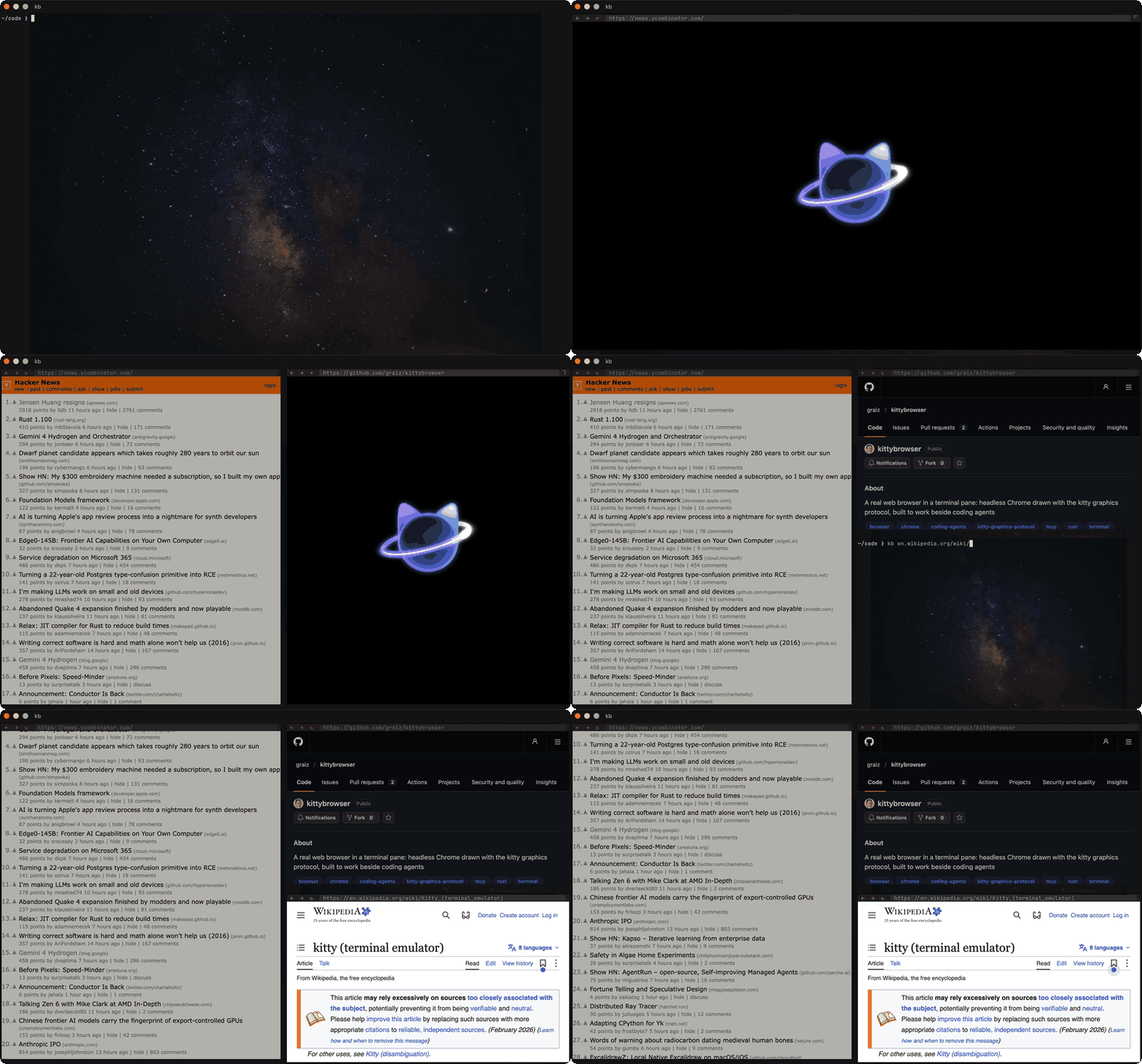
It is built for working beside a coding agent. The agent opens kb in the pane
next to its own, and you both look at the same page while it loads your dev
server, checks for console errors, clicks through a flow, tries a phone
width, or reads documentation, all through kb ctl.
kb http://localhost:3000        # open a page in this pane
kb ctl check                    # from another pane: is the page healthy?
kb skill install                # teach Claude Code (or any agent with skills) to use it
Status: early but usable, version 0.1. Used daily on macOS in Rex and
Ghostty; it should work in kitty and WezTerm, and it builds on Linux, but
those haven't been tested yet. Reports are welcome, and if kb is useful to
you, a star helps other people find it.
Quick start
With Rust and Chrome installed:
cargo install --git https://github.com/graiz/kittybrowser
kb news.ycombinator.com
Ctrl+/ shows the keys, Ctrl+Q quits.
Requirements
- A terminal with the kitty graphics protocol: Ghostty, kitty, WezTerm
or Rex. Terminal.app and iTerm2 don't support it, and kb doesn't work
inside tmux or screen. - Chrome, Chromium, Edge or Brave, installed where kb can find it, or
named withKB_CHROME. - Rust (stable, from rustup) to build it.
Install
macOS
brew install --cask google-chrome                     # if you don't have Chrome
cargo install --git https://github.com/graiz/kittybrowser   # puts kb in ~/.cargo/bin
kb https://example.com
On a non-retina display, start it with kb --scale 1.
Linux
Install Chrome or Chromium from your distribution or google.com/chrome, then:
cargo install --git https://github.com/graiz/kittybrowser
kb --scale 2 https://example.com    # --scale 2 on a HiDPI screen; the default is 1
kb looks for google-chrome, google-chrome-stable, chromium,chromium-browser, microsoft-edge and brave-browser on your PATH; setKB_CHROME=/path/to/browser for anything else. Linux builds cleanly but is
untested, so please open an issue with what you find.
From a clone
git clone https://github.com/graiz/kittybrowser
cd kittybrowser
cargo install --path .
Windows
kb doesn't run natively on Windows: it needs a Unix terminal and Unix
sockets. Use it inside WSL 2 with Chrome or Chromium installed on the Linux
side, from a terminal with the kitty graphics protocol (WezTerm runs on
Windows). This is untested.
Updating
Run the same cargo install again (add --force if it says kb is already
installed). If you use the agent skill, run kb skill install afterwards so
it matches the new version.
Uninstalling
kb skill remove                 # if you installed the agent skill
kb mcp off                      # if you turned on the MCP server
cargo uninstall kittybrowser
rm -rf ~/.kittybrowser          # history, profiles and cookies
Using kb
kb                     # start with the address field focused
kb example.com         # open a page
kb rust traits         # anything that isn't an address is a web search
kb ./page.html         # a local file
The top row holds back, forward and reload buttons and the address field; the
page fills the rest of the pane. The mouse works on both: click the buttons,
click the address to edit it, and click, drag and scroll the page.
| Key | Does |
|---|---|
| Cmd+L or Ctrl+L | Edit the address (it starts selected, so typing replaces it) |
| Enter / Esc | Go to the address / cancel the edit |
| Right, End | Accept the suggested completion (Backspace rejects it) |
| Cmd+F or Ctrl+F | Find on the page. Enter and Shift+Enter (or Cmd+G, Shift+Cmd+G) go to the next and previous match; Esc closes |
| Ctrl+[ and Ctrl+], or Alt+Left and Alt+Right | Back, forward |
| Cmd+R or Ctrl+R | Reload |
| Cmd+C or Ctrl+C | Copy the selection (or the address while editing it) to the system clipboard |
| Ctrl+Shift+C or Cmd+Shift+C | Inspect: hover to outline elements, click one for its selector, size and styles |
| F12, Ctrl+Shift+I or Cmd+Alt+I | Open Chrome DevTools for the page (start kb with --devtools) |
| Ctrl+= and Ctrl+- | Zoom in and out; the zoom shows at the right of the bar |
| Ctrl+0 | Zoom to 100%, or out until a page too wide for the pane fits |
| Ctrl+/ | Help: the keys, and the page, zoom, viewport and pane sizes |
| Ctrl+Q | Quit |
Every other key goes to the page. The mouse's back and forward buttons go
back and forward. kb keys lists the bindings; change them in~/.kittybrowser/keys, one per line (ctrl+shift+i devtools, oralt+left none to let the page have a key), and running kbs pick up the
change at once.
- Command keys need a terminal with the kitty keyboard protocol that
doesn't keep them for itself. In Rex, Cmd+F, Cmd+G and Cmd+R are Rex's own,
so use Ctrl+F, Ctrl+G and Ctrl+R there. Ctrl+[ and Ctrl+] also need the
protocol. - Address completion comes from pages you have visited, kept in
~/.kittybrowser/history. Nothing you type is sent to a suggestion
service. - Cookies and logins are kept in
~/.kittybrowser/profile, separate from
your everyday Chrome. - Several kbs can run at once, one per pane, and
kb listnumbers them.
Chrome won't share a profile, so the second and later ones have their own
cookies (profile-2, ...); history is shared. - Copying goes through the terminal (OSC 52), so it reaches your
clipboard even over SSH. It catches what pages copy themselves, such as a
code block's copy button. - Colours: the bar takes the terminal's colours, and pages are told you
prefer dark mode when the terminal's background is dark.--darkor--lightoverrides that. - The mouse pointer changes over links, text and controls, in terminals
that support it (kitty, Ghostty). - Zoom reflows the page as in a desktop browser. Zoomed in, text is a
little soft, because Chrome renders at 100% and the image is enlarged.
For coding agents
kb skill install # installs the skill to ~/.claude/skills/kb
The skill teaches an agent (Claude Code, or any agent that reads skills) to
open kb in a pane beside its own, find which kb is its own, and work in it
while you watch. Its text is skill/SKILL.md; kb skill show prints it.
Any program can drive a running kb with kb ctl:
kb ctl open http://localhost:3000    # waits for the load, reports errors
kb ctl check                         # exit 1 on console errors, failed requests or an error page
kb ctl click 'text=Save'             # reports the errors and dialogs it causes
kb ctl screenshot --out page.png
kb ctl viewport 375x800              # a phone width; viewport reset to undo
kb ctl outline                       # read a page: headings, then...
kb ctl text --section Installation   # ...just one section
kb ctl --help lists every command and kb ctl <command> --help describes
one:
- Navigating: open, reload, back, forward, status, check, viewport.
- Reading: outline, text (the main content, an element, or
--section HEADING), find, links, tables, images, html, screenshot
(--size small|normal|sharp|WIDTH). - Acting: click (
--double,--at X,Y), hover, type, select, press,
scroll, wait, dialog, throttle, scheme (dark or light mode). - Debugging: console, network, eval, style (
--whyexplains which CSS
rule won), box, listeners, storage.
Selectors are CSS (reaching into shadow DOM), text=Some words, @N fromkb ctl links, or :focus. With several kbs running, pick one withkb ctl -i N.
The same commands are available as an MCP server, which is off until you turn
it on: kb mcp on (it prints how to register it with Claude Code), kb mcp off, kb mcp status.
Security: kb listens on a socket in ~/.kittybrowser that only your user
can open. Anything running as you can use it to run JavaScript in pages you
are logged in to in kb. Such a program could already read your files, but
it's worth knowing before you turn on the MCP server. See
SECURITY.md.
Configuration
| Setting | Does |
|---|---|
--scale N |
Device pixels per CSS pixel: 2 by default on macOS, 1 elsewhere |
--dark, --light |
The colour scheme pages are told you prefer; by default, the terminal's |
--devtools |
Serve Chrome DevTools on a port of 127.0.0.1, for F12 (any program on this machine can then reach the browser) |
~/.kittybrowser/keys |
Key bindings; kb keys shows the format and what's bound |
KB_CHROME |
The browser to run, if kb doesn't find one |
KB_CHROME_ARGS |
Extra flags for Chrome, separated by spaces |
KB_TRANSFER=pty |
Always send frames through the terminal, never by file |
KB_LOG |
A file to append diagnostics to (sizes, frames, clicks) |
Troubleshooting
- Over ssh: kb works, drawing through the terminal and sending only
what moved or changed: a scroll step is a few KB. OpenSSH 10 and later
hold back what you type for up to 20 ms to hide your typing rhythm; for a
host you trust,ObscureKeystrokeTiming noin its~/.ssh/configblock
makes typing into kb quicker. - "can't find Chrome": install Chrome or Chromium, or set
KB_CHROME. - Nothing is drawn, or escape codes appear: the terminal doesn't support
the kitty graphics protocol, or you're inside tmux or screen. - The page is blurry or tiny: set
--scaleto your display's pixel
ratio. - Sites show their phone layout: the pane is narrow. Widen it, zoom out
with Ctrl+-, or have the agent runkb ctl viewport 1280x800. - A kb you can't find:
kb listshows the ones running, with the pane
each is in; quit one with Ctrl+Q in its pane.
Documentation
- docs/ARCHITECTURE.md: how kb works, and the
decisions behind it. - docs/ROADMAP.md: goals, non-goals and what's next.
- CHANGELOG.md: what changed in each version.
- CONTRIBUTING.md: reporting bugs and sending pull
requests. - AGENTS.md: instructions for coding agents working on this
repository.
License
MIT. See LICENSE.
Yorumlar (0)
Yorum birakmak icin giris yap.
Yorum birakSonuc bulunamadi