poach
Health Gecti
- License — License: Apache-2.0
- Description — Repository has a description
- Active repo — Last push 0 days ago
- Community trust — 13 GitHub stars
Code Basarisiz
- process.env — Environment variable access in .github/workflows/beta-smoke.yml
- network request — Outbound network request in apps/chrome/bridge.js
- exec() — Shell command execution in apps/chrome/capture.js
- process.env — Environment variable access in apps/chrome/test/capture.test.mjs
Permissions Gecti
- Permissions — No dangerous permissions requested
Bu listing icin henuz AI raporu yok.
a little macOS app for poaching good UI.
Poach
A lightweight Mac app for the UI you wish you’d made.

New on main: faster analysis, detail crops, and the Chrome inspector. See Unreleased; build from source to try these changes before the next packaged release.
Poach with taste
Taste is still your job. When a hover makes you stop and try it again, record it. Poach gives your coding agent the timing, motion, and little details that made you stop.
During native screen recordings, Poach keeps a local, timestamped pointer trace and lets you add notes directly to the video timeline. Share the capture with Codex or Claude so your assistant can inspect the frames, sample-derived click/drag candidates, and your notes while recreating the interaction. Polling can miss or misclassify brief actions, and the trace alone cannot confirm what an action did.
From screen to chat
- Capture the interaction. Record a screen area, a window, or a full display. In App window mode, select the window by its preview. Move Poach wherever it fits on your screen. Poach excludes its own windows and controls from captures. For a selected area, a click-through shadow marks the recording boundary. Press ⌘⇧P to select an area, then press it again to stop. For a still frame, switch to Screenshot, choose what to capture, then click Take screenshot. You can also drop in an existing video or image.
- Mark the details. Pause the video and click the comment icon to label what happened at the playhead. Click a comment to return to its frame. Native recordings include a bounded pointer trace with button transitions and drag samples. Adjust the extracted palette and add any instructions that apply to the whole capture.
- Build with your assistant. Choose Continue with Codex or Continue with Claude Code to open the app and copy the prompt. Paste it into the chat you want to use. Choose Copy prompt from the switch menu to copy it without switching apps. The MCP connector lets the assistant read your notes, see representative frames, and request a frame at a specific timestamp. Poach needs no separate AI API key.
From the menu bar. Click the pouch icon and choose Open Poach, New Screenshot, or New Recording. The capture shortcuts open Capture with the corresponding type selected. Choose a source before starting. Closing the Poach window leaves the menu bar icon available. Choose Quit Poach to exit the app.
Reuse a handoff. Bookmark a handoff in the editor and give it a name. In Favorites, click its cover to copy a fresh handoff. A favorite keeps the notes, palette, sampled pointer evidence, and up to three reference images totaling 768 KiB or less. To share it with someone, open its menu and choose Export Poach. They can open Favorites → Import and select the .poach file. Use the original capture when you need a frame at another timestamp.
Match a font from a screenshot. When Poach detects readable text in a screenshot, Snatch font appears below Palette. Drag over a line or pick it from Choose text line. Compare the screenshot with editable previews from fonts installed on your Mac. Choose a visual match to include its family and face in your handoff.
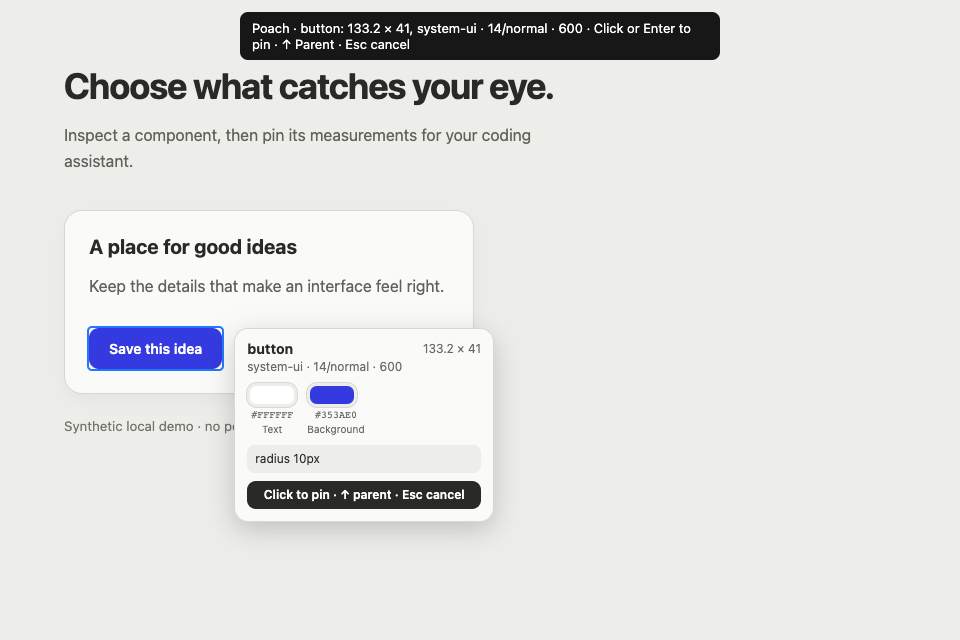
Chrome companion preview. Pair Chrome in the optional second step of onboarding or in Settings. Poach opens Capture when you pair or skip the step. Hover or focus a component to inspect its CSS size, typography, colors, and animation timing. Click or press Enter to pin it, use ↑ to select its parent, or Escape to cancel. Then take a screenshot or record its interaction in Poach. The extension sends bounded measurements of the component and its visible children, browser events, state changes, and available animation timing directly to Poach. Poach automatically includes evidence when the Chrome session overlaps a recording. For screenshots, check the displayed site and choose Include Chrome evidence if it matches the image. The preview uses the unpacked extension bundled in Poach.app. Set up the preview and try the dropzone benchmark.
Ask for a detail. Your assistant can request a cropped video frame at the stored recording’s resolution. Poach labels returned image sizes and preserves known Mac point dimensions, so reduced previews are distinguishable from the original capture. How image scale and browser evidence work.
In Settings → Storage, see how much space Poach uses and choose Clear unused captures to remove old recordings, screenshots, and extracted frames. Poach keeps the open edit, media and frames referenced by handoffs that are still available, and your imported originals.
Install on your Mac
Download the Apple silicon build above, unzip it, and move Poach.app to Applications. To update, choose Check for Updates… from the Poach menu. If a newer release is available, download it, quit Poach, and replace the app in Applications. Choose the connector for your assistant, then open a new chat.
| Assistant | Install the MCP connector |
|---|---|
| Codex installer | Unzip and double-click Install Codex.command. |
| Claude Desktop extension | Open Settings → Extensions → Advanced settings → Install Extension. Select the downloaded file and enable Poach. |
Requirements. Native recording and screenshots require macOS 15 or later. On macOS 14 you can import images and videos. Clips can be up to 30 seconds long. Poach records the screen without audio.
Download and first-launch helpPoach includes Node.js and FFmpeg. Verify the downloads with the SHA-256 checksums.
Poach 1.0 uses a local development signature and ships without Apple notarization. On first launch, macOS may block it:
- Try to open Poach.app once, then dismiss the warning.
- Open System Settings → Privacy & Security, scroll to Security, and click Open Anyway for Poach.
- Confirm Open in the follow-up alert.
After Poach opens, allow it under Screen & System Audio Recording, then quit and reopen the app. If capture is refused even though Poach is enabled, first confirm the running copy is in Applications and restart it. Local builds without an Apple Team ID may lose Screen Recording approval after rebuilds; see Contributing. Apple’s Open Anyway instructions explain this one-time Gatekeeper override.
Keep Poach in Applications so the connector can find it. After updating Poach or its Claude extension, quit and reopen Claude Desktop to reload the connector. If the handoff button is disabled, open a new chat with the connector enabled. For manual setup, open Poach’s Settings and choose Copy Codex MCP for the Terminal command or Copy Claude MCP for the Claude Desktop configuration.
What does my assistant receive?Poach analyzes the media on your Mac. During an explicit native screen recording, it samples pointer position and mouse-button state at a nominal 120 Hz; the trace is capped at 5,000 events and reports how many samples fell inside the capture bounds and observed a held button. It does not capture keyboard input or scroll events. Samples outside the captured bounds are flagged and clamped to the capture edge, so raw screen coordinates outside the selected area are not shared. The trace stays local until you explicitly share a handoff. When your assistant reads it, it receives your instructions, timestamped notes, pointer trace, derived click/drag candidates when button events were sampled, palette, and requested frames. If no button events were observed, the copied handoff tells the assistant not to assume clicks or drags. Match action coordinates to frames to identify targets; the trace alone cannot establish what an interaction did. Motion timing and easing are estimates from sampled frames. The handoff includes frames around up to three recent drag releases inside the capture, including a final sample before the next sampled drag or at the end of the clip. Keep recording until the drop animation finishes. Each handoff is stored locally and can be read by its brief ID for 24 hours; sharing another handoff does not replace earlier ones during that window. The latest handoff remains the default when no ID is provided.
Changelog · Assistant evidence reference · Contributing and local development · License
Performance and validation
Analysis batches frame decoding locally. On the validated Apple M5 / macOS 26.6.2 setup, five native recordings reached the editor in 1.07 seconds median (0.95–1.18 seconds), after an excluded warm-up. This measures the app’s stop handler through recording finalization, normalization, analysis, and editor setup; it excludes physical-display latency. Native validation and measurement details.
Yorumlar (0)
Yorum birakmak icin giris yap.
Yorum birakSonuc bulunamadi