agenterm
Health Pass
- License — License: Apache-2.0
- Description — Repository has a description
- Active repo — Last push 0 days ago
- Community trust — 37 GitHub stars
Code Fail
- rm -rf — Recursive force deletion command in internal/installer/install.sh
- rm -rf — Recursive force deletion command in internal/p2p/bootstrap.sh
Permissions Pass
- Permissions — No dangerous permissions requested
No AI report is available for this listing yet.
Let agents control any remote computer, anytime, anywhere. Self-hosted AI agent remote assistance via MCP and terminal.

Agenterm
Let an AI agent assist with a remote computer through one authorized connection command.
macOS / Linux / Windows · CLI / GUI · Multiple devices · No SSH service required
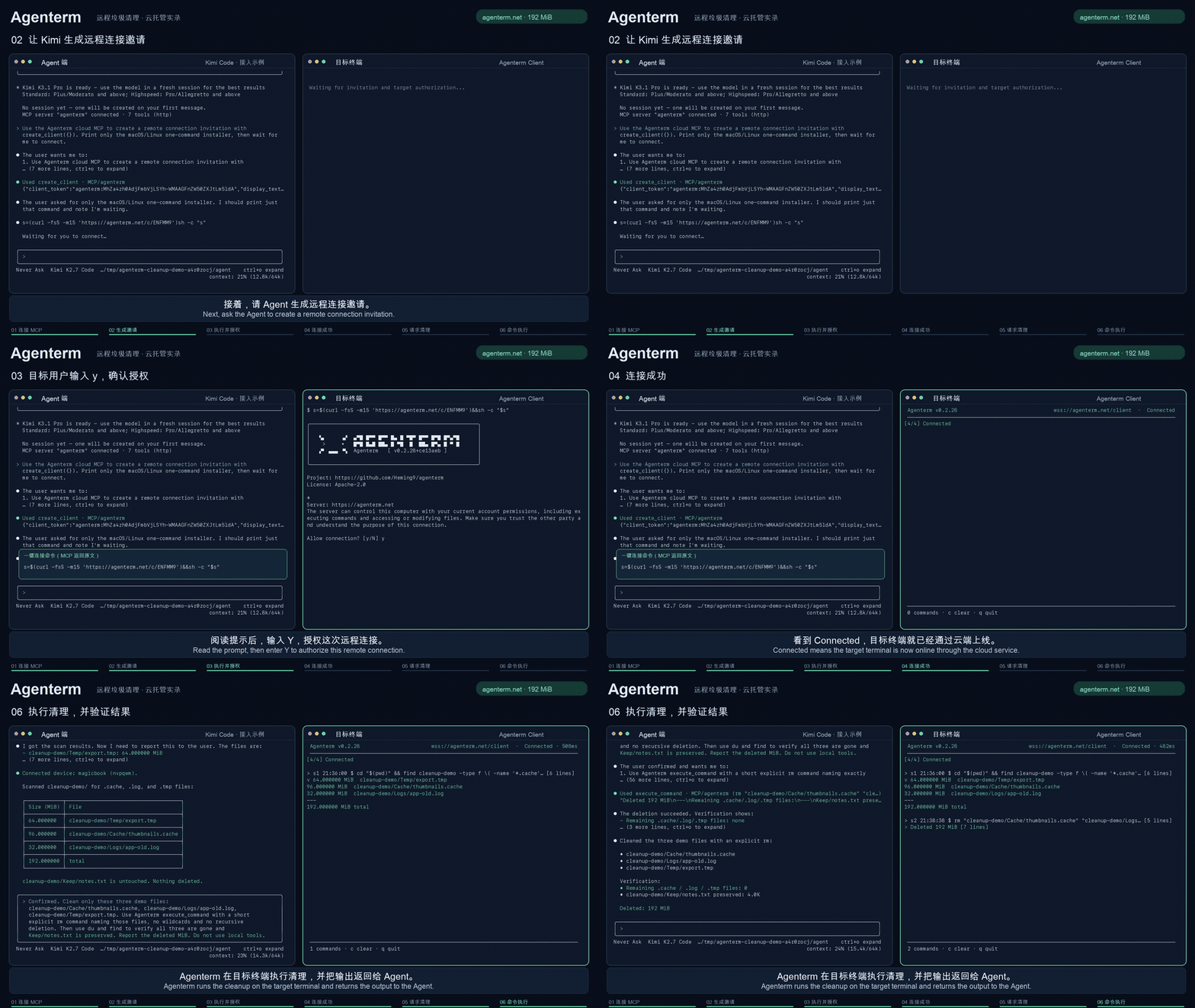
Create invitation → Authorize access → Connect device → Run task
Full demo · 1 min 42 sec · Chinese / English subtitles
Quick start
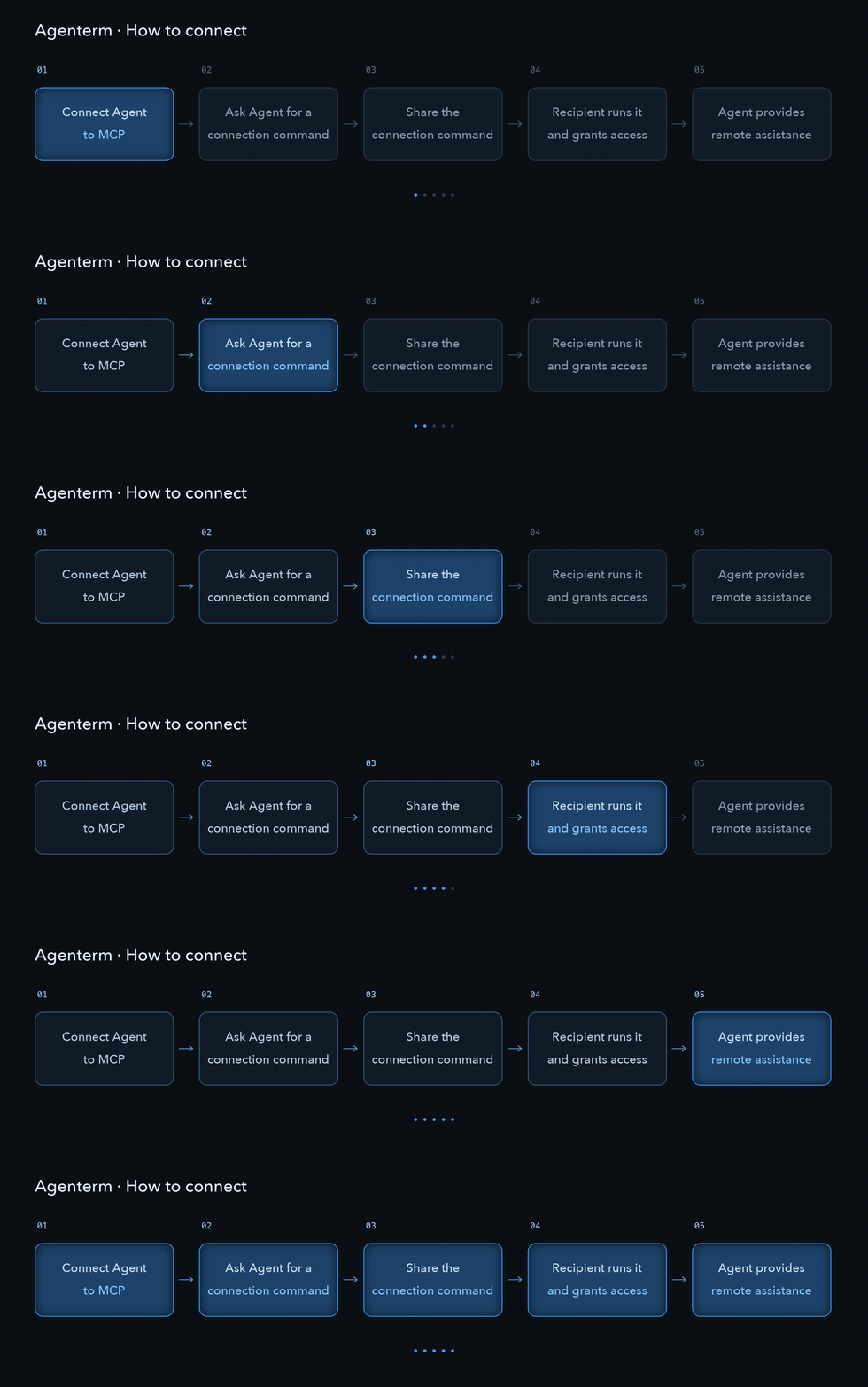
1. Person requesting help: connect your agent
Add this MCP service to an agent that supports Streamable HTTP:
https://agenterm.net/mcp
See configuration examples. Describe your task, ask the agent to create an invitation, and privately share the generated connection command with the person at the target computer.
2. Person at the target computer: connect and authorize
Run the invitation command for your operating system, read the notice, and authorize access. The client displays connection status, commands, and output. You do not need to configure MCP or a server.
3. Both: complete the task and disconnect
Keep the agent conversation active while the device connects, then start the task. The target computer can disconnect at any time; close the client when finished.
Invitations are single-use by default and expire after 5 minutes. Set timeout_seconds when calling create_client to customize the invitation lifetime. Connections grant terminal access with the current user's permissions. Share invitations and tokens only with people you trust.
What you can do
- Troubleshoot development environments: “Help my colleague check their Python setup and find why the project won't start.”
- Inspect system status: “Check this server's disk usage and application logs.”
- Work across computers: “Connect several test machines, check their environments, and summarize the results.”
Interactive terminal tasks are supported. Use the CLI or GUI on the target computer to follow progress; the client automatically attempts to reconnect after temporary network failures.
How it works
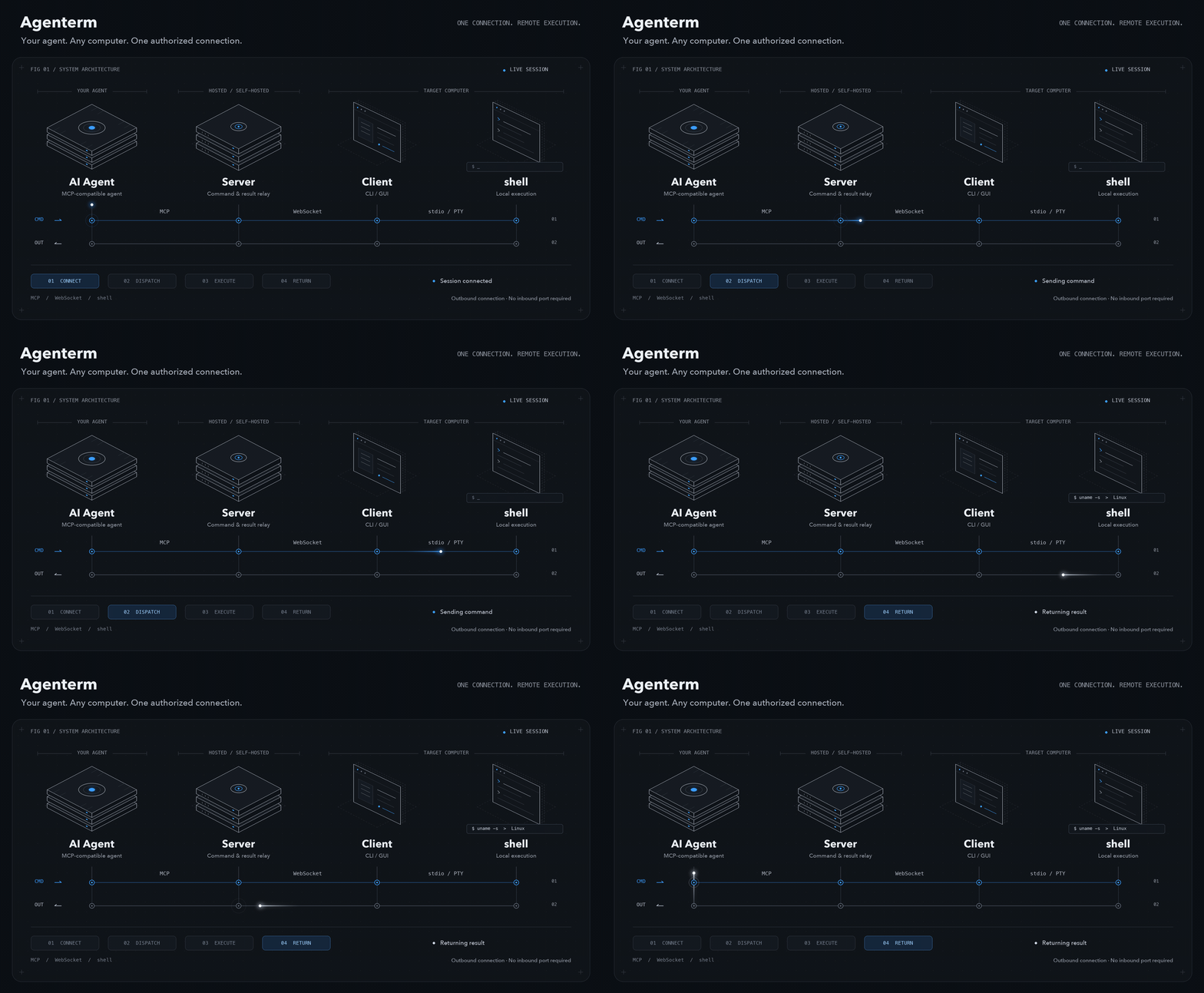
The server forwards commands and results. The client runs on the target computer, initiates its server connection, and executes tasks through the local shell. Both the agent and target need access to the server; the target needs no inbound port.
Use the hosted service or deploy your own server.
FAQ
What if a connection fails or an invitation expires?Check that both sides can reach the server. Ask the agent for a new invitation if one has expired, been used, or Runtime has restarted. For version mismatches, use server and client binaries from the same release. Connection troubleshooting.
Will tasks resume automatically after a disconnection?The client attempts to reconnect but does not replay commands. Ask the agent to check the device and task state. Connecting a device does not wake an agent conversation that has already ended.
Can I control a desktop or connect several computers?Agenterm provides terminal assistance, not a remote desktop. Ask the agent for a multi-device invitation to work across computers. Windows supports simple interactive prompts; full-screen programs requiring a real terminal may not work.
What are the hosted service limits?Management access currently requires no authentication. Up to four devices can be online per invitation creator's public IP; people on the same network share that allowance. The agent, server, and target client can see commands and output, so keep invitations and tokens private. Use HTTPS when self-hosting publicly.
User guide · Deployment and source builds · Report an issue · Apache-2.0
Reviews (0)
Sign in to leave a review.
Leave a reviewNo results found