chammo
Health Uyari
- License — License: AGPL-3.0
- Description — Repository has a description
- Active repo — Last push 0 days ago
- Low visibility — Only 5 GitHub stars
Code Gecti
- Code scan — Scanned 12 files during light audit, no dangerous patterns found
Permissions Gecti
- Permissions — No dangerous permissions requested
Bu listing icin henuz AI raporu yok.
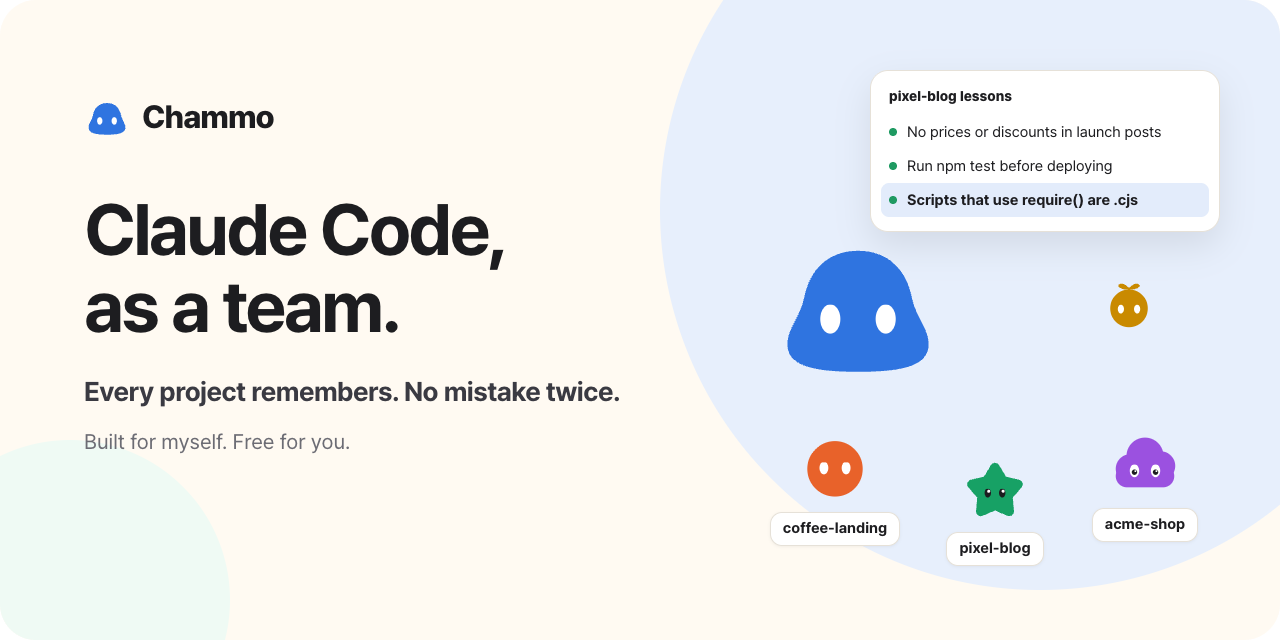
Your AI chief of staff for Claude Code — one live session runs your project sessions; you only approve what can't be undone. macOS app.
Download · Website & preview · 한국어
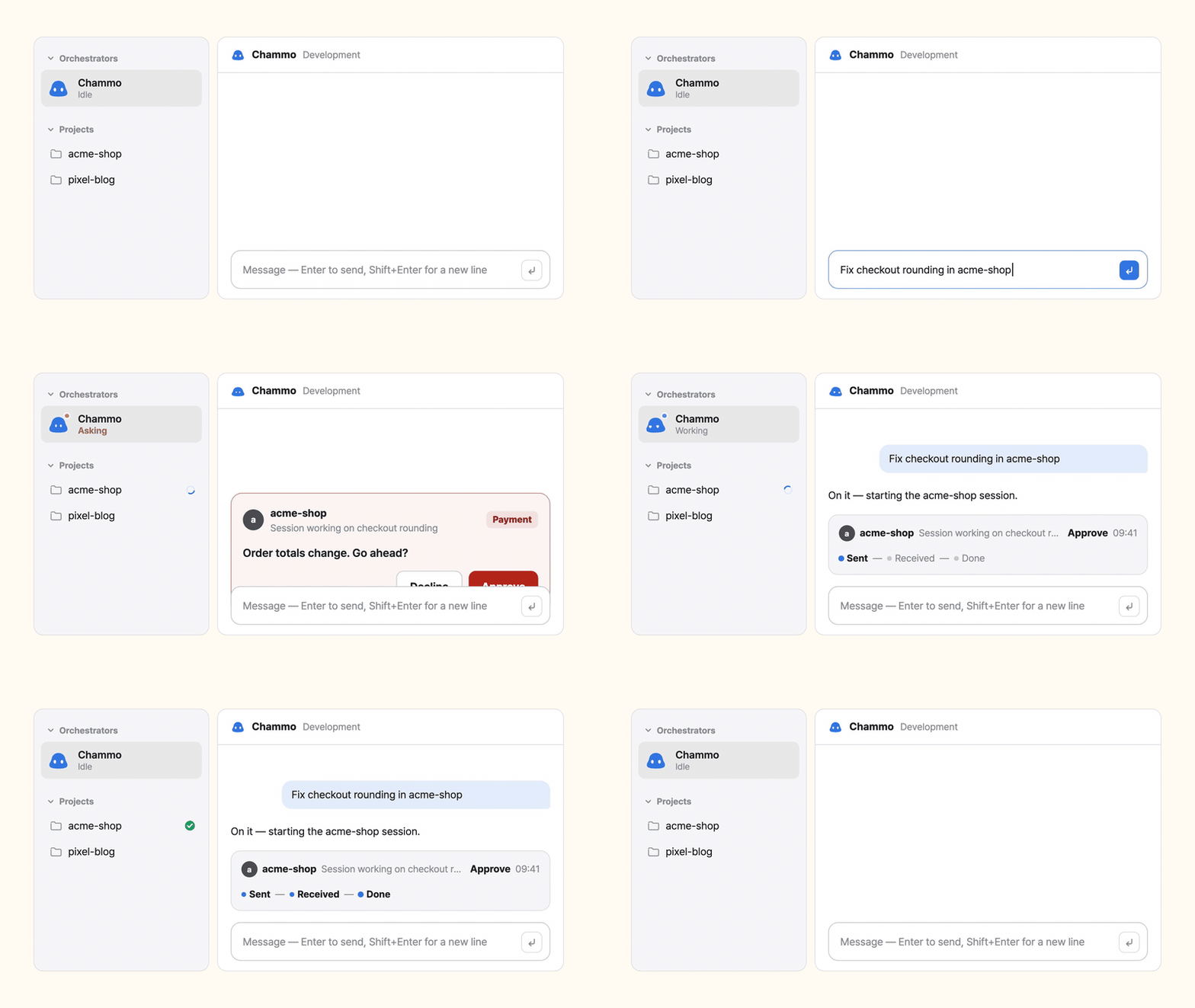
Chammo (Korean 참모, "chief of staff", said CHAM-oh) is a desktop app for macOS (Windows in preview) for one person running many projects at once. You chat with one Claude Code session — your chief of staff. It starts a background Claude Code session for each project, hands out the work, reads the results, merges what is safe, and comes back to you only for the calls that can't be undone. Every session is a real interactive Claude Code session you can open and type into at any moment.
What you can do
Ask once, and the team gets to work
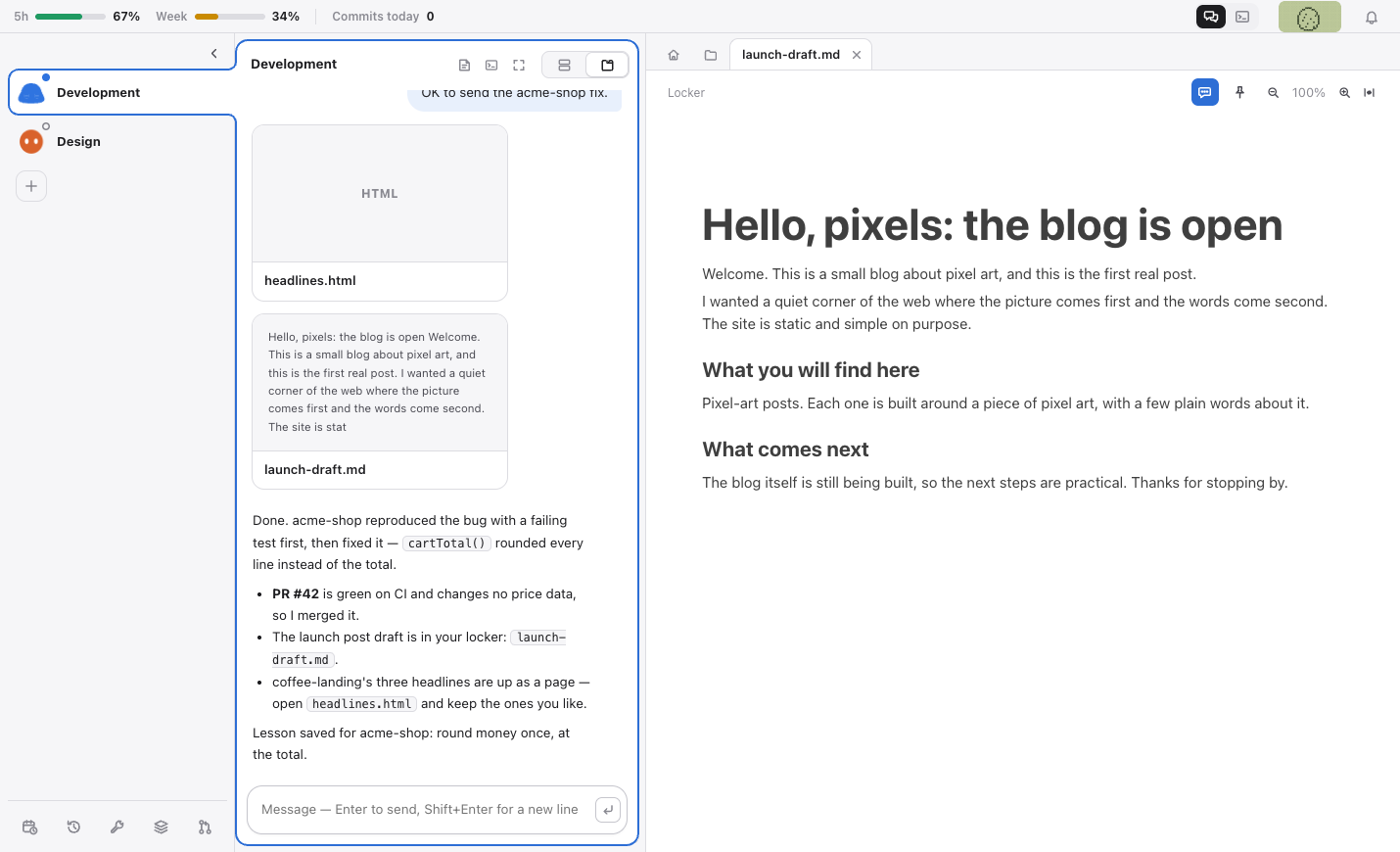
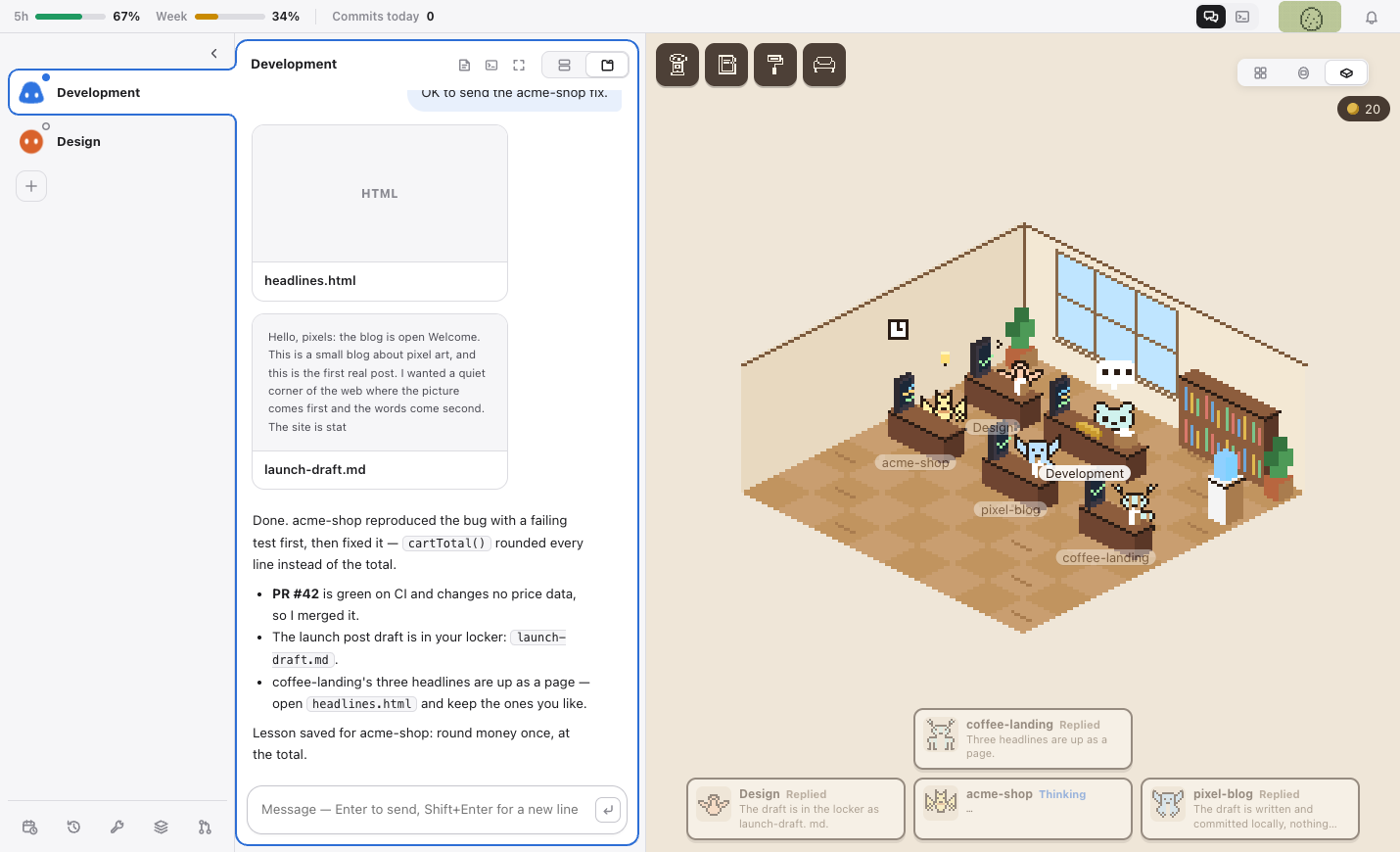
Tell the chief of staff what you want, by typing or by voice. It splits the request across projects, starts a session where none is running, and answers in a line or two when the work comes back. The window has three parts — the strip on the left (one avatar per assistant; drag to reorder) | the chat in the middle | the space on the right. An avatar carries its state: the ring is how full its context is, the dot says whether it is working or waiting on a question.
Decide only what is yours
Anything that moves money (payments, refunds, billing) waits for you before it is even sent. Sessions stop right before they touch production — a migration on the production database, deleting production data, a production deploy, a send to real users — and ask the chief of staff, which brings it to your decision inbox when it is yours to decide. The only card that needs your own approval is a payment. Pull requests are merged by the chief of staff once CI is green; the ones that change the database, money or security wait for you. Answer from the card in the chat, the bell, or your phone.
Read and review next to the chat
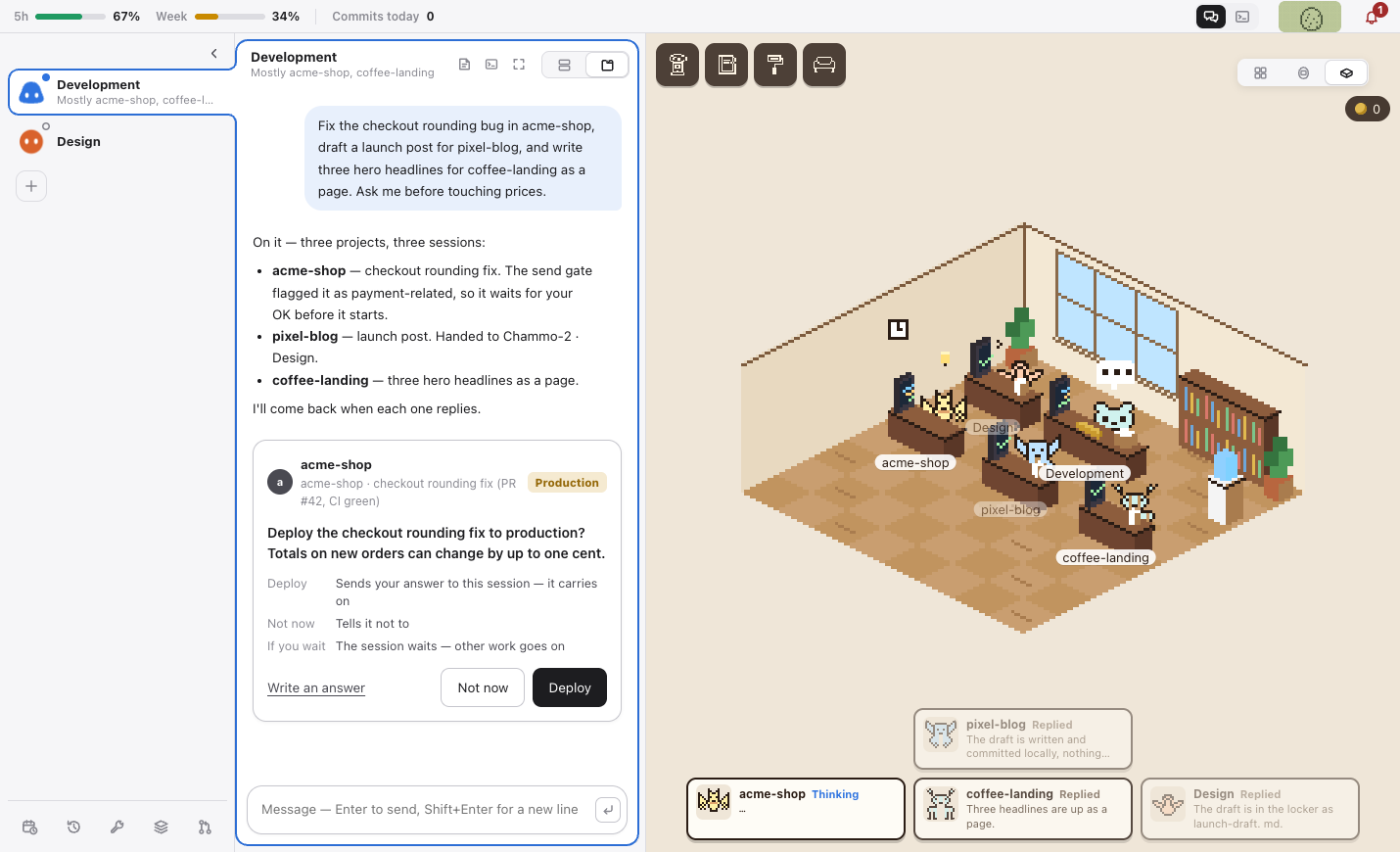
Documents a session shows you open as tabs in the space beside the chat: Markdown as Notion-like pages you can edit (drag blocks, / to insert; edits made outside the app are merged, not overwritten), Excel sheets you can edit cell by cell, plus HTML design reviews, PDF, images and video. Tabs zoom, and the zoom is remembered per file.
A file locker that is a real folder
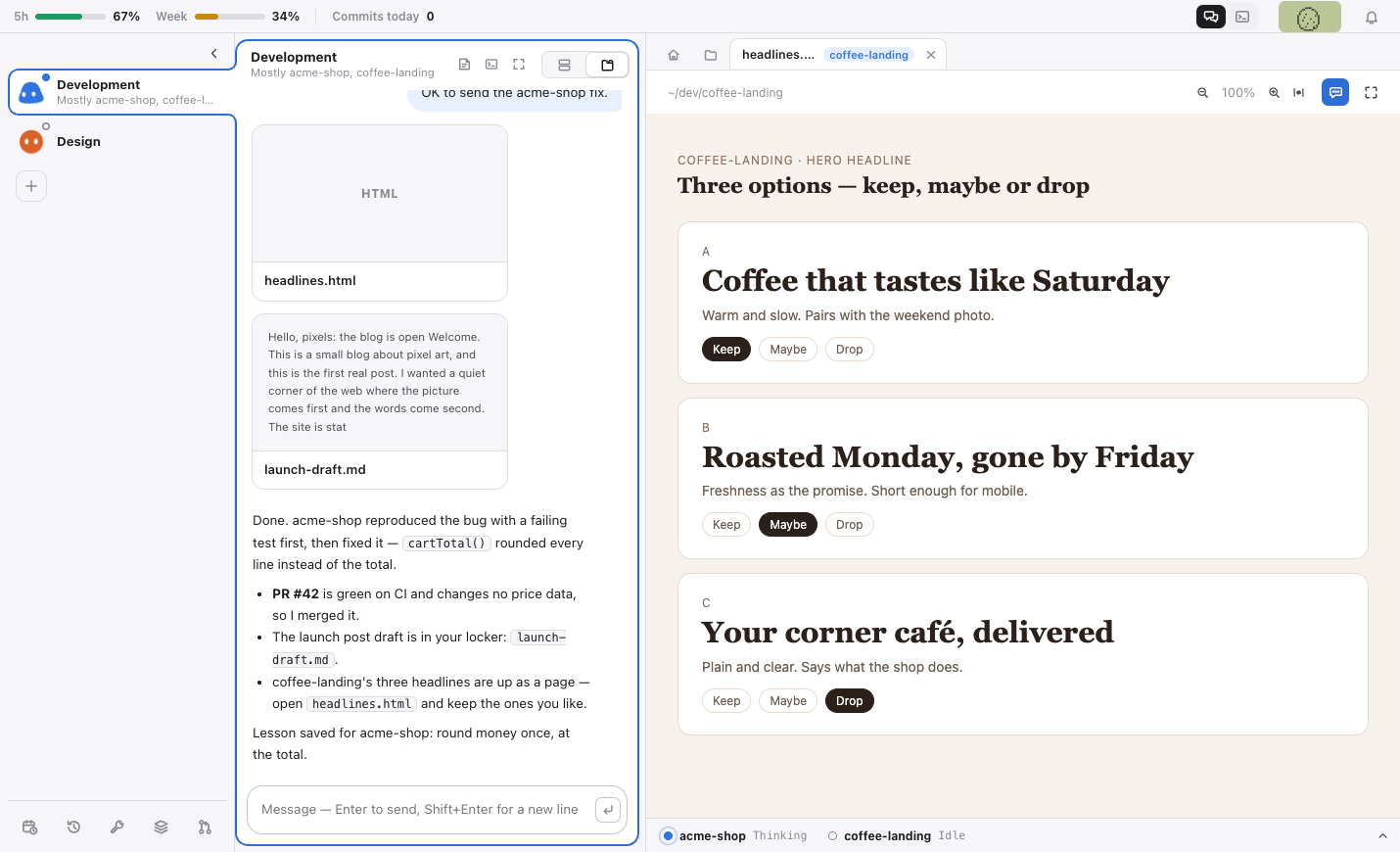
Each assistant has a locker, and it is a real folder: ~/Documents/Chammo/<assistant> (Finder shows the same thing). Drop files in or let the assistant add them; link a Mac folder and its files show up in the locker while the originals stay where they are. The folder is created the first time you open the locker, and that is also when your screenshots folder (on Windows, Pictures\Screenshots if it exists) is linked as 'Screenshots', with a one-line note — macOS may ask for access to Documents and Desktop, and you can unlink at any time (the originals stay). Deleted items go to the macOS Trash, and the last delete can be undone.
Make your own panels — Chammo modes (preview)
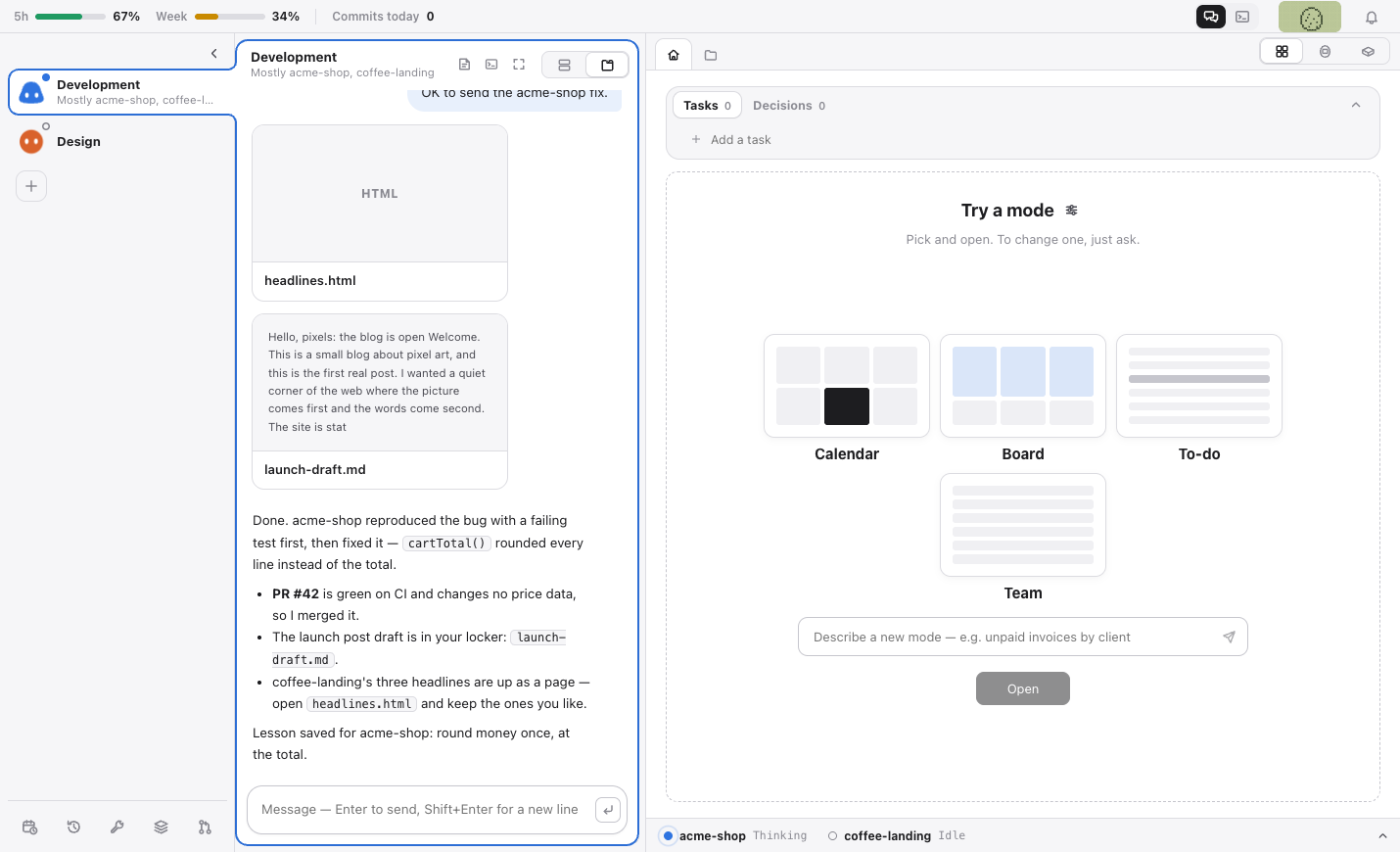
A mode is a Claude Code plugin with an interface: a launch checklist, an order board, a button that runs a routine. Chammo draws it as a real panel — in its own window, on the side, in a dashboard slot, as a pop-up, or full screen. Ask the chief of staff for one (Modes > New Mode…) and it builds it as a project. Needs Claude Code 2.1.287 or later.
Each assistant has a home: under the to-do and recent-decision strip is the modes area. The grid button at the top of the home picks which modes to turn on; Manage hides or removes them. Four samples are ready from the start — calendar, status board, to-do and team status — each with three skins. The samples are Korean examples: their text is in Korean, and the calendar uses Seoul time and Korean public holidays.
Let sessions use a browser you can watch
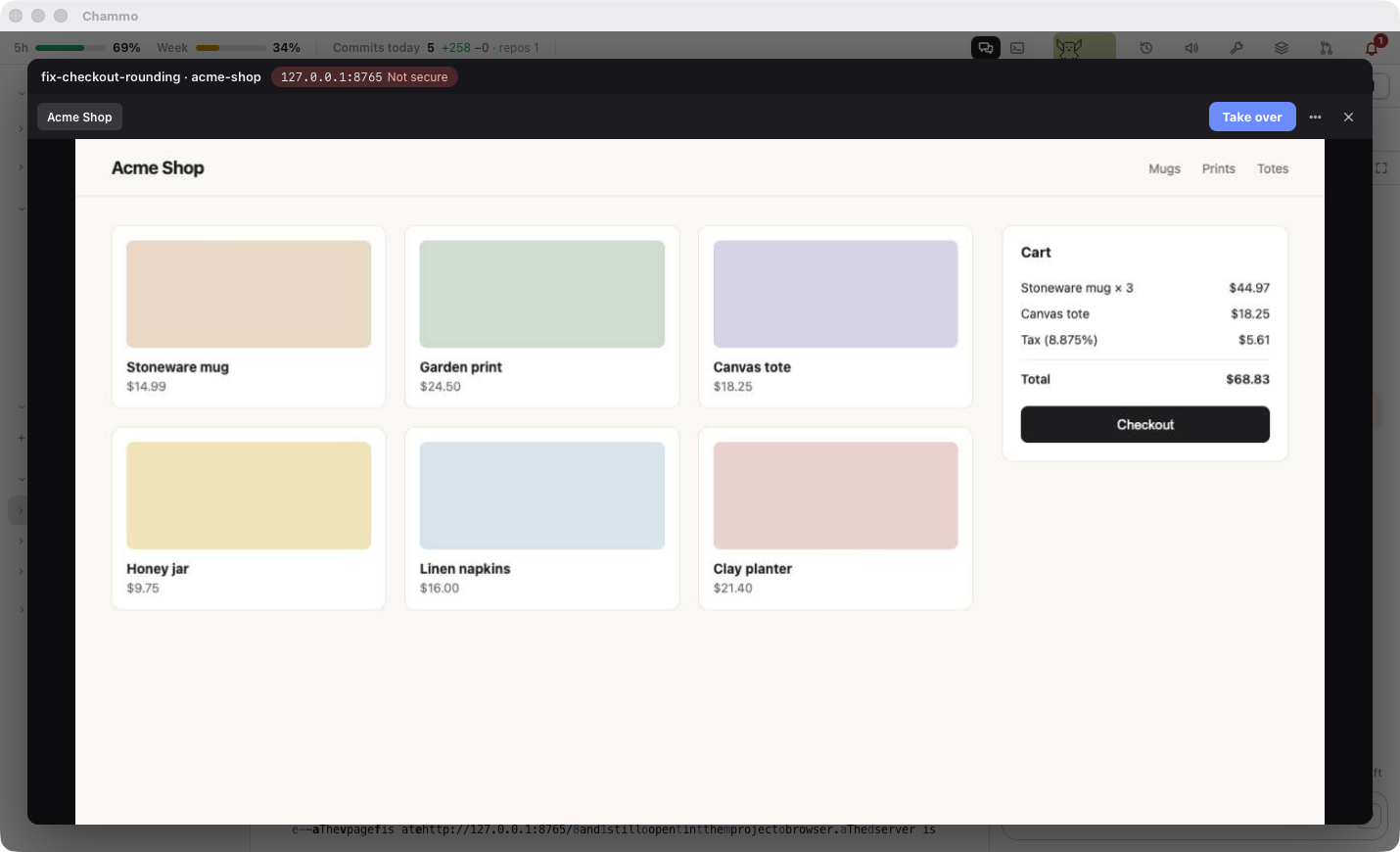
One Install button in Settings gives each project its own browser profile that stays logged in. You watch it live inside the app or open it in Chrome, and when a session calls for you (a login, a captcha) you answer it right from the browser window.
Run things on a schedule
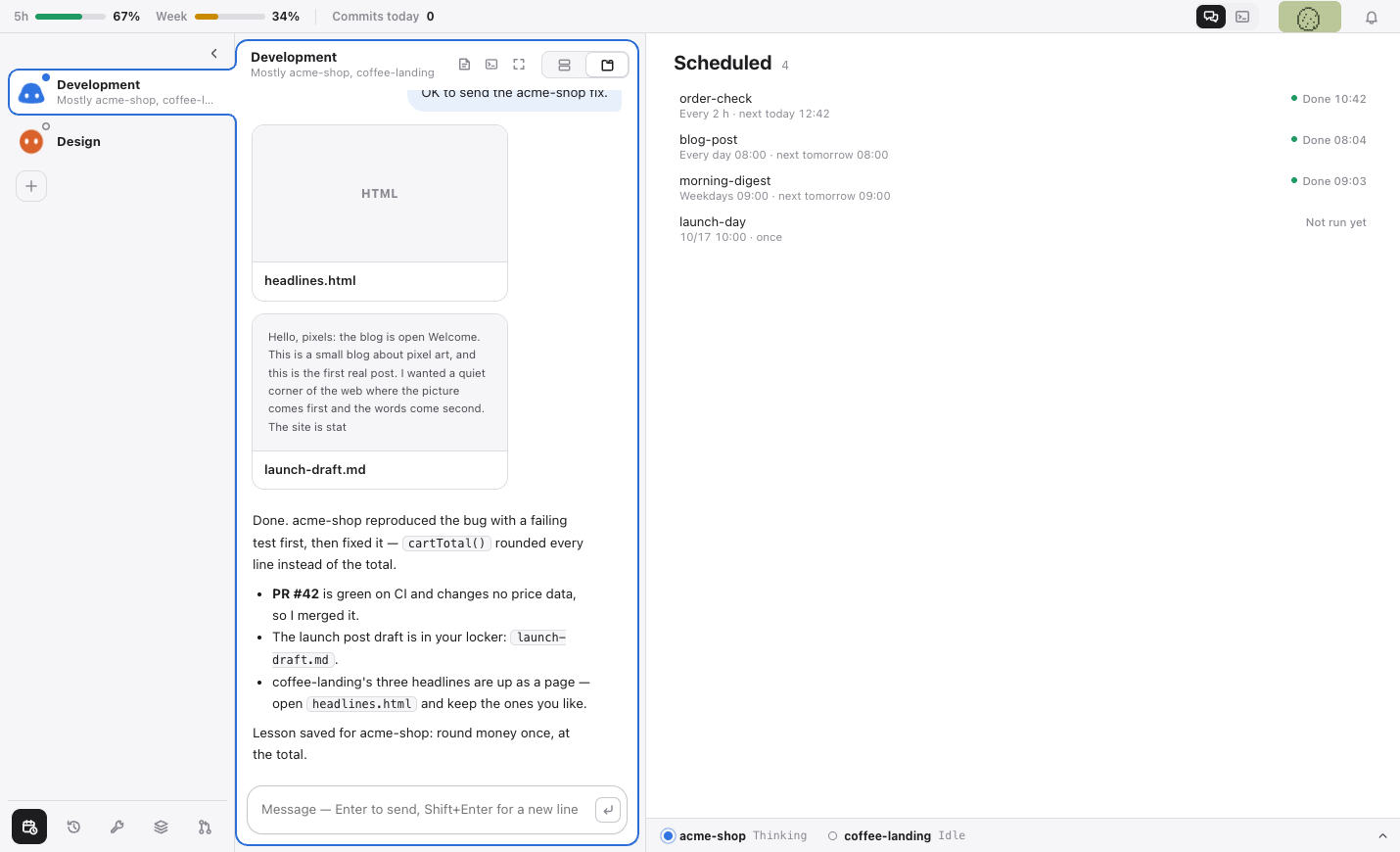
"Post to the blog every morning", "check orders every 2 hours", or once at a date and time. macOS (Task Scheduler on Windows) wakes the routine even when the app is closed; each run is a real Claude Code session that reports back. If a run fails to start it is retried once 15 minutes later, and a run that stalls is reported to the chief of staff.
Keep an office
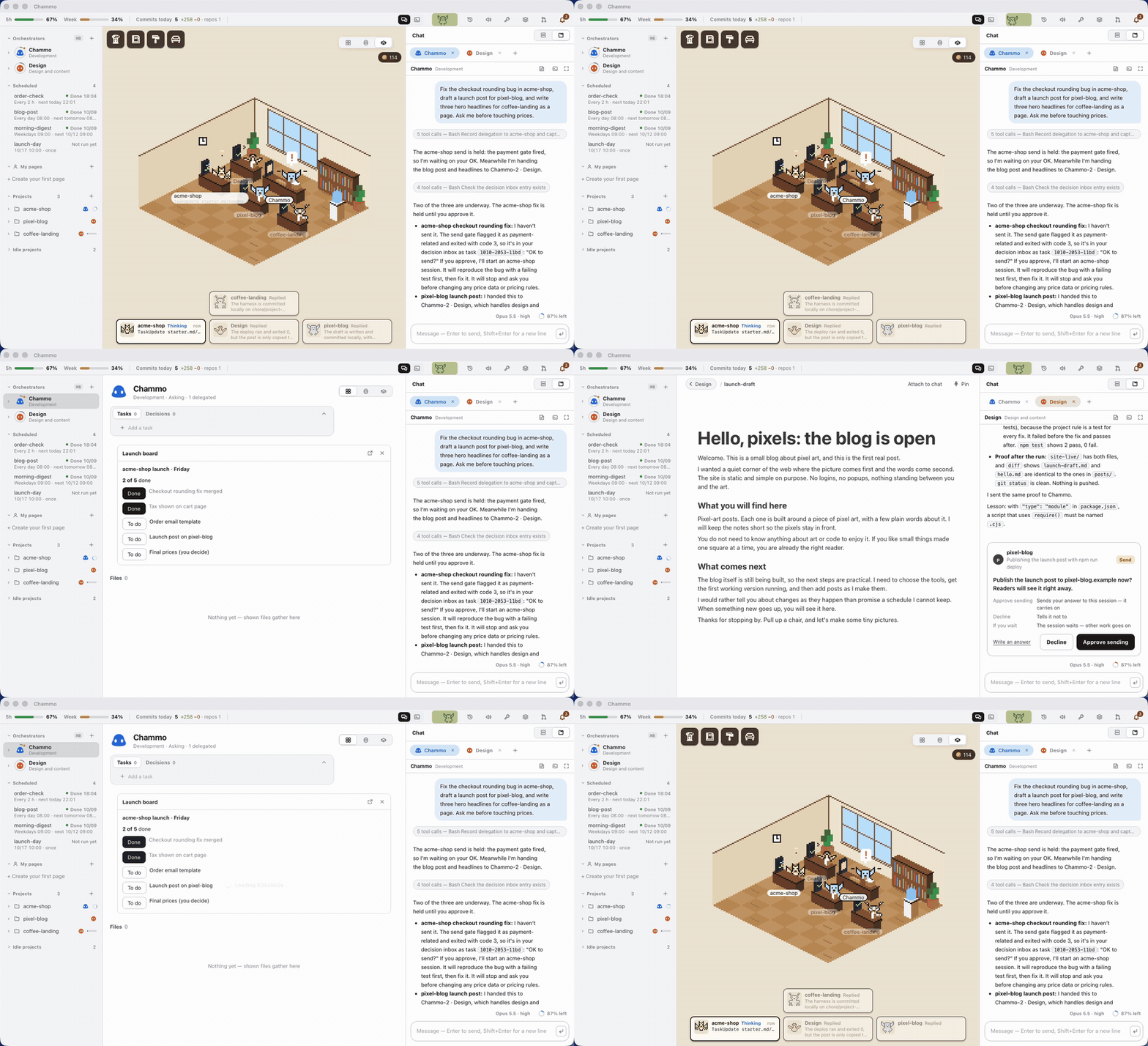
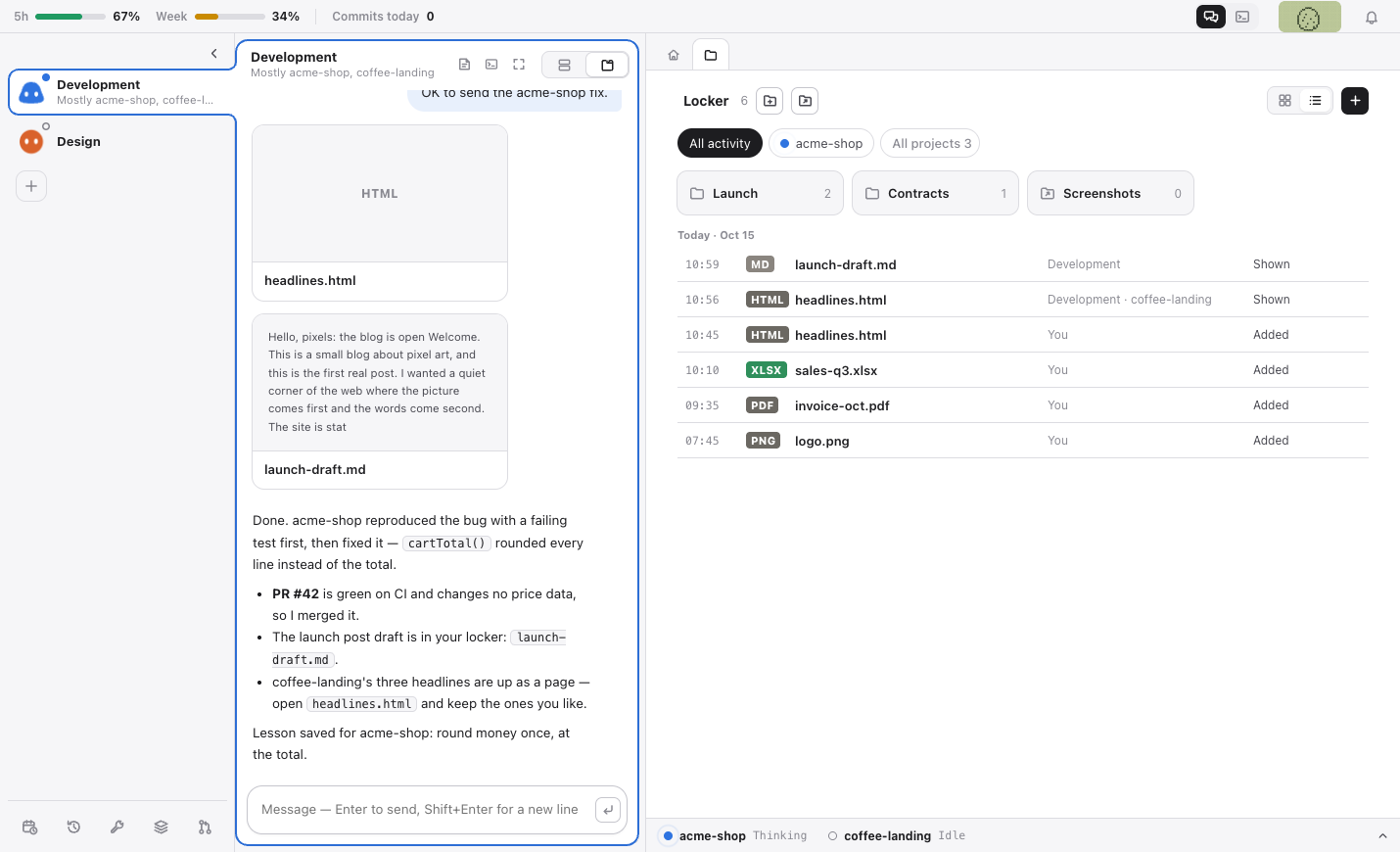
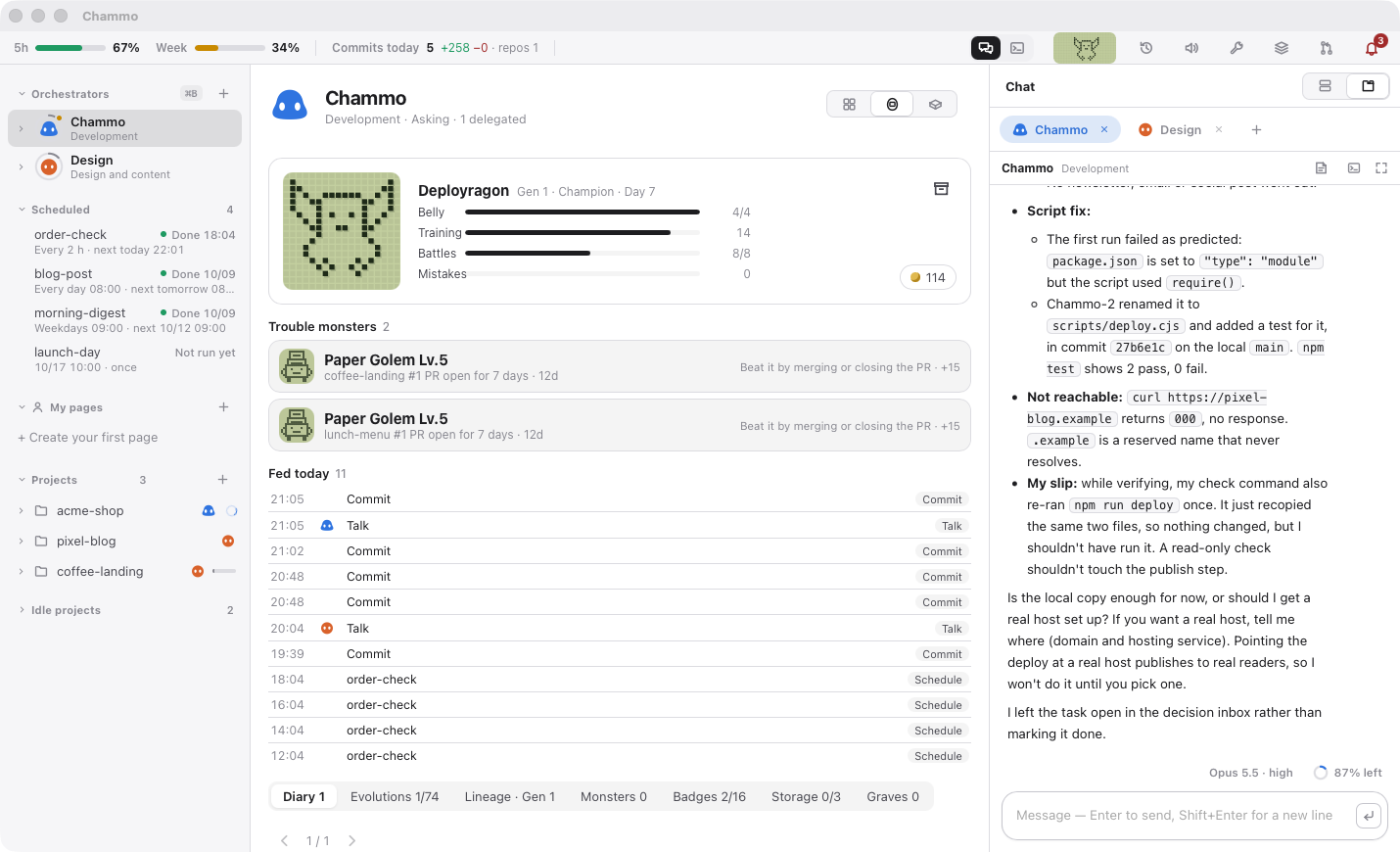
Each session is a pixel character at a desk — typing when it edits, reading when it reads, watching a progress bar when it runs commands. A pet grows from your commits, PRs and CI runs (and passes its traits on to the next generation); a red CI streak or a stuck session shows up as a monster to beat. Coins from merges feed a capsule machine of skins, furniture, desk toys, lights, window views, titles, hats and friends. The collection is for looking; equipping and removing happen in one place, Decorate. Some sets are limited-time (the Halloween set drops until Nov 15, 23:59, and what you pulled stays after). Every playful part can be turned off.
Talk with your team — team mode
Start a team with your Chammo account or join one with an invite link, then click the team badge in the left strip and the whole screen becomes that team — team chats (group conversations) and DMs in the middle, and on the right the team home (posts and pinned notices), the team calendar (Beta), the team locker (files the whole team sees, 10GB per seat) and team settings. Talk with people on your team and their assistants, attach files to a conversation, and let your own assistants on your other devices talk through the same account. Messages, files, profile photos and team home posts are end-to-end encrypted on this device before they leave (the relay can't read them) — so everyone on the team needs 0.4.2 or later to reach each other. Call @TeamHelper (@팀참모) in a team chat or DM and the caller's Claude reads that room and answers once (see Privacy). With a second monitor, pop the whole messenger or a single conversation out into its own window (it remembers the spot and the monitor), and new messages arrive as notifications with a sound (quiet for the conversation you're looking at). Team messages never reach your assistants on their own — you pick an assistant with "To my assistant" on a bubble or file and send it. A line you send through the "My assistants" part of the @ menu goes only to that assistant, not to the team. Forwarded messages carry a "Teammate's assistant" or "Team human" label, team helper answers read "Team helper · ", and your assistant never takes them as your approval. Shared documents are not there yet.
And also
- Voice — replies are spoken (a macOS voice, or Supertonic, a natural on-device voice); the tab that is speaking lights up. Hold the talk key (Globe or right ⌥) to dictate.
- Phone (optional) — pair with a QR code and chat, answer decisions and get notifications from a home-screen web app. From 0.4.0 it works without Tailscale — when this computer is signed in to a Chammo account, the QR in Settings > Devices opens the phone entry page (phone.chammo.app), and screens and messages pass through the relay inside an encrypted tunnel between the phone and this computer (the relay can't read them). On the same tailnet the phone goes there directly. If you use Tailscale only, the phone must be signed in to the same Tailscale account as this computer (from 0.3.11, shared nodes, other accounts and tagged nodes are refused). Turn on MagicDNS and HTTPS Certificates under DNS in the Tailscale admin console — new tailnets have HTTPS off, so the phone opens a plain http address and can't install the home-screen app (Android), get notifications or use the mic (the Phone section in Settings > Devices shows why, with a button to the admin console).
- Chammo on other devices (optional, Tailscale, Mac and Windows 0.3.8 or later) — Chammo on your other devices of the same account shows up in Settings > Devices; press Connect, have the person there press Allow on the card that pops up (no code; keep Settings > Devices > Phone on on both), and the chief of staff can put a line in front of that device's assistant with
scripts/peer say <device> "<one line>"and get its reply. Received messages carry an "Assistant on another device" label and never count as the user's words or approval. The person can also step in directly (0.3.10 or later): in Settings > Devices > Chammo on other devices, press the chat button next to an assistant there and the chat column turns into "Remote · " to talk with it, and that device's approval cards (payments too) show in this device's decision inbox and on the phone to press. Only what the person types or presses in the app's own window goes that way — messages between assistants (scripts/peer) can never pass as the person's words or card answers. From 0.3.12, once at least one device is linked, a device button sits at the top of the chat view's left strip (⌘⇧D) — pick a device and the strip, chat and right side all switch to it (a blue bar on top reads "Viewing "): talk with its assistants and see its pending cards, the sessions they run and its files list (names, sizes and times only, read-only). The phone does the same from the device row at the top of the assistant sheet (the phone goes through this device). With a single device the button doesn't show. - Several Claude accounts — keep more than one login; Chammo switches to the next one when the current one nears its limit.
- Projects with a harness — new work gets its own project folder with
CLAUDE.md,docs/starter.mdanddocs/roadmap.mdthat each session reads first and updates when it finishes. - Lessons — sessions end replies with
Lesson:lines; they ride along with the next instructions to that project. - Tools — turn MCP servers, plugins and skills on per project or everywhere (the wrench), and see what your harness weighs (Harnitor).
- Animation — Auto (follows macOS Reduce Motion and calms down on its own when the Mac is busy), Reduce or Off, in Settings.
- Korean and English — the whole app (the four sample modes are Korean examples).
Requirements
- A Mac with Apple silicon (M1 or later), macOS 14 or later — or a Windows 10/11 x64 PC (preview)
- An internet connection and a Claude account (Pro, Max, …)
- A Google account for your Chammo account — from 0.4.2 you sign in on first launch
Everything else — Xcode Command Line Tools, Claude Code, signing in, GitHub CLI (optional) — is checked on first launch and installed with one button.
Install
DMG — download Chammo_x.y.z_aarch64.dmg from Releases, drag Chammo into Applications, and open it. Release DMGs are notarized by Apple.
One line in Terminal — downloads the latest DMG, puts the app in /Applications and opens it.
curl -fsSL https://raw.githubusercontent.com/honorstudio/chammo/main/scripts/install.sh | bash
Windows (preview) — run Chammo_x.y.z_x64-setup.exe from Releases. It installs for your user only and fetches WebView2 if needed. The installer is not code-signed yet, so SmartScreen may warn — click More info > Run anyway. The chief of staff's helper scripts and the Craft apps need Python 3 — if it's missing, Install in the first-run "Check this PC" step (and in the app drawer) installs it with winget (winget install -e --id Python.Python.3.12 --scope user --custom "InstallLauncherAllUsers=0" --accept-source-agreements --accept-package-agreements — it accepts the winget source and package agreements for you, installs to %LOCALAPPDATA%\Programs\Python and puts it first on your user PATH; no admin rights needed). Since 0.3.9 Windows first-run setup needs Python 3 to continue. See the note under Shortcuts for the Windows keys.
Updates — from 0.3.1 on, when a new version is out, one Update button in the top banner downloads, installs and restarts Chammo (your sessions keep running). Coming from 0.3.0 or earlier, install by hand once. An app you built from source also turns into the official build when you press Update.
From source — needs Rust (stable), Node.js 22+, pnpm and Xcode Command Line Tools.
git clone https://github.com/honorstudio/chammo.git
cd chammo/app
pnpm install
pnpm tauri build
The app lands in app/src-tauri/target.noindex/release/bundle/macos/Chammo.app. Your own build isn't notarized: on first launch click Open Anyway in System Settings > Privacy & Security, or run xattr -dr com.apple.quarantine /Applications/Chammo.app once.
First run
A five-step setup opens: language → check this Mac (installs what is missing) → your assistant's name, the projects folder (each folder inside is a project) and the HQ folder (where the chief of staff runs) → features to turn on → ready. Then the Chammo account (Google) sign-in screen opens — from 0.4.2 it is required, and you can skip it only for this run when the relay server can't be reached (offline or a server outage). Sign in with Google in the browser and this device's key is tied to your account; if the account already has a device in use, allow this one there and match the confirmation numbers on screen. Once signed in it doesn't ask again. For Claude, Chammo uses the claude login already on your Mac (it never signs in to Claude itself). Settings live under Chammo > Settings… (⌘,). The locker folder (~/Documents/Chammo) is created the first time you open the locker.
Shortcuts
| Keys | What |
|---|---|
| ⌘1 – ⌘9 | Go to the Nth assistant (in strip order) |
| ⌃⇧PageUp / PageDown · ⌥⌘⇧← / → | Move the selected assistant one place up / down the strip |
| ⌘Enter | Interrupt and send now |
| ⌘W · ⌘T | Close the open tab (pinned Home/Locker tabs stay) · new document in the locker |
| ⌘⇧H · ⌘⇧L | Go to the Home · Locker tab |
| ⌘⇧T · ⌘⇧W | New session · stop the focused session (after a confirm; the conversation is kept) |
| ⌘+ · ⌘- · ⌘0 · ⌘9 | Open tab: zoom in · out · 100% · fit (also ⌘/Ctrl+wheel and pinch; the zoom is remembered per file). With the chat input or a terminal focused, they change that text size instead. ⌘9 fits only while a tab is open — otherwise it goes to the 9th assistant |
| ⌘[ · ⌘] | Back · forward in the space |
| ⌘K · ⌘B · ⌘J | Project search · sidebar · task panel |
| ⌘F | Find in document |
| ⌘, | Settings |
Windows has no ⌘, so the keys change like this: ⌘+letter → Ctrl+Shift+letter, ⌘⇧+letter (H, L, T, W) → Ctrl+Alt+letter, digits, symbols and Enter → plain Ctrl, ⌘[ ⌘] → Ctrl+Shift+[ ], ⌥⌘⇧←/→ → Ctrl+Alt+Shift+←/→. The menus show the Windows keys too.
How it works
 you ──chat / voice──▶  Chief of staff (live Claude Code session in the HQ folder)
                              │  scripts/task send · SendMessage
          ┌───────────────────┼───────────────────┐
          ▼                   ▼                   ▼
     acme-shop           pixel-blog        coffee-landing     ← claude --bg, one per project
          │                   │                   │
          └──── PRs ──▶ review gates (review.json) ──▶ merge, or ask you
- Sessions are Claude Code's built-in background sessions. Chammo reads their state from
claude agents --json, shows the chat from each session's transcript, and opens the full terminal withclaude attach <id>. - Delegation is logged with
scripts/tasktotasks.jsonl; the task panel reads it, andscripts/task askputs a question in your decision inbox. - Gates are computed from PR files, titles and bodies (no AI calls) and written to
review.json, which the chief of staff reads before merging.
More detail: docs/ARCHITECTURE.md.
Configuration
Chammo's own files live in the data folder: $CHAMMO_HOME, or ~/.chammo by default. Outside it, Chammo also writes into Claude Code's own config:
- Each time it starts,
env.CHAMMO_HOMEin Claude Code's usersettings.json(~/.claude/settings.json, or$CLAUDE_CONFIG_DIR/settings.json) is set to the data folder, so background sessions use the same folder. Other Claude Code sessions on this computer see it too. - When the chief of staff groups lessons shared by all projects, they go to
~/.claude/skills/lesson-common-*. - After uninstalling, remove them by hand: delete the
CHAMMO_HOMEline fromenvin thatsettings.json, the~/.claude/skills/lesson-common-*folders and the data folder.
config.json is edited by the settings screen, but you can change it by hand:
| Field | Meaning | Default |
|---|---|---|
language |
"ko" or "en" |
system language |
assistantName |
name of your chief of staff | Chammo / 참모 |
devRoot |
projects folder | ~/Developer or ~/Projects (whichever exists); the setup lets you pick or create one |
hqDir |
chief of staff's folder | <data>/hq |
githubUser |
used for review and CI | from gh api user |
ttsCommand |
command that speaks a line of text | macOS say |
features |
office, tama, gacha, review, voice, agentView (watch session browsers in the app), autoTidy (tidy finished sessions on their own), usagePing (anonymous usage statistics), autoRevive (start sessions stopped by a restart again on their own), computerUse (let sessions control the screen), animation ("auto", "reduce" or "off") |
on, except autoRevive and computerUse; animation is "auto". Separately, while Chammo is running an assistant that disappears without being stopped in Chammo is always started again in the same conversation (up to 3 times in 10 minutes, then a card) — to stop one, stop it in Chammo |
Privacy
Chammo runs on your computer. From 0.4.2 it needs a Chammo account sign-in, so it reaches the Chammo relay server (relay.chammo.app), and unless you turn it off it sends anonymous usage statistics once a day. All model traffic is Claude Code's and all GitHub traffic is gh's, with your own logins. Chammo itself reaches the internet only for:
- Version check — the latest Claude Code version from the npm registry (or, if you installed Claude with winget or Homebrew, the version that installer can give you —
winget searchaccepts the winget source agreements;brew info --cask) and the latest Chammo release andlatest.jsonfrom GitHub. Nothing about you is sent. - Browser install (when you press Install) — Node.js, Chrome Beta and the browser tool parts from their official sources, used only after the checksum or Google signature checks out.
- Account usage (only if you saved accounts) — each account's 5-hour and weekly usage from api.anthropic.com with that account's own token, the same request as Claude Code's
/usage. When switching or matching accounts, Chammo asks the same place (the api.anthropic.com profile) once which account a token belongs to. - Account token refresh — the current sign-in is also renewed before it expires: when less than an hour is left, Chammo takes the same refresh lock Claude Code uses and sends its refresh token to platform.claude.com once (also with a single account; not for API-key sign-ins). If the server refuses with 429, account switching and both kinds of early renewal pause together for an hour (doubling up to 6 hours while it continues), with one last try when less than 20 minutes are left; network errors are retried after 10 minutes. Requests are sent with the User-Agent 'Chammo/'. If you saved two or more accounts, tokens of saved accounts that are not in use are refreshed ahead of expiry too (when automatic switching is on: one account within two hours of expiry at a time, no more than once every 20 minutes). An account that could not be refreshed ahead is refreshed right before switching to it. It is the same request Claude Code makes to keep you logged in.
- Craft apps (macOS and Windows, when you open the app drawer or the chief of staff opens one; from 0.4.4 also the basic five — Grid, PDF, Slides, Word and Vector, about 1.5 GB — in the background after the first-run setup, and once after updating, without asking; skipped under 5 GB free, off in Settings > Features "Install the basic Chammo apps ahead") — asks GitHub for the Chammo Craft release list, checksums and icons (cached for 6 hours); when you download one, the DMG is installed only if its checksum, bundle id and Apple notarization check out (on Windows the portable zip is unpacked to %LOCALAPPDATA%\Programs\Chammo only if its checksum and the app id and version inside match — not code-signed yet; Python 3 needed). A Craft app Chammo installed is replaced with a newer release when you open it, without asking, after the same checks (it opens as is if the app is running, the check fails or you are offline). The web build and CLI come from the original ArtCraft (storytold) releases. Nothing about you is sent.
- App update (downloading and installing the new version only when you press Update) — downloads
latest.jsonand the new version from GitHub Releases, installs it only if its signature matches the public key built into the app, and restarts. Nothing about you is sent. - Anonymous usage statistics (Settings > Features "Anonymous usage statistics", on by default — off means nothing is even counted) — from 2026-10-31, once a day, a random install number, the app version, OS and CPU type, language and release channel go to relay.chammo.app (the relay also records the country it works out from your connection address). From 2026-11-01 it adds how many times each feature was used, which features are switched on, session counts, the number of errors per kind, the Claude Code version, update successes and failures, and how long the app stayed open (as a range) — counts and fixed names only, never conversations, files, paths or session names. New installs see this notice in the first-run setup before anything is sent; if you finished setup before 0.4.1, you were not shown it there — it is in the 0.4.1 and 0.4.4 release notes, and the switch is in Settings > Features.
- Phone notifications (only if you paired a phone) — a title and one line, end-to-end encrypted, through your phone's push service.
- Other devices' assistants (only if you linked a device of the same Tailscale account) — the link request and approval, and messages between assistants and their replies (peer-say/reply), travel only between the linked devices over your tailnet. A link works both ways, so each device can also read the other's sessions, conversations and pending cards. From 0.3.12 the other device's locker list shows too — only folder and file names, sizes and times inside the locker (no absolute paths on your computer, no user name, no contents). That device can turn off "Share my files list" in the device list of the Phone section under Settings > Devices (on by default, also for devices already linked). A phone paired with this device can, through this device, read the same things, send that device's assistant the person's words and press its cards. Messages between assistants cannot type as you or press cards; only what the person types or presses in the app or on a paired phone goes to that device (on Windows the link key sits in Credential Manager, so a program running as the same user could deliberately read it and imitate that person path — if you don't want this, unlink in Settings > Devices). This link doesn't use the relay server.
From 0.4.3 a linked device or paired phone also sees, for each Chammo data folder on this computer (test copies too), the signed-in Chammo account's email and name — if the account differs, the person there can send a sign-out request, and this device signs out only when the person here presses it on the card. - Chammo account and team messenger (sign-in required from 0.4.2) — you create the account with Google sign-in, and the relay server relay.chammo.app (Cloudflare) stores your Google account email and name, device names, kinds (Mac/Windows) and public keys (including the signed record of your device list), your team and member list, and how far each member has read in each conversation (read receipts, so others see unread counts). From 0.4.4 a teammate's changed safety number (for example after they recovered their account) is accepted without asking and shown as a grey line in the conversation, and a new device of yours receives the keys to past conversations from your other devices automatically. Secret keys stay on this device. Messages (DMs, team chats and talk between your own devices) travel only as envelopes end-to-end encrypted on this device (unencrypted messages from older versions are refused); the relay keeps that ciphertext for the receiving devices and can't read it. Request logs, which can include your IP address, are kept for up to 7 days. You can sign out or delete the account in Settings; deleting it removes your account and the messages between your own devices, but messages in team conversations stay (the other side received them too), as do the rows of disconnected devices and former members.
- Team locker, chat files, profiles and team home posts (only when you upload) — team locker files, files attached to a conversation, profiles (name, photo, status), the team icon and team home posts and notices are encrypted on this device with a separate key per file (AES-256-GCM, the key sealed for each receiving device) and uploaded to the relay (Cloudflare R2). The server only knows the ciphertext size, the number of chunks, and who uploaded when. The team locker has 10GB per seat; deleted files are erased from the trash after 30 days.
- Team calendar (0.4.5, only when you create or edit an event) — event contents (title, time, place, note, repeat, done) are encrypted on this device with the team app key (AES-256-GCM) and uploaded to the relay. The server only knows the ciphertext, the version number, who wrote it and when, and the deleted marker. A deleted event can be restored by anyone for 30 days, then it is erased.
- Team helper (
@TeamHelper) (only when someone calls it in a team chat or DM) — the caller's device sends the room's already-decrypted messages (the last 40 by default, up to 200 if asked) withclaude -p(no tools, settings or MCP) to Anthropic through the caller's Claude account, then posts the answer to the room with the same end-to-end encryption. Other people's messages in that room go along too, so think before calling it in a room with other people's words — the room's first team helper answer carries the note "The team helper reads this room with the caller's Claude". It never runs on receiving devices, and is limited to 30 calls per device a day. A team assistant your team defines (from 0.4.4) runs the same way, but may have web search turned on and also sends the team locker files attached to its definition (up to 8, decrypted on the caller's device). - Phone without Tailscale (only if you sign in with the phone feature on — this computer stays connected to the relay even before you pair a phone) — the phone opens the entry page phone.chammo.app (Cloudflare, static files only), and screen code, messages and cards travel through relay.chammo.app inside an encrypted tunnel (P-256, AES-GCM) between the phone and this computer — the relay can't read them and only knows which device connected when. When there's a new message, the relay sends a content-free "new message" notification through your phone's push service.
- Telegram (only if you connect your own bot) — your messages to the bot, the chief of staff's replies (keys and passwords masked) and decision cards go through api.telegram.org. Cards that need your own approval (payments, and sends or deletions the chief of staff asked to put on a card) are only notified there; you answer them on the app or phone card.
- Harnitor fonts — loaded from Google Fonts when you open Harnitor.
- Installers you start — the setup's install buttons and the Supertonic voice's Download fetch from their official sources.
Claude accounts (switching between several sign-ins) stay on this computer and never go online — the Keychain on the Mac, Credential Manager on Windows; on Windows the current sign-in file is copied once to %USERPROFILE%\.claude\.credentials.json.chammo-backup before each switch (a plain-text file with the same permissions as the original).
Details for the Chammo account and messenger: Privacy Policy · Terms.
Status and limitations
- Early. Chammo started as one person's daily tool and was opened up as is.
- It relies on undocumented Claude Code internals — background sessions,
claude agents --json,claude attach, plugin interfaces. It is tested with Claude Code 2.1.280 and later 2.1.x. An update can break it; Chammo warns when your version is outside the tested range. - Background sessions run with
--dangerously-skip-permissions. They act without asking. Chammo's gates (payments, production changes, gated merges) sit in front of that, but only use it on projects and machines where you're comfortable with that. On a fresh install Claude Code asks you to accept that mode once — Chammo shows a card before the first assistant starts and records your answer only when you press Agree. - The messenger is just starting. Team chats, DMs, chat files, the team locker, the team home and the team calendar are there; shared documents are not yet. Messages and files travel only end-to-end encrypted, so everyone on the team needs 0.4.2 or later to reach each other.
- Windows is a preview. Not there yet: the talk key, Supertonic, Office file previews, a signed installer, Chammo Light and the Craft CLI.
Contributing
Issues and pull requests are welcome. See CONTRIBUTING.md for setup, tests and the few house rules.
License
AGPL-3.0 © 2026 Honor Studio
Third-party: the terminal's Hangul font app/public/fonts/ChammoHangul.woff2 is a modified (Hangul-only) version of NAVER D2Coding, renamed as the SIL Open Font License 1.1 requires — see app/public/fonts/OFL.txt. The optional Supertonic voice is downloaded to your Mac only when you pick it: the supertonic package (MIT) and the Supertone model under the OpenRAIL-M license with its use restrictions. The spreadsheet in Space uses Univer (open-source edition, Apache-2.0) — notices in app/public/licenses/THIRD_PARTY_NOTICES.md. Libraries (Tauri, React, xterm.js, BlockNote, pdf.js, Playwright MCP, …) keep their own licenses (MIT / Apache-2.0 / MPL-2.0 / BSD-3-Clause — ed25519-dalek, x25519-dalek — and CDLA-Permissive-2.0 for the root certificate data in webpki-roots); see each package.
Chammo is an independent project. It is not affiliated with, endorsed by, or sponsored by Anthropic. Claude and Claude Code are trademarks of Anthropic.
Yorumlar (0)
Yorum birakmak icin giris yap.
Yorum birakSonuc bulunamadi