excalidraw-icons-mcp
Health Gecti
- License — License: MIT
- Description — Repository has a description
- Active repo — Last push 0 days ago
- Community trust — 27 GitHub stars
Code Uyari
- network request — Outbound network request in frontend/src/App.tsx
- process.env — Environment variable access in measure/measure-open.mjs
- network request — Outbound network request in measure/measure-open.mjs
- process.env — Environment variable access in scripts/bench-latency.mjs
- network request — Outbound network request in scripts/bench-latency.mjs
- process.env — Environment variable access in scripts/check-local-bind.mjs
- network request — Outbound network request in scripts/check-local-bind.mjs
Permissions Gecti
- Permissions — No dangerous permissions requested
Bu listing icin henuz AI raporu yok.
Excalidraw MCP server with real vendor-icon search & insertion (AWS/Azure/GCP/OCI/Kubernetes) for AI-built architecture diagrams — live canvas, 31 tools
Excalidraw Icons MCP


A faster Excalidraw MCP server built around real vendor icons. AI agents draw architecture diagrams with official AWS, Azure, GCP, OCI, and Kubernetes icons — not generic rectangles — in one-shot batches on a live canvas they can see and refine.
Two things set it apart from the upstream fork it grew from:
- ⚡ Speed: single-batch element creation, a leaner dependency tree, and an optimized canvas load path — fewer round-trips per diagram.
- 🎨 Real icons:
search_official_icon+add_imagepull actual vendor icons instead of drawing shapes that only approximate them.
This repo provides:
- MCP Server: 31 tools over the Model Context Protocol (Claude Desktop, Cursor, Codex CLI, etc.) — icon search & insertion, element CRUD, auto-layout, per-domain diagram conventions
- Agent Skill: Portable skill for Claude Code, Codex CLI, and other skill-enabled agents
Keywords: Excalidraw MCP server, AWS/Azure/GCP icons, AI architecture diagrams, diagrams as code, Claude Code skill, Codex CLI skill, Cursor MCP, Mermaid to Excalidraw.
Demo
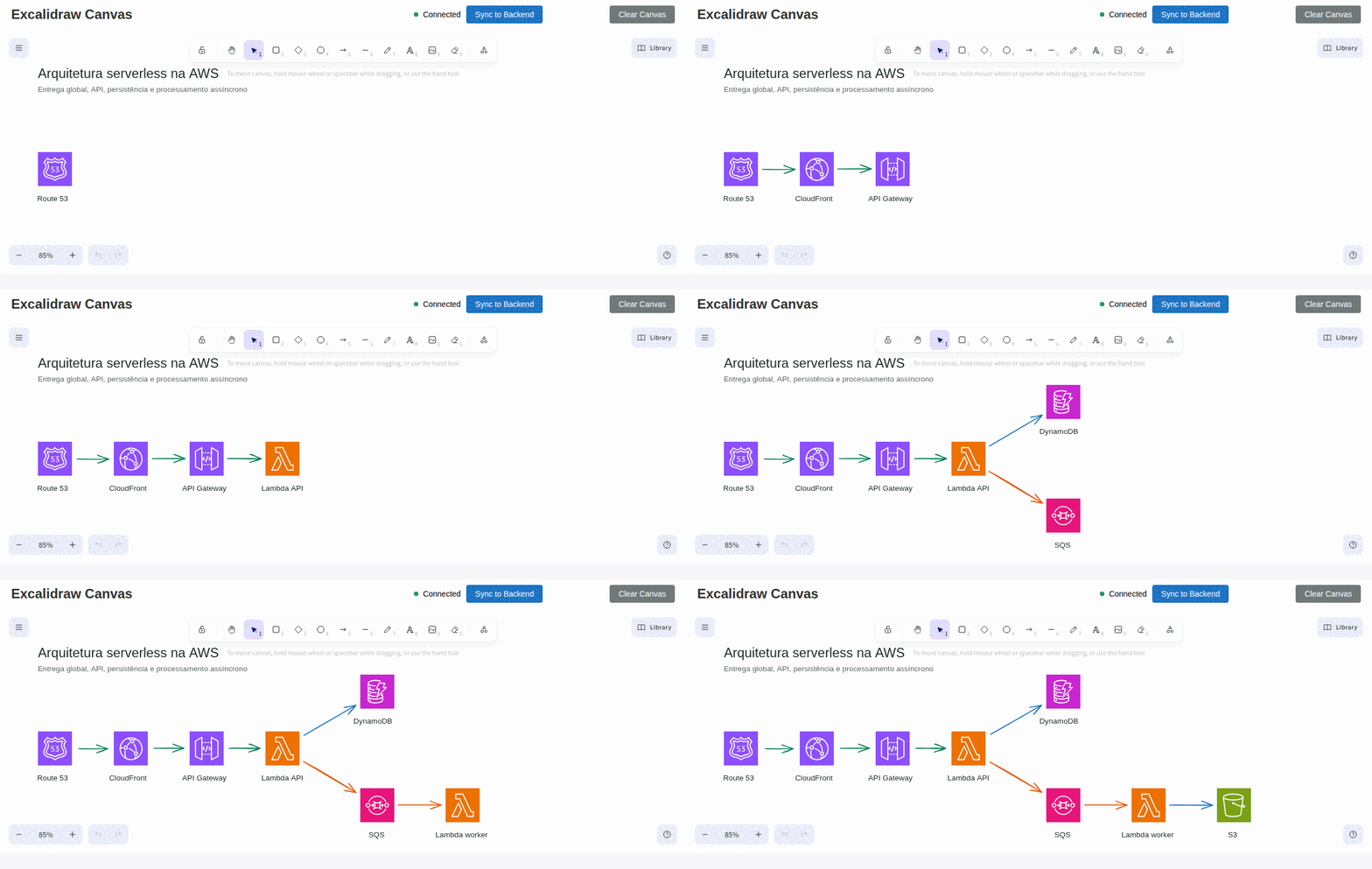
An AI agent builds a serverless AWS architecture step by step with Route 53, CloudFront, API Gateway, Lambda, DynamoDB, SQS, and S3.
Table of Contents
- Demo
- What It Is
- How We Differ from the Official Excalidraw MCP
- What's New
- Quick Start (Local)
- Quick Start (Docker)
- Configure MCP Clients
- Agent Skill (Optional)
- MCP Tools (31 Total)
- Vendor Icon Packs
- Testing
- Troubleshooting
- Known Issues / TODO
- Development
What It Is
This repo contains two separate processes:
- Canvas server: web UI + REST API + WebSocket updates (default
http://127.0.0.1:3000) - MCP server: exposes MCP tools over stdio; syncs to the canvas via
EXPRESS_SERVER_URL
How We Differ from the Official Excalidraw MCP
Excalidraw now has an official MCP — it's great for quick, prompt-to-diagram generation rendered inline in chat. We solve a different problem.
| Official Excalidraw MCP | This Project | |
|---|---|---|
| Approach | Prompt in, diagram out (one-shot) | Programmatic element-level control (31 tools) |
| State | Stateless — each call is independent | Persistent live canvas with real-time sync |
| Element CRUD | No | Full create / read / update / delete per element |
| AI sees the canvas | No | describe_scene (structured text) + get_canvas_screenshot (image) |
| Iterative refinement | No — regenerate the whole diagram | Draw → look → adjust → look again, element by element |
| Layout tools | No | align_elements, distribute_elements, group / ungroup |
| File I/O | No | export_scene / import_scene (.excalidraw JSON) |
| Snapshot & rollback | No | snapshot_scene / restore_snapshot |
| Mermaid conversion | No | create_from_mermaid |
| Shareable URLs | Yes | Yes — export_to_excalidraw_url |
| Design guide | read_me cheat sheet |
read_diagram_guide (colors, sizing, layout, anti-patterns) |
| Viewport control | Camera animations | set_viewport (zoom-to-fit, center on element, manual zoom) |
| Live canvas UI | Rendered inline in chat | Standalone Excalidraw app synced via WebSocket |
| Multi-agent | Single user | Multiple agents can draw on the same canvas concurrently |
| Works without MCP | No | Yes — REST API fallback via agent skill |
TL;DR — The official MCP generates diagrams. We give AI agents a full canvas toolkit to build, inspect, and iteratively refine diagrams — including the ability to see what they drew.
What's New
Icons & Conventions (this fork)
- Standardized icon search & insertion:
search_official_icon+add_imagepull real vendor icons — official AWS/Azure/GCP/OCI packs (user-supplied, see Vendor Icons), bundled Kubernetes, simple-icons (CC0), Tabler (MIT), and Iconify (~200k icons, fetched on demand and cached). No more generic rectangles for an "RDS" or "Compute Engine". - Community libraries:
search_library_items+insert_library_itemfor libraries.excalidraw.com shapes. - Per-domain diagram conventions:
read_diagram_guideacceptsdiagramType(network, cloud-aws, cloud-gcp, cloud-azure, c4, erd, flowchart, sequence) and returns that domain's standard conventions — canonical icons, boundary containers, shape semantics. - Auto-layout & validation:
batch_create_elementswithautoLayout: truearranges nodes and removes overlaps;validate_layoutflags overlaps, cramped spacing, and crossing arrows. - Performance and cleanup: single-batch creation flows, dependency pruning, dead-code removal.
v2.0 — Canvas Toolkit (upstream)
- 13 new MCP tools:
get_element,clear_canvas,export_scene,import_scene,export_to_image,duplicate_elements,snapshot_scene,restore_snapshot,describe_scene,get_canvas_screenshot,read_diagram_guide,export_to_excalidraw_url,set_viewport - Closed feedback loop: AI can now inspect the canvas (
describe_scene) and see it (get_canvas_screenshotreturns an image) — enabling iterative refinement - Design guide:
read_diagram_guidereturns best-practice color palettes, sizing rules, layout patterns, and anti-patterns — dramatically improves AI-generated diagram quality - Shareable URLs:
export_to_excalidraw_urlencrypts and uploads the scene to excalidraw.com, returns a shareable link anyone can open - Viewport control:
set_viewportwithscrollToContent,scrollToElementId, or manual zoom/offset — agents can auto-fit diagrams after creation - File I/O: export/import full
.excalidrawJSON files - Snapshots: save and restore named canvas states
- Skill fallback: Agent skill auto-detects MCP vs REST API mode, gracefully falls back to HTTP endpoints when MCP server isn't configured
- Fixed all previously known issues:
align_elements/distribute_elementsfully implemented, points type normalization, removed invalidlabeltype, removed HTTP transport dead code,ungroup_elementsnow errors on failure
v1.x
- Agent skill:
skills/excalidraw-skill/(portable instructions + helper scripts for export/import and repeatable CRUD) - Better testing loop: MCP Inspector CLI examples + browser screenshot checks (
agent-browser) - Bugfixes: batch create now preserves element ids (fixes update/delete after batch); frontend entrypoint fixed (
main.tsx)
Quick Start (Local)
Prereqs: Node >= 18, npm
npm ci
npm run build
Terminal 1: start the canvas
PORT=3000 npm run canvas
Security note: The server defaults to binding on
127.0.0.1only. If you need to expose it on a network interface (e.g. Docker, remote access), setHOST=0.0.0.0— but ensure you have network-level access controls in place, as the API has no built-in authentication.
Open http://127.0.0.1:3000.
Terminal 2: run the MCP server (stdio)
EXPRESS_SERVER_URL=http://127.0.0.1:3000 node dist/index.js
Quick Start (Docker)
Canvas server:
docker run -d -p 3000:3000 --name excalidraw-icons-canvas ghcr.io/iagogfe/excalidraw-icons-mcp-canvas:latest
MCP server (stdio) is typically launched by your MCP client (Claude Desktop/Cursor/etc.). If you want a local container for it, use the image ghcr.io/iagogfe/excalidraw-icons-mcp:latest and set EXPRESS_SERVER_URL to point at the canvas.
Configure MCP Clients
The MCP server runs over stdio and can be configured with any MCP-compatible client. Below are configurations for both local (requires cloning and building) and Docker (pull-and-run) setups.
Environment Variables
| Variable | Description | Default |
|---|---|---|
EXPRESS_SERVER_URL |
URL of the canvas server | http://127.0.0.1:3000 |
ENABLE_CANVAS_SYNC |
Enable real-time canvas sync | true |
Claude Desktop
Config location:
- macOS:
~/Library/Application Support/Claude/claude_desktop_config.json - Windows:
%APPDATA%\Claude\claude_desktop_config.json - Linux:
~/.config/Claude/claude_desktop_config.json
Local (node)
{
  "mcpServers": {
    "excalidraw": {
      "command": "node",
      "args": ["/absolute/path/to/excalidraw-icons-mcp/dist/index.js"],
      "env": {
        "EXPRESS_SERVER_URL": "http://127.0.0.1:3000",
        "ENABLE_CANVAS_SYNC": "true"
      }
    }
  }
}
Docker
{
  "mcpServers": {
    "excalidraw": {
      "command": "docker",
      "args": [
        "run", "-i", "--rm",
        "-e", "EXPRESS_SERVER_URL=http://host.docker.internal:3000",
        "-e", "ENABLE_CANVAS_SYNC=true",
        "ghcr.io/iagogfe/excalidraw-icons-mcp:latest"
      ]
    }
  }
}
Claude Code
Use the claude mcp add command to register the MCP server.
Local (node) - User-level (available across all projects):
claude mcp add excalidraw --scope user \
  -e EXPRESS_SERVER_URL=http://127.0.0.1:3000 \
  -e ENABLE_CANVAS_SYNC=true \
  -- node /absolute/path/to/excalidraw-icons-mcp/dist/index.js
Local (node) - Project-level (shared via .mcp.json):
claude mcp add excalidraw --scope project \
  -e EXPRESS_SERVER_URL=http://127.0.0.1:3000 \
  -e ENABLE_CANVAS_SYNC=true \
  -- node /absolute/path/to/excalidraw-icons-mcp/dist/index.js
Docker
claude mcp add excalidraw --scope user \
  -- docker run -i --rm \
  -e EXPRESS_SERVER_URL=http://host.docker.internal:3000 \
  -e ENABLE_CANVAS_SYNC=true \
  ghcr.io/iagogfe/excalidraw-icons-mcp:latest
Manage servers:
claude mcp list              # List configured servers
claude mcp remove excalidraw # Remove a server
Cursor
Config location: .cursor/mcp.json in your project root (or ~/.cursor/mcp.json for global config)
Local (node)
{
  "mcpServers": {
    "excalidraw": {
      "command": "node",
      "args": ["/absolute/path/to/excalidraw-icons-mcp/dist/index.js"],
      "env": {
        "EXPRESS_SERVER_URL": "http://127.0.0.1:3000",
        "ENABLE_CANVAS_SYNC": "true"
      }
    }
  }
}
Docker
{
  "mcpServers": {
    "excalidraw": {
      "command": "docker",
      "args": [
        "run", "-i", "--rm",
        "-e", "EXPRESS_SERVER_URL=http://host.docker.internal:3000",
        "-e", "ENABLE_CANVAS_SYNC=true",
        "ghcr.io/iagogfe/excalidraw-icons-mcp:latest"
      ]
    }
  }
}
Codex CLI
Use the codex mcp add command to register the MCP server.
Local (node)
codex mcp add excalidraw \
  --env EXPRESS_SERVER_URL=http://127.0.0.1:3000 \
  --env ENABLE_CANVAS_SYNC=true \
  -- node /absolute/path/to/excalidraw-icons-mcp/dist/index.js
Docker
codex mcp add excalidraw \
  -- docker run -i --rm \
  -e EXPRESS_SERVER_URL=http://host.docker.internal:3000 \
  -e ENABLE_CANVAS_SYNC=true \
  ghcr.io/iagogfe/excalidraw-icons-mcp:latest
Manage servers:
codex mcp list              # List configured servers
codex mcp remove excalidraw # Remove a server
OpenCode
Config location: ~/.config/opencode/opencode.json or project-level opencode.json
Local (node)
{
  "$schema": "https://opencode.ai/config.json",
  "mcp": {
    "excalidraw": {
      "type": "local",
      "command": ["node", "/absolute/path/to/excalidraw-icons-mcp/dist/index.js"],
      "enabled": true,
      "environment": {
        "EXPRESS_SERVER_URL": "http://127.0.0.1:3000",
        "ENABLE_CANVAS_SYNC": "true"
      }
    }
  }
}
Docker
{
  "$schema": "https://opencode.ai/config.json",
  "mcp": {
    "excalidraw": {
      "type": "local",
      "command": ["docker", "run", "-i", "--rm", "-e", "EXPRESS_SERVER_URL=http://host.docker.internal:3000", "-e", "ENABLE_CANVAS_SYNC=true", "ghcr.io/iagogfe/excalidraw-icons-mcp:latest"],
      "enabled": true
    }
  }
}
Antigravity (Google)
Config location: ~/.gemini/antigravity/mcp_config.json
Local (node)
{
  "mcpServers": {
    "excalidraw": {
      "command": "node",
      "args": ["/absolute/path/to/excalidraw-icons-mcp/dist/index.js"],
      "env": {
        "EXPRESS_SERVER_URL": "http://127.0.0.1:3000",
        "ENABLE_CANVAS_SYNC": "true"
      }
    }
  }
}
Docker
{
  "mcpServers": {
    "excalidraw": {
      "command": "docker",
      "args": [
        "run", "-i", "--rm",
        "-e", "EXPRESS_SERVER_URL=http://host.docker.internal:3000",
        "-e", "ENABLE_CANVAS_SYNC=true",
        "ghcr.io/iagogfe/excalidraw-icons-mcp:latest"
      ]
    }
  }
}
Notes
- Docker networking: Use
host.docker.internalto reach the canvas server running on your host machine. On Linux, you may need--add-host=host.docker.internal:host-gatewayor use172.17.0.1. - Canvas server: Must be running before the MCP server connects. Start it with
npm run canvas(local) ordocker run -d -p 3000:3000 ghcr.io/iagogfe/excalidraw-icons-mcp-canvas:latest(Docker). - Absolute paths: When using local node setup, replace
/absolute/path/to/excalidraw-icons-mcpwith the actual path where you cloned and built the repo. - In-memory storage: The canvas server stores elements in memory. Restarting the server will clear all elements. Use the export/import scripts if you need persistence.
Agent Skill (Optional)
This repo includes a skill at skills/excalidraw-skill/ that provides:
- Workflow playbook (
SKILL.md): step-by-step guidance for drawing, refining, and exporting diagrams - Cheatsheet (
references/cheatsheet.md): MCP tool and REST API reference - Helper scripts (
scripts/*.cjs): export, import, clear, healthcheck, CRUD operations
The skill complements the MCP server by giving your AI agent structured workflows to follow.
Install The Skill (Codex CLI example)
mkdir -p ~/.codex/skills
cp -R skills/excalidraw-skill ~/.codex/skills/excalidraw-skill
To update an existing installation, remove the old folder first (rm -rf ~/.codex/skills/excalidraw-skill) then re-copy.
Install The Skill (Claude Code)
User-level (available across all your projects):
mkdir -p ~/.claude/skills
cp -R skills/excalidraw-skill ~/.claude/skills/excalidraw-skill
Project-level (scoped to a specific project, can be committed to the repo):
mkdir -p /path/to/your/project/.claude/skills
cp -R skills/excalidraw-skill /path/to/your/project/.claude/skills/excalidraw-skill
Then invoke the skill in Claude Code with /excalidraw-skill.
To update an existing installation, remove the old folder first then re-copy.
Use The Skill Scripts
All scripts respect EXPRESS_SERVER_URL (default http://127.0.0.1:3000) or accept --url.
EXPRESS_SERVER_URL=http://127.0.0.1:3000 node skills/excalidraw-skill/scripts/healthcheck.cjs
EXPRESS_SERVER_URL=http://127.0.0.1:3000 node skills/excalidraw-skill/scripts/export-elements.cjs --out diagram.elements.json
EXPRESS_SERVER_URL=http://127.0.0.1:3000 node skills/excalidraw-skill/scripts/import-elements.cjs --in diagram.elements.json --mode batch
When The Skill Is Useful
- Repository workflow: export elements as JSON, commit it, and re-import later.
- Reliable refactors: clear + re-import in
syncmode to make canvas match a file. - Automated smoke tests: create/update/delete a known element to validate a deployment.
- Repeatable diagrams: keep a library of element JSON snippets and import them.
See skills/excalidraw-skill/SKILL.md and skills/excalidraw-skill/references/cheatsheet.md.
MCP Tools (31 Total)
| Category | Tools |
|---|---|
| Element CRUD | create_element, get_element, update_element, delete_element, query_elements, batch_create_elements, duplicate_elements |
| Layout | align_elements, distribute_elements, group_elements, ungroup_elements, lock_elements, unlock_elements |
| Icons & Libraries | search_official_icon, add_image, search_library_items, insert_library_item |
| Scene Awareness | describe_scene, get_canvas_screenshot, validate_layout |
| File I/O | export_scene, import_scene, export_to_image, export_to_excalidraw_url, create_from_mermaid |
| State Management | clear_canvas, snapshot_scene, restore_snapshot |
| Viewport | set_viewport |
| Design Guide | read_diagram_guide |
| Resources | get_resource |
Full schemas are discoverable via tools/list or in skills/excalidraw-skill/references/cheatsheet.md.
Per-Domain Diagram Conventions
read_diagram_guide accepts an optional diagramType — the client LLM identifies the diagram domain from the user's request and passes it to get that domain's standard convention appended to the guide (canonical icons, boundary containers, shape semantics, flow direction):
diagramType |
Convention |
|---|---|
network |
Cisco-style icons, LAN→ISP→cloud flow, dashed segment containers (LAN/DMZ/VLAN) |
cloud-gcp |
Official GCP icons, Google Cloud boundary + region/zone containers |
cloud-aws |
AWS Cloud → Region → VPC → AZ/subnet container nesting |
cloud-azure |
Azure boundary, resource-group grouping, VNet/subnet containers |
c4 |
C4 Model levels (one per diagram), Structurizr palette, labeled arrows with protocol |
erd |
Crow's-foot cardinality labels, entity layout rules |
flowchart |
ISO 5807 shape semantics (diamond = decision, labeled exits) |
sequence |
UML lifelines, sync/async message styles (prefers create_from_mermaid) |
Conventions live in src/diagramConventions.ts; validated by npm run test:conventions.
Vendor Icon Packs
search_official_icon works out of the box with bundled Kubernetes icons, simple-icons, Tabler, and Iconify (fetched on demand). Official cloud-vendor packs (AWS, Azure, GCP, OCI) are not bundled — each vendor requires accepting its own license, so you download them yourself and drop the SVGs under icons/<vendor>/. These folders are git-ignored and never redistributed by this repo.
| Vendor | Folder | Where to get it |
|---|---|---|
| AWS | icons/aws/ |
AWS Architecture Icons — download the asset package, extract the *_48.svg / Res_*.svg files |
| Azure | icons/azure/ |
Azure architecture icons — official SVG zip |
| GCP | icons/gcp/ |
Google Cloud icons — official SVG zip |
| OCI | icons/oracle/ |
OCI diagram toolkit |
Drop the .svg files directly under the folder (subfolders are fine — the index walks recursively). Local packs take priority over Iconify in search results. After adding a pack, restart the MCP server so the icon index picks it up.
Testing
Canvas Smoke Test (HTTP)
curl http://127.0.0.1:3000/health
Local Bind Regression Test
npm run test:bind
MCP Smoke Test (MCP Inspector)
List tools:
npx @modelcontextprotocol/inspector --cli \
  -e EXPRESS_SERVER_URL=http://127.0.0.1:3000 \
  -e ENABLE_CANVAS_SYNC=true -- \
  node dist/index.js --method tools/list
Create a rectangle:
npx @modelcontextprotocol/inspector --cli \
  -e EXPRESS_SERVER_URL=http://127.0.0.1:3000 \
  -e ENABLE_CANVAS_SYNC=true -- \
  node dist/index.js --method tools/call --tool-name create_element \
  --tool-arg type=rectangle --tool-arg x=100 --tool-arg y=100 \
  --tool-arg width=300 --tool-arg height=200
Frontend Screenshots (agent-browser)
If you use agent-browser for UI checks:
agent-browser install
agent-browser open http://127.0.0.1:3000
agent-browser wait --load networkidle
agent-browser screenshot /tmp/canvas.png
Troubleshooting
- Canvas not updating: confirm
EXPRESS_SERVER_URLpoints at the running canvas server. - Updates/deletes fail after batch creation: ensure you are on a build that includes the batch id preservation fix.
Known Issues / TODO
All previously listed bugs have been fixed in v2.0. Remaining items:
- Persistent storage: Elements are stored in-memory — restarting the server clears everything. Use
export_scene/ snapshots as a workaround. - Image export requires a browser:
export_to_imageandget_canvas_screenshotrely on the frontend doing the actual rendering. The canvas UI must be open in a browser.
Contributions welcome!
Development
npm run type-check
npm run build
Credits
This project started as a fork of yctimlin/mcp_excalidraw, which provides the live canvas + MCP foundation. On top of it, this fork adds standardized icon search and insertion (official AWS/Azure/GCP/OCI/Kubernetes packs, simple-icons, Tabler, Iconify), per-domain diagram conventions, auto-layout, and performance improvements. The demo above was recorded with this project's MCP server and official AWS icons.
License
MIT — original work © 2024 MCP Excalidraw Server (yctimlin), modifications © 2026 Iago Gonçalves.
Yorumlar (0)
Yorum birakmak icin giris yap.
Yorum birakSonuc bulunamadi