claude-monitor
Health Uyari
- License — License: CC-BY-4.0
- Description — Repository has a description
- Active repo — Last push 0 days ago
- Low visibility — Only 5 GitHub stars
Code Basarisiz
- eval() — Dynamic code execution via eval() in tools/collect-images.sh
Permissions Gecti
- Permissions — No dangerous permissions requested
Bu listing icin henuz AI raporu yok.
Desk status light for Claude Code on M5Stack hardware: an AtomS3R cube (ESP32-S3) shows the most urgent state, a Tab5 tablet (ESP32-P4) one tile per session. Driven by Claude Code hooks over USB. ESP-IDF 5.5, no Arduino.
claude-monitor
A desk status light for Claude Code, on M5Stack hardware. Claude Code's hooks report every lifecycle event to a small daemon on your machine; the daemon keeps the USB serial port open and tells the device what Claude is doing. You see from across the room whether Claude is working, waiting for a permission, asking you something, done, or stuck on an error, and you stop tabbing back to the terminal every thirty seconds.
Two devices are supported by the same firmware component and the same daemon:
- the M5Stack AtomS3R (ESP32-S3), a 24 mm cube with a 128×128 display: one icon, the most urgent state among your sessions, kept upright by the accelerometer as you turn it;
- the M5Stack Tab5 (ESP32-P4), a 5" 1280×720 touch tablet: one tile per Claude Code session (up to six), each with the project's name, its icon and a clock, and a tap on a tile opens a page with every field of the last hook event for that session. It turns with gravity like a tablet and beeps when a red icon appears.
Both have prebuilt firmware in every release (the Tab5 since 1.3.0), and the cube can be flashed from the browser.
Native ESP-IDF 5.5 (C++ / CMake / FreeRTOS). No Arduino, no PlatformIO, no Wi-Fi, no soldering. The host side is three PowerShell 7 scripts. Everything the pictures below show was captured from the Tab5 itself (tools/Make-ReadmeImages.ps1); the AtomS3R draws the same icons at 128 px.
In a hurry? Go to Installing, step by step.
What it shows
Every state is one icon, chosen so that it reads from a distance: shape and colour both carry the meaning.
| Icon | State | What it means | What triggers it (Claude Code hook) |
|---|---|---|---|
 |
Processing (processing) |
Claude is working on your request: thinking, reading, writing. The gear spins. | UserPromptSubmit, PreToolUse, PostToolUse, PostToolUseFailure, PostToolBatch, PostCompact (auto), Notification quota_auto_resume_fired |
 |
Processing with subagents | The gear shrinks and gains a counter-rotating satellite while one or more subagents run under this session. The count resets when the turn ends. | SubagentStart / SubagentStop |
 |
External tool running (EXT badge) | A process started by a tool is alive right now: a build, a test run, a shell command, as opposed to the model thinking. The daemon sees the process appear, which is also how it knows you approved a permission. | the daemon's process watching (tool_start / tool_stop) |
 |
Compacting (compacting) |
Claude Code is compacting the context; back in a moment. Grey, spinning. | PreCompact; ends at the compaction's SubagentStop or PostCompact |
 |
Waiting for you (waiting_user) |
A permission prompt is on the terminal, or a usage-limit resume needs Enter. Pulses three times when it appears; the Tab5 plays a rising two-tone beep. | Notification permission_prompt, quota_auto_resume_stale |
 |
Question (question) |
Claude asked you something (AskUserQuestion), or an MCP server or a background agent needs your input. Pulses. |
PreToolUse AskUserQuestion, Notification elicitation_dialog, elicitation_url_dialog, agent_needs_input |
 |
Error (error) |
The turn ended with an API error: authentication, billing, server, … Look at the terminal. Pulses; the Tab5 plays a falling beep. | StopFailure (every type but rate_limit), Notification quota_auto_resume_disabled |
 |
Paused (paused) |
A usage limit was hit and Claude Code is waiting for it to reset. The sand runs for twelve seconds, the glass turns over, and again. | StopFailure rate_limit |
 |
Idle (idle) |
Done. Waiting for your next prompt. | Stop, SessionStart, PostCompact (manual) |
| (screen off) | Off (off) |
The last session ended. Any new state switches the screen back on. | SessionEnd |
A thin band around the icon carries three more signs. They follow the icon's rotation.
| Overlay | Name | What it means |
|---|---|---|
 |
Work ring | Grows clockwise from the top while Claude works, one lap per ten minutes: yellow, then amber over it, then red. A two-minute answer and a half-hour refactor look different from across the room. The picture is two and a half minutes in. |
 |
Session dots (AtomS3R) | With two or more Claude Code sessions open, one dot per session along the bottom, coloured like that session's state, while the icon shows the most urgent one. The Tab5 shows a tile per session instead. |
 |
Host lost | A hollow grey mark at the top: the daemon has not sent its heartbeat for a minute (the machine went to sleep, the daemon died, the cable is out). The screen dims with it, so a spinning gear is never mistaken for work. |
Other behaviour, on both devices: the three "look at the terminal" signs (red !, blue ?, red X) pulse three times when they appear; after a while with nothing happening the cube's screen switches off (thirty minutes) and the Tab5 shows its usage screensaver (ten minutes); both switch off after thirty minutes without a host, and come back with the next state change (or the button under the cube's screen, or a tap on the Tab5); the AtomS3R keeps the icon upright at any angle, turning it smoothly with the cube, while the Tab5 turns the whole page in 90° steps like a tablet.
The Tab5: one tile per session
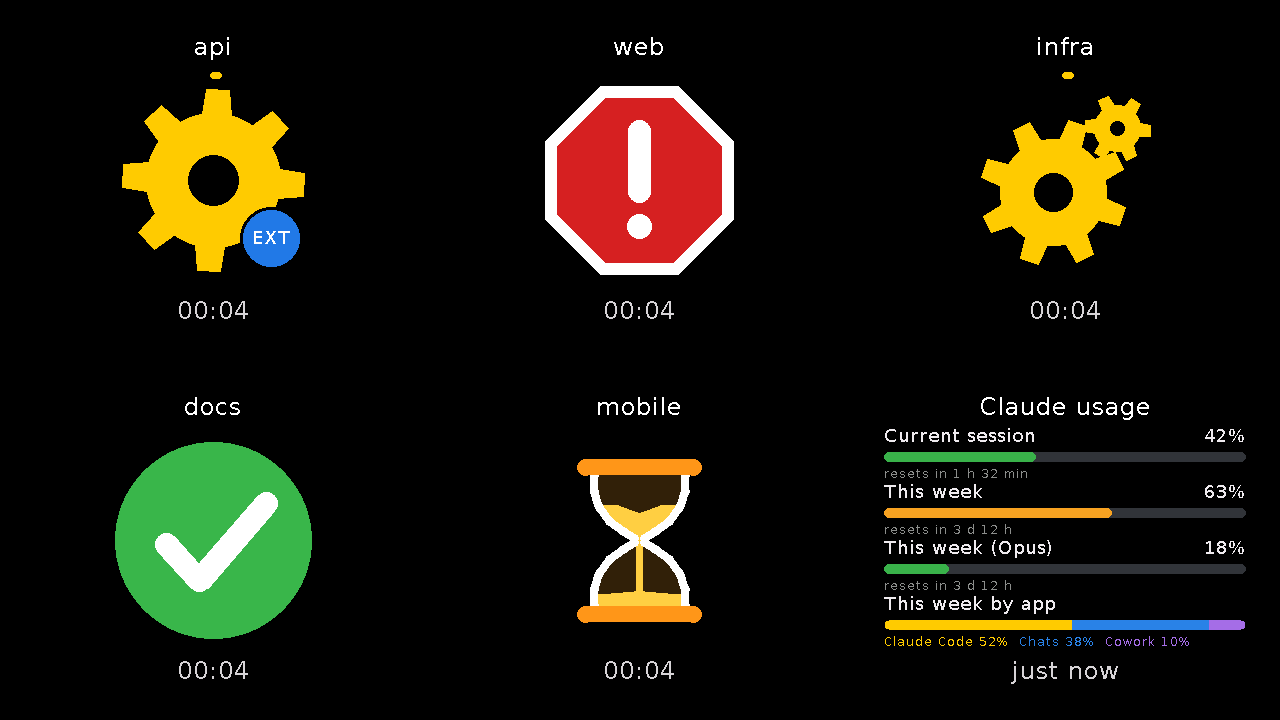
The screen splits itself by the number of live sessions: one, two side by side, a 2×2 grid, a 3×2 grid (up to six), plus one more cell for your plan usage when the daemon has it (seven make a 4×2 grid). Each tile is the session's name (the project's folder; #1, #2 when several sessions share a project; or a nickname from projects.json), its icon with the same overlays as the cube, and a clock with how long the current icon has been up, reset on every change. Here api is running a build (EXT badge), web wants a permission, infra has two subagents out, docs is done and mobile hit a usage limit; the last tile is the plan usage, the same rows as the screensaver below, sized to the cell (made-up numbers).
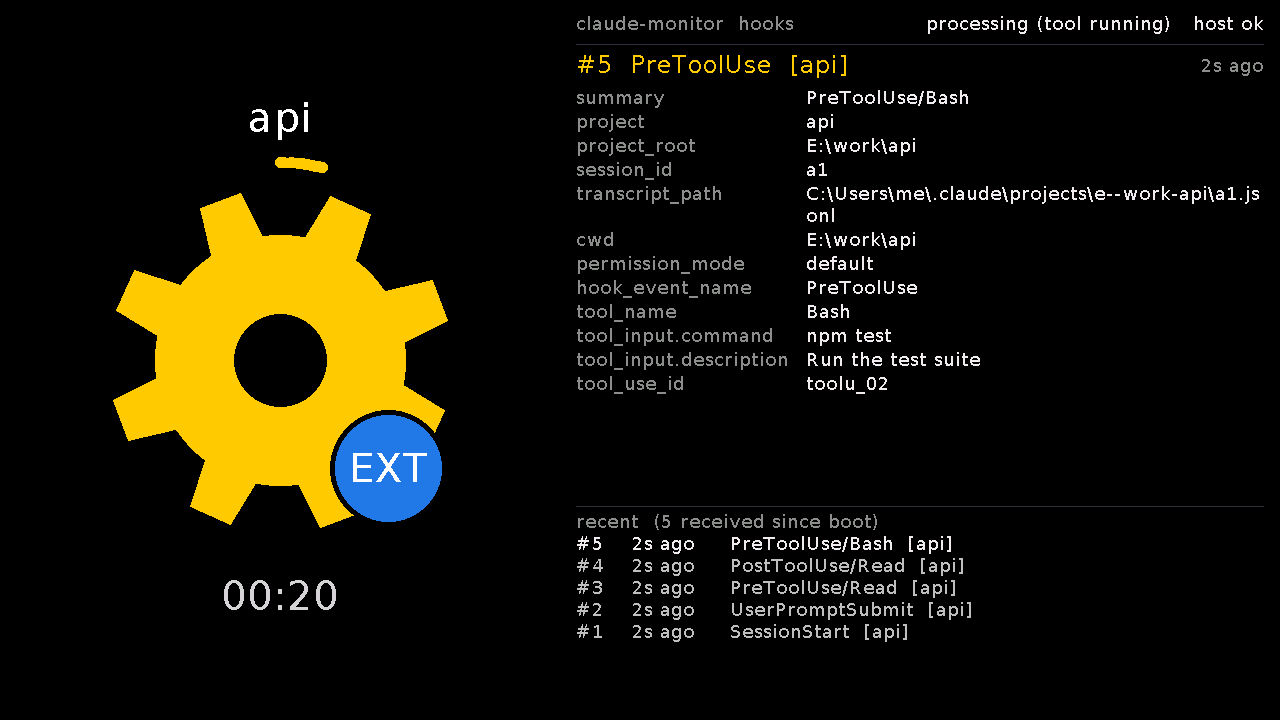
Tap a tile to open its detail page: the icon, name and clock on one side and, on the other, the hook inspector for that session: every field of the last hook event the daemon forwarded (tool_name, tool_input.command, prompt, cwd, permission_mode, …) with a running age, and a short history of the previous events. Tap anywhere to go back. The daemon sends the tablet the raw events, so this is also the quickest way to see what Claude Code actually delivers to a hook. A tap on the usage tile opens the usage page instead.
The Tab5 screensaver: your plan usage
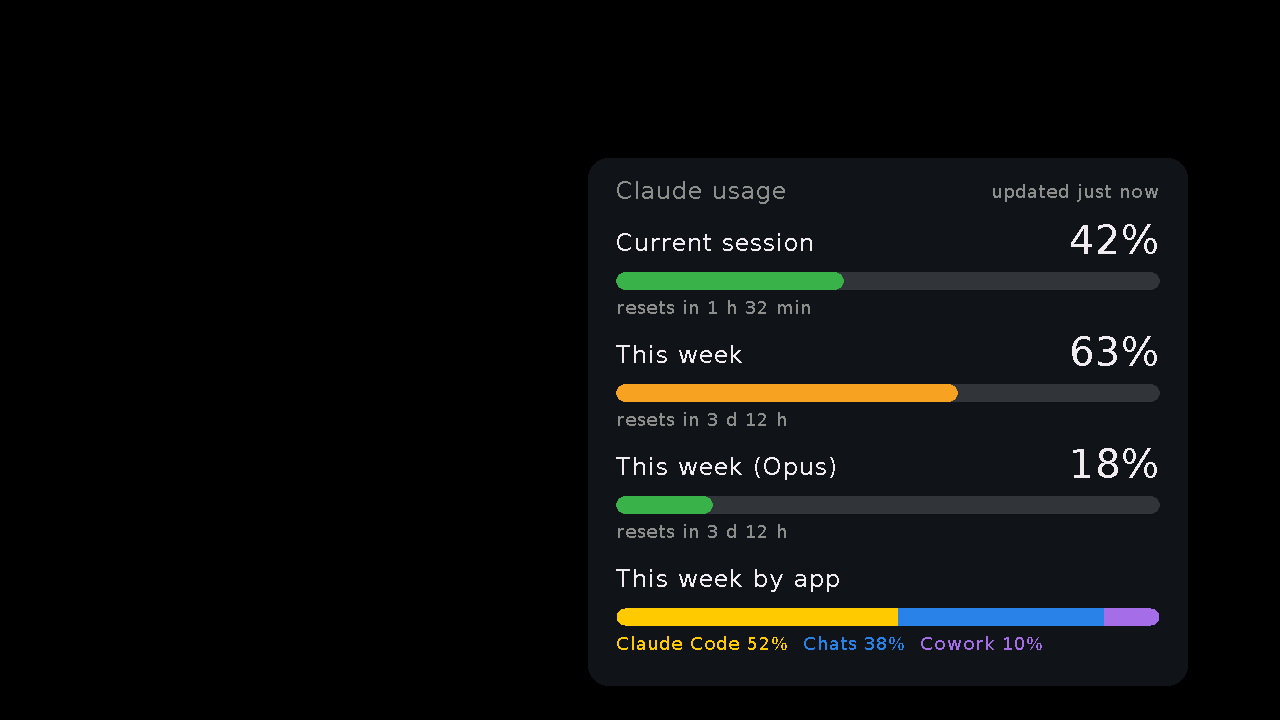
After ten minutes with every tile idle (or no session at all), the Tab5 hands the screen to a screensaver: a card with your Claude plan's usage, what /usage shows in Claude Code. One row per limit (the current five-hour session, the week, any per-model weekly limit) with its percentage, a bar (green below 50 %, amber below 80 %, red above) and the time left until it resets, plus how old the numbers are. The card drifts slowly across the whole panel and bounces off its edges at a lower brightness, so no part of the screen holds the same picture for long. A tap, any state change or a new session brings the tiles back; so does the host going quiet, since dimmed tiles with the grey mark say that better than stale numbers. While the tiles are up, the same numbers keep a tile of their own, the last cell of the grid, with "Claude usage" where the names are and the age of the numbers where the clocks are: the usage is always on screen, moving in the screensaver or next to your sessions.
The daemon gets the numbers from two places:
The status line (documented). After every response Claude Code hands its status line the
rate_limitsof a Pro or Max plan: the five-hour session and the week. Point the status line at the daemon, in~/.claude/settings.json:"statusLine": { "type": "command", "command": "curl.exe -s -m 2 --data-binary @- http://localhost:47831/statusline" }The daemon keeps the numbers and answers with the line to show (model, context,
5h 27% (resets 14:00),7d 4%).curlinstead ofcurl.exeon Linux and macOS. If you already have a status line script, have it pass its input on:echo "$input" | curl -s -m 1 --data-binary @- http://localhost:47831/statusline > /dev/null. Only terminal sessions run a status line: the VS Code extension does not, so with the extension alone this source stays silent.The account, polled (undocumented, off by default). Start the daemon with
-AccountUsage(.\host\Install-MonitorDaemon.ps1 -PortName COM7 -AccountUsage) and every five minutes it asks the endpoint Claude Code's/usagecommand reads, with the access token Claude Code keeps in~/.claude/.credentials.json. It works whatever client you use, the VS Code extension included, and also brings the per-model weekly limits. But it is not a public API: a Claude Code update can change it or take it away, and the card then keeps the last numbers with their age. The token is read fresh for each poll, sent only toapi.anthropic.comand never logged; when it has expired the daemon waits for Claude Code to refresh it.
With -AccountUsage the card and the tile end with one more row, This week by app: how the week's usage divides between Claude Code, chats and Cowork, as a bar in one colour per app and a legend (Claude Code 34% Chats 55% Cowork 11%). The status line does not carry it, so it comes from the account poll only.
GET http://localhost:47831/usage shows what the daemon has, where it came from and how the last poll went.
The Tab5 usage page
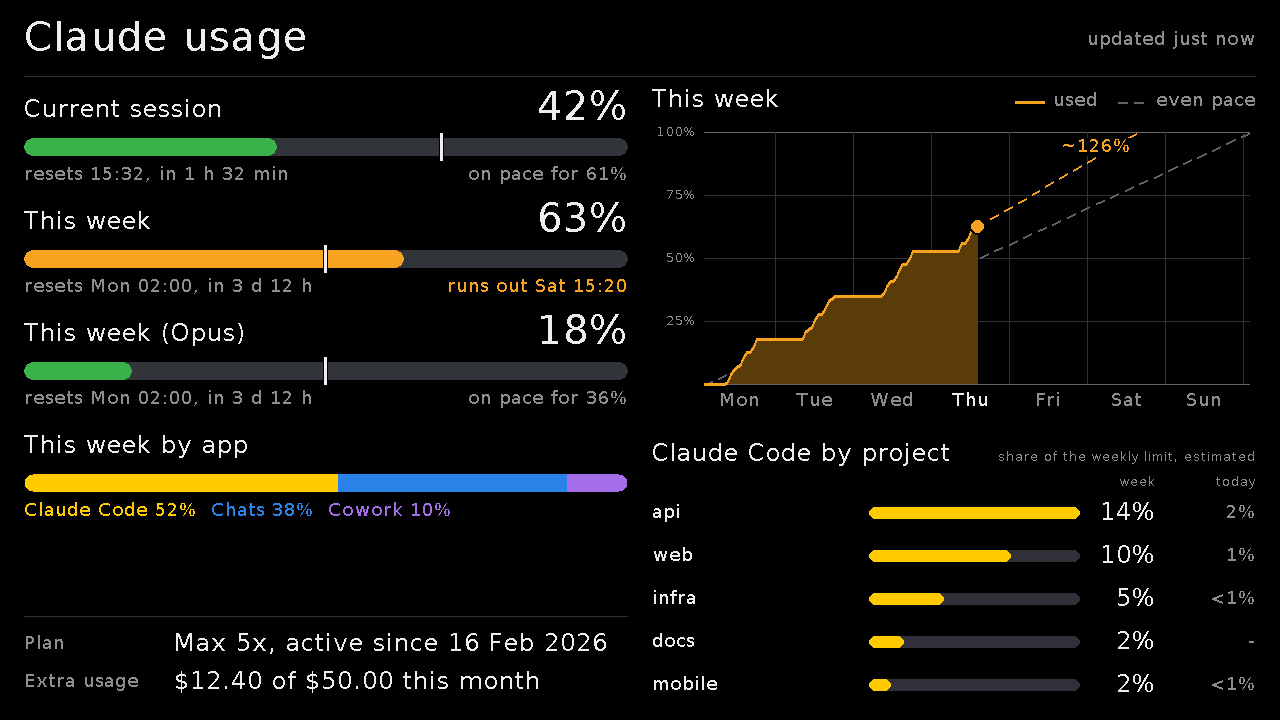
A tap on the usage tile opens a page with everything the daemon knows about your plan; a tap anywhere goes back.
- Every limit in full. The rows of the tile, at full size, with a white tick on each bar where an even pace would have it by now: a bar past its tick is ahead of pace. Under each bar, the reset as a clock time and how far off it is (
resets Wed 07:00, in 20 h 33 min), and where the usage ends up at the reset if it keeps the pace it had so far (on pace for 69%), or, when that passes 100 %, the moment it runs out (runs out Sat 15:20, in amber). - The week as a chart: the weekly limit hour by hour since its window started, the even-pace diagonal, and a dashed projection to the reset. The daemon keeps every reading of the weekly limit in
%LOCALAPPDATA%\claude-monitor\usage-history.jsonl(a line when it changes, otherwise one an hour; 35 days are kept) and, the first time, fills in the current week from its own log. - Claude Code by project: each project's share of the weekly limit, this week and today. The account splits the week by app, not by project, so this one is an estimate: the daemon reads the token counts Claude Code writes in its own transcripts (
~/.claude/projects, incrementally: about two seconds for a week of 1.7 GB the first time, milliseconds after that), weighs them the way the API prices them (cache reads a tenth of fresh input, cache writes 1.25 or 2 times, output 5 times; Sonnet and Haiku less than Opus) and splits Claude Code's part of the week (the by app row) in the same proportions. The top five, then the rest. Only Claude Code counts here, since chats and Cowork leave no transcript on this machine; only token counts are read.-NoProjectUsageturns it off. - Plan and billing: the plan, since when, and the extra usage the plan can buy past its limits: off, or what was spent this month against its cap. The account does not expose prices, invoices or the next billing date, so they are not on the page.
The limits, the extra usage and the week by app come from the -AccountUsage poll; the plan from Claude Code's login and, every six hours, the account's profile endpoint (undocumented, like the usage one). With the status line alone the page has the two limits, the chart and the projects (all of the week counted as Claude Code's). The host sends its clock with the numbers, since the board has none: the times on the page are the computer's local time. view usage opens the page from the host.
Claude Desktop
The desktop app has three parts, and each one reaches the monitor differently:
- The Code tab runs Claude Code and reads the same settings files, so its sessions fire the same hooks: they show up as tiles like any terminal or VS Code session, nothing to set up.
- Cowork and the app's scheduled tasks fire no hooks (Cowork takes its configuration from your claude.ai account and runs in a virtual machine). What the app does is post Windows notifications, such as Scheduled task needs your approval. Start the daemon with
-DesktopNotifications(.\host\Install-MonitorDaemon.ps1 -PortName COM7 -DesktopNotifications) and it reads the Claude app's notifications every three seconds from the database Windows keeps for the Action Center (wpndatabase.db, read-only, through thewinsqlite3.dllthat ships with Windows). Each new one appears as a session called Claude Desktop: the red sign (and the Tab5's beep) for one that needs you, the green check for the others, with the notification's text in the tile's inspector. Windows does not say when you acted on a notification, so the red sign goes when the notification leaves the Action Center (clicked or dismissed), when the Claude window has been in front for three seconds, or after 30 minutes (-DesktopWaitMinutes); the tile itself goes 10 minutes after that (-DesktopLingerMinutes). Notifications for the Claude app must be on in Windows' settings. The database is Windows' own and undocumented, but its format has not changed since Windows 10. - Chats have neither hooks nor notifications, so there is no live state to show; the usage tile's This week by app row shows how much of the week they took. On the device,
view saverstarts the screensaver at once (that is how the picture above was taken, with made-up numbers), andSTATUSreportsscreen=saverandusage=with the percentages.
How it works
The Anthropic API does not expose session state, so the device cannot poll. Instead, Claude Code's hooks fire on each lifecycle event and POST the event to a daemon on localhost, which maps it to a state and writes one line to the serial port:
┌──────────────┐   hook (HTTP POST)   ┌──────────────┐   text lines     ┌──────────────┐
│  Claude Code │ ───────────────────► │    daemon    │ ───over USB────► │   AtomS3R    │
│  session A   │  UserPromptSubmit    │  one state   │  "processing\n"  │   or Tab5    │
│  session B   │  Notification ...    │  per session │  "session ..\n"  │  draws it    │
└──────────────┘                      └──────────────┘                  └──────────────┘
The daemon keeps one state per session and sends the cube the most urgent one (error > ! = ? > hourglass > compacting > processing > idle), the Tab5 one line per session, and both a heartbeat every 30 s. It also watches the process tree: Claude Code has no hook for the moment you approve a permission, but the approved tool's process appears under the session's claude.exe within half a second, and that is when the red sign goes back to the gear (and the EXT badge comes on).
The protocol is one command per line, \n-terminated, no JSON, no handshake. State words: processing, waiting_user, question, error, paused, compacting, idle, off. Counters and flags: subagent_start / subagent_stop, tool_start / tool_stop. sessions <codes> lists the live sessions, one letter each (p processing, w waiting, q question, e error, h paused, c compacting, i idle), for the session dots. ping is the heartbeat. calibrate rot=… sign=… offset=… (or calibrate reset) stores the orientation calibration on the device. Queries: status answers with one STATUS line (state, calibration in effect, session codes, link, work seconds, screen) and version with one VERSION line (board, model detected, chip, flash, firmware, ESP-IDF and M5Unified versions, protocol version, features=, build time, uptime, reset reason); the Tab5 also answers screenshot with its display as text (what made the pictures above), and view grid / view detail <id> does what a tap does. Two kinds of line exist only for boards that ask for them in features=: event <name> with tab-separated key=value pairs carries a whole hook event (events), and session <id> with label=, state=, subagents=, tool=, project= describes one live session (sessions), with session_end <id> and session_clear. A third, usage <source> with one limit=<label>|<percent>|<seconds to reset>|<severity> per limit, feeds the Tab5's usage tile and screensaver, with split=<app>:<percent>|... for the week by app (usage, protocol 7); protocol 8 adds the usage page's fields to the same line (now= the host's clock and UTC offset, windows= each limit's length, plan=, extra=, history= the week hour by hour, one project=<name>|<week %>|<today %> per project), which older boards skip, and view usage. The AtomS3R never receives any of them.
The daemon is optional: the hooks can also run a one-line script per event that writes to the port directly (see Without the daemon). The daemon is better in every way that matters: no process start-up per event, a single writer on the port, events in order, a log with timestamps, per-session tracking, approval detection.
Hardware
- M5Stack AtomS3R — ESP32-S3-PICO-1-N8R8, 8 MB flash, 0.85" 128×128 IPS display, BMI270 IMU, a button under the screen, USB-C. The ESP32-S3 speaks USB natively (USB Serial/JTAG): the PC sees a virtual serial port and opening it does not reset the board.
- M5Stack Tab5 — ESP32-P4, 16 MB flash, 32 MB PSRAM, 5" 1280×720 IPS panel with touch, BMI270, speaker, USB-C on the P4's USB Serial/JTAG (the same kind of virtual port). Use a data cable: a charge-only one powers the tablet and shows nothing.
- A USB cable to the machine that runs Claude Code. That's it.
Installing, step by step
On Windows, with the daemon (the recommended way). What you need: one of the boards, a USB data cable, PowerShell 7 (winget install Microsoft.PowerShell if pwsh is not there), Claude Code, and this repository (git clone https://github.com/icefoxj/claude-monitor or the ZIP from GitHub).
1. Put the firmware on the board. Three ways, pick one:
The web flasher (Chrome or Edge; Firefox and Safari have no Web Serial): plug the AtomS3R in, open the page, click, pick the port. Nothing to install. (The page carries the AtomS3R image; the Tab5 uses the next option.)
esptoolwith the files of a release (pip install esptool; each release carries four files per board, the three parts and a merged image; the Tab5's since 1.3.0). Replace the port and the version (v1.3.0, for example). Note the Tab5's bootloader goes to0x2000, not0x0: that is where the ESP32-P4 looks for it.python -m esptool --chip esp32s3 -p COM5 -b 460800 --before default_reset --after hard_reset write_flash --flash_mode dio --flash_size 8MB --flash_freq 80m 0x0 claude-monitor-atoms3r-vX.Y.Z-bootloader.bin 0x8000 claude-monitor-atoms3r-vX.Y.Z-partition-table.bin 0x10000 claude-monitor-atoms3r-vX.Y.Z.bin python -m esptool --chip esp32p4 -p COM7 -b 460800 --before default_reset --after hard_reset write_flash --flash_mode dio --flash_size 16MB --flash_freq 80m 0x2000 claude-monitor-tab5-vX.Y.Z-bootloader.bin 0x8000 claude-monitor-tab5-vX.Y.Z-partition-table.bin 0x10000 claude-monitor-tab5-vX.Y.Z.binThe three parts leave the NVS partition alone, so a calibration stored on the device survives an update; the merged image (
…-merged.binat0x0) wipes it, which is also how you get a blank device.Build from source with ESP-IDF, see Build and flash.
On an AtomS3R that has never been flashed, hold the side reset button about two seconds first to enter download mode; the Tab5 tested here needed no button, esptool reset it into download mode over USB. The AtomS3R shows a green check as soon as the firmware boots, the Tab5 a single tile with the same check until the first session arrives.
2. Find the port. Device Manager lists the board as "USB Serial Device (COMx)"; in PowerShell:
[System.IO.Ports.SerialPort]::GetPortNames()
/dev/ttyACM0 on Linux, /dev/cu.usbmodemXXXX on macOS.
3. Install the daemon from the repository folder, with your port. It registers a scheduled task that starts hidden at logon and starts it right away:
.\host\Install-MonitorDaemon.ps1 -PortName COM5 # -LogEvents to keep every raw hook payload; -AccountUsage for the plan usage; -DesktopNotifications for Claude Desktop's Cowork; -Uninstall to remove
Check that it found the board:
Invoke-RestMethod http://localhost:47831/version # the device's VERSION line, parsed
4. Add the hooks to Claude Code. Open ~/.claude/settings.json (C:\Users\<you>\.claude\settings.json; create it if it does not exist) and add a hooks block with the same HTTP hook for each of the fourteen events. The header carries the project root so each session is named after its folder:
{
  "hooks": {
    "SessionStart":       [{ "hooks": [{ "type": "http", "url": "http://localhost:47831/hook", "timeout": 2,
                                         "headers": { "X-Claude-Project": "${CLAUDE_PROJECT_DIR}" },
                                         "allowedEnvVars": ["CLAUDE_PROJECT_DIR"] }] }],
    "UserPromptSubmit":   [{ "hooks": [{ "…the same object…": "" }] }],
    "PreToolUse":         [{ "hooks": [{ "…": "" }] }],
    "PostToolUse":        [{ "hooks": [{ "…": "" }] }],
    "PostToolUseFailure": [{ "hooks": [{ "…": "" }] }],
    "PostToolBatch":      [{ "hooks": [{ "…": "" }] }],
    "Notification":       [{ "hooks": [{ "…": "" }] }],
    "Stop":               [{ "hooks": [{ "…": "" }] }],
    "StopFailure":        [{ "hooks": [{ "…": "" }] }],
    "PreCompact":         [{ "hooks": [{ "…": "" }] }],
    "PostCompact":        [{ "hooks": [{ "…": "" }] }],
    "SubagentStart":      [{ "hooks": [{ "…": "" }] }],
    "SubagentStop":       [{ "hooks": [{ "…": "" }] }],
    "SessionEnd":         [{ "hooks": [{ "…": "" }] }]
  }
}
The fourteen entries are identical; write the full object in each. If settings.json already has other keys, add hooks next to them.
5. Try it. In a running Claude Code session type /hooks (it reloads the configuration) or start a new session, then send a prompt: the gear spins while Claude thinks, the green check comes when it answers, the red sign when it asks for a permission, the blue one when it asks you a question. Without Claude Code, any state can be sent by hand:
.\host\Send-ClaudeState.ps1 -State waiting_user # then processing, idle, ...
6. If the icon is not upright, calibrate once; the values are stored on the device.
7. Optional. %LOCALAPPDATA%\claude-monitor\projects.json renames projects on the Tab5 ({ "E:\\work\\claude-monitor": "Monitor" }); %LOCALAPPDATA%\claude-monitor\daemon.log has one line per event with a timestamp; GET http://localhost:47831/status shows the sessions the daemon knows and what the device was last told.
Updating later is step 1 again. The daemon owns the port while it runs, so free it first: Invoke-RestMethod -Method Post http://localhost:47831/release gives you two minutes, then it reconnects and re-sends everything.
Linux and macOS. The firmware is the same. The daemon is a PowerShell 7 script and runs under pwsh with -PortName /dev/ttyACM0 (not yet tested there; the process watching, hence the approval detection and the EXT badge, is Windows-only, and the installer is Windows-only because it registers a scheduled task; start the daemon from a user service of your choosing). Add your user to the serial group on Linux (sudo usermod -aG dialout $USER, then log out and in). The no-daemon variant with an echo per event works everywhere, see Without the daemon.
Build and flash
Requirements: VS Code with the ESP-IDF extension (espressif.esp-idf-extension) and ESP-IDF 5.5 installed through it, install and project paths without spaces or accents. M5Unified and M5GFX come from the ESP Component Registry (components/monitor-core/idf_component.yml); the first build downloads them into the board's managed_components/. Tested with ESP-IDF 5.5.0, M5Unified 0.2.21, M5GFX 0.2.28 (dependencies.lock).
The ESP-IDF project for the AtomS3R lives in firmware/atoms3r/, the Tab5's in firmware/tab5/. Open the folder in VS Code, or open claude-monitor.code-workspace, which lists it as a workspace folder, so the extension sees a project. Then, from the command palette or the status bar buttons:
- ESP-IDF: Set Espressif Device Target →
esp32s3(AtomS3R) oresp32p4(Tab5) - Nothing to configure:
sdkconfig.defaultsalready sets the target, the flash size and, for the Tab5, the PSRAM at 200 MHz that its panel needs. If you do open ESP-IDF: SDK Configuration Editor, leave Channel for console output at its default (UART0 with USB Serial/JTAG as a secondary channel, which is what makes the boot log visible over USB). - ESP-IDF: Build your Project
- Connect the board. For the AtomS3R's first flash, hold the side reset button ~2 s to enter download mode (the Tab5 needs nothing). ESP-IDF: Select Port to Use → pick the new port.
- ESP-IDF: Flash your Project
- ESP-IDF: Monitor Device — the boot log, and a green check on the screen. Close the monitor before the next step; it holds the port open.
Equivalent CLI, in a terminal with the ESP-IDF environment active (ESP-IDF: Open ESP-IDF Terminal, or the "ESP-IDF PowerShell" Start Menu shortcut on Windows):
cd firmware/atoms3r          # or firmware/tab5
idf.py set-target esp32s3    # esp32p4 for the Tab5; only once
idf.py build                 # sdkconfig.defaults is applied automatically
idf.py -p COM5 flash         # /dev/ttyACM0 on Linux, /dev/cu.usbmodemXXXX on macOS
idf.py -p COM5 monitor       # Ctrl+] to exit
On Windows, never prefix idf.py with bash — that hands the line to WSL. If a flash fails with "could not open port", the board is probably re-enumerating after a reset; retry a few seconds later. If the daemon is running it owns the port: ask it to let go before flashing or opening the monitor, and it reconnects on its own two minutes later (or at once with POST /reconnect):
Invoke-RestMethod -Method Post http://localhost:47831/release
Manual test
Prove the firmware before touching Claude Code. Monitor closed, device connected.
Linux / macOS
stty -F /dev/ttyACM0 raw -echo        # macOS: stty -f /dev/cu.usbmodemXXXX raw -echo
echo processing   > /dev/ttyACM0      # spinning gear
echo waiting_user > /dev/ttyACM0      # red exclamation sign
echo question     > /dev/ttyACM0      # blue question sign
echo error        > /dev/ttyACM0      # red cross
echo paused       > /dev/ttyACM0      # amber hourglass
echo compacting   > /dev/ttyACM0      # grey gear
echo idle         > /dev/ttyACM0      # green check
echo off          > /dev/ttyACM0      # screen off
Windows — the bundled script. If the daemon is running the script hands the state to it; otherwise it writes to the port itself:
.\host\Send-ClaudeState.ps1 -State processing -PortName COM5 # and the other words above
The script uses .NET's SerialPort, pins DTR/RTS low so the board never resets, retries a busy port a few times, and always exits 0. If nothing happens, something else (usually the monitor) has the port open.
status and version answer with a line. On Linux/macOS read it with cat /dev/ttyACM0 in a second terminal before sending the word; on Windows use the daemon (GET /serial/status, GET /version) or any serial terminal at 115200 baud with DTR and RTS off:
VERSION board=atoms3r model=M5Stack-AtomS3R chip=esp32s3 rev=v0.2 cores=2 flash=8MB fw=v1.2.0 idf=v5.5 m5unified=0.2.21 protocol=6 features=- project=claude-monitor-atoms3r built=2026-09-10T20:15:42 sha=a66e423b uptime=418 reset=poweron
VERSION board=tab5 model=M5Stack-Tab5 chip=esp32p4 rev=v1.3 cores=2 flash=16MB fw=v1.3.0 idf=v5.5 m5unified=0.2.21 protocol=6 features=events,touch,rotate,sessions project=claude-monitor-tab5 built=2026-09-26T16:51:58 sha=c3b2d5ba uptime=20 reset=usb
The second line is the Tab5 right after flashing the 1.3.0 release; features= is what tells the daemon it wants the per-session and event lines.
board is what the firmware was built for and model what M5Unified detected at boot, so the two disagree when an image runs on the wrong module. fw is the git tag the build came from (-N-gHASH after it means N commits past the tag, -dirty an uncommitted tree). The device also sends this line once, unasked, when it boots, so the daemon log records every reboot with its version.
On the Tab5, tools/Get-Screenshot.ps1 -PortName COM7 -OutFile shot.png captures the screen into a PNG (the daemon must not hold the port), and tools/Make-ReadmeImages.ps1 regenerates every picture in this README.
The host daemon
host/Monitor-Daemon.ps1 is a PowerShell 7 script that keeps the port open and listens on http://localhost:47831/. host/Install-MonitorDaemon.ps1 -PortName COM5 installs it as a scheduled task that starts hidden at logon (and starts it right away); -Uninstall removes it.
What it does with each event: keeps one state per Claude Code session (session_id comes with every hook), sends the device the most urgent state among the live sessions (error > ! = ? > hourglass > compacting > processing > idle) plus the list of all of them for the session dots, counts subagents across sessions, drops a session on SessionEnd or after four hours of silence, and re-sends everything when the device reappears after a reboot or re-plug. It pings the device every 30 s, which is how the device notices when the daemon is gone. A device whose VERSION lists sessions in features= (the Tab5) also gets one session line per live session whenever something in it changes, and one whose features include events gets every hook event as an event line.
Approvals, and what the process tree tells. Claude Code has no hook for the moment you approve a permission: after the red sign, nothing fires until the approved tool finishes, which for a build or a test run is minutes of red for nothing. The daemon closes that gap by watching processes. Each hook request comes from the session's own claude.exe; the daemon looks that process up once (from the TCP connection of the request) and watches its child processes in snapshots of the process table, twice a second while a permission is pending or a tool was just called, every two seconds otherwise. A tool process starting under a session that is showing the red sign means the permission went through, so the gear comes back within about half a second instead of when the tool ends; the same snapshots drive the blue EXT badge, and a session whose process disappears is dropped at once rather than after a timeout. Tools that spawn no process (Edit, Read, Write) are quick anyway and report through PostToolUse; any other hook from a waiting session (a subagent starting, a batch of tools finishing) also counts as approval.
Without the process information (the lookup failed, or a hook came from elsewhere), the older heuristics still apply: a session in processing or compacting for fifteen minutes with no change to its transcript file is dropped as dead, and sessions expire after four hours of silence. The timeouts are parameters: -DeadSessionMinutes 15, -SessionTimeoutMinutes 240, -PingSeconds 30.
The log at %LOCALAPPDATA%\claude-monitor\daemon.log has one line per event with a millisecond timestamp, which is how you find out where time goes when an icon seems late.
Every hook event is also turned into one event line with all its fields (nested objects flattened one level, values cut at 160 characters), preceded by the daemon's own summary=, project= and project_root=, and sent to a device that declared features=events. The last 50 of those lines stay in memory, GET /events?n=20 returns them newest first, which is a quick way to see what Claude Code delivers to the hooks without any device. Start the daemon with -LogEvents and it also appends each raw payload, untrimmed, as one JSON line to %LOCALAPPDATA%\claude-monitor\hooks.jsonl (Install-MonitorDaemon.ps1 -LogEvents registers it that way). Prompts and tool inputs land in that file, so treat it as you would a transcript.
The daemon shows each session under its root's folder name; %LOCALAPPDATA%\claude-monitor\projects.json maps roots to other names, { "E:\\work\\claude-monitor": "Monitor" }, and is re-read within a minute of a change.
Endpoints, all on http://localhost:47831/:
| Route | Use |
|---|---|
POST /hook |
what the hooks call; body is Claude Code's hook JSON |
POST /statusline |
what the status line calls; body is Claude Code's status line JSON, the answer is the text to show (see the screensaver) |
GET /usage |
the plan usage the daemon has, its source and age, how the last account poll went, and the usage page's data: plan, extra usage, the week hour by hour, the projects with their token counts, how the transcript reader is doing |
GET /status |
daemon state, sessions (state, project, pid, live tool processes, last event), what the device was last told, the device's VERSION fields read when the port was opened |
GET /version |
asks the device for its VERSION line and returns it raw and parsed, plus the daemon's script path and start time |
GET /events?n=20 |
the last hook events as event lines (time, tag, line), newest first, and how many were sent to the device |
GET /serial/status |
asks the device for its STATUS line and returns it |
POST /state/<state> |
writes one state to the device (what Send-ClaudeState.ps1 uses) |
POST /calibrate?rot=1&sign=-1&offset=0 |
stores the orientation calibration on the device (any subset) and returns its STATUS; ?reset=1 restores the compiled defaults |
POST /release[?seconds=120] |
closes the port so idf.py or the web flasher can write; reopens after the delay |
POST /reconnect |
reopens the port now |
GET /health |
{"ok":true} |
Claude Code hooks
Hooks live in ~/.claude/settings.json (all sessions) or .claude/settings.json in a project. With the daemon, every event is the same HTTP hook (the block in step 4) and the mapping lives in the daemon. The hook sends the project root in a header: the payload only carries cwd, which follows the shell around, while ${CLAUDE_PROJECT_DIR} is the directory the session started in; header values interpolate environment variables only when they are listed in allowedEnvVars. When the header is missing (older configuration) or arrives empty, as it did for every session checked in November 2026, the daemon reads where the session started from the first cwd in its transcript (the payload's transcript_path), and takes the cwd of the first event it sees only when there is no transcript yet.
The mapping the daemon applies:
| Event | Detail | State | Why |
|---|---|---|---|
SessionStart |
idle |
turns the screen back on if the last session switched it off | |
UserPromptSubmit |
processing |
||
PreToolUse |
tool_name = AskUserQuestion |
question |
Claude is asking you something |
PreToolUse |
any other tool | processing |
Claude decided on a tool (it fires before a permission prompt, if one follows) |
PostToolUse |
processing |
back to the gear once you answered a permission or a question | |
PostToolUseFailure |
processing |
the tool failed; Claude carries on with the error | |
PostToolBatch |
processing |
a batch of parallel tools resolved, next model call | |
Notification |
permission_prompt, quota_auto_resume_stale |
waiting_user |
permission prompt, or a usage-limit reset that needs Enter |
Notification |
elicitation_dialog, elicitation_url_dialog, agent_needs_input |
question |
an MCP server or a background agent needs your input |
Notification |
quota_auto_resume_fired |
processing |
the usage limit reset and the task resumed |
Notification |
quota_auto_resume_disabled |
error |
Claude Code gave up waiting for the limit |
Notification |
anything else (idle_prompt, auth_success, …) |
ignored | idle_prompt fires a minute after Stop, when the green check already says "waiting for you" |
Stop |
idle |
||
StopFailure |
error_type = rate_limit |
paused |
usage limit hit; Claude Code will wait for the reset |
StopFailure |
every other error type | error |
authentication, billing, server errors, … |
PreCompact |
compacting |
the state it interrupted is kept for when it ends | |
PostCompact |
trigger = auto / manual |
processing / idle |
auto-compaction happens mid-turn; /compact between turns. A session left idle is also compacted, 54 minutes after its Stop (before the prompt cache expires), and then PostCompact only comes with the next prompt |
SubagentStart / SubagentStop |
count ± 1 | a SubagentStop with no subagent counted, while compacting, is the compaction's own subagent finishing (it never sends SubagentStart): back to the state before PreCompact, the green check for a session left idle. Ten minutes compacting with no event ends it too |
|
SessionEnd |
session removed; off when it was the last one |
Two caveats. First, there is no hook event for the moment you approve a permission; the daemon infers it from the tool's process (see The host daemon), and in the no-daemon variant the red sign stays until the approved tool finishes (PostToolUse). Second, Claude Code rewrites settings.json itself, for example when it records a newly allowed directory or permission, and a block added by hand while a session was running can be lost in that rewrite; if a hook you added has vanished, re-add it and it sticks.
Hooks run wherever Claude Code runs: the terminal, the VS Code and JetBrains extensions, and Remote Control sessions driven from claude.ai or the phone all fire the hooks on your machine. Cloud sessions on claude.ai/code run hooks in the cloud sandbox from the repository's .claude/settings.json, where neither the daemon nor the USB port exists. Plain claude.ai chat has no hooks. Hook event names change over time — check the hooks documentation for your version.
Without the daemon
Each event can instead run Send-ClaudeState.ps1 (Windows) or an echo (Linux/macOS), with the mapping expressed as matchers. The exec form (args) spawns pwsh.exe directly, with no shell in between, and async keeps the PowerShell start-up off the critical path; every entry has the same shape, so only the first is written out in full:
{
  "hooks": {
    "SessionStart": [{ "hooks": [{
      "type": "command", "command": "pwsh.exe",
      "args": ["-NoProfile", "-ExecutionPolicy", "Bypass", "-File", "E:/work/claude-monitor/host/Send-ClaudeState.ps1", "-State", "idle"],
      "async": true, "timeout": 10
    }] }],
    "UserPromptSubmit": [{ "hooks": [{ "…same, -State": "processing" }] }],
    "PreToolUse": [
      { "matcher": "AskUserQuestion", "hooks": [{ "…": "question" }] },
      { "matcher": "^(?!AskUserQuestion$).*", "hooks": [{ "…": "processing" }] }
    ],
    "PostToolUse":        [{ "hooks": [{ "…": "processing" }] }],
    "PostToolUseFailure": [{ "hooks": [{ "…": "processing" }] }],
    "PostToolBatch":      [{ "hooks": [{ "…": "processing" }] }],
    "Notification": [
      { "matcher": "permission_prompt|quota_auto_resume_stale",                  "hooks": [{ "…": "waiting_user" }] },
      { "matcher": "elicitation_dialog|elicitation_url_dialog|agent_needs_input", "hooks": [{ "…": "question" }] },
      { "matcher": "quota_auto_resume_fired",                                     "hooks": [{ "…": "processing" }] },
      { "matcher": "quota_auto_resume_disabled",                                  "hooks": [{ "…": "error" }] }
    ],
    "Stop":             [{ "hooks": [{ "…": "idle" }] }],
    "StopFailure": [
      { "matcher": "rate_limit", "hooks": [{ "…": "paused" }] },
      { "matcher": "overloaded|authentication_failed|oauth_org_not_allowed|account_on_hold|billing_error|invalid_request|model_not_found|server_error|max_output_tokens|cloud_credential_error|unknown", "hooks": [{ "…": "error" }] }
    ],
    "PreCompact":       [{ "hooks": [{ "…": "compacting" }] }],
    "PostCompact": [
      { "matcher": "auto",   "hooks": [{ "…": "processing" }] },
      { "matcher": "manual", "hooks": [{ "…": "idle" }] }
    ],
    "SubagentStart":    [{ "hooks": [{ "…": "subagent_start" }] }],
    "SubagentStop":     [{ "hooks": [{ "…": "subagent_stop" }] }],
    "SessionEnd":       [{ "hooks": [{ "…same but without async, -State": "off" }] }]
  }
}
On Linux/macOS the command is echo <state> > /dev/ttyACM0 2>/dev/null || true (put the port in raw mode once with stty as in the manual test). The || true / unconditional exit 0 is the important part: in Claude Code, a hook exiting with code 2 blocks the action. A loose cable must never turn into a Claude Code that refuses to work. In this mode there is no per-session tracking, no approval detection and no Tab5 tiles: the last event from any session wins. A session that Claude Code compacts while it sits idle also keeps the grey gear until its next prompt: telling the compaction's own SubagentStop from a subagent's takes the per-session state the daemon keeps.
Calibrating auto-rotation
AtomS3R. The icons are redrawn at the angle of the gravity vector, low-pass filtered, so they turn smoothly with the cube. How the BMI270 is mounted relative to the panel varies, so the mapping has three values: rotation (rot, 0–3, steps of 90° clockwise), the display rotation everything is drawn in and what shows when the cube lies flat; sign and offset, since the icon angle is sign * atan2(ay, ax) + offset: if the icon turns the wrong way, flip the sign; if it is consistently off, adjust the offset (degrees). The compiled defaults (kBootRotationOffset, kTilt in firmware/atoms3r/main/main.cpp) were verified on one AtomS3R in all four standing positions and under continuous tilt.
Tab5. The whole page turns in 90° steps. Hold the tablet the way you use it and send calibrate rot=N, where N is the display rotation that is upright right now (1 or 3 for landscape, 0 or 2 for portrait; if the picture is upside down, send the other value). Then turn it 90°: if the picture turned the wrong way, send calibrate sign=-1. The compiled defaults (offset 3, sign +1) come from one unit.
Either way there is no need to rebuild: with the daemon running,
Invoke-RestMethod -Method Post 'http://localhost:47831/calibrate?rot=1&sign=-1&offset=0'   # any subset of the three
Invoke-RestMethod -Method Post 'http://localhost:47831/calibrate?reset=1'                   # back to the compiled defaults
Without it, send calibrate rot=1 sign=-1 offset=0 (or calibrate reset) over the port. The device applies the values at once, stores them in flash (the NVS partition, so they survive reboots and any flash that writes the three parts at their offsets: idf.py flash, the web flasher, esptool with three files; the merged image erases them), and answers with its STATUS line, where rot=, sign= and offset= show what is in effect. The boot log says which set is in use: (from nvs) or (compiled). To check the cube, stand it on a side, read angle= from http://localhost:47831/serial/status and compare it with what looks upright. The angle is held while the cube lies flat (|az| > 0.80 g) or the tilt is too small to be reliable (in-plane component below 0.40 g), so a cube resting on a desk never twitches. The Tab5 needs a turn 12° past the 45° boundary, held for half a second, before the page follows, and keeps the last orientation while lying flat.
The Tab5 build, in more detail
firmware/tab5/ is the ESP-IDF project (esp32p4). sdkconfig.defaults carries what the board needs: 16 MB flash in QIO mode, PSRAM at 200 MHz (M5GFX refuses the MIPI-DSI panel below that, which in ESP-IDF 5.5 sits behind CONFIG_IDF_EXPERIMENTAL_FEATURES), the 256 KB L2 cache, a larger factory partition, and a 16 KB stack for the main task (everything is drawn from it; the 3.5 KB default overflowed). Every tile's canvas, the inspector's and the screensaver's card live in PSRAM. When no session lines have arrived (a manual test, an older daemon) a single placeholder tile follows the aggregate words the cube uses, and that is where the icon pictures above come from.
The screen dims when the host stops talking and switches off after thirty minutes of that; ten minutes with every tile idle bring the usage screensaver instead; a tap wakes it or brings the tiles back. A two-tone beep from the speaker marks a red icon appearing on a visible tile: rising for the !, falling for the X. Verified on a Tab5 with ESP32-P4 rev v1.3 and an ST7121 panel: the USB-C is the P4's USB Serial/JTAG, so it shows up like the AtomS3R ("USB Serial Device (COMx)", VID 303A PID 1001), idf.py flash works without touching any button, opening the port does not reset it, and the daemon recognises the board from its VERSION (features=events,touch,rotate,sessions,usage).
Project layout
Everything that does not depend on the hardware is an ESP-IDF component; each board is a small ESP-IDF project that wires that component to its panel, IMU, buttons and USB.
claude-monitor/
├── components/monitor-core/        # board-independent: protocol, icons, state machine, tilt, orientation, inspector, screenshot, usage screensaver and page
│   ├── include/monitor/*.h
│   ├── src/*.cpp
│   └── idf_component.yml           # m5stack/m5unified ^0.2
├── firmware/atoms3r/               # ESP-IDF project for the AtomS3R (esp32s3)
│   ├── sdkconfig.defaults          # target esp32s3, 8 MB flash
│   ├── dependencies.lock           # exact M5Unified / M5GFX versions the build was tested with
│   ├── main/main.cpp               # board wiring: panel, IMU, button, USB Serial/JTAG, NVS calibration
│   └── .vscode/                    # c_cpp_properties.json and launch.json (settings.json is not committed)
├── firmware/tab5/                  # ESP-IDF project for the Tab5 (esp32p4): tiles, detail page, touch, speaker
│   ├── sdkconfig.defaults          # target esp32p4, 16 MB flash, PSRAM 200 MHz
│   └── main/main.cpp
├── host/
│   ├── Monitor-Daemon.ps1          # the daemon: port owner, HTTP hook receiver, per-session state, process watching
│   ├── Install-MonitorDaemon.ps1   # registers it as a logon scheduled task (Windows)
│   └── Send-ClaudeState.ps1        # one-shot sender (via the daemon if running, else the port)
├── tools/
│   ├── collect-images.sh           # names and merges a build's images for a release (used by CI)
│   ├── Get-Screenshot.ps1          # captures the Tab5's screen into a PNG over the serial port
│   └── Make-ReadmeImages.ps1       # regenerates docs/images from the board
├── docs/
│   ├── index.html                  # the web flasher page, published by CI with each release
│   └── images/                     # the pictures in this README
├── tests/host/                     # host tests for protocol, tilt, orientation and the usage line: any C++17 compiler, run.sh / run.ps1
├── .github/workflows/build.yml     # CI: host tests, both firmwares, release assets, web flasher
├── claude-monitor.code-workspace   # VS Code multi-root: repo + firmware projects
├── claude-code-status-monitor-atoms3r.md   # the original article: design decisions, icon geometry
├── CHANGELOG.md                    # what each release changed
├── CLAUDE.md                       # guidance for Claude Code working on this repo
├── LICENSE                         # CC BY 4.0
├── .clangd                         # lets clangd read the xtensa compile database
└── .devcontainer/                  # optional: espressif/idf Docker image
firmware/*/.vscode/settings.json is not committed: it holds machine-specific paths (ESP-IDF install, clangd, COM port) that the ESP-IDF extension writes when you pick the setup, target and port. Build output (build/, managed_components/, sdkconfig) is ignored too; sdkconfig.defaults is enough to recreate it.
Everything is drawn into an in-RAM canvas and pushed to the panel in one go, so the animations run without flicker. Icons are procedural — triangles, circles and round-capped strokes, no bitmaps — defined once for a 128 px canvas and scaled by the canvas size, and rotated vertex by vertex, which is why they can sit at any angle and any size.
Tests and CI
The board-independent code with no display dependency (protocol.cpp, tilt.cpp, orientation.cpp, usage.cpp) has host tests in tests/host/: plain C++17, no framework. tests/host/run.sh builds and runs them on Linux/macOS with any g++ or clang++; tests/host/run.ps1 does it on Windows with MSVC (found through vswhere) or a C++17 g++. They cover the line parser, every protocol word, the calibrate syntax, the tilt filter, the orientation steps, the usage line, the pace projection and the clock texts of the usage page. The icons and the state machine need an M5Canvas, so they are checked on the hardware.
GitHub Actions (.github/workflows/build.yml) runs the host tests and builds both firmwares (AtomS3R on esp32s3, Tab5 on esp32p4) with ESP-IDF 5.5 on every push and pull request, keeping each board's four images as a workflow artifact (tools/collect-images.sh names and merges them from the build's own flash arguments). On a version tag it also attaches them to the GitHub release for that tag and publishes the web flasher page with the AtomS3R's three parts and their ESP Web Tools manifest. The workflow can also be run by hand with a release tag to republish the flasher page from that release's assets.
Known limitations
- There is no hook event when a permission is approved. With the daemon the approval is inferred from the tool's process starting, which covers shell commands, builds and anything that spawns a process; for a tool that spawns nothing and still takes long (a slow MCP call) the red sign lasts until it finishes.
- The process watching is Windows-only (a process-table snapshot through
ntdll,Get-NetTCPConnection); on other systems the daemon falls back to the hooks alone, and a session inprocessingorcompactingfor more than fifteen minutes without any event is dropped as dead until the next hook revives it (-DeadSessionMinutes). - The daemon drives one port. With a cube and a tablet on the same machine, pick one (
-PortName). Notificationsemantics vary between Claude Code versions; if you get a green check where you expected the exclamation sign, that's why.- ESP-IDF logs and the protocol share the same USB port. Harmless: the daemon reads and discards the log lines, and only reacts to the replies it asked for.
- The daemon must be running for the HTTP hooks to reach anything; when it is not, Claude Code reports the failed hook and carries on, and the device shows the grey mark after a minute. The scheduled task restarts it at logon and after crashes.
- A manual write through
Send-ClaudeState.ps1orPOST /state/<state>bypasses the per-session bookkeeping; the next hook event that changes the aggregate state overrides it. - The web flasher carries the AtomS3R image only; the Tab5 is flashed with
esptoolor from source. - The screensaver's plan usage comes from a terminal session's status line or from
-AccountUsage, which relies on an undocumented endpoint. With only the VS Code extension and no-AccountUsage, the card says it has no data. - The usage page's split by project is an estimate from token counts: the plans' limits are not published in tokens, and the weights are the API's relative prices. It covers Claude Code on this computer only. The extra usage has only been seen switched off; the enabled form is read by the same field names and may need a fix the first time it shows up.
- Claude Desktop's chats have no live state on the monitor, and its Cowork and scheduled tasks only show what the app notifies (
-DesktopNotifications, Windows only); when a red sign from a notification goes away is a guess (see Claude Desktop).
License
Firmware, scripts and the article are released under the Creative Commons Attribution 4.0 International license (CC BY 4.0). See LICENSE.
References
- ESP-IDF VS Code extension
- AtomS3R docs · store page
- Tab5 docs · store page · ESP32-P4 in ESP-IDF
- M5Unified on the Component Registry
- Claude Code hooks
- The original write-up, claude-code-status-monitor-atoms3r.md: design decisions and the geometry of the icons (the firmware has evolved past it, see CHANGELOG.md)
Yorumlar (0)
Yorum birakmak icin giris yap.
Yorum birakSonuc bulunamadi