indagium
Health Uyari
- License — License: NOASSERTION
- Description — Repository has a description
- Active repo — Last push 0 days ago
- Low visibility — Only 5 GitHub stars
Code Basarisiz
- rm -rf — Recursive force deletion command in .github/workflows/build.yml
- rm -rf — Recursive force deletion command in .gitlab-ci.yml
Permissions Gecti
- Permissions — No dangerous permissions requested
Bu listing icin henuz AI raporu yok.
Android log viewer & logcat analyzer for Windows, macOS and Linux — crashes, ANRs, adb bugreports, DLT.
Indagium
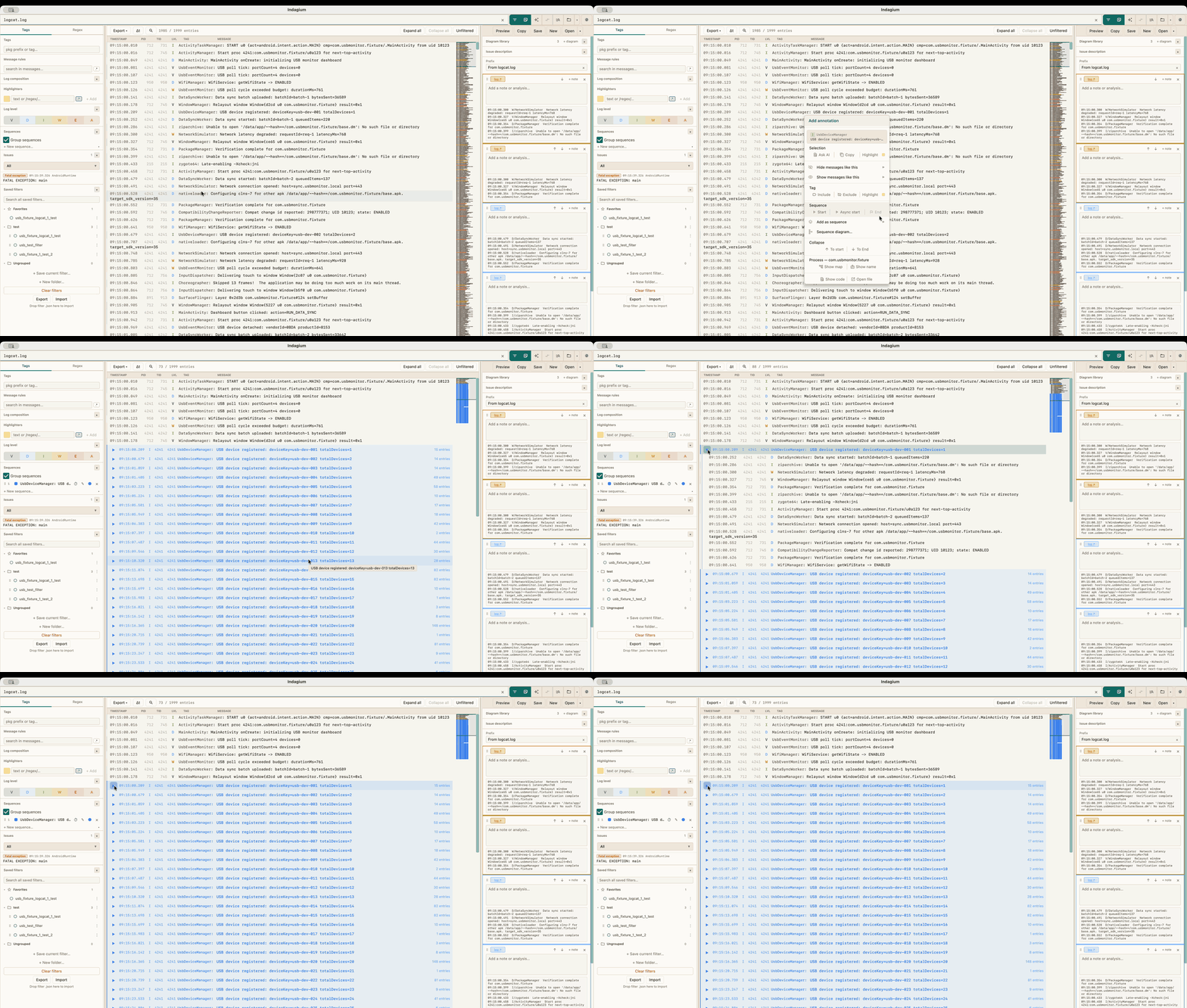
Android log viewer and logcat analyzer for Windows, macOS and Linux — investigate crashes, ANRs, adb bug reports, and supported DLT captures, with optional synchronized device logcat and screen-video capture. Built with Kotlin and Compose Multiplatform.


Features
Filtering and folding
- Multi-tab — open multiple log files side by side
- Log level filtering — toggle V / D / I / W / E / A individually
- Tag filters — include or exclude tags with exact match or regex; package-level grouping
- Message rules — filter lines by message content or PID/TID (substring or regex), optionally scoped to a tag or package
- Sequences — collapse recurring regions into colored, nestable groups using start/end patterns; choose from the same palette and custom colors as highlighters
- Manual collapse — fold to start, to end, or an explicit range when there's no pattern to match
- Highlighters — style matched text or whole lines by text, tag, message or regex; choose independent text/background colors from 100 presets or saved custom colors, override fonts, bold and italic, and import klogg highlighter sets
- Find bar — in-view search across the fully expanded log
- Filter presets — save, organize into folders, favorite, export and import filter configurations
Reading
- Crash, ANR and native-crash detection — stack traces fold automatically; custom issue rules add your own categories
- Minimap — compressed overview of the whole log in place of the scrollbar
- Thread map — color every thread in a process and see interleaved activity as a branch gutter
- Time deltas — per-row gaps, or offsets from a selected anchor row, to find stalls
- Compare view — two tabs side by side, each with its own filter or mirroring the other's
- Live tailing — watch a file as it's written, with your filter already applied
- Device capture — stream Android logcat and record screen video over USB or Android 11+ wireless debugging, then reopen them synchronized from one ZIP
- Large-file support — multi-gigabyte logs, with an optional split-on-open for the biggest
- Bug reports — open
.zipand.7zAndroid bug reports directly and pick what to load
Producing output
- Annotations — annotate log selections with notes, images, and video frames; copy for Microsoft Teams, Jira, Markdown, or HTML
- Sequence-diagram workspaces — turn a selected log range into an interactive, themed component-flow diagram; merge raw tags into named components, add mirrored actors, inspect evidence, save drafts, and attach an image or editable source to a note. The walkthrough reuses the user guide's 20-second animation as a video.
- Export filtered log — write the current filtered set to TXT or CSV
- Merge and split — interleave several logs by timestamp, or split one huge file into parts
- Show in code — register your project's source folder(s) in Settings, then right-click a log line to view the exact method that emitted it (Kotlin/Java,
Log.*+ Timber, plus custom wrappers); also exposed to AI assistants via theresolve_log_sourceMCP tool
Extras
- In-app AI assistant — use LM Studio, OpenAI, Anthropic, Codex, Claude Code, or another compatible provider to investigate the active log tab with the same log, filter, source, and notes tools exposed through MCP; on-device voice dictation inserts editable text into the composer
- AI test suites — describe Android tests as suites, cases and steps with checks and examples; AI agents drive real devices through them (several in parallel, one per device) while a blind judge compares expected with actual, with your own shell scripts as agent tools; failed steps become issues, filed in your tracker through its MCP server; every part is also authored and run over MCP
- Video sync — attach a screen recording, anchor it to a log line, and scrub either from the other
- MCP control server — drive Indagium from any MCP client over a local URL (off by default)
- Themes — 20 built-in themes (light, dark, and paper variants)
- Autosave — session is fully restored on next launch
- Update checker — optional in-app check against GitHub Releases
Supported log formats
Indagium also opens Diagnostic Log and Trace (DLT) captures (.dlt), raw DLT streams, and
DLT Viewer text/CSV exports. Binary captures are decoded as framed records; non-verbose payloads
are retained as safe text/hex and are not interpreted through FIBEX/ARXML definitions. An oversized
DLT capture can be split like any other log — binary captures are split frame-aware (every part is
a valid standalone DLT stream), and DLT Viewer CSV parts repeat the header row. DLT protocol v2
streams are not supported and cannot be split. DLT tabs do not support live UTF-8 tailing.
threadtime, time, brief, bare — unrecognised lines are shown with tag RAW.
Live capture
Capture is part of the normal tab workflow. Click Capture in the toolbar to focus the current
live capture, or to open a session-only New capture launcher when no capture is active. The
launcher checks installed adb and optional host scrcpy, lists devices with their connection and
authorization state, offers Android 11+ wireless pairing by QR or code, and shows retained
interrupted sessions. Indagium does not bundle host adb; install Android platform-tools through
the normal Android SDK setup. Log streaming, video recording, and the default in-app embedded mirror
use adb with a bundled, checksum-pinned scrcpy server asset. A host scrcpy installation is
only needed if you choose the separate external mirror window. Only one live capture can run at a
time.
Starting a device opens a normal streaming log tab. Its log can use the same filters, selection,
folding, search, and Notes workflow as any other tab while adb logcat appends new rows. A 46dp
capture strip shows the device, REC/elapsed time, storage usage, video state, and actions for Stop,
Mark issue, Screenshot, Save snapshot, Capture Settings, and diagnostics. The right-sidebar capture
card embeds the live device screen and its display controls when the embedded mirror is enabled; the
optional host-scrcpy window is a separate display route.
On Linux Flatpak, host-installed tools will be invoked throughflatpak-spawn --host --watch-bus; the package therefore needs the narrowly scopedorg.freedesktop.Flatpak D-Bus talk permission. Diagnostics will show actionable setup and device
errors inside Indagium rather than asking the user to operate a terminal.
By default, logcat streaming starts at capture time; earlier device ring-buffer contents are
excluded unless Include earlier device logs is enabled. Screen video recording is on by default
(1080p/30 fps/8 Mbps); device audio capture (Android 11+) and host microphone capture are opt-in.
Live recording is MKV.
Capture Settings cover tool paths, adb buffers, mirror mode, audio, video limits, filename and label
templates, and separate session, snapshot, and saved-ZIP folders. Updated recording and buffer
options are used when a capture starts; live mirror/display controls can be adjusted during capture.
The default storage guard stops at 10 GiB and preserves a 1 GiB reserve.
The strip's Save snapshot action exports a ZIP with matching logs, optional video, and notes.
The same range editor is available while recording, after Stop, and through Export → Export
capture range… after reopening a capture. Opened archives show analysis controls rather than a
recording's Save snapshot button. Closing the editor leaves an export running; Cancel export
stops it, and Save + open still opens the completed ZIP if the editor was dismissed.
For an opened archive, the same editor can also extract its contents without Indagium: the whole
archive as a folder, only the log as plain text, or only the video.
Choose all history, the last N minutes, rows since the previous successful save, the current
selection, a window around the video playhead, or explicit start/end times. The destination and
generated filename are shown before export. Cancellation or failure leaves a live capture running
and does not advance its save boundary. Exporting an earlier interval does not move that boundary
backward.
Archive v5 retains the log/video/notes assets and stores compact synchronization anchors per clock
segment with a small log-block index. New retained sessions use the same small metadata files.
Older v1–v4 captures remain readable and are not automatically rewritten; re-exporting produces v5.
Opening ZIP/Compact (.ind, or a legacy .ind.zip from an earlier build) verifies its assets and links reliably timestamped rows to the available video.
Rows with uncertain timing stay visible; time-range exports may include extra boundary logs and
report this without expanding the requested video interval.
A reboot, power-off, or temporary connection loss leaves capture waiting for the original device.
Logs and video reconnect automatically when it returns. Availability transitions are recorded in
logs, and unavailable intervals appear as cards in playback and exported video; both presentation
options can be disabled in Capture Settings. Android cannot always distinguish a power-off from a
disconnected cable: a reboot is confirmed only when the device's boot identity changes.
Device events in the capture bar and Issues → Device events list recorded disconnects and
confirmed reboots with times and downtime, including in reopened archives, and link to matching
transition rows when available. Event selection preserves filters and Unfiltered-panel visibility. The marker
tag is IndagiumCapture; confirmed reconnect markers include reboot=true.
Capture remembers the device's actual logging buffer sizes and global/per-tag levels and restores
them after a verified reboot or emulator restart when permitted. Restore failures appear in
diagnostics while capture continues. Buffered-log recovery avoids replaying already saved rows;
a new boot retains its own early messages.
Recovery follows the selected ADB serial. If a wireless device returns under a different serial or
address, capture keeps waiting; restore the original connection or start a new capture for that
address.
Screenshot runs adb screencap, stores the image in the session, and adds it to the active tab's
Notes with capture/video provenance when a video timestamp is available. Stop ends capture,
drains the log stream, and finalizes the descriptor in the retained session folder. Use Save ZIP
to export that stopped session as a portable archive; its video is also playable and seekable against
log rows in the current tab.
Live capture and the empty launcher are session-only and are not restored as active capture state.
Capture directories are retained under app data. If the application exits before Stop, the next
launcher marks the recording interrupted and lists it under Retained sessions so its folder can
be recovered. A stopped/finalized capture tab remains an ordinary durable tab and can be restored
through its capture descriptor.
Live capture timing begins from a synchronization estimate and can be calibrated with a millisecond offset. A saved snapshot may cover less video than log time when the recorder has not produced frames for the entire selected interval; the ZIP records actual coverage so the viewer does not imply a match outside it. Video export starts at a preceding readable keyframe when available. For the capture workflow and recovery details, see the device capture guide and User Guide §29.
Documentation
| Document | What it covers |
|---|---|
| User guide | How to use every feature, keyboard shortcuts, and worked recipes |
| Architecture (SAAD) | System design, module boundaries, data flow, threading, persistence, security |
| MCP guide | Connecting an external MCP client |
| MCP methods | The automation tool reference |
| Analysis playbook | Prompt patterns for log analysis |
| Release 1.9.2 | Standalone diagrams, source editor improvements, and lower memory use |
| Release 1.9.1 | Special themes, tab groups, saved layouts, workspace profiles and sequence diagram editing |
| Release 1.9.0 | Tiles across the log view, compare, New tab, diagrams and Tests; dockable tabs and toolbar; binary EULA |
| Release 1.8.15 | Compact capture archives, archive extraction, and capture reliability fixes |
| Release 1.8.10 | AI test suites, configurable Find behavior, and Search onboarding |
| Release 1.8.7 | Device capture, analysis improvements, onboarding, and other user-facing changes |
Installation
Download the latest release for your platform from the Releases page:
| Platform | File |
|---|---|
| Linux (x86-64) | .deb indagium_x.y.z-1_amd64.deb · AppImage Indagium-x.y.z-x86_64.AppImage · Flatpak Indagium-x.y.z-x86_64.flatpak |
| Linux (arm64) | .deb indagium_x.y.z-1_arm64.deb · AppImage Indagium-x.y.z-aarch64.AppImage · Flatpak Indagium-x.y.z-aarch64.flatpak |
| Windows | Indagium-x.y.z.msi |
| macOS (Apple Silicon) | Indagium-x.y.z.dmg |
macOS: "could not verify... free of malware"
The macOS build isn't signed with an Apple Developer ID or notarized, so Gatekeeper blocks it
once the .dmg has been downloaded through a browser (locally built copies aren't affected —
they never get the quarantine flag a browser download adds). To open it anyway, either:
- Terminal:
xattr -cr /Applications/Indagium.app, or - System Settings → Privacy & Security → scroll to the "Indagium was blocked" notice → Open Anyway
Linux
Choose one format that matches your architecture. The .deb is best for Debian-family systems;
AppImage runs without installing system files; the Flatpak bundle installs into your user account.
# Debian/Ubuntu and compatible distributions
sudo dpkg -i indagium_x.y.z-1_amd64.deb

# AppImage (replace x86_64 with aarch64 on ARM64)
chmod +x Indagium-x.y.z-x86_64.AppImage
./Indagium-x.y.z-x86_64.AppImage

# Flatpak bundle (replace x86_64 with aarch64 on ARM64)
flatpak remote-add --user --if-not-exists flathub https://dl.flathub.org/repo/flathub.flatpakrepo
flatpak install --user flathub org.freedesktop.Platform//24.08
flatpak install --user ./Indagium-x.y.z-x86_64.flatpak
flatpak run com.indagium.Indagium
The AppImage and .deb use bundled FFmpeg native libraries that require glibc 2.35 or newer
(Ubuntu 22.04+) for the in-app mirror, video recording, playback and export. On an older system
(e.g. Ubuntu 20.04, glibc 2.31) Indagium detects this at startup and adapts automatically: it still
captures and views logs, but video recording and in-app video features are unavailable. If the
selected display is the in-app mirror, Indagium uses the external host scrcpy window when host
scrcpy is installed; otherwise that capture has no device display. Installing host scrcpy is only
needed for that separate external mirror path. The Settings/New capture controls report the active
capabilities.
Flatpak is not a workaround on Ubuntu 20.04: its bundled flatpak 1.6 cannot read Flathub's
current summary ("summary exceeded maximum size of 10485760 bytes"), soorg.freedesktop.Platform//24.08 cannot be installed there without first adding a newer flatpak,
e.g. from ppa:alexlarsson/flatpak.
All three Linux packages register Indagium as a candidate handler for.log/.txt/.logcat/.trace/.out files, but do not make themselves the system default —
a package has no business silently rewriting another user's mimeapps.list. To open.log/.txt files with Indagium by default, opt in yourself:
# Debian package
xdg-mime default indagium-Indagium.desktop text/plain text/x-log

# AppImage or Flatpak
xdg-mime default com.indagium.Indagium.desktop text/plain text/x-log
or right-click a file in your file manager → Open With → Indagium → set as default.
The Flatpak package allows access to your home directory for logs and source folders. Its sandbox
cannot use host-installed Codex account or Claude Code account CLI profiles; select an
API/network-backed provider there instead.
Flatpak: "No X11 DISPLAY variable was set"
Indagium's UI toolkit (Java/AWT) needs a real X11 or XWayland display; the Flatpak sandbox cannot
supply one on its own. On a remote/VNC/xrdp/x2go session (or any shell started outside your X
session), set DISPLAY on the host before launching — setting it via flatpak run --env=
does not work, since Flatpak picks the X11 socket to bind before the sandbox exists:
DISPLAY=:1.0 flatpak run com.indagium.Indagium
File picker troubleshooting
If opening or saving files hangs, fails to appear, or behaves incorrectly under your Linux desktop,
open Settings → Appearance → File picker, choose Compatibility X11, and restart Indagium.
For an immediate one-launch workaround without changing Settings, run:
JAVA_TOOL_OPTIONS='-Dsun.awt.disableGtkFileDialogs=true' /opt/Indagium/bin/Indagium
Automatic is the default: it uses Compatibility X11 only when /etc/os-release has an exactID of debian, arch, manjaro, or fedora; it uses Native GTK for Ubuntu and unknown
distributions. A launch-time -Dsun.awt.disableGtkFileDialogs=... property overrides this setting.
In-app AI assistant
Notes and AI are independent toggles on the main toolbar (next to Filter), each showing
or hiding its own panel in the same resizable sidebar slot. With only one on, it fills the slot;
with both on, it splits into Notes above AI at a draggable divider. The AI assistant is optional
and runs only when you send a request. Its first provider is an OpenAI-compatible Chat Completions
endpoint, so the default profile works with a local LM Studio server:
- In LM Studio, load a tool-capable model and start its local API server.
- Open a log tab in Indagium, turn on AI in the toolbar, and choose the loaded model from the
dropdown (click it to browse discovered models, or type an id manually at the bottom of the
list). If discovery is unavailable, manual entry still works. - Ask a question or use a quick action such as Check error, Find root cause, Build
timeline, or Investigate issue. You can also right-click a log line and choose Ask AI.
Each reply shows when the request was sent, how long the first response and the full answer took,
and the reported token usage if the provider includes it. Tool-call activity for a request appears
in a collapsible, independently scrollable Investigation section between your message and the
final answer — expanded while it's running, collapsed once it finishes (click to reopen). Chat text
is selectable/copyable, and Reset clears the current tab's conversation to start over.
The built-in LM Studio (local) profile uses http://127.0.0.1:1234/v1. Settings → AI
providers also offers explicit OpenAI API and Anthropic API profiles, alongside the
existing generic OpenAI-compatible option. API keys are memory-only for the current app launch;
they are not written to autosave, settings, notes, or exports and must be entered again after
restart.
Codex account and Claude Code account profiles use a locally installed CLI executable and
its existing signed-in account instead of an API key. Settings can detect a common installation
or let you browse to the executable. On macOS, Codex can use the codex binary bundled inside
ChatGPT; a desktop app bundle itself is not enough. Claude requires the Claude Code CLI. Each request gets a fresh empty temporary
workspace plus a private, short-lived managed MCP endpoint. That endpoint exposes the same
Indagium tools and confirmation rules as the LM Studio panel path, pins requests to the active log
tab, and is revoked when the run ends. The account agents do not receive source-folder or app
workspace access; log and source evidence is available only through Indagium tools.
Local voice dictation
The microphone button beside Send records the default microphone in memory, transcribes it
with a local Whisper model, and appends the result to the editable composer. The default language
choices are Automatic, Ukrainian, and English; Settings can add other Whisper languages.
The EN control beside the microphone switches local English translation on or off. Nothing is
sent and a request is never started until you edit or accept the text and press Send yourself.
On first use, Indagium asks before downloading the selected multilingual Whisper model. Choose
Base (~142 MiB, fastest), Small (~465 MiB, stronger on short non-English dictation), Large v3
(~2.9 GiB, highest accuracy), or Large v3 Turbo (~1.5 GiB, faster Large-class transcription).
Downloads are explicit and verified; the model list never triggers a background download. Base,
Small, and Large v3 support local English translation. Large v3 Turbo is transcription-only; the
saved translation preference stays intact and takes effect again when you choose a capable model.
After the one-time model download, recording and transcription work offline and independently of
the selected chat provider on macOS, Windows, and Linux. The app builds its own JNI bridge against
pinned whisper.cpp 1.9.5; audio stays on the device and there is no remote speech-recognition
provider. macOS uses embedded Metal with CPU fallback, while Windows and Linux use portable CPU
kernels. Inference is serialized to limit simultaneous model memory use, and model-file checks run
in the background so opening the microphone does not hash a multi-gigabyte file. Settings → Voice
input also offers an opt-in native engine where available: strictly on-device Apple Speech on
macOS or an installed offline Windows Speech language pack on Windows. The downloaded Whisper
model lives in the app-data voice-models folder; audio recordings and transcripts are never
written there or kept after the dictation attempt.
In note editors, Rewrite with AI… opens a preview workflow for the selected text or the whole
draft. It sends only that captured note text and optional instructions to the chosen text profile;
the rewrite does not include logs, source files, images, or audio. Apply inserts the reviewed text
as one undoable editor change and leaves saving to the normal note action. Diagrams expose rewriting
for their captions only.
Data and action safety
Loopback endpoints (127.0.0.1, localhost, and equivalent local addresses) are treated as
local. A non-local provider (HTTP or HTTPS — some local-network LM Studio setups only ever serve
HTTP) is blocked until you acknowledge in Settings that the request can disclose log text,
selected context, source-code paths and snippets, and tool results to that provider. Use Test
connection in Settings → AI providers to check whether an endpoint is reachable before or after
saving; it only probes the endpoint and never saves or otherwise affects the profile.
The assistant can automatically read log/source context and apply filter, selection, folding, and
annotation changes. Actions that affect files or tab lifecycle always pause for an Allow or
Deny card: opening, splitting, closing, or merging tabs; starting/stopping tailing; exports;
and saving/loading annotation files. The tool trace shows what it requested and returned.
Clickable evidence cards are created only from actual tool results, never from line numbers or
paths invented in the model's prose.
Each conversation is scoped to one log tab and exists only for the current launch. Switching tabs
shows that tab's separate session; relaunching Indagium clears all AI sessions. Use Stop (or
Escape while a run is active) to cancel the active request. Retry resends the last request in
that tab after a provider error or cancellation.
A single request is capped at a configurable number of MCP analysis/operational calls (Settings →
AI providers → Max MCP tool calls per request, default 100) so an investigation can't run
forever. The budget is shared by every provider, including managed Codex and Claude Code sessions.
Notes and annotation reads/writes are unlimited and do not consume it, so an agent can always
inspect, revise, and save durable Notes output. The trace shows analysis/operational usage, Notes
writes as unlimited, returned character count, and result truncation count; the model receives
automatic budget guidance and a footer only when 5, 3, or 1 analysis/operational calls remain.
Troubleshooting
- "Choose or enter a model" — select a model returned by Find or type the exact model id
exposed by your provider. - Connection or stream error — confirm the endpoint is reachable, that LM Studio's server is
running, and that the endpoint includes its required API version path (the default ends in/v1). Use Test connection in Settings → AI providers to check reachability directly. - No models returned — model discovery is optional; enter the model id manually.
- Codex or Claude Code cannot start — use Detect or Browse in the account profile to
select its CLI executable, then sign in to that CLI. The account profile does not accept or
store API keys. - Remote provider blocked — save the profile after acknowledging the remote data disclosure
in Settings (HTTP and HTTPS are both allowed once acknowledged). - "MCP ... budget exhausted" — the analysis/operational allowance is spent. Notes and
annotation operations remain available; raise Max MCP tool calls per request in Settings →
AI providers if more log/source investigation is needed. - An investigation waits — inspect the tool trace and choose Allow or Deny on its
confirmation card. Use Stop if the action is no longer wanted.
The AI integration is separate from the built-in MCP server. MCP remains useful for external
clients such as LM Studio, Codex, and Claude Code; see the MCP guide and
the available methods and prompt guide.
Building from source
Requirements: JDK 21+, CMake 3.20 or newer, and a C/C++17 host toolchain. On macOS,
install Xcode Command Line Tools; on Windows, install Visual Studio 2022 or 2026 with the Desktop
development with C++ workload and Windows SDK; on Linux, install build-essential and cmake.
The first build downloads the pinned whisper.cpp source archive (about 9 MB) into Gradle's build
cache and verifies its SHA-256; subsequent builds reuse that source. Packaged applications include
the native bridge, so users do not need CMake or a compiler installed.
# Run
./gradlew desktopRun

# Test
./gradlew desktopTest

# Package (run on the target OS)
./gradlew packageDmg   # macOS
./gradlew packageDeb   # Linux
./gradlew packageAppImage # Linux AppImage (host architecture)
./gradlew packageFlatpak  # Linux Flatpak bundle (host architecture; needs flatpak-builder + Flathub runtime/SDK)
./gradlew packageMsi   # Windows
Releasing
Write docs/releases/X.Y.Z.md for each version before building: its introduction and ## sections become the offline
“What's New in this version” pages shown once after installation or upgrade. Historical releases through the version indocs/releases/whats-new-start.txt never show the walkthrough. When a release introduces special themes, add aversion X.Y.Z PACK_ID... entry to special theme announcements; releases without new
packs need no entry. An after X.Y.Z entry announces packs only in the first release after that version.
For a development-only preview of the bundled release notes (example pages when no notes are available), run ./gradlew desktopRun -Dindagium.previewRelease=true; skipping the preview
does not acknowledge a release, and choosing a theme applies it. Add -Dindagium.run.home=<temporary-home> to use separate settings.
Push a version tag to trigger the GitHub Actions build, which produces Linux .deb, AppImage, and
Flatpak bundles for x86-64 and arm64, plus Windows and macOS packages, and creates a GitHub Release automatically:
git tag v1.9.2 && git push --tags
The macOS build is unsigned (no Apple Developer certificate in CI) — see the Installation section above for the Gatekeeper workaround.
GitLab mirror
The repo is also mirrored to GitLab (gitlab.com/rarnaut-dev-group/openlog2 — the mirror kept its
pre-rename project name; only the name differs, the contents are the same), which runs .gitlab-ci.yml on GitLab's shared runners — a separate compute/storage pool from GitHub Actions, useful if GitHub's Actions quota is exhausted. The mirror is manual, not automatic: after pushing to origin, run:
./scripts/push-gitlab-mirror.sh
Pushing a v*.*.* tag there builds the Linux .deb automatically; Windows .msi and macOS .dmg are optional manual jobs in the resulting pipeline (triggered with the "play" button), since GitLab's Windows/macOS SaaS runners are pricier and only worth running by request.
License
Official binaries: New official releases that include the Indagium EULA are licensed under that EULA. Their free functionality is available for commercial and non-commercial use, including organizational deployment, internal copies and backups. Optional premium functionality may require a paid subscription; a subscription is not required to use the free functionality. Users of those official binaries do not have to accept PolyForm. Public redistribution of official binaries requires permission, subject to third-party and statutory rights. Older releases retain their original terms.
Public source: The source remains available under the PolyForm Perimeter License 1.0.0. That licence permits commercial and non-commercial purposes subject to its terms, including its restriction on providing competing products or services to others. This includes a competing substitute made from the source that removes subscription restrictions to offer paid features for free.
Self-built copies use PolyForm by default. The EULA does not withdraw independently granted source-code rights. Source modifications and redistribution must comply with PolyForm, including its notice requirements. Official builds explicitly select -Pindagium.license=eula; ordinary source builds default to -Pindagium.license=polyform. Official packaging also requires the exact Temurin build pinned in the application/JVM source lock. See binary licensing maintenance.
Third parties: Dependencies keep their own licences and rights, including applicable LGPL replacement and debugging rights. See NOTICE, THIRD_PARTY_NOTICES.md, the offline licence viewer and the public licence index. New releases must supply matching media and application/JVM source archives with checksums and manifests alongside the binaries. Assemble them with ./gradlew prepareMediaSources prepareApplicationSources; see media and application/JVM instructions. These summaries do not replace any governing licence. Branding rights are described in NOTICE.
Yorumlar (0)
Yorum birakmak icin giris yap.
Yorum birakSonuc bulunamadi