ZotSeek
Health Uyari
- No license — Repository has no license file
- Description — Repository has a description
- Active repo — Last push 0 days ago
- Community trust — 118 GitHub stars
Code Basarisiz
- fs module — File system access in content/wasm/ort-wasm-simd-threaded.jsep.mjs
- network request — Outbound network request in content/wasm/ort-wasm-simd-threaded.jsep.mjs
- process.env — Environment variable access in scripts/build.js
- fs module — File system access in scripts/build.js
- child_process — Shell command execution capability in scripts/release.js
- spawnSync — Synchronous process spawning in scripts/release.js
- fs module — File system access in scripts/release.js
Permissions Gecti
- Permissions — No dangerous permissions requested
Bu listing icin henuz AI raporu yok.
AI semantic search for Zotero, with a built-in MCP server for AI agents (Claude Code, Codex). Find papers by meaning. 100% local and private.
ZotSeek | AI-Powered Semantic Search & MCP Server for Zotero
Find similar papers by meaning, not just keywords. 100% local, no data leaves your machine. Now with a built-in MCP server for AI agents.
Status: ✅ Stable release · Zotero 8 & 9 · Transformers.js running locally
New: 🤖 MCP server built in — Claude Code, Codex, and any MCP client can search your library and cite papers with links that open straight to the matched PDF page. Fully local, read-only, opt-in. Set it up in one line →
Features
- 🔒 100% Local - No data sent to cloud, works completely offline
- 🧠 True Semantic Search - Find papers by meaning, not just keywords
- 🤖 AI Agent Access (MCP) - Let Claude Code and other MCP clients search your library, fully local and opt-in (docs)
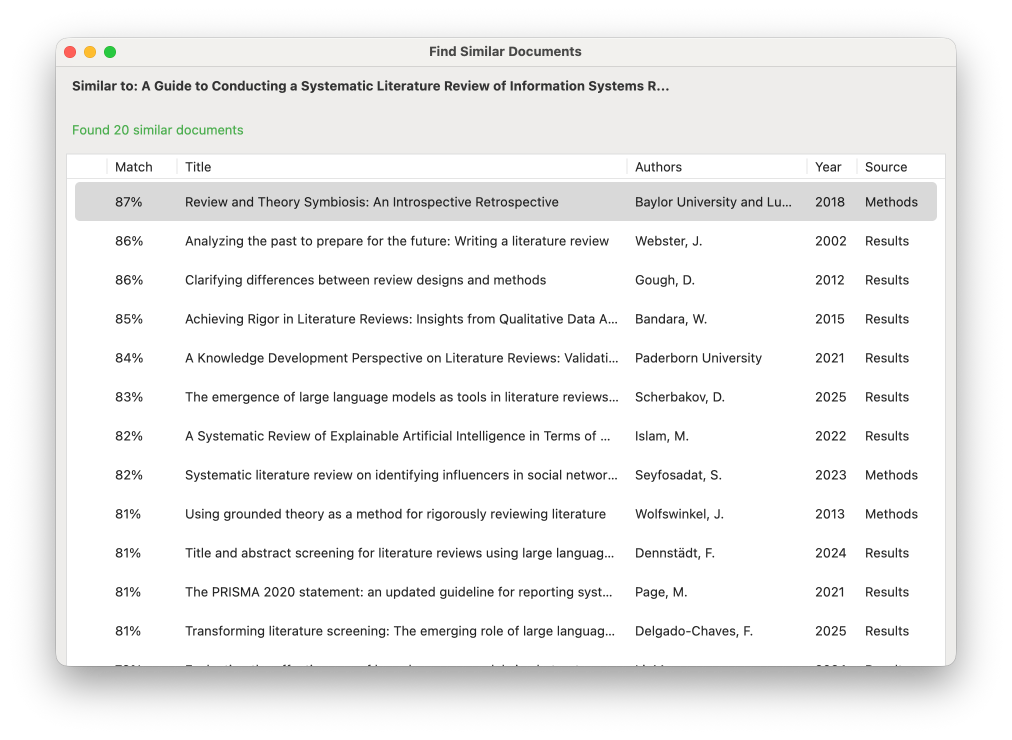
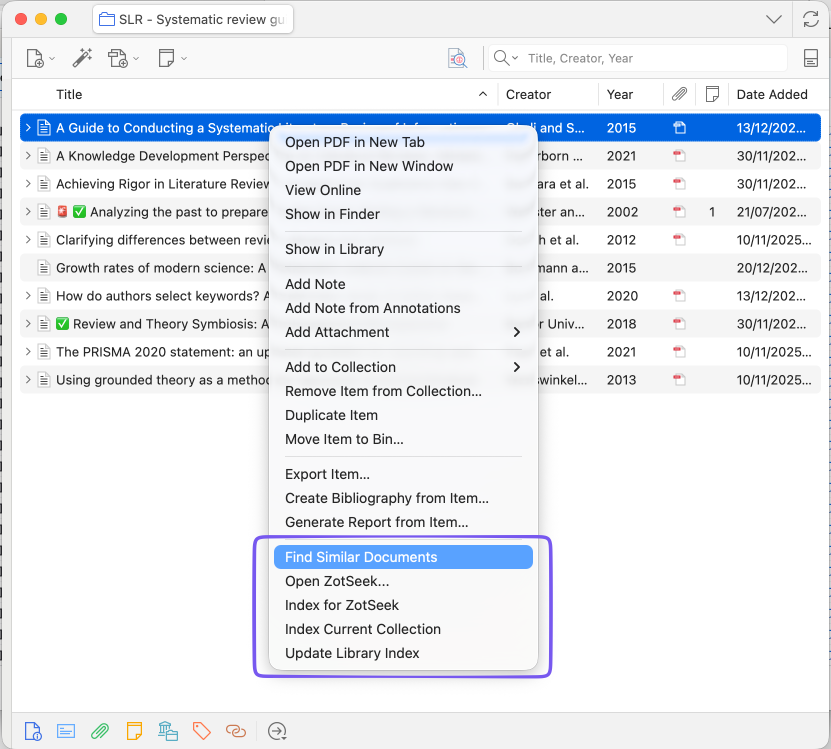
- 🔍 Find Similar Documents - Right-click any paper → discover related research
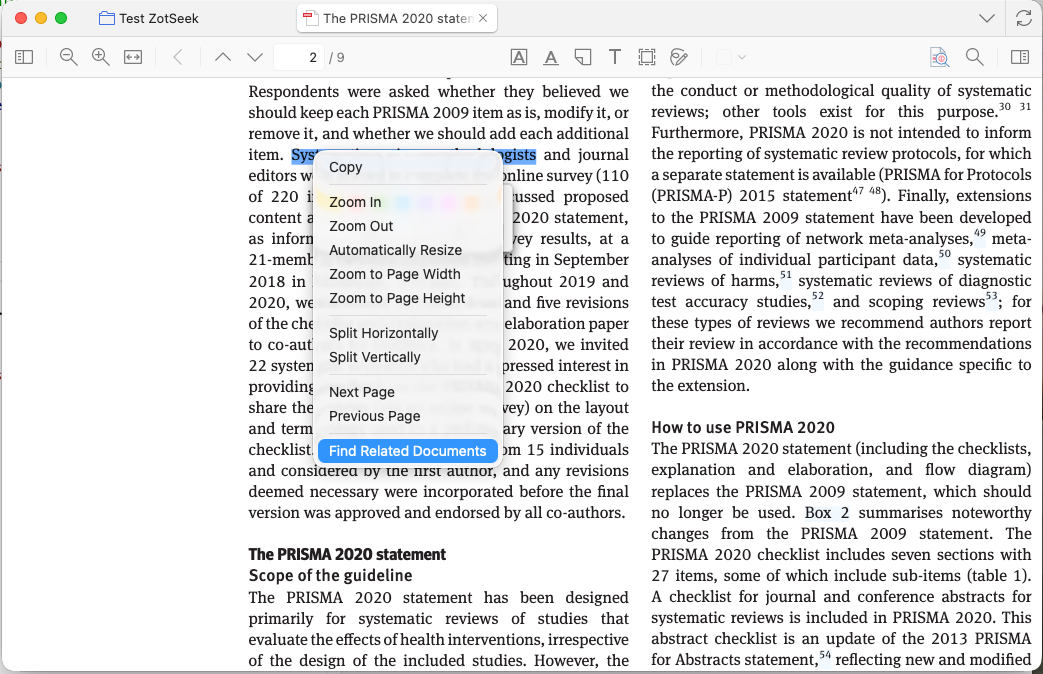
- 📖 Search from PDF Selection - Select text while reading → right-click → find documents about that concept
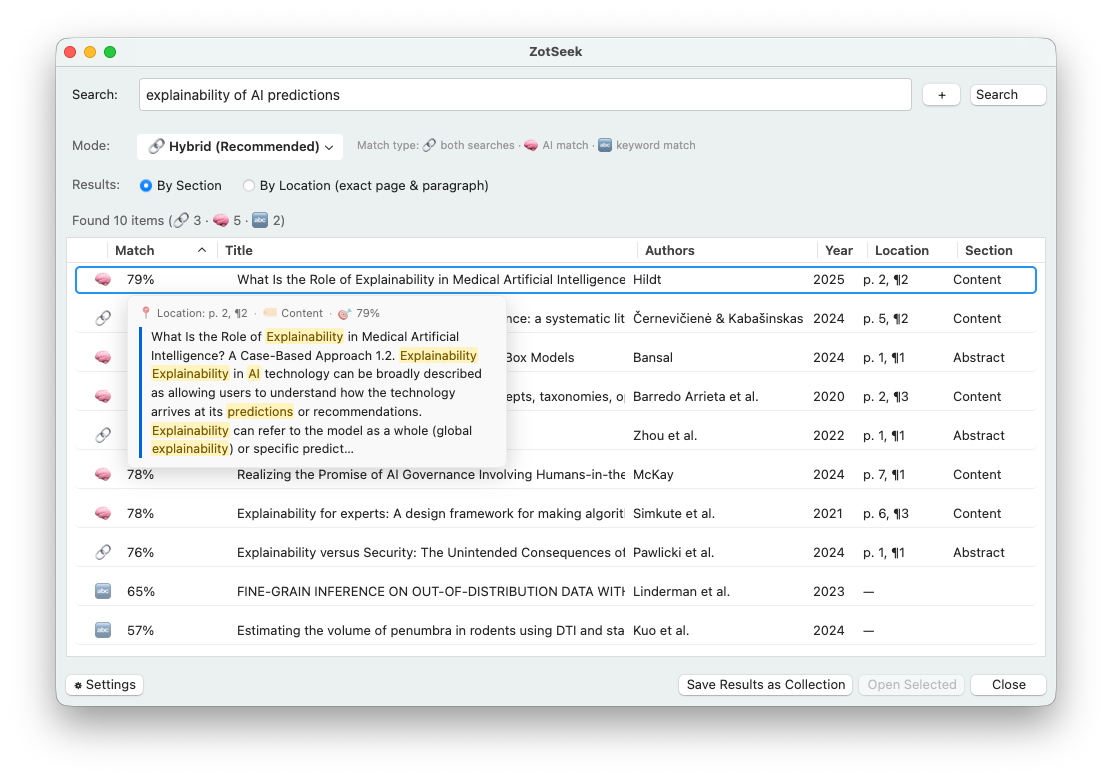
- 🔎 Natural Language Search - Search with queries like "machine learning in healthcare"
- 🔀 Multi-Query Search - Combine up to 4 queries with AND/OR logic to find topic intersections
- 🔗 Hybrid Search - Combines AI + keyword search for best results
- ⚡ Lightning Fast - Searches complete in <100ms
- 📑 Section-Aware - See which section matched (Abstract, Methods, Results)
- 📄 Matched-Passage Preview - Hover a result to read the exact passage that matched, with query terms highlighted
- 📍 Passage-Level Location - Jump to exact page & paragraph in Full Document mode
- ✅ Multi-Select in Results - Select multiple search results, right-click to add to collections
- 📁 Save Results as Collection - One click saves the full result set into a new Zotero collection so you can revisit the list later without re-running the search
- 🔄 Auto-Index - Automatically index new papers when you add them to your library
- 🗑️ Auto-Cleanup - Embeddings automatically removed when items are deleted or trashed
- 🚫 Tag-Based Exclusion - Tag items with
zotseek-excludeto skip them during indexing - 📊 Indexing Status Column - "ZotSeek" column in the item list shows whether each paper is fully indexed, partially indexed (chunk limit hit), out of date, excluded, or not indexed
- ⏸️ Pause & Cancel - Pause or cancel long-running indexing operations at any time
- 💾 Crash-Resilient - Checkpoint saving every 10 items, auto-resume on next startup if a bulk run was interrupted, worker recovery on sleep/wake, skips problematic chunks automatically
- 🔌 Plugin API - Other Zotero plugins can call ZotSeek's search programmatically
- ⚙️ Configurable - Customize via Zotero Settings → ZotSeek (also accessible from search dialog)
- 🌐 Localized - UI available in English and Chinese (zh-CN)
Privacy & Security
ZotSeek is designed with privacy as a core principle:
| Aspect | Guarantee |
|---|---|
| AI Model | Bundled with the plugin (131MB) — no downloads, no API calls |
| Processing | All AI inference runs locally on your CPU/GPU |
| Your Papers | Only indexes items from your local Zotero library |
| Network | Zero network requests for search or indexing |
| Storage | Embeddings saved locally in zotseek.sqlite in your Zotero data folder |
| Offline | Works completely offline after installation |
What this means:
- Your research never leaves your machine
- No cloud services, no API keys, no subscriptions
- No telemetry or usage tracking
- Uninstalling the plugin removes all ZotSeek data
More Screenshots
Click to expandFind Similar Documents
Context Menu
PDF Selection Context Menu
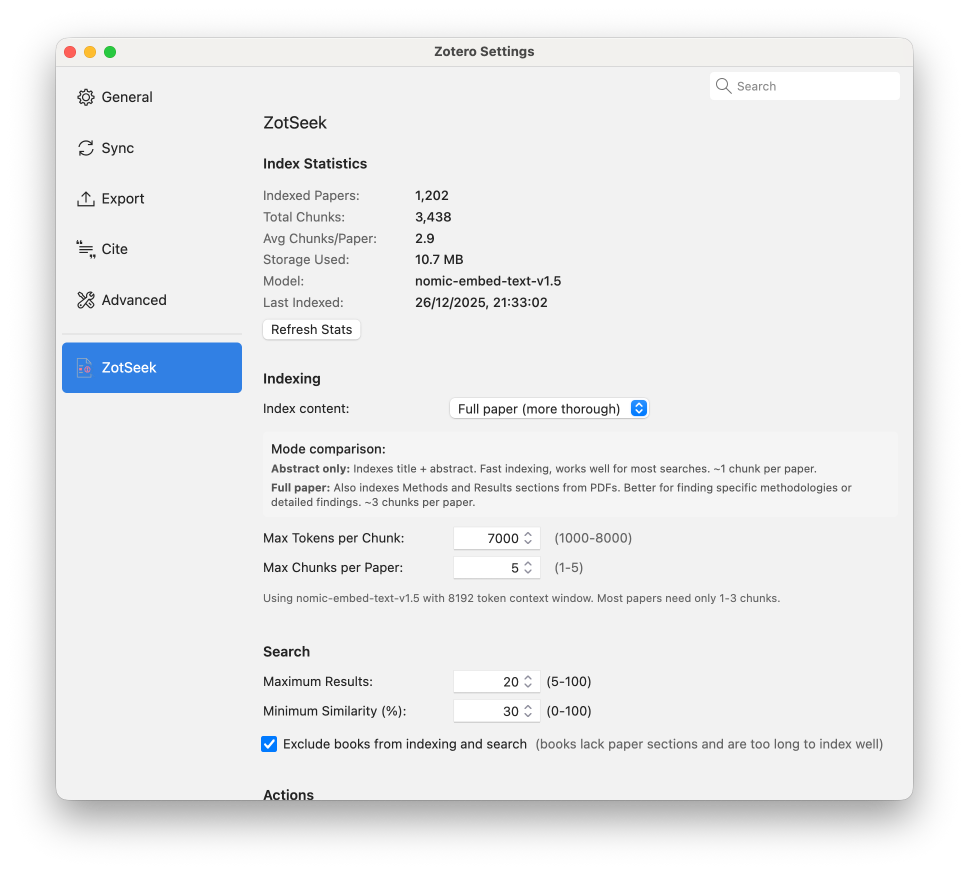
Settings Panel
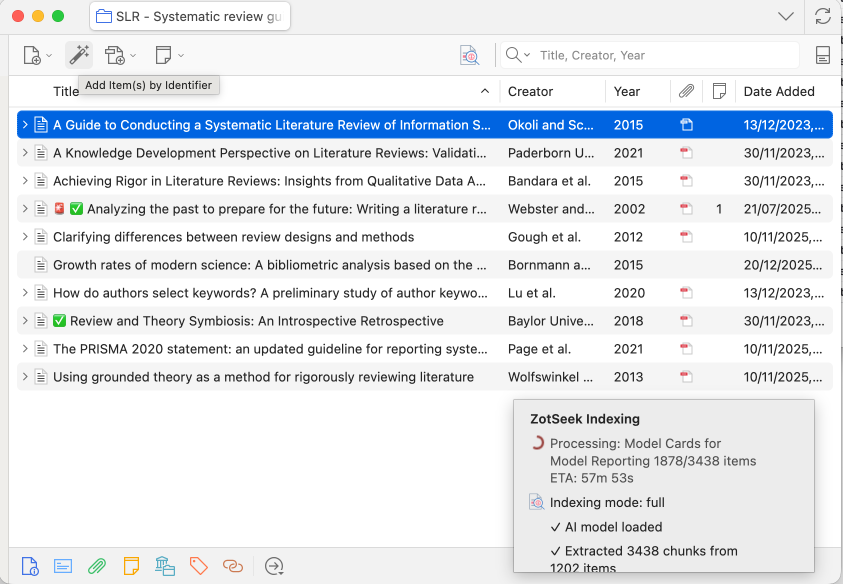
Indexing Progress
How It Works
The Big Picture
flowchart TD
    subgraph INDEX["1️⃣ INDEX"]
        A[📄 Paper] --> B[🤖 AI Model] --> C[768 numbers]
    end

    subgraph SEARCH["2️⃣ SEARCH"]
        D[🔍 Query] --> E[Query → 768 numbers]
        E --> F{Compare all papers}
        F --> G[📊 Ranked results]
    end

    C -.->|stored| F
How it works: Each paper becomes 768 numbers capturing its meaning. To search, we convert your query to numbers and find papers with similar numbers.
Step-by-Step Process
1️⃣ Indexing Your Library
When you use "Index Current Collection" or "Update Library Index":
For each paper:
  1. Extract title + abstract (Abstract mode)
     — OR —
     Extract PDF text page-by-page with exact page numbers (Full Document mode)
  2. Split into paragraphs, filter out References/Bibliography
  3. Send to local AI model (nomic-embed-text-v1.5)
  4. Model outputs 768 numbers per chunk (the "embedding")
  5. Save embeddings + location metadata to local database (zotseek.sqlite)
Time: ~3 seconds per chunk
2️⃣ Finding Similar Documents
When you right-click → "Find Similar Documents":
  1. Load the selected paper's embedding
  2. Compare against all indexed papers (cached in memory)
  3. Rank by semantic similarity
  4. Show top results
Time: ~70ms (with cache)
Hybrid Search
The plugin combines semantic search (AI embeddings) with Zotero's keyword search using Reciprocal Rank Fusion (RRF) for optimal results.
Search Modes
| Mode | Best For | How It Works |
|---|---|---|
| 🔗 Hybrid (Recommended) | Most searches | Combines semantic + keyword results |
| 🧠 Semantic Only | Conceptual queries | Finds related papers by meaning |
| 🔤 Keyword Only | Author/year searches | Exact title, author, year matching |
Why Hybrid Search?
| Query Type | Pure Semantic | Pure Keyword | Hybrid |
|---|---|---|---|
| "trust in AI" | ✅ Great | ❌ Poor | ✅ Great |
| "Smith 2023" | ❌ Poor | ✅ Great | ✅ Great |
| "RLHF" | ⚠️ Maybe | ✅ Exact only | ✅ Both |
Result Indicators
| Icon | Meaning |
|---|---|
| 🔗 | Found by BOTH semantic and keyword (high confidence) |
| 🧠 | Found by semantic search only (conceptually related) |
| 🔤 | Found by keyword search only (exact match) |
Section-Aware Results
The Source column shows which section of the paper matched your query:
| Source | Section Type |
|---|---|
| Abstract | Title + Abstract |
| Methods | Introduction, Background, Methods |
| Results | Results, Discussion, Conclusions |
| Content | Generic (sections not detected) |
Matched-Passage Preview
Hover any result row to see a tooltip with the exact passage that matched your query, along with its location (page & paragraph), section type, and match score. This lets you judge whether a result is relevant without opening the paper. In Keyword and Hybrid searches the query terms are highlighted inside the passage, and the preview is centered on the first match so the relevant text is always in view. (Pure semantic search has no literal terms to highlight, so the passage is shown without highlighting.)
Result Granularity (Full Document Mode)
When using Full Document indexing mode, you can toggle between two result views:
| Mode | Results | Best For |
|---|---|---|
| By Section (default) | 1 result per paper, best matching section, with the location of that match | Overview of matching papers |
| By Location | Every matching paragraph with exact page & paragraph | Finding specific passages |
By Section - Aggregates all chunks per paper and shows the highest-scoring match. The Location column shows where that best match was found (page & paragraph), so you get one diverse result per paper without losing the exact location:
By Location - Returns every matching paragraph individually with its own score:
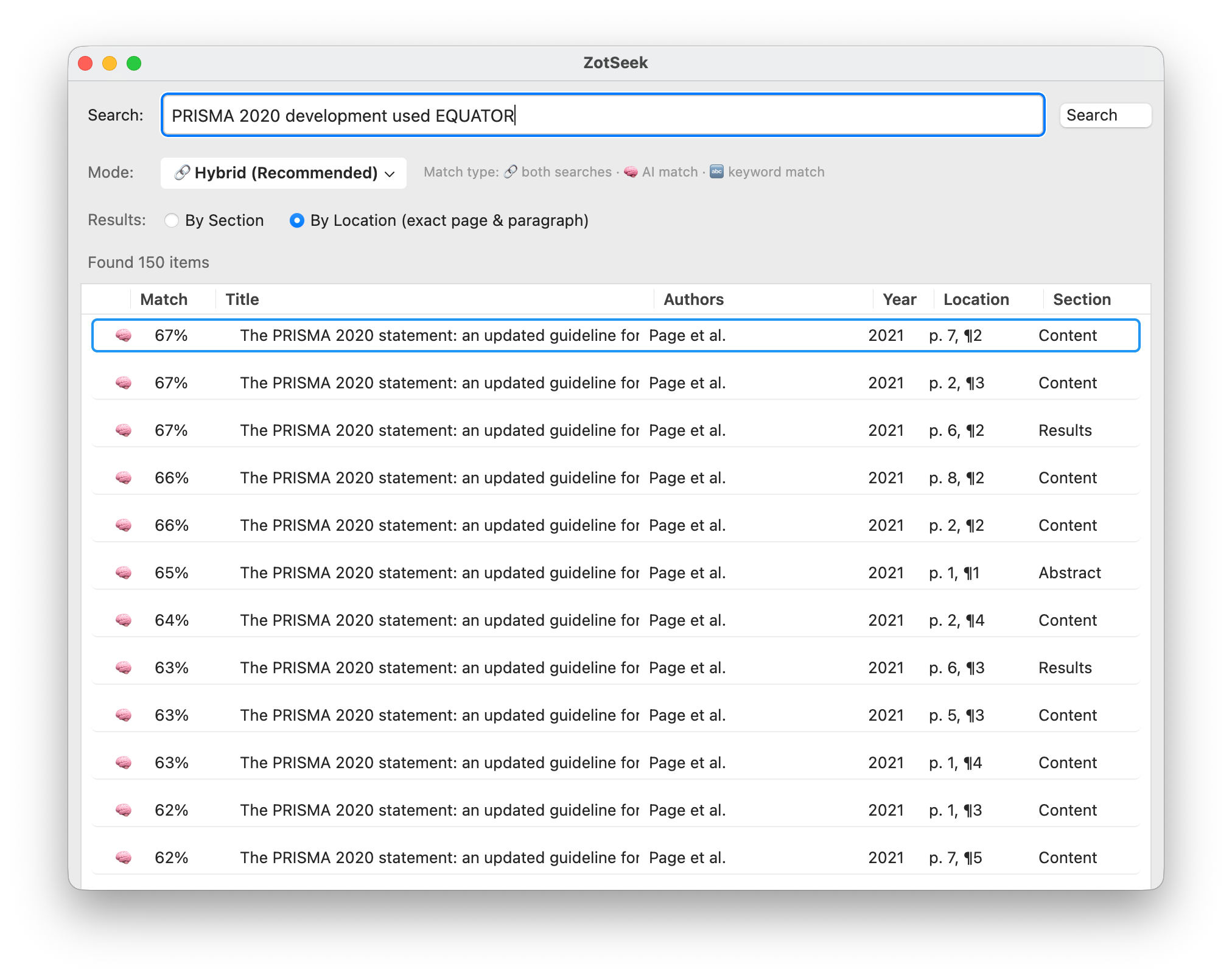
In By Location mode, clicking a result opens the PDF to the exact page where the match was found.
Multi-Query Search
Combine up to 4 search queries to find papers at the intersection of multiple topics:
- Click the "+" button next to the search field to add more queries
- Choose AND or OR to combine results
- For AND mode, select a combination formula
| Operator | Behavior | Best For |
|---|---|---|
| AND | Papers must match ALL queries | Finding topic intersections |
| OR | Papers can match ANY query | Broadening search with synonyms |
| AND Formula | How It Works | Use When |
|---|---|---|
| Minimum (default) | Uses lowest score across queries | You want strict intersection |
| Product | Geometric mean of scores | Balanced relevance across all queries |
| Average | Arithmetic mean of scores | More lenient matching |
Example: Search for papers about "machine learning" AND "healthcare" AND "ethics" to find AI ethics papers specifically in the medical domain.
Match column with multiple queries: Shows combined score plus individual per-query scores:
73% (77|73|68)= 73% combined, with 77% for Q1, 73% for Q2, 68% for Q3
For technical details, see docs/SEARCH_ARCHITECTURE.md.
Indexing Modes
| Mode | What Gets Indexed | Best For |
|---|---|---|
| Abstract | Title + Abstract | Fast indexing, quick setup |
| Full Document (default) | PDF content split by sections | Deep content search, better results |
Configure via Zotero → Settings → ZotSeek.
How Full Document Mode Works
For papers with PDFs, the chunker:
- Extracts text page-by-page with exact page numbers
- Splits each page into paragraphs
- Prepends title to each chunk for context
- Automatically filters out References/Bibliography sections
When searching, if any chunk matches your query, the paper ranks highly (MaxSim aggregation in "By Section" mode).
References Filtering
The chunker automatically detects and excludes bibliography sections:
- Detects headers: "References", "Bibliography", "Works Cited", "Literature Cited"
- Recognizes citation patterns:
[1],Smith, J. (2021)., DOI links - Stops indexing once references section is detected
This keeps your search results focused on the actual content of papers.
Chunk Size Trade-offs
The maxTokens setting controls how text is split for embedding. It's a ceiling, not a target — chunks are split at paragraph boundaries and may be smaller.
| Chunk Size | Speed | Search Behavior |
|---|---|---|
| 500-800 | Fast (~0.5s/chunk) | Higher precision, finds specific passages |
| 2000 | Moderate (~3s/chunk) | Balanced (default) |
| 4000+ | Slow | Higher recall, finds broad topics |
Default: 2000 tokens. Firefox 140+ handles larger chunks efficiently.
Recommendations:
- Large libraries with full-paper indexing: use defaults
- Finding specific methodologies: try 500-600
- Broad topic discovery: try 2000-3000
For detailed chunking documentation, see docs/SEARCH_ARCHITECTURE.md.
Indexing Status Column
ZotSeek adds a "ZotSeek" column to the Zotero item list so you can see at a glance how each paper has been indexed. The first time you install this version the column appears automatically; you can hide or reorder it from the column-header menu like any other Zotero column.
| Glyph | Meaning |
|---|---|
✓ |
Fully indexed |
◐ |
Partial — the paper hit the Max Chunks per Paper limit and only part of its content is in the index. Raise the limit or switch to Abstract mode to capture the full text. |
↻ |
Out of date — the item was modified after it was indexed. Re-index to refresh. |
⊘ |
Excluded — the item carries the zotseek-exclude tag. |
| (empty) | Not indexed. |
After indexing, a one-line summary in the progress window also warns when any paper hit the chunk limit, and the same warning is written to the debug log per affected paper.
The AI Model
nomic-embed-text-v1.5
| Property | Value |
|---|---|
| Name | nomic-ai/nomic-embed-text-v1.5 |
| Size | 131 MB (quantized) |
| Dimensions | 768 (Matryoshka - can truncate to 256/128) |
| Context Window | 8192 tokens |
| Speed | ~3 seconds per chunk |
| Quality | Outperforms OpenAI text-embedding-3-small on MTEB |
| Special Feature | Instruction-aware prefixes for queries vs documents |
Why This Model?
- ✅ Superior retrieval quality - Outperforms OpenAI text-embedding-3-small and jina-v2 on MTEB benchmarks
- ✅ 8K context window - Most papers fit in 1-3 chunks (vs 10-20 with 512-token models)
- ✅ Instruction-aware - Uses
search_document:for indexing andsearch_query:for queries - ✅ Matryoshka embeddings - 768 dims can be truncated to 256/128 with minimal quality loss
- ✅ Fully open - Open weights, open training data, reproducible
- ✅ Works in Zotero - Compatible with Transformers.js v3 via wasmPaths configuration
How Embeddings Work
The model converts text into 768 numbers that capture semantic meaning:
"Machine learning for medical diagnosis"  →  [0.023, -0.045, 0.012, ...]
"AI in healthcare applications"           →  [0.021, -0.048, 0.015, ...]  ← Similar!
"Organic chemistry synthesis"             →  [-0.089, 0.034, 0.067, ...]  ← Different!
Papers with similar meanings have similar numbers, even if they use different words.
Architecture
System Overview
flowchart LR
    subgraph Main["Main Thread"]
        A[Plugin] <--> B[(SQLite)]
        A <--> C[Search]
    end

    subgraph Worker["ChromeWorker"]
        D[Transformers.js]
        E[nomic-embed-v1.5]
    end

    A -->|text| Worker
    Worker -->|embeddings| A
Why ChromeWorker?
Transformers.js can't run directly in Zotero's main thread because:
- Missing browser globals (
self,navigator,indexedDB) - Cache API crashes Zotero
- Would block UI during model inference
Solution: Run in a separate ChromeWorker thread with special configuration.
Data Storage
Embeddings are stored in a separate SQLite database (zotseek.sqlite) attached to Zotero's connection:
- Location:
<Zotero Data Directory>/zotseek.sqlite - Size: ~15KB per paper (abstract mode), ~150KB per paper (full document mode)
- Benefits: O(1) indexed lookups, in-memory caching, atomic updates, clean uninstall
The SQLite backend uses the ATTACH DATABASE pattern (inspired by Better BibTeX):
- Separate file - Keeps Zotero's main database clean and unbloated
- Smart caching - Pre-normalized Float32Arrays cached in memory after first search
- Reliable queries - Uses
columnQueryAsync()andvalueQueryAsync()for robust data retrieval - Clean uninstall - Database file automatically removed when plugin is uninstalled
Copying the database between machines
ZotSeek stores its embeddings in zotseek.sqlite inside your Zotero data directory. The file is local and is not synced by Zotero's built-in sync.
If you use Zotero on multiple machines and want to avoid re-indexing your library on each one, you can copy the file manually:
- Quit Zotero on both machines.
- Find your Zotero data directory (Preferences → Advanced → Files and Folders).
- Copy
zotseek.sqlitefrom one machine to the other. - Start Zotero on the destination machine.
The plugin identifies items by Zotero's stable item keys (the same identifiers visible in the Zotero web API), so the database works correctly regardless of which machine indexed the items.
Notes:
- Both Zotero libraries must be in sync — items not yet present on the destination will appear as "unresolved embeddings" in Preferences → Database Health until sync completes.
- The file can be large (hundreds of MB for libraries with full-document indexing). It is not designed to be cloud-synced continuously.
- Group libraries are supported via stable group IDs assigned by Zotero's server.
Cosine Similarity
The math behind "how similar are two papers":
$$\text{similarity} = \frac{A \cdot B}{|A| \times |B|}$$
Where:
- A · B = sum of (a[i] × b[i]) for all 768 dimensions
- ‖A‖ = sqrt(sum of a[i]²)
- ‖B‖ = sqrt(sum of b[i]²)
Result: 0.0 (completely different) to 1.0 (identical)
Interpretation:
- 0.9+ = Very similar (probably same topic)
- 0.7-0.9 = Related topics
- 0.5-0.7 = Loosely related
- <0.5 = Different topics
Use with AI Agents (MCP)
ZotSeek can let Claude Code and other MCP clients search your library semantically, so an agent can find relevant papers and cite them with links that open straight to the right page in Zotero. Each result carries zotero:// deep links: one opens the item, one opens its PDF at the exact page that matched your query.
What this enables — real workflows from a thesis-writing session:
- "Find me a citable definition of human-AI collaboration" → the agent searches the library, proposes three candidate papers with the matched passages, and links each one so it opens in Zotero at the relevant page.
- Mark claims in a draft with
[citation needed]→ the agent hunts your library for sources that actually support each claim and flags the ones nothing supports. - "A reviewer says these statements are too strong — what evidence do I have?" → the agent cross-checks the argument against what you have actually collected, paper by paper.
It runs entirely on your machine and is opt-in (off by default). Enable it in Settings → ZotSeek → AI Agent Access, make sure Zotero's local HTTP server is allowed (Settings → Advanced), then connect Claude Code with:
claude mcp add --transport http --scope user zotseek http://localhost:23119/zotseek/mcp
The same searches are also available as plain REST endpoints for scripts. Everything is read-only — nothing can modify your library or index. See docs/MCP.md for the full setup, tool reference, REST API, and security notes.
Installation
For Users
Requirements: Zotero 8.0 or newer (Zotero 9.0 supported).
- Download the latest
zotseek-X.Y.Z.xpifrom the Releases page. - In Zotero, open Tools → Plugins.
- Click the gear icon (⚙️) in the top-right and choose Install Plugin From File…
- Select the downloaded
.xpifile. - Restart Zotero when prompted.
After installation, ZotSeek is ready to use — open Zotero → Settings → ZotSeek to configure it, then right-click a collection and choose "Update Library Index" to build your index.
Updating: ZotSeek checks for updates automatically. New releases are delivered through Zotero's built-in plugin update mechanism, so you'll be notified when a new version is available.
For Developers
# Clone the repository
git clone https://github.com/introfini/ZotSeek
cd zotseek

# Install dependencies (includes zotero-plugin-toolkit for stable progress windows)
npm install

# Build the plugin
npm run build

# Create extension proxy file (macOS)
echo "$(pwd)/build" > ~/Library/Application\ Support/Zotero/Profiles/*.default/extensions/[email protected]

# Restart Zotero with debug console
open -a Zotero --args -purgecaches -ZoteroDebugText -jsconsole
Building a Distributable XPI
npm run release
The interactive release script bumps the version, syncs manifest.json and update.json, rebuilds, and packages zotseek-X.Y.Z.xpi at the project root.
Usage
Index Your Library
- Right-click on a collection → "Index Current Collection"
- Or use "Update Library Index" to index all items
- A progress window will appear showing:
- Current item being processed
- Progress percentage
- Estimated time remaining (ETA)
- Option to cancel at any time
- Indexing speed: ~3 seconds per chunk
Crash-Resilient Indexing:
- Progress is saved every 25 items (checkpoint saving)
- If Zotero crashes or you need to stop, simply re-run "Update Index"
- Already-indexed items are automatically skipped
- No need to start over from scratch
Progress Window Features:
- ✅ AI model loaded status
- ✅ Extraction progress (chunks from items)
- 📊 Current paper being processed
- 📈 Progress bar with percentage
- ⏱️ ETA countdown
- ⏸ Pause/resume button (pauses at batch boundaries, all progress saved)
- ✕ Cancel button (shows quiet notification, no error alert)
Find Similar Documents
- Select any paper in your library
- Right-click → "Find Similar Documents"
- Results appear showing similarity percentages
Save Results as Collection
Every ZotSeek search result set can be saved into a Zotero collection so you can come back to the same list later without re-running the search:
- In the search dialog, click "Save Results as Collection" in the footer to export every result.
- Or right-click any subset of results and choose Add to Collection → New collection... to export just the selection.
- The same button appears in the Find Similar Documents dialog.
The modal pre-fills a sensible name (your query + today's date, e.g. ZotSeek: "machine learning" · 2026-04-21) that you can edit. A live status line shows N items → My Library so you know where the collection will land.
New collections are created at the target library's root. If you want them in a specific subfolder, drag them from Zotero's sidebar after the export — faster and more flexible than a dropdown.
When search results span multiple libraries (for example, your personal library and a group library), a Library dropdown appears so you can pick which library receives the new collection. Items in other libraries are reported as skipped in the confirmation status.
Search from PDF Selection
While reading a PDF, you can search for related documents based on selected text:
- Open a PDF in Zotero's reader
- Select a passage that describes a concept you want to explore
- Right-click → "Find Related Documents"
- ZotSeek opens with the selected text as the search query
- Results show documents related to that concept (current document is excluded)
This is useful for:
- Exploring unfamiliar concepts while reading
- Finding additional sources on a specific topic
- Discovering related work mentioned in a paper
Auto-Index New Papers
ZotSeek can automatically index papers as you add them to your library:
- Go to Zotero → Settings → ZotSeek
- Enable "Auto-index new items"
- Now when you add papers (via browser connector, drag & drop, etc.), they'll be indexed automatically
How it works:
- Detects when new items are added to your library
- Waits for PDF attachments to arrive (with automatic retry)
- Batches multiple items together with a configurable delay (default: 10 seconds)
- Each new item resets the countdown, preventing indexing during bulk imports
- Shows a brief progress indicator while indexing
- Respects your indexing mode setting (Abstract or Full Document)
Configuring the delay: Go to Zotero Settings > ZotSeek and adjust the Auto-index delay slider (1-300 seconds). Longer delays are useful when importing large batches via browser connector or RSS feeds.
Managing the Index
Automatic cleanup: When you delete or trash items in Zotero, their embeddings are automatically removed from the ZotSeek index. This prevents ghost search results and keeps the index clean — no action needed on your part.
Manual removal: To remove specific items from the index without deleting them:
- Select one or more items in Zotero
- Right-click → "Remove from ZotSeek Index"
- A notification confirms how many items were removed
This is useful when you want to re-index specific items (e.g., after updating a PDF), or to exclude items from search results without deleting them from your library.
Excluding Items from Indexing
You can prevent specific items from being indexed by tagging them:
- Select one or more items in Zotero
- Add the tag
zotseek-exclude(or your custom tag name) - These items will be skipped during all indexing operations
Customizing the tag name: Go to Zotero → Settings → ZotSeek → Advanced Settings and change the Exclude tag field. Leave it empty to disable tag-based exclusion.
Tip: Use Zotero's advanced search (Edit → Advanced Search) to find items by title, type, collection, etc., then bulk-tag them. This is more flexible than regex-based filtering since it leverages Zotero's native search capabilities.
ZotSeek Search Dialog
- Click the ZotSeek button in the toolbar (🔍✨)
- Or right-click → "Open ZotSeek..."
- Enter a natural language query (e.g., "machine learning for medical diagnosis")
- Optional: Click "+" to add more queries (up to 4) and combine with AND/OR
- View results ranked by semantic similarity
- Double-click any result to open it in Zotero
- Click ⚙ Settings (bottom-left) to quickly access ZotSeek preferences
Working with Multiple Search Results
Select multiple items in the ZotSeek search results:
- Select multiple items:
- Shift+click to select a range of items
- Cmd+click (Mac) or Ctrl+click (Windows/Linux) to toggle individual items
- Right-click on the selection to open the context menu:
- Show in Library - Selects all items in Zotero's main pane
- Add to Collection - Add all selected items to any collection
- Click "Open Selected" to select all items in the Zotero library (when multiple selected)
View Debug Output
Help → Debug Output Logging → View Output
Look for [ZotSeek] entries.
Configuration
Settings Panel
Access settings via Zotero → Settings → ZotSeek (or Zotero → Preferences on macOS).
The settings panel allows you to configure:
- Indexing Mode: Abstract only or Full Document
- Search Options: Maximum results, minimum similarity threshold
- Exclusion: Exclude books, exclude by tag
- Actions: Clear index, re-index library
Preferences Reference
Preferences are stored in Zotero's preferences system:
Search Settings:
| Preference | Default | Description |
|---|---|---|
zotseek.minSimilarityPercent |
30 |
Minimum similarity % to show in results |
zotseek.topK |
20 |
Maximum number of results |
zotseek.autoIndex |
false |
Automatically index new papers when added |
zotseek.autoIndexDelay |
10 |
Seconds to wait after last item before auto-indexing (1-300) |
Indexing Settings:
| Preference | Default | Description |
|---|---|---|
zotseek.indexingMode |
"full" |
"abstract" or "full" |
zotseek.maxTokens |
2000 |
Max tokens per chunk |
zotseek.maxChunksPerPaper |
100 |
Max chunks per paper |
zotseek.excludeBooks |
true |
Skip books during indexing |
zotseek.excludeTag |
"zotseek-exclude" |
Tag name to skip items during indexing (empty to disable) |
Hybrid Search Settings:
| Preference | Default | Description |
|---|---|---|
zotseek.hybridSearch.enabled |
true |
Enable hybrid search |
zotseek.hybridSearch.mode |
"hybrid" |
"hybrid", "semantic", or "keyword" |
zotseek.hybridSearch.semanticWeightPercent |
50 |
Semantic weight (0-100) |
zotseek.hybridSearch.rrfK |
60 |
RRF constant |
zotseek.hybridSearch.autoAdjustWeights |
true |
Auto-adjust based on query |
You can also access preferences via about:config (Help → Debug Output Logging → View Output, then navigate to about:config).
Performance
Tested on MacBook Pro M3:
| Operation | Time |
|---|---|
| Model loading | ~1.5 seconds (bundled, 131MB) |
| Index 1 chunk | ~3 seconds (optimized from ~45s) |
| Index 10 papers (40 chunks) | ~2 minutes |
| First search | ~130ms (loads cache) |
| Subsequent searches | ~70ms (uses cache) |
| Hybrid search | ~70ms (with cache) |
| Storage size | ~130 KB per 10 papers (full mode) |
| Memory usage (cached) | +75MB for 1,000 papers |
Performance Optimizations
The plugin includes several performance optimizations:
- Tuned Chunk Size - 2000 tokens (~3s/chunk) balances recall and speed while avoiding the O(n²) attention bottleneck
- In-Memory Caching - Embeddings cached after first search
- Pre-normalized Vectors - Float32Arrays normalized on load for fast dot product
- Parallel Searches - Semantic and keyword searches run simultaneously
- Reliable SQLite Methods - Uses
columnQueryAsync()andvalueQueryAsync()
GPU Acceleration (Experimental)
ZotSeek automatically detects and uses WebGPU for GPU-accelerated embeddings when available:
| Backend | When Used | Speed |
|---|---|---|
| WebGPU (GPU) | If browser/Zotero supports WebGPU | Up to 10-20x faster |
| WASM (CPU) | Fallback when WebGPU unavailable | ~3 seconds per chunk |
Current status (April 2026):
- Firefox 141 shipped WebGPU on Windows only (July 2025)
- macOS and Linux WebGPU support is still in progress at Mozilla
- Both Zotero 8 and Zotero 9 ship Firefox 140 ESR — one version before the first WebGPU build, so GPU acceleration is still gated on an upstream Firefox ESR bump
When will GPU work? Once Zotero upgrades to a Firefox ESR with WebGPU support for your platform, GPU acceleration will automatically activate — no plugin update needed.
Check if GPU is being used: Look for "Model loaded on GPU" or "Model loaded on CPU" in Zotero's debug console (Help → Debug Output Logging → View Output).
Note: If WebGPU is unavailable or fails, the plugin automatically falls back to CPU without interruption.
Limitations
- English-optimized search - The embedding model is trained primarily on English text (UI available in English and Chinese)
- Large plugin size - ~131MB due to bundled AI model
- CPU only (for now) - GPU acceleration ready but waiting for Zotero/Firefox WebGPU support
- Zotero 8 or newer required - As of v1.12.0, Zotero 7 is no longer supported. Users on Zotero 7 should upgrade to Zotero 8 or later, or stay on ZotSeek v1.11.x.
Comparison with OpenAI
| Feature | This Plugin (Local) | OpenAI API |
|---|---|---|
| Cost | Free | ~$0.02 per 1K papers |
| Privacy | 100% local | Data sent to OpenAI |
| Offline | Yes (after model loads) | No |
| Quality | Excellent (outperforms text-embedding-3-small) | Good |
| Speed | ~70-130ms | ~100ms |
| Context | 8192 tokens | 8191 tokens |
Technical Details
See the docs/ folder for detailed documentation:
- API.md - Plugin API for integration with other Zotero plugins
- SEARCH_ARCHITECTURE.md - Hybrid search, RRF fusion, chunking strategy
- DEVELOPMENT.md - Development guide, ChromeWorker + Transformers.js implementation
- ROADMAP.md - Planned features and improvements
- MCP.md - Local MCP server and REST API for AI agents and scripts
Changelog
See CHANGELOG.md for version history.
License
MIT License - see LICENSE
Acknowledgments
- Transformers.js by Hugging Face
- sentence-transformers for the embedding model
- Zotero for the amazing reference manager
- windingwind's Zotero Plugin Docs for invaluable guidance
ZotSeek: AI-Powered Semantic Search for Zotero — Built by José Fernandes
Yorumlar (0)
Yorum birakmak icin giris yap.
Yorum birakSonuc bulunamadi