Omastrator
Health Uyari
- License — License: MIT
- Description — Repository has a description
- Active repo — Last push 0 days ago
- Low visibility — Only 6 GitHub stars
Code Basarisiz
- exec() — Shell command execution in extras/vite-plugin-omastrator/index.js
- rm -rf — Recursive force deletion command in scripts/clean-tmp.sh
Permissions Gecti
- Permissions — No dangerous permissions requested
Bu listing icin henuz AI raporu yok.
A pro vector and interface design app built into Omarchy: frames and auto layout, pen and image trace, an AI agent at the core, and design mode over every window and live site. Alpha: testers and PRs welcome.
Omastrator
Omastrator is a pro vector and interface design app built into
Omarchy. It has the depth of a professional vector
tool (pen, shapes, image trace, smart guides, type) and the speed of modern
interface design (frames, auto layout, constraints, a dense Properties panel,
the keys designers already know). It follows your Omarchy theme and lives in
your desktop rather than in a window: an island under the bar, a hotkey away
from anything, with design mode over every window and live website, so you
can inspect, measure, mark up and edit what's on screen.
AI is at the core. Your own agent names layers, proposes changes on the real
page (Enter keeps one, Esc throws it away), roasts a design, and ships a site,
asking before production.
Omastrator is in alpha. Alpha testers are welcome, and so are pull
requests. See Install (alpha) and
Contributing.
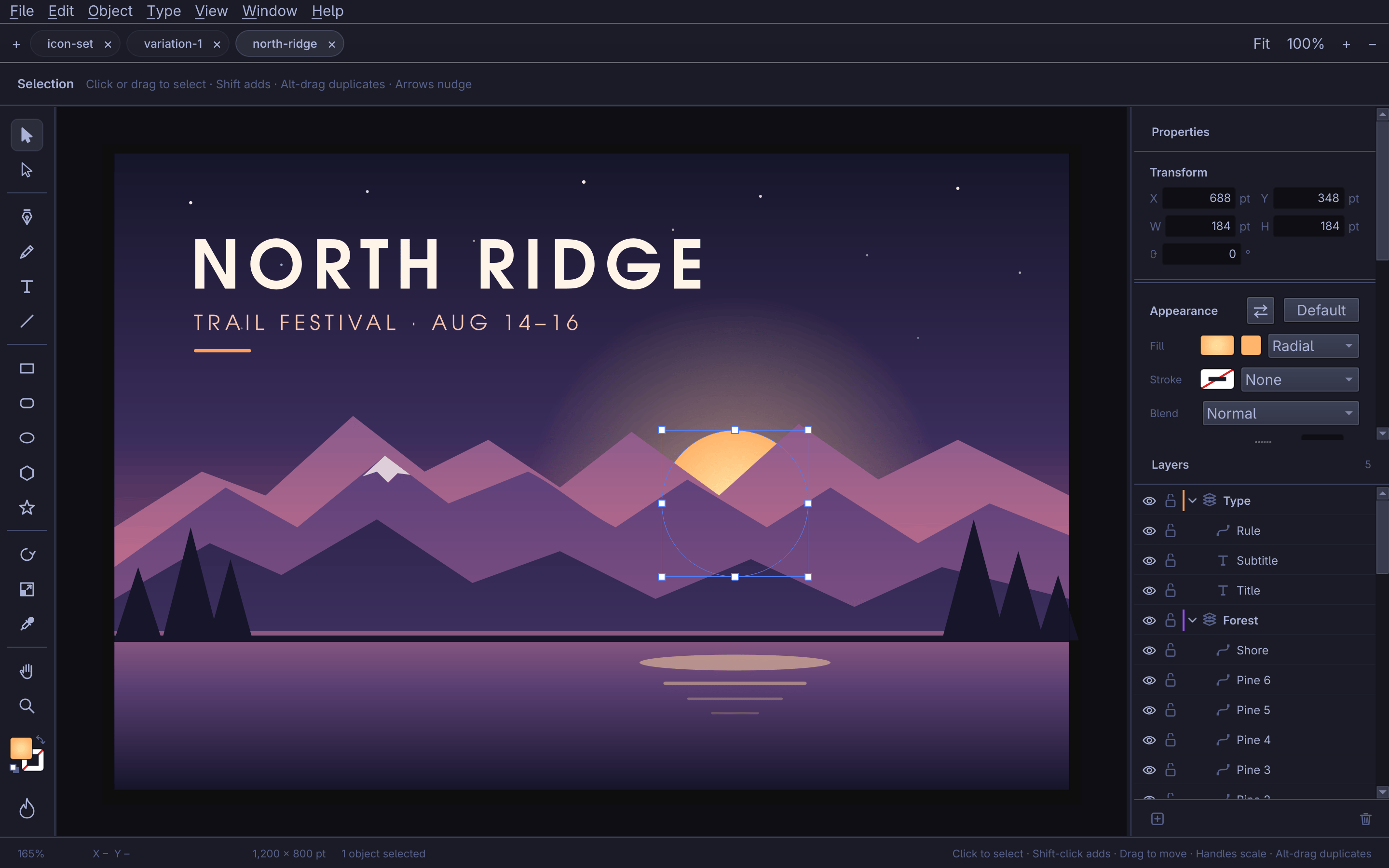
More in Screenshots.
Omastrator's thesis is that designing should feel as simple as the idea: professional depth, a light touch, and AI at the core, so a designer spends their time on the customer, not the menus. More in docs/VISION.md.
Features
- Selection and direct selection, with scale and rotate handles, marquee
selection, and smart guides that snap to other objects and the artboard.
Drags show Δx/Δy, W × H or the angle as you go. - A contextual task bar under the selection with its likeliest next actions:
fill and stroke, Edit Path and Path ▸ for a path; Pathfinder ▸, Shape
Builder, Align ▸ and Group for several; font, size, Create Outlines and
Area/Point Type for type; Image Trace and Vectorize with AI for an image;
Ungroup and Isolate for a group. It ends with an Ask AI… field and ⋯ for
the full right-click menu. It steps aside during drags, typing and AI
previews, fades near a handle so clicks reach it, moves by its grip (right-click
the grip to pin or reset it), and View ▸ Contextual Task Bar turns it off. - Ctrl+K (or Ctrl+/, or Help ▸ Command Palette…) opens one box that finds
every command, tool, panel, recent file, document setting and AI action by
name, with its current (remapped) key. Recent commands come first. Type a
request instead, or start with?, and the top row becomes "Ask Claude:
…", which edits the selection or the document as a preview, or generates
new art when nothing is selected. - Right-click menus on the canvas and the Layers rows that list only what
applies to what you clicked: Ask AI… first, a Select ▸ picker for stacked
objects, and the rest one submenu away. - A Select menu: Inverse, Next Object Above and Below, Same ▸ (fill, stroke,
weight, opacity, blend mode, font), Object ▸ (text, images, clipping masks,
open paths, stray points) and Reselect. - Hold Alt to measure from the selection to whatever is under the pointer, or
to the artboard's edges. - Paste in Front, Back and in Place; Ctrl+D repeats the last transform, so an
Alt-drag copy followed by Ctrl+D, Ctrl+D is step-and-repeat. Duplicate is
Ctrl+Alt+D. - Arrow keys nudge by a keyboard increment you set in Preferences or in
Properties with nothing selected (Shift for ten times it, Alt to nudge a
copy; with only type selected, Alt+arrows adjust the type instead). Number keys set opacity: 5 is 50 %, 0 is
100 %, and two quick digits make an exact value. - Zoom to Selection (Shift+2), Fit Artboard (Shift+1) and View ▸ Fit All in Window.
- Multiple artboards: the Artboard tool (Shift+O) draws, moves and resizes
them, Alt-drags a duplicate, and Delete removes the active one (never the
last). Object ▸ Artboards has New, Duplicate, Rename…, Delete, Fit to
Artwork Bounds, Switch Orientation and Next/Previous (Shift+PgDn/PgUp); an
Artboards list sits in Properties ▸ Document. Export, Share and the active
artboard's own size and background follow whichever one is active.
Turn off "Export this artboard" (Properties ▸ Document, or Object ▸
Artboards ▸ Export Artboard) for a scratch board: it stays visible and
editable, its label reads "not exported", and Export, Export for Screens
and Share leave it out. Export assets you collect on such a board still
export from Export for Screens, since you picked them one by one. - Pages: each page is its own canvas of layers, artboards and guides. The
Pages list tops the Layers panel (click to switch, double-click to rename,
drag to reorder), Object ▸ Pages has New, Duplicate, Rename, Delete and
Move to Page, and Alt+PgDn/PgUp step between them. PDF, Figma, Sketch and
Penpot files with several pages open as pages, and File ▸ Export ▸ PDF
writes every exported artboard of every page. - View ▸ Pages as Workspaces (Hyprland only, off by default): each page of a
document with two or more pages is its own Hyprland workspace,design:<document> · <page>, so Super+Tab and swipes move between pages.
Closing the document, turning it off, oromastrator resetgives the
workspaces back. - Browser View (the tool under Frame, or Object ▸ Browser View): a frame that
shows a live web page, from Omastrator's own Chromium profile, not yours. Type
an address in the bar above it. The page draws live on the
canvas; the Browse tool (Selection flyout) clicks, types and scrolls inside
it, and Esc leaves. Dragging its handles, or pressing a width in the bar
(from the site's own breakpoints when it is a registered site of yours, else
390, 768, 1280 and 1440), previews the site at that width and never
makes an undo step; Set as Design Width (bar menu or Object ▸ Browser View)
makes it the frame's width in one step. Layout's "Fixed while previewing"
keeps a note or callout put during a preview. Frames pause when off screen,
small or hidden, at most 8 tabs are open at once, andomastrator resetcloses them.
Sign-in happens once in a normal window on the same profile. - Canvas size limit: an artboard can be up to 1,000,000 points a side (about
350 m). Tested at 50 m and at that limit: drawing, zoom (Fit works down to
0.01 %), precision at 3200 %, selection, saving and reopening, SVG and PDF.
PNG and JPEG hold at most 30,000 px a side and 200 megapixels, so a huge
artboard exports at a smaller resolution (the Export sheet offers only the
ones that fit; Export for Screens says which files it skipped). SVG and PDF
have no such limit, though PDF viewers such as Acrobat stop at 14,400 pt.
Edits (sizes, Fit Artboard to Artwork) stop at the limit; an import can bring
in a bigger page, which is untested but saves and reopens like any other. - New-document presets are yours to edit. On the welcome sheet, the ⋯ beside
Preset saves the current size and units under a name (Save Preset…), renames
or deletes a saved one, and hides a built-in (Letter, A4, A3, 1920 × 1080,
1080 × 1080), which Show Hidden Presets brings back. Saved presets list first
and live in~/.config/omastrator/presets.json. The built-ins can be hidden
but never deleted or renamed. - Frame presets, as in Figma. While the Frame tool (F) is active, Properties ▸
Frame lists sizes by group (Phone, Tablet, Desktop, Social, Paper) and a click
drops a frame of that size, named for the preset, in the middle of the view:
"iPhone 16" makes a 393 × 852 frame. With one frame selected, the ⋯ saves its
size as your own preset (a Saved group); right-click a row to rename or delete
a saved one or hide a built-in, and Show Hidden Presets brings those back. They
sharepresets.jsonwith the document presets, in aframessection. - Settings travel. Edit ▸ Export Settings… writes your preferences, remapped
keys, workspace, swatches and size presets to one JSON file, on this computer
or on cloud storage, and Import Settings… on another computer reads it back.
Import shows what it will replace and asks once; what you had is saved first
in~/.config/omastrator/backups/. The Figma token, cloud sign-ins, recent
files and folders on this computer are never in the file. - The rail's tools sit in slots that share a button when more than one lives
together (Selection, Artboard, Pen, Type, Shapes, Shape Builder, Transform,
Paint, Navigate): a corner triangle marks a group, right-click or a long
press flies it open, Alt-click cycles through it, and it remembers the last
one picked. Its own context menu (or View ▸ Toolbar) switches Basic, which
hides the least-used tools, and Advanced, which shows all of them. - Rulers (Ctrl+R) with the pointer marked on each. Drag a guide out of a
ruler, drag it back to remove it, or double-click it to type its place.
Objects snap to guides even with smart guides off. View ▸ Guides hides
(Ctrl+;), locks (Ctrl+Alt+;), clears, makes guides from selected paths
(Ctrl+5) and releases them back into lines (Ctrl+Alt+5). Guides save in the.omai. - Snap to Pixel keeps drawn points and moved objects on whole points, and a
pixel grid shows from 600 %. - Isolation mode: double-click a group (or Isolate in its menus) to work
inside it. Everything else fades and can't be picked, new objects go in the
group, and a bar above the canvas shows the way back out. Esc, the bar, or a
double-click outside leaves. - Window ▸ History lists every step by name; click one to go back or forward
to it. Preferences sets how many steps each document keeps. - Pen, pencil, line, rectangle, rounded rectangle, ellipse, polygon and star
tools, all producing editable Bézier paths. Rectangles keep live corners:
one radius or four in Properties, round, inverted round or chamfer, and
with Direct Selection a widget in each corner to drag (Alt for one corner,
Alt-click to change its style). Editing an anchor makes it a plain path. - Join (Ctrl+J), Average (Ctrl+Alt+J), the Scissors tool (C), Reverse Path
Direction, and a non-zero or even-odd fill rule for compound paths that
SVG keeps. - Type, edited in place on the canvas: click for point type, drag a box for
area type that wraps and justifies, and convert between them. A Character
section in Properties holds font, the font's real styles, size, leading,
tracking and alignment, with kerning, baseline shift, scale, case, underline
and strikethrough under Show more. Illustrator's keys work too: Alt+←/→
tracking (with Ctrl, five times as much; at a caret, kerning), Alt+↑/↓
leading, Alt+Shift+↑/↓ baseline shift and Ctrl+Shift+. / , size. Select
characters while typing and every type field, a fill colour or a style
changes just them, so one word can be bold, larger or red. OpenType features
(ligatures, small caps, fractions, figure styles, stylistic sets) sit behind
a button in Show more, with the ones the font lacks dimmed. Area type gets a
Paragraph section for indents, a hanging first line, space before and after
and where a justified last line sits. Character and paragraph styles live in
the document: make one from the selection, apply it from the style button in
Character's heading or Window ▸ Type Styles, and redefine it everywhere at
once; a "+" shows local changes. Type ▸ Find/Replace Font… lists the fonts
used, flags missing ones (also noted when the file opens) and replaces them
in one step. Create Outlines turns type into paths, a path per run colour. - Type on a Path (Shift+T): click a path to run type along it, with a bracket
to slide where it starts and Type ▸ Type on a Path ▸ Flip to read the other
way. Object ▸ Text Wrap ▸ Make sends area type around a shape (with an
offset); an area box's ports thread its overflow into the next box, split
back apart with Type ▸ Threaded Text ▸ Remove Threading. The Paragraph
section's Hyphenate checkbox breaks long words at the ends of lines, with
its margins behind a disclosure; a soft hyphen (U+00AD) you type yourself
always works, hyphenated or not. - A Properties panel in Figma's order, whose sections fold away and show only
when they apply. Number fields take arithmetic and units (2*(3+1),25mm,50%),+10or*2applied to each object, arrow steps, and a
drag on the label to scrub. Transform has a 9-point reference point, a
proportions link and Scale Strokes & Effects. Different values read Mixed. - Fills and strokes: solid colours and linear or radial gradients, stroke
weight, caps, corners and dashes, opacity and blend modes. + stacks
several fills or strokes on one object, Figma-style, each with its own eye,
opacity and blend, and a grip to reorder. Strokes align inside, centre or
outside (on live, editable type too, in exports as well), take arrowheads
(arrow, triangle, circle, square, bar) and can stretch their dashes to sit
on the corners. The Gradient tool (G) drags a
gradient's ends and stops right on the object. The Width tool (Shift+W)
drags on a stroke to add or move a width point, and the Stroke section's
Profile menu sets a taper, bulge or custom shape along the whole path. - Colour: hex fields beside every well, the last twelve colours under the
picker, Selection colors to recolour every use of a colour in a mixed
selection at once, and global swatches that update everything painted with
them. Copy Properties and Paste Properties (Ctrl+Alt+C, Ctrl+Alt+V) move a
whole appearance between objects; the eyedropper's Alt-click gives the
selection's style to what you click. - File ▸ Lock Document (Ctrl+Alt+Shift+L) makes a file read-only, saved in the
.omai; you can still select, inspect, measure, export and share it. - Layers and groups with visibility, locking and drag-to-reorder, clipping masks,
opacity masks (Object ▸ Opacity Mask: the top object's luminance masks the
rest, with Clip and Invert Mask) and compound paths. - Pathfinder (Unite, Minus Front, Intersect, Exclude), plus Outline Stroke,
Offset Path and Simplify. - Align and distribute, arrange, and transform: move, rotate, reflect and scale.
Click one of several selected objects to make it the key object: the others
align to it, and Distribute Spacing puts an exact gap out from it (or even
gaps on Auto). Distribute works by left, right, top or bottom edges too. - Image Trace, which turns placed images into filled paths in black and white
or in colour. - Files:
- saves and opens
.omaidocuments (oh my) - opens and places other tools' files as editable layers, not pictures
(text stays text, frames stay frames):- SVG and
.svgz, with Inkscape layers - PDF, Adobe Illustrator
.ai(through its PDF part), and EPS/PostScript
(through Ghostscript, when it's installed) - Figma: paste straight from Figma, File ▸ Import from Figma Link…, and
.figfiles (best effort) - Sketch, Penpot (v3 exports) and Excalidraw
- SVG and
- exports SVG, PDF (kept as vectors), PNG and JPEG
- File ▸ Export ▸ Export for Screens… batches any artboards and objects
collected with Object ▸ Collect for Export, at several scales (0.5×–4×,
suffixed@2xand so on) and formats (PNG, JPG, SVG, PDF, WebP) at once - places JPEG, PNG, TIFF, WebP, GIF, HEIC and AVIF images, and Photoshop
.psdfiles flattened - opens and saves on cloud storage as well as on this computer
(Cloud storage) - shares the artboard or the selection as a link in one press
(Share with client)
- saves and opens
- Tabs for several documents at once, and every keyboard shortcut can be
remapped.
Cloud storage
Open, save, place and export on Google Drive, Dropbox, OneDrive, iCloud Drive,
Box, Proton Drive, pCloud, Mega, S3 (and R2, Wasabi, MinIO), Backblaze B2,
Nextcloud or WebDAV, SFTP, or anything else rclone
reaches.
- Connect with File ▸ Connect Cloud Storage… or Cloud Storage… on the
welcome screen. Most services sign in through your browser. rclone keeps
every sign-in, and Omastrator never sees or stores one. Without rclone, the
sheet offers to install it (omarchy pkg add rclone). - Open, Save As, Place and Export then list This Computer and each service
you've connected, and remember where you were. - Save writes to this computer first, then uploads in the background.
Offline saves upload when the service is back. - If someone else changed the file, nothing is overwritten. You choose
Keep Both, Overwrite or Open Theirs. - Recent files show which service each document lives on.
More in docs/CLOUD-STORAGE.md.
Share with client
Share, at the top right of the window (also File ▸ Share, Ctrl+Alt+Shift+S,
Ctrl+K, and Share Selection in the right-click menu and the task bar's ⋯),
shares the artboard, or the selection if something is selected. The link goes
on the clipboard and a toast says "Link copied — Google Drive", with Open and
Copy Again. There's no dialog.
- Where it goes: a connected cloud service that makes links (Google Drive,
Dropbox, OneDrive, Box, pCloud, S3, B2 and others), intoOmastrator Shares/<document>/there. Otherwise GitHub throughgh: SVG as
a secret gist, PNG and PDF as an asset on a release in a publicomastrator-sharesrepository on your account. GitHub asks once before the
first upload, because neither of those is private. With neither connected,
the toast says so and offers Connect Cloud Storage… and Connect GitHub. - Live: with a project in Live, Share copies the latest deploy's URL if
nothing has changed since, and otherwise runs a preview deploy (vercel deploy, anetlify deploydraft, Cloudflare's preview, or your own"preview"command). It never deploys to production. - Options: the arrow beside Share picks the format (PNG at 2× by default,
PDF or SVG) and the destination. Each document remembers them. - Shared Links… lists what each document has shared, with Copy, Open and
Unshare (which deletes the file, gist or release). Paste Client
Feedback… takes the client's reply and runs Edit with Instruction on what
was shared. The result is a preview you keep or discard.
The list lives in ~/.config/omastrator/shares.json, never in the .omai.
More in docs/SHARE.md.
Design systems
Window ▸ Design System holds the document's tokens (colour, type, spacing,
radius, shadow, with light and dark modes) and components with variants.
Fills, strokes, corners, stroke weights, group gaps and text styles can follow
a token, and changing it changes every use in one undo step. Make Component
(Ctrl+Alt+K) turns the selection into a component; instances keep their own
text, colours and visibility, swap variants from the panel or Ctrl+K, and
follow every edit to the component.
A system syncs with the project's code (tokens.json, Tailwind v4 and v3, CSS
variables), a global library, any site (extracted in Omastrator's browser) and
Omarchy themes (read, edited, saved as a new theme and applied). Every push or
pull first shows where it publishes, each file it writes, the repository and
branch it commits to, and a preview, and waits for you to confirm. More in
docs/DESIGN-SYSTEMS.md.
AI, with the agent you already use
Omastrator bundles no model. It hands work to your Omarchy default agent, such
as Claude Code, Codex, opencode or Gemini, and runs it in the background: no
terminal window and no permission prompts. The agent may only read what it's
given and call Omastrator, and the panel shows it working ("Claude is
roasting… 12 s") with Cancel. If it stops without an answer, the panel says so
and Show log opens what it printed. Anything the agent changes shows as a
preview: Enter keeps it as one undo step, and Esc throws it away.
- Object ▸ Generate…: describe what you want and choose how many
variations. Pick one from the Variations panel, then refine it ("rounder",
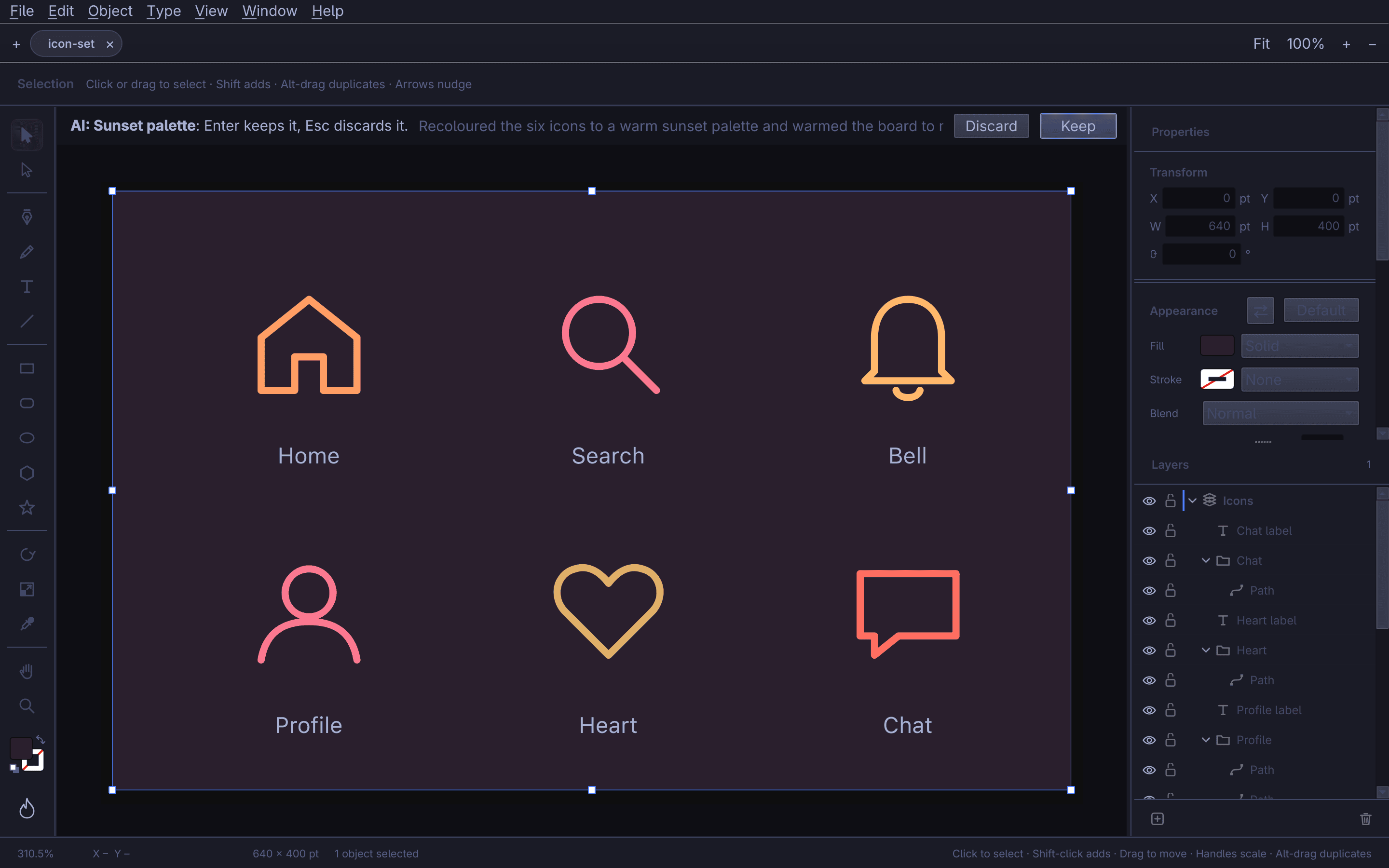
"fewer colours"). - Object ▸ Edit with Instruction…: for example "recolor to a sunset
palette" or "make these icons consistent". The task bar's Ask AI… field and
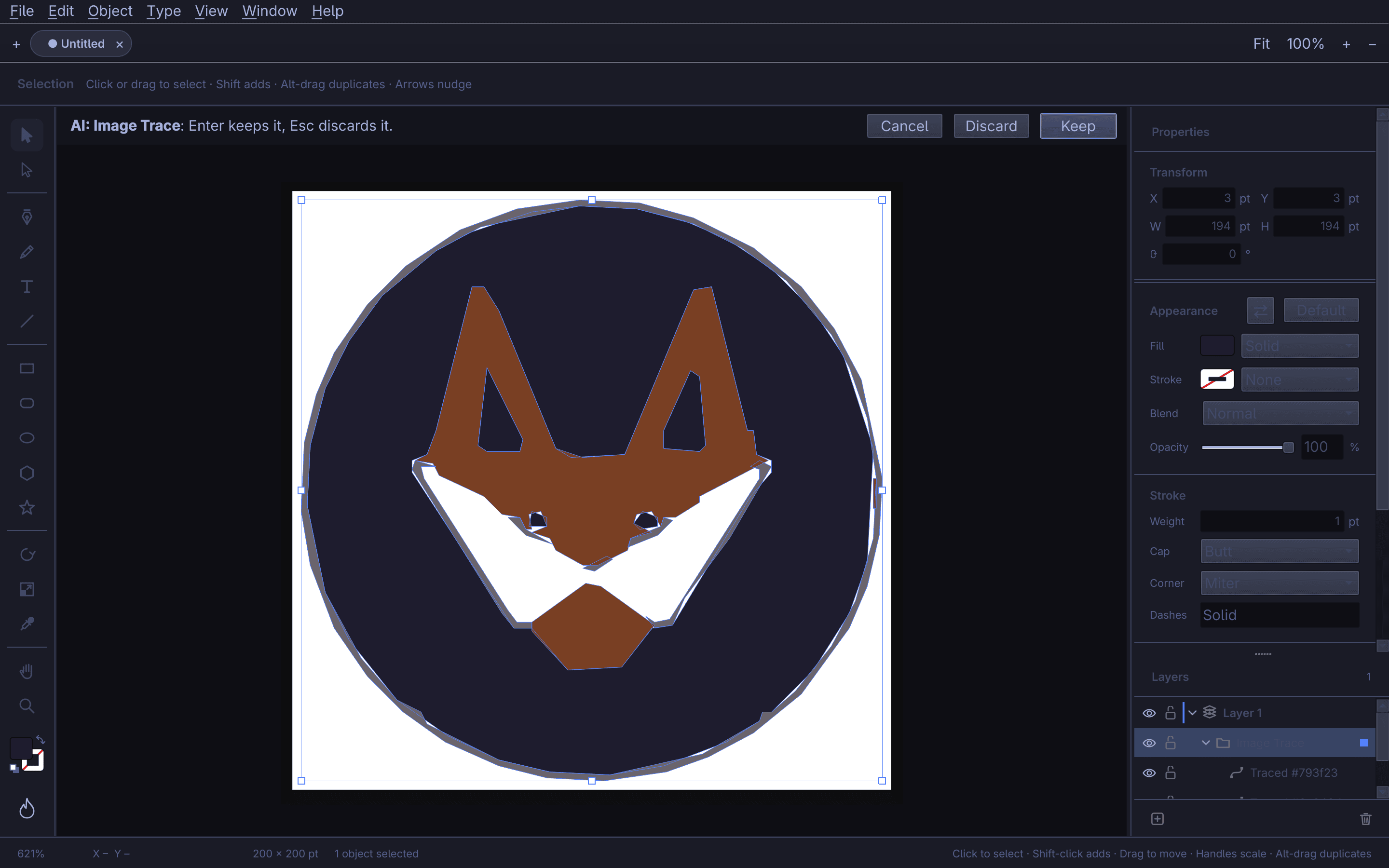
Ctrl+K reach it without a sheet. - Object ▸ Image Trace ▸ Vectorize with AI…: a classic trace first, then
the agent cleans it up. There are two modes, Logo & icon and Sketch & line
art. - Roast My Design (the flame at the bottom of the tool rail): a savage
roast of the design, then sincere, specific fixes, then one click to make
variations from that feedback. - Help ▸ Connect an Agent…: drive Omastrator from any agent. Use
omastrator agent <method>from a shell, or register the MCP server withclaude mcp add omastrator -- omastrator --mcp. To watch the agent work,
tick "Open the agent in a terminal while it works".
Choose your agent in Omarchy → Setup → Default → Agent. How it works:
docs/AI-DESIGN.md. The rest of the app's personality is
described in docs/HUMOR.md.
Across Omarchy
Omastrator also works outside its window, through Omarchy's own shell
(docs/OS-SUITE.md):
- The island: a pill under the bar with modes. Draw holds the canvas
tools; Capture picks a colour anywhere on screen, traces a screenshot
region, pastes clipboard SVG as paths, or loads your theme's colours as
swatches. AI starts Generate…, Edit with Instruction…, Roast My Design and
Vectorize with AI, and shows when your agent is working. For now, and
pending a rethink of the island, it shows only while an Omastrator window is
focused (and while design mode, dictation or a waiting result needs it); the
tray light is always there. Preferences, oromastrator island show always,
shows it everywhere. - Live: open a web page, or a project folder on this machine, in
Omastrator's own Chromium. Click an element to select it (Shift-click adds),
then change its text, colour, spacing, size, type or radius from a bar beside
it. Values snap to the project's own tokens: its Tailwind theme, its CSS
custom properties, then your Omarchy colours. Pages whose code isn't on this
machine keep their edits on this machine (see "Sites that aren't yours"
below). Deploy is the one button: it writes the changes into the code (the ones it can be sure of directly, the rest through
your agent on a branch of its own), commits them, pushes, and deploys to
production with the project's own setup: a remembered command, adeploy
script, the Vercel, Netlify, Cloudflare or Fly CLI, a Makefile ordeploy.sh, or else your agent. The deploy gets the project's.envfiles;
their values never show anywhere. The first deploy of a project asks once.
Review changes shows every write-back as a diff, with Discard, when you
want it; History lists the commits (on GitHub throughgh, which it
offers to set up) with what was deployed, and restores any version. - Apps: Live also opens Omarchy web apps as app windows, and Electron apps
relaunched with their own profile. For GTK and Qt apps, Capture Window
brings the focused app into Omastrator to redesign, and File ▸ Hand to
Agent… gives your agent the mockup and the app's source folder; its change
is written into the source, with its diff under Review changes. - Dictate: hold the island's microphone (or Super+Alt+V) and speak. "Select
the pen tool", "align left", "fill hash F F six six zero zero" run at once;
anything else goes to your agent as an instruction. The island shows what it
heard first, and Esc cancels. It uses Omarchy's voxtype
(omarchy voxtype install), transcribing on your machine. - The tray light: one glyph in the bar that shows when your agent is
working, when results are ready, or when something went wrong. Click it for
the island's AI mode. - Keys: Super+Alt+D, C, A or L opens a mode, with Illustrator's tool letters
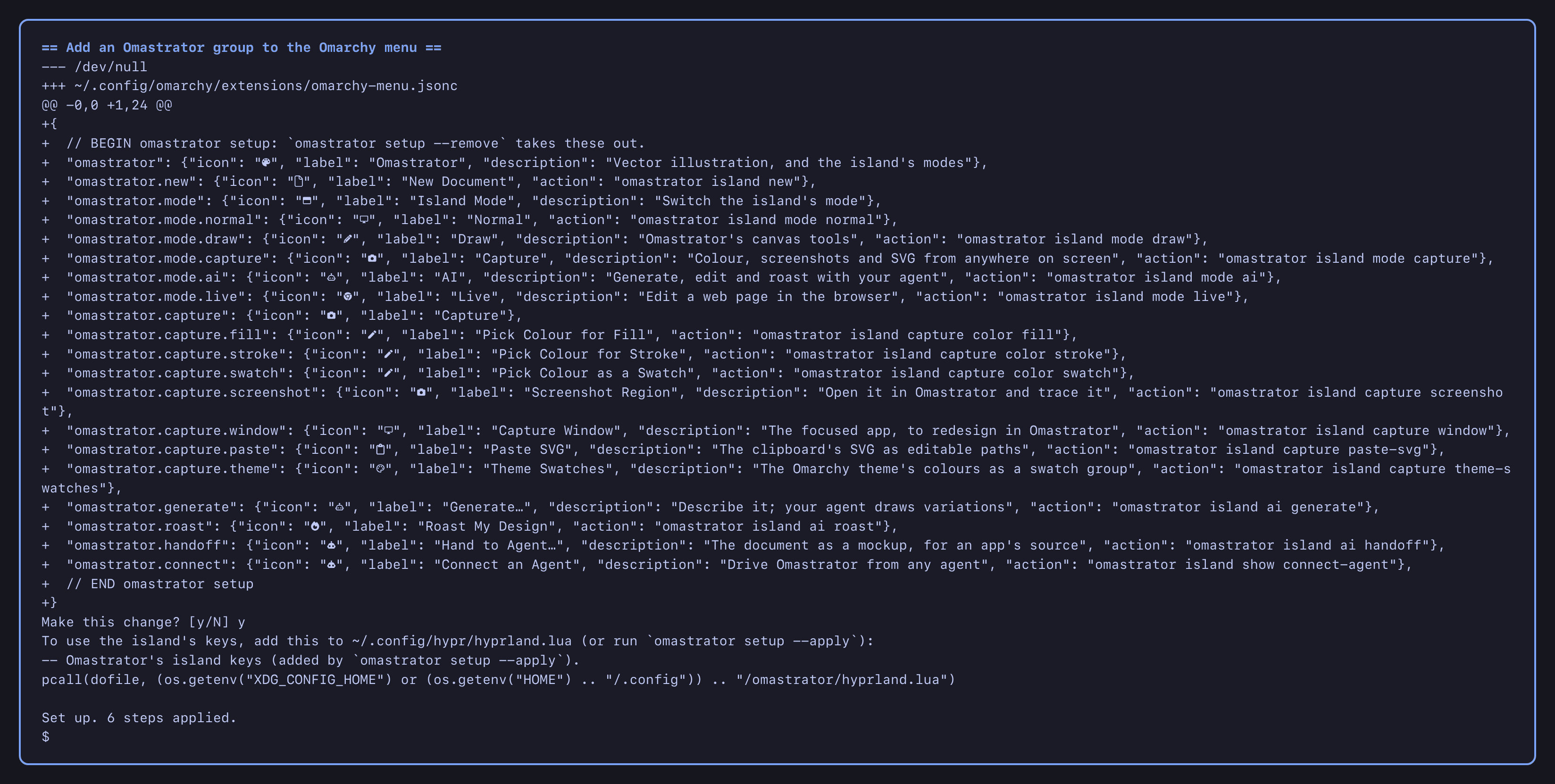
inside Draw. Escape goes back. - Menu: an Omastrator group in the Omarchy menu.
Design mode, on any window or page
Omastrator doesn't need its window open (docs/ANYWHERE.md).
It runs in the background (omastrator --daemon, started with Hyprland once
setup's keys are loaded) and lays a transparent overlay over every monitor.
Clicks go straight through it to your apps.
- Super+Alt+O (or the island's Design mode) turns design mode on for the
monitor you're on. Esc leaves. - The floating bar sticks to its app: it stays with the window design mode
started on, and hides while that window is off screen. Pick another window
(omastrator design home) to move it, or turn onomastrator design follow on
to have it follow the pointer as before. - Inspect and measure: point at anything to see its size and position, and
its colours and font where they can be read. A page open in Omastrator's
browser is read from its DOM, including sites that aren't yours. Other apps
are read through the accessibility tree, and the colour under the pointer
through grim. Hold Alt to measure the distances from one thing to the next. - Draw on top: the island's pen, rectangle, ellipse, arrow, text and note
tools draw over the window or page under the pointer. The art stays anchored
to that window (by app) or page (by address, scrolling with it). It is a real
Omastrator document, kept for next time, and every drawing is one undo step. - The floating bar sits next to what you point at or select. It holds the
likeliest actions for that kind of surface: Inspect (with Copy CSS), Mock Up
and Measure for a page element; Capture to Desk and Measure for a window; the
task bar's actions for your art. It also has an Ask field, where the agent
answers with a preview on the overlay that you keep or discard. Up to three
suggestions are tuned by a short, skippable questionnaire on the first run.
Captures stay on this machine, and nothing goes to an agent unless you ask. - Lift turns what you point at into editable shapes and text, laid exactly
over the original. A page element in Omastrator's browser (any site) comes
from its DOM: boxes with their fills, gradients, borders and per-corner
radii, text with its real font, size, weight, spacing and colours (mixed
styles as runs), images, inline SVG as vectors, transforms, opacity and
overflow clipping, grouped as the page nests them. Other apps come from the
accessibility tree over a screenshot; an app with no tree is traced, and the
bar then offers Ask Agent to Clean Up. Progress shows on the bar with Cancel,
and each lift is one undo step. - Where work goes is your choice each time, and it's remembered per
surface: keep it on the overlay, send it to the Desk, open it as a document,
or hand it to the agent. Pages with their code on this machine can also take
it into the source: lifted text, colours, radii, sizes and padding you
changed on the overlay go back as page edits, then into the code the way
Live's edits do. - Sites that aren't yours take the same Live tools in Omastrator's browser
as real DOM and CSS edits, snapped to the site's own CSS variables. The page
and the Live panel say "Not your site: changes stay on this machine", and
there's no Deploy. Keep Edits saves them as a named edit set for that
site, which comes back every time you open it in Omastrator and can be
switched off and on. Export CSS… writes them as a style sheet or a
userstyle (Stylus), in the site's variables where they snapped to one.
Before and After to Desk lifts the page without its edits and with them,
as two frames in one undo step. - Hand to Agent… is on the bar for a page, a window and your art. Your
agent gets the mock-up (a picture and SVG), which element or widget each
lifted shape came from, a page's edits as CSS, and screenshots, and works in
a git branch of your app's source folder. Its change waits under Review
changes. The folder is remembered for next time. - The Desk (Super+Alt+W, the island, or the launcher's "The Desk") is one
canvas for everything sent from any surface. Each frame is labelled with its
source and time. It opens on its own Hyprland workspace, or as a normal
window. - Change Omarchy itself. Desktop Look (the bar's Desktop Look on the
desktop, Edit Bar on Omarchy's bar, Gaps and Borders on a window) edits the
window gaps, borders and corners, the bar's position, height, colours and
widget order, the font and text size, the wallpaper (an image or the current
artboard) and the theme's colours. Gaps, borders, corners, the wallpaper and
the colours in the bar and panels change on screen as you go; drag the gap
beside a window on the overlay to widen it. The rest says it changes when
saved. - Restyle an app through its toolkit: GTK apps through
gtk.css, Qt apps
through qt6ct (when they use it) or a stylesheet of their own passed by their
launcher. The preview opens a second copy of the app with the change; the
panel says plainly what can't change live. - Nothing is written until you confirm. Saving shows every file with its
full path and diff, and every command it runs (Omarchy's own, such asomarchy theme setandomarchy font set, where they exist). Each file is
backed up first, and Desktop Look's history reverts any save byte for byte.
omastrator design on | off | status     # design mode from a script
omastrator design lift --region X,Y,W,H [--to desk]   # lift a region of the screen
omastrator design look gapsOut=16 activeBorder=#ff375f   # preview on the desktop
omastrator design look save | discard | history | revert ID
omastrator design restyle --target N accent=#ff375f radius=8   # a second copy with the change
omastrator desk [show|window]           # the Desk
omastrator daemon [start|stop|status]   # the background app
Set it up with:
omastrator setup            # shows each change as a diff and asks first
omastrator setup --apply    # also loads the keys from your Hyprland config
omastrator setup --remove   # takes out exactly what setup added
Screenshots
Every picture is from demo mode: made-up documents, a sample website and an
agent that answers with prepared results. The island and tray light are the
shell plugins' own QML, rendered offscreen with Omarchy's Tokyo Night colours.
Drawing
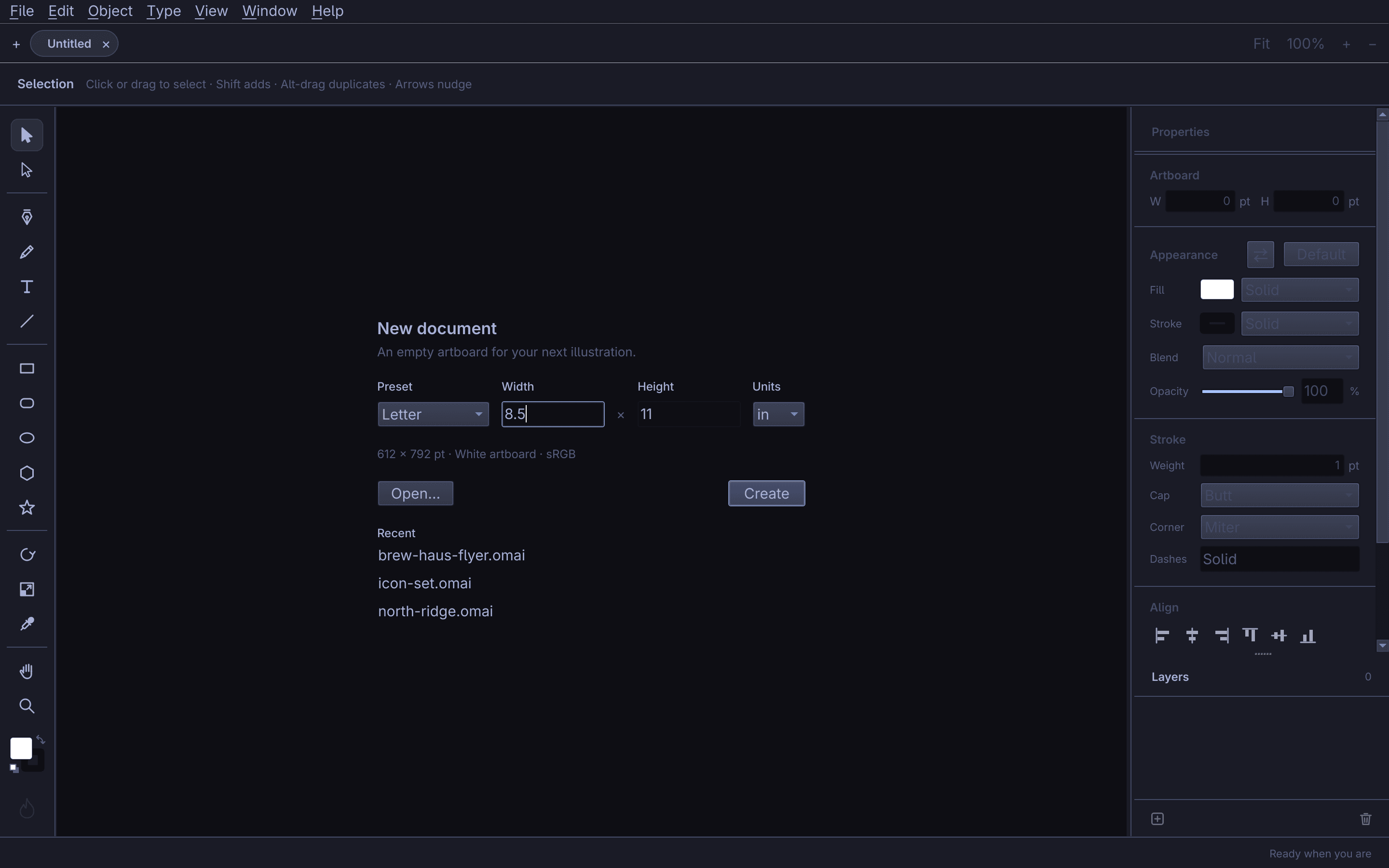 |
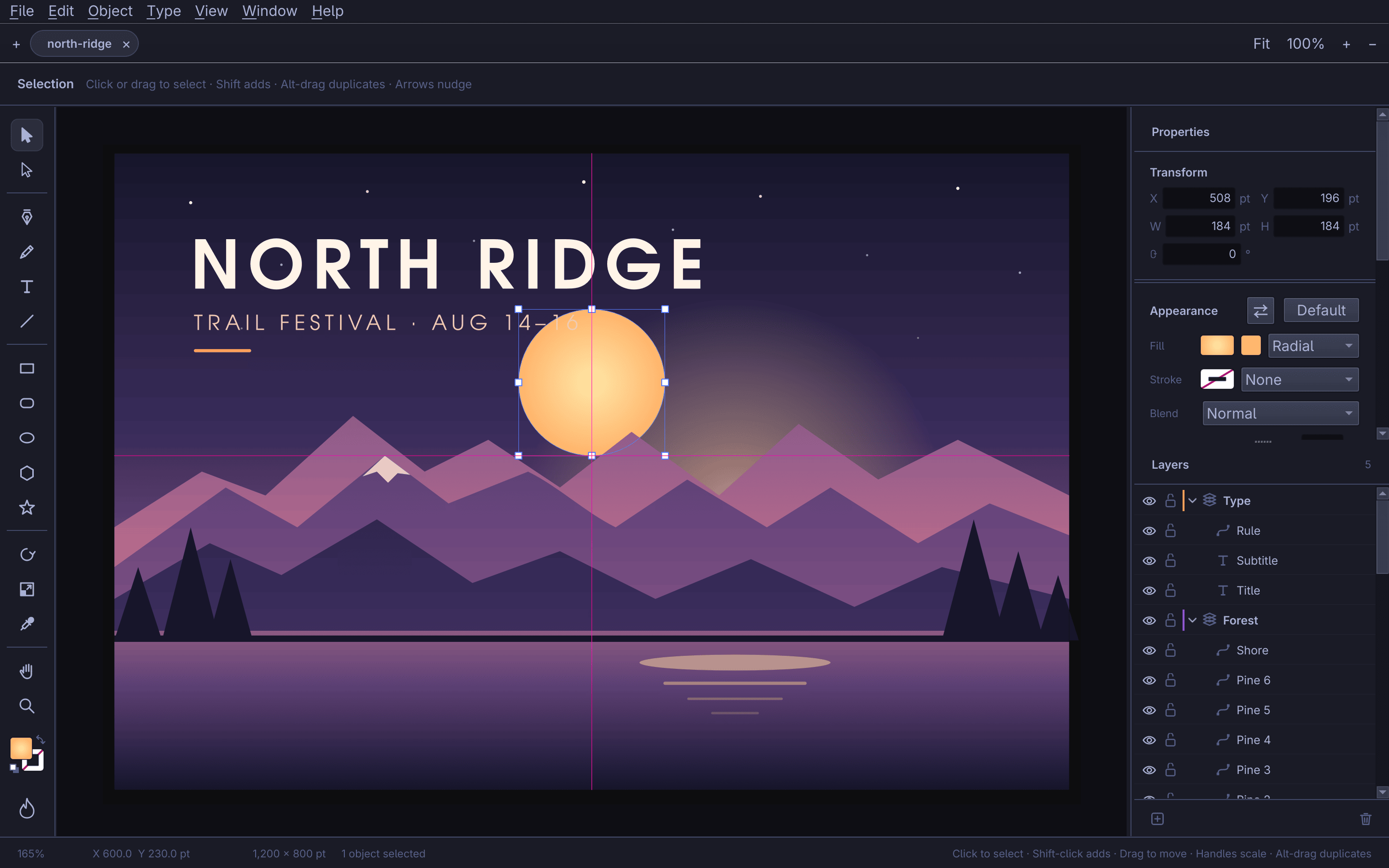 |
| The welcome sheet: a new artboard, or a recent file. | Dragging the sun: transform handles and a smart guide on the artboard's centre. |
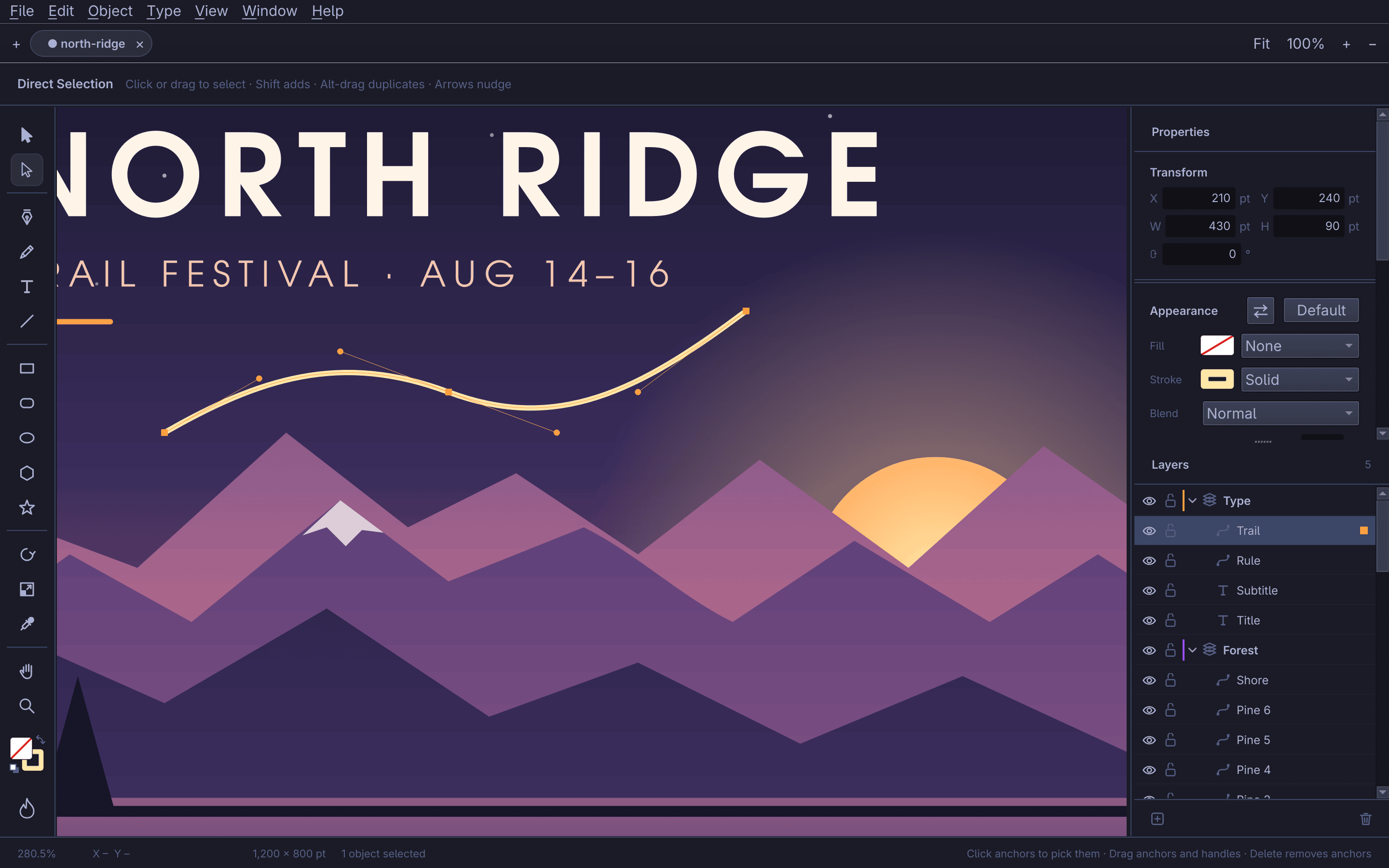 |
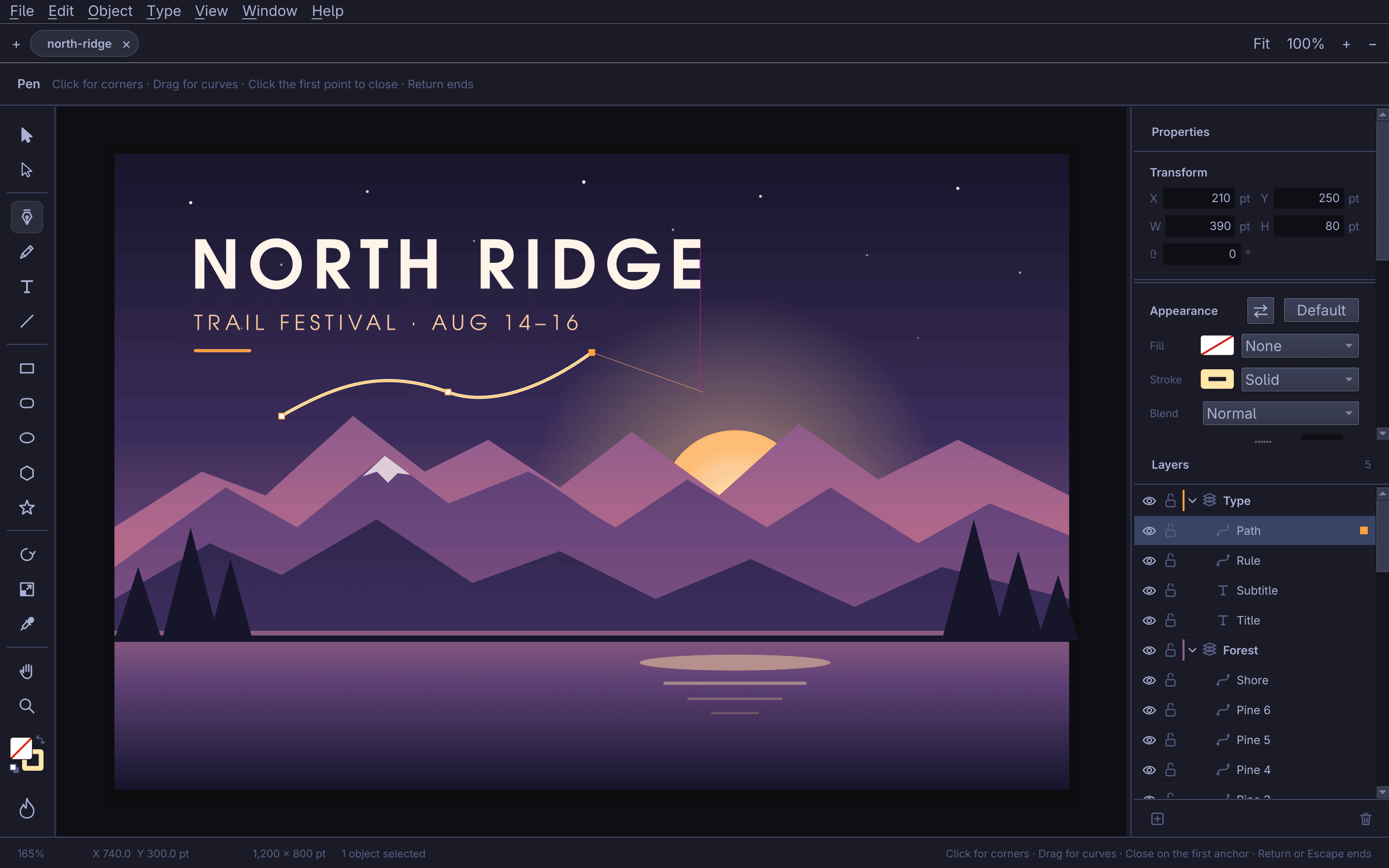 |
| Direct Selection: a path's anchors, with the picked one's handles. | The Pen tool mid-path, with the next segment following the pointer. |
 |
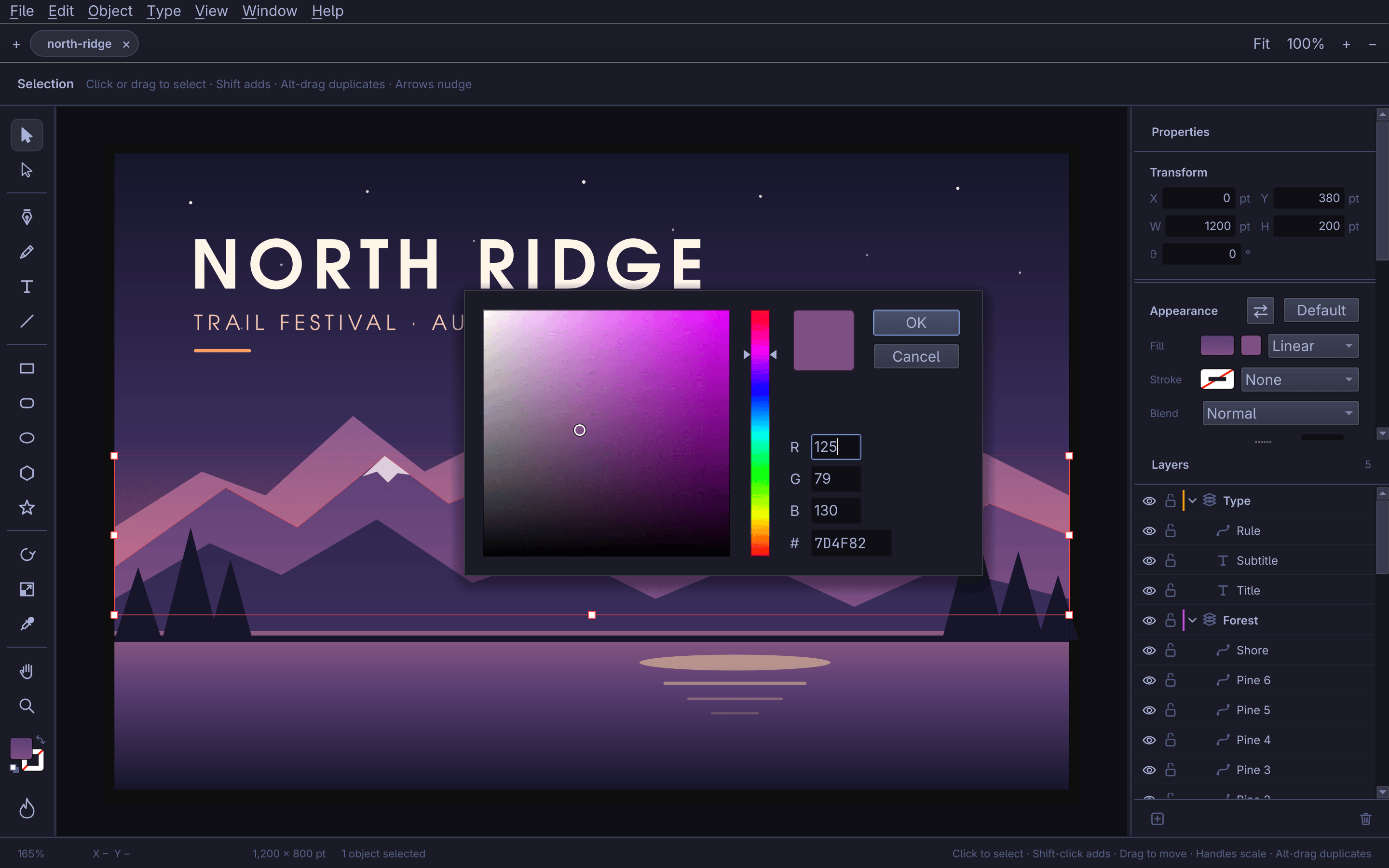 |
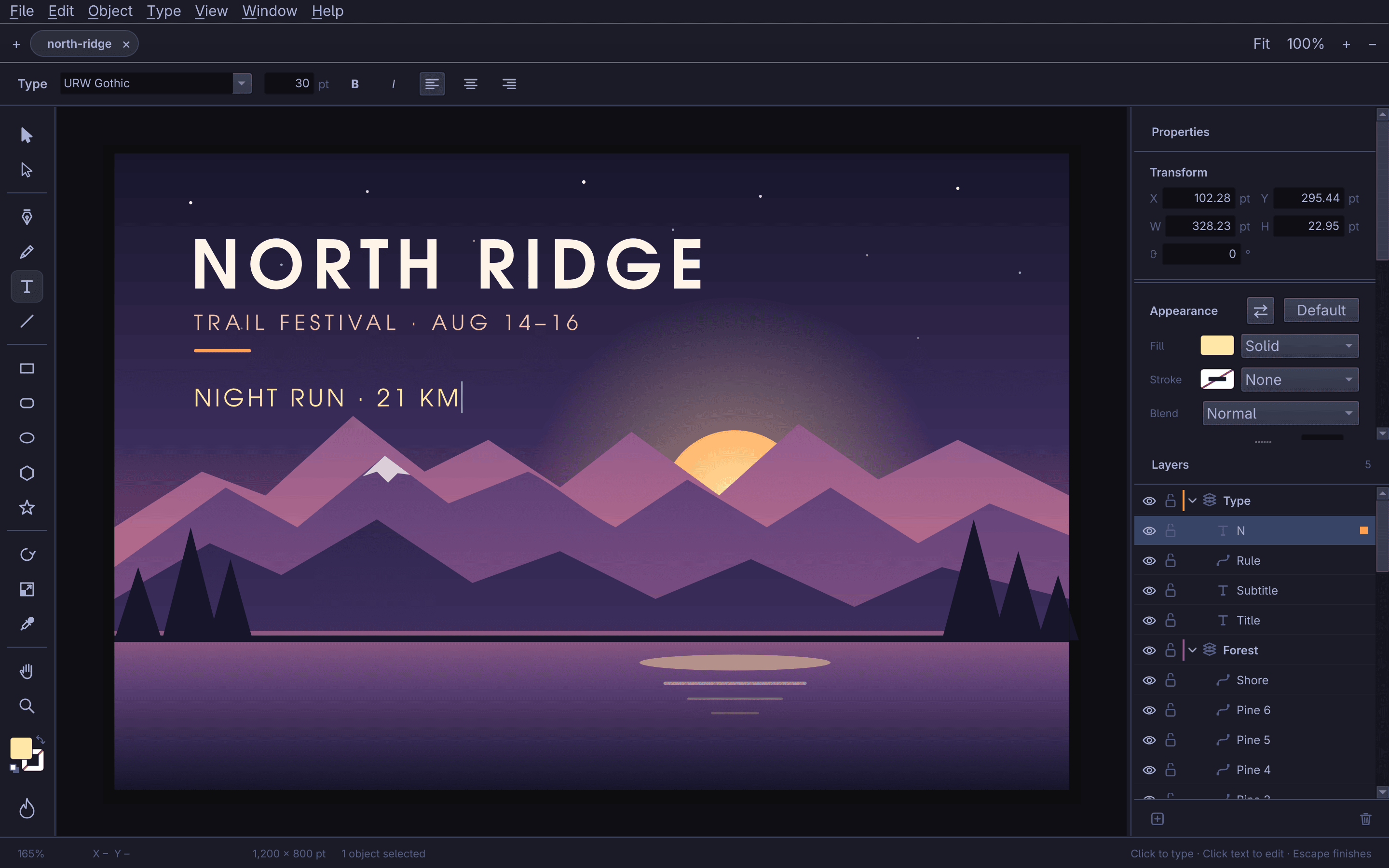
| Point type, edited in place on the canvas. | A linear gradient fill, its end colour open in the picker. |
 |
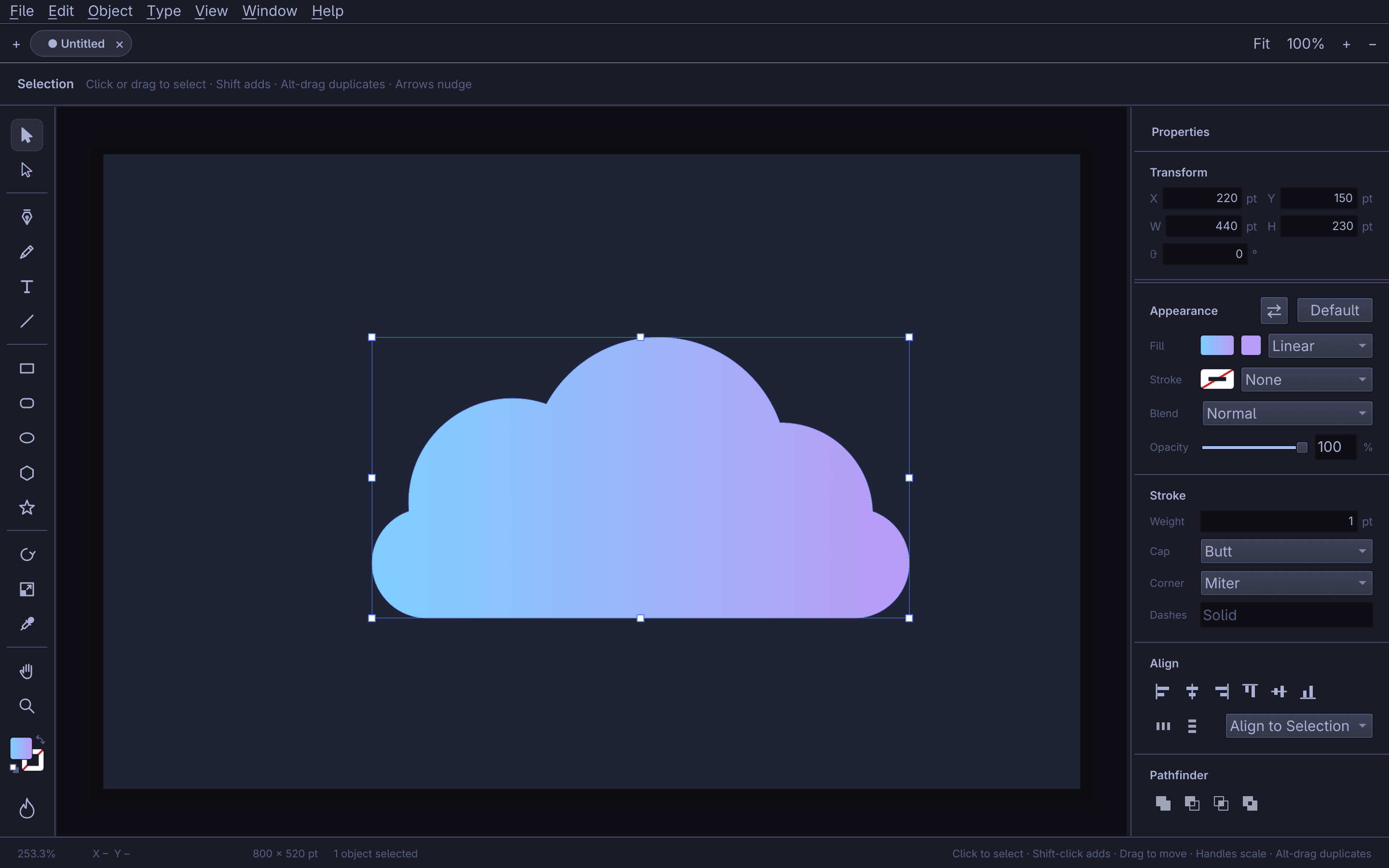 |
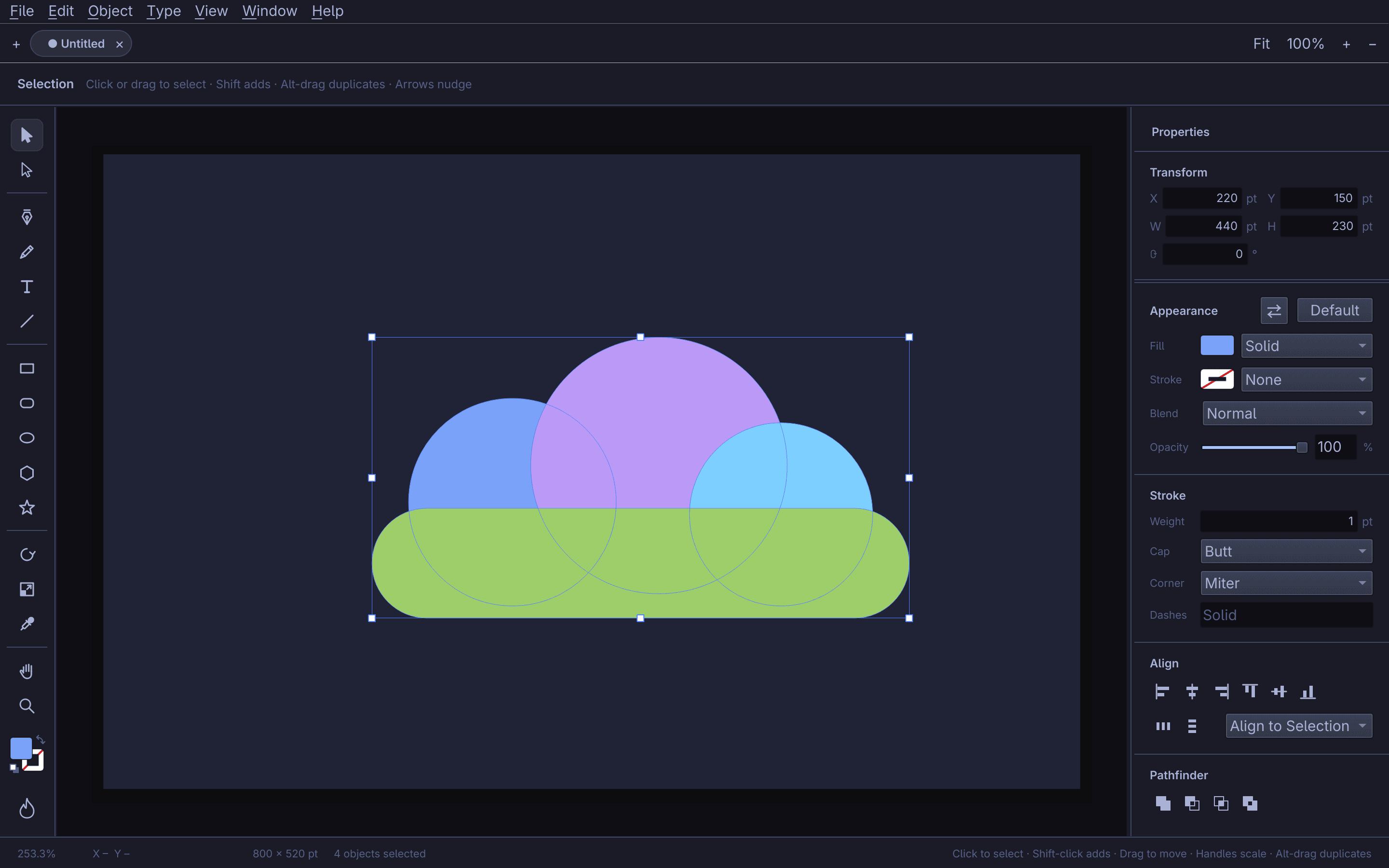
| Pathfinder, before: four shapes selected. | After Unite: one compound path, filled with a gradient. |
 |
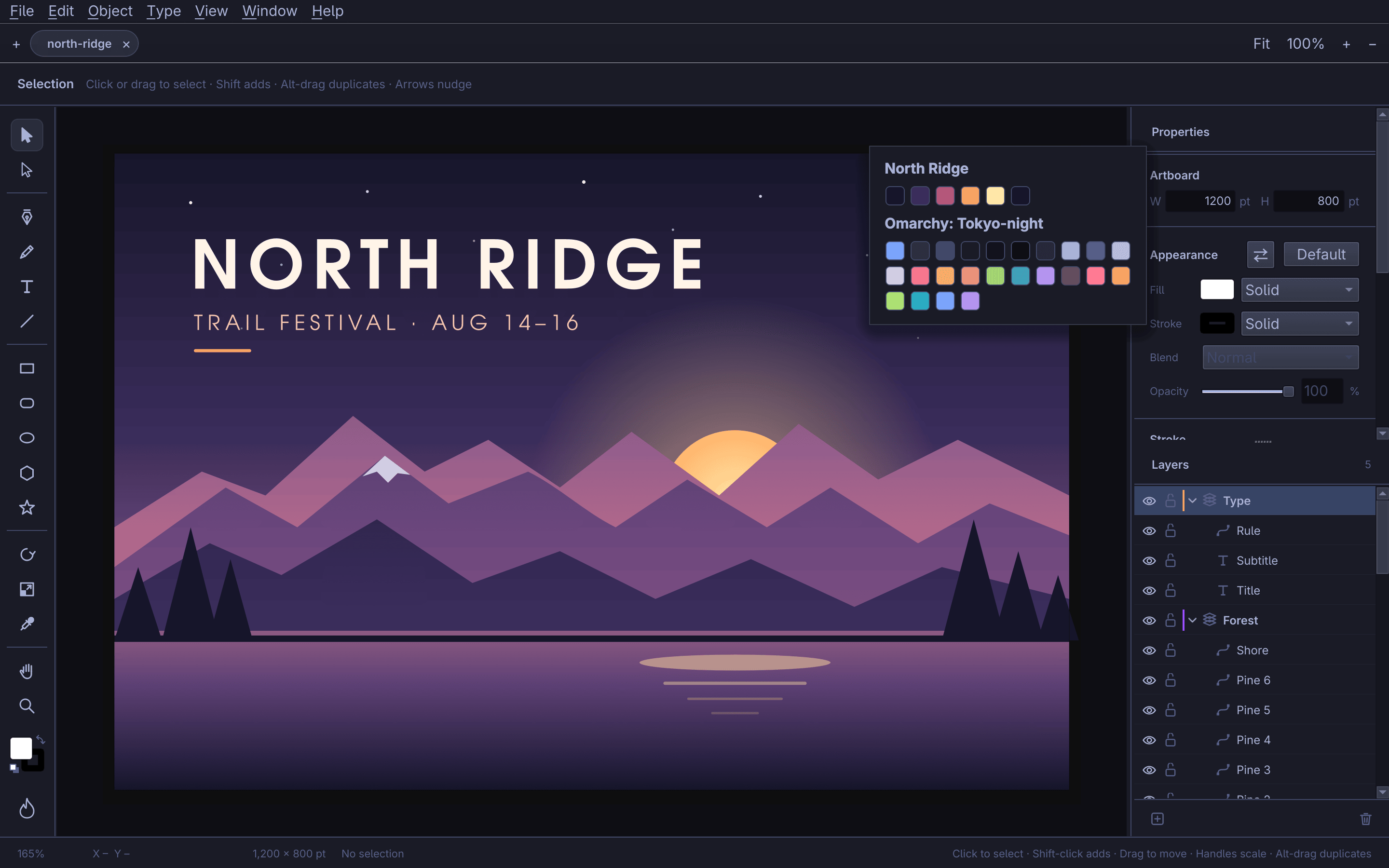 |
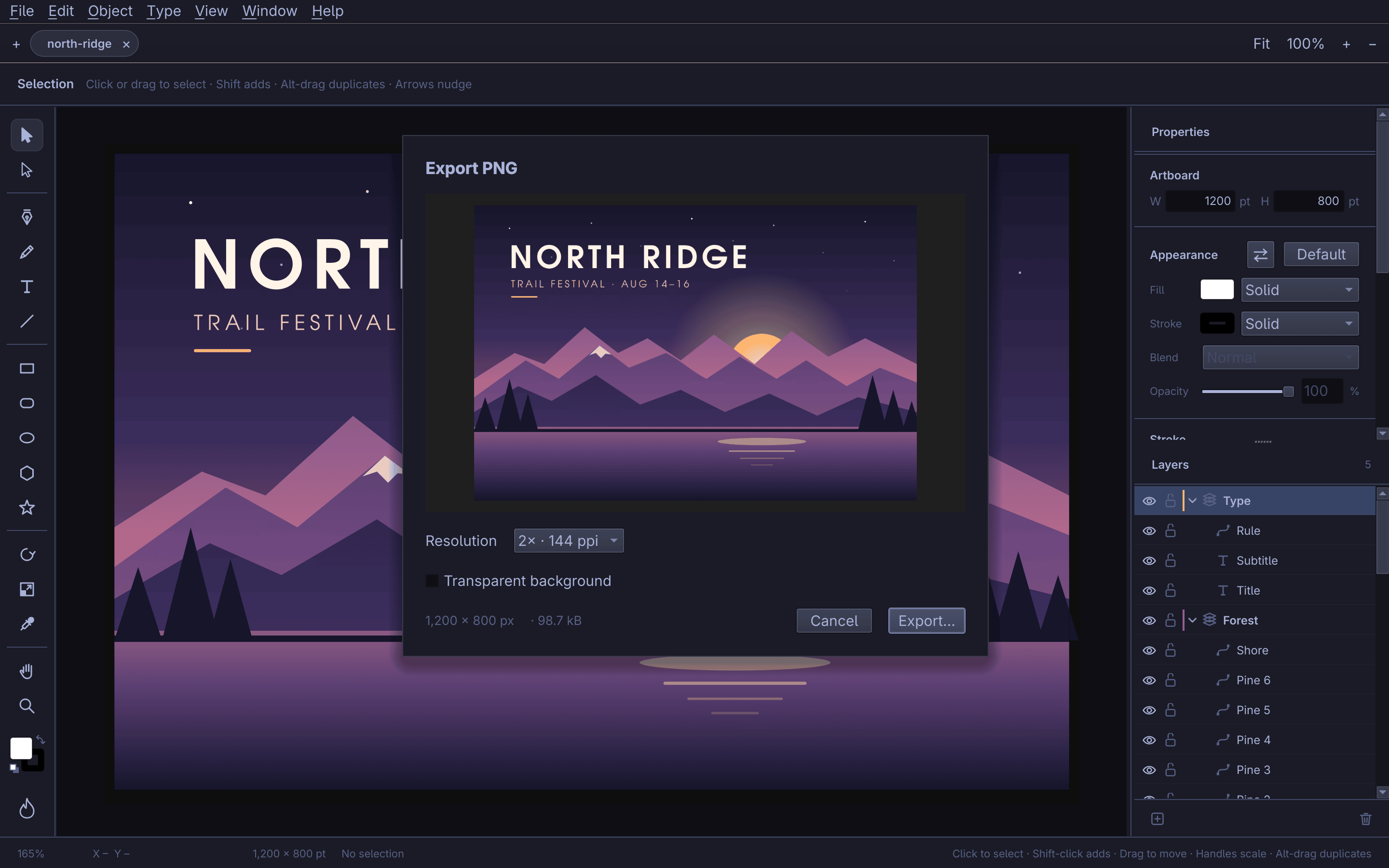
| Export PNG, with a preview, resolution and the file's size. | The Swatches panel, with the Omarchy theme's colours as a group. |
 |
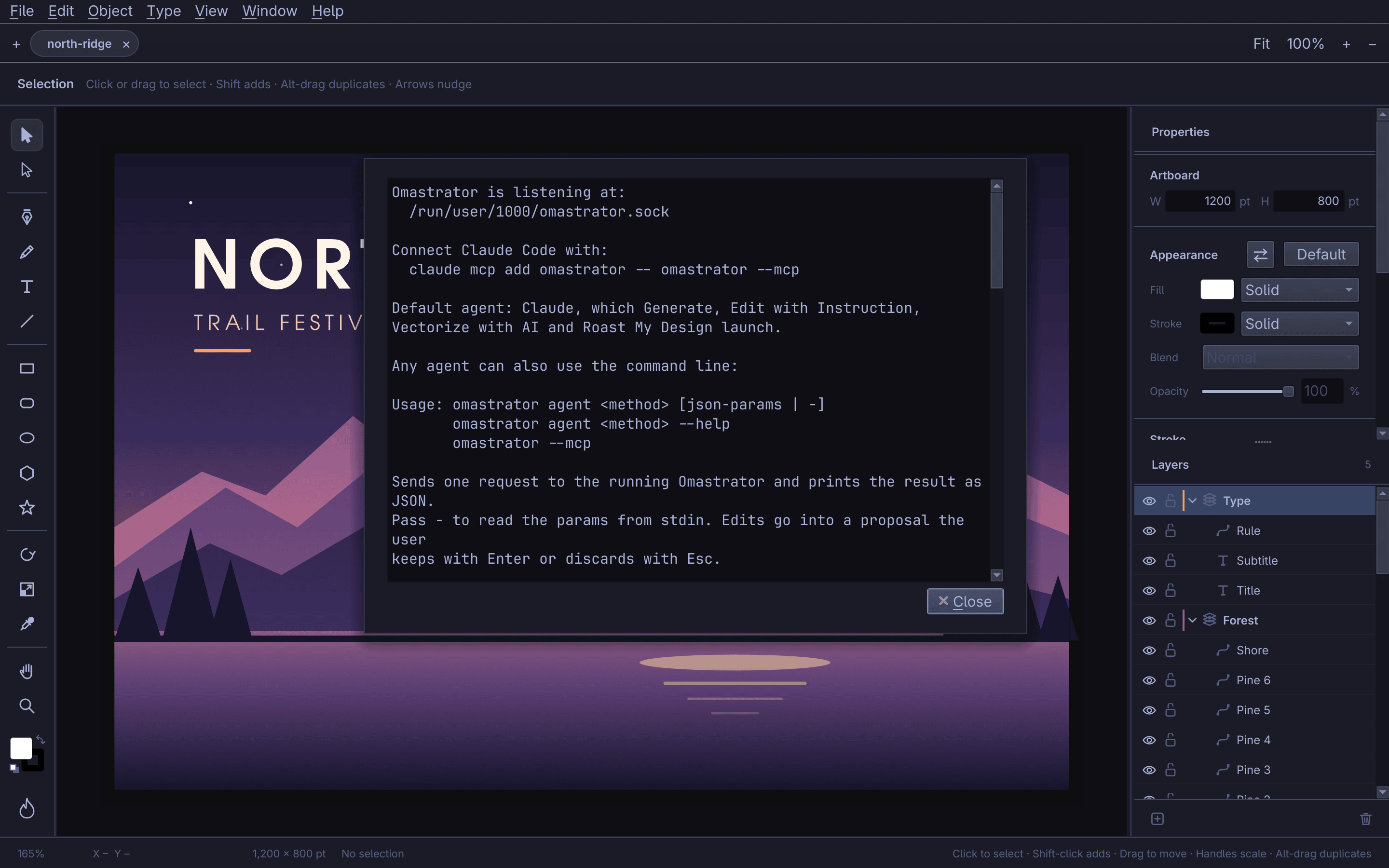 |
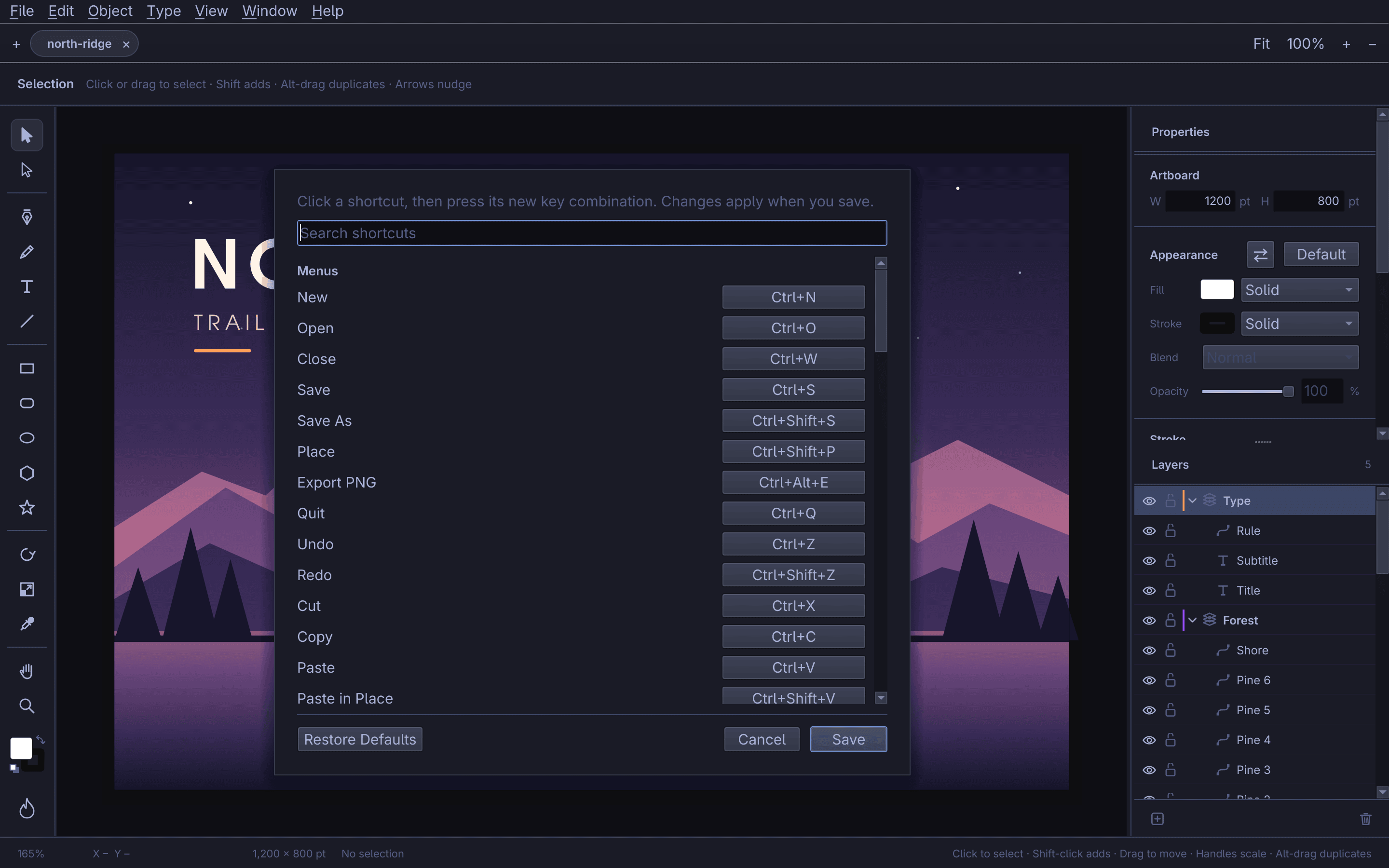
| Keyboard Shortcuts (Help, Ctrl+Shift+?): every key can be remapped; Figma's keys are in beside Illustrator's (docs/SHORTCUTS.md). | Help ▸ Connect an Agent: the socket, the MCP line and the CLI. |
AI
 |
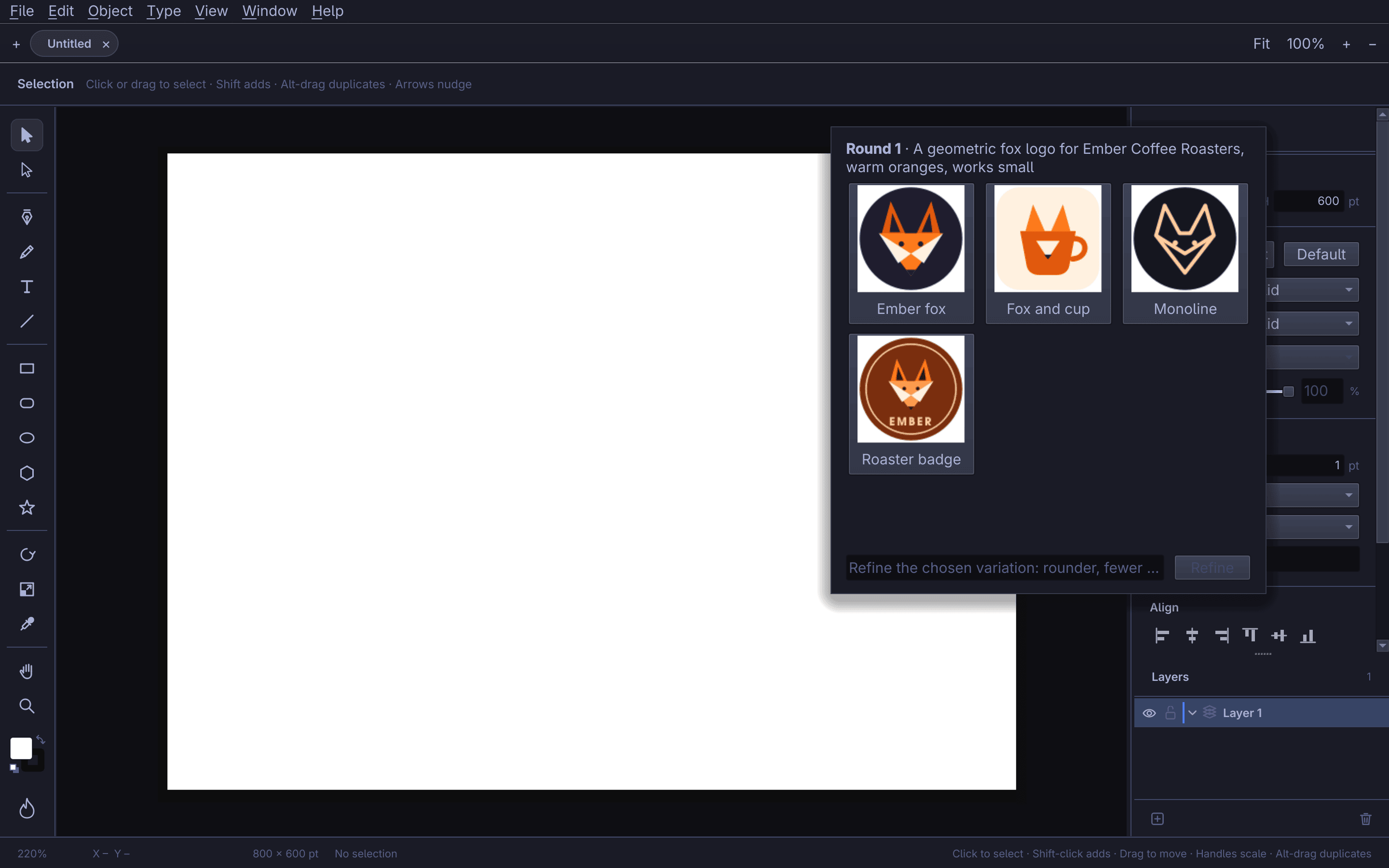 |
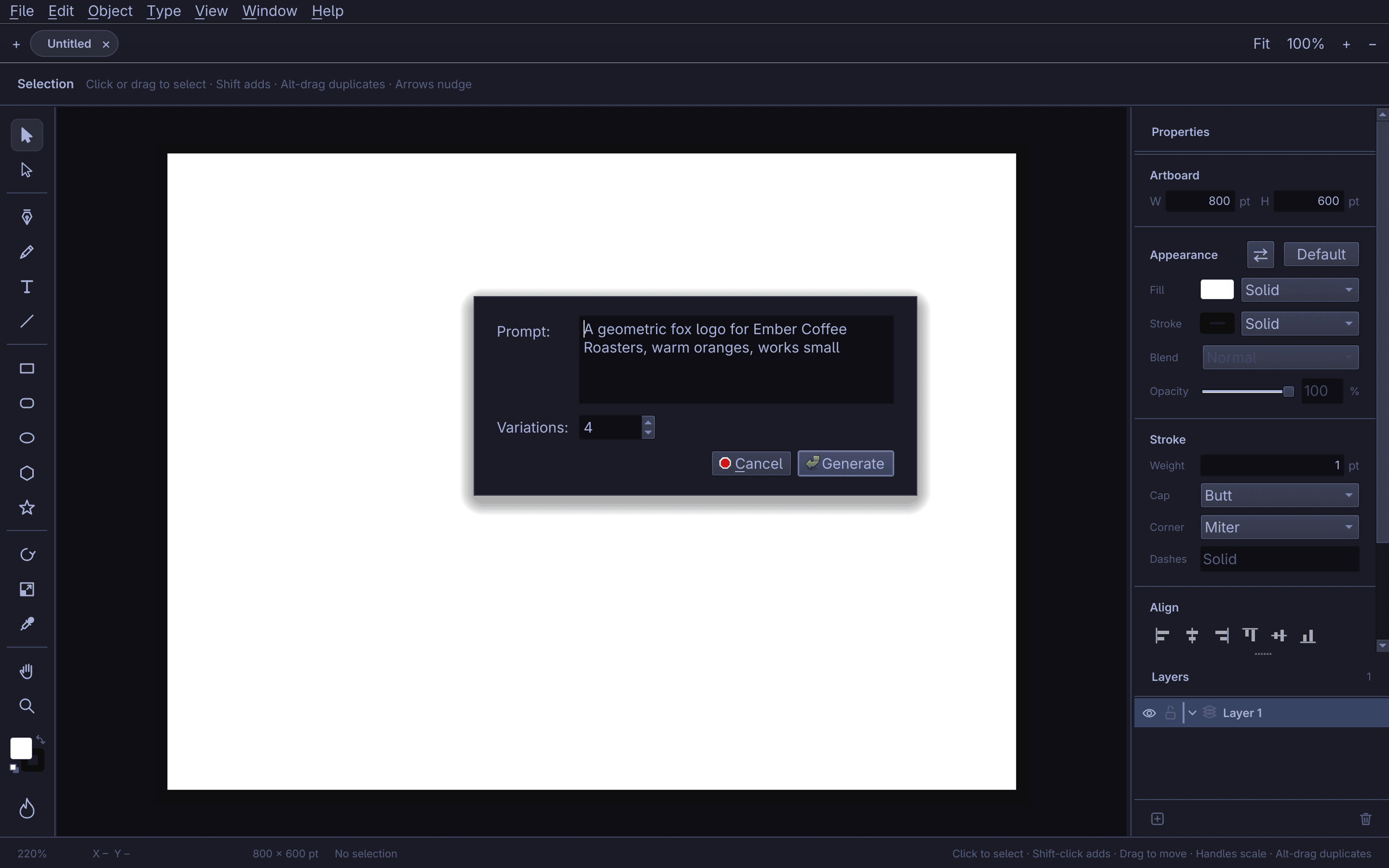
| Object ▸ Generate…: a brief and how many variations. | The Variations panel, with a refine field for the next round. |
 |
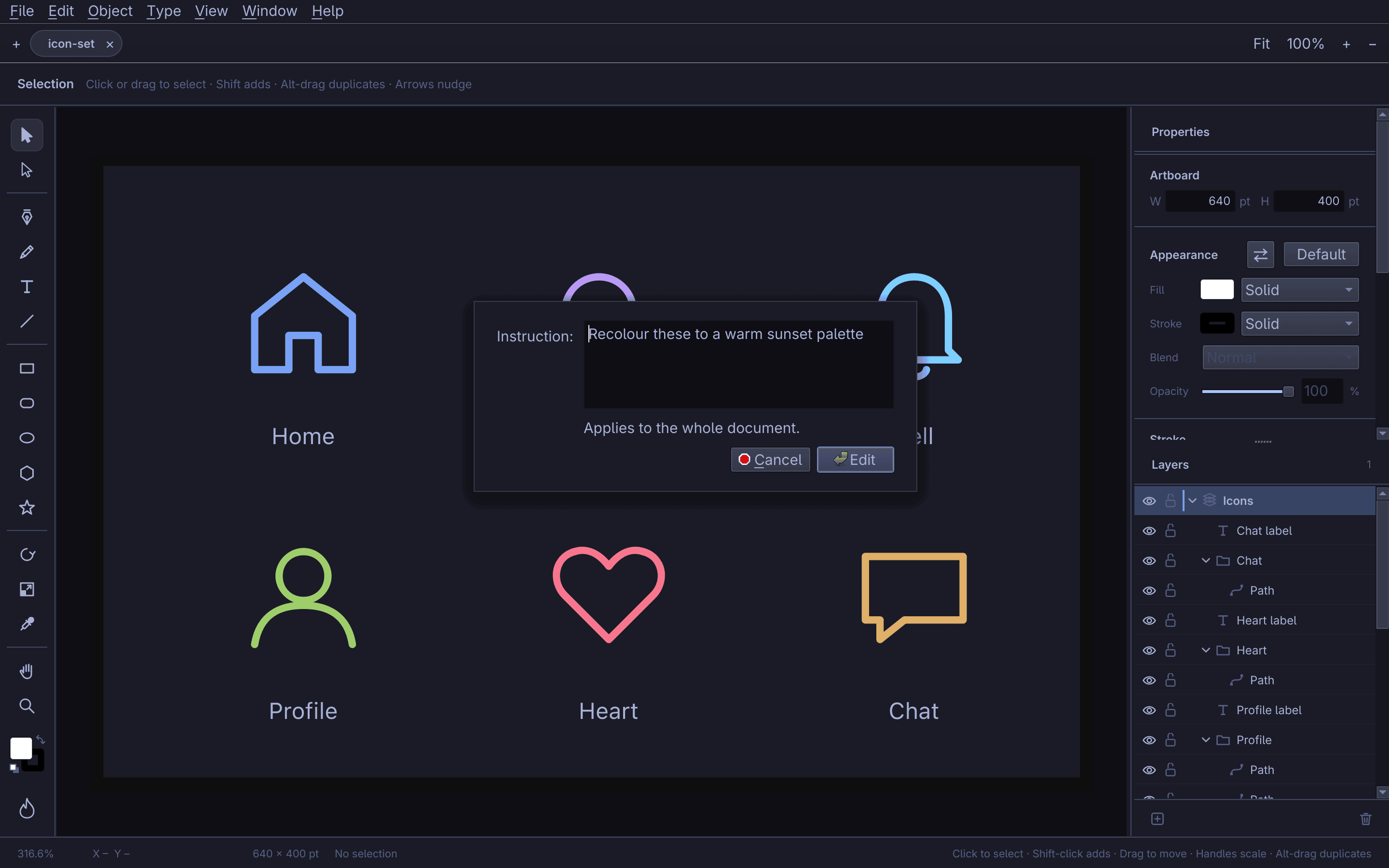 |
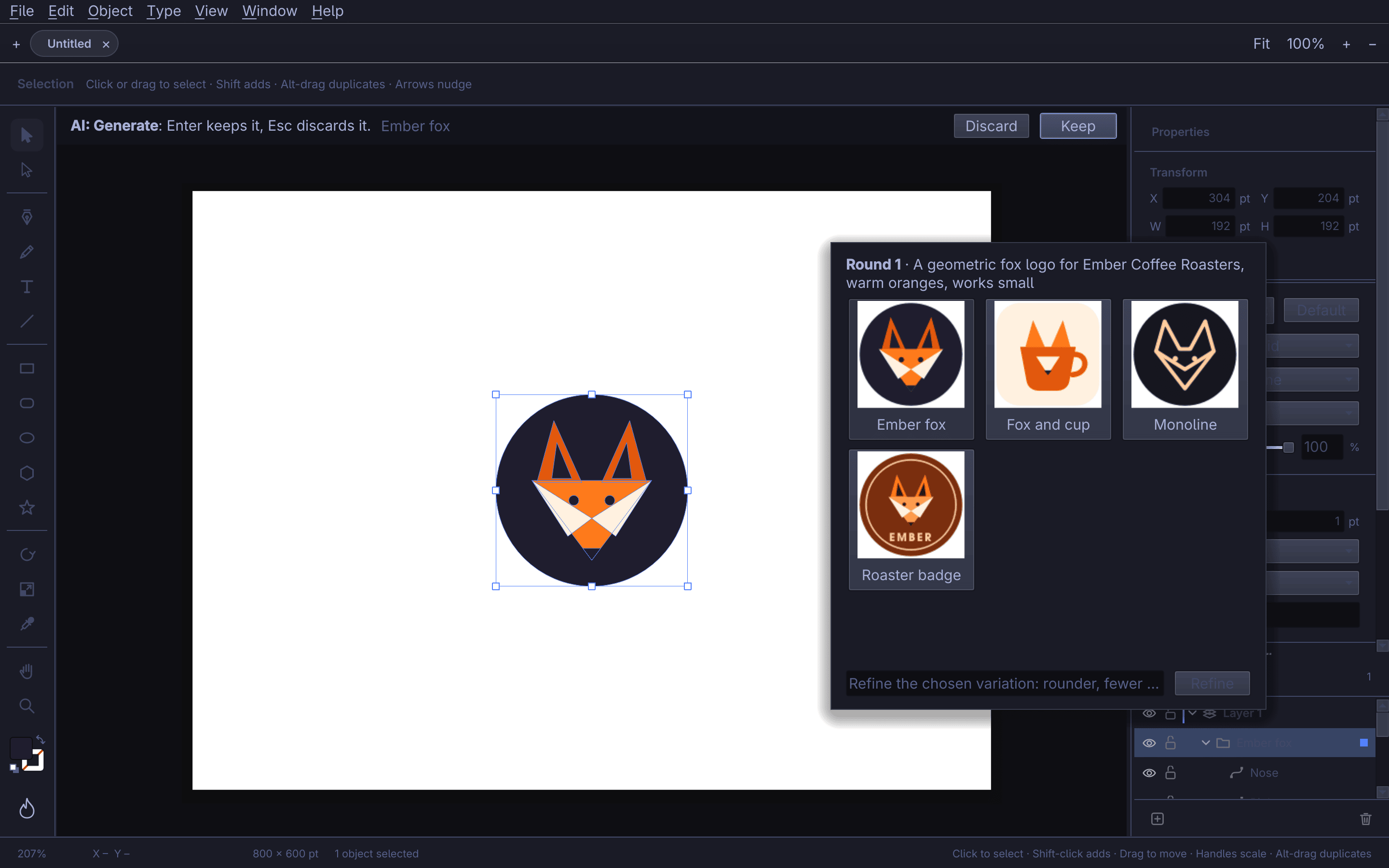
| A picked variation is a proposal: Enter keeps it, Esc discards it. | Edit with Instruction, on the whole document. |
 |
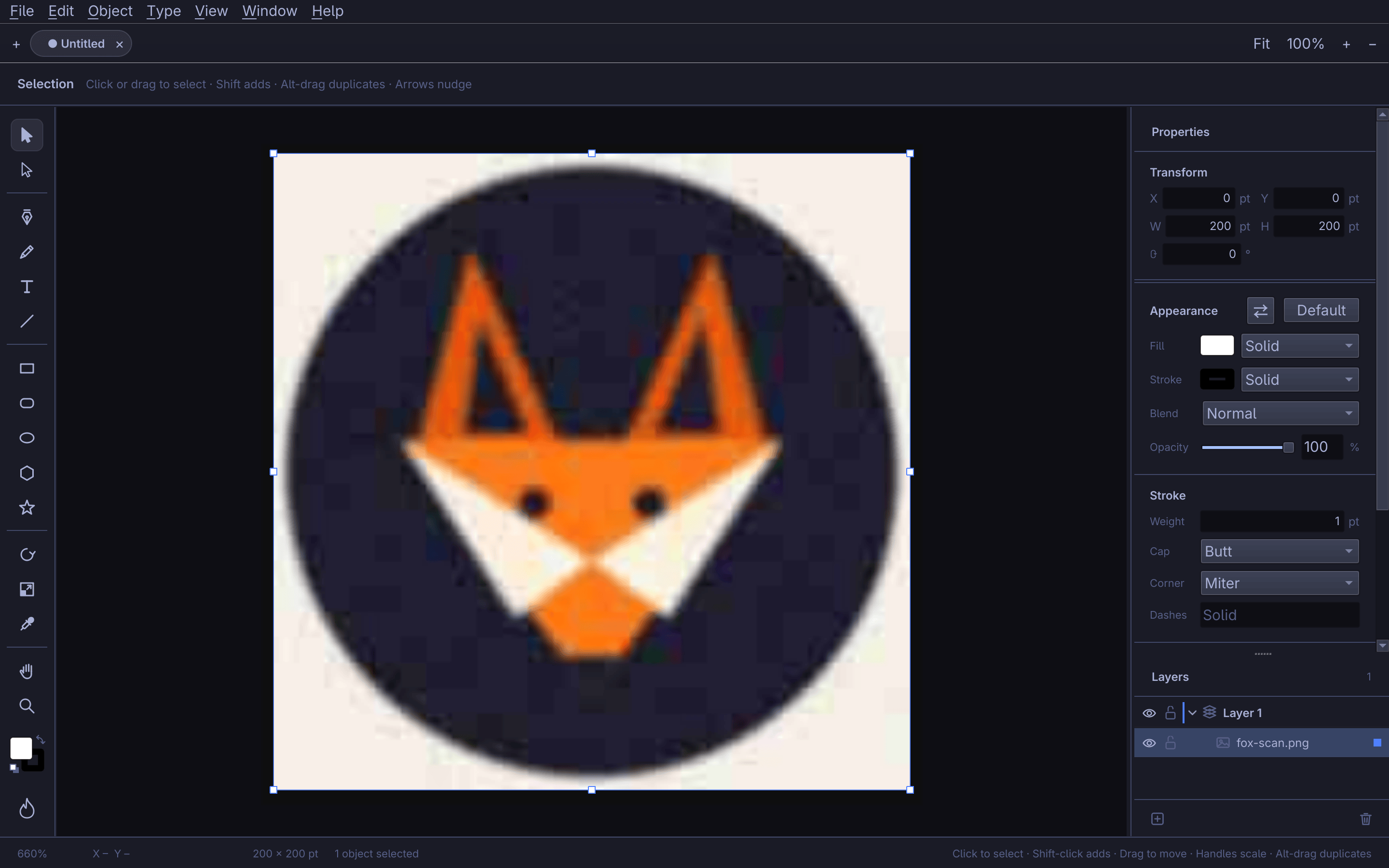 |
| The agent's recolour, waiting for Keep or Discard. | Vectorize with AI, before: a blurry placed JPEG of a logo. |
 |
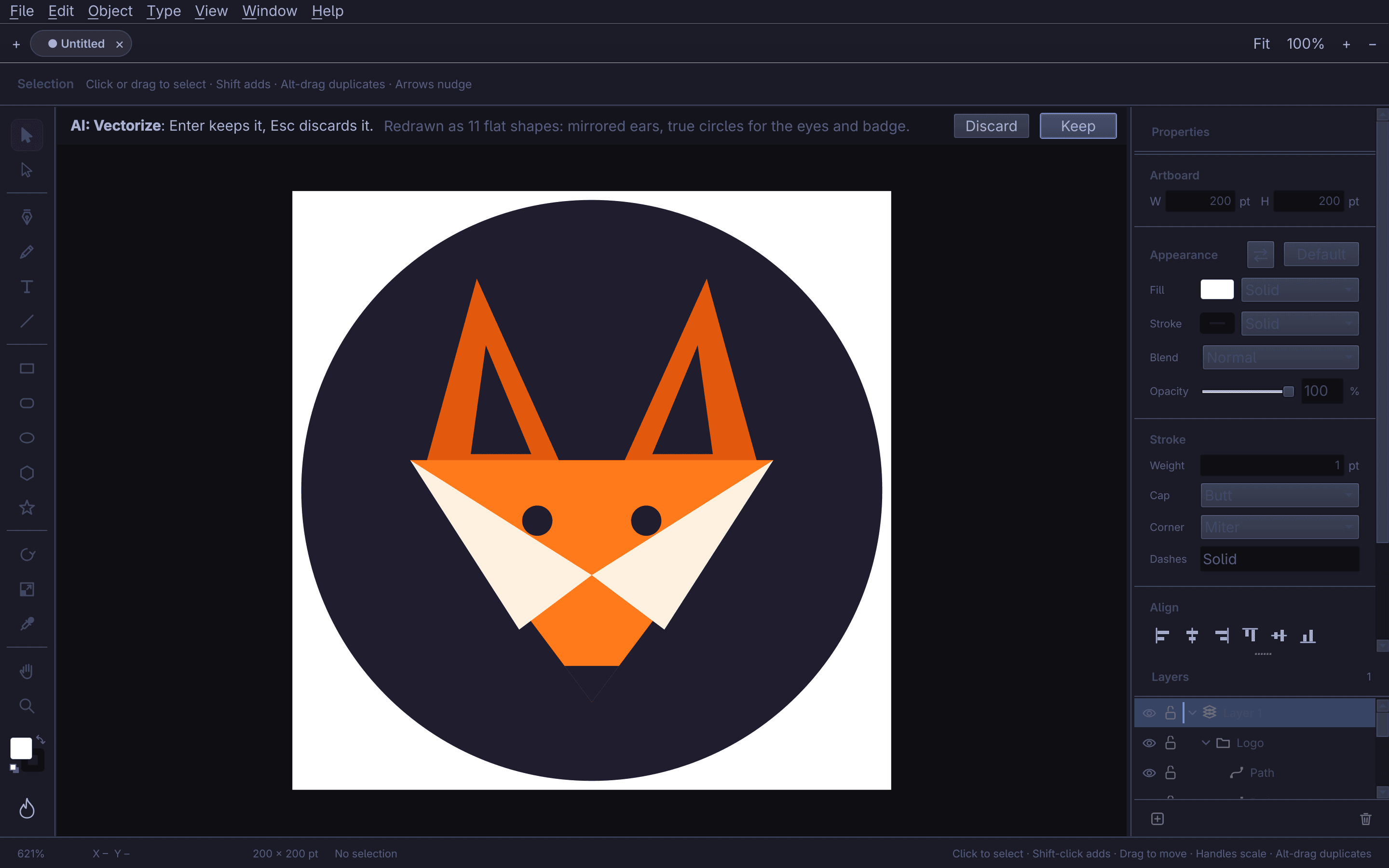 |
| The classic trace shows at once while the agent works. | After: the agent's redraw in 11 flat shapes. |
 |
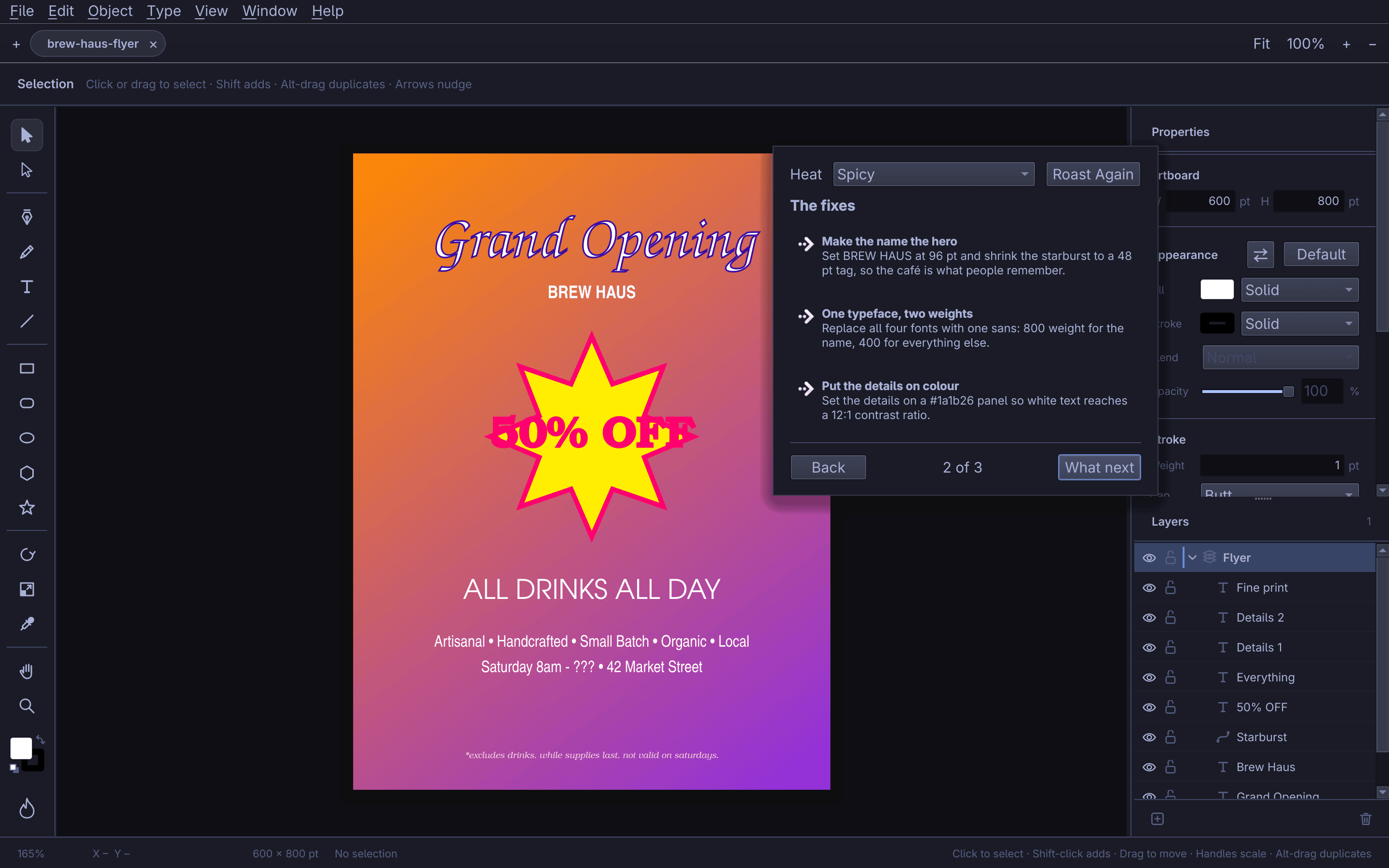 |
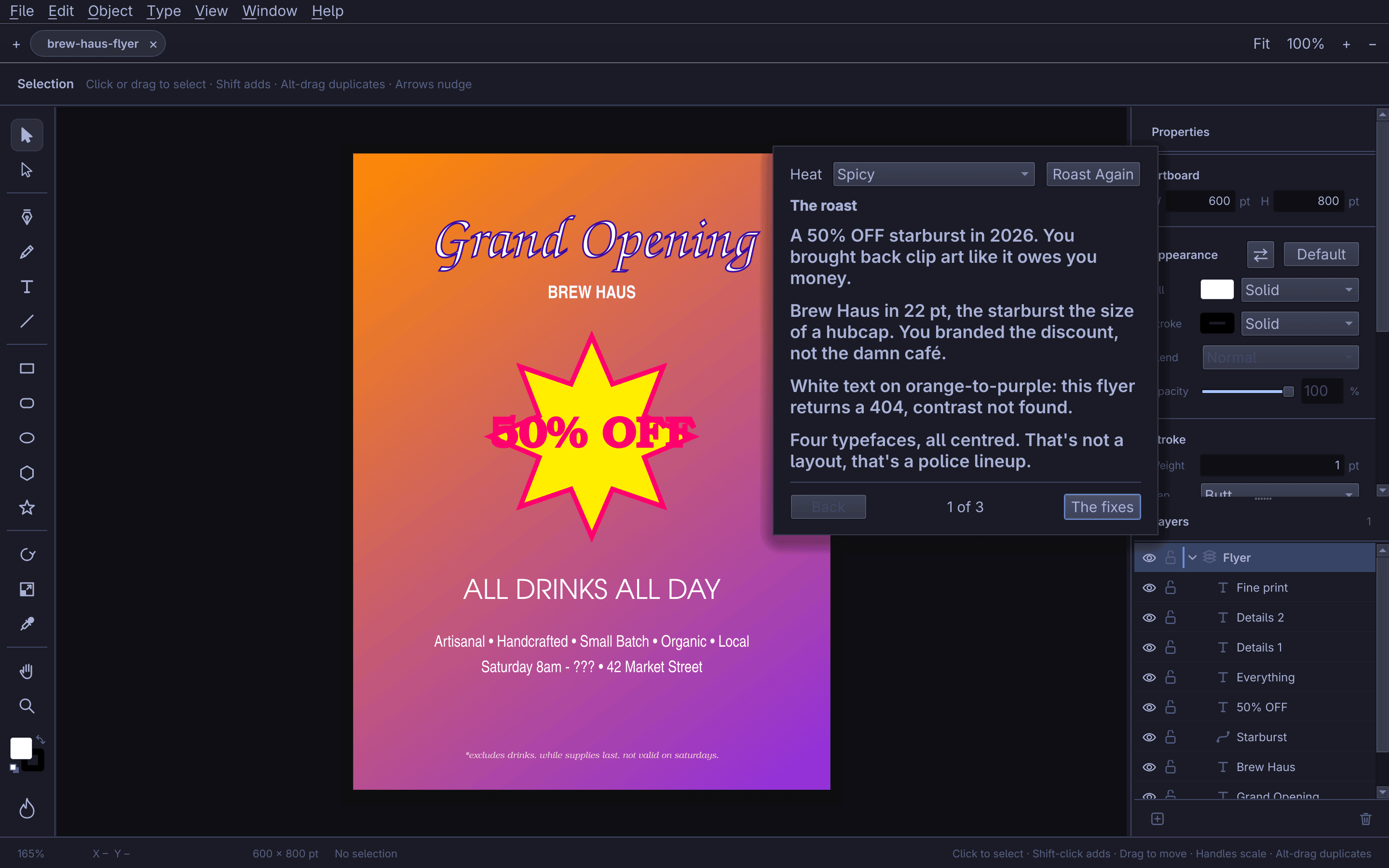
| Roast My Design at Spicy: the roast. | Page 2: three fixes, each with the value to use. |
 |
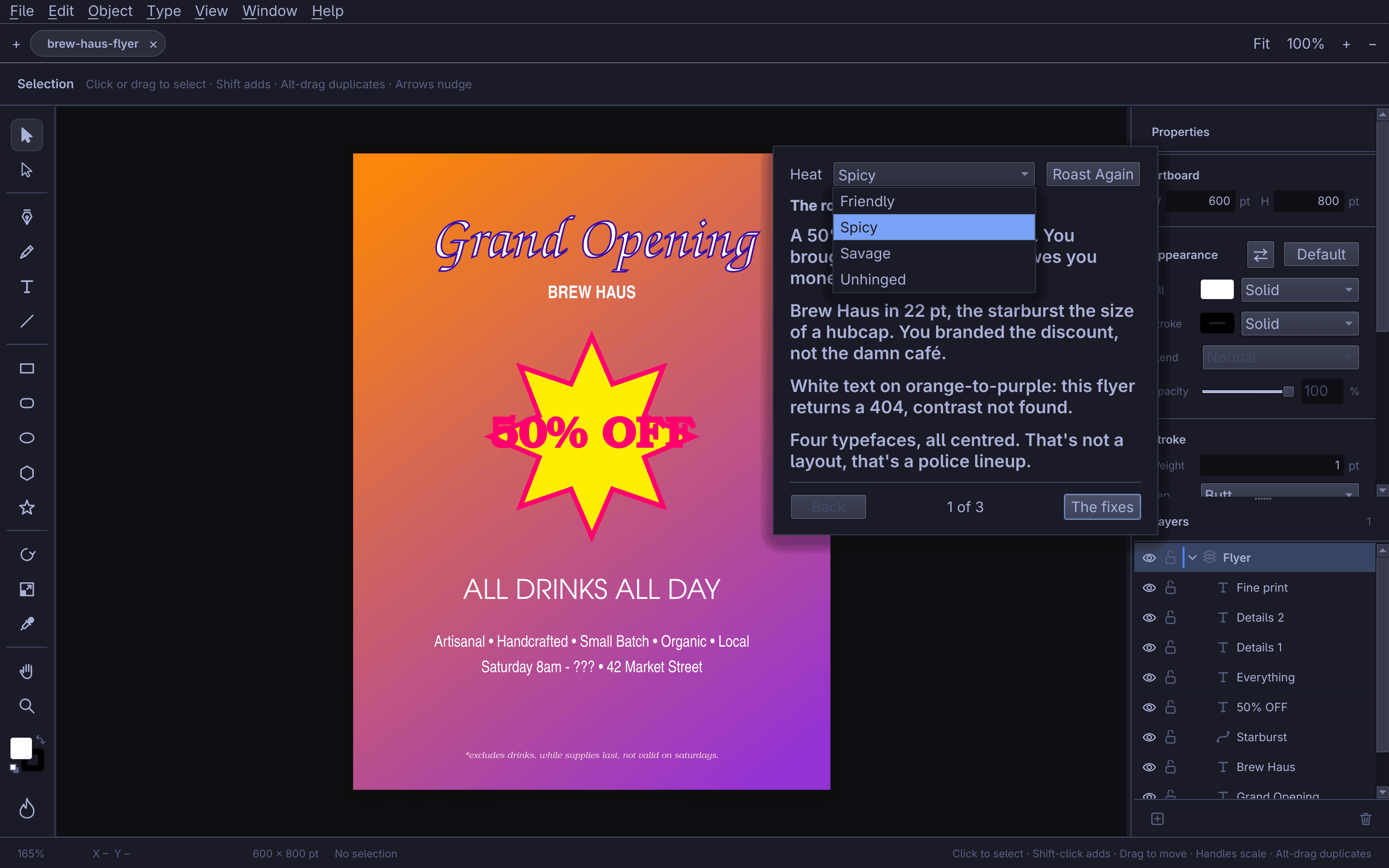 |
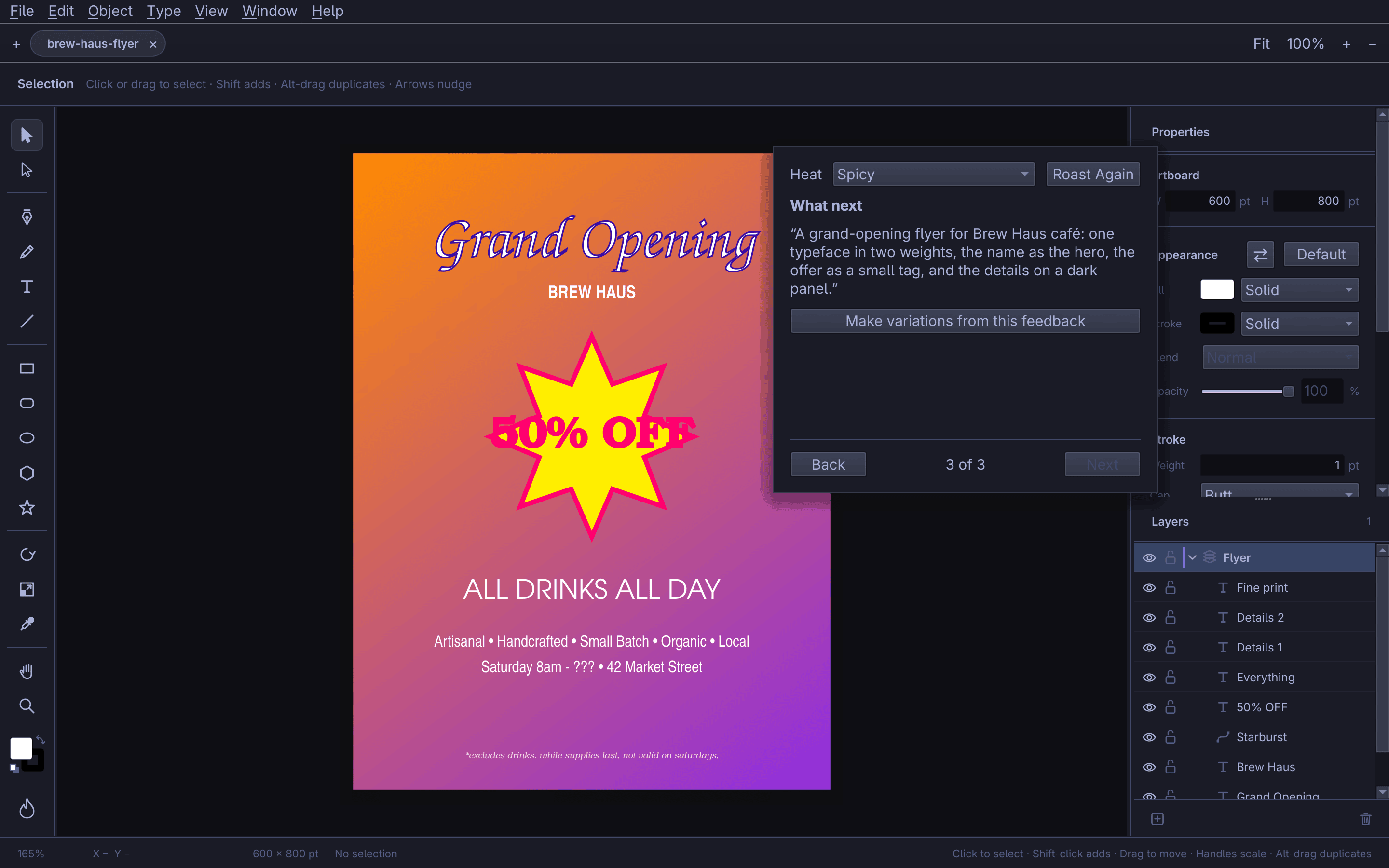
| Page 3: the brief, and Make variations from this feedback. | The Heat picker, from Friendly to Unhinged. |
Across Omarchy
 |
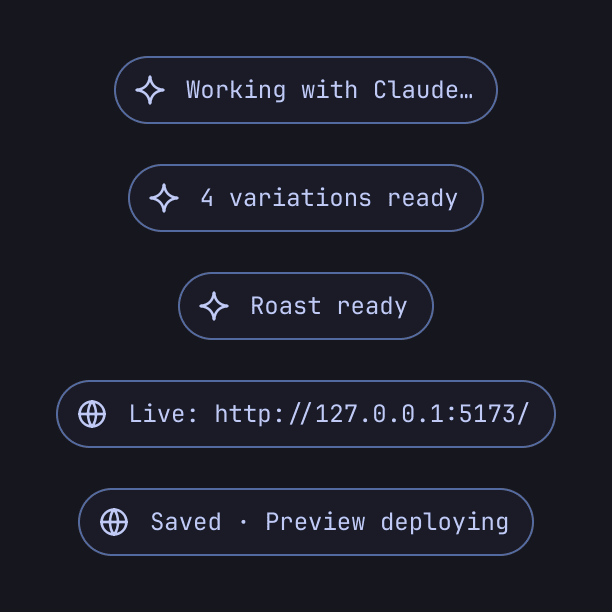 |
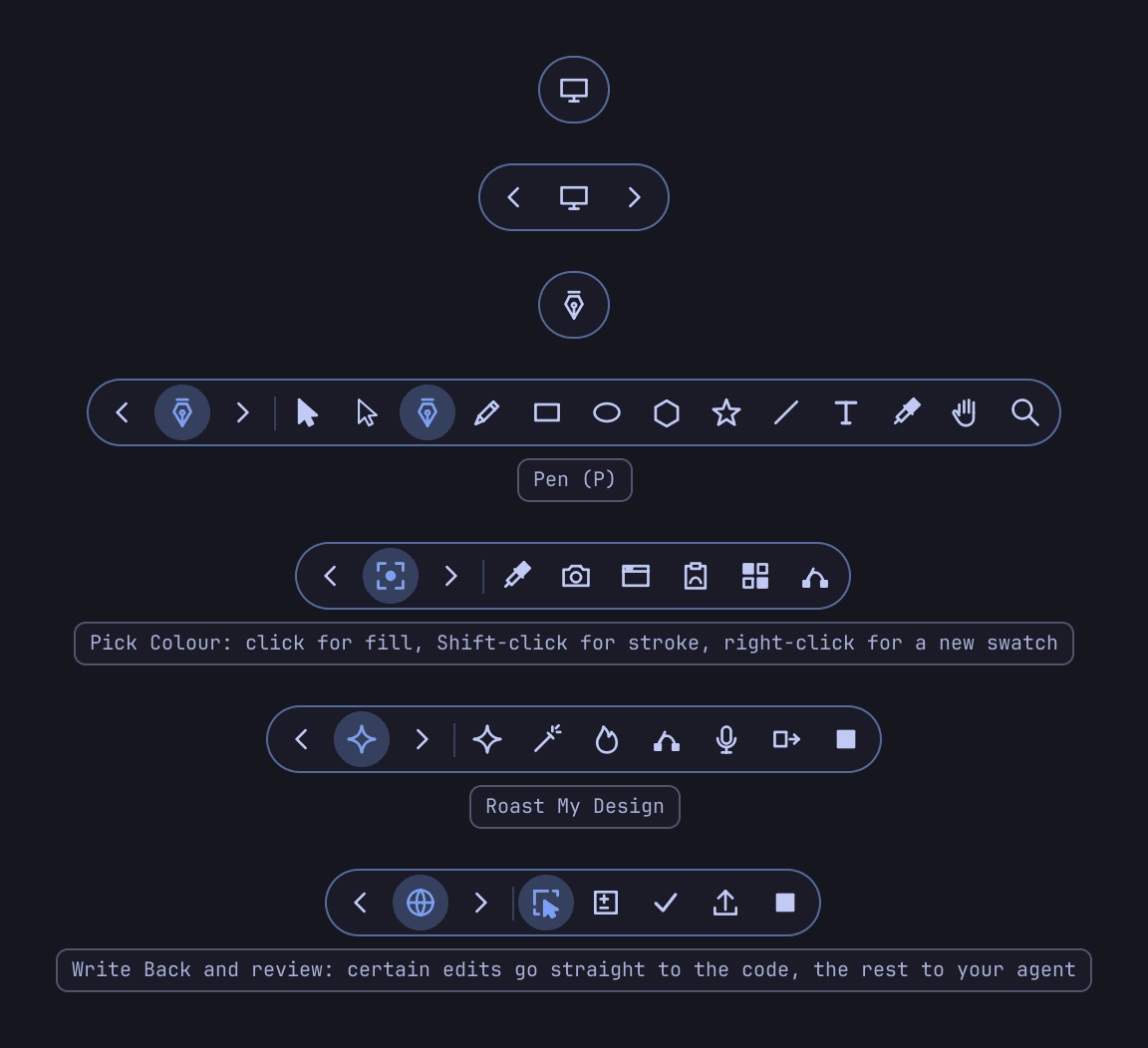
| The island resting and expanded: Normal, Draw, Capture, AI and Live. | Activity lines: agent work, results, Live and deploying. |
 |
 |
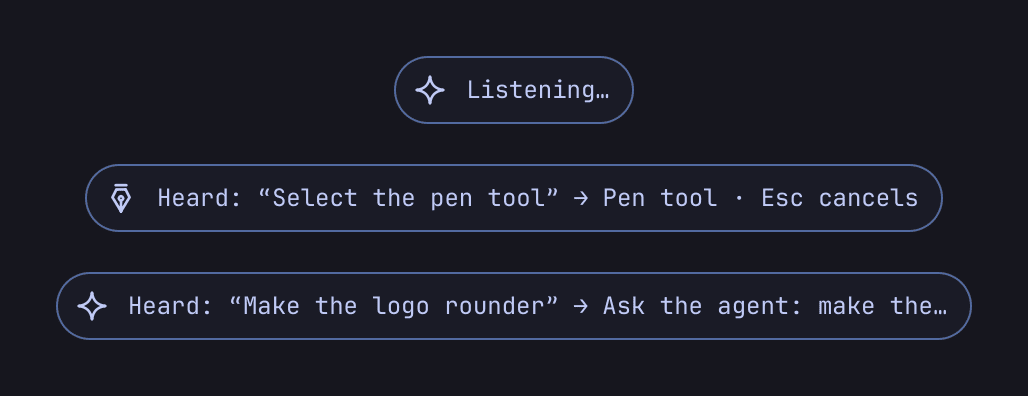
| Dictation: listening, then what it heard and what it will do. | The tray light: idle, working, results ready, error. |
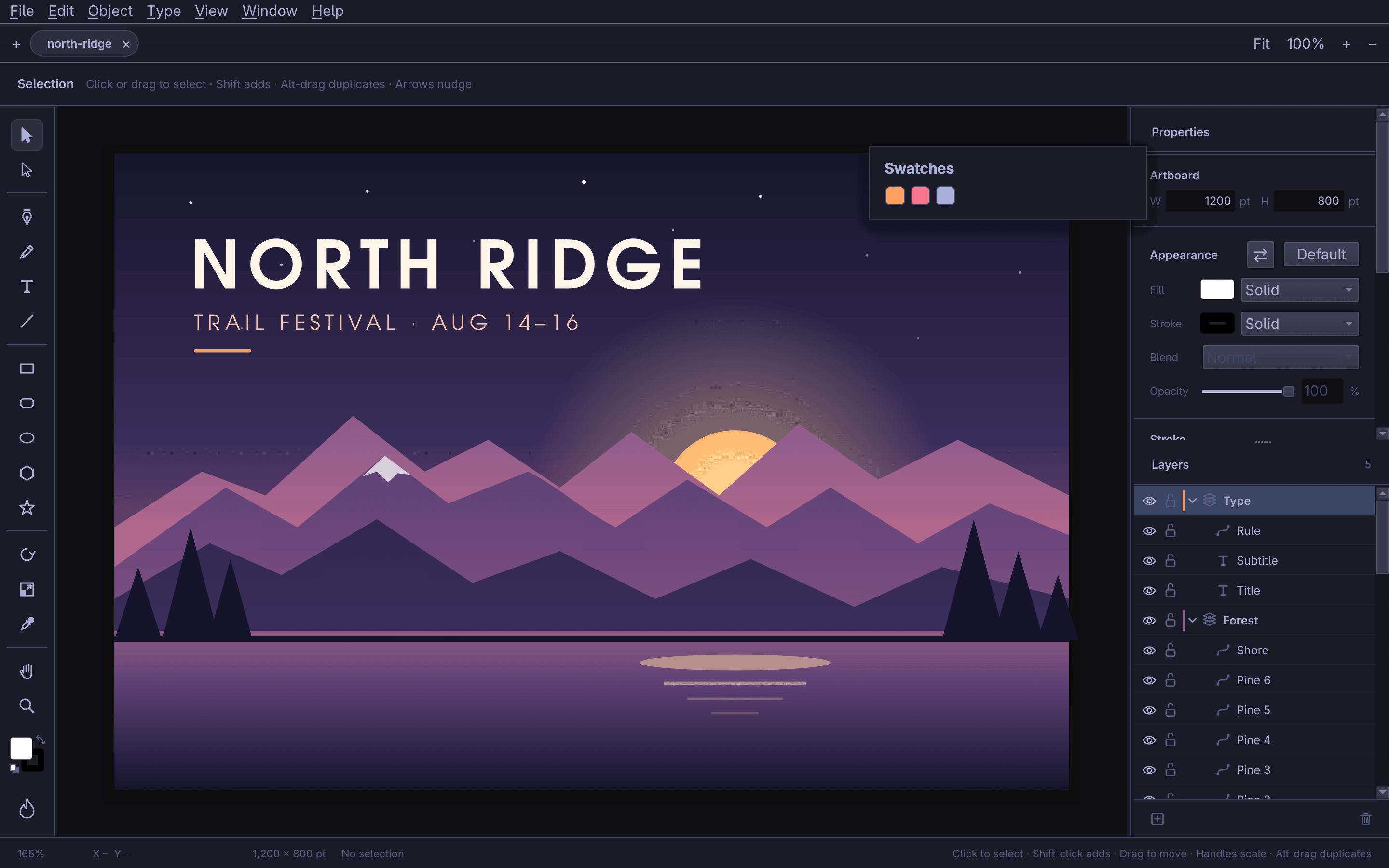 |
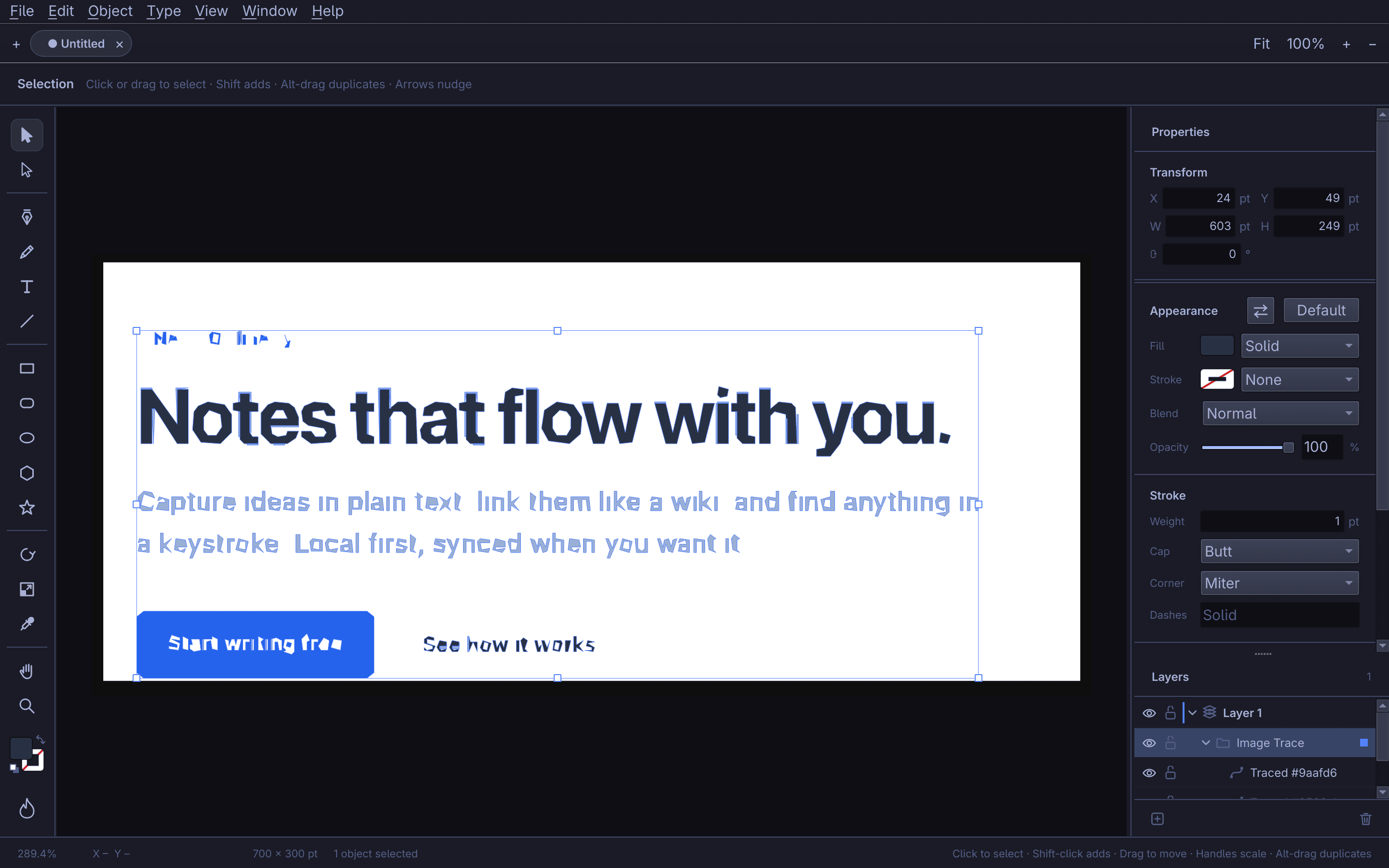 |
| Pick Colour as a Swatch: picked colours land in the Swatches panel. | Screenshot Region: a part of a web page, opened and traced in colour. |
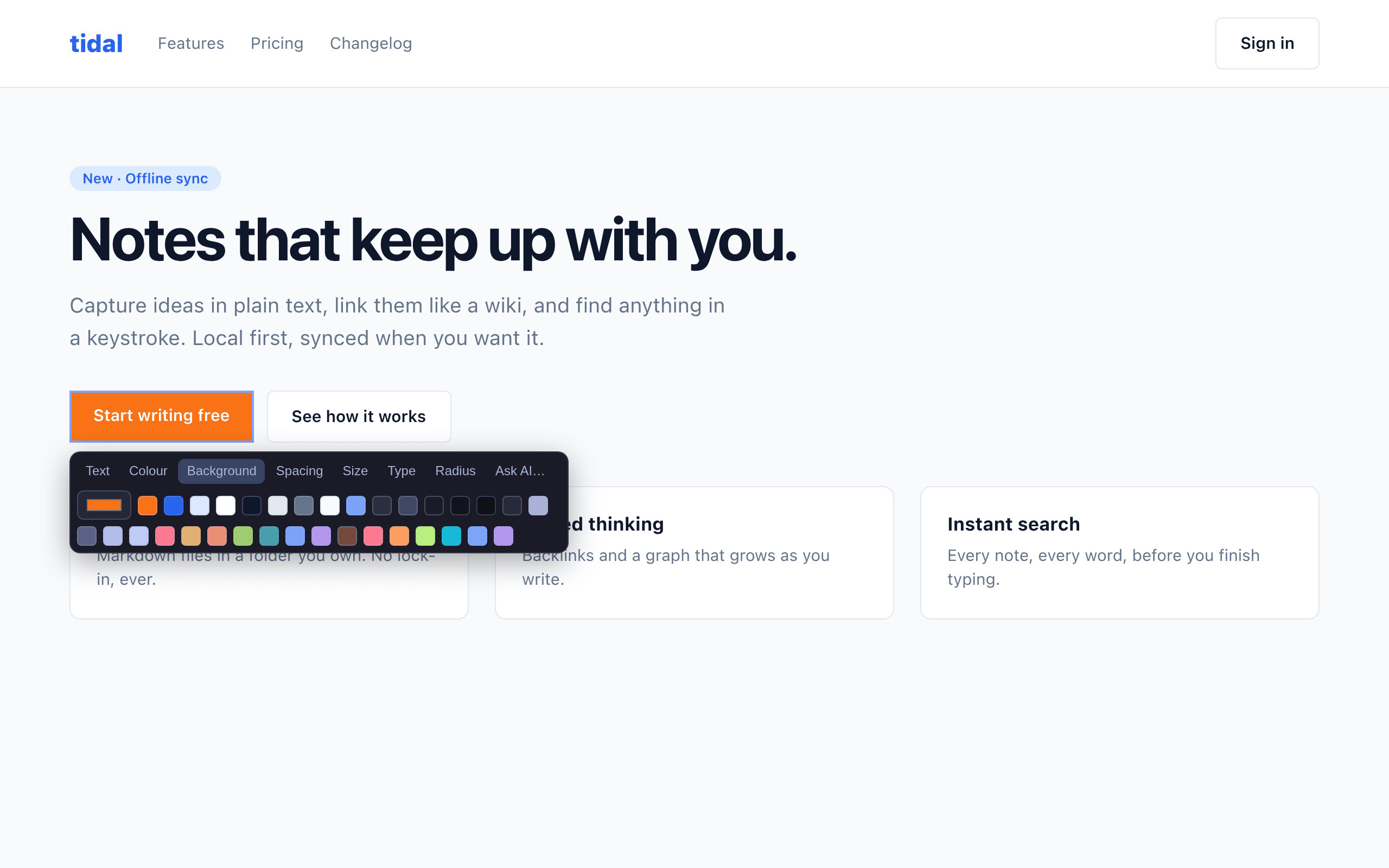 |
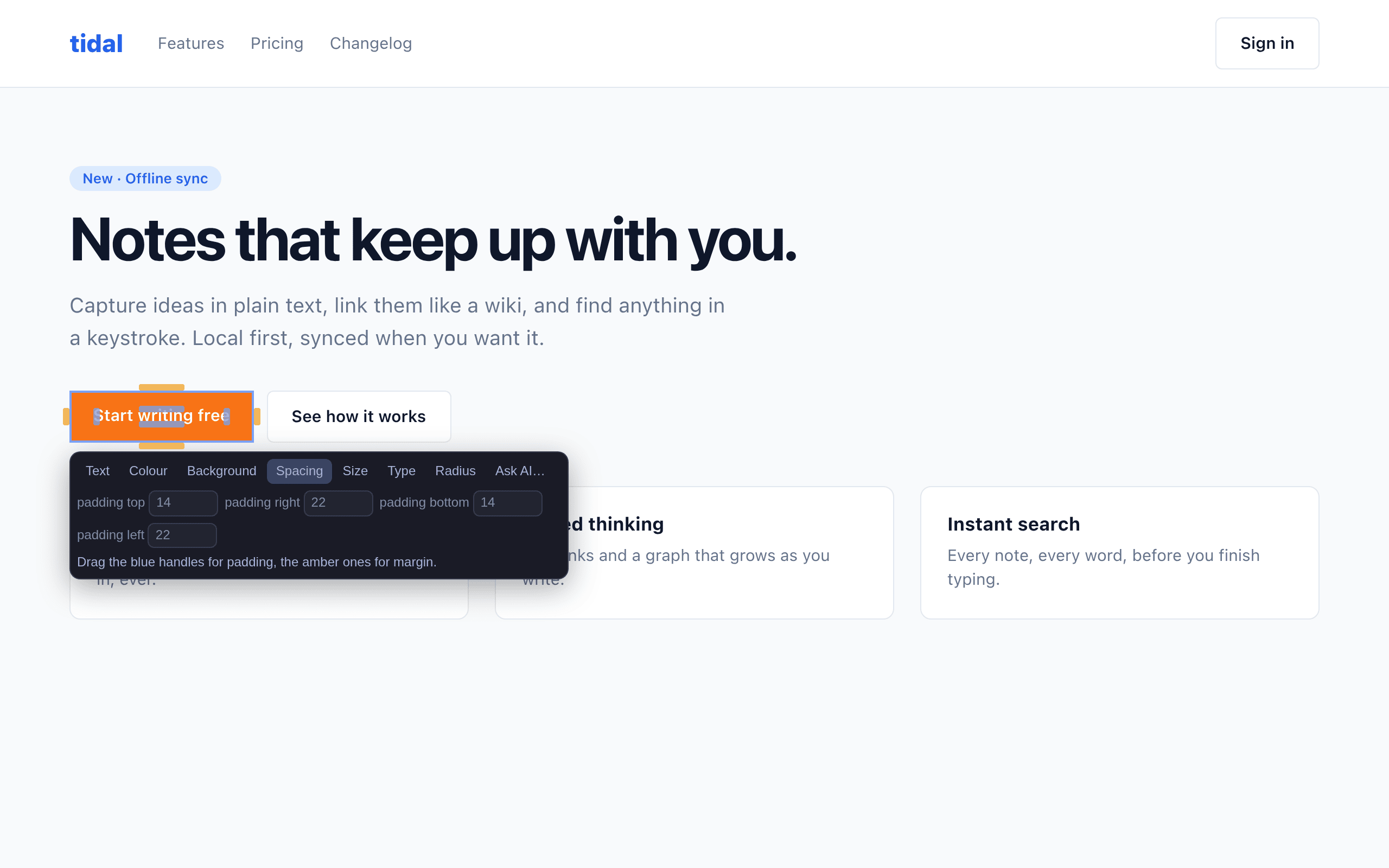 |
Live on a sample site: the contextual bar, the colour snapped to the site's --accent token. |
Live's spacing handles: blue for padding, amber for margin. |
 |
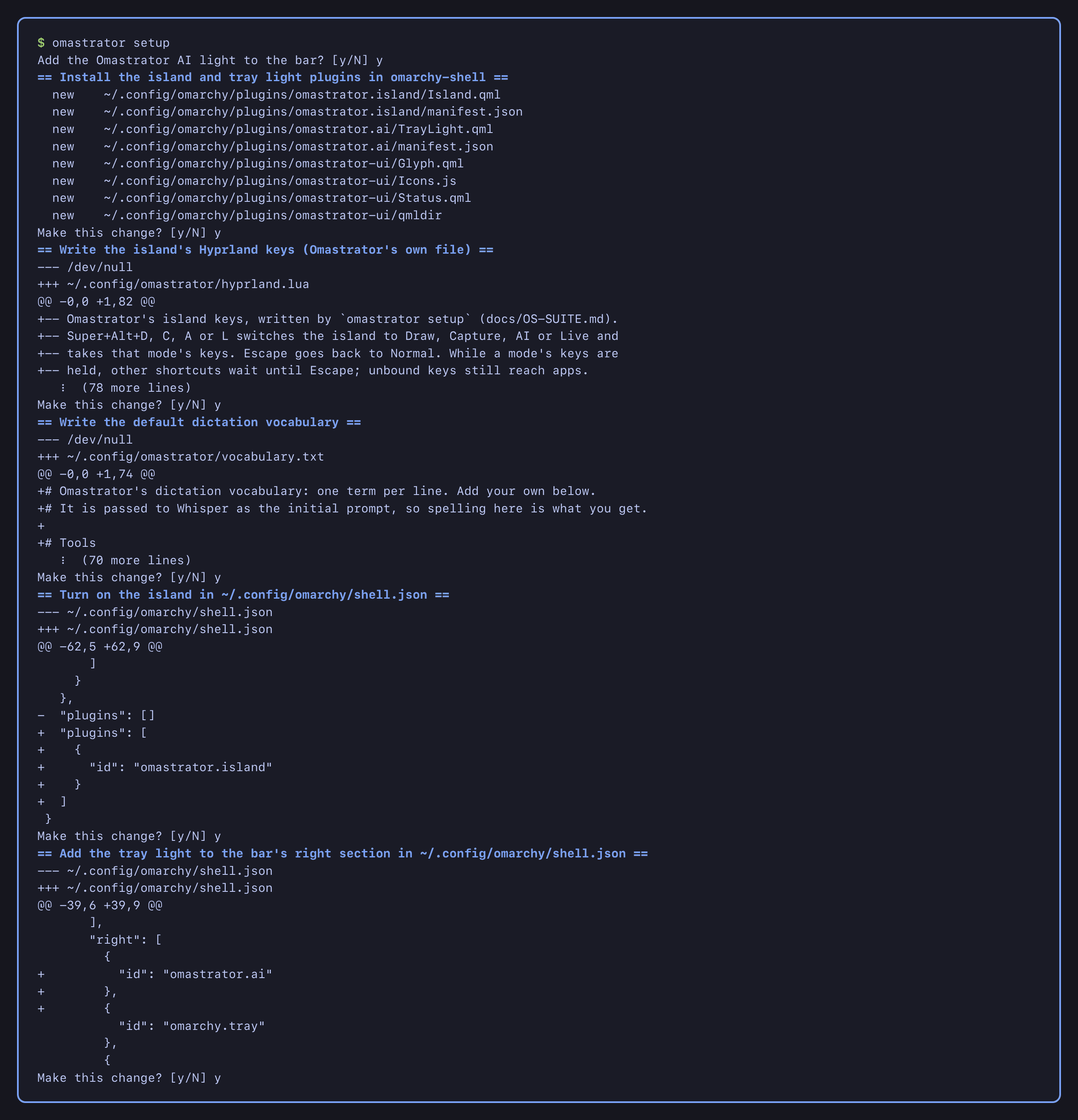 |
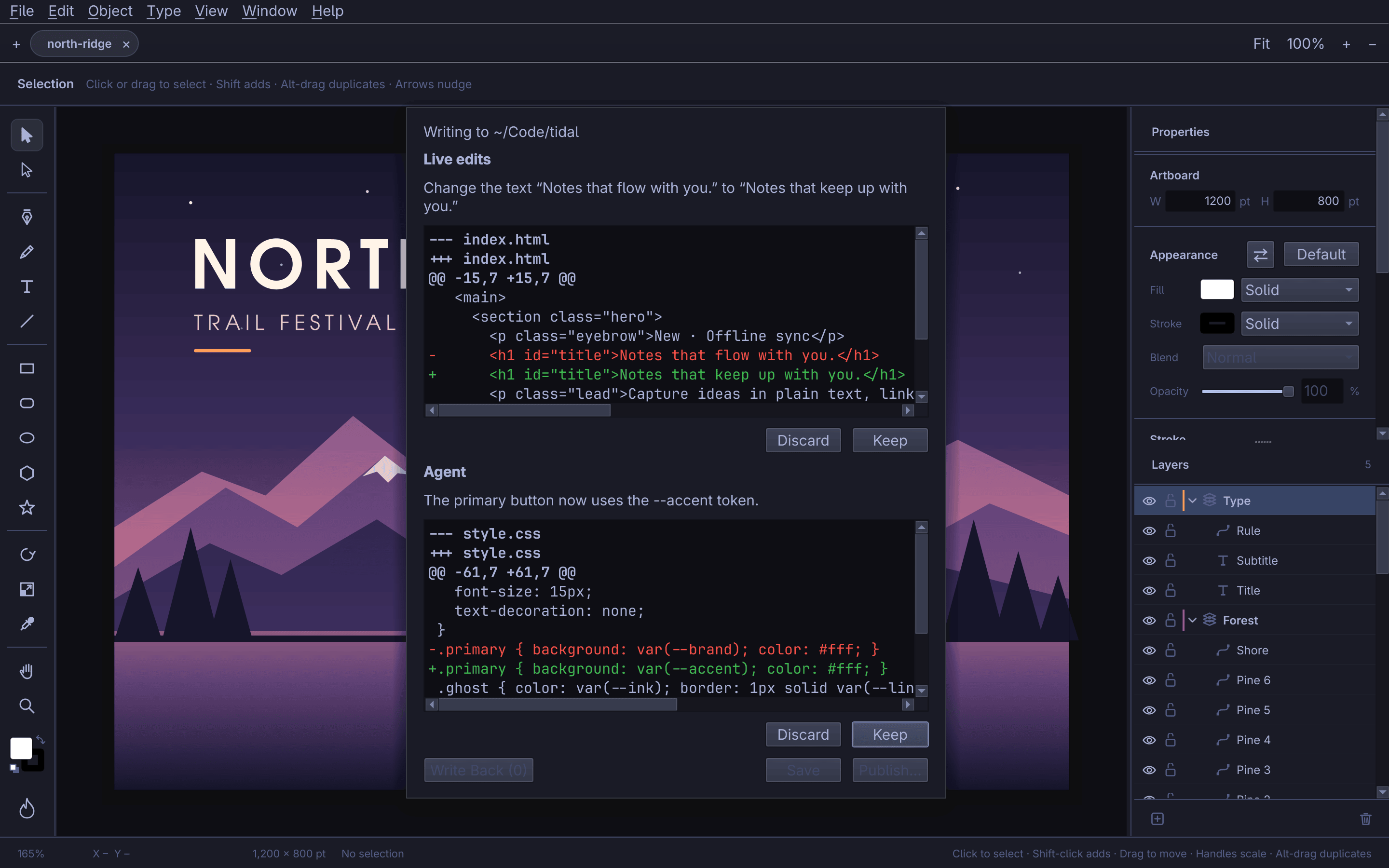
| Review changes: a text change written directly, a colour change by the agent, each kept as a diff. | omastrator setup shows each change and asks first. |
 |
|
| The Omastrator group setup adds to the Omarchy menu. |
Install (alpha)
Omastrator is in alpha, and alpha testers are welcome. Expect rough edges,
and please report them. Pull requests with improvements are just as welcome;
see Contributing below.
For now it installs from source. On Omarchy (Arch):
sudo pacman -S --needed base-devel cmake qt6-base qt6-declarative
git clone https://github.com/iretonsean/Omastrator.git
cd Omastrator
cmake -S . -B build -DCMAKE_BUILD_TYPE=Release -DCMAKE_INSTALL_PREFIX="$HOME/.local" \
    -DOMASTRATOR_BUILD_TESTS=OFF -DOMASTRATOR_LTO=ON
cmake --build build -j"$(nproc)"
cmake --install build --strip
omastrator setup
- How long it takes: a first build compiles the whole app. On a typical
8–16 core machine with 16 GB of RAM or more, that's a few minutes;
rebuilds after agit pullonly compile what changed. - How big it is, and what it keeps: the installed app is about 8 MB (the
binary, built with link-time optimisation and stripped, plus the shell
plugins and icons). It keeps its own files under~/.local/share/omastrator
and~/.local/state/omastrator, and none of them grow without limit:
screenshots older than 30 days are removed at startup (the newest 20 always
stay), agent run logs keep the newest 30, setup backups the newest 5, and
the browser Omastrator opens for Browser View keeps at most 64 MB of cache.
Your documents are never touched. - Low on RAM: each compile job can take about 1 GB, so on a machine with
16 GB or less, use-j2or-j3instead of-j"$(nproc)". omastrator setupshows every change it would make (the island and tray
light in omarchy-shell, the Hyprland keys, the Omarchy menu entries, the
Chromium extension) and asks before making it.omastrator setup --remove
undoes it.- Safe to try: before it changes anything, setup copies every file it will
change to~/.local/state/omastrator/setup-backups/<date-time>/(the newest
5 are kept; if the copy can't be made, nothing changes).omastrator setup --restoreputs the newest backup back (after showing you
what will change and copying the current files first, so a second--restore
undoes it),--restore NAMEa named one, and--list-backupslists them. - Your keys stay yours: setup never takes a key you already use. It checks
Hyprland's live binds and your config, skips any key that's taken and says
so ("Super+Alt+C is already yours: skipped").omastrator setup --no-keys
installs with no global keys at all; reach design mode from the Omarchy menu
or withomastrator design on. - If a key ever gets stuck: Super+Alt+Escape gives the keyboard back from
inside any Omastrator mode. After--apply, setup reloads Hyprland (once before, to see what your keys
are, and once after) and checks that your own keys (Super+number, Super+Enter,
…) and Omastrator's are all bound. If one of yours is gone it puts your files
back by itself and checks again; if the reload fails or a key is missing it
says so plainly and keeps the backup, and never reports success. Anything wrong in Omastrator's key file is logged in~/.local/state/omastrator/setup.log.
Coming, to make installing quicker (the PKGBUILDs are tested locally, the
release and CI workflows are written but have never run, and nothing is
published yet — see
docs/RELEASING.md):
- an AUR package (
omastrator-git), once published oneyay -S omastrator-git; - prebuilt binaries for x86_64 and aarch64 on GitHub Releases, built by
GitHub Actions, and anomastrator-binAUR package that will install in
seconds once there's a release to install from.
Build for development
You need C++20, Qt 6.4 or later (Widgets, Concurrent and Network), and CMake.
Qt Qml is optional: one test runs the overlay's logic with it.
rclone is optional: cloud storage uses it, and one test runs it when present.
cmake -S . -B build
cmake --build build -j"$(nproc)"
ctest --test-dir build
build/omastrator
scripts/check.shbuilds with warnings as errors and runs every test.OMASTRATOR_BUILD_TESTS(default ON) andOMASTRATOR_LTO(default OFF)
are CMake options; installs turn tests off and LTO on.scripts/install-local.shinstalls a Release build into ~/.local.- If you have Docker,
scripts/dev.sh build|test|rundoes the same in an
Ubuntu 24.04 container.
Contributing
Pull requests are welcome: fixes, features, and anything that brings it
closer to Figma and Illustrator on your desktop.
- Read AGENTS.md for how the code is laid out.
- Add Qt tests for new behaviour, and make sure
scripts/check.shpasses. - Keep commits free of personal data (
scripts/sweep.shchecks).
Credits
Omastrator reuses code from other open-source projects:
- OmaPhoto by ZacharyZhang-NY,
a Linux port of Wonder Assembly's
Compositor. Most of the app
shell comes from it: the theme, shortcuts, panels, tabs, layer list, colour
picker and canvas navigation. Its Photoshop-style raster features were left
out. - omadesign by Michael C
Hurley: Image Trace and the smart guides are ported from its Rust code. - nanosvg by Mikko Mononen: SVG
parsing (zlib licence, seethird_party/nanosvg/LICENSE.txt).
Licence
MIT; see LICENSE.
Yorumlar (0)
Yorum birakmak icin giris yap.
Yorum birakSonuc bulunamadi