explorer
Health Warn
- License — License: Apache-2.0
- Description — Repository has a description
- Active repo — Last push 0 days ago
- Low visibility — Only 5 GitHub stars
Code Fail
- rm -rf — Recursive force deletion command in actions/system-actions.json
- network request — Outbound network request in js/app.js
- network request — Outbound network request in js/boot.js
Permissions Pass
- Permissions — No dangerous permissions requested
No AI report is available for this listing yet.
A Cockpit plugin that turns the web console into a full file manager — browse, edit, preview, search, terminals, and Git — with integrated Claude & Codex AI CLI tabs showing a live git diff, plus fstab/mounts, SMB & NFS shares, and a GRUB editor.
Explorer — a Cockpit file browser plugin
Explorer turns Cockpit's web console into a
full file manager for your server — browse, edit, transfer, search, and run
things on your files without leaving the browser or dropping to SSH. It's a
single browser-side plugin (pure HTML/CSS/JS, no build step, no server
daemon) that runs every privileged action through Cockpit's own superuser
bridge.
📺 Another Cockpit plugin of mine: InFlight TV
(ismetozalp/iftv) — an IPTV / live-TV player for the Cockpit console. If you
like Explorer, give it a look.📊 And another: ctop (
ismetozalp/ctop) —
a live system/process monitor for the Cockpit console; from ctop you can jump straight
into any directory here.⬇️ And another: Manifest (
ismetozalp/manifest) —
a download manager for the Cockpit console (torrents, magnets, HTTP/FTP/Metalink via a
per-useraria2c); it deep-links its downloads straight into Explorer.💾 And another: Hangar (
ismetozalp/hangar) —
scheduled, deduplicated, encrypted backups for the Cockpit console (restic-based) with
automatic retention thinning, a point-in-time file browser, and bare-metal disaster recovery.🖥️ And another: Pilot (
ismetozalp/pilot) —
installs and manages a self-hosted RustDesk remote-desktop server
(hbbs/hbbrplus an API control plane) from the Cockpit console.
Highlights
- 🗂️ Multi-tab browser with an optional two-pane (Midnight Commander)
layout, multi-select, and drag-and-drop with rename-on-drop. - 🔍 Search by filename or content — literal or regex, current folder or
recursive. - 👁️ Preview (text with line numbers, images, PDF, video, audio) and a
Monaco / Quill editor, each file in its own draggable window. - 🖥️ Integrated terminals (split-pane or full-tab) plus a tmux session
manager, with clipboard image/video paste. - 🐙 GitHub via the
ghCLI — PRs, branches, a commit browser, and
one-click publish. - ⚙️ Custom actions — run your own shell commands on selected files, with
streaming output, interactive prompts, and admin elevation. - 🧰 System tools — an
/etc/fstabmounts editor (with SMB/NFS discovery),
a GRUB editor, archive create/extract, and admin-aware uploads.
The installed plugin version shows as a badge in the top-right of the tab
bar (e.g. Explorer v2.2.3). It targets /usr/share/cockpit/explorer/.
Disclaimer
This project was generated with AI (Anthropic's Claude Opus models). It's
something I built for myself and decided to share — nothing more. There
are no guarantees of any kind: it may have bugs, and it's provided
as-is.
You're welcome to open tickets for bug fixes or feature requests, but
please understand there's no promise that I'll respond to them or act
on them — this isn't a maintained product, just a personal project.
You are free to do whatever you like with it — use it, modify it, fork
it, redistribute it.
Screenshots
Mockups with placeholder data (a demo user and a generic
acme/widgets
repo) — not real content.
Two-pane browser with the git repo strip and branch switcher
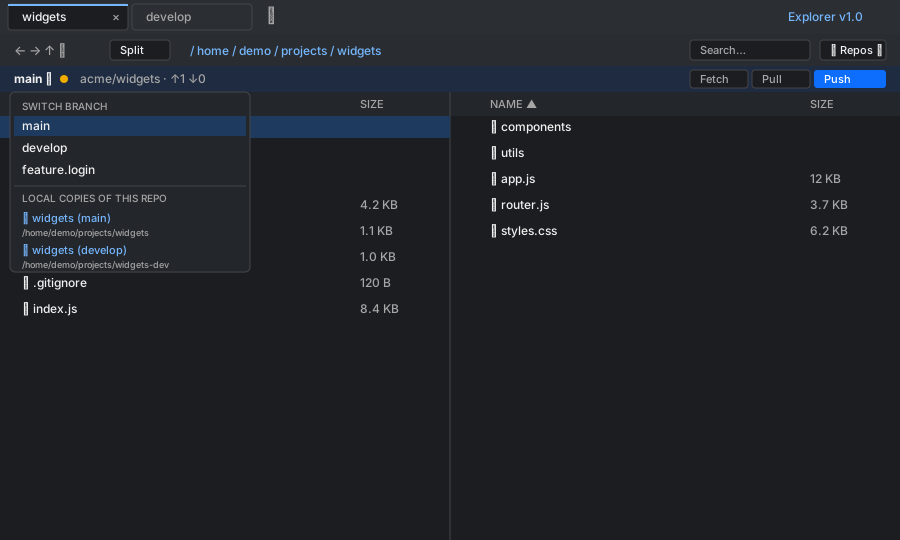
The branch name in the repo strip is a dropdown: switch branches, and jump
to any local copy of the same repo.
GitHub panel — branches with local copies listed under each branch
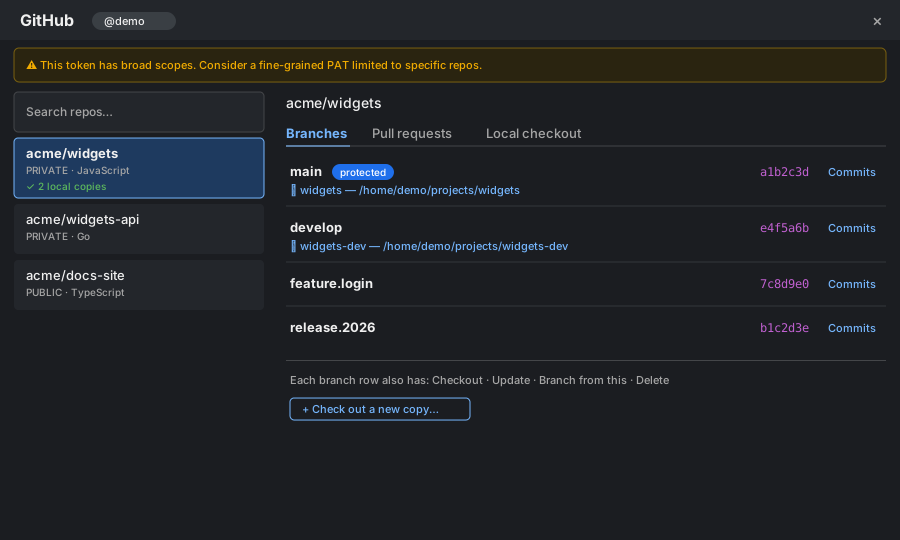
Each registered local copy appears beneath the branch it's currently
checked out to; click it to open that checkout in a tab.
Commit browser with side-by-side diff
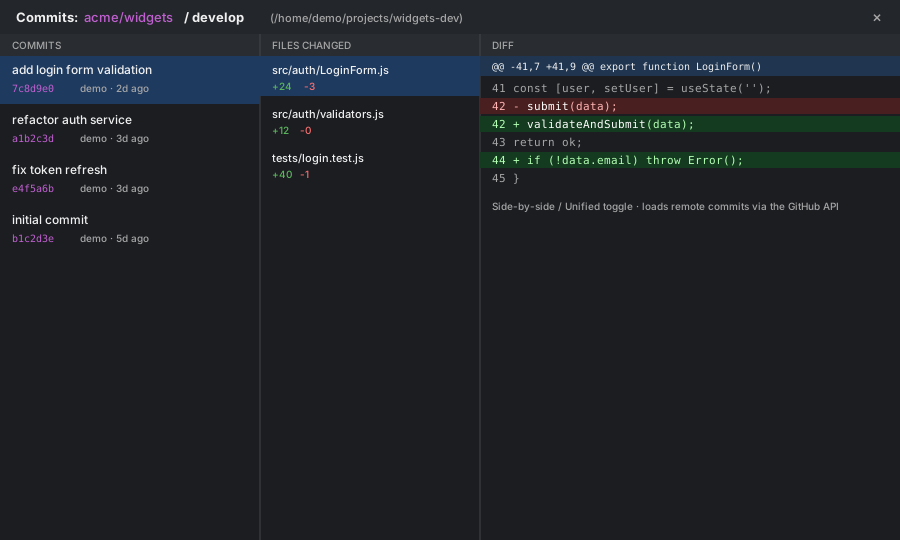
Commit lists load from the GitHub API; the clone is only fetched when you
open a diff.
Branch switcher with cached local copies
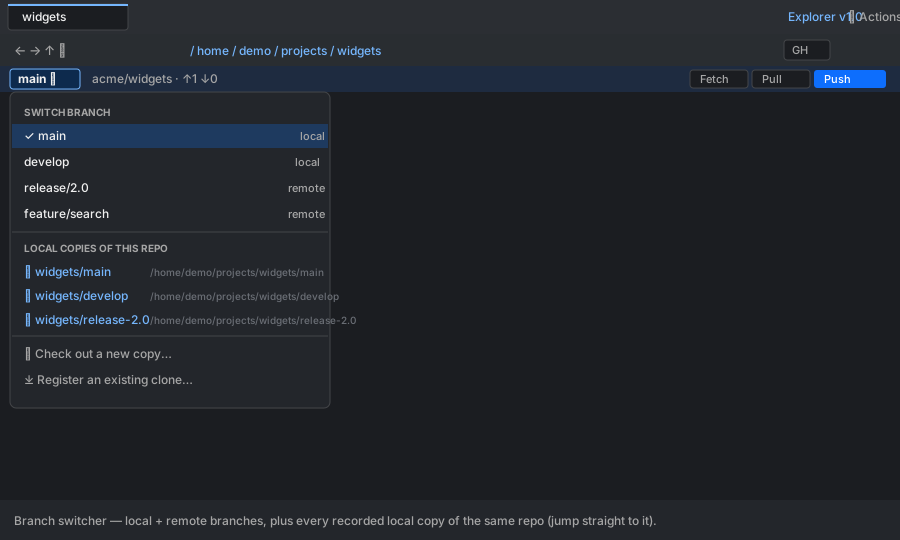
The repo-strip dropdown lists local and remote branches, then every
recorded local copy of the same repo — click one to jump straight to that
checkout.
Custom actions manager
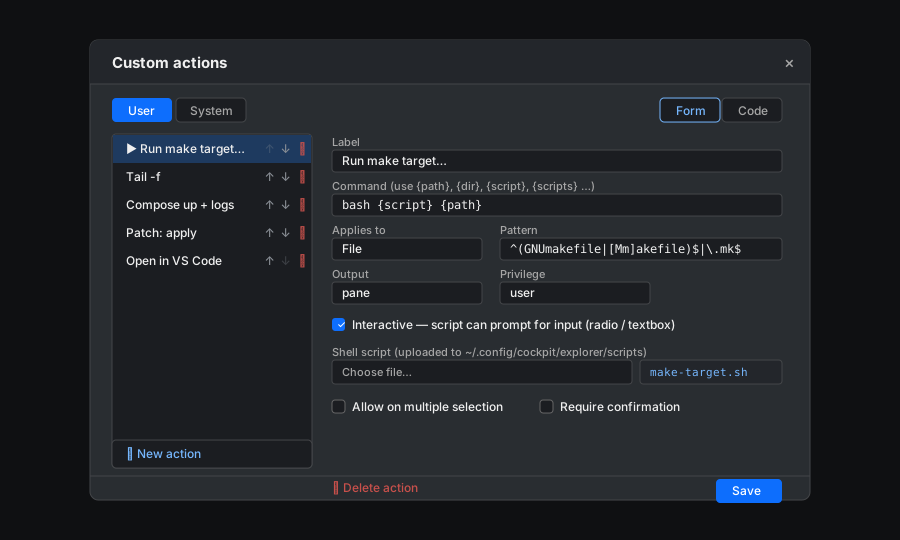
Edit actions as a form or as raw JSON/YAML. Script-backed actions get an
Interactive toggle and a Shell script uploader (stored under~/.config/cockpit/explorer/scripts).
Interactive scripts — radio prompt
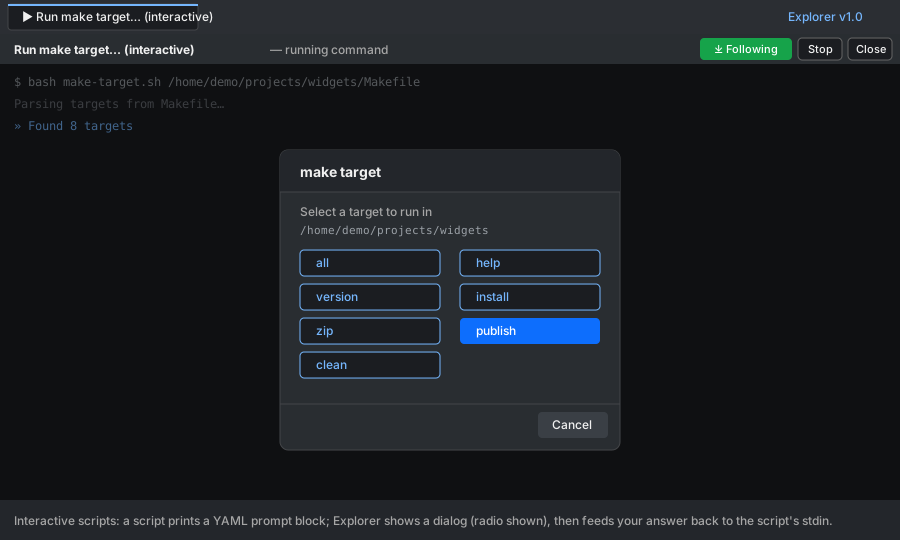
An interactive script prints a YAML prompt block; Explorer renders a dialog
(single-select shown) and writes your choice back to the script's stdin, so
its read continues.
Interactive scripts — textbox prompt and progress messages
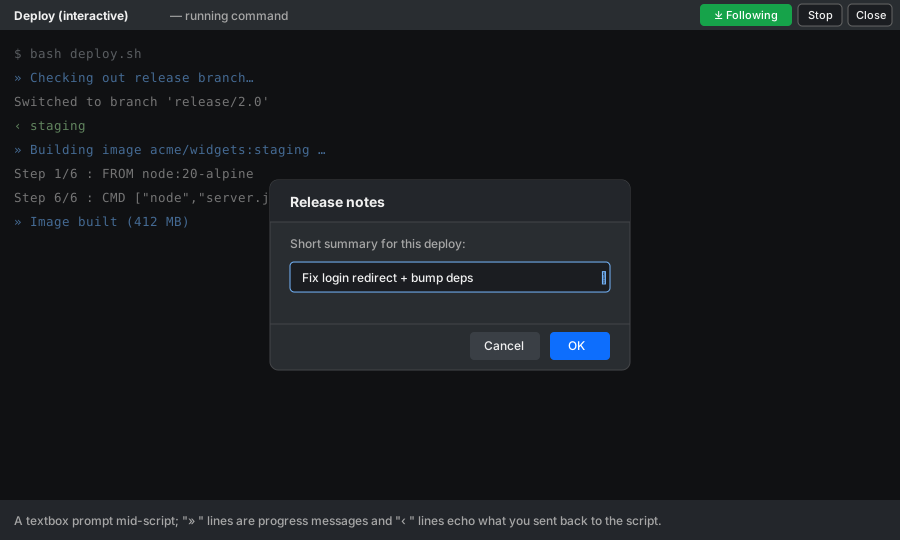
Scripts can also ask for free text and stream progress: » … lines are
display-only messages and ‹ … lines echo what was sent back to the script.
Settings
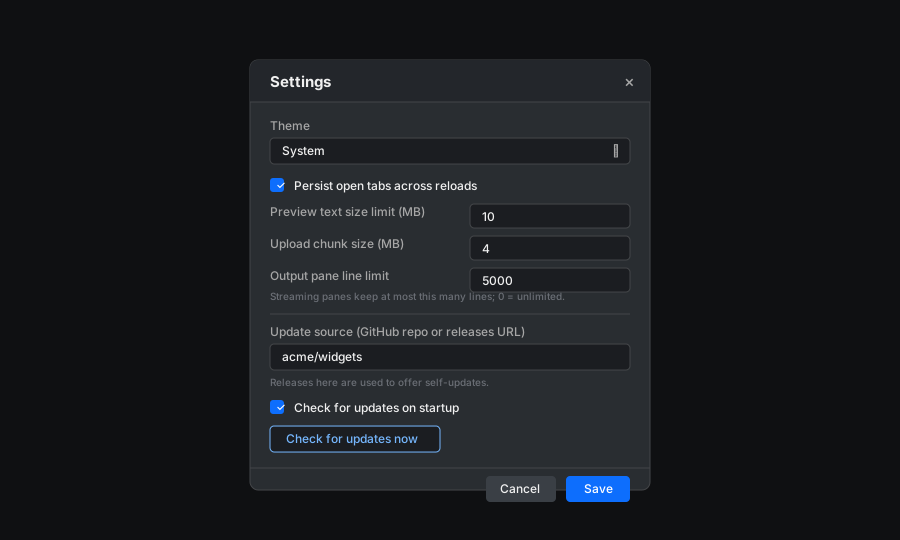
Theme, tab persistence, preview/upload limits, the streaming-pane line cap,
and the GitHub update source / startup update check.
New in 1.1 — Mounts: fstab editor
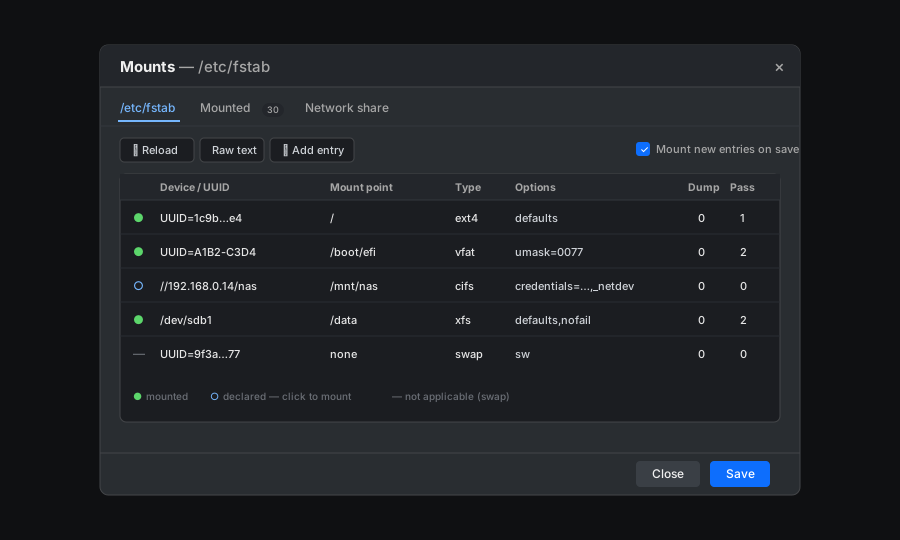
The ⛁ Mounts toolbar button opens a /etc/fstab editor: a structured
table (with field suggestions for devices/types/options) or raw text, a
per-row mounted indicator (● mounted, ○ declared — click to mount, —
n/a), and a Save that backs up to /etc/fstab.bak, writes through the
superuser bridge, then mounts new entries.
New in 1.1 — Mounts: live mount management
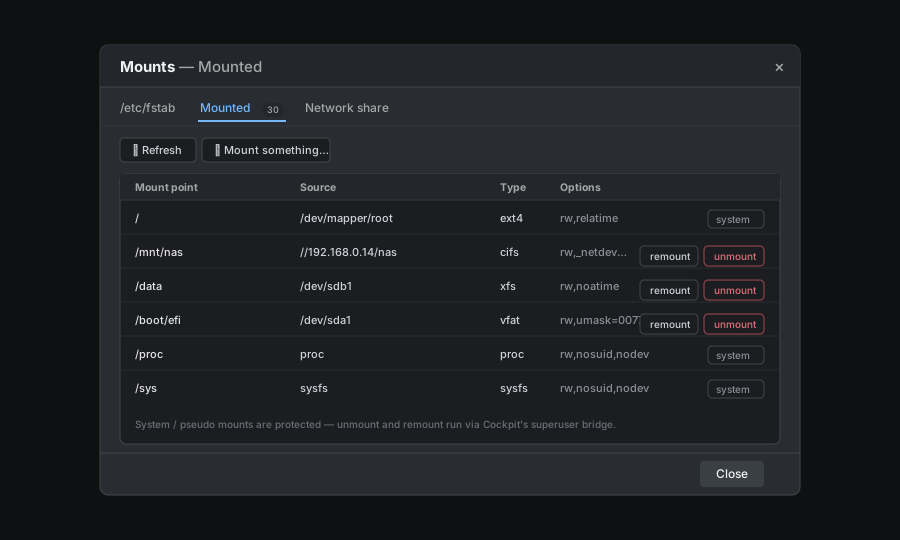
The Mounted tab lists everything currently mounted (from findmnt),
with per-mount remount / unmount (lazy-unmount fallback when
busy) and an ad-hoc Mount something… form. System and pseudo mounts
are protected.
New in 1.1 — Mounts: SMB/CIFS & NFS network shares
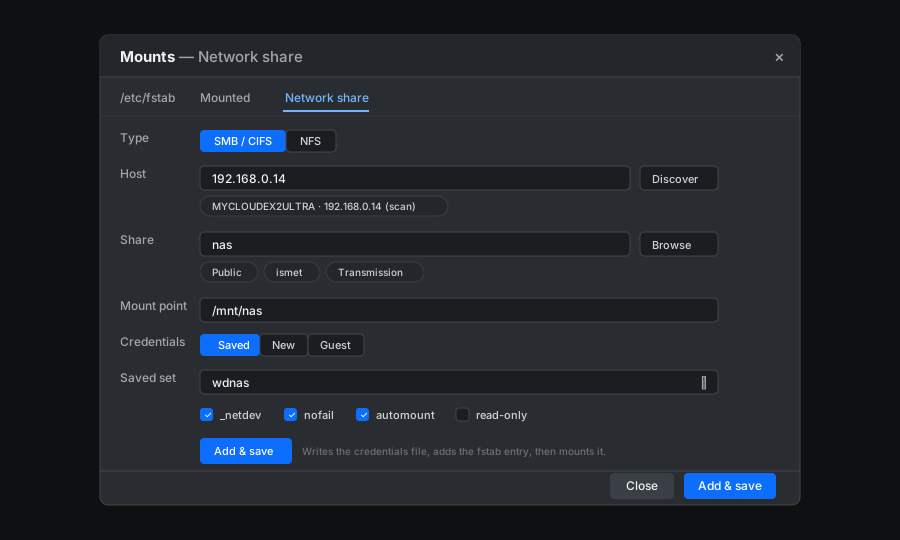
The Network share tab adds SMB/CIFS or NFS. Discover finds hosts
via mDNS, a NetBIOS broadcast, or a directed subnet scan; Browse lists
shares (smbclient) or exports (showmount). SMB passwords go into a
root-only 0600 credentials store under /etc/cifs-creds/ — never into
fstab or a command line.
New in 1.1 — GRUB boot-loader editor
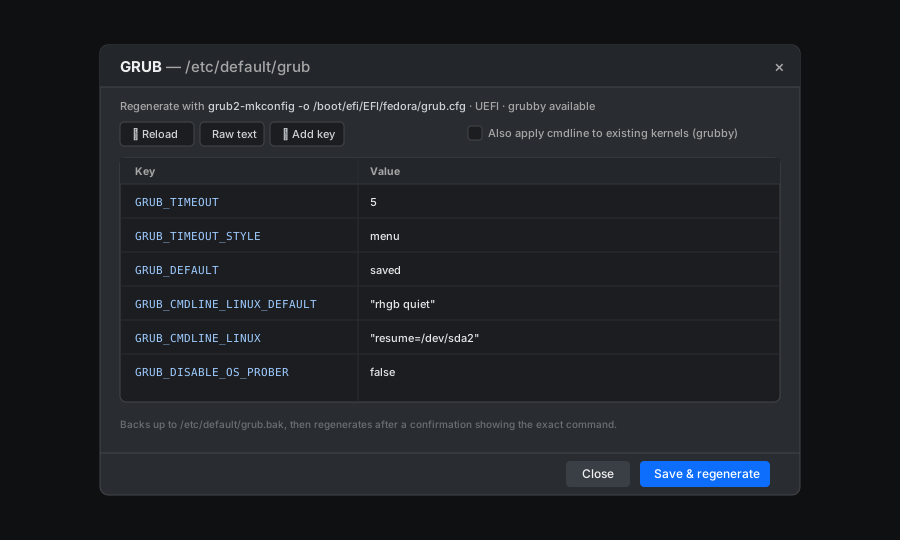
When /etc/default/grub and a regeneration tool are present, the ⏻
GRUB button edits it (structured or raw), then regenerates the boot
config with the detected, BIOS/UEFI-aware command (after a confirmation),
with an optional grubby pass for existing kernels.
New in 1.1.1 — tmux: edit your ~/.tmux.conf
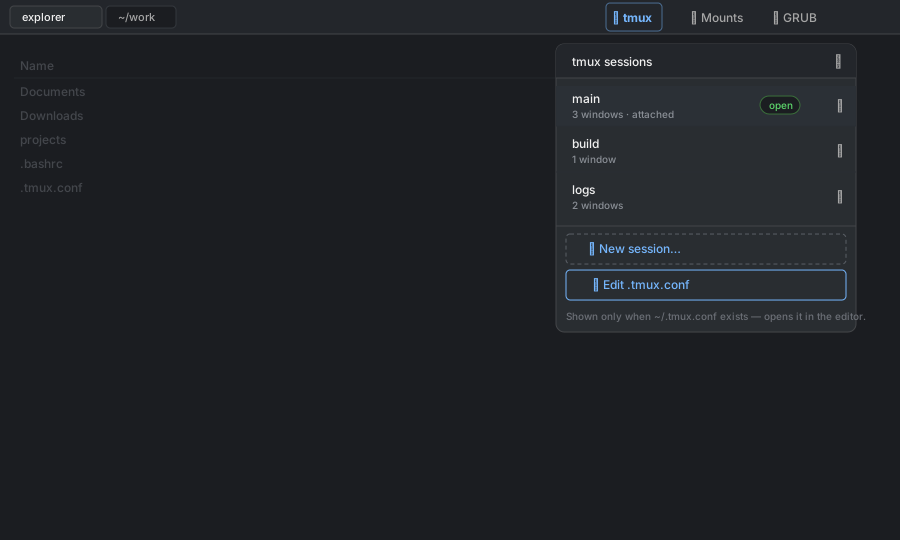
When you have a ~/.tmux.conf, the ▤ tmux panel shows an ⚙ Edit
.tmux.conf button that opens it straight in the editor.
New in 1.1.4 — terminal vs tmux panes
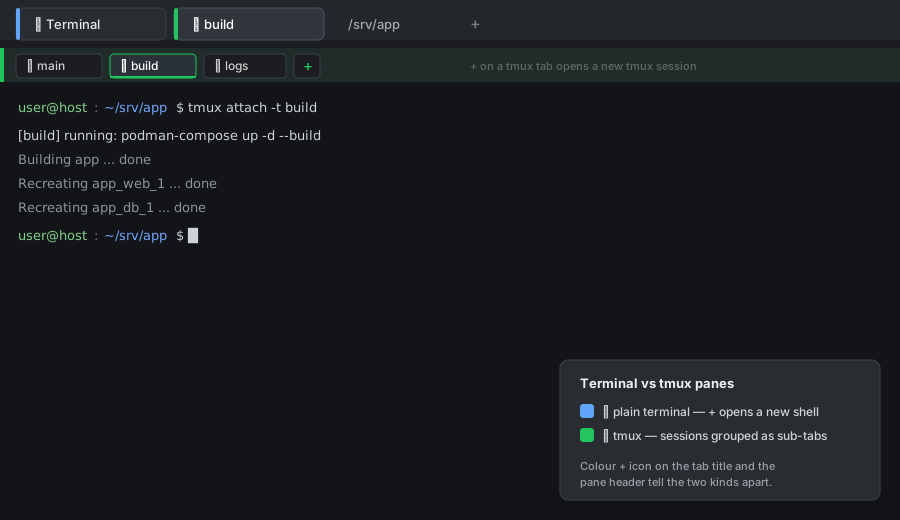
Plain terminals (❯, blue accent) and tmux tabs (⧉, green accent) are
clearly distinct. In a plain terminal the + opens another shell; in a tmux
tab it opens a new tmux session, and all sessions live as sub-tabs of one
grouped tmux tab.
Right-click context menu (with ↻ Reload actions)
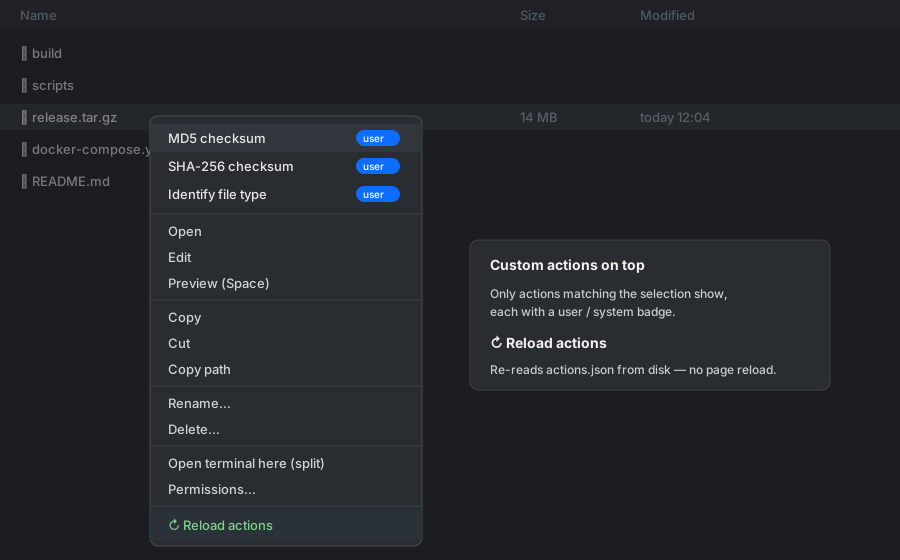
Matching custom actions sit at the top of every file/folder menu (each with a
user / system badge). ↻ Reload actions re-reads your actions.json files
from disk without a page reload.
See CHANGELOG.md for the full release notes.
Install
There are two steps: install Cockpit (if you haven't already), then drop
the plugin into Cockpit's package path. The plugin install is the same
on every distro; Cockpit installation varies. Pick your distro.
1. Install Cockpit
Fedora / RHEL / Rocky / Alma / CentOS Stream
sudo dnf install cockpit
sudo systemctl enable --now cockpit.socket
# Open the firewall port (skip if the firewall is off)
sudo firewall-cmd --add-service=cockpit --permanent
sudo firewall-cmd --reload
Debian (10+) / Ubuntu (17.04+) / derivatives (Mint, Pop!_OS, …)
sudo apt update
sudo apt install cockpit
sudo systemctl enable --now cockpit.socket
# If UFW is enabled:
sudo ufw allow 9090/tcp
On older Ubuntu LTS releases (16.04 / 18.04), Cockpit is in the
backports repo:
sudo apt install -t $(lsb_release -cs)-backports cockpit
Arch / Manjaro / EndeavourOS
sudo pacman -S cockpit
sudo systemctl enable --now cockpit.socket
openSUSE Tumbleweed / Leap
sudo zypper install cockpit
sudo systemctl enable --now cockpit.socket
# Firewall (firewalld):
sudo firewall-cmd --permanent --zone=public --add-service=cockpit
sudo firewall-cmd --reload
Once Cockpit is up, open https://<server-ip>:9090 in your browser
and log in with any local Linux account. The certificate is
self-signed by default — your browser will warn you, accept the
exception (or replace the cert later via /etc/cockpit/ws-certs.d/).
2. Install the explorer plugin
Same procedure on every distro. From the unpacked source folder:
sudo cp -r explorer /usr/share/cockpit/explorer
sudo systemctl try-restart cockpit
Or from the release zip:
unzip explorer-<version>.zip -d /tmp/
sudo cp -r /tmp/explorer /usr/share/cockpit/explorer
sudo systemctl try-restart cockpit
Or use the included Makefile:
sudo make install        # → /usr/share/cockpit/explorer
sudo make uninstall      # remove
make zip                 # produces explorer-<version>.zip
make test                # unit tests (tests/*-unit.mjs) with a gated coverage report
make coverage            # the same, plus coverage/lcov.info and COVERAGE.html
make test runs the pure-node unit suite under node's built-in test runner
with --experimental-test-coverage; the run fails if coverage drops below the
floors in the Makefile. make coverage additionally writesCOVERAGE.html — a sortable, committed per-file report — andcoverage/lcov.info (machine output, git-ignored). The e2e/smoke suites
(tests/*-e2e.mjs, tests/smoke.mjs) run against a real Cockpit in a browser
and are not part of make test; they need Playwright and login credentials.
Verify Cockpit sees the new package:
cockpit-bridge --packages | grep explorer
Then reload Cockpit in the browser (Ctrl-Shift-R to bust the asset
cache). Explorer will appear under "Tools" in the left sidebar.
If it doesn't show, check the browser devtools console for CSP errors
or missing files, and check journalctl -u cockpit on the server for
parse errors in manifest.json.
Requirements on the host
The plugin shells out to standard userland tools — they are present on
any normal Linux server but worth confirming:
| Command | Used for |
|---|---|
find, stat |
directory listing, file metadata |
base64 |
streaming binary file contents to the browser |
cp, mv, rm |
copy / move / delete (fallback) |
rsync |
streaming-progress copy/move of large trees (optional) |
du, df |
disk-space pre-flight checks |
chmod, chown |
properties dialog |
tar |
tar / tar.gz / tar.bz2 / tar.xz archives |
zip, unzip |
zip archives (install zip if you want to use it) |
grep |
content search |
readlink |
follow-symlinks navigation |
a shell (bash) |
integrated terminals (PTY via Cockpit's stream channel) |
git |
local repo status, clone, commit, push, fetch, pull |
gh (optional) |
GitHub integration — the plugin installs this on demand |
ffmpeg (optional) |
transcoding video the browser can't decode natively for preview — see Dependencies under Preview below |
The integrated terminal spawns your configured shell (default/bin/bash, override in Settings) over Cockpit's PTY stream channel —
the same mechanism Cockpit's own Terminal page uses. gh is installed
on demand from the GitHub panel using the distro's package manager
(dnf/apt/pacman/zypper, with a static-binary fallback for
unknown distros); if you'd rather install it yourself, the panel
re-detects it (see GitHub integration below).
Where settings live
All per-user state lives under the Cockpit user's home directory,
under ~/.config/cockpit/explorer/:
| File | Format | Contents |
|---|---|---|
settings.yml |
YAML | View / preview / shell / diff-view preferences |
tabs.yml |
YAML | Open tabs + open preview/editor windows (if "Persist tabs") |
actions.json |
JSON | This user's custom right-click actions |
repos.json |
JSON | GitHub repo → local checkouts (path + title; multiple copies per repo) |
System-wide custom actions live at /etc/cockpit/explorer/actions.json
and are merged with per-user actions in the menu.
Because each Cockpit user logs in as a real Linux account, the files
above are naturally isolated per user — Linux file permissions do the
work; nothing extra needed. gh's own credentials live at~/.config/gh/hosts.yml (0600), also per-user.
To wipe your settings without uninstalling the plugin:
rm -rf ~/.config/cockpit/explorer/
Example settings.yml:
showHidden: true
followSymlinks: true
persistTabs: true
columns:
  size: true
  modified: true
  perms: true
  owner: true
  type: false
previewLimitMB: 10
uploadChunkMB: 4
outputMaxLines: 5000
defaultShell: /bin/bash
diffView: side
Features
Tabs

Work on several places at once. The tab bar holds four kinds of tab —
directory, ❯ terminal, ⧉ tmux, and ▶ streaming-output — each
colour- and icon-coded, and the toolbar beneath drives the active one.
+button or Ctrl-T opens a new directory tab on the current folder.+▤button opens a new terminal tab (a full-tab terminal stack —
see Integrated terminals below).- Ctrl-W or the
×button closes the active tab. - Middle-click a tab to close it.
- Drag tabs to reorder.
- Right-click a tab for: Duplicate, Close, Close others,
Close to the left, Close to the right. - Directory tabs are persisted to
~/.config/cockpit/explorer/tabs.yml
and restored on reload (turn this off in Settings). Plain terminal
tabs are intentionally not persisted — they'd mean silently
re-spawning shells on every page load — but tmux terminal tabs are
remembered: on reload they're re-attached to their still-running tmux
sessions (see tmux session manager below). - Any open preview or text-editor windows are remembered the same
way (path per window, plus which one was active and whether the windows
were on screen or sent to the taskbar) and reopened automatically next
time you load the plugin. Files are re-read fresh from disk, so unsaved
editor changes are not carried over. This follows the same Persist
tabs setting.
Navigation
- Back / forward / up / home / reload buttons in the toolbar.
- Alt-Left / Alt-Right / Alt-Up keyboard shortcuts.
- Click any segment of the breadcrumb path to jump to it.
- Double-click the breadcrumb area to edit the path directly,
then Enter to navigate.
Two-pane view (Midnight Commander style)
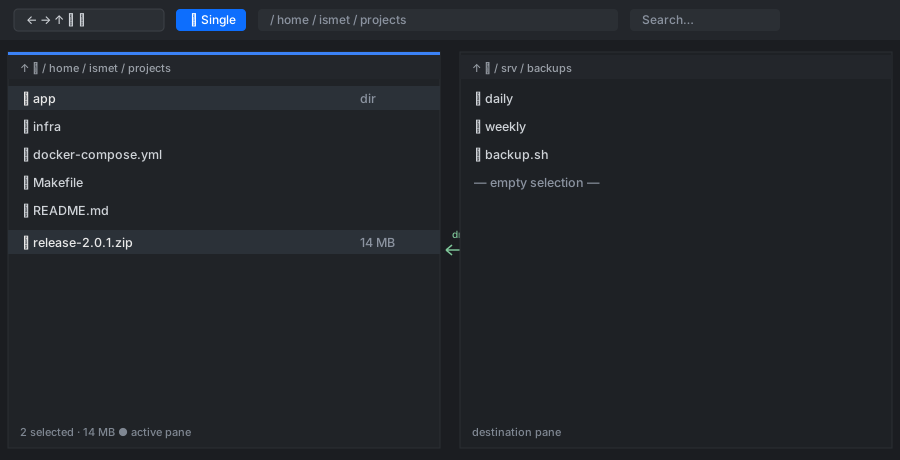
If you grew up on Midnight Commander, Norton Commander, or Total
Commander, this will feel like home: two directory listings side by side,
and copying or moving is just "source on the left, destination on the
right." The ⊞ button in the toolbar toggles the layout on and off.
Each pane is a fully independent directory view with its own path,
history, selection, sort order, search, and git strip.
- One pane is active at a time. Click anywhere in a pane to activate
it, or press Tab to switch. The active pane has a blue top edge. - The main toolbar (nav buttons, breadcrumb, search, Run / Term / Repos)
always drives the active pane. Each pane also has its own compact
path header with Up / Reload and a clickable breadcrumb. - All file operations — copy, cut, paste, delete, rename, new file/folder,
compress, download, upload, custom actions — act on the active pane. - Drag between the two panes to copy or move (with the rename-on-drop
prompt for single items). This is the classic two-pane workflow: source
in one pane, destination in the other. - Toggling back to single pane keeps the (former) left pane.
Selection
- Click selects one row.
- Shift-click extends a range from the last-clicked row.
- Ctrl-click toggles individual rows.
- Ctrl-A selects all visible.
Single pane. A compact N selected chip lights up in the toolbar
(next to the path bar) the moment the pane has a selection — click it to
clear the selection. Hidden on phones, where the toolbar is already tight;
the status bar still shows the count there. The status bar (bottom of the
window) shows how many of the pane's items are selected, broken down into
files vs. folders, plus the combined size of the selected files (folder
sizes aren't shown, since Explorer doesn't compute folder totals) — e.g.4 of 28 selected · 3 files, 1 folder · 9.6 MB — styled in the accent
colour so it's easy to spot.
Split view. Because the two panes have independent selections, counts
move from the shared toolbar/status bar (which would be ambiguous — whose
selection is that number?) to each pane individually: a N selected
chip in that pane's own head (top), and a status strip in that pane's own
footer (bottom) with the same files/folders/size breakdown as the
single-pane status bar. The shared toolbar chip and status bar are hidden
while split, since every number they'd show now has an unambiguous,
per-pane equivalent right next to the pane it describes.
Right-click context menu (file or empty area)
Custom actions (only the ones that apply to the current selection) — listed at the top of the menu
Open · Edit · Preview (Space)
Copy · Cut · Copy path · Paste
Rename · Delete
New file · New folder
Download · Upload here
Compress · Extract here · Extract to…
Open in new tab · Properties
Open terminal here (split) · Open in new terminal tab · Open in Cockpit terminal — always available; on a folder they open that folder, on a file or empty space they open the current pane's folder
↻ Reload actions — re-reads your custom-action files from disk, so edits toactions.jsonshow up without reloading the page
Custom actions sit at the top of the menu. With 3 or fewer applicable
actions they're listed flat; with more than 3 they're grouped into
User custom actions ▸ and System custom actions ▸ flyout submenus
(each showing its count) so a long list is never clipped off the bottom of
the screen. The flyouts open to the left automatically when the menu is
near the right edge of the window.
Copy path. Copies the selected item's absolute path to the system
clipboard (one path per line for a multi-selection, and the label reads
Copy paths). Distinct from Copy, which fills Explorer's internal
cut/copy buffer for Paste.
Touch screens (⋮ button). Every file/folder row has a ⋮ button that
opens this same menu — so it's reachable on touch devices that have no
right-click. On a mouse it appears when you hover the row; on touch it's
always shown with a larger tap target.
Paste-as-name. When you paste (Ctrl-V or the menu) a single file or
folder, the plugin asks for the name it should have in the destination —
so you can duplicate or rename in one step. The default is the original
name, except a copy landing in the same folder defaults to a
non-colliding <name>-new1. When you paste multiple items, they keep
their names, except any that would collide in the destination get a
numbered suffix so nothing is overwritten — something.zip →something-new1.zip (then -new2, -new3, …), and a folder something
→ something-new1.
Preview
Open with Space or Preview in the context menu. Modal popup that
handles:
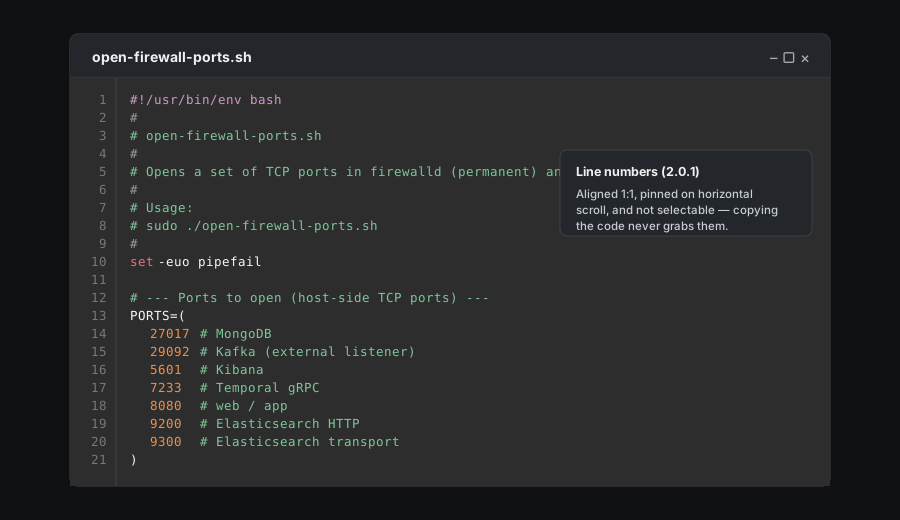
- Text & code (syntax-highlighted with Prism, up to 10 MB by default,
configurable in Settings) — with a line-number gutter (new in 2.0.1)
down the left, aligned to each line. It stays pinned while you scroll a
long line sideways, and the numbers aren't selectable, so copying the code
never grabs them. A Copy button in the window header copies the whole
file's contents to the clipboard. - Images, PDF (browser iframe), video, audio.
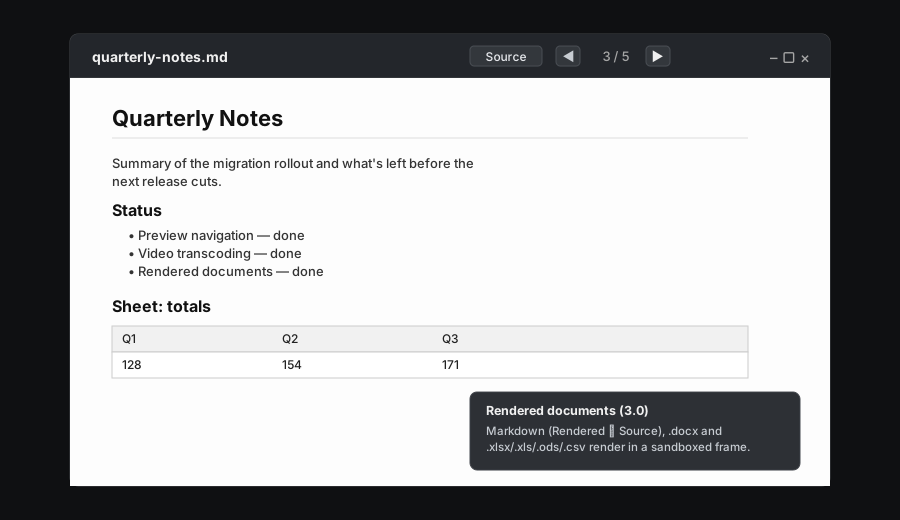
- Markdown renders (with a Rendered ⇄ Source toggle in the window
header), .docx renders via a converter, and spreadsheets
(.xlsx/.xls/.ods/.csv/.xlsb) render as a table with a sheet
picker when there's more than one sheet — all in a sandboxed frame (no
scripts run). Files over the preview size limit fall back to the
"too large" panel instead of rendering. - HTML (
.html/.htm) renders as a web page (new in 3.2), in a
sandboxed frame with a Rendered ⇄ Source toggle. The page's own
scripts are off by default; an Enable scripts button in the window
header runs them on request. Either way the frame is a null origin — it can
never reach Cockpit's session, cookies, or DOM — and the plugin's
content-security-policy keeps even a script-enabled page from calling out to
external hosts. (Relative resources like./style.cssdon't resolve, since
the frame has no filesystem base.) - Binary fallback explains why the file can't be previewed.
Paging through a folder (3.0): when you open a file from a folder that
has more than one previewable file, ◀ / ▶ buttons (and the plain
arrow keys — Alt+arrow still moves between panes/history) appear in
the window header along with an n / N counter, so you can page through
every previewable file in that folder without leaving the preview window.
The buttons disable at the first/last file. A maximized window keeps the
open-windows taskbar visible along the bottom of the screen.
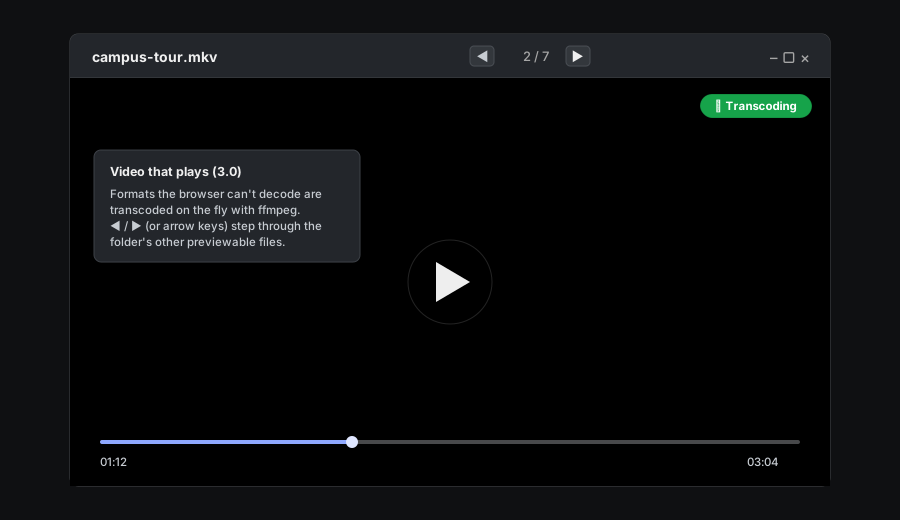
Video that plays (3.0): .mp4/.webm play natively in the browser.
Anything the browser can't decode directly — .mkv, .avi, HEVC .mov,.wmv, .flv, .m2ts/.mts, … — is transcoded on the server with
ffmpeg into an HLS stream and played back with hls.js (a bare .ts
is treated as TypeScript source, not video — use .m2ts/.mts for an
MPEG transport stream); a theme-aware badge shows
⚙ Transcoding (green) while ffmpeg is actively re-encoding, or
Remuxing (gray) when it's just repackaging the existing stream.
Playback starts as soon as the first segments are on disk; the badge stays
up until ffmpeg has finished converting the whole file, so for a long
transcode it remains visible well into playback. Any ffmpeg/hls.js
failure surfaces as text instead of a dead player.
Seeking while it converts (3.1): a transcoded video shows its real
total length and a fully seekable progress bar from the start, and you can
drag to any point in the file — converting restarts at that point and
playback resumes there. Parts that are already converted (including ones
you skipped over) play straight from the cache without being converted
again, and only one conversion ever runs per open video. This only plays
local files — it is not an IPTV/streaming feature.
Remuxed video (3.1.1): video that only needs repackaging (the gray
Remuxing badge) also shows the file's real total length on the progress
bar from the moment playback starts. Its pieces are cut on the source's own
keyframes rather than a fixed grid, so unlike a transcode it can't restart
the conversion at an arbitrary point: dragging forward past the part
that has been repackaged so far takes you as far as it has got rather than
to the exact spot you dropped the marker (repackaging typically runs many
times faster than playback, so the whole file usually catches up within a
few minutes). Dragging backwards into anything already repackaged is
exact and instant.
Repackaging is only used when the source's video can be handed to the
browser untouched. Explorer checks that by decoding the first frames before
it commits: if the decoder objects to the source — some files carry
malformed data that a player will refuse even though the file itself is
otherwise fine — it re-encodes instead (the green ⚙ Transcoding badge),
which is slower but always plays.
Dependencies: rendering Markdown/.docx/spreadsheets and playing native.mp4/.webm need nothing beyond the browser. Playing everything else
needs ffmpeg on the server (optional — only used for non-native
video). Install it with your distro's package manager:
apt-get install ffmpeg      # Debian / Ubuntu / Mint
dnf install ffmpeg           # Fedora / RHEL / CentOS / Rocky / Alma
pacman -S ffmpeg              # Arch / Manjaro
zypper install ffmpeg        # openSUSE / SLES
apk add ffmpeg                # Alpine
If ffmpeg isn't found when you preview a non-native video, Explorer
detects your distro, shows the exact command above, and offers a
one-click Install ffmpeg button (runs as administrator and streams
its log) — no need to leave the browser or use a terminal.
Close the preview with Esc or the ×. Text in a text/code preview is
selectable, and Ctrl/⌘+C copies the selection (the browser's native copy
is no longer intercepted by the file-copy shortcut).
Edit and Preview are offered for any text file — not just ones with a
known extension. Dotfiles (.bashrc, .gitignore, .env), extensionless
files (Makefile, README, LICENSE) and unknown config types all
qualify; only recognised binaries, media, PDFs and archives are excluded.
The actual file contents are sniffed on open, so a binary file that merely
looks like text falls back to the binary view (preview) or prompts before
editing.
Both the preview and editor windows have Windows-style controls in the
top-right: minimize, maximize/restore (expands to fill the browser
window — not OS full-screen), and close (✕).
You can open as many previews and editors as you like — opening
another file adds a new window instead of replacing the current one
(opening a file that's already open just brings its window forward). All
open windows are listed in a taskbar — a bar docked across the bottom
of the window that stays put whenever at least one window is open:
- Click a taskbar item to switch to that window.
- Click the active item again to minimize (hide the window and
keep working in the file browser); click it once more to bring it back. - Each item has a ✕ to close that window (editors prompt if there are
unsaved changes), and shows a ● when an editor has unsaved edits.
One window is shown at a time in a shared host frame; the taskbar is how
you move between them. Editors keep their own undo history and unsaved
contents while parked in the taskbar.
Run command
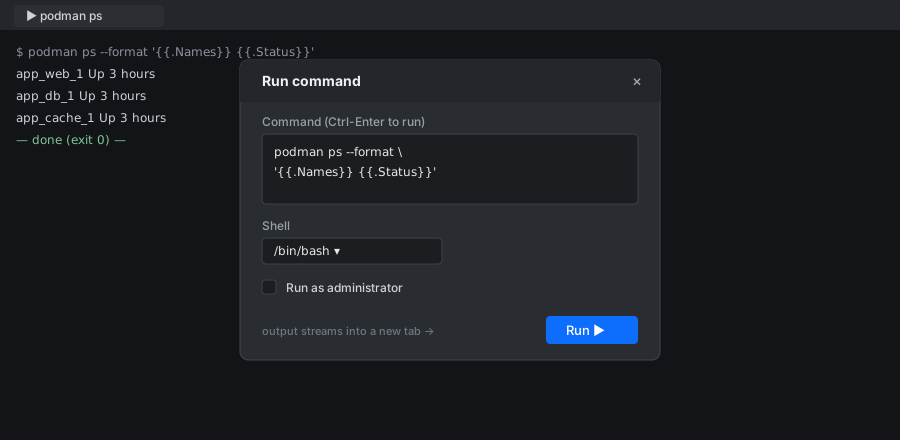
Sometimes you just want to run one thing and watch it — without opening a
full terminal. Each tab has a ⌨ Run… button in the toolbar. Type any shell command,
pick the shell (populated from /etc/shells, default chosen in Settings),
optionally tick Run as administrator, and the command streams its
output into a new tab — same kind of streaming pane that theoutput: pane custom actions use. Working directory is the active tab's
path. Ctrl-Enter in the textarea runs the command.
Integrated terminals
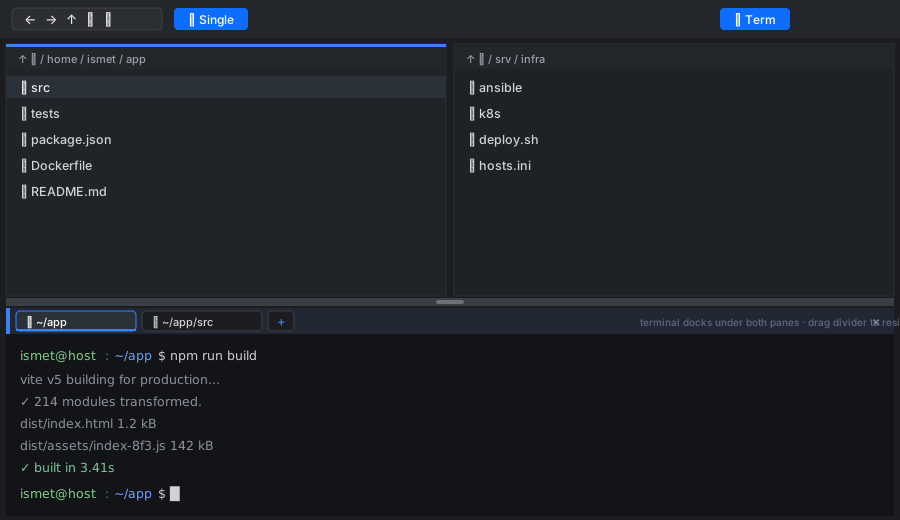
Keep your files and a shell on screen at once — browse up top, run commands
below, no window-switching. Real shells, embedded in the page via
xterm.js
over Cockpit's PTY stream channel — the same approach as Cockpit's own
Terminal page. Two ways to open one:
- Split pane — the ▤ Term toolbar button (or Open terminal here
(split) in a directory's right-click menu) opens a terminal pane next
to the file list. In single-pane mode it docks on the right (drag
the divider on its left edge to resize). In two-pane mode it docks
along the bottom, full width under both panes (drag the divider up
or down to resize) — so the side-by-side file panes keep their width. - Terminal tab — the
+▤button next to the tab+, or Open in
new terminal tab in the right-click menu, opens a full-tab terminal
with no file list. Its title is prefixed with ▤.
Both kinds support multiple terminals as sub-tabs:
- The
+in the terminal's own tab bar is kind-aware: in a plain terminal
tab it spawns another shell in the current folder; in a tmux tab it
opens a new tmux session (asking for the name, just like the header
New tmux session button) and adds it as a sub-tab. - Each sub-tab is labelled with the terminal's working directory. Long
paths are shortened from the front (e.g./a/very/long/path/here→.../path/here); hover a sub-tab to see the full path in a popover
with a Copy path button. Double-click a sub-tab to copy its
working directory to the clipboard directly (with a confirmation toast).
The label tracks the livepwdas youcdaround: forbashthe plugin launches the shell with a generated
rcfile (~/.config/cockpit/explorer/osc7.bash) that sources your normal~/.bashrcand then reports the directory via an OSC 7 escape on each
prompt — your own prompt and aliases are left untouched. Other shells
fall back to showing the directory the terminal started in. - Click a sub-tab to switch; middle-click or its
×closes it. - In a split pane, the
×on the right closes the whole split. - Closing the last terminal in a split collapses the split; closing the
last terminal in a terminal tab closes the tab.
A full-tab terminal shows up in the main tab bar as ❯ Terminal with a
blue pane-header accent, so it's easy to tell apart from your directory
tabs. A tmux tab instead shows ⧉ <active session> with a green
accent, and each session it holds is a sub-tab labelled ⧉ <session>.
Each shell starts in the relevant folder (directory: on the channel),
runs interactively (bash -i), and is resized to fit automatically.
Terminals are torn down (shell killed, channel closed) when their
sub-tab or tab is closed.
Paste a clipboard image or video into the terminal
Press Ctrl+V in a terminal while an image or video is on your
clipboard (e.g. a screenshot, or a video file copied in your OS file
manager) and the plugin uploads it to a folder on the host, then types the
saved file's path — followed by Enter — into the shell. This lets you hand
a screenshot or clip to whatever is running in the terminal — for example
an AI CLI inside a tmux session — even though your browser runs on your
local machine and the shell runs on the remote host: the media is read
locally in the browser and streamed to the host over the same upload
channel as regular file uploads, so the remote clipboard is never
involved and no xclip/wl-clipboard is needed on the server. Supported
video types are mp4, webm, mov, mkv, avi and ogv.
- Text paste is unchanged — only clipboards holding an image or video
are intercepted; pasting text still goes straight to the shell (Ctrl+V
and Ctrl+Shift+V both behave as before). - Works over both HTTP and HTTPS. The paste path needs no secure
context and prompts for no permission. - 📋 button. The terminal sub-tab bar also has a 📋 button that does
the same thing on demand. On HTTPS it reads the clipboard directly in one
click for a PNG/SVG image; for a video (or a JPEG/WebP image) — which
the browser's one-click clipboard API can't expose — and on HTTP (where
direct clipboard reads are blocked), it opens a small “press Ctrl+V here”
panel that captures the image or video. - Files are saved as
clip-<timestamp>-<random>.<ext>in a world-readable
folder, so any program on the host — not just the one in your terminal —
can open them.
Two Settings control this:
- Terminal clipboard-media folder — where images and videos are
written on the host (default/tmp/explorer-clip). - Keep pasted media for (hours) — retention window; older
clip-*
files in that folder are pruned on each paste (default24;0= keep
forever).
The path is typed into whatever currently has focus in the terminal, and
Enter is pressed. If you are at a bare shell prompt rather than inside a
program, that means the shell will try to run the path as a command.
Auto-reconnect after a Cockpit restart
If the Cockpit transport drops — you restart cockpit on the host, a network
blip, or the session otherwise disconnects — open terminals reconnect
automatically once the transport is back (with a short backoff). A tmux
terminal reattaches to its still-running session and forces a full repaint, so
it comes back showing your session rather than a blank pane; a plain shell
respawns. A terminal on a backgrounded tab reconnects the moment you switch back
to it. No manual "reconnect" step is needed.
Copying text out of the terminal
xterm does not copy on its own, so the plugin wires the usual gestures:
- Select with the mouse copies the selection (best-effort).
- Ctrl/⌘+Shift+C and Ctrl+Insert copy the current selection
explicitly. Plain Ctrl+C is left alone — it still sends SIGINT. - tmux / vim (programs that grab the mouse for their own copy-mode) push
the copy out via the OSC 52 escape sequence, which the terminal honours
by writing to your system clipboard. For tmux this needsset -g set-clipboard onin~/.tmux.conf. - Paste stays Ctrl+Shift+V.
Clipboard writes need a secure origin. Browsers only expose the
clipboard API onhttps://. Over plainhttp://the copy paths
fall back to a legacy method where they can, but terminal/tmux copy is only
fully reliable over HTTPS — Cockpit serves it by default on port 9090.
If terminal copy suddenly stops working, check whether the address bar sayshttp://.
tmux session manager
When tmux is installed on the host, a ▤ tmux button appears in the
top tab bar (next to ▶ Run). Click it for a dropdown that lists your
current tmux sessions — each with its window count and whether it's
attached — plus a + New session… entry at the bottom.
- Click a session to open it. If that session is already attached in
a terminal tab, the plugin just jumps to that tab; otherwise it opens a
new terminal tab attached to it. Sessions already open are tagged with
an open badge in the list. - + New session… asks for a name (letters, digits,
-/_; no
spaces,.or:) and opens a fresh terminal tab running that session. - ✕ next to a session kills it (with confirmation) and closes its tab.
- ⟳ refreshes the list.
- ⚙ Edit .tmux.conf appears at the bottom of the panel only when you
have a~/.tmux.conf; click it to open that file in the editor.
Sessions are attached with tmux new-session -A -s <name>, so opening an
existing name attaches to it and a new name creates it. Sessions are
not destroyed on detach — closing a tmux tab (or the browser) leaves the
session running on the server, so it stays in the list and can be
re-opened later. Open tmux tabs are also saved to tabs.yml and, on the
next page load, automatically re-attached if the session is still
alive (dead ones are quietly skipped). tmux runs as your Cockpit login
user, so these are that user's own per-user tmux sessions.
tmux is managed only through this button — it is not offered as a
"default shell" in Settings even when it's listed in/etc/shells.
Open in Cockpit terminal
Prefer Cockpit's own full-screen terminal to the embedded one? The ▭
Cockpit term toolbar button (and a matching context-menu item) jumps
straight to Cockpit's built-in Terminal page — and, where the browser
allows a clipboard write, drops a cd <current directory> onto your
clipboard so you land in the right folder with a single paste. On a
non-secure (http) origin the browser blocks that write, so the command is
shown in a toast to copy manually instead.
AI CLIs — Claude & Codex (✦ AI)
New in 4.0.0. Run the Claude Code and
Codex CLIs inside Explorer, in an
integrated terminal with a live git diff beside it that updates as the agent
edits files.
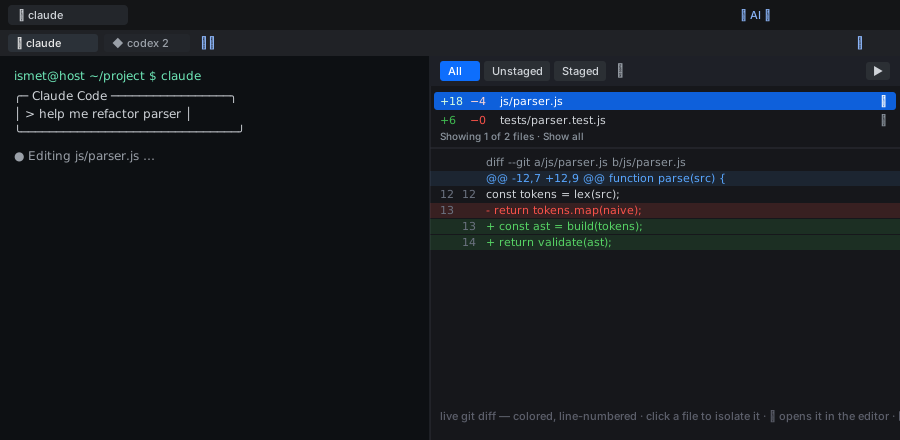
- Open — the
✦ AI ▾toolbar button (or right-click a folder →
Open Claude/Codex here) opens an AI tab. Starting a new session first
brings up a folder picker — browse the filesystem, search within a
folder, and create a new directory — so you choose exactly where the CLI
starts. The buttons appear only for the CLIs actually installed (detected in
your login shell, so a tool in~/.local/binis found). - Sessions as sub-tabs — each AI tab holds multiple sessions like the
terminal tab holds terminals:+▾adds New Claude… / New Codex… /
Resume…, each sub-tab has its own terminal and its own diff, and you can
close (✕) or rename (double-click) them. - Live diff — the right pane shows
git diffof the session's folder
(All / Unstaged / Staged, including untracked files), refreshing
about once a second while the tab is visible, with a changed-files strip on
top. It's syntax-colored with old/new line-number gutters; click a file
in the strip to isolate its diff (click more to show several back-to-back, or
Show all to clear); each file's ✎ opens it in the Monaco editor; and
▶ hides the pane so the terminal fills the tab (a ◀ diff strip brings it
back). Not a git repo? The terminal still works; the pane just says so. - Move a running session in — already running
claude/codexin a plain
terminal or tmux? The terminal tab bar's ✦ button drops that live session
into the AI split view — same process, now with the diff pane beside it. - Launch in a shell or tmux — a Settings option (Run AI CLIs in): Shell
runs the CLI in your login shell (you drop back to a shell when it exits), or
tmux — you're asked for a session name and it attaches to (or creates) a
persistent tmux session. Closing a tmux-backed sub-tab or tab asks whether to
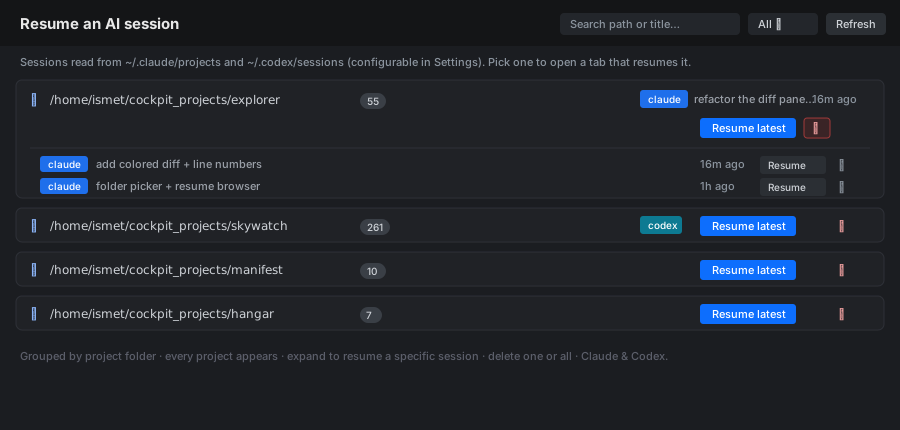
terminate the tmux session or keep it running so you can re-attach later. - Resume a past session — Resume… opens a browser of your prior
Claude/Codex sessions, read from each tool's own store — Claude~/.claude/projects, Codex~/.codex/sessions(paths and scan depth
configurable in Settings). Sessions are grouped by project folder so every
project shows up with a session count: Resume latest opens the newest in
that folder, or expand a group to resume a specific session; 🗑 deletes
one session or a whole project's sessions. Throwaway sessions under/tmpare
hidden. Picking one opens a tab that resumes it (claude --resume <id>in that
folder, orcodex resume <id>).
The CLIs run as you (no root); Explorer just launches them and mirrors the
working-tree diff.
Cached repositories
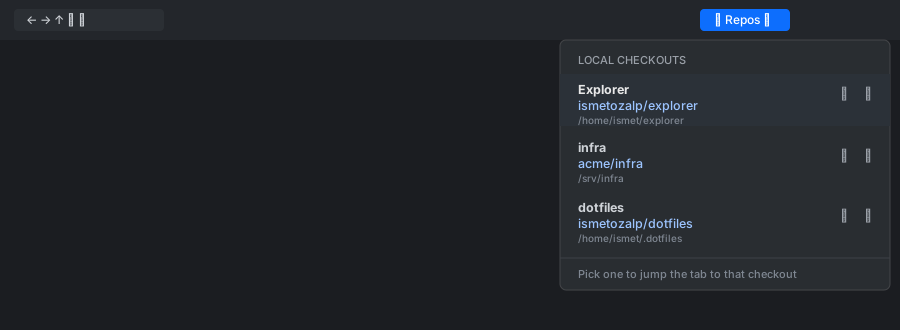
A quick-jump list of the git checkouts you care about, so you're never
hunting for that clone three folders deep. When you've checked out one or
more GitHub repos (or registered existing
clones), a ⌂ Repos dropdown appears in the toolbar listing each local
copy by its title, owner/repo, and directory path. Pick one to jump
the current tab straight to that checkout; each row also has a ✎
(rename title) and ✕ (unregister). Unregistering asks whether to
forget only (remove from the cache, leave files on disk) or
delete files & forget (also delete the folder). The list is backed by~/.config/cockpit/explorer/repos.json; you can also manage entries from
the GitHub panel's Local checkout tab.
GitHub integration
Each tab also has a GH button in the toolbar that opens the
GitHub panel. The flow auto-detects what's needed:
ghnot installed — the panel shows just Install GitHub CLI.
Clicking it runs the distro-appropriate install command (dnf/apt- GPG-key dance /
pacman/zypper, with a static-binary fallback
for unknown distros) under Cockpit's superuser bridge. The install
streams to a new output tab so you see live progress.
- GPG-key dance /
- Not signed in — paste a Personal Access Token
into the form. The token is piped intogh auth login --with-token
and stored byghat~/.config/gh/hosts.yml(0600). Since each
Cockpit user has their own home directory, credentials are
per-user-isolated automatically — Alice's token is invisible to
Bob even on the same host. The plugin never elevatesghcalls, so
that isolation is real. - Signed in — the panel shows your repositories (your own plus
organization and collaborator repos) with a search box, metadata
(visibility, language, fork indicator, updated date, description), and
how many local copies you have of each.
If your token has broad scopes (anything matching admin:*,delete_repo, or workflow), a warning banner suggests switching to
a fine-grained PAT scoped to specific repos.
Installed or signed in to
ghyourself? The panel re-detectsgh's state automatically whenever the browser tab regains focus
(throttled), so installingghor runninggh auth loginin a real
terminal is picked up without reloading. The not installed and not
signed in screens also have an explicit Re-check button.
Per repo
Selecting a repo opens three sub-tabs:
Branches — every branch, with a filter box at the top to search
branches by name (shows a matched/total count). Actions per row:- Checkout — ensures a local clone exists (prompting for the
location the first time), checks out the branch, opens it in a tab.
Recorded in~/.config/cockpit/explorer/repos.jsonfor next time. - Update — fetches from GitHub (authenticated with the gh token, so
it works on HTTPS clones that can't prompt for credentials) and
fast-forwards the branch. Fast-forward only. - Commits — opens the commit browser (see below).
- Branch from this — prompts for a name; creates the branch remotely
off that branch's current commit via the GitHub API (no local checkout
required). - Delete — type-to-confirm dialog (you have to type the branch
name) protects against fat-finger deletes. Required for every
branch, not just protected ones.
The Branches tab also has a + Check out a new copy… button to clone
an additional working copy into a new directory (see Local checkout).
Each registered local copy is listed beneath the branch it's currently
checked out to (so two copies onmasterboth appear undermaster) —
click one to open that checkout in a tab.- Checkout — ensures a local clone exists (prompting for the
Pull requests — open PRs with quick Checkout (
gh pr checkout).Local checkout — a repo can have multiple local copies. The tab
lists each copy with its title and directory path, and per copy you
can Open in a tab, Update (fetch + ff-pull), Rename (set a custom
title), or Forget (choose to remove it from the cache only, or also
delete the folder from disk).
+ Check out a new copy… clones another copy directly into the
folder you pick (no<reponame>subfolder is forced — use the
picker's + Folder to make an empty target, or type a new path);
Register existing clone… records a clone you made manually.
All of these open a folder browser to pick the directory (you can
also type/paste a path), rather than a blank text box.
A default title (the repo name, disambiguated by folder for extra
copies) is generated when a copy is cached.
The toolbar's + Register button (shown on any tab with a GitHub
remote) records the current checkout in the repo cache. It always
registers the repository's top-level directory — where .git/
lives — even when you trigger it from a subfolder of the repo, so the
cache entry points at the repo root rather than wherever you happened
to be browsing.
Once a checkout is registered, entering it (or any subfolder of it)
shows the repo strip instantly, from the cached owner/repo and
last-known branch — no waiting on Git. The real status (uncommitted
changes, ahead/behind) fills in a moment later, and a moved or deleted
checkout self-corrects (the bar clears) once that real check runs.
Commit browser
A fullscreen modal with three panes:
- Commits — last 100 commits on the selected branch (short SHA,
subject, author, relative date). The list is fetched from the GitHub
API, so no local clone is needed just to browse commits. - Files changed — every file in the selected commit, with
+N -Mline counts and a view file link. - Diff — rendered side-by-side by default (toggle in the header
for unified). Powered by diff2html.
Opening a commit's files/diff (or view file) needs the actual
objects, so the first time you drill in, the browser ensures a local
clone — using an existing local copy if one is cached, otherwise
prompting for a location to clone into. View file opens the file's
content at that commit in Monaco read-only mode (header shows<path> @ <sha>).
Current-repo toolbar
When you navigate any tab into a git working tree, a strip appears
below the toolbar showing the current branch, dirty indicator, and
ahead/behind counts vs upstream. The branch name is a dropdown —
click it to list the work-tree's local branches (and remote branches
with no local counterpart) and switch with one click. Switching runsgit checkout; a remote-only branch is checked out as a new tracking
branch, and the switch is blocked (with a message) if uncommitted
changes would conflict. The dropdown also lists the local cached
copies of this repo — click one to navigate the current tab to that
checkout's folder. Five actions:
- Fetch — fetches all branches from GitHub.
- Pull — fast-forward only.
- Commit… — opens a commit-message dialog; stages all changes,
commits. - Commit & Push… — same as above, then pushes.
- Push — push current branch. Always does a pre-check fetch
first; if the remote has diverged, a Remote has diverged dialog
appears with three buttons:- Discard local changes —
git reset --hard origin/<branch>
(after a count of what will be lost). - Keep local, don't push — no-op, resolve manually in a terminal.
- Cancel — close the dialog.
- Discard local changes —
- Rollback — a red button that appears only when the working tree is
dirty. After a confirmation (showing the path and how many changes are
affected), it discards all uncommitted changes:git reset --hard HEAD
on tracked files plusgit clean -fdto remove new/untracked
(non-ignored) files and directories. Works offline (no GitHub needed) and
cannot be undone.
All network operations (Fetch, Pull, Push, Update, Commits) authenticate
with the gh token, and on login the panel runs gh auth setup-git so
plain git commands also work on HTTPS clones — no manual credential
configuration needed.
No merge / rebase / stash UI is provided by design — for conflict
resolution, drop into a terminal.
In-tab git badge
Tabs whose path is inside a git work-tree get a small ⎇ badge in
their title, so at a glance you can see which tabs are inside repos.
Cache conventions
Custom actions on files inside a recorded repo cache are filtered to
read-only output modes (toast / modal / pane). To allow a
mutating action there too, add "allowOnRepoCache": true to its
JSON definition.
Drag-and-drop out of a repo cache becomes Copy (not Move), with a
one-time toast explaining why. Cache files are otherwise fully
editable — edit in Monaco, save normally, then Commit and Push from
the current-repo toolbar.
Publish a folder to GitHub
When the active tab is a directory that isn't version-controlled
(no .git/, not inside a registered checkout), a strip appears below
the toolbar: This folder isn't version-controlled — Publish to GitHub…
The dialog asks for repository name (defaults to the folder name,
validated against GitHub's naming rules), owner (you, or an org if your
token can see one), visibility (Private default / Public), an optional
description, an optional .gitignore template and license, and the
initial commit message.
A pre-flight scope check runs first: if your token lacks therepo scope, the Publish button is disabled with a note telling you to
add it. (Fine-grained tokens don't report scopes the same way — in that
case you get an info note instead and publishing proceeds, failing
gracefully if the token really can't create repos.)
On publish, as the user (no elevation): git init, branch -M main,
fetch the chosen .gitignore/license templates if any, stage and
commit, then gh repo create <owner>/<name> --source=. --push. An
empty folder gets a starter README.md so there's something to
push. The new repo is recorded in repos.json, and the tab instantly
flips to showing the git badge and current-repo toolbar.
Editor
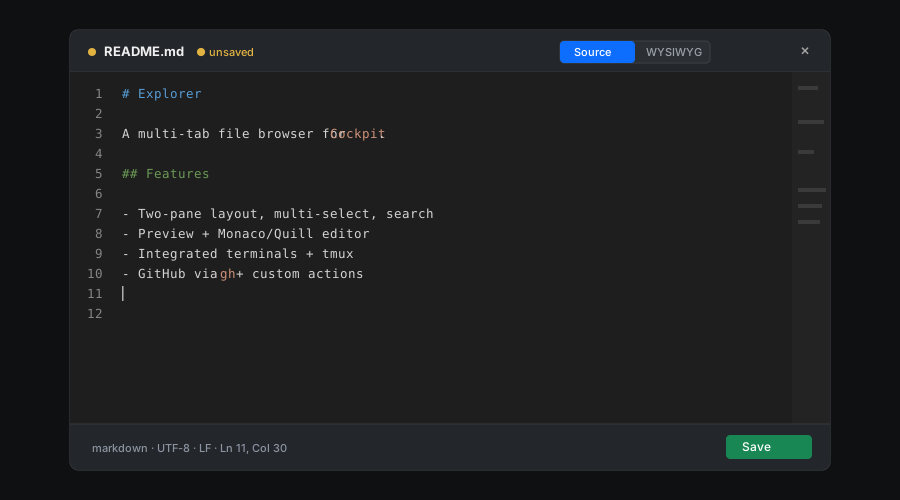
A real editor, not a textarea. You get the same engine that powers VS
Code, opened right over your file list — no round-trip to a terminal, no
leaving Cockpit. Two-mode editor; each file opens in its own draggable
window (see Preview above for how multiple windows and the taskbar
work):
- Source mode — Microsoft's Monaco
(the editor inside VS Code), with syntax highlighting for ~70 languages,
multi-cursor, find-and-replace, minimap, the lot. Used by default for
every file. - WYSIWYG mode — Quill rich-text editor. Available
for.mdand.htmlfiles only — the editor header shows a Source / WYSIWYG
toggle.
Save writes via the user; if it gets EACCES a Save as administrator
button appears that re-saves through Cockpit's superuser bridge. Unsaved
changes trigger a confirm dialog on close.
Search
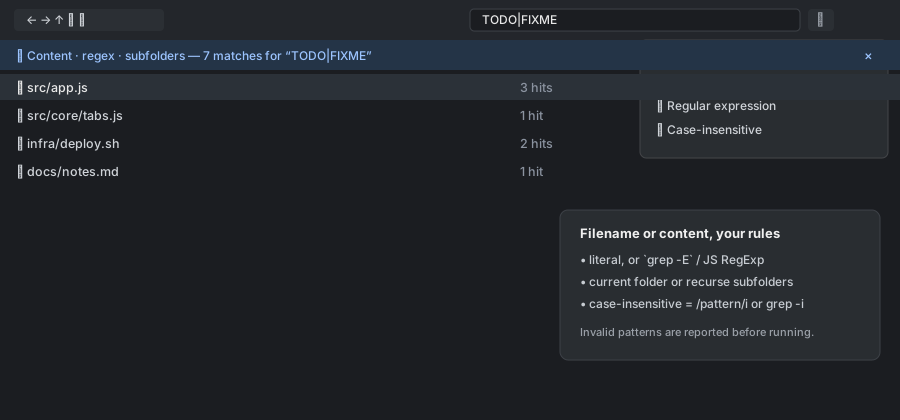
Find files by name or by their contents, in the current folder or
all the way down the tree, as a plain substring or a full regular
expression. The search box lives in the toolbar — Enter to run,
Esc to clear. Click the cog next to it to choose:
- Filename match (default) or Content (grep)
- Search subfolders — descend recursively into subdirectories. Off =
current folder only. - Regular expression — interpret the query as a regex instead of a
literal substring. Filename search uses JavaScriptRegExp; content
search usesgrep -E(extended regex). With it off, content search
usesgrep -F(literal string). An invalid pattern is reported before
anything runs. - Case-insensitive — follows regex
i-flag semantics consistently:
it sets the JSRegExpiflag for filename search andgrep -ifor
content search, so a case-insensitive regex behaves exactly like/pattern/i.
Content search enumerates candidate files with find at the requested
depth and greps them in batches, so it works the same whether or not
subfolder search is enabled. Results replace the file list inline, with
a banner (showing the active flags) you can dismiss to return to the
directory view.
Explorer is ZFS-aware: on a ZFS dataset, search automatically skips
the .zfs snapshot directory (so a snapdir=visible dataset doesn't get
traversed as if it were live data), and copy/move skips the slow du
disk-space pre-flight — ZFS df already reports correct free space, and
copies go over rsync --sparse so sparse files aren't ballooned to full
size. Non-ZFS filesystems are unaffected.
Archives
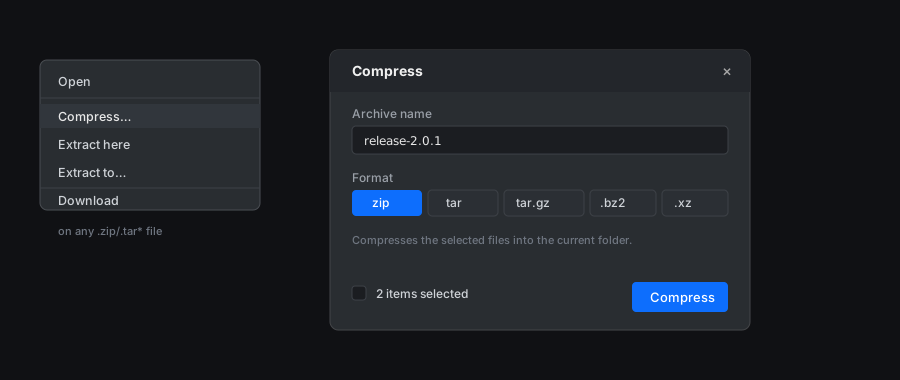
Zip things up or unpack them without a shell:
- Compress… from the context menu opens a dialog with archive
name + format picker (zip · tar · tar.gz · tar.bz2 · tar.xz). - On any recognised archive, the context menu also shows Extract here
and Extract to… (the latter opens the folder browser to pick where;
a subfolder named after the archive is created there).
Drag-and-drop
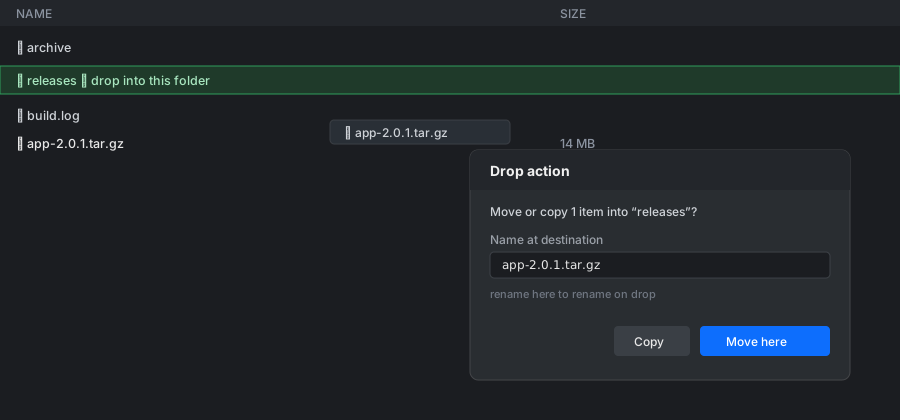
Drag to move or copy — between panes, between tabs, or straight from your
desktop to upload — and rename in the same motion:
- Drag files between tabs or panes → a modal asks Move or Copy.
- Drop onto a folder row to drop into that subfolder; dropping on
empty space or a non-folder row lands in the pane's current folder.
The target folder highlights while you hover it. - Rename on drop. When you drag a single file or directory, the
drop dialog also shows a Name at destination field pre-filled with
the original name — change it to rename the item as part of the
move/copy, or leave it to keep the same name. If that name already
exists at the destination you're asked to confirm a replace.
(Multi-item drops skip the field — you can't rename many items to one
name.) The renamed transfer goes throughmv -Tfor same-filesystem
moves,rsyncfor cross-filesystem moves and copies, orcp -aTas a
fallback. - Drag files or folders from your desktop into a tab → upload, with
progress and cancel. Dropping onto a folder row uploads into that
folder. Dropping a folder recreates its whole directory tree on the
server (empty subfolders included) and streams every file under a single
progress entry; a whole-batch Retry as administrator appears if any
write hits Permission denied. - For downloading multiple files, use the Download context menu
item — a small dialog offers an archive-format dropdown
(tar.gz / zip / tar / tar.bz2 / tar.xz), then the plugin compresses to/tmpand streams that to your browser.tar.gzis the default since
it only needstar+gzip;ziprequires the separatezippackage
and the dialog warns if it isn't installed.
Uploads
Files stream through Cockpit's stream channel (base64 -d > dest).
Folder uploads (drag-and-drop only) walk the dropped directory tree via
the browser's entry API, recreate it with mkdir -p, then upload each file
in order. Uploads run as the logged-in user; on Permission denied the
operation offers Retry as administrator, which re-runs the writes (and
any mkdir) through the superuser bridge. Progress and cancel are shown in
the operations tray. (Folder drag-and-drop needs a Chromium/Firefox-class
browser; if the entry API is missing the plugin says so rather than
silently dropping the folder.)
Operations tray
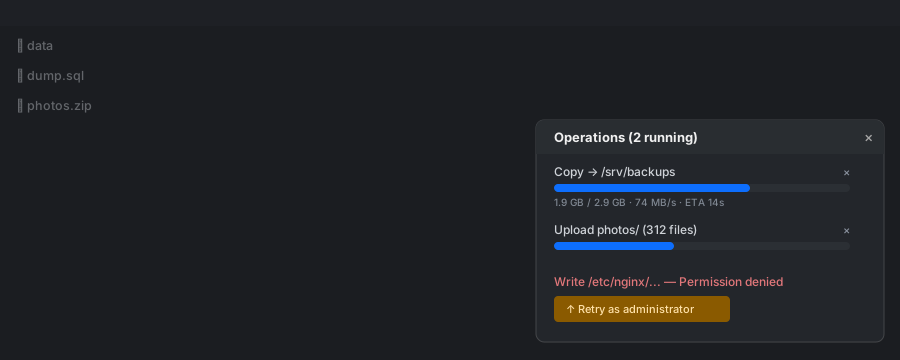
Nothing blocks the UI — kick off a big copy or upload and keep browsing.
Long-running ops (copy, move, delete, archive, upload, download,
custom actions in tray mode) show up in a fixed tray at the
bottom-right with live progress bars (percentage, bytes/s and ETA for
rsync transfers), cancel buttons, and — when something fails with
Permission denied — a Retry as administrator button.
"Retry as administrator"
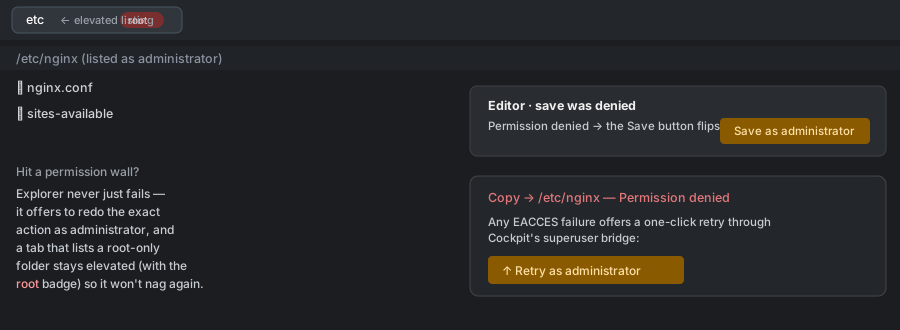
You browse as you, and only step up to root exactly where you need it —
never by running the whole plugin as administrator. Any operation that
fails with EACCES gives you a Retry as
administrator button that re-runs through Cockpit's superuser bridge.
The same applies to the editor's Save as administrator, to opening or
previewing an unreadable file (Open / Retry as administrator), to
listing a directory you can't read, and to deleting a folder whose
tree holds items you don't own (e.g. a root-owned node_modules/ or a
container's foreign-uid data/) — the delete surfaces the real
Permission denied and offers the retry instead of failing silently.
Once you list a root-only directory as administrator, the tab stays
elevated for that path — reloads and post-save refreshes won't drop back
and nag you again — and the tab header shows a small root badge so
it's clear the listing is elevated.
Plugin Manager — update / install your Cockpit plugins
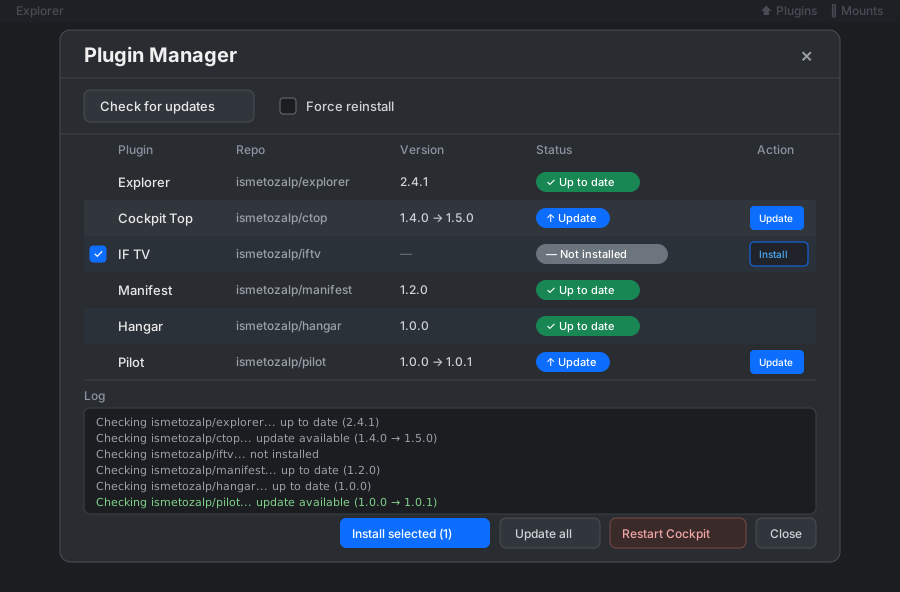
The ⬆ Plugins button in the top toolbar opens the Plugin Manager, which manages your six
plugins together — Explorer, Cockpit Top, IF TV, Manifest, Hangar, Pilot. It shows each
plugin's installed version and the latest GitHub release, reading the update repo
from each plugin's own settings file where it has one (Cockpit Top and Hangar use a built-in
default). Update a single plugin or Update all at once; a Force
reinstall toggle updates even up-to-date plugins (and IF TV, whose installed
version isn't tracked on disk). A not-installed plugin can be installed — tick
several and Install selected to install them in one go. Install output streams
live in the panel, and when it finishes a Restart Cockpit button applies the
changes (it disconnects your session — log back in after a few seconds). Downloads
use your own gh/curl credentials; only the install step runs with
administrator rights.
Mounts (fstab editor)
The ⛁ Mounts button in the top toolbar opens an editor for/etc/fstab:
- A structured table with one row per entry — device/UUID, mount
point, type, options, dump and pass — plus Add entry / remove-row
controls. Comments and blank lines in the file are preserved on save. - Field suggestions on every column (native dropdowns): real block
devices fromlsblk/blkid(offered asUUID=,LABEL=and/dev/…, labelled with fstype/size/label), existing mount points
under/mntand/mediaplus common targets, filesystem types from/proc/filesystemsmerged with a common list, and handy option/dump/
pass presets. Picking a device auto-fills its filesystem type. - A Raw text toggle to edit the file directly when you'd rather work
with the plain text; switching back re-parses it into the table. - A per-row mounted indicator: ● mounted, ○ declared but not
mounted, — not applicable (swap /none). State comes fromfindmnt,
falling back to/proc/self/mountswhen findmnt isn't installed. - Reload to re-read the file and refresh the mounted state.
- Save writes the file through Cockpit's superuser bridge after
backing up the previous version to/etc/fstab.bak, then (when Mount
new entries on save is ticked) runssystemctl daemon-reloadand a
targetedmount <point>for each declared-but-unmounted entry,
creating the mount point withmkdir -pfirst. Per-entry results are
listed in the dialog.
Basic validation (required fields, absolute mount points, numeric
dump/pass) runs before anything is written.
A Mounted tab lists everything currently mounted (from findmnt,
falling back to /proc/self/mounts):
- Per non-system mount: remount (
mount -o remount) and unmount
(umount, with a lazy unmount offer if the target is busy). System
and pseudo mounts (/,/proc,/sys,/dev,/run, and virtual
filesystems) are tagged system and can't be unmounted from here. - Mount something… does an ad-hoc
mount(with optional type and
options) that isn't written to fstab, reusing the same field
suggestions. - In the fstab table, the ○ indicator on a declared-but-unmounted entry
is a button that mounts it immediately.
All mount/unmount actions run through Cockpit's superuser bridge.
A Network share tab adds SMB/CIFS or NFS shares (pick the type at the
top of the tab).
SMB/CIFS uses a managed, root-only credential store:
- Enter host, share and mount point. Discover finds SMB hosts on the
network via mDNS (avahi-browse) and a NetBIOS broadcast
(nmblookup '*', names resolved withnmblookup -A) — the latter
catches boxes that don't advertise over mDNS and works without a master
browser. Browse lists a host's shares withsmbclient(guest, or
using the selected saved credential); both feed the Host/Share
dropdowns and fall back to manual entry when the tools aren't installed.
Ifsmbclientis missing, Browse is disabled and a distro-specific
install command is shown. - If neither mDNS nor the NetBIOS broadcast turns up anything, Discover
offers a directed subnet scan (default = your interface's network,
e.g.192.168.0.0/24; prefixes/23–/30). It probes each address in
parallel withnmblookup -Aand a TCP/445 check — reliable even when
the broadcast is suppressed or there's no master browser. - Credentials are either a saved set, a new set
(username/password/domain — saved to/etc/cifs-creds/<name>, a
root-owned0700directory with0600files), or guest. - The password is written to the credentials file through Cockpit's file
channel — never placed in/etc/fstab, on a command line, or in any
log. fstab gets onlycredentials=/etc/cifs-creds/<name>. - Toggle the common options (
_netdev,nofail,x-systemd.automount,
read-only) plus optionalvers=,uid=,gid=;iocharset=utf8is
always added. Add to fstab drops the entry into the editor for you to
review and Save (which writes and mounts it). - A Saved credentials list lets you delete stored sets.
- If
mount.cifs(cifs-utils) isn't installed, the tab warns but still
lets you build the entry.
NFS is simpler — NFS uses host/IP-based access, so there's no
credential store. Enter the server and export path (or Exports to
list a server's exports via showmount -e), a mount point, and the
common options (_netdev, nofail, x-systemd.automount, read-only,
optional vers=). Add & save assembles a server:/export nfs entry,
writes it, and mounts it. If mount.nfs (nfs-utils / nfs-common) is
missing, a distro-specific install command is shown.
GRUB boot loader (⏻ GRUB)
When /etc/default/grub exists and a config-regeneration tool is present,
a ⏻ GRUB toolbar button opens an editor for it (the button is hidden
otherwise):
- A structured key/value table (add/remove keys) plus a Raw text
toggle; comments, blank lines and value quoting round-trip untouched. - A header line shows the detected regeneration command, BIOS vs UEFI,
and whethergrubbyis available. - Save & regenerate validates the keys, backs up to
/etc/default/grub.bak, writes the file through the superuser bridge,
and — after a confirmation showing the exact command — regenerates the
boot config:update-grubwhere present, otherwisegrub2-mkconfig/grub-mkconfig -o <path>with the output path
auto-detected (Fedora/RHEL/etc/grub2*.cfgsymlinks, the UEFIEFI/<distro>path, or the BIOS default). The command output is shown
in the dialog. - If
grubbyis present you can opt in to also push the kernel cmdline
(GRUB_CMDLINE_LINUX/GRUB_CMDLINE_LINUX_DEFAULT) to already-installed
kernels.
Editing only /etc/default/grub (not /etc/grub.d/).
Users & sudo (⛊ Users)
New in 3.3.0. Manage local OS accounts and their sudo access from a single
panel — create users, grant or revoke sudo, enable passwordless sudo, and delete
accounts. Runs the standard tools (useradd, usermod, gpasswd, userdel,chpasswd, visudo, install) through Cockpit's superuser bridge, so it needs
administrator access.
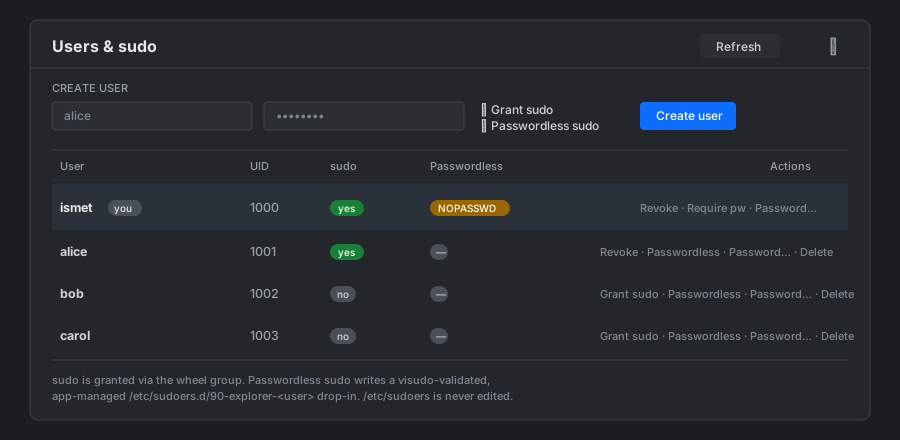
- Create user —
useradd -m, set the password (sent tochpasswdon stdin,
never on the command line), and optionally grant sudo / passwordless sudo in
one step. - Grant / revoke sudo — adds to or removes from the distro admin group
(wheelon RHEL/Fedora,sudoon Debian/Ubuntu — auto-detected from the
sudoers policy). Revoke also removes the managed passwordless drop-in. - Passwordless sudo — writes a
visudo-validated, app-managed/etc/sudoers.d/90-explorer-<user>drop-in (NOPASSWD:ALL)./etc/sudoers
and your own/etc/sudoers.dfiles are never touched, and a syntactically
invalid file is never installed, so sudo can't be broken. - Delete account — a distinct, clearly-marked action separate from “revoke
sudo”, with an opt-in “also remove home directory” (userdel -r) choice.
Safety: usernames are strictly validated before any command runs; you can't
revoke your own sudo or delete your own account; removing the last administrator
is warned; and passwords are never written to argv or logs. Only local accounts
(the files NSS database) are listed — remote LDAP/SSSD identities that these
tools can't manage are excluded.
Keyboard shortcuts
| Key | Action |
|---|---|
| Ctrl-T | New tab |
| Ctrl-W | Close active tab |
| Ctrl-C / Ctrl-X | Copy / cut to internal clipboard |
| Ctrl-V | Paste |
| Ctrl-A | Select all |
| Ctrl-F | Focus search box |
| Tab | Switch active pane (two-pane view) |
| Enter | Open selected |
| Space | Preview selected (single) |
| F2 | Rename selected |
| F5 | Reload current directory |
| Delete | Delete selected (with confirmation) |
| Alt-Left / Right | Back / forward in history |
| Alt-Up | Up one directory |
| Escape | Close the top-most popup — editor / preview window, any dialog, or the context menu |
Custom actions
Custom actions are user-defined commands that appear at the top of the
right-click menu, filtered by the type and pattern you configure (grouped
into User / System submenus when there are more than three — see the
context-menu section above). Each item carries a small user/system
badge showing where the action comes from (built-in actions like the
self-updater show as system).
Two configuration layers, last-wins-merged in the menu (system actions
appear above user ones):
- User:
~/.config/cockpit/explorer/actions.json - System:
/etc/cockpit/explorer/actions.json
Manage them from the UI: ⚙ Actions in the top-right. The editor
writes the JSON file for you (the system file may prompt you for the
admin password via Cockpit's superuser bridge).
Each scope (User / System) is edited one action at a time. Select an
action in the list on the left, then switch how you edit that action
with the Form / JSON / YAML toggle at the top of the dialog. The
list is grouped into Global Actions (toolbar actions) and Other
Actions (file / directory actions), and it scrolls on its own — as does
the editor on the right — so long lists and long forms stay side by side.
Each row also has ↑ / ↓ buttons to reorder actions within its
section — the order in the list is the order they appear in the toolbar
or right-click menu (applied immediately, saved to disk when you press
Save).
- Form — the point-and-click editor (label, command, applies-to,
regex, output, privilege, etc.). - JSON / YAML — a syntax-highlighted editor (Monaco) showing only
the selected action as a single object, with a JSON/YAML format
switch. Edit it as text and switch back to Form (or pick another action,
or Save) to apply the change — the three views stay in sync, so an
edit in any one of them updates just that action. A brand-new action
opens as an all-empty-fields template you fill in.commandis the
only field that really matters; ids and defaults are filled in
automatically. Parse errors are shown inline and block leaving the view
until fixed. (The whole scope is still saved to itsactions.jsonas{ "actions": [ … ] }; you just edit one action at a time.)
The JSON / YAML toggle is disabled until an action is selected.
The action list on the left is available in both modes — use + New
action to add one and the ✕ on a row to delete it (in JSON/YAML
mode these edit the document text for you).
↻ Reload from disk. Because the actions.json files can also be edited
by hand (or by another tool), the manager has a ↻ Reload from disk button
that re-reads the User, System and built-in action files without a page
reload. The same ↻ Reload actions entry is in every file/folder
right-click menu, so after editing actions.json you can refresh the menu in
place.
Schema
{
  "actions": [
    {
      "id": "unique-id",
      "label": "Tail log",
      "command": "tail -f {path}",
      "appliesTo": "file",
      "pattern": "\\.log$",
      "output": "pane",
      "privilege": "user",
      "confirm": false,
      "multi": false
    }
  ]
}
| Field | Values | Meaning |
|---|---|---|
id |
string (auto-assigned) | Identifier; keep stable so order persists. |
label |
string | Menu label. |
command |
shell command | Executed via sh -c. Use placeholders (below). |
appliesTo |
"" · both · file · dir · symlink · archive · global |
Restrict to a kind of target: empty = any item, both = files and directories, or one specific kind. global = a file-independent action that is hidden from the right-click menu and instead listed in the toolbar ▶ Run popup (see below). |
pattern |
regex (string) | Only show the action when the target name matches this regex. With several items selected, all of them must match. |
output |
toast · modal · tray · pane |
How output is presented (see below). |
privilege |
user · ask · try · require |
Run as user; ask at launch (a Run as me / Run as administrator choice — administrator runs through Cockpit's superuser bridge, which prompts for auth); try-then-elevate; or always require admin. The chosen privilege applies to the whole run (pre/main/post). |
confirm |
bool | Show a confirmation dialog before running. |
confirmMessage |
string (optional) | Custom text for the confirm dialog (templated). Blank = a default "Run X?". |
preCommand |
shell command (optional) | Runs before command (same privilege). Good for prep/reset steps. |
preConfirm |
string (optional) | If set, asks before preCommand with Run / Skip / Cancel — Skip runs the action without this step, Cancel aborts everything. |
preConfirmLabel |
string (optional) | Label for the "Run" button of the pre-step prompt (e.g. Delete settings). |
postCommand |
shell command (optional) | Runs after command. |
postConfirm |
string (optional) | If set, asks before postCommand with Run / Skip. |
postConfirmLabel |
string (optional) | Label for the "Run" button of the post-step prompt. |
multi |
bool | Allow when multiple files are selected. |
interactive |
bool | Run the command in an interactive pane that understands the Script Prompt Protocol (below). Output is always a streaming pane. |
script |
string (filename) | A shell script uploaded to the scope's scripts/ folder. Used to build {script}; usually set by the Shell script upload in the form editor. |
requiresGh |
bool | The action needs the GitHub CLI to be set up. While gh is not authenticated, the action is shown grayed out and is not runnable (a gh badge marks it) — both in the right-click menu and the ▶ Run popup. |
Placeholders
| {path} | Single file's absolute path (the first one, if multi). |
| {paths} | All selected paths, shell-quoted, space-joined. |
| {dir} | Parent directory of {path}. |
| {name} | Filename (foo.tar.gz). |
| {base} | Filename without the last extension (foo.tar). |
| {ext} | Last extension, no dot (gz). |
| {home} | The current user's home directory. |
| {oldVersion} | The currently installed Explorer version. |
| {newVersion} | Version parsed from an explorer-X.Y[.Z].zip filename. |
| {scripts} | The scope's scripts folder (~/.config/cockpit/explorer/scripts for user, /etc/cockpit/explorer/scripts for system). |
| {script} | Full path to this action's uploaded script inside {scripts}. |
Placeholders work in
command,preCommand,postCommand, and in the
confirmation messages. In commands the values are shell-quoted; in
messages they are inserted as plain text.
Interactive scripts — the Script Prompt Protocol
An action with "interactive": true runs its command in a streaming pane
with stdin kept open, so a shell script can ask the user questions
mid-run. To prompt, the script writes a small YAML block between two
sentinel lines to stdout, then reads one line from stdin — that line
is the user's answer:
===EXPLORER-PROMPT===
type: radio          # radio (single-select) | text (free text / textbox)
title: Deploy        # dialog title (optional)
message: Pick env    # text shown above the control (optional)
options: [dev, staging, prod]   # required for type: radio
default: staging     # optional (preselected radio / prefilled textbox)
multiline: true      # optional, type: text only — show a textarea
===EXPLORER-END===
The plugin parses the block, shows the dialog, and writes the chosen
value (radio) or typed text (text) followed by a newline to the script's
stdin — exactly as if the user typed it and pressed Enter. The script'sread unblocks and continues. A script may prompt as many times as it
likes. Cancelling a dialog aborts the script (its channel is closed).
Multi-line text (type: text with multiline: true) shows a textarea
(submit with Ctrl/⌘ + Enter). Because the script still reads a single line,
the plugin sends the answer base64-encoded on one line — the script
decodes it, e.g.:
read -r ANSWER_B64
ANSWER="$(printf '%s' "$ANSWER_B64" | base64 -d)"
(Single-line type: text is sent as-is, unchanged.) A multi-line default:
is preserved as \n escapes inside the quoted scalar, so the textarea
pre-fills with the full text.
User-scope scripts live in the home directory at~/.config/cockpit/explorer/scripts (next to the user actions.json) —
never under /etc. System-scope scripts live at/etc/cockpit/explorer/scripts.
Display messages (no input)
A block whose type is a display type — message, info, note,notify, progress, status, or log — is shown to the user and the
script keeps running (it must not read stdin for these). Use it for
progress/status updates. You may open the block with ===EXPLORER-PROMPT===
or the clearer alias ===EXPLORER-MESSAGE===:
===EXPLORER-MESSAGE===
type: progress
text: Building image…       # the message (also accepts `message:`)
level: info                 # info | success | warning | error (optional)
toast: false                # also pop a toast? (default false → pane line only)
===EXPLORER-END===
Display messages appear in the pane as a » … line; success/warning/error levels (or toast: true) also pop a toast. Because they don't
wait for input, you can stream as many as you like.
Example script (deploy.sh), uploaded via the Shell script picker in
the action editor (which stores it under scripts/ and sets the command
to bash {script}):
#!/usr/bin/env bash
echo "===EXPLORER-PROMPT==="
echo "type: radio"
echo "title: Environment"
echo "options: [dev, staging, prod]"
echo "===EXPLORER-END==="
read -r ENV

echo "===EXPLORER-MESSAGE==="
echo "type: progress"
echo "text: Deploying to $ENV …"
echo "===EXPLORER-END==="

echo "===EXPLORER-PROMPT==="
echo "type: text"
echo "title: Release notes"
echo "===EXPLORER-END==="
read -r NOTES

echo "===EXPLORER-MESSAGE==="
echo "type: message"
echo "level: success"
echo "text: Done ($NOTES)"
echo "toast: true"
echo "===EXPLORER-END==="
Lines other than prompt blocks are shown in the pane as normal output;
the value the plugin sends back is echoed as a‹ …transcript line.
If your script's stdout is buffered (e.g. Python), flush it before
reading so the prompt reaches the UI;echo/printfinsh/bash
are fine.
Output modes
toast— silent; a short toast confirms success/failure.modal— collects stdout/stderr and shows it in the preview
modal when the command finishes.tray— runs in the operations tray; click View output (TODO).pane— opens a new tab that streams the output live as
the command runs. The tab stays open and shows the exit status.
Best fortail -f, build logs, long-running scripts. A Follow
toggle in the pane header keeps it pinned to the newest line as output
streams (green = following); scrolling up stops following, scrolling
back to the bottom resumes it, and the toggle lets you force it on/off.
To bound memory on long-running streams, each pane keeps at mostoutputMaxLineslines (default 5000; set0for unlimited in
Settings) — once exceeded, the oldest lines are dropped.
Global (toolbar) actions
An action with appliesTo: global isn't tied to a file or directory, so it
doesn't appear in the right-click menu. Instead it's listed in the ▶ Run
button in the top bar (next to ⚙ Actions), which opens a popup table of
all global actions, each with its own Run button. Running one always
asks for confirmation first (using confirmMessage if set), then executes.
Global actions have no {path}/{name} (those expand to empty); {dir} is
the active pane's directory, and {script}/{scripts} work as usual —
handy for "run a maintenance script", "open a dashboard", "prune docker",
and similar repo-/file-independent tasks. global actions can beinteractive too, so a toolbar script can prompt via the Script Prompt
Protocol.
Example actions
See actions/example-actions.json for a working set you can drop into/etc/cockpit/explorer/actions.json or use as a template.
Self-update action
The plugin ships a built-in system action, "Update Explorer plugin
from this archive" (defined in actions/system-actions.json and loaded
from the install dir, so it always matches the installed version and
can't be clobbered or fall out of date). It appears in the right-click
menu whenever you select a file named like explorer-1.9.zip /explorer-1.9.2.zip (regex ^explorer-\d+\.\d+(\.\d+)?\.zip$).
What it does, step by step:
- Confirms the update, showing the installed
{oldVersion}and the
archive's{newVersion}and warning that Cockpit will restart. - Optional pre-step — asks "Reset Explorer to default settings?"
with Delete settings / Skip / Cancel. Delete settings removes~/.config/cockpit/explorer(tabs, preferences, your user actions);
Skip keeps them; Cancel aborts. - Extracts the archive to a temp dir, runs
make installas
administrator (output streams in a new pane), then restarts Cockpit
via a detachedsystemd-rununit so the restart survives the
page disconnect. After it comes back, hard-reload — the version badge
reflects the new version.
make install records the installed version in/etc/cockpit/explorer/installed-version. The action's privilege isrequire, so you must have administrative access turned on in
Cockpit; otherwise the command can't run as root.
Checking for updates online
The plugin can check a GitHub repo's Releases for a newer version and
kick off the self-update for you:
- Version badge (top-right): click it to check now. When a newer
release is found the badge turns green and shows↑ Explorer vX.Y.Z;
clicking it opens an update dialog. - Update dialog: shows the available and installed versions and a
Download & install button. It also has a Delete settings file
checkbox (off by default) — leave it unchecked to keep your settings, or
tick it to remove~/.config/cockpit/explorer/settings.ymlduring the
update so the new version starts from defaults. - Settings → Update source: the GitHub repo (or releases URL) to
check. Defaultismetozalp/explorer. Check for updates on startup
controls the automatic check (on by default); a Check for updates
now button runs it on demand. - On startup (when enabled) the plugin checks in the background a few
seconds after load; if a newer release exists it offers the update.
The release zip is fetched with the GitHub CLI when available
(authenticated, no rate limits) and otherwise via an anonymous curl to
the GitHub API. The newest release's tag (e.g. v1.0.6) is compared
numerically against the installed version. Publish releases withmake publish, which tags v$(VERSION), uploads explorer-$(VERSION).zip,
and then deletes that local zip (only after a successful publish). Release
notes default to Release $(VERSION); override them withmake publish RELEASE_NOTES="…" (the interactive make-target.sh action
prompts for these, pre-filled with the last commit message).
File layout
explorer/
├── manifest.json         Cockpit plugin manifest (+ CSP)
├── index.html            app shell — tab bar, tabs, context menus, toasts
├── html/
│   └── modals/               dialog partials, fetched + injected by js/boot.js
│       ├── windows.html  files.html   dialogs.html  mounts.html
│       └── grub.html     actions.html toolbar.html  github.html
├── css/
│   ├── bootstrap.min.css      Bootstrap 5.3.3
│   ├── prism.css              Prism syntax-highlight theme (for preview)
│   ├── quill.snow.css         Quill toolbar/theme
│   ├── diff2html.min.css      diff renderer (commit browser)
│   ├── xterm.css              xterm.js terminal styles
│   └── explorer.css           custom styles
├── js/
│   ├── bootstrap.bundle.min.js
│   ├── alpine.min.js              Alpine.js 3.14.1
│   ├── alpine-sort.min.js         @alpinejs/sort (drag-reorder tabs)
│   ├── prism.js + prism-components/  syntax-highlighting for preview
│   ├── quill.js                   Quill 2.0 (WYSIWYG, lazy-loaded)
│   ├── marked.js                  MD→HTML  (lazy-loaded)
│   ├── turndown.js                HTML→MD  (lazy-loaded)
│   ├── diff2html-ui.min.js        commit browser diff renderer (lazy-loaded)
│   ├── xterm.js                   xterm.js 5.3.0 (integrated terminals)
│   ├── xterm-addon-fit.js         fit-to-container addon for xterm
│   ├── monaco/
│   │   ├── vs/…                   Monaco editor 0.52 (lazy-loaded)
│   │   └── worker-wrapper.js      bootstraps Monaco's web workers
│   ├── utils.js                   formatting / path helpers
│   ├── fs.js                      Cockpit-backed filesystem ops
│   ├── git.js                     gh CLI + local git wrappers
│   ├── js-yaml.min.js             YAML parser/serializer (for settings.yml)
│   ├── runtime.js                 window.ExRT — shared non-reactive registries + constants
│   ├── boot.js                    fetches html/modals/* → injects → loads Alpine (no build step)
│   ├── features/                  per-feature method mixins (window.Explorer…)
│   │   ├── github.js  mounts.js  actions.js  terminal.js
│   │   └── upload.js  editor.js  grub.js
│   ├── core/                      core-shell method mixins (window.Explorer…)
│   │   ├── tabs.js  filelist.js  fileops.js
│   │   └── output.js  dialogs.js  settings.js
│   └── app.js                     reactive state, init, and the Alpine.data composer
├── actions/
│   ├── example-actions.json  drop-in example custom actions
│   └── system-actions.json   default system actions (incl. self-update), seeded by make install
├── tools/               dev-only checks (check-mixins.js, compose-test.js)
├── tests/               unit (node+vm), smoke, and Playwright e2e tests
│   └── samples/             committed preview-fixture set (one sample per
│                             previewable file kind); see samples-manifest-
│                             unit.mjs and samples-preview-e2e.mjs
├── package.json         dev-only test deps (Playwright); NOT shipped to the plugin
├── Makefile              install / uninstall / zip
└── README.md
Monaco, Quill, marked and Turndown are all loaded lazily — they don't
weigh on the initial page load, only kicking in when you open the
editor for the first time.
Architecture (2.0.0). The Alpine component is composed from focused files
rather than one monolith, and still with no build step. js/runtime.js
exposes window.ExRT (the non-reactive registries — xterm/Monaco/Quill/op-callback
instances — plus config constants). Each feature (js/features/*.js) and each core
area (js/core/*.js) defines a window.Explorer… object of methods only, whichapp.js spreads into Alpine.data('explorer', … ); all reactive state stays
centralized in app.js. Load order is runtime → features/* → core/* → app.js.
Public method names are unchanged, so index.html bindings are untouched. Two
Node guards keep the split honest — tools/check-mixins.js (fails on a method key
defined in two files) and tools/compose-test.js (loads everything and asserts the
component assembles) — alongside tests/smoke.mjs, a Playwright check through
Cockpit. This was purely an internal reorganization: no behavior changed from
1.1.6.
Architecture (2.1.0) — HTML partials. The same idea was then applied to the
markup. The ~21 modal dialogs moved out of index.html into html/modals/*.html,
leaving index.html as just the app shell (~660 lines, down from ~2,140). Because
plain HTML has no build-step-free #include, a tiny js/boot.js does it at
runtime: it fetches each partial (same-origin, allowed by the CSP), injects them
into an #ex-partials host inside the x-data="explorer" scope, and only then
loads Alpine — so Alpine walks the completed DOM and runs each modal's x-init
exactly as if it had been inline. If a partial fails to load the shell still works;
the affected dialog just won't open. Still no build step, and no behavior
change — verified in-browser (the modals are confirmed to be injected into#ex-partials, not inlined).
Caveats / known limits
- Copy / move / cut / paste have no size cap. They run through
rsyncon the server and never load the bytes into the browser, so
hundreds of GB are fine. The only pre-flight check is a free-space
warning if the destination has less room than the source (with an
override). - Downloads warn but don't refuse on large sizes. Single-file
downloads show a confirm above 500 MB; multi-file downloads show one
above 1 GB total. Above those thresholds the browser holds the bytes
in memory before saving — very large transfers may exhaust browser
memory, in which casescp/sftpfrom a terminal is safer. - Copy / move use
rsyncwhen available with streaming progress
(real percentage, bytes/s, ETA — visible in the operations tray).
Falls back to plaincp/mvwithout progress ifrsyncisn't
installed. Pre-flight runs adu -sbof the sources (capped at 5
seconds for huge trees) and compares withdf -B1on the destination
to warn about disk-space shortfalls. Cross-filesystem moves go
through rsync with--remove-source-files; same-filesystem moves
short-circuit to an instantmvrename. - Filename quirks. Directory listings are parsed using
\x1f
(unit-sep) and\x1e(record-sep) as field separators infind -printf. A filename containing those literal bytes would break
parsing — extremely unlikely in practice. - Editor is Monaco (VS Code's) — ~13 MB unpacked. Loaded lazily on
first editor open, so initial UI is still fast. If your Cockpit host
is bandwidth-constrained, you can stripjs/monaco/vs/language/to
drop the heavy language-services (TypeScript/HTML/CSS/JSON workers)
— syntax highlighting still works frombasic-languages/. sh -cshell execution. Custom action commands run viash -c <expanded template>. Path placeholders are shell-quoted
('/path/with spaces'), but the rest of your command is your
responsibility.- Integrated terminals are session-only. They aren't persisted
across reloads, and navigating a directory tab does notcdthe
running shell in its split pane (the shell keeps its own working
directory). Open a fresh terminal sub-tab if you want one rooted at
the new folder.
Deep-linking from other plugins
Another Cockpit plugin can open a directory in Explorer by navigating the shell with:
cockpit.jump("/explorer#open=" + encodeURIComponent("/absolute/path"));
Explorer reads the #open=<url-encoded absolute path> hash on load and on everyhashchange: a directory opens in a new focused tab, a file opens its parent folder with
the file selected, and an inaccessible path shows a notification. The open= param is
cleared after handling, so it never survives a reload or clobbers tab state.
Reviews (0)
Sign in to leave a review.
Leave a reviewNo results found