claude-multi-desktop
Health Uyari
- License — License: MIT
- Description — Repository has a description
- Active repo — Last push 0 days ago
- Low visibility — Only 7 GitHub stars
Code Basarisiz
- rm -rf — Recursive force deletion command in packaging/build.sh
- rm -rf — Recursive force deletion command in packaging/smoke.sh
Permissions Gecti
- Permissions — No dangerous permissions requested
Bu listing icin henuz AI raporu yok.
Run multiple Claude Desktop accounts at the same time on Mac: separate sign-ins, custom icons, one shared Claude Code setup, and sessions that message each other across accounts. brew install jackson-cmd/tap/claude-multi-desktop
claude-multi-desktop
Run multiple Claude Desktop accounts at the same time on one Mac. Each window has its own sign-in, and all of them share one Claude Code setup, so a session in one account can send work to a session in another.
One bash script · no dependencies · never modifies Claude.app · macOS
Unofficial, for legitimate use only. It is built for one person with a personal and a work Claude account (see who it is for). Do not use it to get around usage limits or to share accounts; using several accounts to abuse usage quotas is not supported. See the disclaimer.
Website · Who it is for · Quick start · Install · Icons and names · Sessions talk across accounts · What is shared · FAQ · Changelog


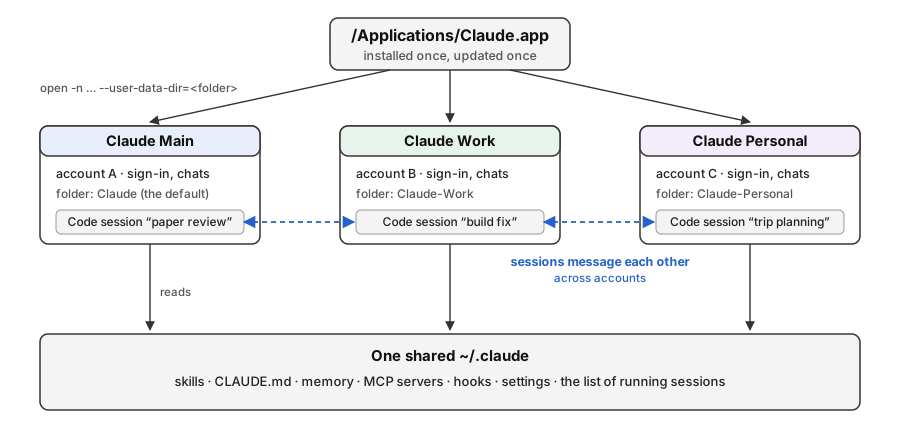
What makes it different
Claude Desktop runs one account at a time. If you open it again, the same window comes back to the front. Other tools work around this by keeping every account fully separate, Claude Code setup included. This tool keeps the sign-ins separate and lets the accounts share the rest, and that has three uses:
Separate accounts, one setup. Each window signs in to its own Claude account and keeps its own chats, projects and plan. Claude Code in every window reads the same
~/.claude: your skills,CLAUDE.md, memory, MCP servers, hooks and settings. If you write a skill once, every account loads it the next time it starts a session, and you never copy setup files between accounts.Sessions talk across accounts. Every account records its running Claude Code sessions in the same place, so a session in your Work window can see the sessions in your Personal window and send one a message, using Claude Code's built-in
ListAgentsandSendMessagetools. You can type "ask the trip planning session in my Personal account to check the hotel list" and the message reaches that session with no copy and paste.claude-multi-desktop peersshows which session runs in which account:$ claude-multi-desktop peers ACCOUNT STATUS SESSION Personal idle trip planning Work busy build fix default idle paper reviewNo dependencies, nothing patched. It is one bash script you can read in five minutes. Each launcher is a small app that opens the Claude.app you already have with Electron's public
--user-data-dirflag. It makes no copy of Claude.app, re-signs nothing and runs nothing in the background. When Claude updates, every account gets the update, and uninstalling means deleting the launcher.
Who it is for
claude-multi-desktop was designed for one person who has two Claude accounts of their own, a personal one and a work one, that cannot be opened in the same window. That happens in two cases:
- Your personal and work accounts use different email addresses. Each email is its own sign-in, and Claude Desktop holds one sign-in at a time, so without this tool you sign out of one account to use the other.
- Your work account came before your personal one. For example, your employer set up a seat under your work email before you had a personal account, and the personal account you added later is a separate sign-in.
In both cases the tool gives each account its own window, so both stay signed in, while Claude Code keeps one setup for you as a single user.
Other uses. The launchers work for any account folder, so the tool can technically run other kinds of profiles too. That is not what it was built for. If you use it outside the two cases above, you do so at your own risk, and the authors accept no responsibility for the consequences.
Usage quotas. Running several accounts to farm, pool or stretch usage limits is not supported. Issues and pull requests that ask for help with that will be closed.
Quick start
You need macOS and Claude Desktop in /Applications.
brew install jackson-cmd/tap/claude-multi-desktop
claude-multi-desktop add Work            # a launcher called "Claude Work" with its own sign-in
claude-multi-desktop open Work           # opens a second Claude window; sign in with your other account
claude-multi-desktop add Main --default  # a launcher for the account you already use
That's it. You now have Claude Work and Claude Main in ~/Applications, so Spotlight, Launchpad and the Dock all find them. Drag them to the Dock and click whichever account you want; both can stay open side by side.
No Homebrew, or would you rather not use Terminal? Install lists a Mac installer, a disk image with a double-click app, npm and a Claude Code plugin.
Install
Homebrew is the shortest way. The others are for people without Homebrew, or who would rather not use Terminal.
Homebrew
brew install jackson-cmd/tap/claude-multi-desktop
Mac installer (.pkg)
Download the .pkg file from the latest release and open it. It installs the claude-multi-desktop command to /usr/local/bin and the double-click app Claude Multi Desktop to /Applications.
The installer is not signed with an Apple Developer ID, so macOS blocks it the first time you open it: see If macOS blocks the app or installer.
To uninstall it:
sudo rm /usr/local/bin/claude-multi-desktop
sudo rm -rf "/Applications/Claude Multi Desktop.app"
sudo pkgutil --forget io.github.jackson-cmd.claude-multi-desktop
Disk image (.dmg)
Download the .dmg file from the same release page, drag Claude Multi Desktop to Applications and double-click it. It asks for an account name, an icon style (a coloured letter, your Claude icon with a letter badge, or a picture) and a colour, then makes the launcher and opens it. It can also open, rename or remove launchers you already made. You never need Terminal.
The app is not signed with an Apple Developer ID either: see If macOS blocks the app or installer. The disk image carries the same steps as a text file next to the app.
If macOS blocks the app or installer
If macOS says "Apple could not verify 'Claude Multi Desktop' is free of malware": the app and the installer are not signed with an Apple Developer ID, so macOS blocks them the first time you open them. The code is open source, and you only need to allow it once.
macOS 15 (Sequoia) and later
- Double-click the app (or the
.pkg) once. When macOS blocks it, click Done. - Open System Settings → Privacy & Security and scroll down to the Security section. You will see "'Claude Multi Desktop' was blocked to protect your Mac." (for the installer, its file name). Click Open Anyway.
- Enter your Mac login password (or use Touch ID). If macOS asks once more, click Open Anyway again. From then on it opens normally.
macOS 14 (Sonoma) and earlier
- Right-click (or Control-click) the app (or the
.pkg) and choose Open. - Click Open in the dialog. You only do this once.
Want no warning at all? Install with Homebrew instead: brew install jackson-cmd/tap/claude-multi-desktop.
npm
npx claude-multi-desktop add Work     # run it without installing
npm install -g claude-multi-desktop   # or install the command
Claude Code plugin
/plugin marketplace add jackson-cmd/claude-multi-desktop
/plugin install account-handoff@multi-desktop
The plugin adds one skill, handoff (also /account-handoff:handoff). It hands a task to a Claude Code session in another account using ListAgents, SendMessage and claude-multi-desktop peers, and relays the reply. It refuses to move work to another account because an account has hit a usage limit. The plugin does not install the claude-multi-desktop command itself; use one of the methods above for that.
curl or git clone
Install with curl, without Homebrewmkdir -p ~/.local/bin
curl -fsSL https://raw.githubusercontent.com/jackson-cmd/claude-multi-desktop/main/claude-multi-desktop -o ~/.local/bin/claude-multi-desktop
chmod +x ~/.local/bin/claude-multi-desktop
echo 'export PATH="$HOME/.local/bin:$PATH"' >> ~/.zshrc # then open a new terminal
Or clone the repository and run the script from the folder:
git clone https://github.com/jackson-cmd/claude-multi-desktop.git
cd claude-multi-desktop
./claude-multi-desktop add Work
Step by step
- Keep using Claude as you do now. Your current account stays as it is; nothing about it changes.
- Add an account:
claude-multi-desktop add Work. This creates~/Applications/Claude Work.appwith its own coloured icon, and an empty folder for that account's sign-in and chats. - Open it and sign in with the other account:
claude-multi-desktop open Work, or double-click the launcher. - Add a launcher for your first account:
claude-multi-desktop add Main --default. While another account is open, clicking the normal Claude icon only brings that window forward. Claude Main always opens your first account. - Add as many as you need:
add Personal,add "Client A", and so on. Pick a colour with--color 2E9D6Aor another look with--icon(see Icons and names).
Signing in. Each account signs in once, in its own window, and never again after that. See Sign-in and updates, which also says how to update Claude Desktop when several accounts are set up.
Sign-in and updates
Signing in
Each account signs in on its own, once. Open its launcher (or run claude-multi-desktop open NAME), click Log in in that window and finish in the browser. Your other accounts are not touched.
After that you never sign in again. Closing the window, restarting your Mac, updating Claude Desktop, renaming the launcher or updating claude-multi-desktop all keep the sign-in, because it is saved in that account's own folder (~/Library/Application Support/Claude-NAME). Only remove NAME --delete-data deletes it. If the browser sends the sign-in back to the wrong window, quit the other Claude windows, sign in, then reopen them from their launchers.
Updating Claude Desktop
Every account runs the same Claude.app, so one update covers all of them. Before you update, quit Claude in every account: while another account is still open, the update may not install, or the open windows may misbehave.
- Quit every Claude window (⌘Q in each one, or Claude → Quit Claude).
- Open Claude the normal way, or from your Claude Main launcher, and install the update when Claude offers it (or choose Claude → Check for Updates).
- Open your other accounts again from their launchers.
You never need to remake launchers after a Claude update. If Claude restarts itself after an update and a window comes back on the wrong account, quit it and open it again from its launcher.
Updating claude-multi-desktop
| Installed with | Update with |
|---|---|
| Homebrew | brew upgrade claude-multi-desktop |
| Mac installer or disk image | Download the newer .pkg or .dmg from the latest release and install it the same way; it replaces the old copy |
| npm | npm install -g claude-multi-desktop@latest, or run npx claude-multi-desktop@latest |
| curl | Run the same curl line again |
| git clone | git pull in the folder |
| Claude Code plugin | /plugin marketplace update multi-desktop |
Launchers you already made keep working after an update, because they only open Claude.app; there is nothing to redo.
Icons and names
By default a launcher gets a coloured square with the first letter of its name. You can pick another look when you add it, or change it later:
claude-multi-desktop add Work --icon claude                  # your Claude icon with a coloured letter badge
claude-multi-desktop add Home --icon ~/Pictures/home.png     # any PNG, JPEG, HEIC or ICNS picture
claude-multi-desktop icon Work --icon claude --color 2E9D6A  # change an existing launcher's icon
claude-multi-desktop rename Work Office                      # rename a launcher; sign-in and chats stay
claude-multi-desktop list --names                            # print the launcher names, one per line
--icon claudedraws your own Claude icon with a coloured letter badge, on your Mac, from the Claude.app you have installed. Nothing from Anthropic is shipped with this tool.--icon /path/to/picturetakes any PNG, JPEG, HEIC or ICNS file.renamechanges the launcher's name and keeps the account's sign-in and chats. The account's folder (for exampleClaude-Work) is not renamed.list --namesprints bare names, which is handy in scripts.
One limit. The custom icon belongs to the launcher, so you see it in Finder, Spotlight and Launchpad. Once a window is open, the Dock shows the normal Claude icon and name for it, because Claude.app decides that and this tool never modifies Claude.app.
Sessions talk across accounts
This works in the Code tab of Claude Desktop (tested with Claude Code 2.1). Open a session in any account and ask in plain words:
- "List the other Claude sessions running on this Mac." Claude calls
ListAgentsand shows sessions from every account. - "Send the session called build fix in my Work account this summary and ask it to run the tests." Claude calls
SendMessageand the Work session picks it up. - "When it replies, tell me what it found." Replies come back the same way.
For example, you can draft a plan in your personal account and hand the implementation to a session in your work account, or have one account review what another wrote, with the shared skills and CLAUDE.md on both sides. The Claude Code plugin packages this hand-over as a skill.
From the terminal, claude-multi-desktop peers lists the running sessions and the account each one belongs to. It reads Claude Code's local session list, so a future Claude release may change what it can show.
What is shared and what is not
| Separate in each account | Shared by every account | |
|---|---|---|
| Sign-in, plan, chats and projects | ✓ | |
Desktop settings, connectors, extensions, claude_desktop_config.json |
✓ | |
Claude Code skills, commands, agents, hooks, settings.json |
✓ | |
CLAUDE.md and Claude Code memory |
✓ | |
| Claude Code MCP servers | ✓ | |
| List of running Claude Code sessions (what makes messaging work) | ✓ |
Claude Desktop keeps each account in its own folder under ~/Library/Application Support/ (Claude for your first account, Claude-Work, Claude-Personal, …). Claude Code keeps its setup in ~/.claude (and ~/.claude.json), and the launchers leave both alone, so every account uses the same ones.
Commands
| Command | What it does |
|---|---|
add NAME |
Make the launcher Claude NAME with its own sign-in (folder Claude-NAME) |
add NAME --default |
Make a launcher for the account you already use |
add NAME --color HEX |
Choose the icon colour, e.g. --color 7A5AE0 |
add NAME --icon claude |
Use your own Claude icon with a coloured letter badge, drawn on your Mac |
add NAME --icon /path/to/picture |
Use any PNG, JPEG, HEIC or ICNS picture as the icon |
icon NAME --icon … --color HEX |
Change the icon or colour of an existing launcher |
rename NAME NEW |
Rename a launcher and keep its sign-in and chats (the account folder keeps its name) |
list |
Show your launchers, their folders and which ones are open |
list --names |
Print the launcher names only, one per line |
open NAME |
Open that account's window |
peers |
Show the Claude Code sessions running in every account |
remove NAME |
Delete the launcher and keep the account's sign-in and chats |
remove NAME --delete-data |
Also delete that account's folder (asks you to type the name; never touches your first account) |
Launchers go to ~/Applications; set CMD_APPS_DIR to put them elsewhere. If Claude.app is not in /Applications or ~/Applications, set CLAUDE_APP=/path/to/Claude.app.
How it works
Claude Desktop is an Electron app. Electron lets one app run several times if each copy keeps its data in a different folder, which the --user-data-dir flag sets. A launcher made by add Work contains this one line:
exec open -n -a "/Applications/Claude.app" --args --user-data-dir="$HOME/Library/Application Support/Claude-Work"
open -n starts a new copy even when Claude is already running, and the flag gives that copy its own sign-in and chats. Claude Code sessions started from any copy still use ~/.claude, which is why the setup and the session list are shared. The default icon is a coloured square with the first letter of the name, drawn on your Mac when you run add. Nothing from Anthropic is shipped; --icon claude uses the icon of the Claude you have installed, locally.
Good to know
- Dock icons. Once a window is open, the Dock shows the normal Claude icon and name for it, whatever icon the launcher has, because Claude.app decides that and this tool never modifies Claude.app. Start accounts from the launchers, which have their own icons.
- Updating Claude. Quit Claude in every account before you update it; see Updating Claude Desktop.
- Shared means shared. Memory or
CLAUDE.mdtext written in one account is visible to the others. If work data must stay inside the work account, use a tool that isolates Claude Code too (see below). - macOS only. Windows and Linux users, see the tools below.
Other tools
Several free tools run more than one Claude Desktop account. They make different choices, and which one fits depends on what you want shared:
| Tool | Approach | Pick it when |
|---|---|---|
| claude-multi-desktop (this) | One bash script; separate sign-ins, one shared ~/.claude |
you want one Claude Code setup in every account and sessions that can message across accounts |
| claude-multiprofile | npm tool; separate Desktop and Claude Code profiles, a doctor command |
you want accounts fully isolated, Claude Code included |
| claude-fix | Shell script with isolated launchers and an optional sign-in router | you want isolated launchers installed through Homebrew |
| Duplex | SwiftUI app for any Electron app | you want a GUI and other Electron apps too |
| claude-desktop-clone | PowerShell | you are on Windows |
FAQ
How do I use two Claude accounts at the same time on a Mac?
Run claude-multi-desktop add Work, open Claude Work and sign in with the second account. Your first account keeps working in its own window, and both stay open side by side.
Why does opening Claude a second time just bring the same window back?
Claude Desktop allows one running copy per data folder. A launcher from this tool starts Claude with a different data folder, so macOS opens a second, independent window.
Do my Claude Code skills, CLAUDE.md and MCP servers work in every account?
Yes. Every account reads the same ~/.claude, so they are all available everywhere, and a change made in one account shows up in the others the next time a session starts.
Can Claude Code sessions in different Claude accounts talk to each other?
Yes. Ask a session to list the other sessions on this Mac and to send one of them a message; it uses Claude Code's ListAgents and SendMessage tools. See Sessions talk across accounts.
Do I need Terminal?
No. The disk image has a double-click app that asks for a name, an icon style and a colour, makes the launcher and opens it. The command line does the same and also lets you script it.
Why does the Dock show the normal Claude icon for an open window?
The custom icon belongs to the launcher. Once a window is open, the Dock icon and name come from Claude.app, and this tool never modifies Claude.app, so they stay as Claude ships them.
Does this modify, copy or re-sign Claude.app?
No. Launchers only open the Claude.app you already have, with a public Electron flag. Claude's own updates keep working for every account.
How do I remove an account or uninstall?
Run claude-multi-desktop remove Work to delete the launcher, or remove Work --delete-data to delete that account's folder too. To uninstall the tool, remove your launchers and then remove the command the way you installed it (for example brew uninstall claude-multi-desktop; the steps for the Mac installer are under Mac installer). Your first account is never touched.
Is this an official Anthropic tool?
No. It is an independent open-source project and is not affiliated with or endorsed by Anthropic. "Claude" is a trademark of Anthropic. Each account you sign in to remains subject to Anthropic's terms; see the disclaimer.
Disclaimer
claude-multi-desktop is an independent open-source project. It is not affiliated with, endorsed by or supported by Anthropic. "Claude" and "Claude Desktop" are trademarks of Anthropic.
Intended use. The tool is built for one person who keeps a personal and a work Claude account open side by side, as described in Who it is for. Any other use, such as running other kinds of profiles, is outside its intended use and entirely at your own risk.
Acceptable use. Use this tool only for legitimate purposes and only with Claude accounts you are entitled to use. Do not use it:
- to abuse usage quotas, that is, to get around, farm, pool or stretch usage limits, rate limits or plan restrictions, for example by switching to another account to keep working after one has reached its limit. This project does not support such use;
- to share accounts or sign-ins with other people, or to use accounts that are not yours;
- for anything that Anthropic's Consumer Terms, Commercial Terms or Usage Policy, or your employer's rules, do not allow.
You are responsible for how you use your accounts. Anthropic may restrict or close accounts that break its terms, and the authors of this project accept no responsibility for that or for any other consequence of using it. The software is provided "as is", without warranty of any kind (see LICENSE).
Tests
bash tests/test.sh
The tests run in a temporary home folder with a stand-in Claude.app. They create, list and remove launchers, check the icon and the plist, and map fake sessions to accounts, without ever opening Claude. CI runs them on macOS together with ShellCheck.
Changelog
See CHANGELOG.md.
License
Yorumlar (0)
Yorum birakmak icin giris yap.
Yorum birakSonuc bulunamadi