pyauthenticator
Health Gecti
- License — License: BSD-3-Clause
- Description — Repository has a description
- Active repo — Last push 0 days ago
- Community trust — 11 GitHub stars
Code Gecti
- Code scan — Scanned 12 files during light audit, no dangerous patterns found
Permissions Gecti
- Permissions — No dangerous permissions requested
Bu listing icin henuz AI raporu yok.
Similar to the Google authenticator just written in Python to automate annoying two factor authentication.
pyauthenticator


Similar to the Google authenticator just written in Python. With more and more services requiring two factor
authentication without supporting application specific passwords or other forms of token based authenication
suitable for automation this python packages allows to generate two factor authentication codes on the commandline
or in python.
For Users
Installation
Install pyauthenticator via conda:
>>> conda install -c conda-forge pyauthenticator
Alternatively, pyauthenticator can also be installed via pip:
>>> pip install pyauthenticator
Command Line
Get help how to use pyauthenticator using the --help/-h option:
>>> pyauthenticator --help

usage: pyauthenticator [-h] [-qr] [-a ADD] service

positional arguments:
  service            Service to generate optauth code for. Currently no
                     service is defined in the ~/.pyauthenticator config file.

options:
  -h, --help         show this help message and exit
  -qr, --qrcode      Generate qrcode as <service.png> file.
  -a ADD, --add ADD  Add service by providing the <qrcode.png> file as
                     additional argument.
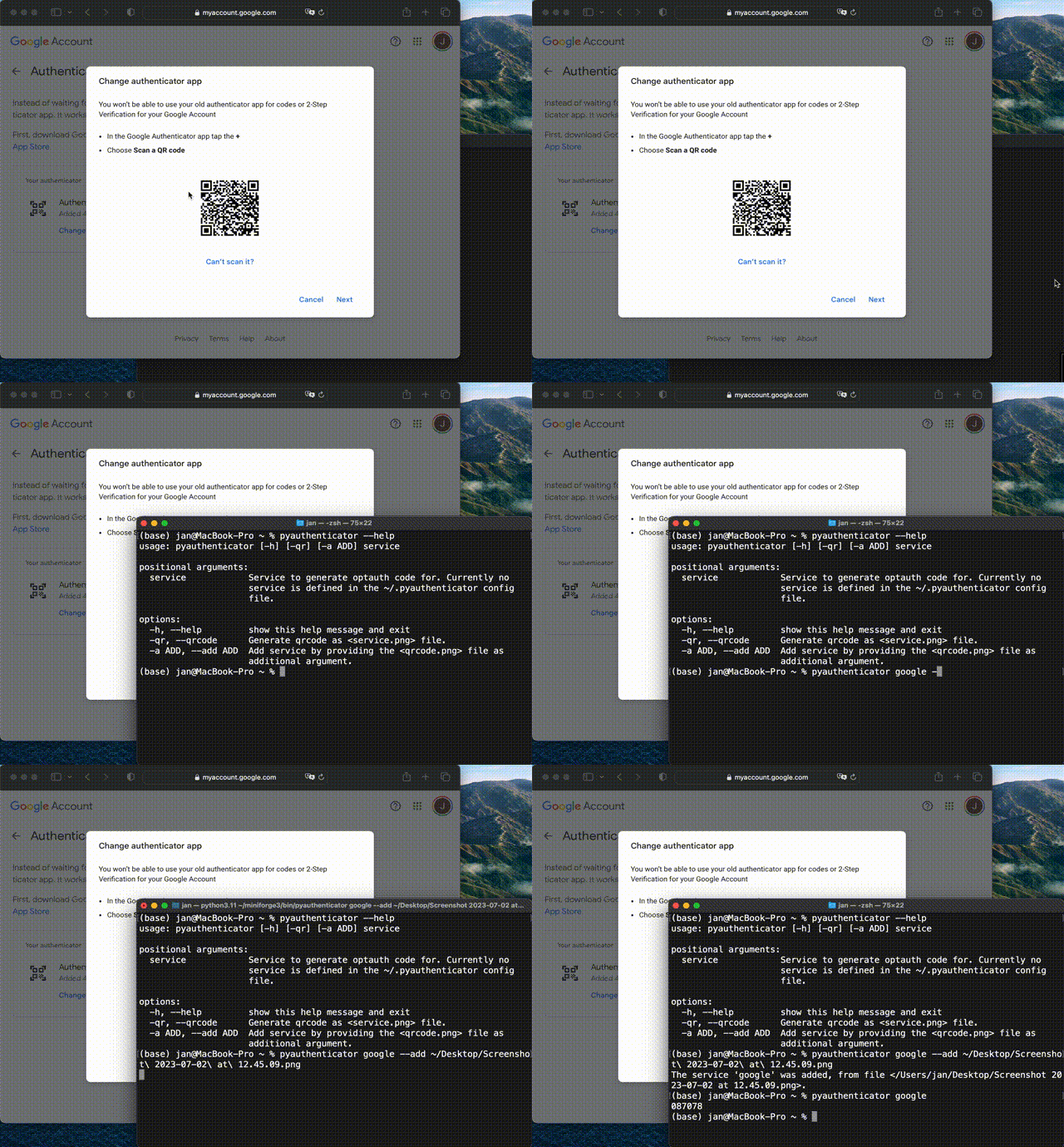
Add google as new service after saving the qrcode to Screenshot 2023-07-02 at 12.45.09.png to your desktop:
>>> pyauthenticator google --add ~/Desktop/Screenshot\ 2023-07-02\ at\ 12.45.09.png

The service 'google' was added, from file </Users/jan/Desktop/Screenshot 2023-07-02 at 12.45.09.png>
Afterwards, new authentication codes can be generated for the service google using:
>>> pyauthenticator google

087078
Beyond google, pyauthenticator works for any service which implements the two factor authentication.
If you mistype the name of the service, then pyauthenticator suggests alternative options:
>>> pyauthenticator googel

The service "googel" does not exist.

The config file ~/.pyauthenticator contains the following services:
  * google

Choose one of these or add a new service using:
  pyauthenticator --add <qr-code.png> <servicename>
Support
For any support requests feel free to open an issue on Github.
For Developers
Python Interface
The same functionality which is available on the command line is also available via the python interface:
from pyauthenticator import get_two_factor_code
get_two_factor_code(service)
So pyauthenticator can be integrated in existing python packages which need access to resources protected by two
factor authentication.
Configuration
The configuration is stored in ~/.pyauthenticator it is written in the JSON format. For a given service like github
the config file contains:
{"google": "otpauth://totp/Google:<username>?secret=<secret>&issuer=Google"}
With the Google username <username> and the corresponding secret <secret> being contained in the QR code.
MCP Server
pyauthenticator also provides an MCP server for MCP-compatible hosts on Python 3.10+.
Install the optional dependency with:
pip install "pyauthenticator[mcp]"
The server is exposed as the pyauthenticator-mcp command. For example, a Claude Desktop or
Claude Code configuration can reference it as:
{
  "mcpServers": {
    "pyauthenticator": {
      "command": "pyauthenticator-mcp"
    }
  }
}
The server runs over the stdio transport and reads/writes the same ~/.pyauthenticator
configuration file as the command line interface, so services added via one interface are
immediately available in the other.
Locating claude_desktop_config.json
Claude Desktop reads its MCP server configuration from a claude_desktop_config.json file. Its
default location depends on the operating system:
- macOS:
~/Library/Application Support/Claude/claude_desktop_config.json - Windows:
%APPDATA%\Claude\claude_desktop_config.json - Linux:
~/.config/Claude/claude_desktop_config.json
Rather than remembering the path, you can let Claude Desktop open the file for you: open
Settings, switch to the Developer tab, and click Edit Config. This opens the folder
containing claude_desktop_config.json (creating an empty one if it does not exist yet) in your
system file manager, ready to be opened in a text editor.
The file usually already contains other, unrelated settings managed by Claude Desktop itself
(window/pane layout, feature flags, per-account preferences, and so on) in addition to themcpServers section. Only add or edit the mcpServers entry for pyauthenticator and leave the
rest of the file untouched, for example:
{
  "mcpServers": {
    "pyauthenticator": {
      "command": "/absolute/path/to/pyauthenticator-mcp"
    }
  },
  "preferences": {
    "...": "..."
  }
}
Use an absolute path for command
Claude Desktop does not launch MCP servers through your interactive login shell, so it will not
source ~/.zshrc, ~/.bashrc, or a conda/mamba environment activation script. Ifpyauthenticator-mcp was installed into a conda/mamba environment or any location that is not on
the reduced PATH Claude Desktop uses to spawn subprocesses, referencing the bare command name
("command": "pyauthenticator-mcp") will fail with a "command not found"-style error even though
it works fine in your terminal.
To avoid this, set command to the absolute path of the executable, for example/Users/<you>/mambaforge/bin/pyauthenticator-mcp or /Users/<you>/.venv/bin/pyauthenticator-mcp.
You can find this path by activating the relevant environment in your terminal and running:
which pyauthenticator-mcp
Available tools
| Tool | Arguments | Description |
|---|---|---|
get_code |
service: str |
Generate a two factor authentication code for a configured service. |
list_services |
– | List the configured service names. |
add_service |
service: str, qrcode_path: Optional[str], qrcode_base64: Optional[str] |
Add a service from a QR code file path or base64-encoded PNG bytes. Provide exactly one of qrcode_path or qrcode_base64. |
remove_service |
service: str |
Remove a configured service. |
get_qrcode |
service: str |
Return the QR code for a configured service as an MCP image (PNG). |
get_code, remove_service and get_qrcode raise an error listing the currently configured
services whenever service does not match an existing entry, mirroring the command line
behaviour for unknown services.
License
The pyauthenticator package is licensed under the BSD-3-Clause license.
Yorumlar (0)
Yorum birakmak icin giris yap.
Yorum birakSonuc bulunamadi