orchy-ai
Health Uyari
- License — License: Apache-2.0
- Description — Repository has a description
- Active repo — Last push 0 days ago
- Low visibility — Only 5 GitHub stars
Code Uyari
- network request — Outbound network request in dashboard/js/app.mjs
- network request — Outbound network request in dashboard/js/attach.mjs
- network request — Outbound network request in dashboard/js/client.mjs
- network request — Outbound network request in dashboard/js/clientcall.mjs
Permissions Gecti
- Permissions — No dangerous permissions requested
Bu listing icin henuz AI raporu yok.
Orchy: a local-first orchestrator for AI agents. Run Claude Code, Codex, OpenCode and Hermes agents across separate workspaces, each with its own accounts and apps through One. Approval gates, voice and a dashboard included.

Orchy
One chat box for all your AI agents: Orchy runs them on your own computer and asks you first.




Quick start · How it works · Harnesses · Privacy · Docs
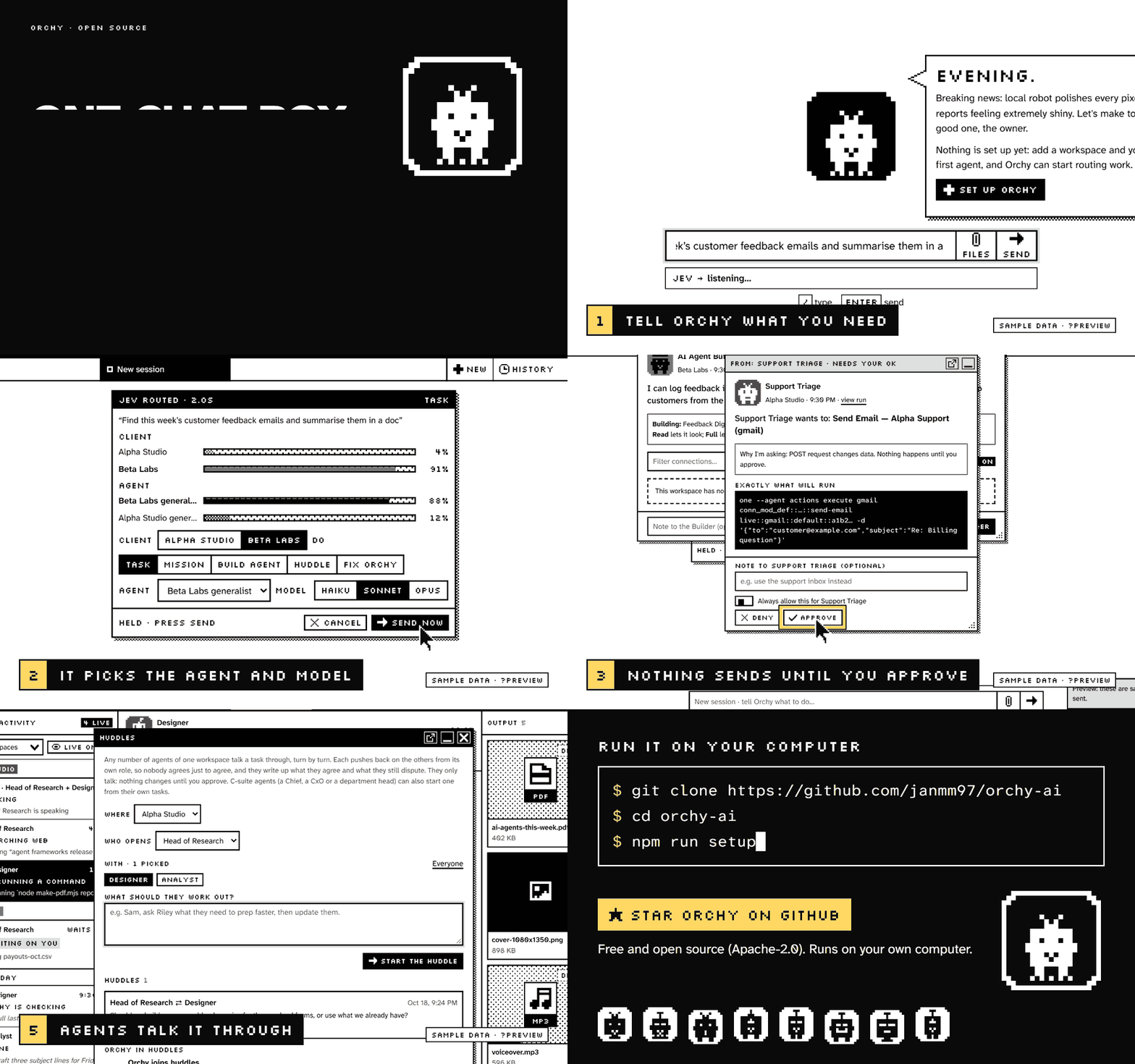
Real screens from a clean install, using the dashboard's built-in sample data (?preview), shown in Orchy's 1-bit greys. Nothing in them is real and nothing was sent. The title and end cards are illustrations.
Quick start
git clone https://github.com/janmm97/orchy-ai
cd orchy-ai
npm run setup
That's it. Setup checks your tools, asks three questions, starts Orchy and opens the dashboard in your browser.
Rather not use a terminal? Open the launchers folder and double-click the one for your computer: Start Orchy.cmd (Windows), Start Orchy.command (macOS) or Start Orchy.sh (Linux). It runs setup too. Setup also puts that launcher in the Orchy folder, so from then on you double-click it to start Orchy.
⭐ Like it? Star Orchy so more people find it. · 🛠️ Want to help? PRs welcome: run npm test first and read docs/CONTRIBUTING.md.
🔌 Orchy now works with One. Your agents use Gmail, Slack, Notion, Stripe and 1000+ more apps through the One CLI.
What setup asks- Voice? Talk to Orchy and call your agents. If yes, pick the service you have (ElevenLabs, Deepgram or both) and paste its key. If no, Orchy is chat only. Settings → Voice turns it on later.
- Jev? The routing model that picks the workspace, agent and model for each message. If yes, use a TypeSafe key, or another provider: OpenRouter, OpenCode Zen or Vercel AI Gateway. If no, Orchy matches each message by its words and the agent picks its own tools. Settings → "Use Jev?" changes it later.
- Scripts? Let agents run scripts on their own unless a script looks like a decision (recommended), or ask before every script.
Each key is checked once with its service and saved in .env on your PC. Keys are hidden as you type. Then Orchy starts and your browser opens the dashboard, where the setup guide walks you through adding a workspace, connecting apps and making your first agent. Run npm run setup again any time to change your answers, and npm start to start Orchy after that.
Prerequisites
- Node.js 20 or newer.
- Git, to clone the repository.
- At least one harness CLI installed and signed in. Claude Code is recommended (see Supported harnesses).
- The One CLI (
one), so agents can use your apps. Setup offers to install it. See docs/ONE.md. - Optional: ffmpeg (with ffprobe), for thumbnails, video posters and playable copies in the file viewer. Without it every file still opens as is. Orchy finds it on your PATH, in the usual install folders (Homebrew, winget), or at
FFMPEG_PATHin.env.
Keys
npm run setup asks for these. You can also put them in .env (see .env.example) or in Settings in the dashboard. All of them are optional.
| Key | What it unlocks | Without it |
|---|---|---|
TYPESAFE_API_KEY |
Jev from TypeSafe, the native model | Another Jev provider if one is set, else your agent harness reads each message (slower), else keyword matching |
OPENROUTER_API_KEY |
Jev through OpenRouter, as ~typesafe/jev-latest (a chat model answering Jev's questions) |
As above |
AI_GATEWAY_API_KEY |
Jev through Vercel AI Gateway, as typesafe-ai/jev (native) |
As above |
OPENCODE_API_KEY |
Jev through OpenCode Zen, as jev-1.13 (a chat model). OpenCode's free tier only works inside the OpenCode app |
As above |
ELEVENLABS_API_KEY |
Orchy's spoken replies and voice calls with agents | The browser's voice |
DEEPGRAM_API_KEY |
Orchy's spoken replies with Deepgram (or the backup voice when both keys are set) | The browser's voice |
VOICE_PROVIDER |
Which service speaks: elevenlabs or deepgram |
ElevenLabs first, Deepgram as backup |
JEV_PROVIDER picks one provider when several keys are set (typesafe, openrouter, vercel, opencode, or off). With Jev off, the harness you installed stands in: it answers Jev's routing questions (10 to 30 seconds a message, on that harness's own sign-in), and keyword matching is the last resort. The same harness answers when you talk to Orchy if Claude Code isn't installed: Codex or Hermes, without tools (it can't open files you attach; Claude Code can). ORCHY_BRAIN picks one (claude, codex, hermes) or off. VOICE_ENABLED=0 switches voice off: nothing speaks, nothing rings, and nothing goes to ElevenLabs or Deepgram.
What Orchy is
Orchy is a local AI-agent orchestrator. You tell Orchy what you need, by text or voice. A small routing model (Jev, made by TypeSafe, a separate company with no affiliation to Orchy) picks the workspace, the agent and the model. The work runs in that workspace, under that workspace's own account, using a coding-agent CLI (a "harness"). Orchy reports back and keeps a log of every finished task. It runs on your own machine, with a dashboard at http://localhost:8008.
Why Orchy? You keep one business or client per workspace, each with its own logins, so accounts never mix. Your agents use your real apps through One, and Orchy stops for your OK before anything outward-facing: sending, posting, deleting, spending.
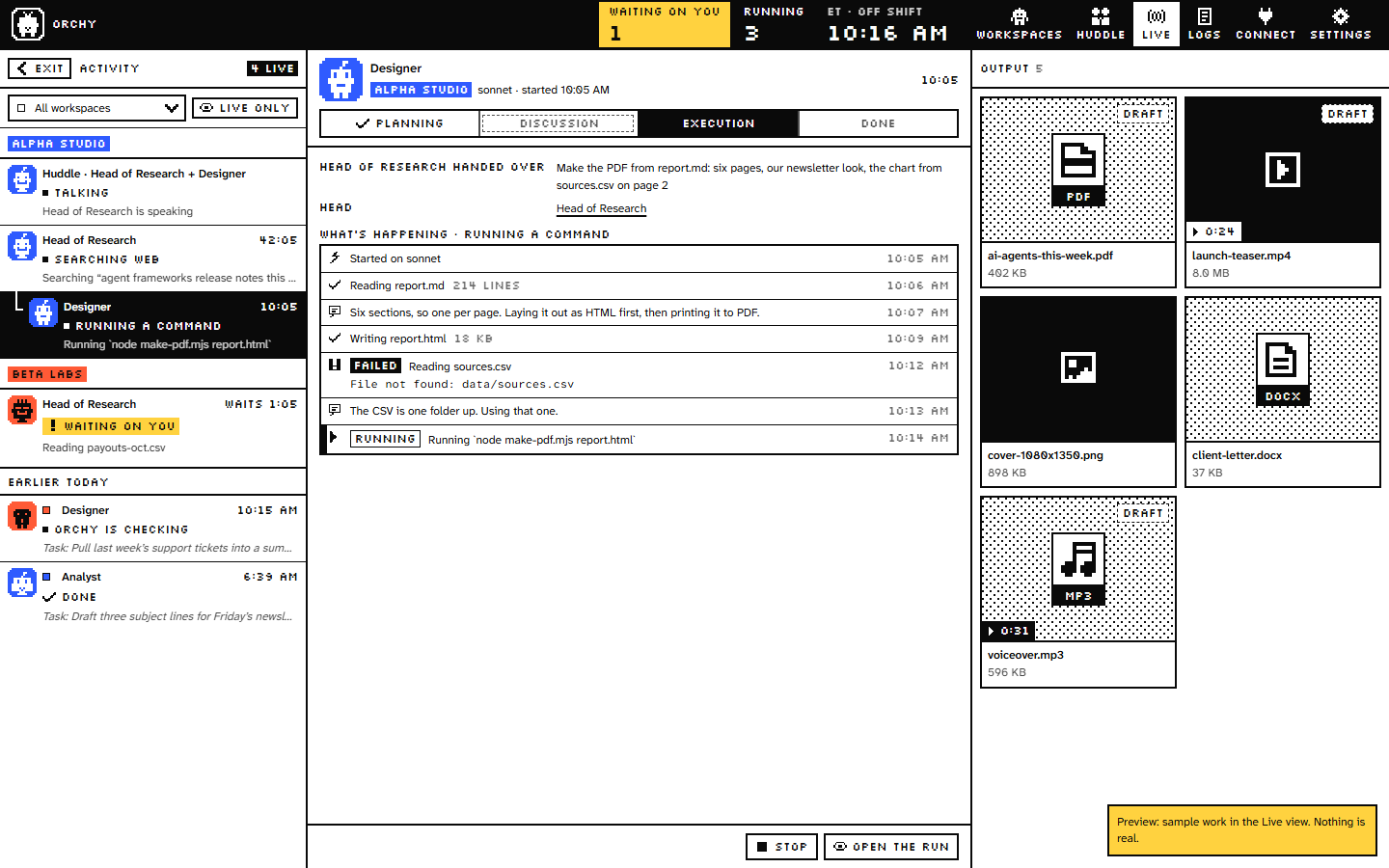
The Live view, with the dashboard's built-in sample data (?open=live&preview=live). Nothing in it is real.
✨ Highlights
- 💬 Text or voice. Type a task, or talk to Orchy and call your agents. Voice is optional and off until you switch it on (ElevenLabs or Deepgram).
- 🧭 Smart routing, optional. Jev picks the workspace, agent and model, and shows you its pick first. Without it, Orchy matches each message by its words.
- 🧰 Bring your own harness. Claude Code, Codex, Hermes, Antigravity or Cursor, each signed in with the account you pick for that workspace, and every one held behind your approvals.
- 🔌 Your real apps. Gmail, Slack, Notion, Stripe and 1000+ more through the One CLI.
- ✋ Asks before it acts. Money, sending, calendar changes, deleting and sharing wait for your OK in the dashboard.
- 🗂️ Workspaces that never mix. One folder per business or client, with its own logins, agents and instructions.
- 🤝 Huddles and missions. Agents talk a task through together, or hand work along a chain of steps.
- 📺 Live view and file viewer. Watch every run step by step and open what it made, right in the dashboard.
- 🏠 Local only. The dashboard listens on 127.0.0.1 and takes changes only from a browser you paired.
📖 Contents
- Quick start
- What Orchy is
- If you are an AI agent
- How it works
- What leaves your machine
- Security
- First run
- Getting started with One
- Core ideas
- Supported harnesses
- Troubleshooting
- Project structure
- Contributing
- License
If you are an AI agent setting this up or working in this repo: read this first
[!IMPORTANT]
This applies to Claude Code, Codex, Cursor, Hermes, Antigravity and any other agent. Read this whole README before you change anything.
- Never mix accounts. Each workspace runs under exactly one login per harness (
claudeAccount,codexAccountand so on inorchestrator/config.json).accountCheckinorchestrator/lib/workspaces.mjschecks it before every run. Do not weaken it.- One login per workspace. Each workspace has its own One login (
one init --auth browser --project, run inside that workspace folder). Never run aoneaction for one workspace from another workspace's folder. A workspace without its own login must not runone.- Workspaces live in
workspaces/(git-ignored). Each has its own CLAUDE.md / AGENTS.md. Read the one in the workspace you work in.- Do not weaken the safety files:
orchestrator/lib/policy.mjs,orchestrator/lib/gate.mjs, the cross-site / Host / Origin check inorchestrator/server.mjs, the paired-browser check (orchestrator/lib/owner.mjs, andownerOnlyandFILE_READSinorchestrator/server.mjs), the artifact path guard (resolveFileinorchestrator/lib/artifacts.mjs), the automatic retry gate (retryGateinorchestrator/lib/recover.mjs), the Cloudflare refusals and the Access token check inorchestrator/portal.mjsandorchestrator/lib/cfaccess.mjs, and the client sandbox (orchestrator/lib/clientspace.mjs,orchestrator/lib/clients.mjs).- Never commit secrets or machine state:
.env,orchestrator/config.json,orchestrator/voice-agents.json,orchestrator/data/.- The dashboard API has no password login. It only answers its own origin on 127.0.0.1, and changes are only taken from a browser the owner paired. Keep it that way. Never bind it to another interface or put it behind a tunnel.
- Ask the owner before anything outward-facing: sending, posting, deleting, charging, sharing.
- One task, one folder. Files a task makes go in their own folder under the
Tasks/of the agent's home (<Department>/<call name>/Tasks/), or the workspace'sTasks/in a workspace without departments.
How it works
flowchart TD
    you(["You: text or voice"]) --> jev["Jev picks the workspace, agent and model"]
    jev --> agent["The agent works in that workspace,<br/>under the workspace's own account"]
    agent --> one["One CLI runs its tool calls and actions<br/>in your apps: Gmail, Slack, Notion and 1000+ more"]
    agent --> mcp["External MCP servers you add<br/>in the dashboard's Connections"]
    one --> ok["It stops for your OK on decisions:<br/>sending, posting, deleting, spending"]
    mcp --> ok
    ok --> done(["It reports back: LOGS.md,<br/>plus a message or voice"])
You (text or voice)
   |
   v
Jev picks the workspace, agent and model
   |
   v
The agent works in that workspace, under the workspace's own account
   |
   +--> One CLI runs its tool calls and actions in your apps
   |    (Gmail, Slack, Notion and 1000+ more)
   |
   +--> External MCP servers you add in the dashboard's Connections
   |
   v
It stops for your OK on decisions: sending, posting, deleting, spending
   |
   v
It reports back: LOGS.md, plus a message or voice
Type a task on the home screen. Jev shows a routing card (workspace, agent, model) and sends it after a short countdown, or waits for you when it is unsure.
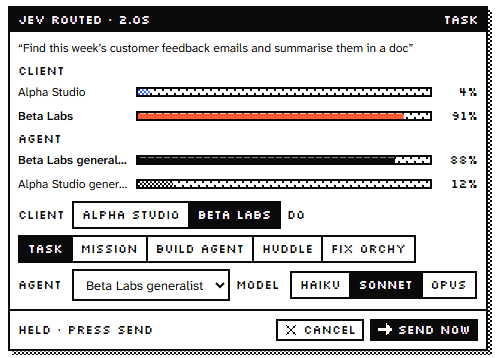
A routing card, from the dashboard's sample data (?preview=route).
What leaves your machine
Orchy runs on your PC, but these services see some of your data when you use them:
- The Jev provider (TypeSafe, OpenRouter, Vercel AI Gateway or OpenCode Zen): each instruction you type, plus the names and descriptions of your workspaces and agents, so Jev can route it. Without a Jev key, routing stays on your PC.
- Your harness (Claude Code, Codex and so on): everything the agent works on, under that workspace's own account, as it would if you ran the harness yourself.
- One: the app actions your agents run, under that workspace's One login.
- ElevenLabs (only with voice on): your agents' names, roles and instructions (each gets a voice agent), what Orchy says aloud, and the audio of voice calls.
- Deepgram (only with voice on): what Orchy says aloud, when it is the voice in use.
- Cloudflare: client pages, if you put them online.
Orchy does not send anything to its authors.
Security
- Local only. The dashboard answers only its own origin on 127.0.0.1. It has no password login, so it must never be bound to another interface or put behind a tunnel, and it refuses Cloudflare traffic.
- Paired browsers. Only a paired browser can make changes in Orchy (send tasks, answer approvals, change settings). See Pairing under First run.
- An approval gate on every harness. Agents do routine work alone and stop for decisions: money, sending, calendar changes, deleting, sharing. The full rules are under Approval gate and policy.
- Accounts never mix. Every run is checked against the workspace's own harness login before it starts, and each workspace has its own One login.
- Every harness asks first. Claude Code and Codex send their own approval requests to Orchy. Hermes, Antigravity and Cursor go through hooks Orchy writes into each run. See Supported harnesses.
- Never tunnel port 8008. The dashboard refuses Cloudflare traffic. Only client pages (port 8009) go online, through a Cloudflare Tunnel with Cloudflare Access.
Report security problems privately: see SECURITY.md.
First run
The dashboard's setup guide has seven steps:
- You. Tell Orchy your name and time zone.
- Tools. Orchy checks that Node, a harness CLI and the One CLI are installed.
- Keys. Add the optional keys, or skip them.
- First workspace. Workspaces, then Add. Name it, say what it is for, pick its harness and account. Orchy creates the folder under
workspaces/. - Sign in to One. Workspaces, open the workspace, "Sign in to One". See docs/ONE.md.
- First app. Connections, the workspace, "Add app".
- First agent. Ask the AI Agent Builder for an agent and choose which apps it gets.
Pairing. Only a paired browser can make changes in Orchy (send tasks, answer approvals, change settings). Orchy pairs the browser it opens for you. Another browser shows a "Pair this browser" window: type the code from the terminal where Orchy is running, or make one on a paired browser in Settings → This browser. This keeps the agents running on your PC from making changes in your name.
Then type a task on the home screen.
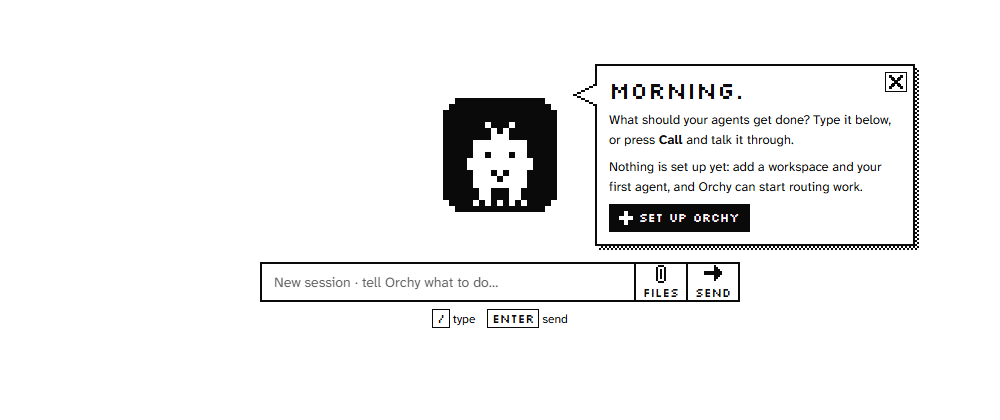
The home screen on a fresh install.
Getting started with One
Orchy works with One.
One connects agents to third-party apps. Orchy uses its CLI for every app connection. The short version is in docs/ONE.md. The same text is shown in the terminal and the dashboard.
- Create a One account at https://app.withone.ai/sign-in.
- Use one One organization per business or client. The organization switcher is at the top left of the One dashboard.
- In Orchy: Workspaces, open the workspace, "Sign in to One". It runs
one init --auth browser --projectin that workspace folder. Choose the organization this workspace should use when One asks. The login is saved for that folder only. - Connected apps are listed on the "Connected Apps" page in the One dashboard (left sidebar). "Add new app" connects one.
- In Orchy: Connections, the workspace, "Add app". It runs
one connection add <app>and opens the app's sign-in page. - If an app is not available, switch it on in the One dashboard: Developers (bottom left), "Embeddable Auth" tab, search the tool, turn on "Visible". Full steps are in docs/ONE.md.
- The AI Agent Builder asks which connections each agent gets, Read or Full. Changes to agents need your approval.
Core ideas
The short version. Every detail is in docs/CONCEPTS.md.
| Idea | In one line | |
|---|---|---|
| 🗂️ | Workspaces | A folder in workspaces/ for one business or client, with its own harness account, One login, agents and CLAUDE.md / AGENTS.md. Shown as "Acme Workspace". |
| 🏢 | Departments, agent homes and Resources | A workspace is laid out like a company: department folders, one home per agent with its Tasks/, and Resources/ for every skill, MCP server copy and CLI note. |
| 🤖 | Agents | A Markdown file (.claude/agents/<name>.md) with a name, a role, instructions and the apps it may use. |
| 🛠️ | AI Agent Builder | Every workspace has one. It researches the role, writes new agents and asks which connections each gets. Changes need your approval. |
| 🔑 | MCP sign-in | Remote MCP servers that sign in with an account get a Sign in button; the token stays in Orchy's data folder, never in a workspace. |
| 👥 | Department heads and delegation | An agent with a team: list hands parts of a task to its team, one level deep, at most three at once. |
| 🤝 | Huddles | Two or more agents talk a task through and push back on each other. Nothing is built until you approve their agreement. |
| 🧩 | Missions | One ask that needs several agents in a row, planned as 2 to 6 steps you can change, swap or drop before it starts. |
| ✋ | Approval gate and policy | Every harness approval request goes through gate.mjs and policy.mjs: routine work runs, decisions wait for you. |
| ⏳ | Run queue and usage limits | At most three agents per account at once by default; a run that hits a usage limit pauses and resumes by itself. |
| 📡 | Live run events | Every step is streamed to the dashboard and kept on disk, with secrets blanked first. |
| 💲 | Usage and cost | Tokens and cost per run, and a weekly review that suggests savings. |
| 📁 | Artifacts | Every file an agent writes is registered, so you can open it in the dashboard. |
| ✅ | Orchy checks the result | Before reporting, Orchy checks that "done" holds up. It flags, never re-runs on its own. |
| 🔁 | Recovery | Failed runs say why. Read-only runs that failed on the engine or network retry by themselves; anything else asks you. |
| 📺 | Live view | LIVE in the top bar: Activity, Work and Output columns. On a phone they become tabs. |
| 🖼️ | File viewer | One viewer for images, video, audio, PDFs, Markdown, code, tables, Word and slides. |
| 🪟 | One window at a time | Opening a page or an item takes the place of the one that's up. Decisions are never swapped away. |
| 🕘 | Scheduling | schedule: weekdays 9:00 in an agent's frontmatter runs it by itself while Orchy is running. |
| 🧵 | Sessions | Each conversation with Orchy has its own thread, memory and runs. |
| 🌐 | Client pages | Share chosen agents with a client on their own page and sandbox. |
| 🔧 | Orchy fixing itself | Tell Orchy what is broken; a "Fix Orchy" card always waits for your OK, and the report has an Undo. Runs on Claude Code: setup, the card or Settings → Accounts picks the account. |
Client pages
Optional: share chosen agents with a client on their own page (port 8009), where they work in their own sandbox and never see the rest of Orchy.
Putting them online (Cloudflare Tunnel, Access, and R2 for video) is in docs/CONCEPTS.md → Client pages.
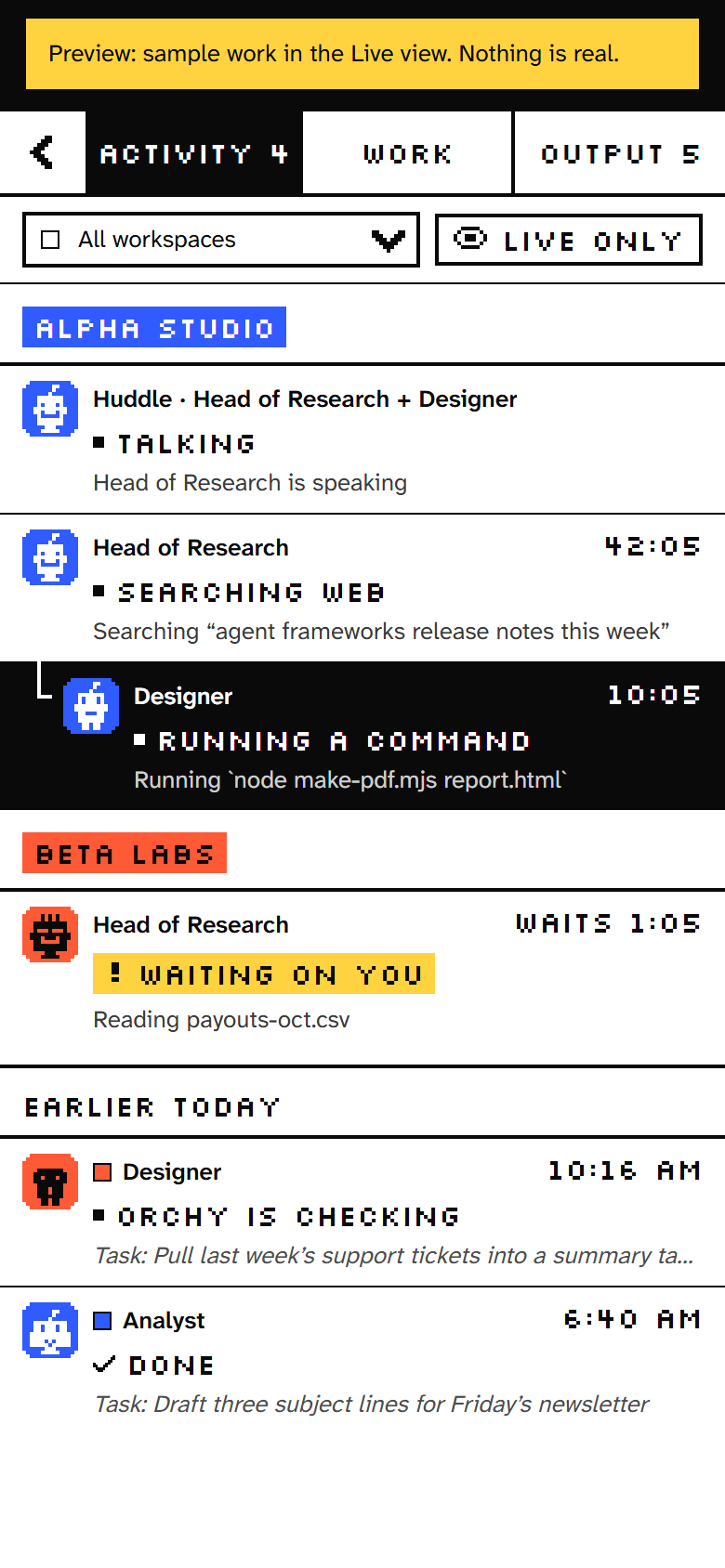
The Live view on a phone, with the dashboard's sample data.
Supported harnesses
| Harness | Install | Gated? |
|---|---|---|
| Claude Code (recommended) | curl -fsSL https://claude.ai/install.sh | bash; Windows (PowerShell): irm https://claude.ai/install.ps1 | iex |
✅ yes |
| Codex | curl -fsSL https://chatgpt.com/codex/install.sh | sh; Windows: powershell -ExecutionPolicy ByPass -c "irm https://chatgpt.com/codex/install.ps1 | iex" |
✅ yes |
| Hermes | curl -fsSL https://hermes-agent.nousresearch.com/install.sh | bash; on Windows (PowerShell) iex (irm https://hermes-agent.nousresearch.com/install.ps1) |
✅ yes |
| Antigravity (off by default) | curl -fsSL https://antigravity.google/cli/install.sh | bash; on Windows (PowerShell) irm https://antigravity.google/cli/install.ps1 | iex; then ORCHY_ANTIGRAVITY=1 in .env. Google doesn't support running agy from another app on personal plans (details) |
✅ yes |
| Cursor | curl https://cursor.com/install -fsS | bash; on Windows (PowerShell) irm 'https://cursor.com/install?win32=true' | iex; then sign in with agent login. No web search or web fetch in Orchy, and one sign-in for the whole computer, shared by every Cursor workspace (details) |
✅ yes |
OpenCode is no longer supported: OpenCode 2 can reach the internet without asking, and nothing switches that off (why). The OpenCode Zen Jev provider (OPENCODE_API_KEY) is a separate service and still works.
"Gated" means every risky action asks Orchy first. How far each one has been tested against its real program is in docs/HARNESSES.md. Hermes and Cursor offer the models their sign-in lists, and take any model id you type. You don't have to type these: Install in the dashboard (Add workspace, or Set up Orchy → Tools) runs the right one for your computer in a terminal window, then the sign-in. A harness whose program is there but won't start (an install that didn't finish) shows as won't start, with the command that fixes it.
Details, headless commands, config locations, the evidence behind each "gated" answer, which instructions an agent run reads and manual verification checklists are in docs/HARNESSES.md.
Platforms: Windows, macOS and Linux. Windows is the most tested (Hermes, Antigravity and Cursor were checked on Windows only); on macOS and Linux, report what breaks.
Sign-in, not API keys
Every harness signs in with your own account in the browser. You don't need an API key to run one.
- Claude Code:
claude auth login(your Claude plan). - Codex:
codex login(your ChatGPT account). - Hermes:
hermes portal, orhermes auth add <provider> --type oauth. When you add a Hermes workspace you pick This computer's Hermes sign-in (sign in once; every workspace set this way uses, and bills, that account) or Its own sign-in. - Antigravity: start
agyonce and sign in with your Google account. Google's FAQ says runningagyinside another app isn't supported on personal Google plans. That's why it's off by default:ORCHY_ANTIGRAVITY=1in.envturns it on. - Cursor:
agent login.
API keys stay optional, for Jev routing and voice only (see Keys).
Troubleshooting
npm run check
This health check tests each workspace's accounts, the One CLI, Jev, voice, agents and client pages, and says what to fix. Do not remove the check.
| Problem | What to do |
|---|---|
| Orchy will not start | Read the error in the terminal window it was started from. After Orchy restarted itself, it is in orchestrator/data/server.err.log. |
| The dashboard says it can't make changes | The browser isn't paired: see Pairing under First run. |
| A workspace says it is not signed in to One | Workspaces, the workspace, "Sign in to One". |
| A run is refused for an account mismatch | The harness profile for that workspace is logged into the wrong account: sign in again with the right one. |
| A workspace "isn't logged in", but you signed in to the harness in a terminal | A plain terminal signs in the computer's profile, not the workspace's. A Hermes workspace set to "This computer's sign-in" (the default) uses it on its own; one set to "Its own sign-in" needs Log in. For a Claude Code or Codex workspace with its own profile, press Log in on the workspace: the window it opens signs in that workspace's profile. Cursor has one sign-in for the whole computer: run agent login in any terminal. Then press Re-check. |
| A harness shows won't start | Its install didn't finish. Press Install to install it again, or run the command shown next to it. Then press Re-check. |
| A Cursor task fails with "Orchy's .cursorignore is missing…" | Run git checkout .cursorignore in the Orchy folder. That file keeps Orchy's own instructions out of Cursor runs. |
Project structure
orchy-ai/
├── orchestrator/   the server (127.0.0.1:8008), client pages (:8009), the gate, harness adapters, scripts
├── dashboard/      the UI: plain ES modules, no build step
├── scripts/        setup.mjs (npm run setup)
├── launchers/      double-click launchers for Windows, macOS and Linux
├── docs/           ONE.md, HARNESSES.md, CONCEPTS.md, ARCHITECTURE.md, SECURITY.md, CONTRIBUTING.md
├── assets/         the logo and README images
└── workspaces/     your workspaces (git-ignored)
The full file map, with what each part does, is in docs/ARCHITECTURE.md.
Contributing
PRs are welcome. See CONTRIBUTING.md. Run npm test first (no network, no keys and no harness needed), and keep personal data out. Report security problems privately: see SECURITY.md.
License
Apache-2.0. See LICENSE and NOTICE.
Yorumlar (0)
Yorum birakmak icin giris yap.
Yorum birakSonuc bulunamadi