windows-to-wsl2-screenshots
Health Gecti
- License — License: MIT
- Description — Repository has a description
- Active repo — Last push 0 days ago
- Community trust — 94 GitHub stars
Code Basarisiz
- rm -rf — Recursive force deletion command in tests/test-screenshot-functions.sh
Permissions Gecti
- Permissions — No dangerous permissions requested
Bu listing icin henuz AI raporu yok.
Automate Windows screenshots for Claude Code workflows in WSL2. Take screenshots (Win+Shift+S, Win+PrintScreen, Snipping Tool) and instantly get file paths copied to clipboard for pasting into Claude Code (Terminal or running in VS Code). No more manual save/copy/paste!
Windows-to-WSL2 Screenshot Bridge
🚀 Auto-save Windows screenshots to WSL2 and paste paths directly into Claude Code, VS Code, or any application that uses WSL2
⭐ Star this repo if it helps you!
This tool watches the Windows clipboard for screenshots, saves them into your current WSL user's ~/.screenshots/ directory, and puts the WSL file path on the shared clipboard so it is ready to paste.
What it does
- Take a screenshot with Win+Shift+S, Win+PrintScreen, or another Windows capture tool.
- Auto-saves the image to
~/.screenshots/in the WSL distribution where you started the monitor. - Auto-copies the WSL path to the Windows clipboard.
- Paste the path into Claude Code, VS Code, or another WSL-based workflow.
The launcher uses WSL's own wslpath conversion for the active $HOME. It does not hard-code an Ubuntu version, distribution name, or username.
Requirements
- Windows 10/11 with WSL2
- Windows PowerShell available through WSL interop as
powershell.exe wslpath(included with WSL)- A WSL2 distribution such as Ubuntu or Debian
Installation
gh repo clone jddev273/windows-to-wsl2-screenshots
cd windows-to-wsl2-screenshots
source screenshot-functions.sh
Usage
# Start the automation
start-screenshot-monitor

# Check if the tracked monitor is running
check-screenshot-monitor

# Compatibility name used by older documentation
check-screenshot-status

# Ask the Windows monitor to stop cleanly
stop-screenshot-monitor
Once the monitor reports a successful start, take screenshots and paste the resulting WSL path wherever you need it.
The launcher waits for a Windows-authored ~/.screenshots/monitor.ready marker instead of treating the WSL interop relay alone as proof that PowerShell initialized. If the Windows monitor never becomes ready or exits during startup, the command returns an error and shows the end of ~/.screenshots/monitor.log.
Stopping uses a small control-file handshake: WSL writes ~/.screenshots/monitor.stop, the PowerShell loop exits itself, and PowerShell removes the ready/stop markers. This avoids depending on Linux signals being forwarded through WSL to terminate a Windows process.
🎬 Demo
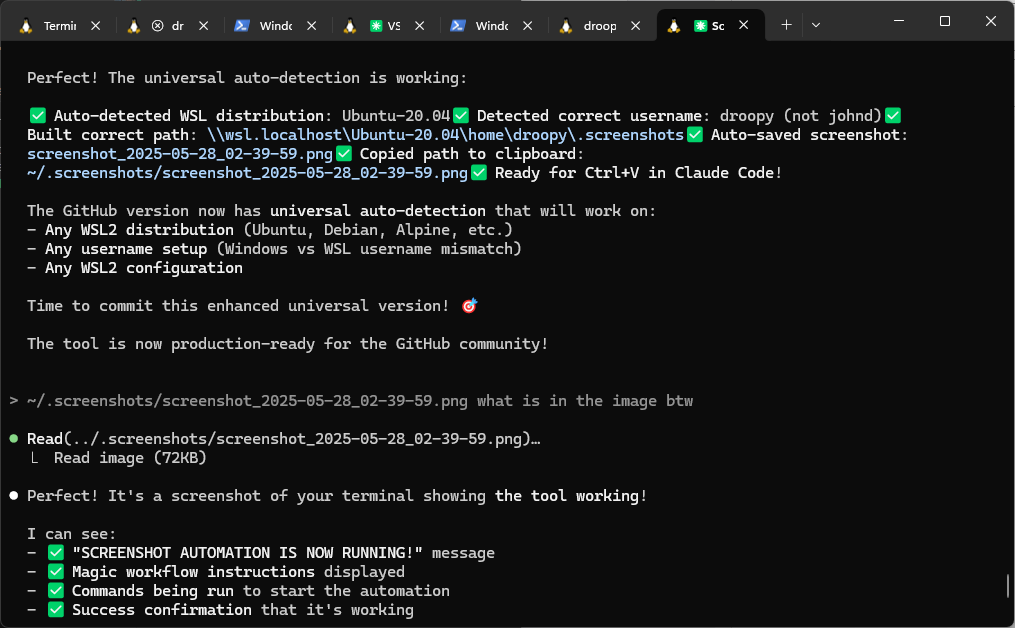
The tool automatically detects screenshots, saves them, and copies the WSL path to the clipboard for quick pasting.
Troubleshooting
Run the built-in diagnostics first:
troubleshoot-screenshots
It checks whether powershell.exe, wslpath, and the PowerShell monitor script are available, shows the translated Windows path, reports both the tracked WSL relay and Windows readiness state, and prints recent log lines when a log exists.
You can also inspect the log directly:
cat ~/.screenshots/monitor.log
If powershell.exe is not found from WSL, confirm that Windows interoperability is enabled and that Windows executables are available on your WSL PATH.
A stale monitor.pid is rejected using the Linux process start time rather than a broad process-name match. If monitor.ready exists while the tracked WSL relay is missing or stale, the commands fail conservatively instead of assuming the Windows process is gone; run stop-screenshot-monitor and inspect monitor.log if the stop handshake does not clear the state.
Notes
- The PowerShell monitor is launched with
-ExecutionPolicy Bypassfor this script only. - Clipboard polling defaults to 500 ms.
~/.screenshots/monitor.pidtracks the WSL interop relay PID plus Linux process start time so reused/stale Linux PIDs are not mistaken for the current launch.~/.screenshots/monitor.readyis written by Windows PowerShell after initialization;monitor.stopis the WSL-to-Windows graceful shutdown request.- The PowerShell side receives both the Windows-accessible save directory and the native WSL path explicitly; it does not try to guess the active distribution or WSL username.
- Developed with Claude Code; contributions and compatibility reports are welcome.
Created by Johann Döwa | Made with ❤️ for the Claude Code community
Yorumlar (0)
Yorum birakmak icin giris yap.
Yorum birakSonuc bulunamadi