usage-monitor-for-claude
Health Gecti
- License — License: MIT
- Description — Repository has a description
- Active repo — Last push 0 days ago
- Community trust — 18 GitHub stars
Code Gecti
- Code scan — Scanned 12 files during light audit, no dangerous patterns found
Permissions Gecti
- Permissions — No dangerous permissions requested
Bu listing icin henuz AI raporu yok.
Lightweight Windows tray app that monitors your Claude rate limits in real time - portable single EXE, zero configuration, fully auditable
Usage Monitor for Claude


Monitor your Claude rate limits in real time - right from your Windows system tray.
A native Windows tray app that shows your Claude usage at a glance - lightweight, portable, and fully auditable. Rate limits are shared across claude.ai, Claude Code, Claude Code Cowork, and IDE extensions for VS Code and JetBrains - always know how much of your session and weekly limits (Sonnet, Opus, Cowork, and any future quota types) you have left.
Features
- Portable - single EXE (~12.5 MB), no installation, no Electron, no runtime required. Download, place anywhere, run. To uninstall, delete the file
- Zero configuration - authenticates through your existing Claude Code login, no API key or manual token entry needed
- Live tray icon with two configurable progress bars (session + weekly by default), configurable tooltip, percentage display at high usage, and theme-aware colors for light and dark taskbars
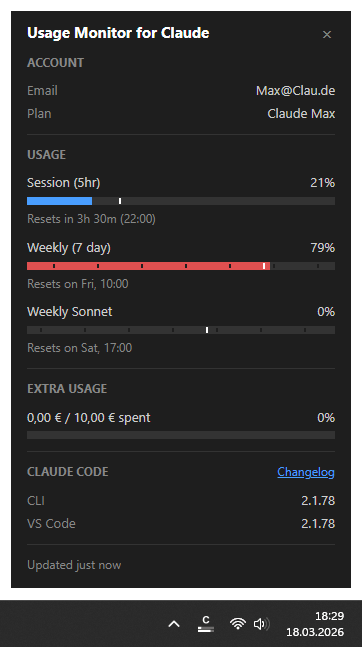
- Detail popup (left-click) showing account info, dynamically detected usage bars for all active quota types (Session, Weekly, Sonnet, Opus, Cowork, and any new quotas Anthropic adds) with configurable field selection, extra usage, reset countdowns, and a stale-data indicator when values may be outdated
- Claude Code versions - the popup shows which version is installed in each environment (native CLI, VS Code, Cursor, Windsurf), making it easy to spot when your IDE extension is ahead of or behind the CLI
- Smart alerts - configurable threshold notifications per quota type, with time-aware mode that only alerts when usage outpaces elapsed time. Reset notifications when a nearly exhausted quota refills
- Event commands - run a custom shell command when a quota resets or a usage threshold is crossed. Send push notifications to your phone, resume an AI agent, play an alert sound, or trigger any custom workflow
- Time marker on each bar showing elapsed time in the current period, so you can instantly see whether your usage is ahead of or behind the clock
- Automatic token refresh - when the OAuth session expires, runs
claude updatein the background to renew the token without user intervention. If a CLI update is installed, shows a notification - Adaptive polling - speeds up during active usage, pauses when the computer is idle or locked, aligns to imminent quota resets, and backs off on rate-limit errors
- 13 languages (English, German, French, Spanish, Portuguese, Italian, Japanese, Korean, Hindi, Indonesian, Chinese Simplified, Chinese Traditional, Ukrainian) - auto-detected from your Windows display language, with optional manual override via the
languagesetting - Customizable - optionally override polling intervals, colors, alert thresholds, and more via a JSON settings file
Security & Transparency
This tool handles your Claude Code OAuth token, so you should be able to verify it is safe. The codebase is deliberately structured for easy auditing:
- Single network destination - communicates exclusively with
api.anthropic.com, no other hosts - Credentials stay local - the OAuth token is used only in HTTP Authorization headers, never logged, stored elsewhere, or transmitted to third parties
- Read-only - the app never writes files to disk
- No dynamic code execution - no
eval(),exec(),compile(), or dynamic imports - No obfuscation - no encoded strings, no hidden URLs, no minified logic
- Modular architecture - small, focused modules with security-critical code (credentials, API calls) isolated in a single file (
api.py) - Minimal runtime dependencies - only four well-known packages: requests, Pillow, pystray, pywebview
Requirements
- Windows 10 or Windows 11 (64-bit)
- Claude Code installed and logged in (CLI, VS Code extension, or JetBrains plugin - any variant works). The app reads the OAuth token that Claude Code stores locally (
~/.claude/.credentials.json). If you haveCLAUDE_CONFIG_DIRset, the app uses that directory instead.
[!TIP]
If the token expires, the app automatically runsclaude updateto refresh it. If the token is missing entirely, the app shows a notification and a "!" icon - log in to Claude Code and the monitor picks it up automatically.
Quick Start
No Python required. Download the latest UsageMonitorForClaude.exe, place it wherever you like, and run it. To remove, disable "Start with Windows" in the context menu first (if enabled), then delete the file.
How to Use
| Action | What happens |
|---|---|
| Hover over the tray icon | Tooltip shows 5h and 7d usage percentages with reset times |
| Left-click the tray icon | Opens the detail popup with account info and all usage bars |
| Right-click the tray icon | Context menu: open popup, autostart toggle, test event commands, restart, GitHub link, or quit |
| Escape or click outside | Closes the detail popup |
Tray icon not visible?
Windows may hide new tray icons by default. To keep the icon always visible:
- Right-click the taskbar → Taskbar settings
- Expand Other system tray icons (Win 11) or Select which icons appear on the taskbar (Win 10)
- Toggle UsageMonitorForClaude to On
Reading the progress bars
Each bar in the detail popup has up to four visual elements:
- Blue fill - how much of the limit you have used
- Day dividers - subtle gaps at local midnight boundaries, visually grouping usage into day segments (visible on the weekly bar)
- White vertical line - how much time has passed in the current period. The fill turns red when it passes this marker, warning that you may hit the limit before the period resets.
- Reset text - when the limit resets, shown as a countdown with clock time
Configuration
All settings work out of the box - no configuration file is needed. To customize behavior, create a file called usage-monitor-settings.json with only the keys you want to change:
{
  "poll_interval": 180,
  "bar_fg": "#00cc66",
  "bar_fg_warn": "#ff6600"
}
The app searches for this file in two locations (first match wins):
- Next to the EXE (or project root when running from source)
~/.claude/usage-monitor-settings.json(or$CLAUDE_CONFIG_DIR/usage-monitor-settings.jsonif set)
The app never creates or modifies this file. See Configuration for all available settings (alert thresholds, polling intervals, colors, language, and more).
Building from Source
For developers who want to build the EXE themselvesPrerequisites
- Python 3.10+
- pip
Setup
git clone https://github.com/jens-duttke/usage-monitor-for-claude.git
cd usage-monitor-for-claude
python -m venv .venv
.venv\Scripts\activate
pip install -r requirements.txt
Run
python -m usage_monitor_for_claude
Build EXE
python build.py
Produces dist/UsageMonitorForClaude.exe (~12.5 MB), a single-file executable that bundles Python and all dependencies.
Popup UI Development
The popup UI lives in usage_monitor_for_claude/popup/ as separate HTML, CSS, and JS files. To preview and iterate on the UI without running the full app:
start http://localhost:8080/dev.html && python -m http.server 8080 -d usage_monitor_for_claude/popup
This starts a local server and opens the dev preview in your default browser. Use the buttons to switch between data presets (full, minimal, error, loading) and test CSS/JS changes with instant feedback.
Create a Release
- Update dependencies:
pip install --upgrade -r requirements.txt - Update
__version__inusage_monitor_for_claude/__init__.pyand the version inversion_info.py(filevers,prodvers,FileVersion,ProductVersion) - Update
_FALLBACK_USER_AGENTinusage_monitor_for_claude/api.pyto the current Claude Code version - In
CHANGELOG.md, rename## [Unreleased]to## [1.x.x] - YYYY-MM-DDand add a fresh empty## [Unreleased]section above it - Run the test suite:
python -m unittest discover -s tests - Smoke test:
python -m usage_monitor_for_claude- verify tray icon, popup, and settings - Build the EXE with
python build.py - Smoke test:
dist\UsageMonitorForClaude.exe- verify tray icon, popup, and settings - Stage the changes from steps 2 to 4
- Commit, tag, push, and publish:
git commit -m "Release v1.x.x"
git tag v1.x.x
git push origin main v1.x.x
gh release create v1.x.x dist/UsageMonitorForClaude.exe --title "v1.x.x" --notes "<release notes from CHANGELOG.md, followed by a [README for this version](https://github.com/jens-duttke/usage-monitor-for-claude/blob/v1.x.x/README.md) link>"
Contributing
Contributions are welcome - whether it's bug reports, feature ideas, or pull requests. Open an issue to report bugs or ask questions. For feature ideas, browse and vote on existing proposals or submit your own in Ideas.
For developers who want to contribute to the projectThis project is developed with Claude Code. The .claude/CLAUDE.md file contains all project conventions, coding standards, and architectural guidelines - Claude Code applies these automatically during development.
Workflow
- Read
.claude/CLAUDE.mdto understand the project conventions - Implement your changes with Claude Code - it will follow the guidelines automatically
- Before committing, run the
/reviewslash command to perform a systematic quality review of all staged changes (code, tests, documentation) - Stage remaining fixes if any, then run
/commit-messageto generate a properly formatted commit message
Adding features
New features should follow the existing architecture. Key points from the guidelines:
- Security-critical code (credentials, API calls) stays isolated in
api.py - All user-facing changes need updates in
CHANGELOG.md,README.md, anddocs/configuration.mdwhere applicable - Tests are required - run
python -m unittest discover -s testsbefore committing - The app is read-only and must never write files to disk
License
MIT
Disclaimer
This is an independent, community-built project. It is not created, endorsed, or officially supported by Anthropic. "Claude" and "Anthropic" are trademarks of Anthropic, PBC. Use of these names is solely for descriptive purposes to indicate compatibility.
Yorumlar (0)
Yorum birakmak icin giris yap.
Yorum birakSonuc bulunamadi