devhub
Health Uyari
- License — License: AGPL-3.0
- Description — Repository has a description
- Active repo — Last push 0 days ago
- Low visibility — Only 5 GitHub stars
Code Basarisiz
- rm -rf — Recursive force deletion command in .github/workflows/release-desktop.yml
- network request — Outbound network request in dashboard/app/actions/client.tsx
Permissions Gecti
- Permissions — No dangerous permissions requested
Bu listing icin henuz AI raporu yok.
A desktop workspace for your dev day: Jira, GitHub PRs, notes and AI coding agents (Claude, Cursor, Codex via Paseo) in one place. Mac, Windows, Linux.
DevHub
DevHub is a local dashboard for your working day as a developer: tasks, notes, pull requests, repos and your AI coding agents in one window. Everything is stored as files on your own machine, and GitHub, Jira, Google Calendar and the other integrations are optional. It also keeps your AI tools (Claude Code, Codex, Cursor, OpenCode and Antigravity) on the same skills and standards, so you set them up once.
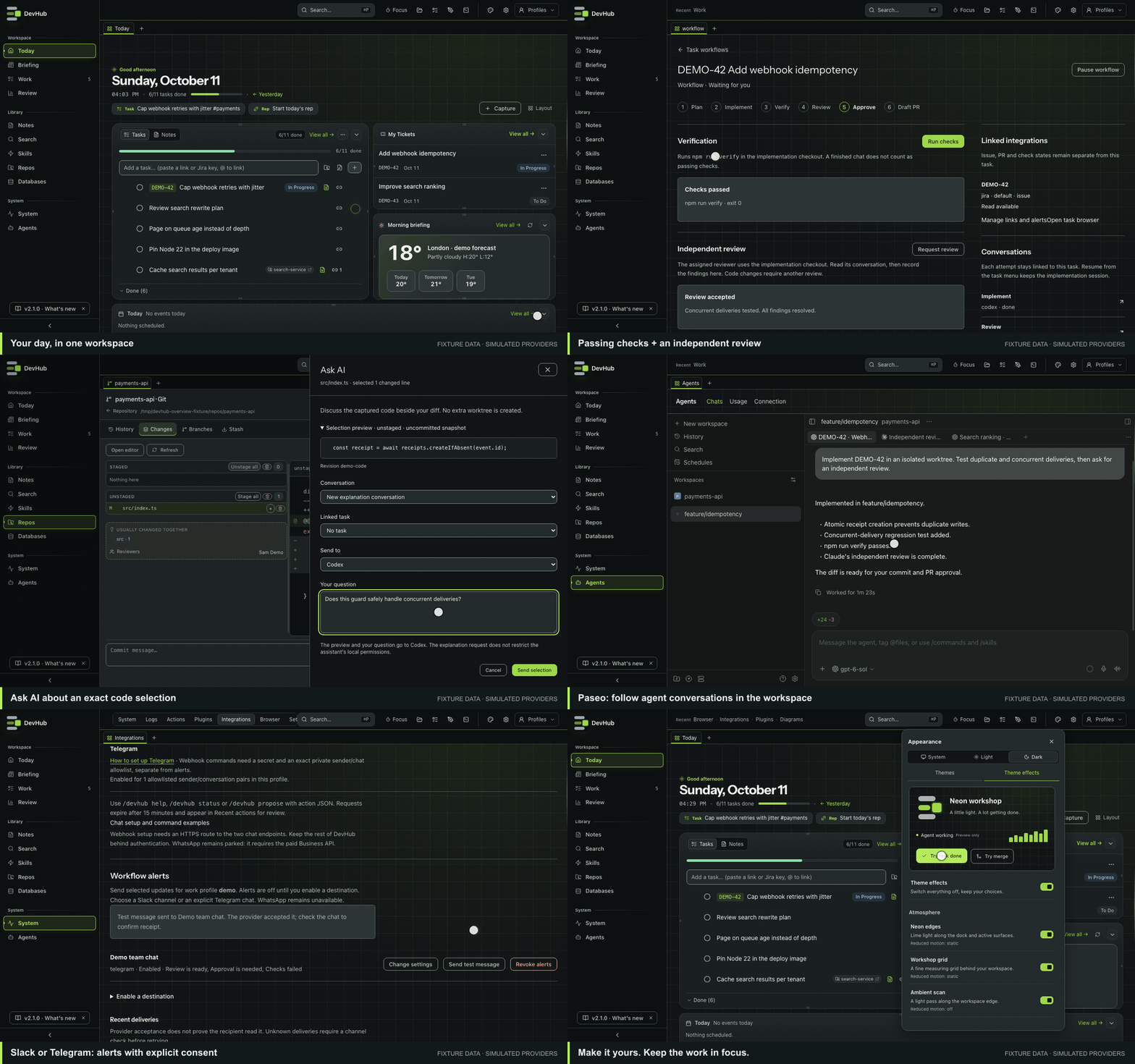
DevHub 2.1.0, recorded against disposable fixture data. Provider replies are simulated; nothing is sent to real accounts.
Install
Download the installer for your computer from the latest release. It includes DevHub's server and a Node runtime, so you don't need Node, npm or a clone of the repo. (Windows also needs WSL 2, covered below.)
| You have | Download |
|---|---|
| A Mac with Apple Silicon | the file ending _aarch64.dmg (DevHub_<version>_aarch64.dmg) |
| A Mac with an Intel chip | the file ending _x64.dmg (DevHub_<version>_x64.dmg) |
| Windows, 64-bit Intel or AMD (not Arm) | the file ending _x64-setup.exe (DevHub_<version>_x64-setup.exe) |
| Linux, 64-bit | the file ending _amd64.AppImage or _amd64.deb |
The file name includes the version. The latest release has the current files.
Mac
- Drag DevHub into Applications and eject the DMG, then double-click DevHub in Applications. You need macOS 13 or later. (Apple menu → About This Mac tells you which chip you have.)
- macOS says "DevHub" Not Opened (Apple could not verify it is free of malware). Click Done. Don't click Move to Trash.
- Open System Settings → Privacy & Security, scroll down to Security, and click Open Anyway next to "DevHub" was blocked to protect your Mac. In the next dialog click Open Anyway again, then enter your Mac password (or use Touch ID). You only do this once. On macOS 15 and later, right-click → Open no longer gets past this.
On a Mac managed by your company, policy can block apps like this. If Open Anyway doesn't appear, ask IT. More in Unsigned installers.
Windows
- Run the file ending
_x64-setup.exe. It installs for you only, so it doesn't need admin rights, and it fetches WebView2 if your PC doesn't have it. - Windows will probably say Windows protected your PC. That's SmartScreen, and it's expected: the installer isn't signed with a paid publisher certificate (that's on purpose), so Windows doesn't recognise the publisher. If you got the file from the release page, click More info, then Run anyway.
- DevHub runs inside WSL 2 (Windows Subsystem for Linux) with Ubuntu. If you don't have that yet, the first launch shows Set up Windows support. Click it and accept the one administrator prompt. Finish Ubuntu's account setup, restart if Windows asks, then open DevHub again. If you already have a WSL 2 Ubuntu, DevHub uses it.
Prefer to set WSL up by hand? Open PowerShell as administrator, run wsl --install, restart, then click Try again in DevHub.
Two things worth knowing:
- Smart App Control or a company policy can block unsigned apps with no Run anyway button. Ask your administrator rather than switching protection off.
- Windows is the newest build. It has been run on Windows 11 with WSL already set up. Setting WSL up from scratch on a clean machine hasn't had a full test yet, so please tell us if it goes sideways. Windows app says what has and hasn't been tested.
Linux
Download the .AppImage, make it executable (chmod +x) and run it. On Debian or Ubuntu you can install the .deb instead. Only x86_64 installers are published (Ubuntu 22.04). If the AppImage cannot mount, run it with APPIMAGE_EXTRACT_AND_RUN=1. Closing the Linux window quits DevHub — there is no tray icon. Data lives in ~/.local/share/devhub/. More in The desktop app.
First run
DevHub shows a start-up screen for a few seconds while it starts its own server, then opens a setup wizard. It asks what you want DevHub for, which tools you have and where your code lives. Every step can be skipped, and Set up later takes you straight to the dashboard. Nothing is required: pages for GitHub, Jira, Calendar and the like stay hidden until you connect them.
You don't need Git, GitHub or a fork to start. Getting started without Git covers it, and the FAQ has the short answers.
Try this first
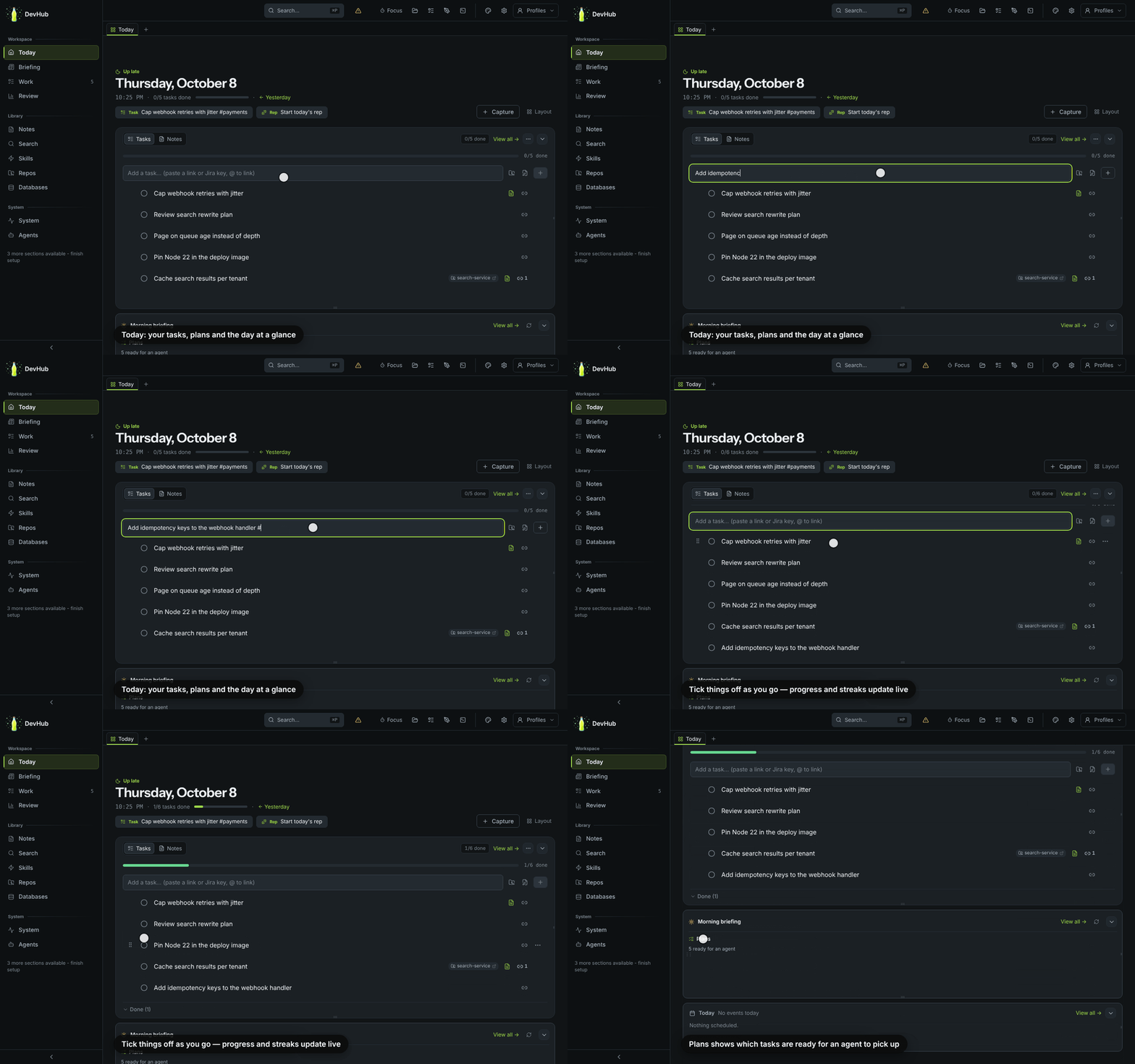
- Add a task on Today and tick it off.
- Write a note in Notes and link it to another one.
- Press ⌘P (Ctrl+P on Windows and Linux) and jump to anything.
- Connect GitHub with Setup → GitHub → Sign in with GitHub to switch on PRs.
Hollow (Halloween) 🎃
Every October, DevHub switches itself to Hollow (Halloween) 🎃, an optional spooky Halloween theme, the first time you open it. Not for you? Click the palette icon (Appearance) in the top bar and pick another theme. DevHub keeps your pick for the rest of the month. If you leave Hollow (Halloween) on, your old theme comes back when October ends. Jump scares and sound are off unless you turn them on, and the fog and creatures have their own switches in the same menu. See Theming.
Graphite Neon (Default) is DevHub's default: charcoal + lime, with a lime-lit workshop and a soft mouse follower. Both are on by default; Appearance → Theme effects has the Workshop effects master switch and the separate Cursor follower switch. They respect reduced motion and step aside over typing, editors and terminals. Theming has the switches and a new demo.
A quick tour
Today
Your day on one page: tasks, the plans that are ready for an agent to pick up, a morning briefing, and your calendar once Google Calendar is connected.
Work
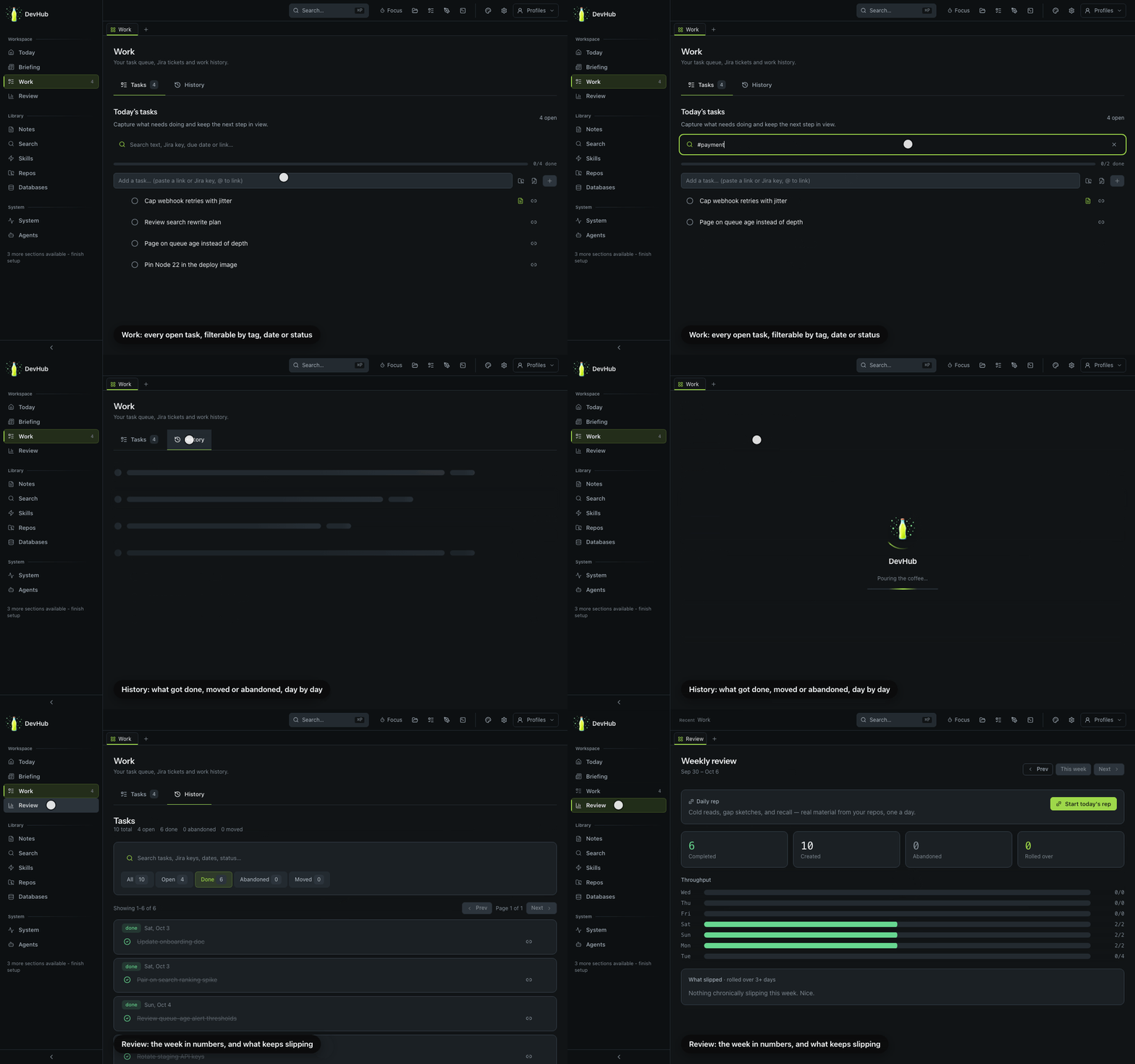
Every open task, filterable by tag, date or status, plus History for what got done, moved or abandoned. A Jira tab appears once Jira is connected, and Review gives you the week in numbers.
Task workflows
Checks, independent reviews and your publication decisions stay with the task across restarts. A code change makes old evidence stale. You approve the exact destination and content before publication; an interrupted command isn't quietly rerun. See Task checks and review persistence.
Browser
Browse inside DevHub, or open the same task profile in native Chrome for private sign-in. The agent only reads when you hand over control; clicks, typed values and file transfers need their own approval. Windows/WSL browser controls aren't enabled yet.
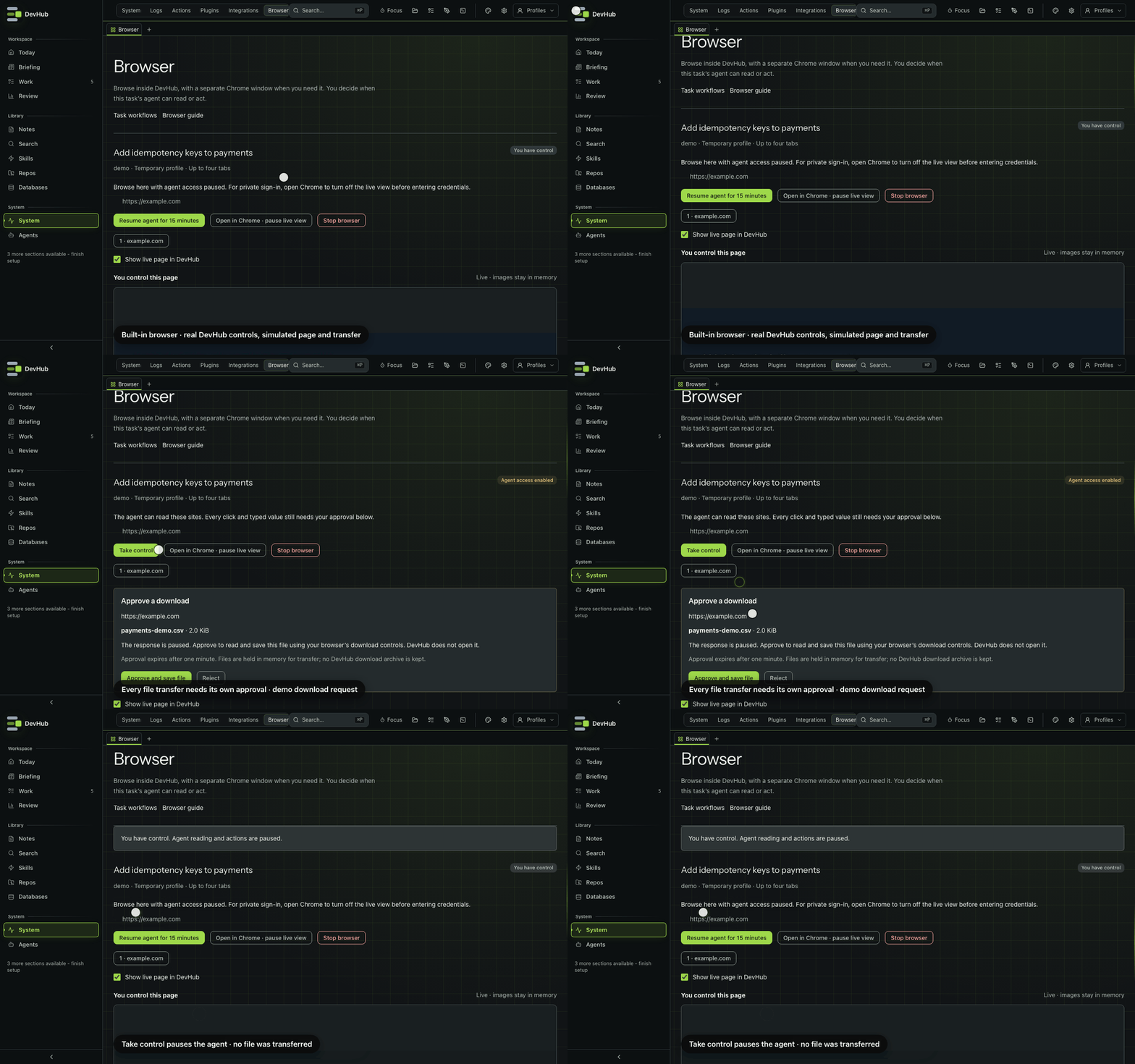
Real controls with a simulated Chrome stream and file request, not a live account. Browser guide.
Integrations
Find and link Jira/GitHub work across accounts, then review exact ticket or PR proposals before anything is sent. Slack and Telegram can request allowlisted actions and deliver opt-in workflow alerts; chat cannot approve a write. See Integrations.
Editor and code discussions
Select code in Repos → Changes, review the snapshot and ask an assistant beside the diff without another worktree. An optional Cursor/VS Code add-on captures unsaved selections; install the separate in-app editor only if you need it.
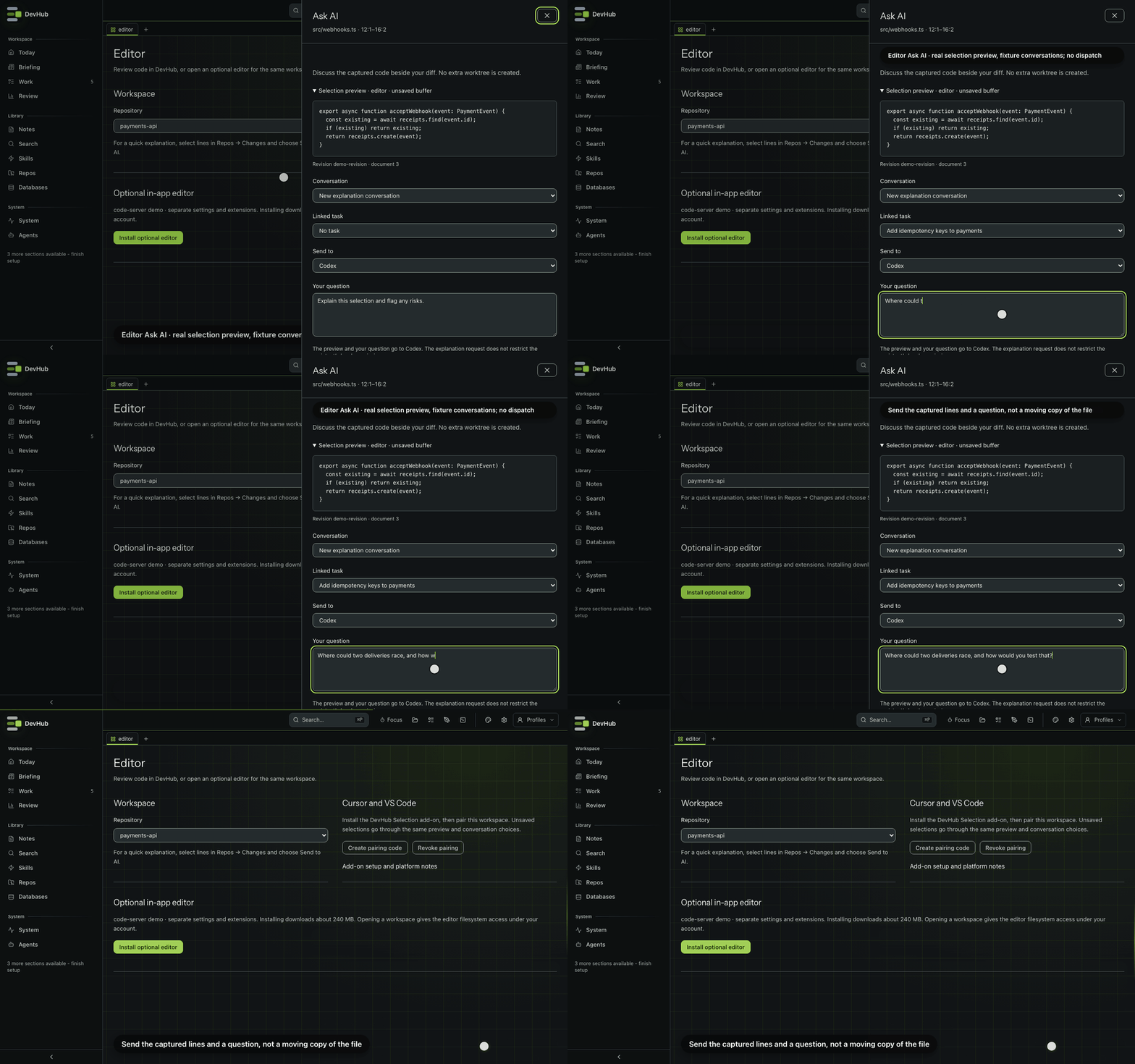
Invented code and assistant choices; no model request is sent. Editor guide.
PRs
Your pull requests, the ones waiting on your review, and ones you've reviewed lately. It needs GitHub: use Setup → GitHub → Sign in with GitHub. Review with agent saves a review as a note, and DevHub doesn't post it to GitHub.
Notes
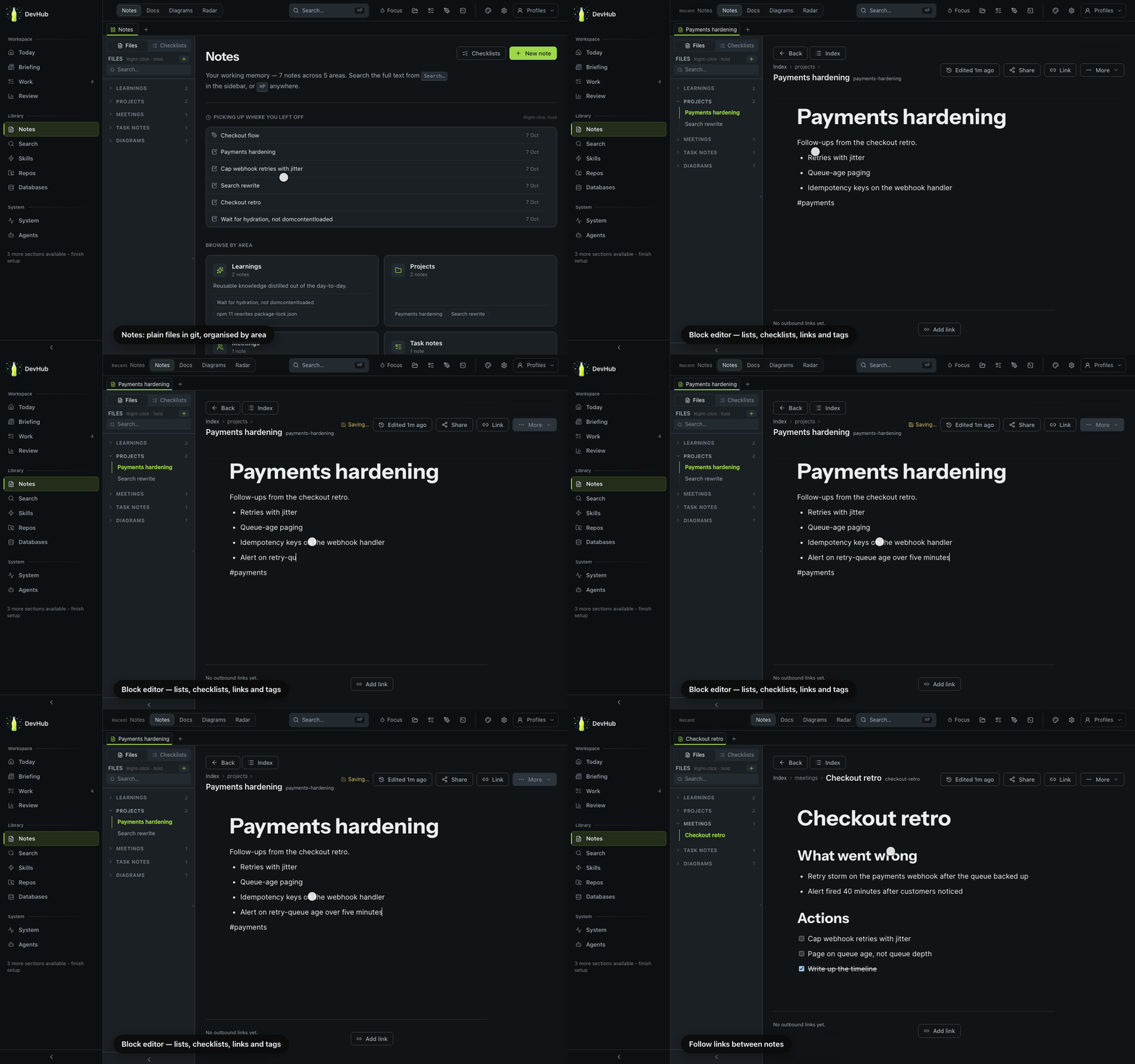
Files with a block editor: daily notes, meetings, projects and learnings, linked to each other and to your tasks, PRs and repos. Docs and Diagrams sit alongside.
Agents
Chat with coding agents (Claude Code, Codex, OpenCode, Cursor, Copilot) and, where DevHub can read your sign-ins, see how much of each subscription you've used. It runs through a small local helper called Paseo. Install Node.js, then Safe-Chain, then Paseo, in that order, from Setup → Tools (Safe-Chain's install needs npm, which comes with Node.js). You can also open Agents → Connection once those are in place. Skip it and the rest of DevHub works as normal. See Agents (Paseo).
Skills
A skill is a reusable set of instructions for your AI tools. Write it once and DevHub copies it into Claude Code, Codex, Cursor, OpenCode and Antigravity. The Persona tab does the same for your engineering standards, and the My voice quiz teaches agents to write like you.
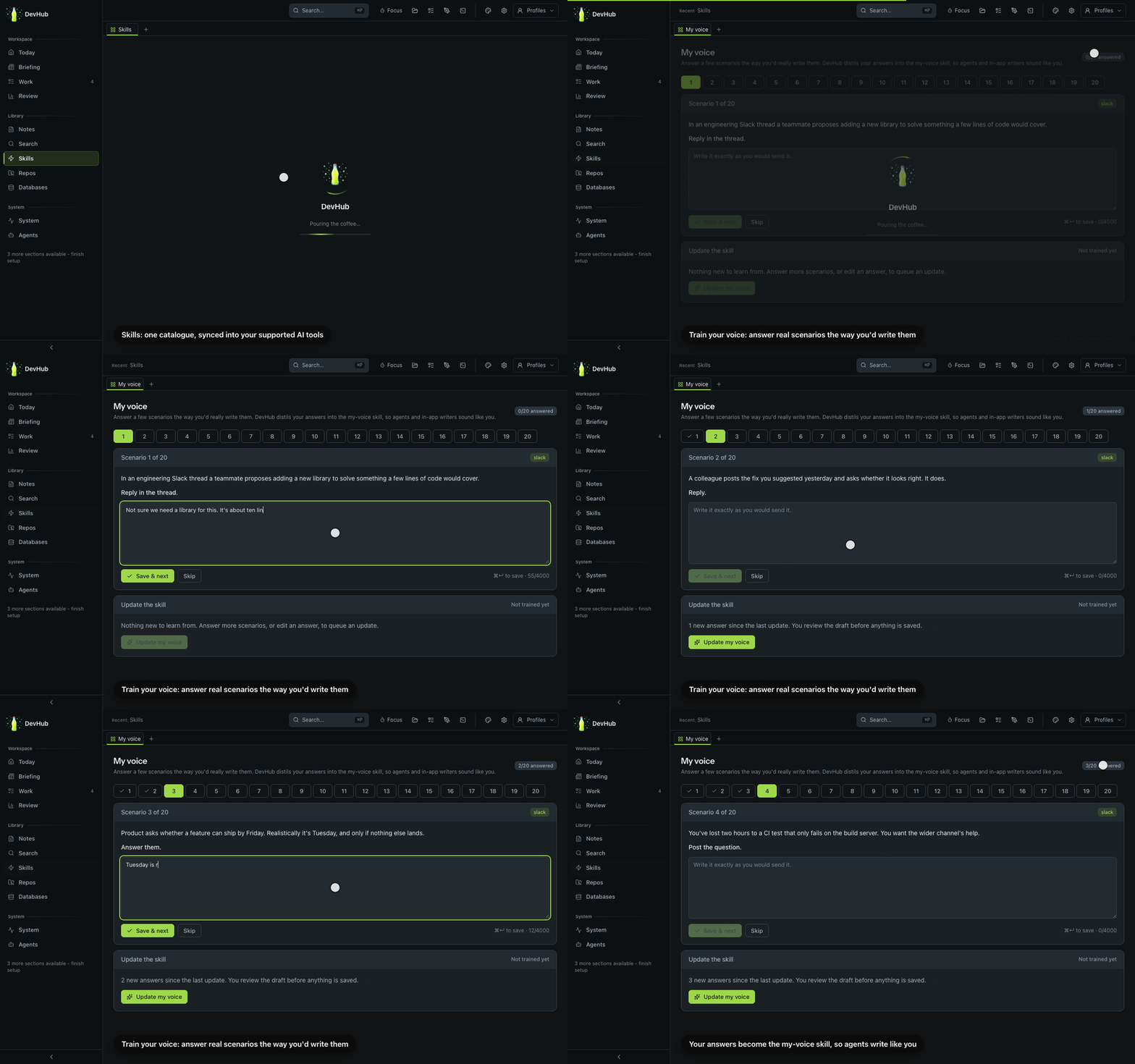
In the desktop app, Sync skills needs a linked DevHub checkout. Until you link one it says "No linked git checkout". Setup's optional private repo step creates one for you, and the other syncs don't need it. See Git sync and linked checkouts.
The shared catalogue also includes Matt Pocock adaptations for debugging, design interviews, code reviews and architecture. Skills explains which ones and how they sync.
There's more: Repos with a git client, Databases (SQLite, Postgres and MongoDB), full-text Search and resize handles on every edge of Today cards and floating panels. The feature tour covers all of it.
Plugins
A plugin is a separate repo that adds skills, agents, MCP servers, dashboard pages or database connections to DevHub without living in the core. That's how company-specific things stay out of the shared code. It's just a folder with a devhub-plugin.json in it.
In the app: Plugins (the top bar when you're on System, or the Plugins button on Skills) → Add from GitHub, paste the repo URL, review what it adds, then enable. Needs Git (on a Mac: Install Git / xcode-select --install). Plugins with a prebuilt runtime bundle can add pages, APIs, stateless MCP servers and branding without a checkout or rebuild. Existing source-only dashboard plugins still need a checkout. See the portable example.
From a DevHub checkout, the same install is:
npm run plugins -- add <path-to-the-plugin>
npm run plugins -- list
npm run plugins -- disable <name> and npm run plugins -- enable <name> turn one off and on. The list of plugins is a machine-local file, ~/.config/devhub/plugins.json. Creating a plugin has the manifest and the details, and Plugin system explains how it works.
Portable plugins can declare reviewed actions, streaming output and status routes through the generic request-worker API. No dashboard rebuild is needed for a portable bundle. Plugin actions covers the contract; company tools stay in separate private plugins.
Updates
DevHub checks for an update a little while after it starts and shows a banner if there is one. You choose when to download it and when to restart, and a failed update leaves what you have untouched. Updates are signed, and DevHub refuses one that doesn't verify.
You can also check yourself with DevHub → Check for Updates…, which is in the macOS menu, the Windows tray, and the Linux window menubar. Your notes and tasks live outside the app (on a Mac in ~/Library/Application Support/DevHub, on Linux and in Windows' Ubuntu under ~/.local/share/devhub), so an update never touches them. On Linux the in-app updater covers the AppImage. If you installed the .deb, download the new one from the release page.
Troubleshooting
- macOS won't open DevHub. See the Mac steps above: System Settings → Privacy & Security → Open Anyway.
- Windows blocks the installer. Use More info → Run anyway. If there's no such button, your organisation's policy is blocking it.
- Windows says WSL isn't installed. Open PowerShell as administrator, run
wsl --install, restart, then click Try again. If you only have a WSL 1 distro, DevHub won't convert it, so runwsl --set-version <distro> 2yourself. - Windows: the window can't reach DevHub. A
localhostForwarding=falseline in%USERPROFILE%\.wslconfigbreaks the connection. Remove it and restart WSL. - "Port 1337 is in use". Another program, or a second DevHub, has the port. DevHub only offers to stop a leftover DevHub development server of its own (Stop it and continue). Otherwise quit the other program, then click Try again.
- A start-up error. The window shows the last few log lines and an Open logs button.
- Closing the window didn't quit DevHub (macOS and Windows). It keeps running from the tray or menu-bar icon so scheduled jobs carry on. Choose Quit DevHub there. On Linux, closing the window does quit.
- Agents shows a connection error. Set up Safe-Chain, then Paseo from Setup → Tools. Packaged DevHub includes Node.js and npm for Agents, without changing your shell PATH. If bundled tools are unavailable, update or reinstall DevHub. Checkout users need their own Node.js. On Windows, WSL needs
systemd=truein/etc/wsl.conffirst. - An update failed. Nothing changed. Click Try again or Open release page.
More in Desktop recovery and the FAQ.
Feedback
Questions, ideas, or just want to show how you're using it? Come say hello in Discussions.
Found a bug, or something confusing? Open an issue. It helps to include your operating system, your DevHub version (DevHub → About DevHub) and, for start-up problems, the log files (View → Open Logs Folder). Have a look through them for anything private before you attach them.
Run it from source
For contributors, or if you'd rather not use the installer. You need Node 22 and Git.
git clone https://github.com/jmcelreavey/devhub.git
cd devhub
nvm install && nvm use
npm install
DEVHUB_BIND_HOST=127.0.0.1 npm run dev
Then open http://localhost:1337. Installation covers the full bootstrap script and what to do if the desktop app already has that port. Run npm run verify before you open a PR. CONTRIBUTING.md explains the private mirror workflow that keeps personal notes and tasks out of the public repo.
Security
DevHub is built for one person on a trusted machine. It listens on 127.0.0.1 by default, the terminal is never exposed to the network, and there is no login, so don't put it on the public internet. Opening it to your local network is opt-in: see Setup.
Documentation
Release history is in CHANGELOG.md, with private-main work separated under Unreleased. Everything else lives in docs/: the feature tour, architecture, environment variables, platform support and contributing.
Licence
Copyright (c) 2026 John McElreavey.
DevHub is licensed under AGPL-3.0. For commercial licensing or setup help, open a Discussion or contact John.
Yorumlar (0)
Yorum birakmak icin giris yap.
Yorum birakSonuc bulunamadi