azure-bicep-mcp-integration-setup
Health Warn
- No license — Repository has no license file
- Description — Repository has a description
- Active repo — Last push 0 days ago
- Low visibility — Only 7 GitHub stars
Code Warn
- Code scan incomplete — No supported source files were scanned during light audit
Permissions Pass
- Permissions — No dangerous permissions requested
No AI report is available for this listing yet.
💪 Integrate the Azure Bicep MCP server with Claude, Codex, LM Studio, GitHub Copilot App, and more.
Azure Bicep MCP Server Integrations with other AI services
This guide explains how to run the Azure Bicep MCP server locally for Claude Desktop and Code, OpenAI Codex CLI and for LMStudio where you can use it with various models.
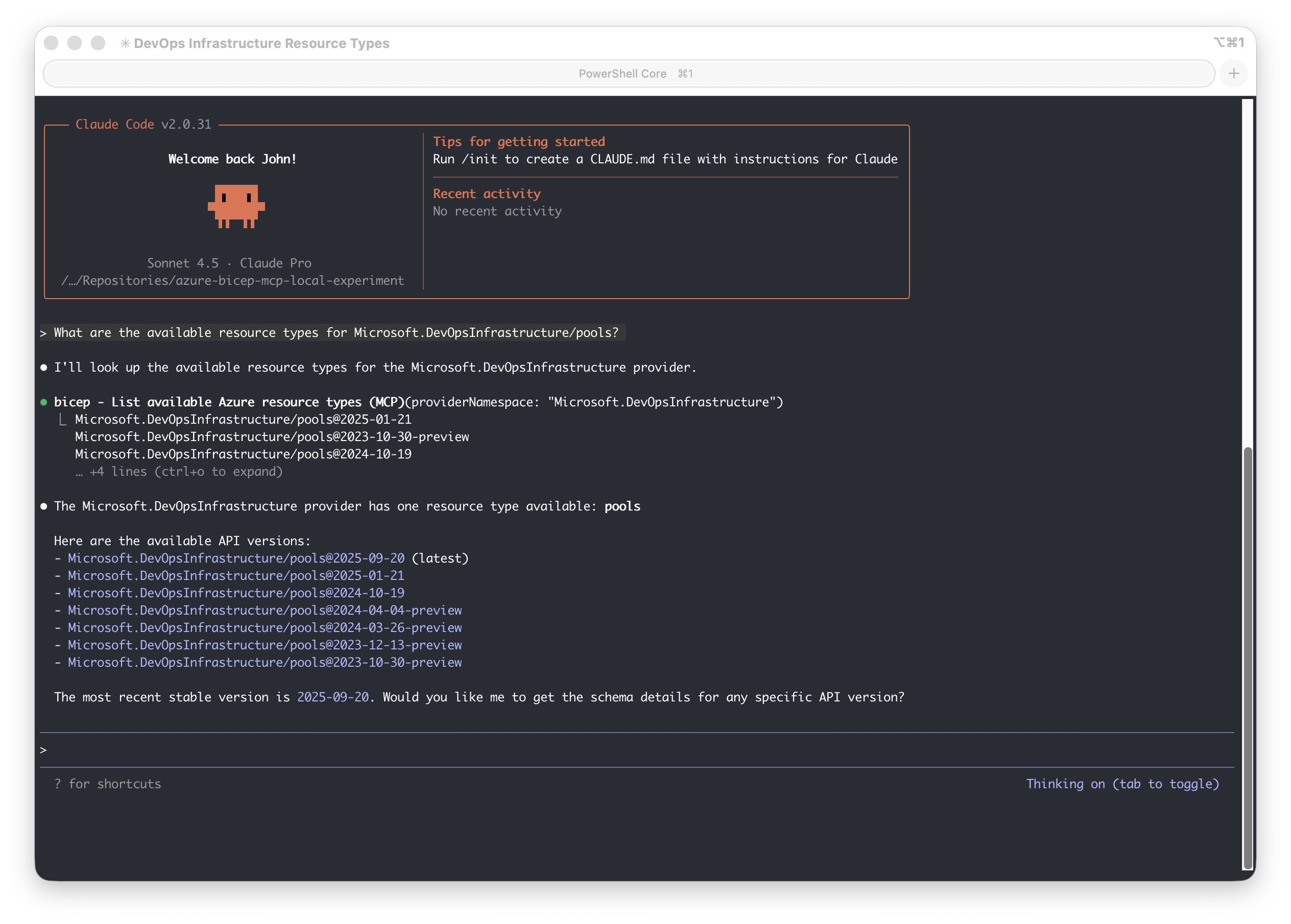
See the Claude Code example:
Overview
The Bicep MCP (Model Context Protocol) server provides AI agents with tools to help generate high-quality Bicep code. It exposes the following tools:
list_az_resource_types_for_provider- Lists all Azure resource types for a specific provider (e.g., Microsoft.Storage)get_az_resource_type_schema- Gets the schema for a specific Azure resource type and API versionget_bicep_best_practices- Returns Bicep coding best practices and guidelinesdecompile_arm_parameters_file- Converts ARM template parameter JSON files into Bicep parameters format (.bicepparam).decompile_arm_template_file- Converts ARM template JSON files into Bicep syntax (.bicep).format_bicep_file- Applies consistent formatting (indentation, spacing, line breaks) to Bicep files.get_bicep_file_diagnostics- Analyzes a Bicep file and returns all compilation diagnostics.get_file_references- Analyzes a Bicep file and returns a list of all referenced files including modules, parameter files, and other dependencies.get_deployment_snapshot- Creates a snapshot from a .bicepparam file to preview resources and compare Bicep implementations.list_avm_metadata- Lists metadata for all Azure Verified Modules (AVM)
Checkout the Bicep MCP Server Documentation for more information.
Prerequisites
- .NET 10.0 SDK or later (tested with .NET 10.0)
- Git (for cloning the repository)
Options
There are two options to get the Bicep MCP server DLL:
- Option 1: Use dnx to run the Azure Bicep MCP NuGet package (recommended approach)
- Option 2: Build from source (more control, easier to update)
- Option 3: Extract from VS Code extension
Option 1: Use dnx to run the Azure Bicep MCP NuGet package (recommended approach)
With .NET 10 you can use dnx to run the Bicep MCP server directly from the NuGet package without needing to build it yourself.
Using the command dnx Azure.Bicep.McpServer --yes will run the latest version of the Bicep MCP server. To run it in a specific client see: Client Setup Guides.
Option 2: Build from Source
This approach clones the Bicep repository and builds the MCP server. Updates are as simple as git pull and rebuild.
Initial Setup
# Clone and build the Bicep repository
./scripts/Setup-BicepMCP.ps1
Running the Server
You can run the MCP server directly from the extension path. However it is not required to run it separately since clients will launch it as needed. To run it in a specific client see: Client Setup Guides. To run it locally see:
# Find the DLL
find bicep/src/Bicep.McpServer/bin/Release -name "Azure.Bicep.McpServer.dll"

# Run it
dotnet ./bicep/src/Bicep.McpServer/bin/Release/net10.0/Azure.Bicep.McpServer.dll
Updating
# Pull latest changes and rebuild the project
./scripts/Update-BicepRepo.ps1
Option 3: Extract from VS Code Extension
If you already have the Bicep VS Code extension installed, you can use the MCP server DLL directly from it.
Locate the Extension
The extension is typically installed at:
- macOS:
~/.vscode/extensions/ms-azuretools.vscode-bicep-<version>/ - Linux:
~/.vscode/extensions/ms-azuretools.vscode-bicep-<version>/ - Windows:
%USERPROFILE%\.vscode\extensions\ms-azuretools.vscode-bicep-<version>\
The MCP server is located at: bicepMcpServer/Azure.Bicep.McpServer.dll
Running from Extension
You can run the MCP server directly from the extension path. However it is not required to run it separately since clients will launch it as needed. To run it in a specific client see: Client Setup Guides. To run it locally see:
# Find your extension version
ls ~/.vscode/extensions/ | grep vscode-bicep

# Run the MCP server (replace <version> with your actual version)
dotnet ~/.vscode/extensions/ms-azuretools.vscode-bicep-<version>/bicepMcpServer/Azure.Bicep.McpServer.dll
Helper Scripts
The following PowerShell scripts are provided to simplify setup and maintenance:
| Script | Description |
|---|---|
| Setup-BicepMCP.ps1 | Clones the Bicep repository (if not already present) and builds the MCP server. Outputs configuration instructions for Claude Desktop and Claude Code. |
| Update-BicepRepo.ps1 | Pulls the latest changes from the Bicep repository and rebuilds the MCP server. |
| Run-BicepMCP.ps1 | Starts the Bicep MCP server using stdio transport. |
Troubleshooting
- On Windows make sure to escape backslashes in paths (e.g.,
C:\\path\\to\\Azure.Bicep.McpServer.dll)
Client Setup Guides
- Claude Code Setup - Configure the MCP server for Claude Code (CLI)
- Claude Desktop Setup - Configure the MCP server for Claude Desktop
- Codex CLI Setup - Configure the MCP server for Codex CLI
- GitHub Copilot CLI Setup - Configure the MCP server for Codex CLI
- LMStudio Setup - Configure the MCP server for LMStudio
- GitHub Copilot (VSCode) Setup: Recommended to use the Azure Bicep extension's built-in MCP support.
How It Works
The Bicep MCP server:
- Uses the Model Context Protocol for AI agent integrations
- Communicates via stdio (standard input/output)
- Provides tools for Azure resource type information and Bicep best practices
- Is built on .NET 10.0 using Microsoft's MCP SDK
References
Learn More
Read my blog posts on Azure Bicep MCP integration use-cases:
Reviews (0)
Sign in to leave a review.
Leave a reviewNo results found