daybook
Health Uyari
- License — License: MIT
- Description — Repository has a description
- Active repo — Last push 0 days ago
- Low visibility — Only 5 GitHub stars
Code Uyari
- process.env — Environment variable access in app/api/cron/sync/route.ts
Permissions Gecti
- Permissions — No dangerous permissions requested
Bu listing icin henuz AI raporu yok.
A super simple, agent-friendly daily planner. MCP for Claude, Cursor, Codex, ChatGPT, Grok. Linear + Frame Dashboard.
Daybook
A super simple daily planner with a painting of the day. Plan the morning,
shut down in the evening, and let your AI agents do the typing.
daybooksalon.vercel.app ·
Watch it in 50 seconds ·
Download for Mac
Get started
Daybook opens on one button. Press Start and your days stay in that
browser: free, private, no account, no setup. When you want the same days on
every device, the Mac app, AI agents, Linear or your Frame, run your own
Daybook in the cloud and open it with its key.
- In a browser. Deploy Daybook with no settings at all
(one click on Vercel),
or run it on your computer. Open it and press Start. To keep
it as an app: the install icon in Chrome or Edge, File → Add to Dock in
Safari, Share → Add to Home Screen on an iPhone or iPad. - In your own cloud. Vercel and Upstash on their free plans, and a key you
make: see Deploy your own. Then choose Open it with
your key under Start. - On a Mac. Download Daybook.dmg,
drag it into Applications and open it. Press Start my day: your days stay on that
Mac, with nothing to set up. It updates itself from then on. To share the
days with a cloud Daybook (your phone, agents, Linear, the Frame), use
Settings → Connect. - With your AI agents. In a cloud Daybook, Settings → AI agents makes a
token and the exact setup for Claude, ChatGPT, Cursor, Codex and more. See
Connect your agents.
What's in it
Daybook is a small, open-source take on Sunsama's
rituals. It shares its look and its 44 public-domain paintings with
Frame Dashboard. With a
Frame connected, Daybook hangs whatever painting the TV shows that day, with its
story; without one, it uses the same rotation as the Frame's Impressionists pack.
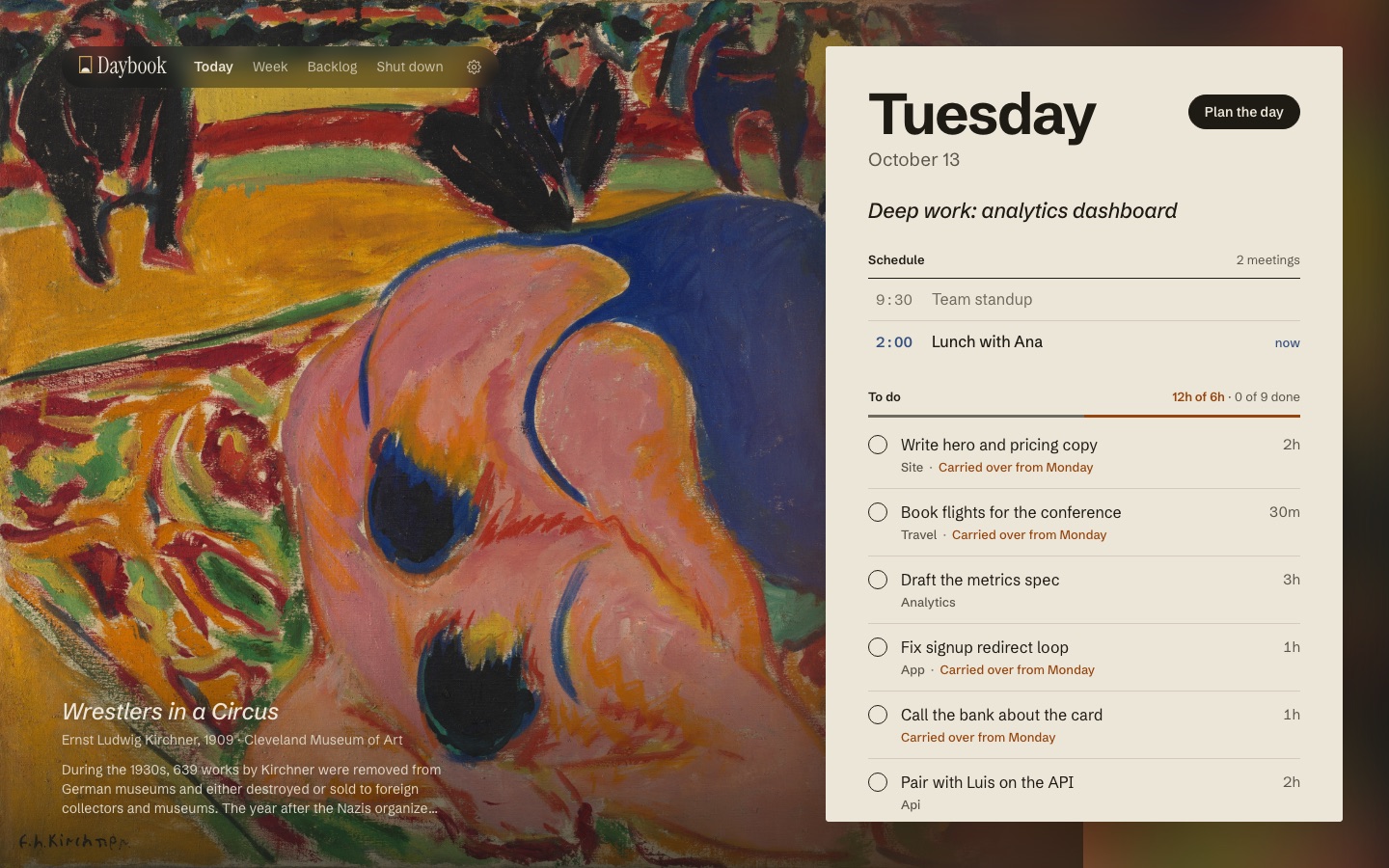
- Today. One focus line, a short list of tasks with time estimates, and
how much you've planned against your capacity (6 hours by default).
Unfinished tasks roll over to the next day and remember where they started.
Click a task to rename it, tag it, time it or move it. Tick one and it moves
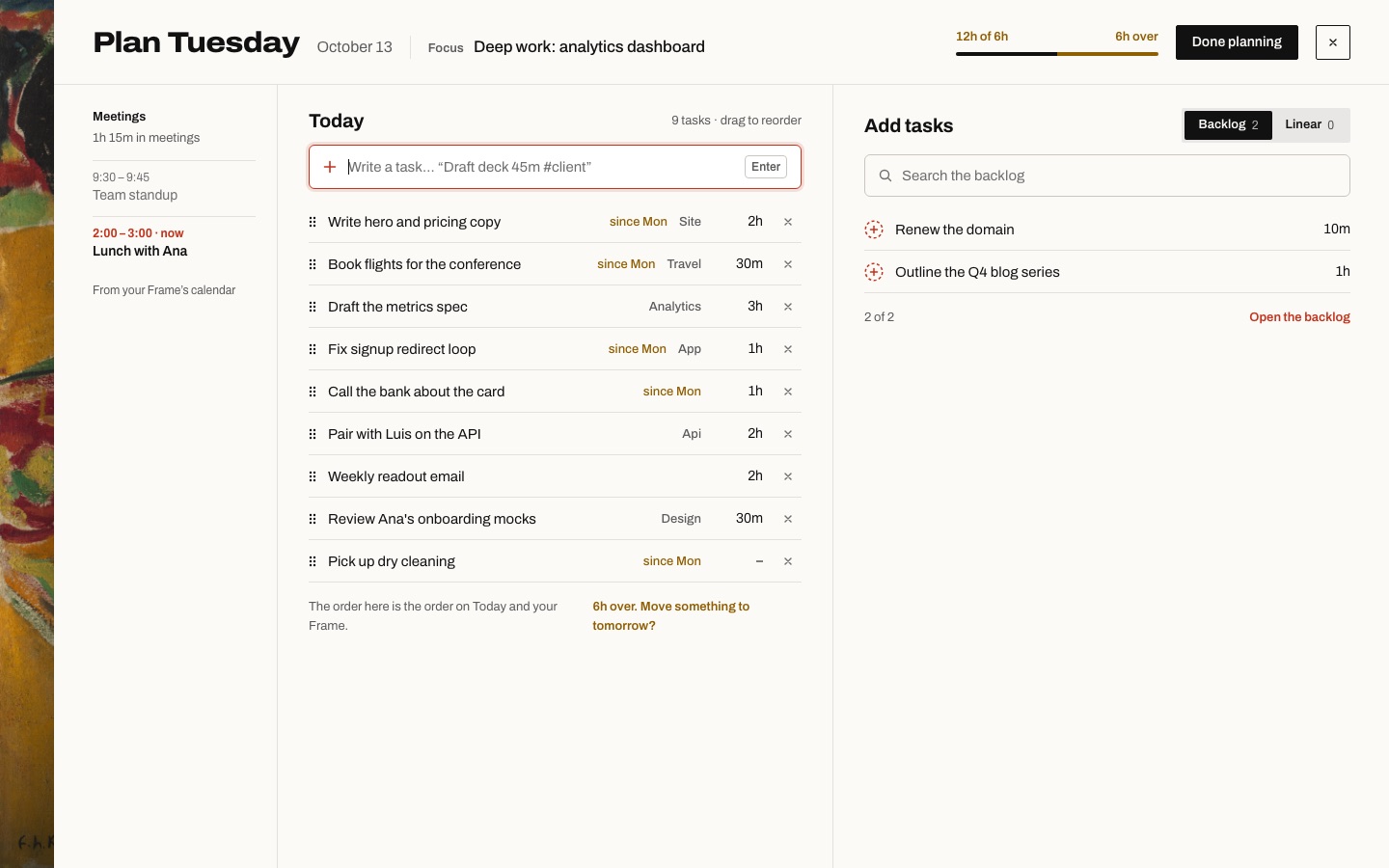
under the ones still to do (Settings → Appearance can keep it in place). - Plan the day. Planning takes the whole window: your meetings in a narrow
column, the day you're building in the middle, and only tasks on the right,
from the backlog or from Linear. Write new ones (into the day or the
backlog), edit or delete them without leaving the plan, and reorder by
dragging: the task lifts and follows the pointer, and the other rows part
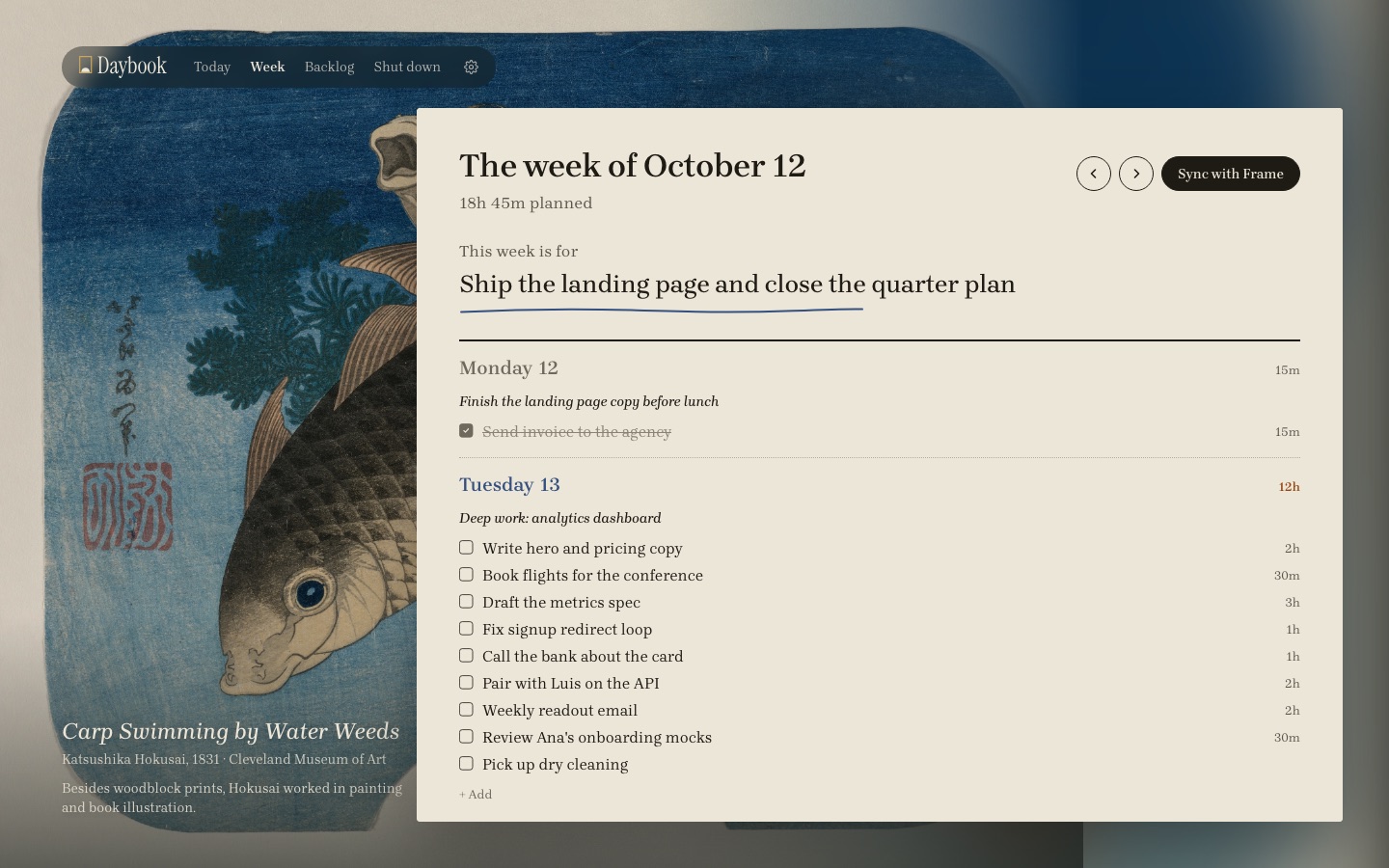
to show where it will land (hold it a moment on a touchscreen). - Week. One card with a column per day, Sunsama style. Pick up a task
from the backlog or any day and put it on a line of another day, or back in
the backlog: it lifts and follows the pointer, and the rows part where it
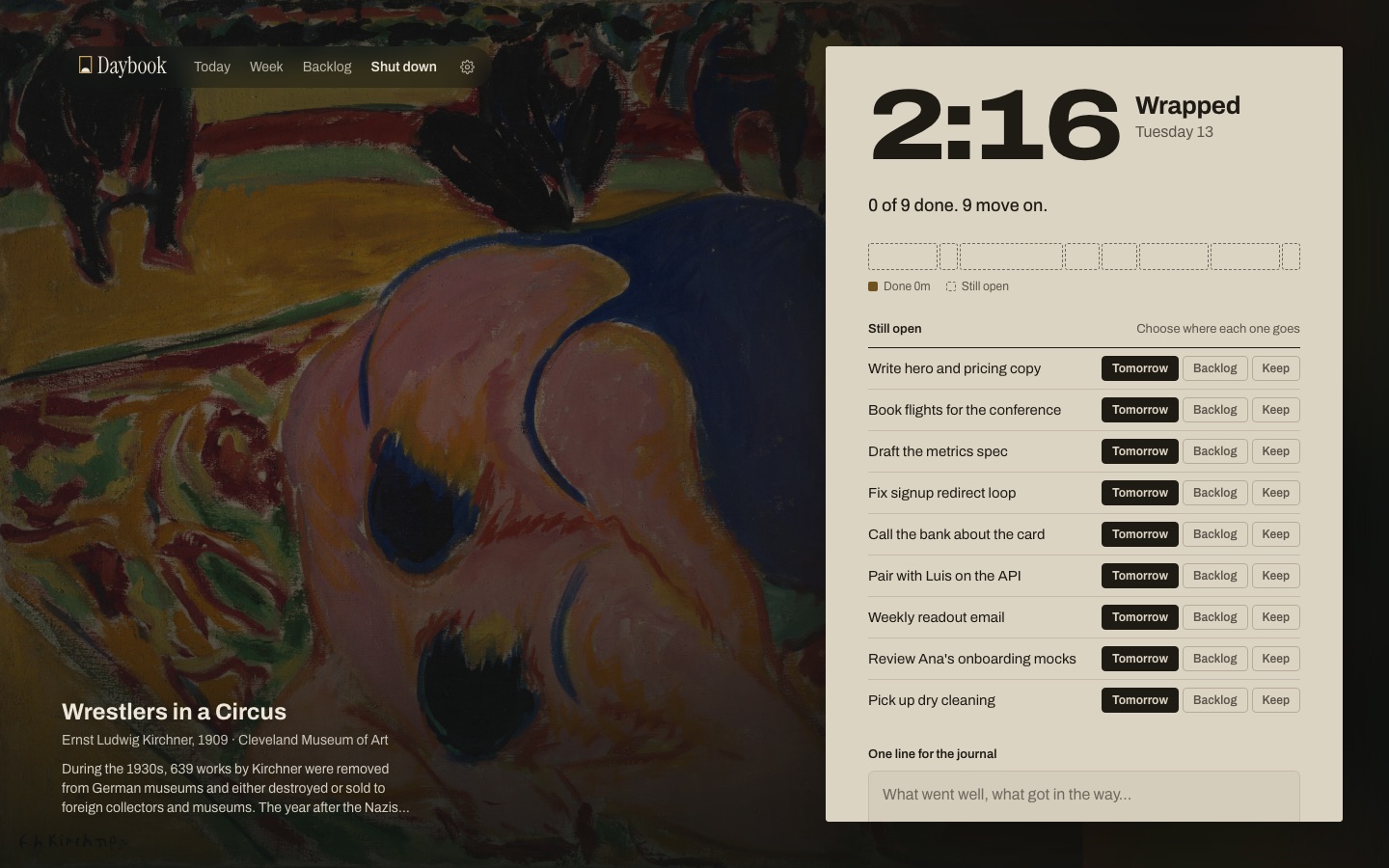
will land. Each day turns amber when it's over capacity. - Wrap up (shutdown). The same painting at dusk. You see what got done, choose
where unfinished work goes (tomorrow, the backlog, or stay), and write one
line for the journal. - Agents first. A built-in MCP server works with Claude, Cursor, Codex,
ChatGPT, Grok and any other MCP client. It has tools for every action and
prompts for the morning, evening and Monday rituals. There's also a REST
API and a small CLI. - Linear. Your open assigned issues land in the backlog. Finishing one in
Daybook completes it in Linear. - Frame Dashboard. Two-way sync with your TV and Frame Desk. To-dos ticked,
added or removed there come back to Daybook, Daybook's week goes to the TV,
and the TV's meetings show up on Today. Pick the TV's design (painting by
day, salon, or painting always) from the Week screen, the Mac app or an agent. - On this device, or in your own cloud. The first screen has one button,
Start my day: your days stay in the browser, with no account and no backend.
Once a week Today asks you to keep a copy, and Settings → Your data exports
one, imports one, or erases everything. The same file moves you to a cloud
Daybook later; the small line at the bottom of the first screen, "Already
have one here? Open it with your key", opens one. - Three designs, three palettes. A museum wall label, a timetable with wide
numerals and blocks of time, or a written notebook; in Salon (bone and
cobalt), Modern (white and one red dot) or Nocturne (blue-black and gilt).
Settings → Appearance, with an option to turn to Nocturne after shutdown. - Mac app. The full Daybook in a window, a glance at today in the menu
bar, and a shutdown reminder; your days stay on the Mac until you connect a
cloud Daybook (then Frame sync every two minutes too). It opens on a
wall of paintings and updates itself. Signed and notarized: download Daybook.dmg
(macOS 14+, Apple silicon and Intel). See mac/README.md. - Windows app (preview). The full Daybook in a window, your days kept on
the PC, and a tray icon. Not code-signed yet, no cloud Daybook or menu-bar
glance yet. See windows/README.md.
| Plan the day (Timetable, Modern) | Week (Notebook) |
|---|---|
 |
 |
| Wrap up (Timetable) |
|---|
 |
Run it
You need Node 20 or later and pnpm 10.
pnpm install
cp .env.example .env.local      # optional locally: works with no key and stores data in .data/
pnpm dev                        # http://localhost:3000
Without DAYBOOK_KEY, pnpm dev lets in anyone who can reach it (it listens
on your network too) and keeps its data in .data/daybook.json. Any other
server without a key, pnpm start included, offers only "on this device".
The UI is in English or Spanish (DAYBOOK_LOCALE=en|es), and the time zone
that decides "today" is DAYBOOK_TZ.
The landing page
daybooksalon.vercel.app is Daybook's public page
(site/): the painting of the day in a salon hang, the rotation, the Frame, the
Mac app and how to install it. It is its own Next.js app and Vercel project
(Root Directory site); see site/README.md.
Deploy your own
Just the app. Deploy with no settings at all. Everyone who opens it uses
Daybook on their own device: their days stay in their browser, and the server
keeps nothing. No database, no key.
A cloud Daybook (Vercel + Upstash). For the same days everywhere, the Mac
app, agents, Linear and Frame:
- Import the repo in Vercel. Under Storage → Create Database → Upstash for
Redis (the free plan is enough), connect it to the project. That setsKV_REST_API_URLandKV_REST_API_TOKEN. - Set
DAYBOOK_KEY(openssl rand -hex 24),DAYBOOK_TZ, and optionallyLINEAR_API_KEY,FRAME_DASHBOARD_URLandFRAME_DASHBOARD_WRITE_KEY.
.env.example explains each one. - Set
CRON_SECRETtoo. Vercel Cron then calls/api/cron/synconce a
day (seevercel.json) to sync Linear and the Frame. On a Pro plan you
can make it every 10 minutes (*/10 * * * *). - Deploy, open the site, choose Open it with your key at the bottom of
the first screen, and enter your key once in each browser you use. - In the Mac app, Settings → Connect a cloud Daybook: the address of your
deployment and the same key. The days already on that Mac come along.
When you deploy a new version, pages that are already open show a small
Update mark beside the Settings gear; a click reloads them.
How it fits together
 Web app ─┐                                  ┌─ Frame Dashboard (its own Vercel project)
 Mac app ─┼─▶ Daybook on Vercel ─▶ Upstash   │    TV + Frame Desk edit its plan
 Agents  ─┘   (/api, /api/mcp)   ◀─ sync ───▶┘    (two-way, three-way merge)
  (MCP)                          ◀─ sync ─── Linear
Daybook on Vercel is the one source of truth. The web app, the Mac app and
your agents all read and write it with the same key. Frame sync is
server-side, using FRAME_DASHBOARD_URL and FRAME_DASHBOARD_WRITE_KEY, and
it runs:
- after every change, when
FRAME_AUTO_SYNC=true; - every 2 minutes while the Mac app is open;
- on the Vercel Cron schedule;
- when you press Sync with Frame.
A cloud Daybook needs storage (Upstash on Vercel) and DAYBOOK_KEY; without
them a deploy only offers "on this device". Anyone with the key can read and
change your plan, so treat it like a password.
Connect your agents
Open Settings (the gear in the navigation). For Linear and Frame
Dashboard, paste their keys; Daybook checks them and stores them encrypted.
For an AI client, pick it from the list:
- Claude, ChatGPT, Cursor and Grok;
- Claude Code, Codex, Gemini CLI, VS Code and Windsurf;
- Meta Llama Stack, or any other MCP client.
Daybook creates a token just for that client and shows the exact setup, with
a one-click install for Cursor and VS Code. Revoke a token there at any time.
To do it by hand: the MCP endpoint is https://<your-daybook>/api/mcp (Streamable HTTP, JSON
responses). Agents authenticate with Authorization: Bearer <DAYBOOK_KEY>.
For clients that can't send headers, such as ChatGPT connectors, use?key=<DAYBOOK_KEY> instead.
DAYBOOK_URL=https://your-daybook.vercel.app DAYBOOK_KEY=… node cli/daybook.mjs setup           # print every snippet
DAYBOOK_URL=… DAYBOOK_KEY=… node cli/daybook.mjs setup cursor codex --write                    # write configs (with backups)
| Client | How |
|---|---|
| Claude Code | claude mcp add --transport http daybook <url>/api/mcp --header "Authorization: Bearer <key>" |
| Cursor | ~/.cursor/mcp.json → { "url": "<url>/api/mcp", "headers": { "Authorization": "Bearer <key>" } } |
| Claude Desktop | stdio relay node cli/daybook.mjs mcp, or Settings → Connectors with the URL |
| Codex | ~/.codex/config.toml → [mcp_servers.daybook] using the stdio relay |
| ChatGPT | Developer mode → Create connector with <url>/api/mcp?key=<key>, no auth |
| Grok | Grok Build: ~/.grok/config.toml like Codex. Grok on the web / Grok Bot: a custom connector with the URL |
| Meta Llama Stack | Register a model-context-protocol tool group with the URL |
See docs/agents.md for the full setup, the tool list and the
REST API. Then ask your agent to "plan my day".
CLI
node cli/daybook.mjs today
node cli/daybook.mjs add "Draft deck 45m #client" --date tomorrow
node cli/daybook.mjs done <id>
node cli/daybook.mjs mcp          # stdio MCP relay for clients without remote MCP
Development
pnpm verify # lint, typecheck, tests, production build
| Path | What |
|---|---|
app/ |
The screens (/, /plan, /week, /backlog, /shutdown, /settings) and the API under app/api/ |
components/ |
The salon shell, the placards, and task rows |
lib/daybook.ts |
The domain: tasks, days, weeks, rollover, planning, shutdown |
lib/mcp.ts |
The MCP server: tools, prompts, JSON-RPC |
lib/linear.ts, lib/frame.ts |
The integrations |
lib/storage.ts |
The store interface the domain uses (no Node or browser imports) |
lib/store.ts |
The server's store: Upstash Redis, or a JSON file locally |
lib/localStore.ts, lib/localApi.ts |
"On this device": the store in localStorage, and the API answered in the browser |
lib/backup.ts |
Export and import a whole Daybook as one JSON file |
cli/daybook.mjs |
The CLI and stdio relay (no dependencies) |
mac/ |
Daybook for Mac (SwiftUI): window + menu bar |
windows/ |
Daybook for Windows (Tauri): window + tray, a preview |
site/ |
The landing page, its own Next.js app and Vercel project |
The design was drawn in Paper (the maintainer's file, not public); you don't
need it to contribute. Colours, type and spacing live in app/globals.css as
palette variables (data-palette) and per-design rules (data-style).
Art and fonts
The 44 paintings are in the public domain. They are scans from
Wikimedia Commons, shared with Frame
Dashboard and resized to WebP in public/art/. Each painting's source page is
in lib/art.json, and the credit on screen links to it.
Schibsted Grotesk,
Archivo and
Brygada 1918 are under the
SIL Open Font License. The Mac app bundles
Instrument Sans and
Instrument Serif, also
OFL, with their licence files.
Contributing
Issues and pull requests are welcome. See CONTRIBUTING.md,
and report security issues privately as described in
SECURITY.md.
License
MIT for the code.
Yorumlar (0)
Yorum birakmak icin giris yap.
Yorum birakSonuc bulunamadi