MenuBarHome
Health Gecti
- License — License: MIT
- Description — Repository has a description
- Active repo — Last push 0 days ago
- Community trust — 49 GitHub stars
Code Basarisiz
- rm -rf — Recursive force deletion command in .agents/cloud-setup.sh
- rm -rf — Recursive force deletion command in .github/workflows/ci.yml
- rm -rf — Recursive force deletion command in .github/workflows/release.yml
- process.env — Environment variable access in .github/workflows/release.yml
- fs module — File system access in .github/workflows/release.yml
Permissions Gecti
- Permissions — No dangerous permissions requested
Bu listing icin henuz AI raporu yok.
macOS / Windows menu bar control for Xiaomi Mijia and Home Assistant devices (formerly MenuBarMijia)
English | 简体中文
MenuBarHome
Run your whole home from your computer, without reaching for your phone.
A Mi Home control center that lives in the Mac menu bar, with a Windows 11 tray edition too.
Scan one QR code with the Mi Home app and you're connected. No Home Assistant setup required.
Formerly known as MenuBarMijia.


Download latest · Install & Connect · Will my devices work? · Platform Comparison · Safety & Privacy · Changelog

Press ⌥M, type sftd (the pinyin initials of 书房台灯, "study desk lamp"), and hit Return. Recorded in macOS demo mode with virtual devices; the interface shown is in Chinese.
Three steps: install (Homebrew, DMG, or the Windows installer) → connect (scan one QR code, or try the Demo with no account) → press ⌥M (Alt+M on Windows).
[!NOTE]
New name, new address: as of 1.2.0, MenuBarMijia is called MenuBarHome and lives at github.com/jryang2026-code/MenuBarHome. Version 1.1.7 and earlier can't pick up this update on their own, so install it by hand once. Your sign-in and settings carry over; afterwards, delete the oldMenuBarMijiaapp (on Windows, uninstall the old version first).
[!IMPORTANT]
Not affiliated with Xiaomi. MenuBarHome is an independent open-source project, not an official Xiaomi or Mijia product, and is not affiliated with, endorsed by, or sponsored by Xiaomi Corporation or its affiliates. "Xiaomi", "Mijia", "Mi Home", and "米家" are trademarks of Xiaomi Corporation and its affiliates. The project uses these names only to describe compatibility with Xiaomi / Mijia devices; no endorsement is implied.
Why You'll Want It
You're writing, coding, or on a call, and the light needs to go off. Normally that means unlocking your phone, finding the app, and digging through rooms. MenuBarHome turns it into one shortcut.
- Scan and go. Choose "Mi Cloud Connect" in Settings, scan the QR code on screen with the Mi Home app, and every room and device shows up. No Home Assistant, no token hunting. If you already run Home Assistant, you can connect that instead.
- Keep your hands on the keyboard.
⌥Mopens the panel. Start typing a device name, a room, or pinyin initials, and press Return to toggle. Arrow keys adjust brightness and temperature. - Hold to talk, let go to run it. No wake word, no waiting for a reply. Everyday commands like switching, dimming, setting the temperature, or timers are understood on your Mac, with no AI key needed.
- Undo the oops. All Off leaves plugs, robot vacuums, and cameras alone by default. If you switched off something you needed, tap Undo and everything comes back.
- Follows your Mac. Lights off when you lock the screen, desk lamp on when you plug in a display, lighting set before a calendar meeting starts. Every rule starts switched off, so you choose what runs.
- Native and quiet. The macOS app is written in Swift with no bundled browser engine, and uses about 1.2% CPU (~113 MB RSS) when idle in the background with the panel closed (see FAQ).
Quick Start
1. Install
- macOS: macOS 14 (Sonoma) or later, Universal Binary for Apple Silicon and Intel.
- Windows: Windows 11 (64-bit).
macOS · Homebrew
brew tap jryang2026-code/tap
brew trust --cask jryang2026-code/tap/menubarhome
brew install --cask jryang2026-code/tap/menubarhome
macOS · DMG
Download MenuBarHome-<version>.dmg (for example, MenuBarHome-1.4.0.dmg) from GitHub Releases and drag MenuBarHome.app into Applications.
The project isn't enrolled in the paid Apple Developer Program, so the app isn't notarized. If macOS Gatekeeper blocks the first launch:
- Double-click
/Applications/MenuBarHome.appand click Done (or OK) to dismiss the warning dialog.- On macOS 15 or later, open System Settings → Privacy & Security and scroll down to the Security section.
- Click Open Anyway next to the message about
MenuBarHome, click Open Anyway again in the confirmation dialog, and authenticate with Touch ID or your password.- Alternative: if it still won't open or the Open Anyway button doesn't appear, clear the quarantine attribute in Terminal:
xattr -dr com.apple.quarantine /Applications/MenuBarHome.app
Verify the DMG download against MenuBarHome-1.4.0.dmg.sha256 from the same release:
shasum -a 256 MenuBarHome-1.4.0.dmg
# Or verify automatically if the .sha256 file is in the same directory:
shasum -a 256 -c MenuBarHome-1.4.0.dmg.sha256
Windows 11
Download MenuBarHome-<version>-windows-x64-setup.exe (for example, MenuBarHome-1.4.0-windows-x64-setup.exe) or MenuBarHome-<version>-windows-x64.msi (for example, MenuBarHome-1.4.0-windows-x64.msi) from GitHub Releases.
The installer isn't signed with a commercial Authenticode certificate. If Windows SmartScreen blocks it:
- When the blue Windows protected your PC prompt appears, click More info.
- Click Run anyway at the bottom of the dialog to continue installation.
Verify the Windows installer in PowerShell against the corresponding .sha256 file on the release page:
# For the EXE installer (compare with MenuBarHome-1.4.0-windows-x64-setup.exe.sha256)
Get-FileHash -Algorithm SHA256 .\MenuBarHome-1.4.0-windows-x64-setup.exe

# For the MSI installer (compare with MenuBarHome-1.4.0-windows-x64.msi.sha256)
Get-FileHash -Algorithm SHA256 .\MenuBarHome-1.4.0-windows-x64.msi
2. Connect your home
Click the menu bar (or tray) icon to open the panel, open Settings ⚙️, and pick one:
- Mi Cloud Connect (recommended): choose "Mi Cloud Connect", scan the QR code with the Mi Home app on your phone, and your homes, rooms, and devices sync in. CN, SG, DE, US, and RU servers are supported. On both macOS and Windows you can add more accounts and see all their devices in one panel. If your sign-in is about to expire, the panel warns you 3 days ahead, and a quick re-scan in the panel renews it.
- Home Assistant: enter your instance address (for example
http://192.168.1.100:8123; reverse-proxy subpaths work too) and a long-lived access token. macOS can also find Home Assistant on your local network. The token is kept in the macOS Keychain or Windows Credential Manager.
If macOS says "Local network connection blocked by macOS", allow MenuBarHome under System Settings → Privacy & Security → Local Network. - Demo mode: try the whole interface with virtual devices, no account needed.
Take the Tour
A new panel
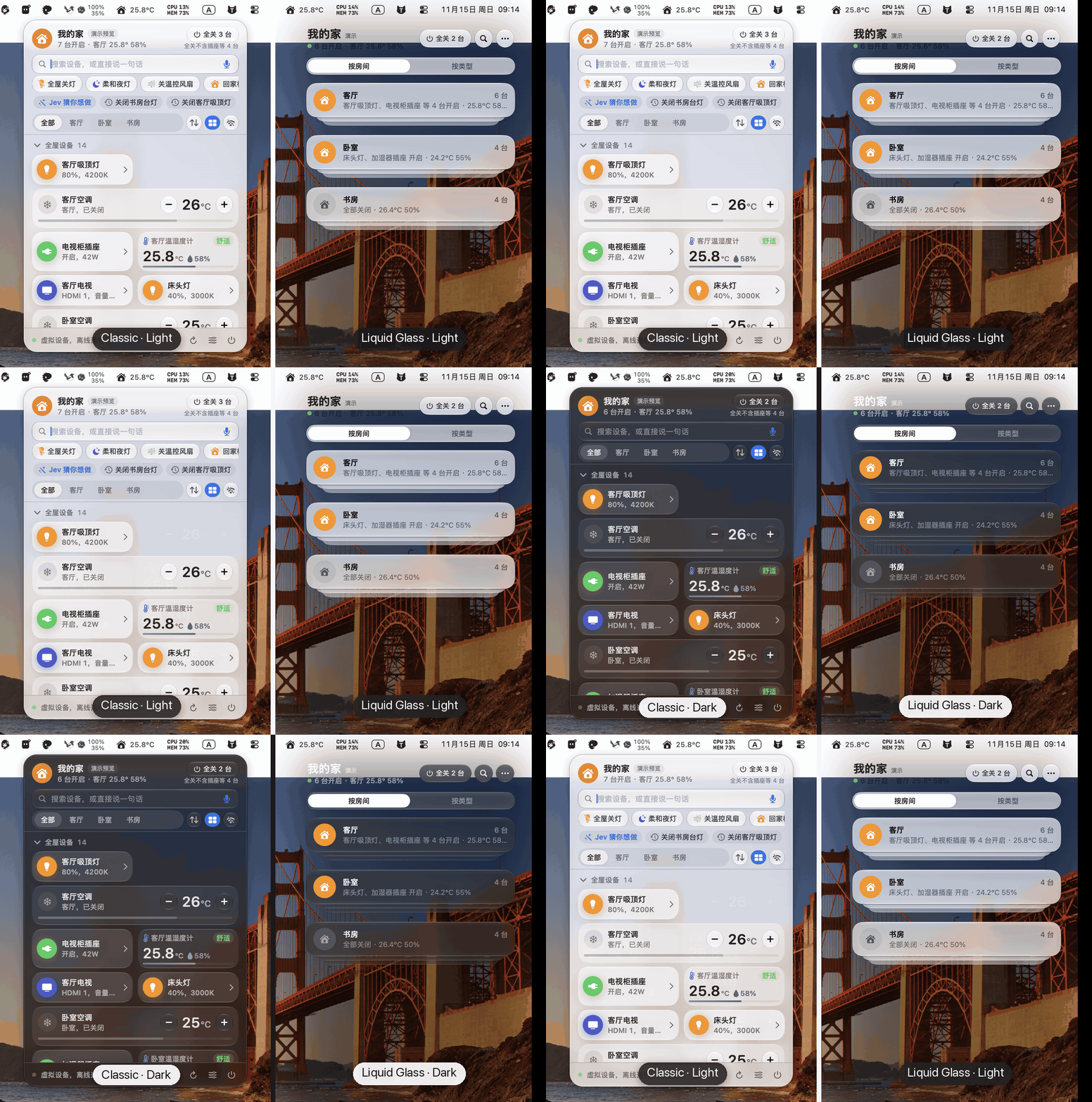
Search now sits at the top, and the same box takes device names and spoken commands. Favorite devices are laid out as tiles, the AC can be nudged up or down right on its card, and room tabs, sorting, and the compact view are a click away. Light and dark follow the system, and on macOS 26 or later you can switch to the Liquid Glass theme.
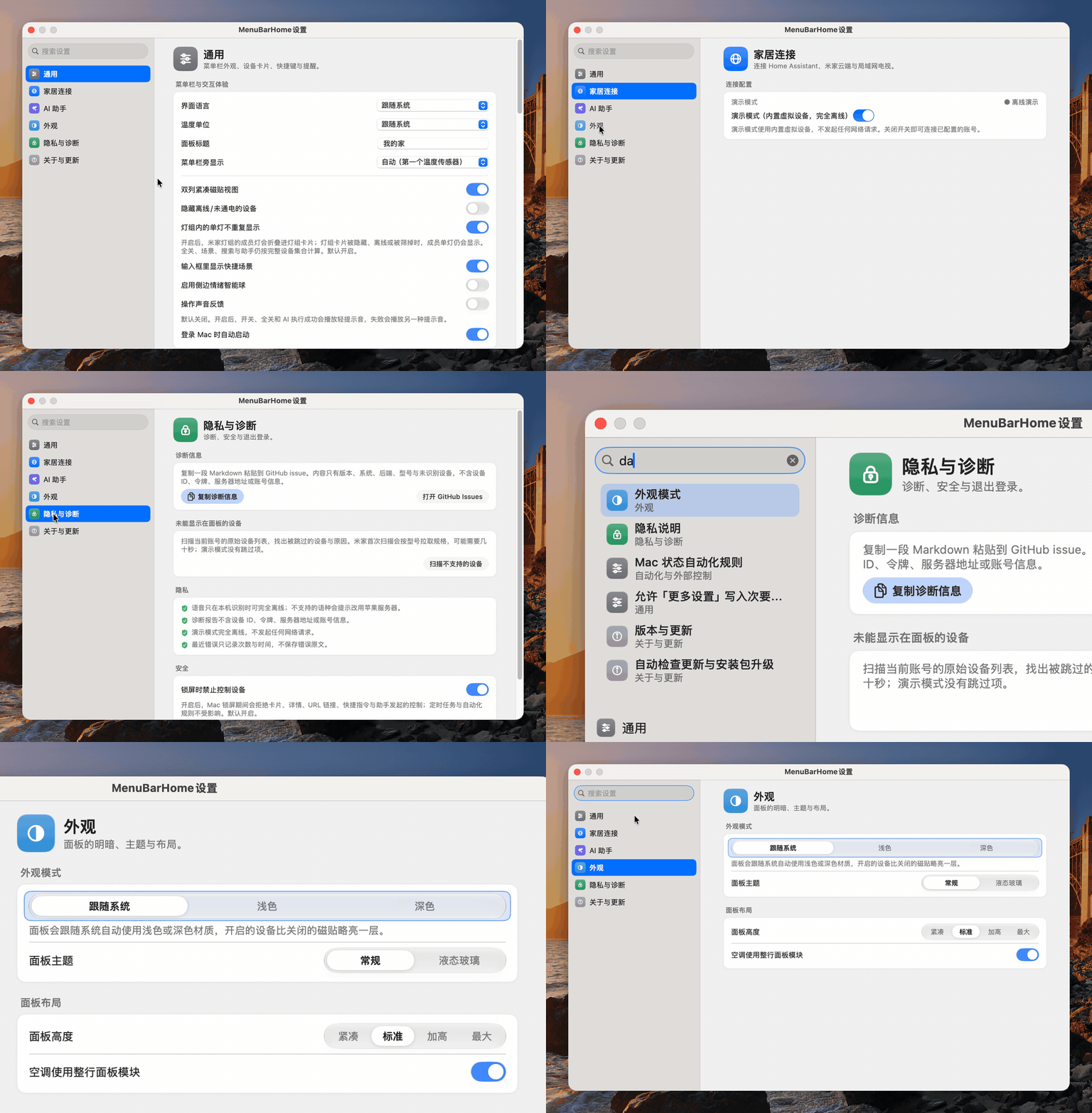
Settings that feel like System Settings
A sidebar of categories with colored icons and grouped cards, laid out like the Mac's own System Settings. The search field understands Chinese and English keywords plus synonyms, and picking a result jumps straight to that setting and highlights it.
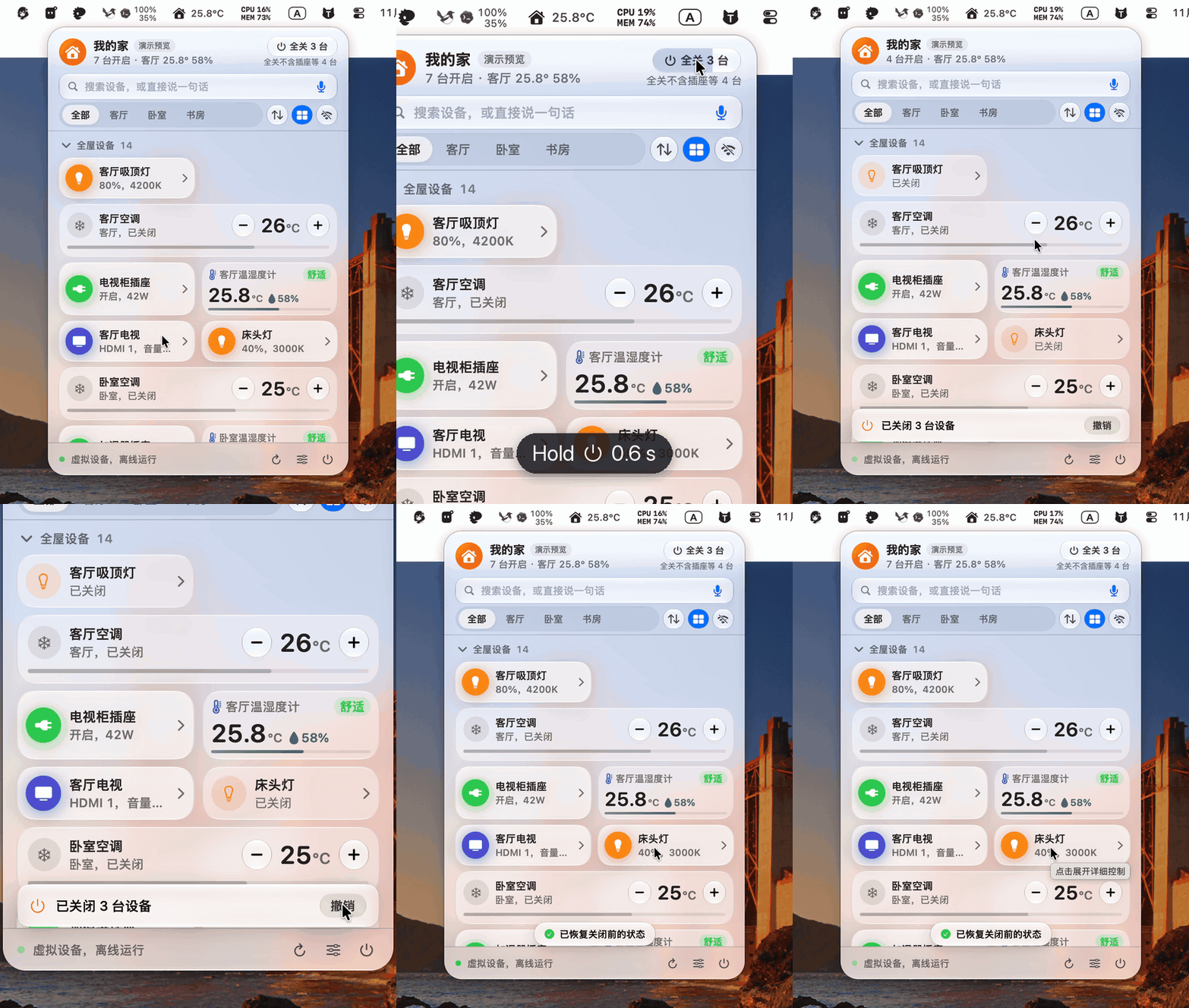
Hold to talk
Hold ⌥M or the menu bar icon, say what you want, and let go. What you say appears in the search field as you speak and runs the moment you release. Everyday commands are parsed locally, so there's almost no wait; for trickier requests you can plug in an AI service of your choice.

All Off, with Undo
Heading out or going to bed? Hold All Off for 0.6 seconds and everything that's on in the current view switches off. Plugs, robot vacuums, and cameras sit it out by default (you can change that in Settings). An Undo button appears right after; one tap restores the way things were.
Windows 11, redesigned too
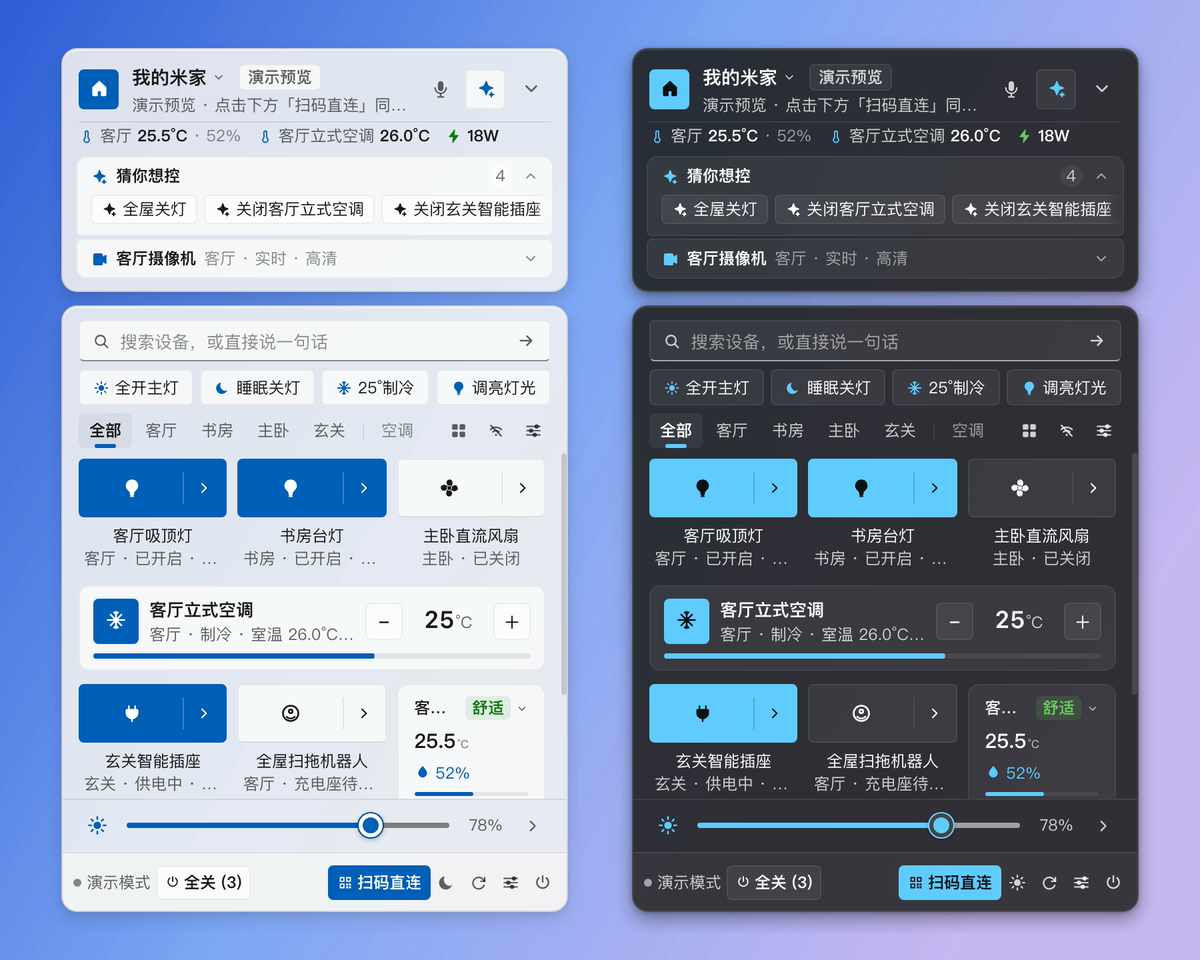
The tray app was redrawn in Windows 11's Fluent 2 style as two floating islands: home status, "For You" suggestions, and a camera glance on top; search, quick actions, and device tiles below. Keyboard search, the Alt+M shortcut, and light/dark appearance are all there.
What Else It Does
- Works with a lot of devices. Lights, ACs, fans, plugs, TVs, curtains, clothes airers, air purifiers, humidifiers, fridges, water heaters, washers and dryers, bath heaters, range hoods, robot vacuums, cameras, locks, and all sorts of sensors. Mi devices without a dedicated card still get a generic one. Check your own devices here.
- Camera windows. Click a camera for a pinned live view. Dual-lens models can switch lenses, and pan-tilt cameras turn when you drag the picture.
- Climate trends and energy logs. Sensors chart 24-hour and 7-day trends; plugs keep a daily energy log, and with your electricity rate entered you get a cost estimate.
- For You suggestions. Based on what you usually turn on and when, likely next actions are ready before you ask. Habits stay on your machine and can be reviewed or cleared anytime.
- Multiple accounts, two sources. Sign in to several Xiaomi accounts at once, or run Mi Home and Home Assistant side by side; the same physical device is merged automatically.
- Safety alerts and a weekly report. You get a notification when a high-power appliance has been running too long or a favorite device drops offline, and a weekly home health report shows which devices keep disconnecting and which plugs draw standby power.
- Plugs into your tools. Apple Shortcuts,
menumijia://links, a Raycast extension, a command-line tool, and an MCP server, so AI tools like Claude and Cursor can check on and control your home without ever seeing your account credentials.
For what each platform supports, see the platform comparison.
Keyboard Shortcuts & Natural Commands
Keyboard Navigation
⌥M opens the panel on macOS and Alt+M opens it on Windows. Typing to search, ↑/↓, Return/Space, →/←, and Esc work on both platforms; Tab cycles room tabs on macOS.
| Shortcut | Action |
|---|---|
⌥M / Alt+M |
Toggle the MenuBarHome panel (macOS / Windows) |
| Type letters | Instant search by device name, room, or pinyin initials (e.g. sftd) |
↑ / ↓ |
Navigate through search matches and device cards |
Return / Space |
Toggle the focused device; expand the detail drawer if not directly switchable |
→ / ← |
Press Right to open details; then use Left and Right to adjust light brightness, AC temperature, cover position, or volume (Windows also adjusts fan speed) |
Tab |
Switch between room tabs (macOS) |
Esc |
Clear search query, close drawer, or dismiss panel |
Local Natural Language Commands
These phrases are parsed locally without any AI API key or cloud model tokens:
- Power: "turn off study light", "turn on living room ac", "turn off all lights"
- Lighting presets: "study light moonlight mode", "daylight mode"
- Adjustments: "dimmer", "brighter", "set bedroom light to 40%"
- Climate & Fan: "set ac to 24 degrees", "warmer", "fan natural wind"
- Timers: "in 10 minutes turn off study light", "cancel timer"
- Undo: "undo", "revert" (active for 10 minutes after any batch execution)
Platform Comparison
macOS is a native Swift 6 app; Windows 11 is a separate Tauri v2 implementation. They share golden test fixtures, but they are not identical:
| Area | macOS 14+ | Windows 11 |
|---|---|---|
| Mi Home QR connect | ✅ | ✅ |
| Home Assistant | ✅ | ✅ |
| Keyboard search and global hotkey | ✅ ⌥M |
✅ Alt+M |
| Voice | ✅ hold to talk or hands-free | ⚠️ hands-free only |
| Local commands and optional AI | ✅ | ✅ |
| All Off and Undo | ✅ | ✅ |
| Camera live view | ✅ | ✅ |
| Several Xiaomi accounts at once | ✅ | ✅ |
| Mi Home + Home Assistant dual source | ✅ | ✅ |
| Event automation | ✅ | ⚠️ partial |
| Apple Shortcuts | ✅ | — |
| Signed installer | ⚠️ self-signed | ⚠️ unsigned |
The full device-by-device table, with every capability and its status, is in docs/platform-matrix.md.
Raycast Extension, Local CLI & MCP Server
MenuBarHome can hand its device list to a companion without sharing any credential. Turn on Settings → 通用 → 自动化与外部控制 → Raycast 集成 (Settings → General → Automation & External Control → Raycast integration) on macOS (or Settings → All-Off & Updates → Raycast & Local CLI / MCP Integration on Windows): the app writes ~/Library/Application Support/MenuBarMijia/raycast-snapshot.json on macOS (mode 0600) or %LOCALAPPDATA%\MenuBarMijia\raycast-snapshot.json on Windows with your devices, scenes, quick actions, environment readings, the last command result, and a random local bridge token. Links that carry the token skip the external-link confirmation prompt; high-risk devices still ask, and the lock-screen block still applies on both platforms. Turning the integration off deletes the file and revokes the token. The contract and the trade-offs behind it are in ADR-0013.
Why you still see the old name. The app is MenuBarHome, but the integration surface kept its original names so existing Raycast commands, Shortcuts, scripts and MCP configs keep working:
| You will see | What it is | Use this |
|---|---|---|
menumijia://… |
The URL scheme every companion sends. It is a compatibility contract (ADR-0013), so companions keep sending it | Keep menumijia://; menubarhome:// is accepted as an exact alias |
scripts/mijia, scripts/mijia-mcp |
The CLI and MCP server | scripts/menubarhome is the same CLI under the new name; mijia keeps working |
MenuBarMijia/ data folder, MenuBarMijiaApp process |
The app's data directory and process name | Nothing to do; your sign-in and settings live there |
MCP key menubarmijia |
A label in your MCP client's config, and the server's reported name | Name it anything; the example below uses menubarhome |
Local CLI
scripts/mijia is a dependency-free Python 3 script. Keep MenuBarHome running while you use it.
| Command | What it does |
|---|---|
scripts/mijia list [--room 书房] [--json] |
Visible devices grouped by room, with online state and readings |
scripts/mijia list --format alfred [--room 书房] |
Alfred Script Filter JSON: one item per device, ↵ flips its power, ⌘ shows it in the panel |
scripts/mijia list --format swiftbar [--room 书房] |
SwiftBar / xbar plugin text: a menu bar header, one clickable line per device with its state |
scripts/mijia status [--json] |
Connection, device counts, environment readings, and the last command's result |
scripts/mijia toggle 书房台灯 |
Flip the primary switch by name, id, or pinyin initials (sftd) |
scripts/mijia on 客厅射灯 / scripts/mijia off 客厅射灯 |
Set an exact power state instead of flipping |
scripts/mijia brightness 书房台灯 60 |
Set light brightness (0–100%) |
scripts/mijia color-temp 书房台灯 4000 |
Set light colour temperature (1000–20000 K) |
scripts/mijia temperature 书房空调 25 |
Set target temperature (-30–100 ℃) |
scripts/mijia fan 客厅风扇 --percent 60 / --preset 自然风 |
Set fan speed percentage (1–100%) or a reported preset mode |
scripts/mijia focus 书房台灯 |
Reveal the device's room and detail drawer in the panel without actuating hardware |
scripts/mijia scene 观影模式 |
Run a Home Assistant scene or a built-in quick action (全屋关灯, 一键全关, 撤销…) |
scripts/mijia ask "把客厅灯调到 40%" |
One natural-language command, with the app's own parsing and confirmation |
scripts/mijia mcp (or scripts/mijia-mcp) |
Run the local MCP server over stdio |
scripts/menubarhome runs the same program: scripts/menubarhome list is scripts/mijia list.
Exit codes: 0 success, 1 the app reported a failure, 2 local error (snapshot missing, unknown device, integration off), 3 no result in time. --dry-run prints the link with the token masked, --no-wait sends it without waiting, and MENUBARMIJIA_SNAPSHOT_PATH overrides the snapshot path.
Alfred & SwiftBar
--format alfred and --format swiftbar render the same read-only snapshot as list: nothing is written and no network call is made. Every entry carries a menumijia:// link, so a click still goes through the app's external-link confirmation, high-risk device confirmation and lock-screen block.
For SwiftBar, save a two-line plugin in the plugin folder, for example~/Library/Application Support/SwiftBar/plugins/menubarhome.1m.sh (the 1m refreshes it every minute):
#!/bin/sh
exec /ABSOLUTE/PATH/TO/MenuBarHome/scripts/mijia list --format swiftbar
For Alfred, add a Script Filter with the keyword mijia whose script runs/ABSOLUTE/PATH/TO/MenuBarHome/scripts/mijia list --format alfred, then connect it to an Open URL
action so the selected arg is opened. Each item's ⌘ variant opens the device in the panel instead of
flipping it. --icon /Applications/MenuBarHome.app sets the item icon when the app lives elsewhere;
without it the script uses the installed app's icon, or Alfred's workflow icon.
Both formats put the local bridge token in the links, exactly like every other CLI command: the token
only skips the generic "an external link wants to run this" prompt, and the app still asks before a
high-risk device changes state and refuses controls while the screen is locked.
Local MCP Server (Claude Desktop / Claude Code / Cursor)
scripts/mijia-mcp (or scripts/mijia mcp) speaks MCP JSON-RPC 2.0 over stdio using only the Python 3 standard library. It exposes read-only resources (mijia://status, mijia://devices, mijia://scenes) and tools (list_devices, get_home_status, toggle_device, set_device_power, set_light_brightness, set_light_color_temp, set_temperature, set_fan, run_scene, ask_home, focus_device). The server uses bridgeToken internally to dispatch menumijia:// links and strips bridgeToken from every MCP resource and tool response so it never enters the model's context.
{
  "mcpServers": {
    "menubarhome": {
      "command": "/ABSOLUTE/PATH/TO/MenuBarHome/scripts/mijia-mcp"
    }
  }
}
Every control tool carries destructiveHint: true, so MCP clients that honour the annotations ask before running one. To give an AI session read-only access, add --read-only to the same entry ("args": ["--read-only"], or run scripts/mijia mcp --read-only): tools/list then advertises only list_devices, get_home_status and focus_device, and any control call comes back as an error naming the flag instead of touching a device.
Raycast
raycast/ is a standard Raycast extension with three view commands (Search Devices, Scenes & Quick Actions, Ask MenuBarHome), three no-view commands you can bind to a global hotkey (Toggle Device, Run Scene, All off, which confirms first), and three AI tools (list-devices, get-device-state, control-device) for @MenuBarHome in Raycast AI. Import it with Raycast → Extensions → + → Import Extension, or run cd raycast && npm ci && npm run dev while Raycast is open. Power, brightness, colour temperature, thermostat target and fan speed are sent as exact values (menumijia://power, brightness, color-temp, temperature, fan), so a slider never flips a device by guessing its state; the view commands show an animated toast while the app works, then update it to the result, the no-view commands report through a HUD, and control-device asks Raycast for confirmation before sending its link.
Safety, Privacy & Limitations
Know before you connect
- Mi Cloud Connect uses an unofficial client API. It is not an official Xiaomi integration. Xiaomi can rate-limit requests or flag an account (risk control) at any time, and this project cannot promise it won't happen. The app polls less when the panel is closed or the screen is locked to keep traffic low. If you'd rather not take that risk, connect Home Assistant with Xiaomi's official xiaomi_home integration instead.
- You will need to scan again. The app does not store the long-lived
passTokenand does not renew a sign-in silently (ADR-0004). How long a sign-in lasts is decided by Xiaomi's server and is shown in Settings when it is known; the panel warns you 3 days before it ends, and re-scanning takes a few seconds. - The apps are not code-signed commercially. macOS needs Open Anyway on first launch and Windows shows a SmartScreen prompt (see Install).
- Windows is not at feature parity. Windows 11 only; voice is hands-free only (no hold-to-talk); event automation covers lock/power/display/sleep/Wi-Fi/schedule/sensor rules (no camera/mic, Focus, Calendar, or lid-closed sleep triggers); Home Assistant uses on-demand WebSocket snapshots/calls rather than a persistent event stream or mDNS discovery; no Apple Shortcuts. See the platform comparison.
Safety and privacy
- Account credentials live only in the macOS Keychain or Windows Credential Manager, never in plain config files or logs.
- Turning on a heater, switching a plug, or starting a robot vacuum always asks first; turning them off happens right away.
- While your Mac is locked, manual control is refused by default, so nobody can play with your lights while you're away from the desk.
- Everyday commands are parsed on your machine. Only when you've set up an AI service and a command can't be understood locally does that command, with the relevant device details, go to the service you chose.
- In-app updates are verified against an Ed25519 signature whose private key is kept offline.
MenuBarHome is an independent open-source project, not an official Xiaomi app. Mi Home cloud control needs an internet connection. You can connect your own Home Assistant instance on macOS or Windows.
Where credentials live
| Secret | What is stored | Where |
|---|---|---|
| Xiaomi Home / Mijia | Signed-in account userId, cUserId, ssecurity, serviceToken, cloud region, and declared expiry (passToken is dropped on login; multi-account on both macOS and Windows) |
macOS Keychain (one generic-password item) or Windows Credential Manager (mi_session and mi_session_<slotId>) |
| Home Assistant | The long-lived access token (the instance URL is not secret) | macOS Keychain or Windows Credential Manager (ha_token) |
| AI assistants | Per-provider API keys, plus non-secret imported-key labels, custom-endpoint bindings, and remembered cloud-consent endpoints | Per-provider API keys in macOS Keychain or Windows Credential Manager (assistant_api_key_<preset>); non-secret metadata in app preferences |
| LG webOS TV | The pairing client key issued by the TV | macOS Keychain |
macOS encrypts these Keychain items at rest and protects them with the login Keychain; MenuBarHome writes them with kSecAttrAccessibleAfterFirstUnlockThisDeviceOnly, so they are available after the first unlock but are never synced to iCloud or another Mac. Neither platform stores secrets in plain UserDefaults, WebView localStorage, or log files. macOS may ask for Keychain permission after an app update because the build signature changes; answering "Always Allow" covers later reads and writes.
On macOS, versions up to 1.0.6 could mirror credentials into plain UserDefaults; on first launch after upgrading, each legacy plaintext value is written into the Keychain and the plaintext key is deleted only after that write succeeds, leaving the old copy in place to retry if Keychain is unavailable. On Windows, upgrading from a legacy localStorage build strips secret fields and rewrites localStorage before persisting to Windows Credential Manager so a credential-store error never leaves plaintext tokens lingering in WebView storage (the in-memory session stays active for that run), and legacy single-slot assistant_api_key entries in Credential Manager migrate into their owning per-provider slot before the legacy entry is deleted.
High-risk controls, lock screen, and revocation
Manual controls on high-risk devices ask for a second confirmation, not only AI-proposed actions: turning on a heater, switching a plug or camera, starting a vacuum, or turning a water heater on or hotter. Turning one of these off stays direct, so making the home safer never requires fighting a dialog. Door/window and gas-alarm sensors are read-only status cards in this app, so they cannot be actuated here at all. The confirmation table is shared across platforms (Tests/Fixtures/confirmation_golden.json, Sources/MijiaCore/ModelActionPolicy.swift).
On macOS, Settings → 隐私 / Privacy has 锁屏时禁止控制设备 / Block device control while locked, on by default. While the Mac screen is locked, card/detail controls, menumijia:// links, App Intents/Shortcuts, assistant commands, the safety notification's 立即关闭 / Turn Off Now action and 立即补执行 / Run Now on a missed timer are refused with a toast; timers that fire on schedule and Mac-event automation rules still run. The toggle is persisted locally and the lock state comes from the system's screen-lock notifications.
The same macOS Settings page has 退出并吊销令牌 / Sign Out & Revoke Tokens, confirmed by a destructive dialog. It signs out every Xiaomi Home account, deletes the Home Assistant token and disconnects, and clears saved AI keys and cloud-consent records while keeping device names, room layout, and local history; you can also revoke one item at a time in its own section. On Windows, credentials and remembered cloud-AI consent endpoints can be cleared per service across the four-tab Settings sheet (clearing the HA token or a provider's API key deletes its Windows Credential Manager entry, and AI & Habits includes a button to revoke remembered cloud-AI consent endpoints).
On macOS, the Home Assistant token goes directly only to an https address or a local-network endpoint; for any other plain-http address (such as a public DDNS hostname), the panel explains that the token would travel unencrypted and connects only after you choose 仍然连接 / Connect Anyway (remembered per address and cleared by Sign Out & Revoke Tokens). On Windows, every new Home Assistant or custom AI origin requires approval in a native system dialog (authorized-http-origins.json), which adds an explicit plaintext-transmission warning whenever a non-local http origin would carry tokens or API keys.
Everyday commands are handled by local rules. You can also connect an AI service of your choice for more complex requests. The request includes your command, device and environment information, and any habit summary you have enabled. Manual card actions also train local time-bucket habit memories (used only for the "For You" suggestions); the habit learning toggle turns this off, learned entries can be reviewed and cleared, and undoing a banner rolls the matching records back. Speech recognition uses system services; on macOS, on-device-only recognition is available for supported languages and device, room, and scene names are passed as recognition hints.
To help prevent mistakes, risky actions such as turning on a heater, switching a plug, or starting a vacuum always wait for your confirmation, and low-confidence AI guesses wait as tap-to-run suggestions ("Ask me when unsure" is on by default on macOS). URL controls on macOS also ask first by default, with an option to enable direct control.
The macOS app is not yet notarized by Apple, so you may need to allow it in System Settings the first time; Windows may show a SmartScreen prompt. Both macOS and Windows verify in-app updates against an Ed25519-signed release manifest whose private signing key stays offline. See ADR-0007 for more on connection options.
Releases built by GitHub Actions carry build provenance attestations and SPDX SBOMs. See verifying release artifacts.
To report a vulnerability in private, follow Security policy.
Development & Architecture
- Architecture: The macOS version is written in pure Swift 6 with no third-party Swift runtime dependencies, adhering to strict concurrency rules. Core protocol handling and device synthesis live in
MijiaCorewith full headless test coverage. The Windows client is built with Tauri v2 (Rust + TypeScript + Vite). - Cross-Platform Consistency: Both platforms run separate test suites against shared golden test fixtures in
Tests/Fixtures/(intents, specs, regions, AI payloads) to prevent behavioral drift (see ADR-0006).
Local Build & Verification
# Run secret checks, linters, and Swift tests on macOS
bash scripts/check.sh

# Build, sign locally, and launch MenuBarHome.app
bash scripts/build_app.sh

# Build and test the Windows tray app
cd windows
npm install
npm test
npm run build
Please review CODING_STANDARDS.md before submitting pull requests. Key domain concepts are documented in GLOSSARY.md.
Contributors
Thanks to everyone who has contributed features, fixes, and feedback:
- @jryang2026-code (一群小羊说) — Creator & maintainer
- @almightyYantao (Alimighty.Yantao) — Multi-key Mesh switch split-device synthesis (GitHub #6, GitHub #7), multi-home switcher & light-group scene filtering (GitHub #8), visual skin system, inline climate module, drag-to-reorder layout & custom device groups (GitHub #9), macOS app bundle icon packaging (GitHub #10), panel drop-in animation, local device renaming & room-strip polish (GitHub #11), Windows feature parity and cross-platform UI fixes (GitHub #12), and redundant-write optimization for provider snapshots (GitHub #66)
- @htx996 (han) — macOS status-item context menu with live/demo mode switching, dual-source status, and menu-safe click, hold-to-talk, and keyboard handling (GitHub #250)
License & Acknowledgements
- License: Distributed under the MIT License.
- Third-Party Integrations: This repository does not distribute third-party integrations. The optional Home Assistant scripts reference repositories: xiaomi_home and midea_ac_lan.
- Trademarks: "Xiaomi", "Mijia", and "Midea" are registered trademarks of their respective owners. Used here solely to indicate device compatibility.
Thanks to all contributors who have submitted PRs, reported issues, and helped refine the desktop smart home experience! If MenuBarHome helps you keep your hands on the keyboard, please give it a ⭐ Star on GitHub.
FAQ
Yorumlar (0)
Yorum birakmak icin giris yap.
Yorum birakSonuc bulunamadi