awsui
Health Gecti
- License — License: MIT
- Description — Repository has a description
- Active repo — Last push 0 days ago
- Community trust — 123 GitHub stars
Code Gecti
- Code scan — Scanned 12 files during light audit, no dangerous patterns found
Permissions Gecti
- Permissions — No dangerous permissions requested
Bu listing icin henuz AI raporu yok.
Verified, project-aware AWS contexts for any CLI or AI coding agent.
awsui




Stop wiring machine-specific AWS profile names into every command.
Choose an environment, verify the account, and launch Claude Code, Codex, Kiro, Terraform, or any CLI in the right AWS context.
You work in environments such as dev, staging, and prod. AWS tools work
with profile names such as company-payment-production-admin. awsui maps the
project environment to a local AWS profile, verifies the authenticated account,
and launches your tool only when the account matches the project configuration.
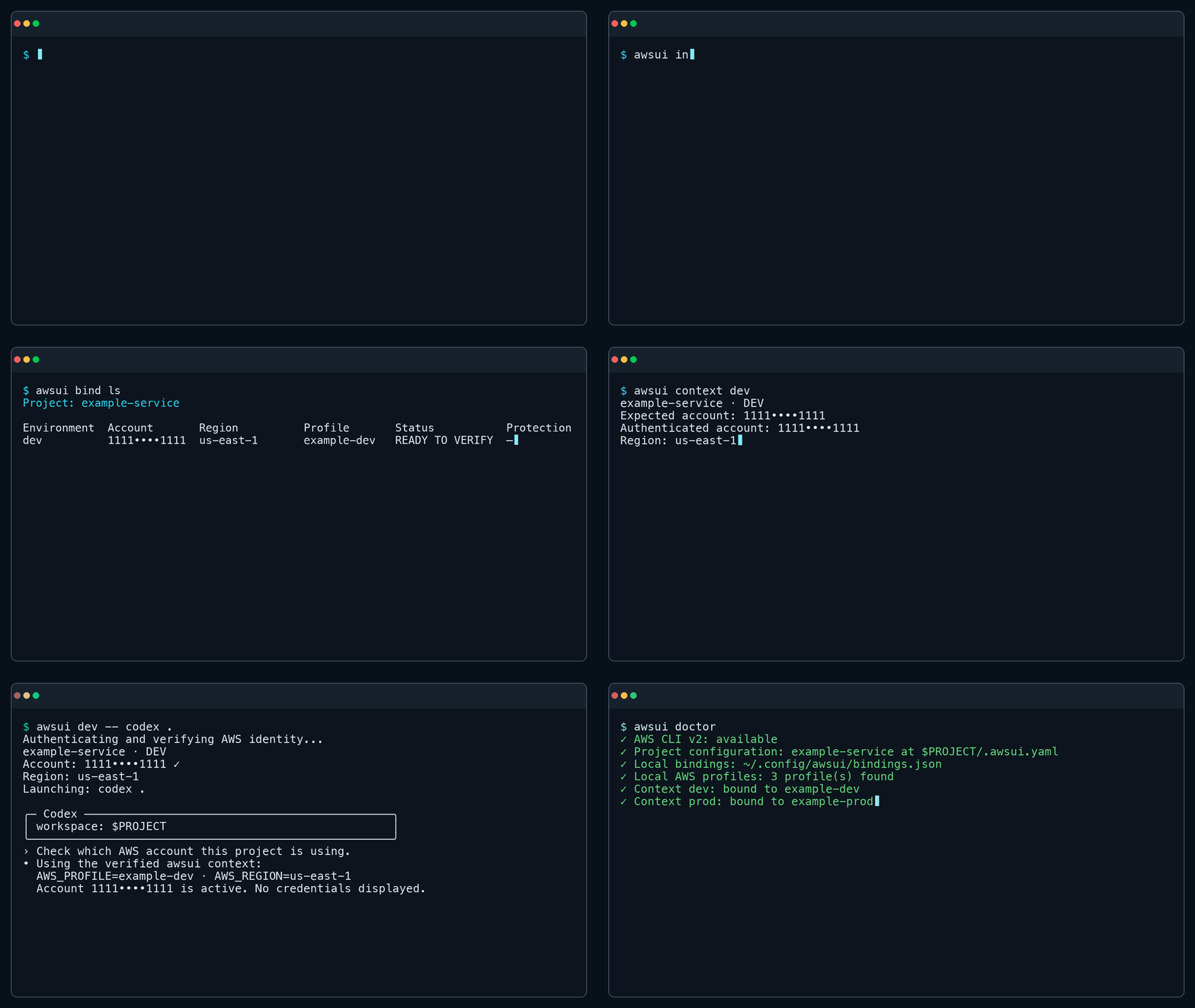
Initialize the project, bind a profile, verify the account, and launch a tool.
What problem does awsui solve?
You choose the environment. awsui handles the context checks behind it:
- Work with project environment names such as
prod, not profile names that vary
from one machine to another. - See the account returned by AWS STS before a tool starts.
- Run AI agents, Terraform, AWS CLI, scripts, and shells in the same verified
context. - Share the expected account and region for each environment while keeping
profile bindings local. - Stop before launch when authentication fails or the account does not match.
[!IMPORTANT]
awsui verifies the AWS context at launch time; it is not a security sandbox.
After launch, a child process can still replace inherited environment variables
or explicitly select another profile.
Quick start
Complete these four steps to define a project context, verify the AWS identity,
and launch a tool inside that context.
Before you start
Install Python 3.13 and AWS CLI v2,
then configure at least one AWS profile through AWS CLI. IAM Identity Center
(SSO) is the recommended authentication method.
1. Install awsui
The recommended option is an isolated installation with
uv:
uv tool install --python 3.13 awsui
You can also install awsui in the current Python environment with pip:
pip install awsui
Verify the installation:
awsui --version
If awsui prints a version number, the installation is ready.
CLI output defaults to English. To switch to Traditional Chinese and save the
preference, run:
awsui --lang zh-TW
Run awsui --lang en to switch back. The option can also precede another
command, as in awsui --lang zh-TW context prod. awsui stores only the language
preference in ~/.config/awsui/settings.json; the file contains no AWS
credentials. If the settings file is invalid, explicitly setting --lang again
recreates it.
2. Initialize the project context
Move into the project directory and start the guided setup:
cd payment-service
awsui init
awsui prompts you to name the project, add environments, choose or create a
local profile, and verify each AWS identity. When setup finishes, it displays a
summary like this:
Created /path/to/payment-service/.awsui.yaml
Project: payment-service
  dev: 111111111111 · ap-northeast-1
  prod: 999999999999 · ap-northeast-1 · PROTECTED
awsui writes the shared environments, accounts, and regions to .awsui.yaml.
Machine-specific profile bindings remain outside the repository.
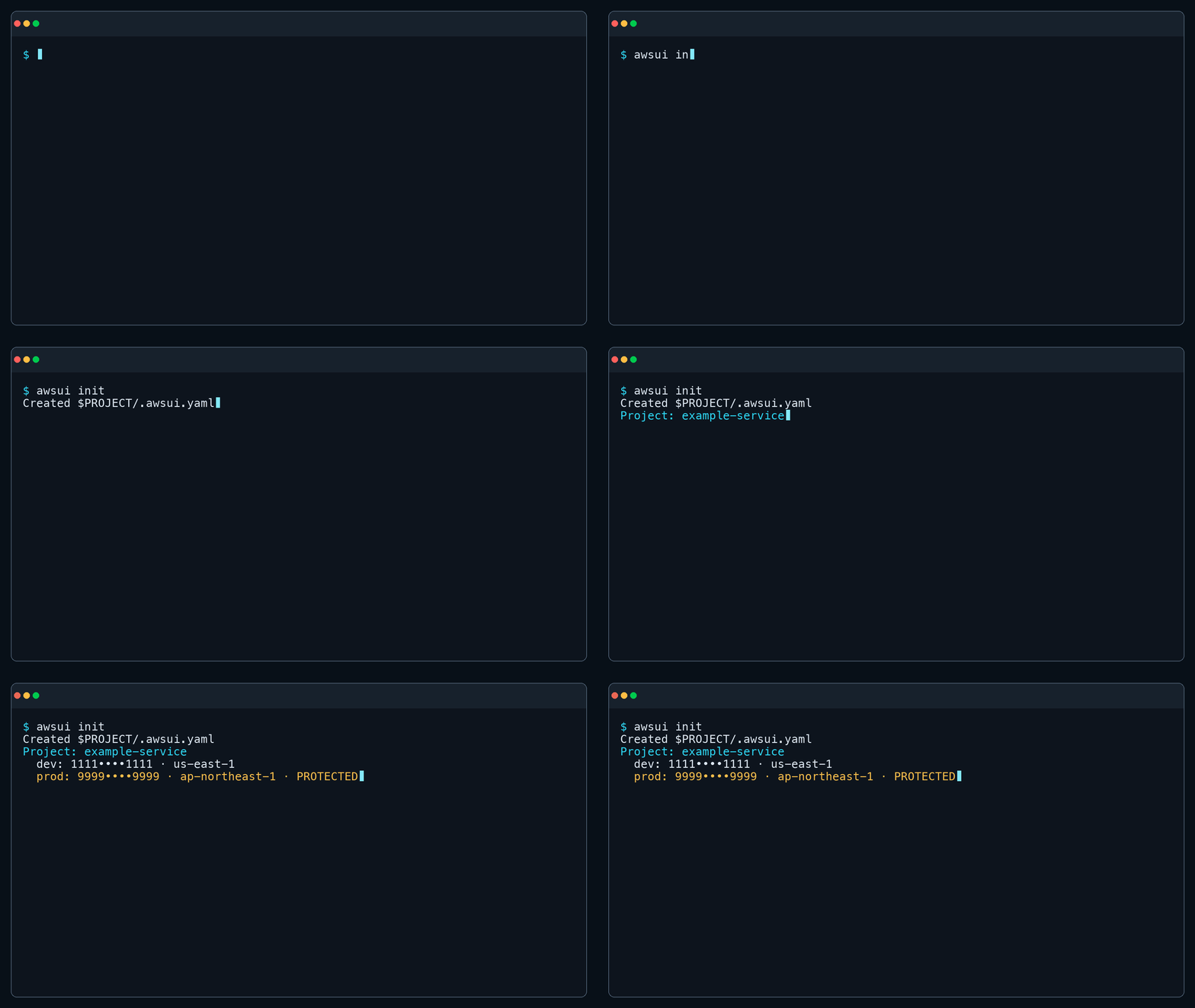
Create the shared project contexts from the terminal.
3. Verify the environment you are about to use
Before launching a tool, check which AWS identity is actually behind prod:
awsui context prod
The output shows both the expected and authenticated accounts:
payment-service · PROD · PROTECTED
Expected account: 999999999999
Authenticated account: 999999999999
Region: ap-northeast-1
Local profile: company-payment-prod
Status: ✓ VERIFIED
Confirm that the expected and authenticated accounts match. VERIFIED means
the context is available; this command reports the result without launching a
child process.
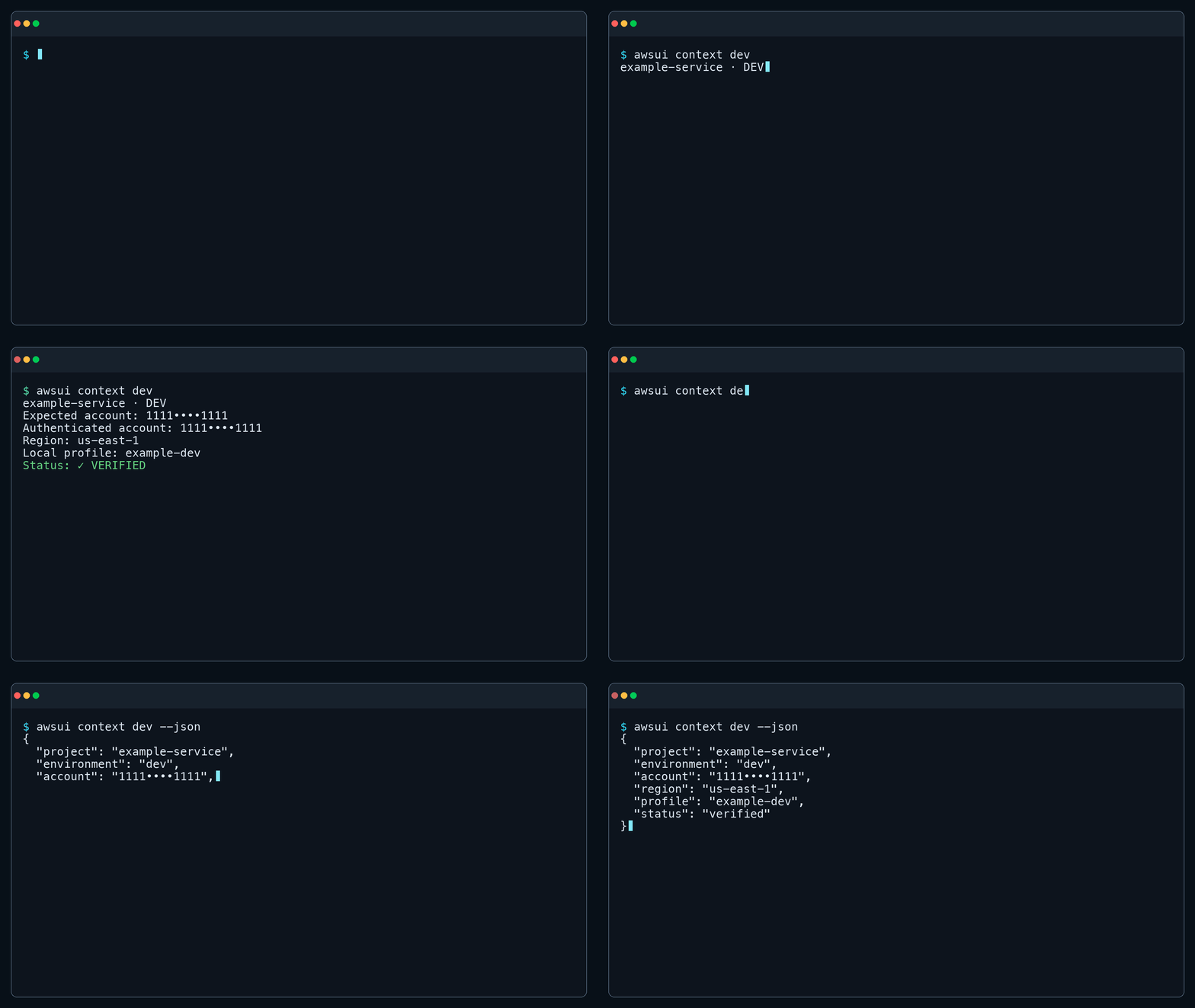
Confirm the authenticated AWS account before launching a tool.
4. Launch your tool
Once the context is ready, launch the tool you need:
awsui prod -- codex
awsui prod -- claude
awsui prod -- terraform plan
Immediately before launch, awsui verifies the identity again and displays the
context that the child process will receive:
payment-service · PROD · PROTECTED
Account: 999999999999 ✓
Region: ap-northeast-1
Launching: codex
If the account does not match the project configuration, awsui displaysAWS CONTEXT MISMATCH and Command was not started., then stops without
launching the command.
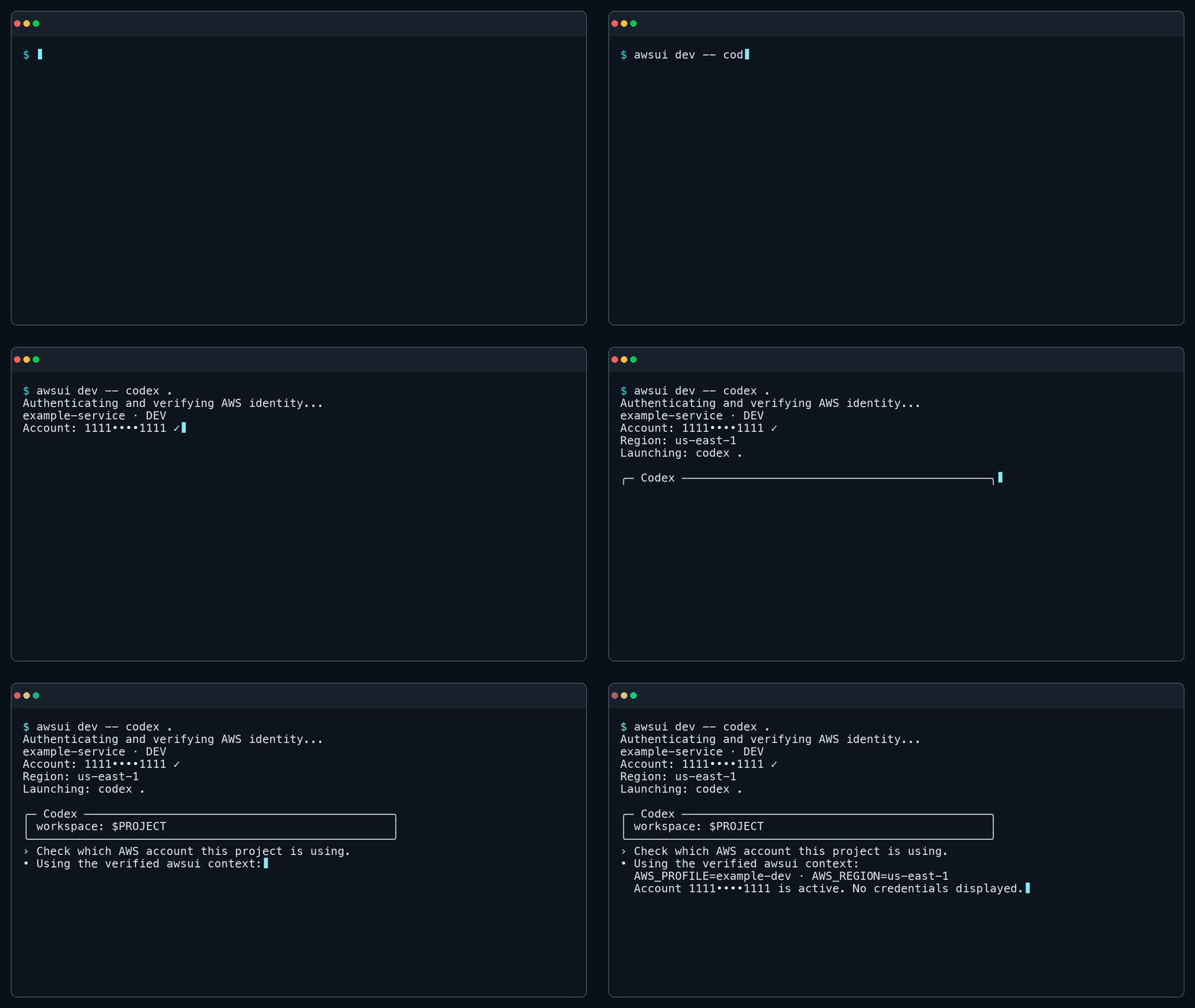
awsui launches Codex only after the selected context passes verification.
Run awsui --help to see every command. To open an interactive shell with a
verified context, run awsui dev.
After another developer checks out the repository, they only need to bind the
shared prod environment to a profile on their machine:
awsui bind prod
awsui prod -- claude
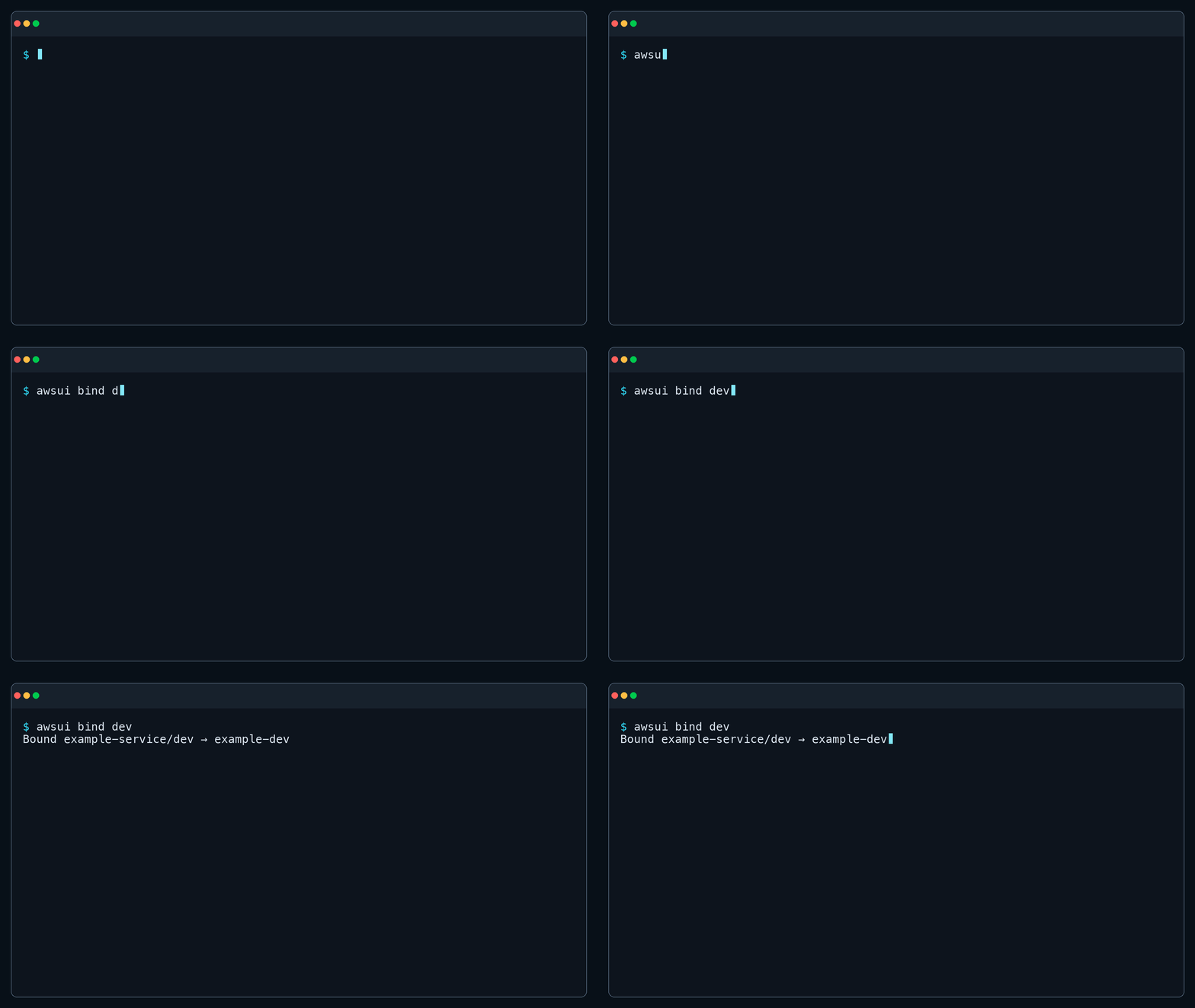
Each developer binds the shared environment name to a local profile.
What the team commits and what stays local
Record the expected account and region for each environment in .awsui.yaml,
then commit that file to the repository:
version: 1
project: payment-service
contexts:
  dev:
    account: "111111111111"
    region: ap-northeast-1
  qa:
    account: "222222222222"
    region: ap-northeast-1
  staging:
    account: "333333333333"
    region: ap-northeast-1
  prod:
    account: "999999999999"
    region: ap-northeast-1
    protected: true
Every developer uses the same environment names and account validation rules
without sharing profile names. awsui stores machine-specific bindings outside
the repository in ~/.config/awsui/bindings.json. Never put credentials in.awsui.yaml.
Command reference
These are the primary CLI commands:
| Command | Purpose |
|---|---|
awsui |
Show CLI help |
awsui --lang <zh-TW|en> |
Set and remember the CLI language |
awsui init |
Initialize project contexts |
awsui bind <environment> |
Bind an environment to a local AWS profile |
awsui bind ls |
List environments and local bindings without contacting AWS |
awsui bind ls --json |
Output the local binding list as JSON |
awsui context ls |
List contexts and local bindings without contacting AWS |
awsui context ls --json |
Output the local context list as JSON |
awsui context <environment> |
Authenticate, verify, and display a context |
awsui context <environment> --json |
Output the verified context as JSON |
awsui <environment> -- <command> [args...] |
Run a child command after verification |
awsui <environment> |
Open a verified interactive shell |
awsui doctor |
Diagnose local configuration without signing in |
awsui context ls/list and awsui bind ls/list only read local
configuration; they do not contact AWS. They show the expected account, region,
protection status, and local profile for each context. Runawsui context <environment> when you need to verify a specific context with
STS.
The explicit forms are also available:
awsui run prod -- codex
awsui shell prod
Content after -- is launched directly as an argument vector without shell
parsing. For pipes, redirects, &&, or other shell syntax, first open a verified
shell with awsui <environment>, then run the composed command inside it.
Need a new AWS profile?
If the profile you need does not exist, choose Create new AWS profile during
initialization or binding. IAM Identity Center (SSO) is the recommended first
option. awsui starts the official aws configure sso, aws login, oraws configure workflow, then returns and selects the new profile.
You can also configure and verify an SSO profile before running awsui:
aws configure sso
aws sso login --profile my-company-dev
aws sts get-caller-identity --profile my-company-dev
AWS Console Login and access-key configuration are also available, but
long-lived access keys are not recommended. awsui uses credentials managed by
AWS CLI and does not store AWS credentials itself.
How does awsui verify a launch context?
Before every launch, awsui performs the following steps:
- Resolves the project environment and its local profile binding.
- Authenticates the selected profile when required.
- Calls STS
GetCallerIdentity. - Compares the authenticated account with the expected 12-digit AWS account ID.
- Builds a child environment with credential overrides removed.
- Starts the child process only when the accounts match.
An account mismatch or unverifiable identity stops the launch. Shared project
configuration contains no access keys, secret keys, session tokens, or local
profile names.
Need help or want to contribute?
If you find a bug, have a question, or want to suggest a feature, open a
GitHub Issue. Pull requests are
also welcome.
Set up a local development environment:
git clone https://github.com/junminhong/awsui.git
cd awsui
uv sync
Before opening a pull request, run:
uv run ruff check .
uv run pytest
uv build
License
Yorumlar (0)
Yorum birakmak icin giris yap.
Yorum birakSonuc bulunamadi