kitsune
Health Uyari
- License — License: MIT
- Description — Repository has a description
- Active repo — Last push 0 days ago
- Low visibility — Only 5 GitHub stars
Code Gecti
- Code scan — Scanned 12 files during light audit, no dangerous patterns found
Permissions Gecti
- Permissions — No dangerous permissions requested
Bu listing icin henuz AI raporu yok.
MCP server that lets AI agents use your Firefox, Zen, or LibreWolf browser.
Kitsune




Bring your coding agent into Firefox and keep working alongside it.
Kitsune lets AI agents such as Claude Code, Codex, Pi, and OpenCode use the Firefox,
Zen, or LibreWolf browser you already have open. Your sessions, cookies, and
extensions stay where they are, and there is no Playwright, Chromium, or WebDriver
to install. Your own scripts can use it the same way, through the
Python API.
The agent can research in background tabs and prepare form drafts while you keep
using the same browser. You stay with the agent you already use; Kitsune is not a
separate browser or a built-in assistant.
The design follows two principles: the user's browser belongs to the user, and
the agent gets fewer, sharper tools. See Philosophy.
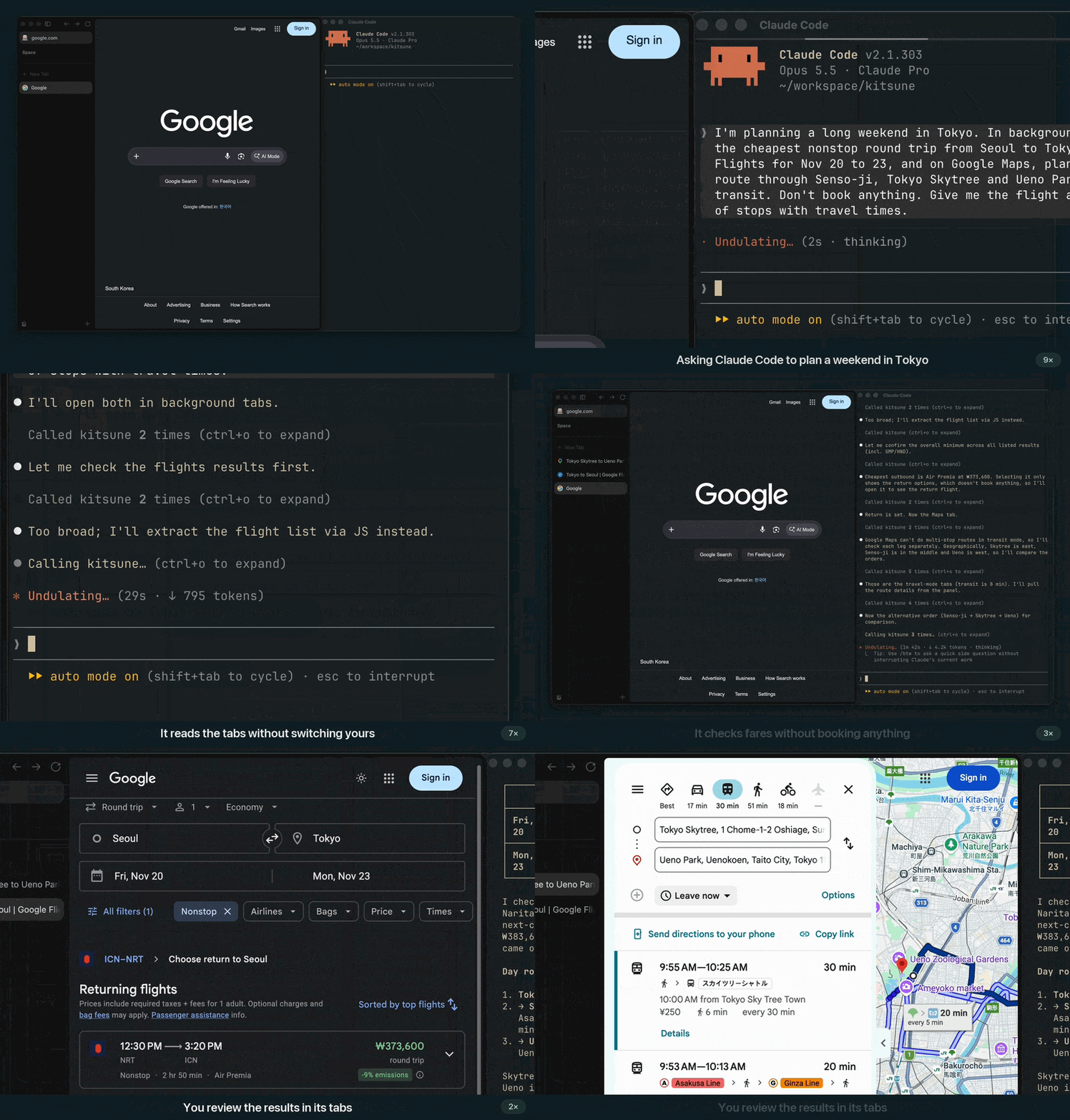
A real screen recording of Claude Code and Zen Browser on the live Google sites, sped up while the agent thinks and zoomed in afterwards (full 38-second video).
Why Kitsune?
- Tabs the agent creates open in the background. Kitsune holds writes to a tab
while you are typing or clicking in it. Writes to the tab you are viewing, unless
the agent opened it, and closing or navigating one of your own tabs each need
your approval. Writes that
name no tab are refused until the agent has opened or selected one. This reduces interference, but OS-level clicks and popups
opened by sites still have focus and input limitations. - You decide how much to delegate.
KITSUNE_MODE=read,draft, oractlimits
both the tools the agent sees and the requests the bridge accepts. Draft mode
lets the agent fill supported fields without click or submit tools, although
sites may still autosave what it types. The default,act, has no such
restriction. See Task modes. - The agent starts with Playwright MCP's 25 core tools,
browser_resumeandbrowser_ask_user. Kitsune's other tools
stay off until you allow them, and the agent can find and call the allowed ones
without restarting its session. See Choosing tools. - With the optional
automationcapability, an interrupted batch, parallel, or
workflow call can be resumed without resending the writes that already
succeeded. A write with an uncertain outcome needs an observation before it is
retried. Checkpoints are temporary and are lost when the bridge restarts.
What can it do?
In your browser, the agent can:
- Search the web, read pages, and summarize what it finds with links.
- Click, type, select options, set sliders, and fill forms, including on sites where
you are already signed in. - Take screenshots or turn page content into text and Markdown.
- Keep research and tasks in separate tabs without replacing the page you are
using.
Benchmark
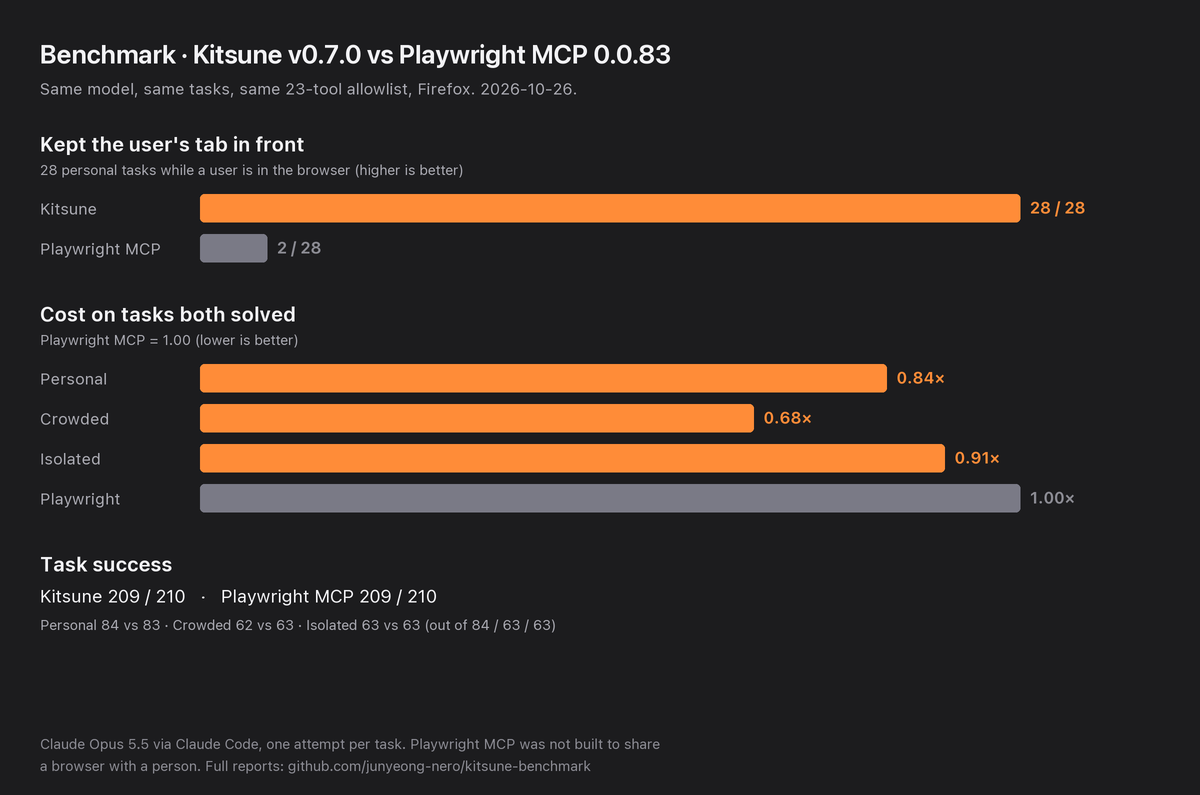
With the same tasks and tool allowlist, Kitsune v0.7.0 kept the user's tab in
front in 28 of 28 shared-browser tasks, against 2 of 28 for Playwright MCP. On
the tasks both solved, Kitsune cost 0.68 to 0.91 times as much, at about the
same number of tool calls. Each solved 209 of 210 tasks. Each task was run once
with Claude Opus 5.5. Playwright MCP was not designed to share a browser with a
person. See the
v0.7.0 report
and the full reports.scripts/benchmark_chart.py draws the chart from the report's numbers.
How is it different?
Kitsune is one of several ways to connect an agent to a browser. Which one fits
depends on the browser you use and the work you want to hand off:
| If you want to… | Consider |
|---|---|
| Delegate tasks in the Firefox-family browser you are using, with background tabs, read/draft/act modes, and resumable batches | Kitsune |
| Debug or profile pages in Firefox (debugger, profiler, deep protocol access) | Mozilla Firefox DevTools MCP, which attaches to a running Firefox started with remote-debugging flags |
| Test across Chromium, Firefox, and WebKit in launched browsers | Playwright MCP; Kitsune publishes its 25 core tools, so prompts written for it carry over |
| Drive the Chrome you already use | A Chromium extension MCP such as Browser MCP |
Kitsune connects through an extension and a local bridge, so Firefox needs no
startup flags or WebDriver. Other Firefox extension projects also reuse your
logins. Kitsune concentrates on sharing the browser with you while the agent
works. Positioning
has the full comparison and its limits.
How do I use it?
Kitsune is two PyPI packages, released together with one version. kitsune-browser-mcp
is the MCP server for agents, set up as below. kitsune-browser, which it installs, is the
code, with a Python API for your own scripts.
Install uv, then
follow the MCP setup for your agent below.
Install the browser extension
in Firefox, Zen, or LibreWolf. The signed build stays installed; the
developer build, whichbrowser_evaluateneeds, is a temporary add-on.Keep the browser open. Kitsune starts its shared bridge automatically. Before
your first task, ask the agent to check the connection.Ask in plain language. For example:
Research these three products in new background tabs and compare them with
source links. Leave my current tab alone.Inspect this page's form and fill a draft. Don't submit it yet.
Open Hacker News in a background tab and summarize the top three stories
with links.Asking in plain language does not change the mode. To enforce a draft-only
tool set, setKITSUNE_MODE=draftbefore starting the MCP client.
Use a dedicated browser profile, and give the agent access only to the accounts
it needs. Have it ask you before it sends, buys, or deletes anything. None of
Kitsune's controls prevent prompt injection. Read the security guidance before using sensitive accounts.
Approvals
These calls need your approval: writes and navigations on the tab you are
viewing, unless the agent opened it; closing or navigating a tab the agent did not
open; and, with the opt-in
ask-before-act
policy, submits, payment pages, JavaScript, and cookie access. On MCP clients with
elicitation (Claude Code, Codex), the client asks you in its own prompt, and the
call runs once you approve; the approval never passes through the agent. Clients
without elicitation fall back to a confirmation token: the agent should ask you,
then repeat the call with it. The agent can make that second call on its own, so
the token guards against accidents but does not prove that a person approved. See
Approving held actions.
For a sign-in, a CAPTCHA, or a choice only you can make, the agent asks you
(browser_ask_user), in the client's prompt where it has one, and continues once you
are done. See
When the agent needs you.
MCP setup
Every client launches the same local stdio server:uvx --from kitsune-browser-mcp kitsune. Use only one setup method per client.
Several clients can share one bridge; keep them on the same Kitsune version and
install source.
On macOS, OS-level trusted clicks (for example to open "Continue with Google" popups) needuvx --from 'kitsune-browser-mcp[macos]' kitsune or brew install cliclick, plus Accessibility
permission; see Sign-in popups.
CLI registration: Claude Code, Codex, and Pi
Claude Code, available in every project with --scope user:
claude mcp add --scope user kitsune -- uvx --from kitsune-browser-mcp kitsune
Codex CLI, which registers the server in ~/.codex/config.toml:
codex mcp add kitsune -- uvx --from kitsune-browser-mcp kitsune
Pi has built-in MCP support
and registers servers for your user by default:
pi mcp add kitsune -- uvx --from kitsune-browser-mcp kitsune
pi mcp list
To register the server only for the current project, add --local beforekitsune. In a Pi session that is already running, run /reload, then /mcp to
check the connection. If an MCP adapter extension replaces Pi's built-in support,
follow that extension's instructions instead.
OpenCode
Merge this into ~/.config/opencode/opencode.json (global) or opencode.json
in your project root. OpenCode uses an mcp object with a command array, notmcpServers:
{
  "$schema": "https://opencode.ai/config.json",
  "mcp": {
    "kitsune": {
      "type": "local",
      "command": ["uvx", "--from", "kitsune-browser-mcp", "kitsune"],
      "enabled": true
    }
  }
}
JSON configuration: Pi, Claude Desktop, and Cursor
These clients use the same mcpServers format. Instead of CLI registration,
where a client has it, you can merge this entry into the client's config file
and keep any servers already there:
| Client | Config file |
|---|---|
| Pi (built-in MCP) | ~/.pi/agent/mcp.json (user) or .pi/mcp.json (project; requires project trust) |
| Claude Desktop (macOS) | ~/Library/Application Support/Claude/claude_desktop_config.json |
| Cursor | ~/.cursor/mcp.json (global) or .cursor/mcp.json (project) |
{
  "mcpServers": {
    "kitsune": {
      "command": "uvx",
      "args": ["--from", "kitsune-browser-mcp", "kitsune"]
    }
  }
}
After configuring a client, restart or reconnect it and ask it to list your tabs
(browser_tabs with action: "list"). If that fails, the error's hint says
what to fix. A GUI app that does not inherit your shell's PATH may need the
full path from which uvx in place of uvx.
Choosing tools
By default Kitsune publishes Playwright MCP's
25 core tools with the same names, descriptions, and schemas, and they drive your
own browser. Prompts and clients written for Playwright MCP work unchanged
(Core tools). Kitsune's own tools are sorted into capability groups,
which you enable with KITSUNE_CAPS in the MCP server's environment:
| Group | Tools for |
|---|---|
browse |
Scrolling, forward navigation, checkboxes, focus, form submits, trusted OS clicks |
read |
Page text and Markdown, forms, DOM, links, images, metadata |
inspect |
Element bounds, computed styles, selector diagnosis, highlights |
tabs |
Pinning, muting, zoom, windows, tab tags, keep-alive |
automation |
Batches, retries, workflows, parallel tabs |
network |
Downloads, request interception and capture |
admin |
Connection status, logs, audit, cache, policy |
storage, history |
Cookies, page storage, clipboard and saved sessions; history and bookmarks. They read personal data, so all leaves them out and you enable them by name |
You can allow more tools than you publish, which keeps the agent's starting tool
list small. With KITSUNE_CAPS=all and KITSUNE_PUBLISH=core, the agent starts
with the core tools and can find and call the others in the same session
(Finding tools without a restart). With Claude Code, for
example:
claude mcp add --scope user kitsune -e KITSUNE_CAPS=all -e KITSUNE_PUBLISH=core -- uvx --from kitsune-browser-mcp kitsune
In the JSON configurations above, add "env": {"KITSUNE_CAPS": "all", "KITSUNE_PUBLISH": "core"}
next to "args". The bridge checks the groups on every request, including batch
steps. A tool called without a tab acts on the agent's current tab, not the one
you are looking at; until the agent has one, writes and navigations without a tab
fail with no_current_tab.
If you are upgrading from 0.3: the devtools, parallel, windows and session
groups were replaced by the groups above, and all no longer includes storage.
A configuration that names a removed group fails at startup. Tools lists
where each tool went.
Installation covers Codex's TOML configuration, environment
variables, version pinning, and upgrades.
Python API
The same extension and bridge also work from your own code. The code is thekitsune-browser package, which the MCP server's package installs with the server;pip install kitsune-browser alone gives you a Python API with every capability group,
storage and history included:
import kitsune

browser = kitsune.connect()                        # starts the bridge if none runs
tab = browser.new_tab("https://news.ycombinator.com")   # a background tab you don't see
for link in tab.query(".titleline > a", fields=["text", "href"], limit=3):
    print(link["text"], link["href"])
tab.close()
The MCP server limits what an agent sees; the Python API does not, but the bridge's
shared-browser rules hold for both: tabs open in the background, your own tabs close
or navigate only with your approval, and sensitive fields stay redacted. kitsune.connect(confirm=...)
lets a person approve each action that needs it. See Python API.
Until 0.6.0 the code was part of kitsune-browser-mcp. If you upgrade a pip install
of 0.6.0 or earlier, see
Upgrading
for the one extra step.
More documentation
Tools ·
Configuration ·
Troubleshooting ·
Updating ·
API reference ·
Python API ·
Development ·
FAQ
The architecture, product trade-offs, and comparisons with other browser MCP
servers are in Positioning.
Yorumlar (0)
Yorum birakmak icin giris yap.
Yorum birakSonuc bulunamadi