snap-studio
Health Uyari
- License — License: GPL-3.0
- Description — Repository has a description
- Active repo — Last push 0 days ago
- Low visibility — Only 5 GitHub stars
Code Basarisiz
- rm -rf — Recursive force deletion command in scripts/build-macos-icon.sh
Permissions Gecti
- Permissions — No dangerous permissions requested
Bu listing icin henuz AI raporu yok.
Desktop workshop for the Snapmaker U1 — browse your 3MF files, prepare and slice with Snapmaker Orca, print and follow your jobs, design parts with AI. macOS · Windows · Linux.

Snap Studio
The desktop workshop for your Snapmaker U1 — from file to print.




Download ·
Features · AI · FAQ ·
Changelog · Roadmap · Contributing
English · Français
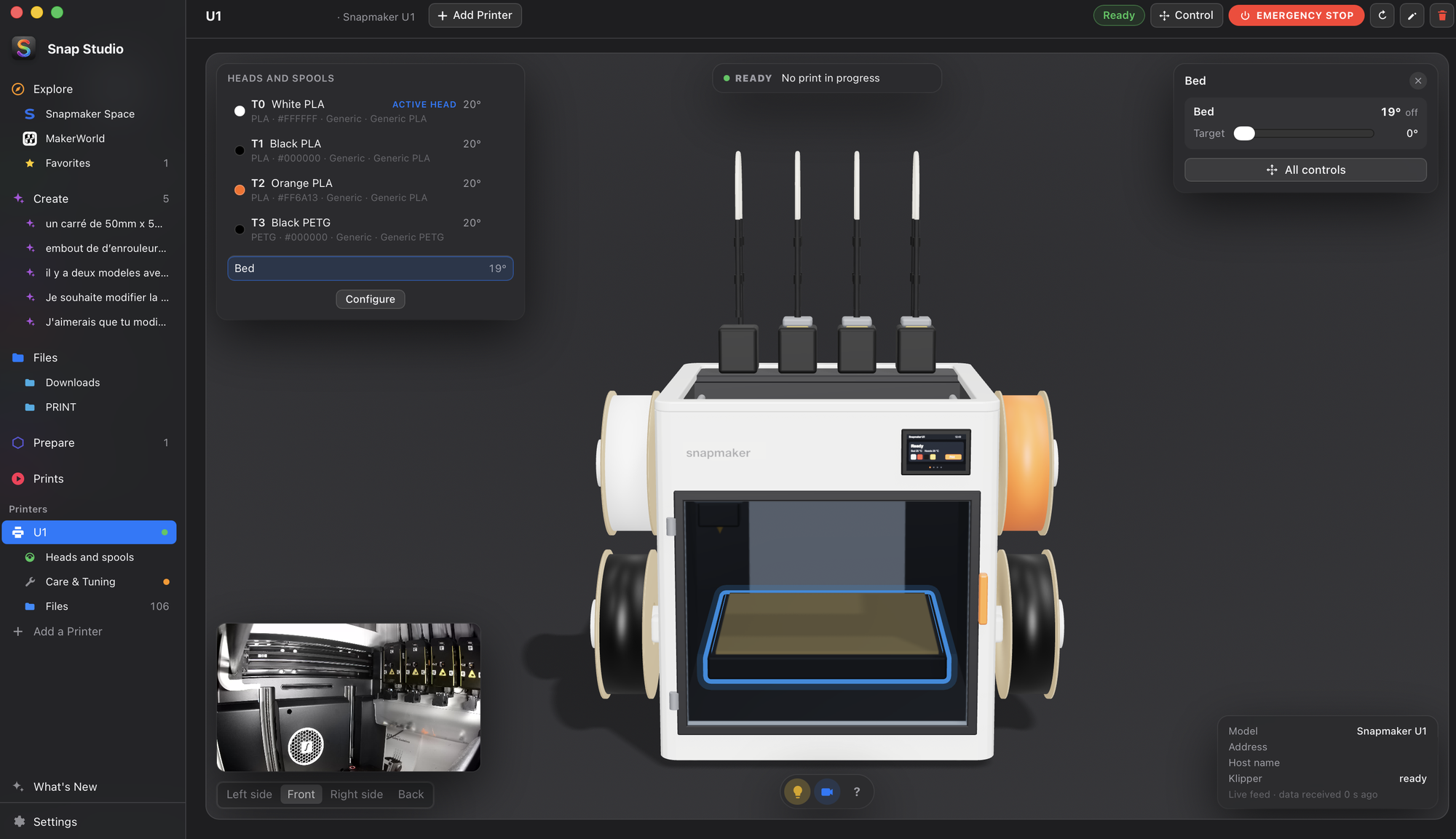
Your U1 in 3D: click a spool, a head, the bed or the light to control it.
Why Snap Studio
- The whole way in one app — find a model, prepare the plate, slice
with the Snapmaker Orca engine, send it, follow it on the camera. - Made for the U1's four heads — the spools loaded on the printer are
read, the colors of a multicolor model are mapped to the heads, and checked
again before a print starts. - Design with AI — describe a change or a new part; Claude models it,
you watch it take shape in 3D, version by version.
Features
From file to print: Explore · Files ·
Prepare · Create · Slicing ·
Spool check · Prints · Camera
Your printer: 3D view · Control ·
Care · Bed Leveling ·
Printer files · and the Display
🧭 Explore
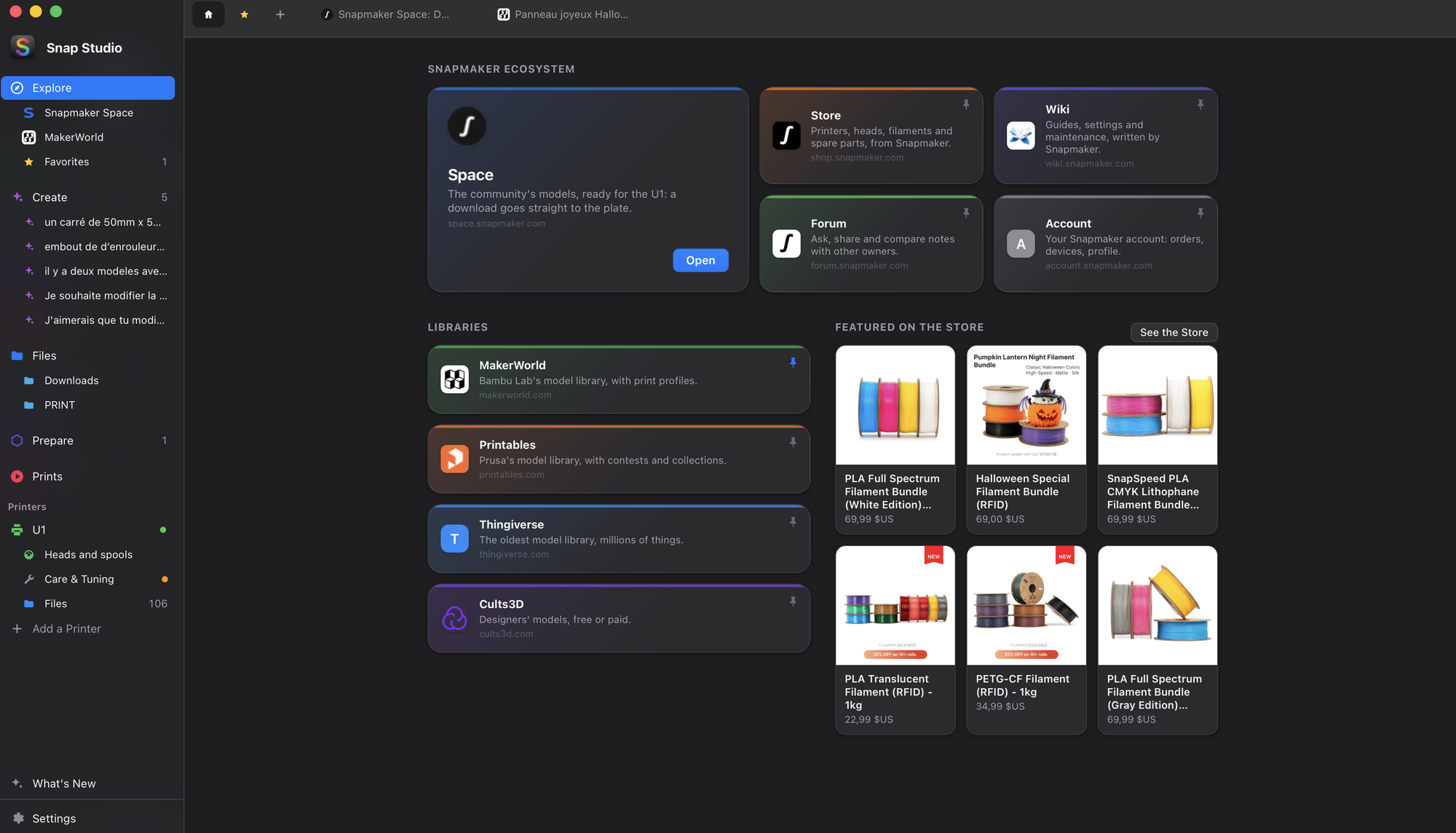
The Snapmaker ecosystem and the model sites you use, inside the app.
- A home with Snapmaker Space, Store, Wiki, Forum and Account, a few
products featured from the Store, and the libraries: MakerWorld,
Printables, Thingiverse and Cults3D. Each opens in a tab, sessions kept. - No address bar: Back, Forward and Reload float over the page.
- Pin any site to the sidebar, under Snapmaker Space; Favorites there too.
- A model downloaded from any tab goes straight to Prepare;
other files land in Files.
📁 Files
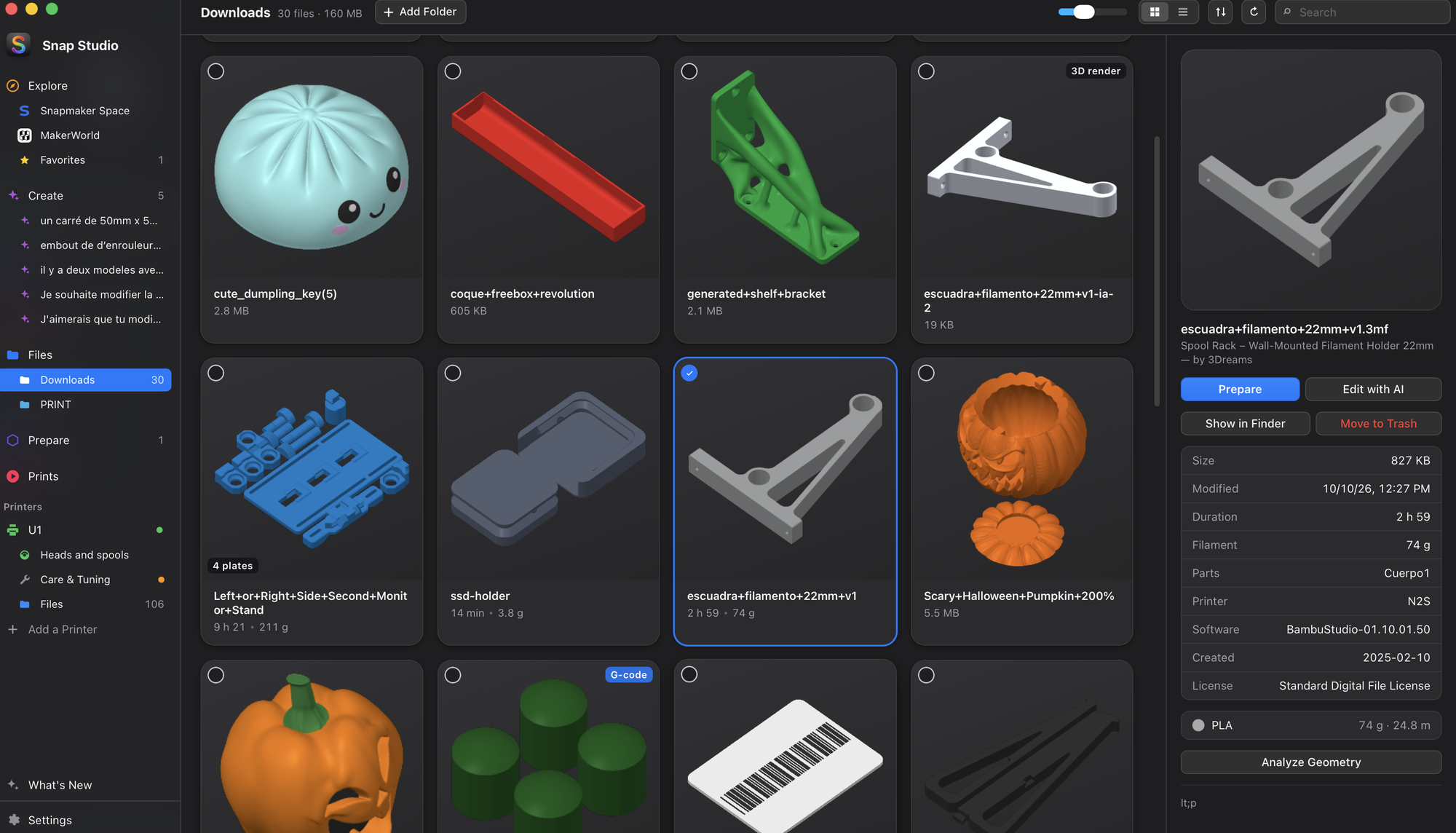
Your 3MF files at a glance.
- Thumbnails of your 3MF files (Orca, Bambu, Prusa, MakerWorld), or a 3D
render when there is none. - Duration, filament, plates.
- A 3D viewer and layer-by-layer G-code toolpaths.
🧩 Prepare
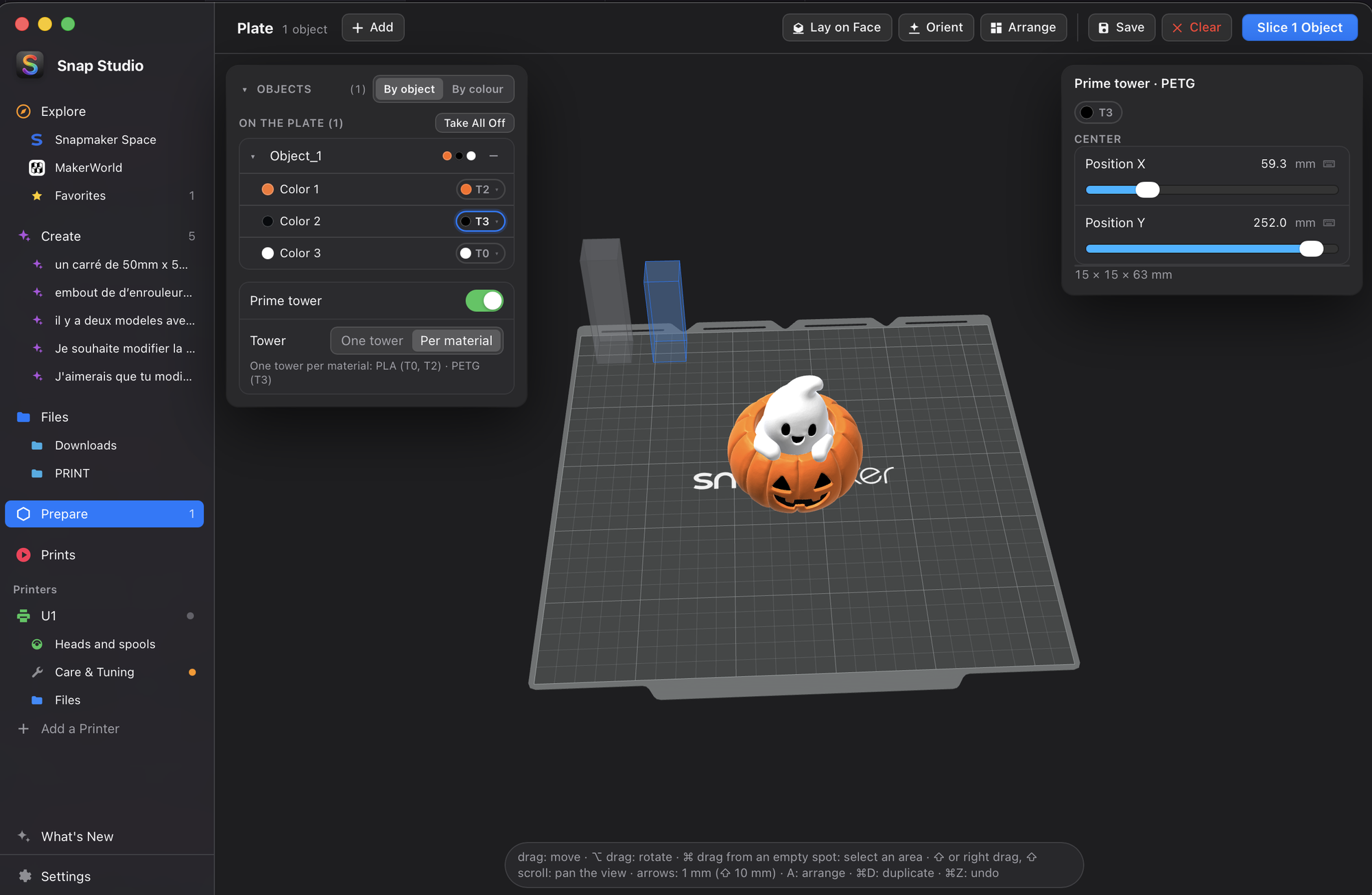
The U1 plate as in Orca — then slice.
- Move, rotate, scale (per axis too) with sliders; duplicate, lay on face,
auto-orient, auto-arrange, undo. - Objects can be set aside off the plate (not sliced) and put back in a click.
- Each object lists its colors, painted ones included, and sends each to the
head you pick, shown with its spool's color and material. - Prime tower: with two heads or more, a switch under the object list
(off on every new plate, the same setting as the slice sheet's) shows the
tower on the plate as a grey box, in a free corner. Move and turn it like
a part; its size is estimated, then the real one after slicing. A tower
on a part or off the plate is flagged, with a fix. - One tower per material: when the plate's materials do not bond (PLA
and PETG…), choose Per material instead of One tower: small
pillars, one per group of materials that bond, with one ring per head (or
one pillar per head). Sizes are automatic; they are rebuilt at every
slice and never saved in the 3MF. - Virtual heads (Snapmaker Orca's Full Spectrum): mix two loaded
spools into a new color, offered in the head pickers like a real head.
See Heads and spools.
✦ Create
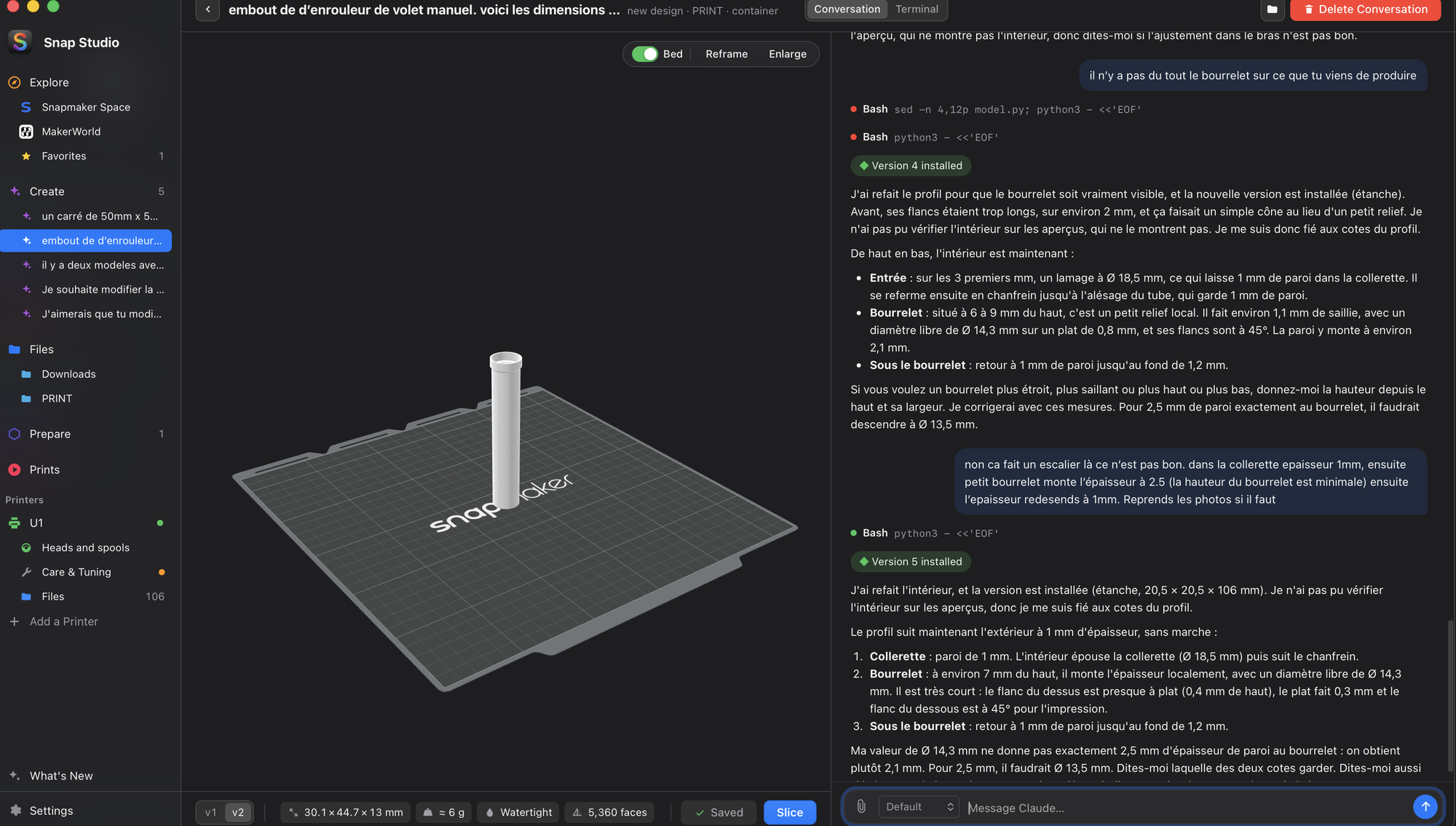
Claude modifies a part or creates one from a description.
- A chat with a live 3D preview, every version kept.
- Results are multicolor 3MF files that slice as they are.
- Conversations can be searched, pinned, renamed, duplicated; see
Design with AI.
✂️ Slicing
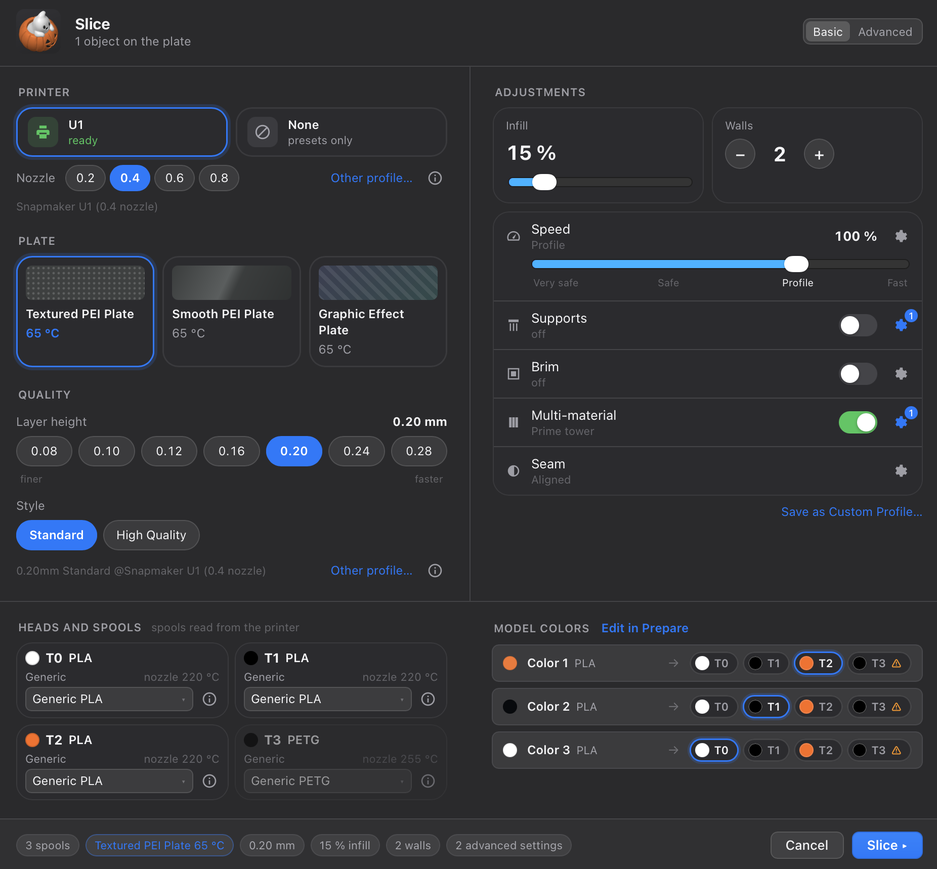
The Snapmaker Orca engine, built in: you do not need Snapmaker Orca installed.
- Printer, plate and quality on the left, the adjustments on the right, the
U1's four heads and the model's colors below. - Each color of each object sent to its head, from the spools read on the printer.
- Basic or Advanced, in the sheet's title bar or Settings →
Prepare: Basic keeps the essentials, Advanced shows every setting. - Speed: one slider from 50 % to 120 % of the profile.
- Quality, infill, walls, surfaces and more, with styles (supports, brim,
seam, patterns) chosen from pictures. - A progress bar that follows the engine's work, stage by stage.
- A toolpath preview, then sent to the printer or saved as G-code.
The engine is downloaded once (about 30 MB) and kept up to date by the app.
The slice sheet puts the printer, plate and quality on the left, the
adjustments on the right, the U1's four heads and the model's colors below.
It opens in Basic, the essentials: printer, plate, quality, infill,
walls, speed, supports, brim, seam and multi-material. Advanced adds
the ⚙ panels (More settings), Surfaces, Other and ooze prevention. Hidden
settings keep their values and still apply; Basic says how many advanced
ones are changed, with a link to show them.
- the spools read from the printer, each color of each object sent to its
head, the plate surface (textured PEI, smooth PEI…) and its temperature; - quality (first layer, line widths, precision, overhangs and bridges),
infill (pattern from pictures), walls, Surfaces (top and bottom
shells, ironing) and Other (print sequence, spiral vase, fuzzy skin,
skirt) behind a ⚙; supports, brim, seam and patterns picked from
pictures; number fields with ‹ › steppers (double-click to type); Orca's
advanced settings, and saving them as a custom profile; - Speed: one slider from 50 % to 120 % of the profile (speeds × f,
accelerations × f²), with a ⚙ panel showing each value, profile →
computed; at 100 % the G-code is the profile's; - each profile's details as the engine gets them;
- multi-material: the prime tower (its own switch, shared with
Prepare, where it is placed on the plate; its outer wall's head), ooze
prevention; a warning when the tower would mix materials that do not
bond (PLA and PETG, PLA and TPU…), with one-click fixes, one tower per
material among them.
Then a toolpath preview with duration, filament and cost, sent to the
printer — with its picture on the printer's screen — or saved as G-code.
🎨 Spool check
Before a print starts, each color of the model is compared with the spool
loaded on its head.
- Material, and color as the eye sees it.
- When they differ, pick another head for that color — for this print only.
- Or Edit in Prepare, with the spools loaded now.
The check runs whether the print is sent after a slice, started from the
queue or from a printer's files. When the model and the spools differ, a
sheet shows one row per color with the heads you can print it with:
- pick another head, and that color is printed from it — for this print
only, through the printer's extruder map, the G-code is not rewritten; - or Edit in Prepare: the plate comes back with the slice sheet open on
the spools loaded now.
The check can be turned off in Settings → Prepare.
⏱ Prints
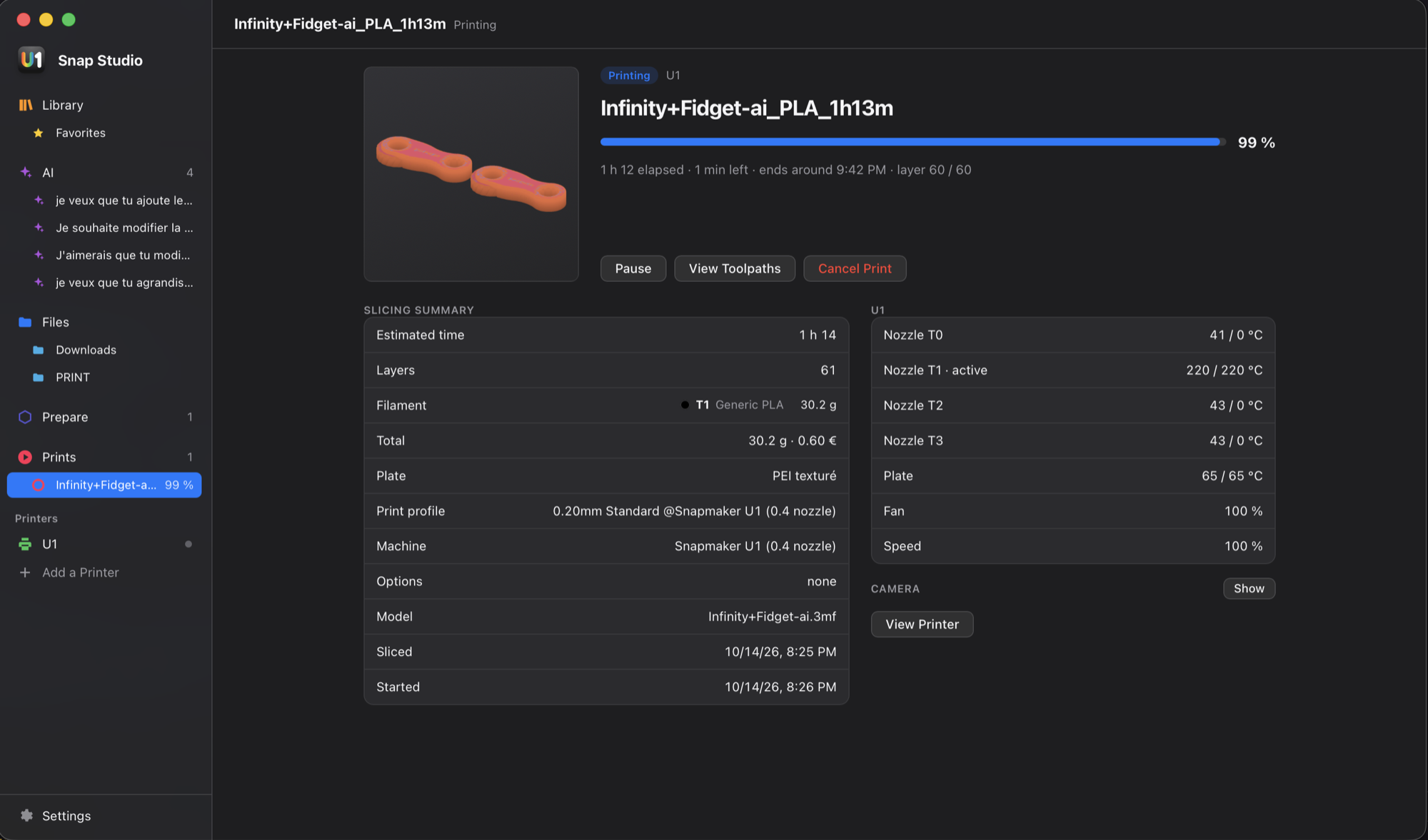
Running prints and a queue.
- When one ends, Snap Studio offers the next (never on its own), on the
printer you pick. - Progress, slicing summary, temperatures, pause, cancel.
- Before a print starts, the spools are checked.
📷 Camera
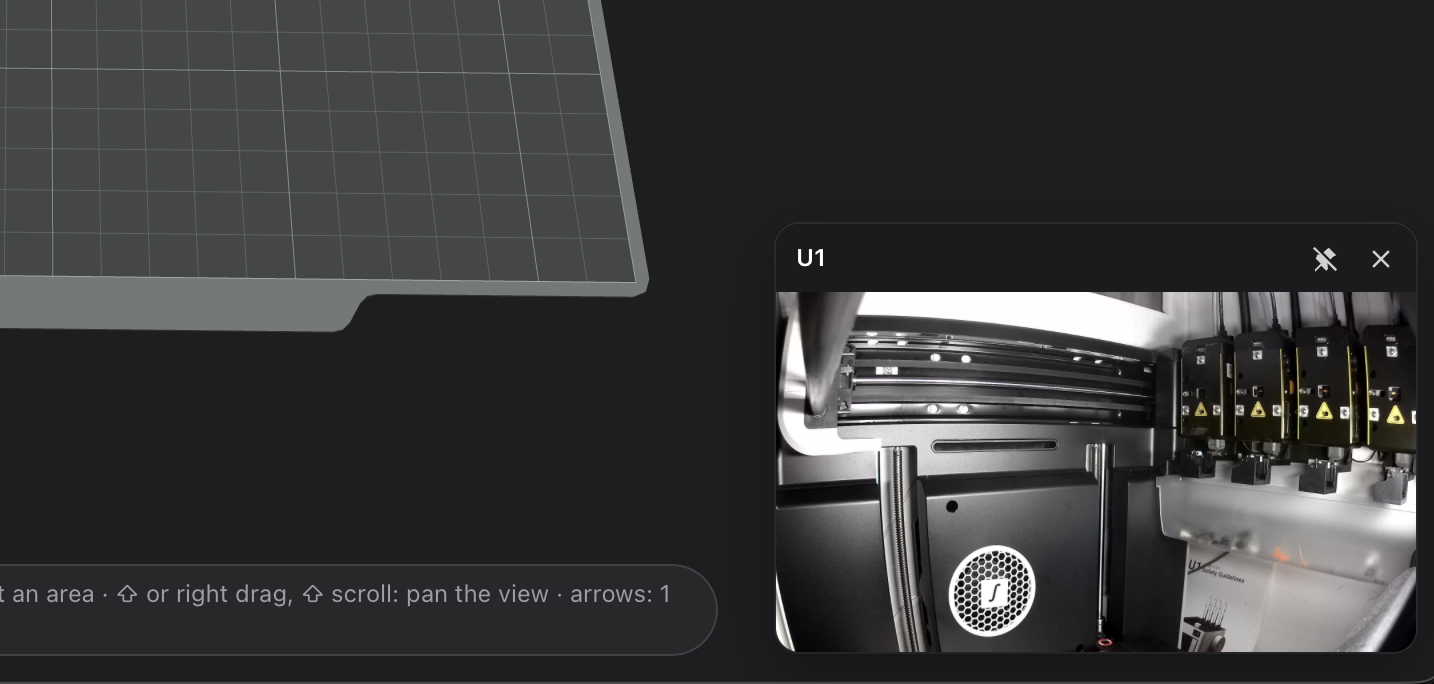
The printer's camera, live.
- From the printer's page and from each print.
- Three sizes: a thumbnail, enlarged, or full size over the app (Esc or a
click beside the picture to leave); a ✕ turns it off. - Pinned: a small window that stays on every screen while you prepare
or browse (Explore's sites included), in the corner of your choice; a click on the image goes back
to the printer. - When the printer stops answering, it says so instead of a frozen image.
🖨 Your printer, in 3D
Printers are found on the network on their own; the U1 is shown in 3D.
- Click a spool, a head, the bed or the light: its quick controls open in a
panel over the view. - Live state, the four heads' temperatures and the spools loaded in each; the
camera in a corner. - All controls opens Control.
- Works with any Klipper printer.
Under each printer: Heads and spools, its files and timelapses,
and Care & Tuning with its three tabs — Control, Care
and Bed Leveling.
Virtual heads, in Heads and spools, as Snapmaker Orca's Full
Spectrum: two loaded spools mixed into a new color, with one slider from
4:1 to 1:4 (the heads alternate layer by layer), up to 8 per printer.
Materials that do not bond cannot be mixed. When one of its spools is
unloaded, the virtual head is deleted and what used it waits for a new head
before slicing.
🎛 Control
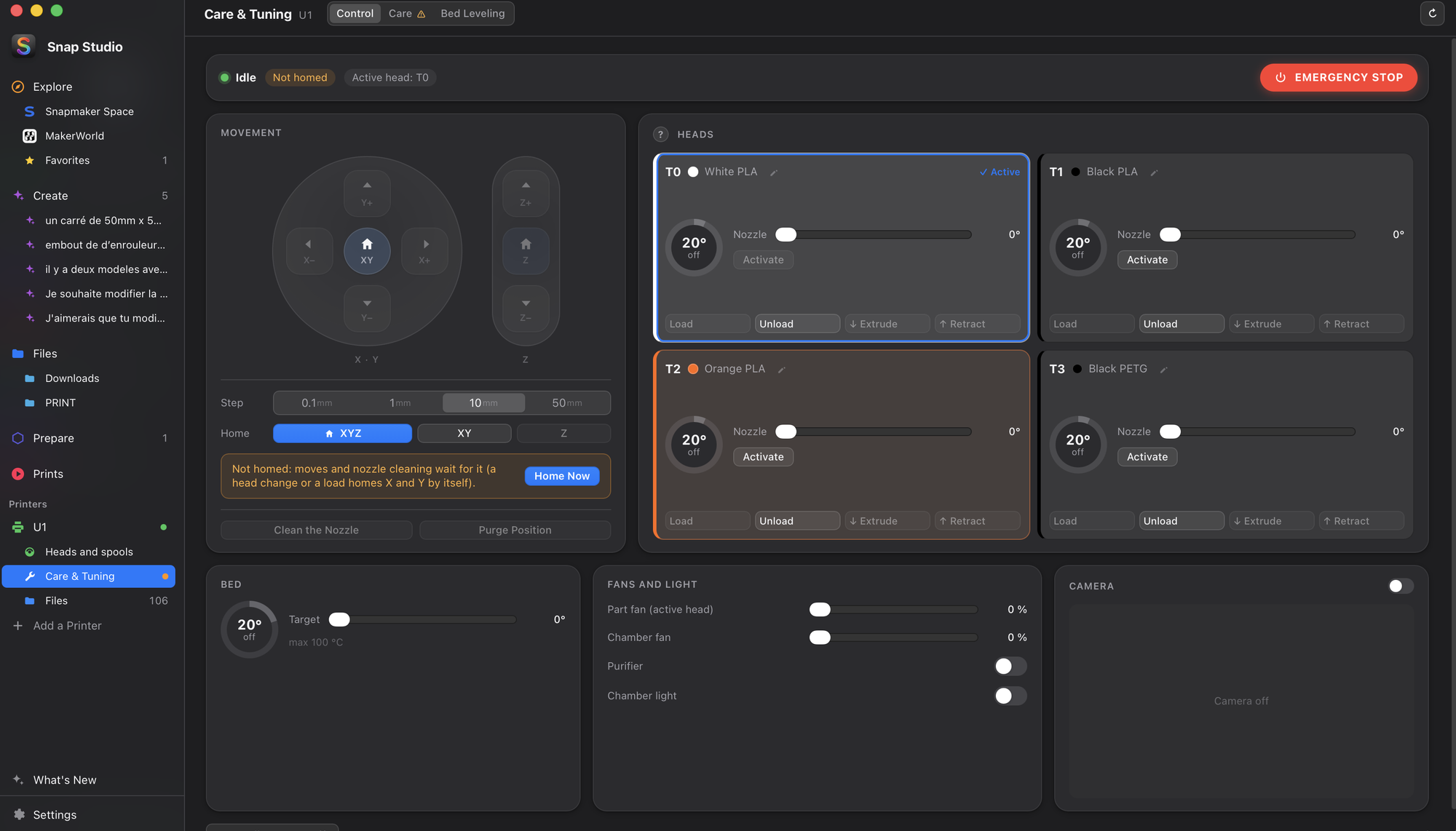
The printer's basic actions, without G-code — the first tab of Care & Tuning,
also opened from the printer's page (Control).
- Home and jog X, Y and Z (0.1 to 50 mm), the position live.
- One card per head, in its spool's colour: temperature, load, unload, extrude.
- Bed, fans, light, a small camera view; the emergency stop always in reach.
- Safe by design: locked during a print.
- Home (all axes or one), a jog pad for X, Y and Z (0.1 to 50 mm), the
position live; clean the nozzle, go to the purge position. - One card per head, in its spool's colour: temperature as a gauge, its
target on a slider, activate, load, unload, extrude, retract. - The bed's temperature; the part fan, the chamber fan, the purifier and
the chamber light; a small camera view. - Turn all heaters off, turn the motors off, restart the firmware, and the
emergency stop, always in reach. - Safe by design: locked during a print (only the emergency stop, the light
and the camera stay), moves and head changes only once homed, Z never
under 0.5 mm, temperatures never above each heater's maximum, one action
at a time; what cannot run says why.
🔧 Care
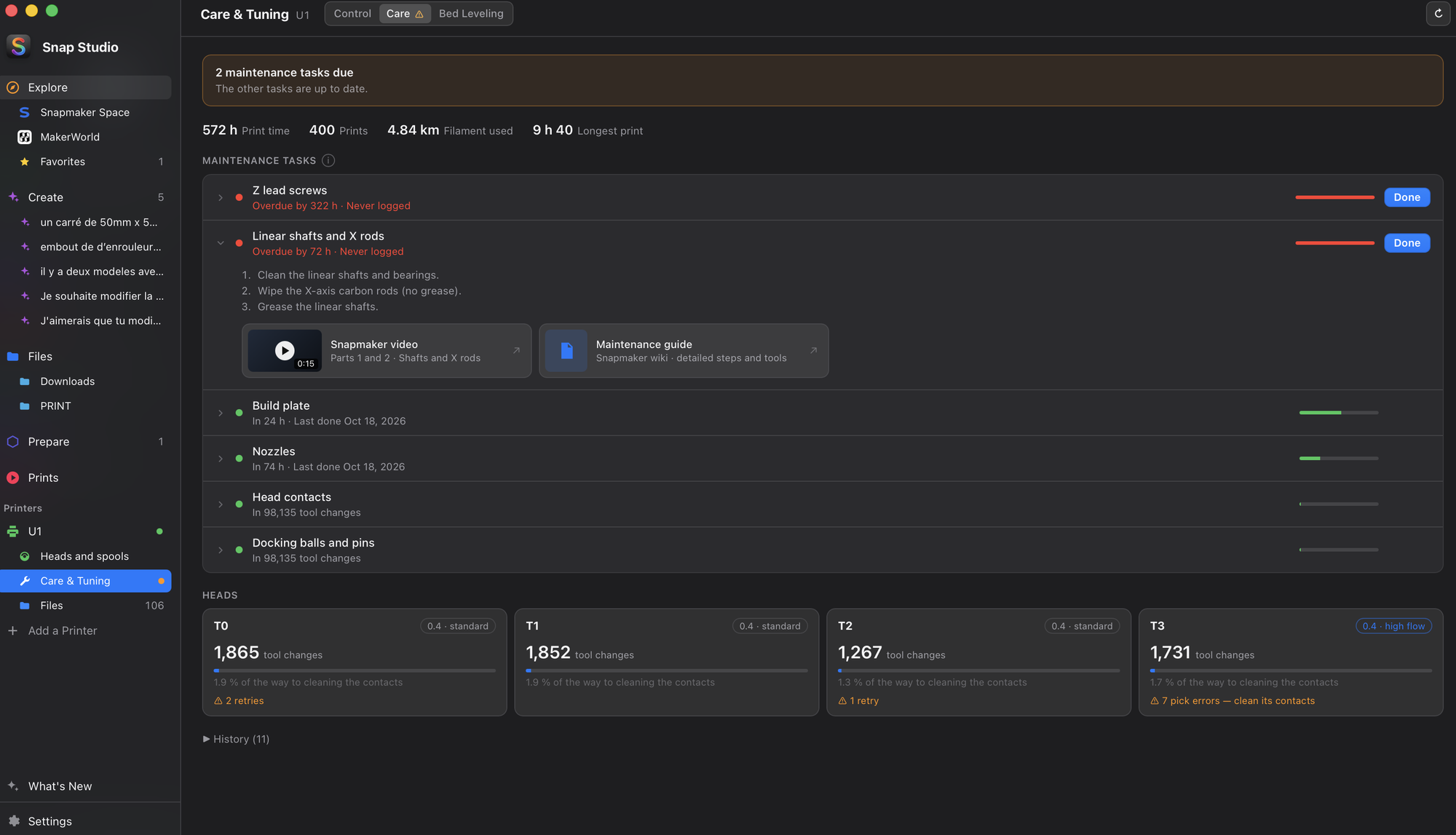
What the printer counts, and Snapmaker's maintenance guide, in one tab of
Care & Tuning.
- Usage: print time, prints, filament, longest print.
- Each head's tool changes, errors and hotend (U1).
- Tasks sorted by urgency, each with its steps and video; a dot in the
sidebar when one is due.
- Usage: print time, prints, filament used, longest print.
- Heads (U1): tool changes, how far each is from the contacts' cleaning
(every 100,000 tool changes), pick errors and retries — a head with errors
is flagged — and its hotend (standard or high flow). - Tasks sorted by urgency — head contacts, docking balls and pins, linear
shafts and X rods, Z lead screws, nozzles, build plate — due "in 80 h" or
"overdue by 296 h". Each one unfolds into its steps, the chapter of
Snapmaker's video and the guide; Done logs it with the counters of the
moment, and the next due date counts from there (undo from the
notification). - A dot in the sidebar when a task is due. Nothing is written to the printer.
Contacts follow Snapmaker's figure; the other intervals are prudent
defaults, Snapmaker gives none. On another Klipper printer, the view keeps
usage and the hour-based tasks.
📐 Bed Leveling
The bed's mesh, read from the printer, kept over time — the third tab of
Care & Tuning.
- One card says how the bed is and the one thing to do.
- The surface in 3D or as a map, history and trend.
- Measure with a guided assistant; when the bed needs attention, what to do.
- One card says how the bed is and the one thing to do: good (compensated
by the printer's mesh), to watch, out of tolerance, or measure again.
The default limits (0.5 / 1 mm, three levels) suit the U1, whose mesh
compensates what is below; it asks for manual leveling only above 2 mm. - The surface in 3D or as a map with every point's height; history,
trend and the comparison of two measurements. - Measure with an assistant: the bed confirmed clear (a print that has
just ended is pointed out), a temperature proposed from the last print,
then each of the U1's steps — heating, the 2 min settle, preheat, the
corner check, probing — a clean stop or an emergency stop, and the
result against the previous measurement. - When the bed asks for attention, its shape is named and shown on the map
(a tilted side, a raised corner, a hollow or domed bed, one point apart),
with what to do — on a U1, the knobs under the bed and the printer's
manual leveling — then "I've fixed it: measure again". - A reminder in Care after 30 days or 50 prints, and "Measure first" in
the send sheet when the bed is out of tolerance.
📂 Printer files and timelapses
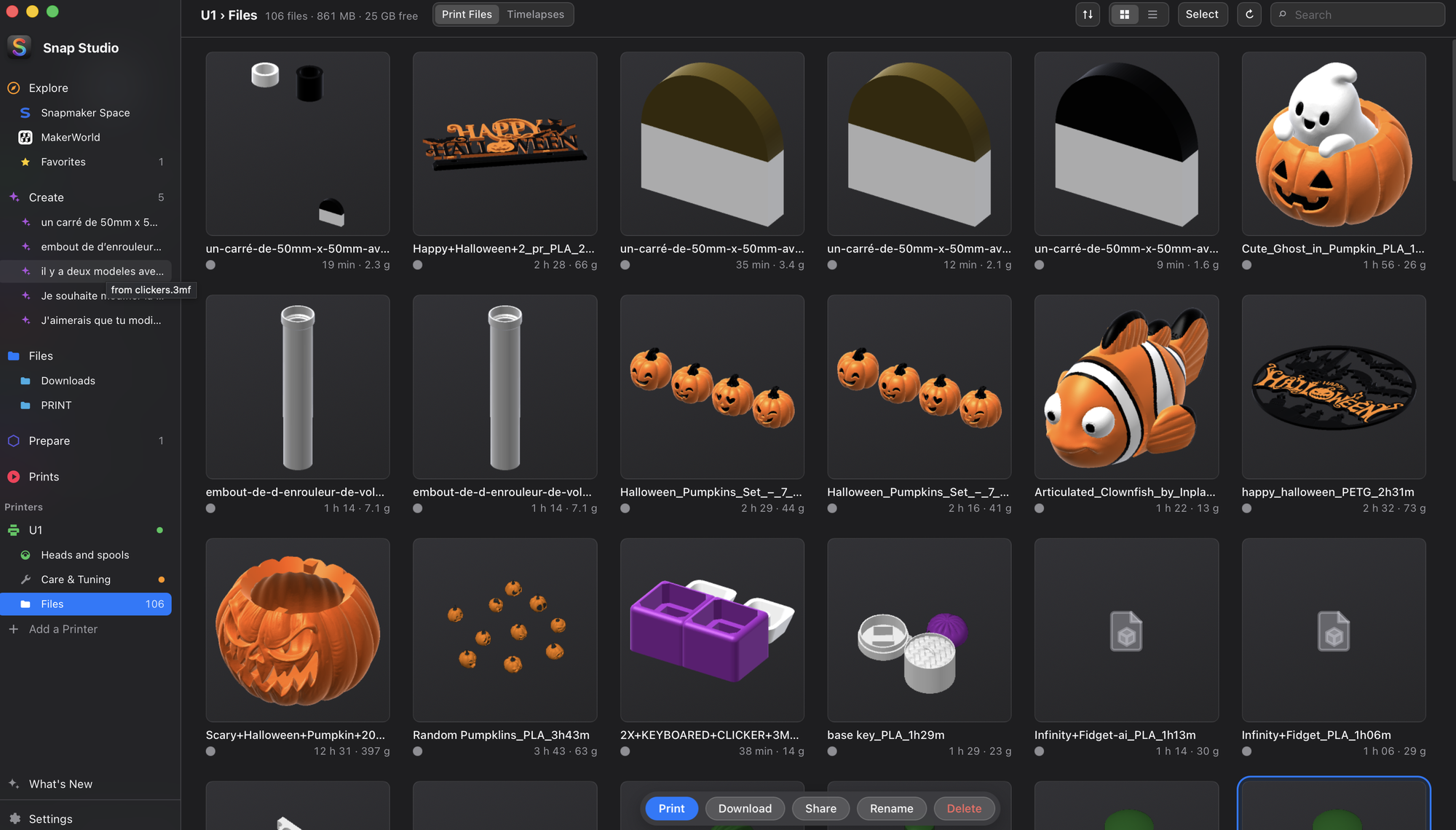
Under each printer, Files shows what is stored on it, read live.
- Print files as a list or a grid; Print opens the same sheet as after a slice.
- Timelapses played straight from the printer.
- Share a file or a video: AirDrop, a QR code for your phone, the clipboard.
- Print files, as a list or a grid: thumbnail, duration, filament per
head, size, the result of their last print; search and sort. Print opens
the same sheet as after a slice — start it there, queue it, or print it on
another printer — and the heads it uses are read from the file itself.
Download, rename, delete, several at once; the file being printed is
protected. - Timelapses, played straight from the printer (speed 0.5×–4×, full
screen, previous / next), downloaded or deleted. - Share a file or a video: the macOS share menu (AirDrop, Messages,
Mail…), a QR code to download it on your phone on the same Wi-Fi (a local
link that stops after 15 minutes or when the sheet closes), the file on the
clipboard, or Save As.
🌓 Display
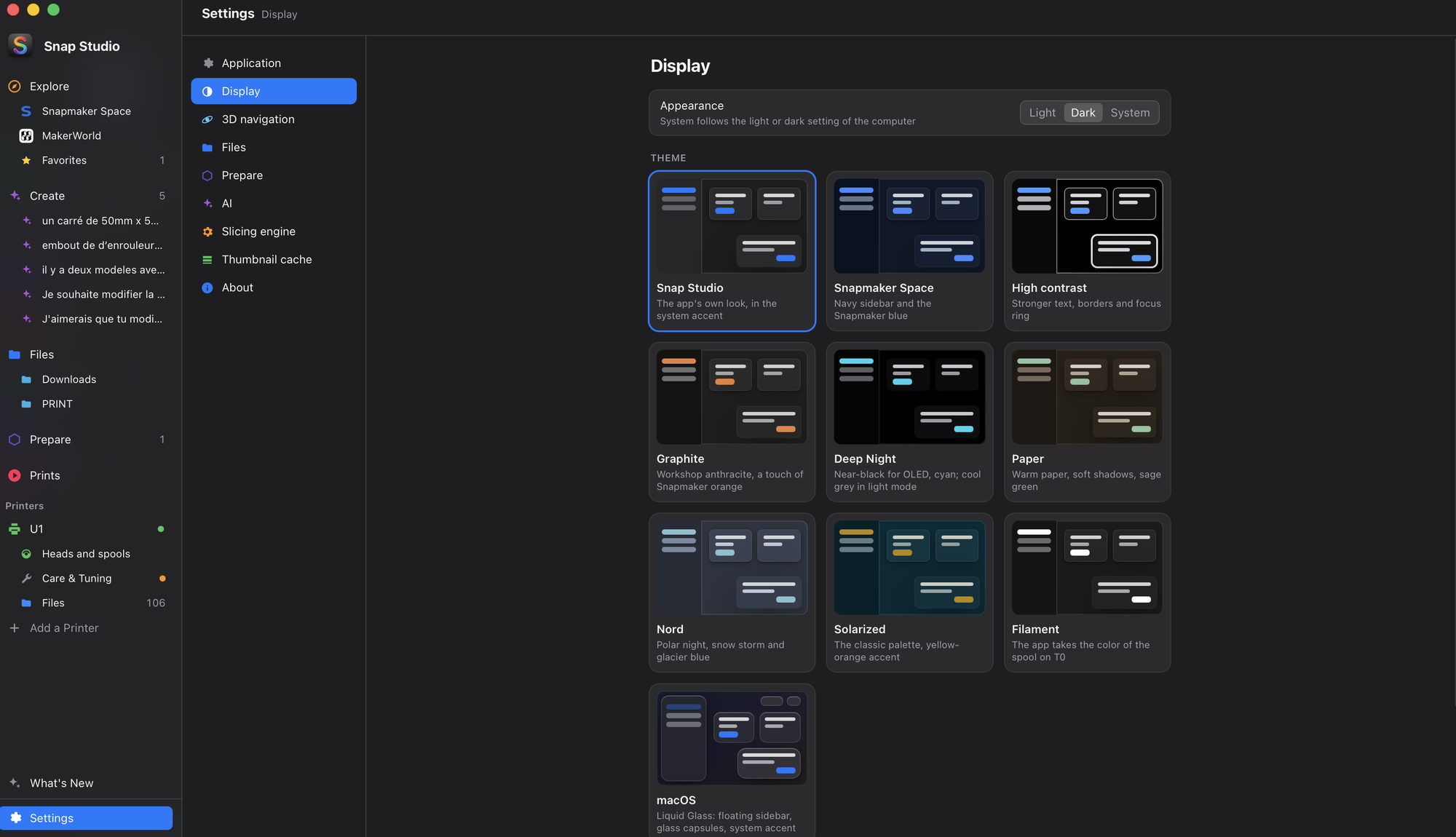
Settings → Display: light, dark or as the system.
- Ten themes, each with a light and a dark version and a live preview.
- The accent color: the theme's, the system's, a preset or your own.
- Color-blind safe colors over any theme.
The ten themes: Snap Studio, Snapmaker Space (navy sidebar), High contrast,
Graphite, Deep Night, Paper, Nord, Solarized, Filament (the app takes the
color of the spool on T0) and macOS (a Tahoe-style layout in glass). With
color-blind safe colors, states are never told apart by red and green alone.
Download
| System | File, from the latest release |
|---|---|
| macOS (Intel and Apple Silicon) | Snap-Studio_…_macos-universal.dmg |
| Windows | Snap-Studio_…_x64-setup.exe |
| Linux | Snap-Studio_…_amd64.AppImage (or .deb) |
| Linux ARM (Raspberry Pi 4/5…) | Snap-Studio_…_arm64.AppImage (or .deb) — no slicing engine for ARM yet |
The packages are not signed by Apple or Microsoft yet. First launch on
macOS: right-click → Open (orxattr -dr com.apple.quarantine "/Applications/Snap Studio.app"); on
Windows: "More info" → "Run anyway".
What each version brought: CHANGELOG.md.
A welcome assistant sets everything up: language, models folder, the
printer on your network, the slicing engine and the AI. Afterwards the
app updates itself (on Linux, the AppImage).
Design with AI
The AI runs Claude Code
with your Claude account, either in a sandbox or directly on your computer.
On macOS and Linux the sandbox is Claude Code's own (built-in): Claude
only reaches the conversation's folder, reads nothing else in your home
folder and its commands have no network. A container (yolobox) remains
a choice in Settings → AI. On Windows, the AI runs on this computer. The
welcome assistant and Settings → AI check what your choice needs and say
how to install what is missing; a mode opens once everything is ready.
| Sandbox (built-in) | Container (yolobox) | This computer | |
|---|---|---|---|
| Claude Code 2.1.286 or later, signed in | ✓ | ✓ | ✓ |
Python 3 with trimesh, manifold3d, numpy |
✓ | ✓ | |
Linux: bubblewrap and socat |
✓ | ||
| yolobox | ✓ | ||
A running container engine: Docker (or OrbStack), Podman, or Apple container |
✓ |
A conversation, from a file ("Edit with AI" in Files) or from scratch:
describe what you want — ideas are offered — add images (sketches,
photos: dropped, pasted or chosen), choose where it runs and the Claude
model. The 3D preview and the chat sit side by side: every version
Claude exports is kept, measured (size, weight, watertight) and can be shown
again; Save puts the version shown in your files, Slice sends it to
Prepare. Stop Claude (or Esc) interrupts an answer; the Terminal tab
shows the same session as a terminal does, live.
The list of conversations: search, filters, groups by date, pins,
rename, duplicate (same files, a fresh Claude session). Delete removes the
conversation's folder and Claude's own files for that session — never your
saved 3MF files, never another session.
FAQ
What changed in the last versions? See the changelog.
Do I need Snapmaker Orca? No. Snap Studio downloads its own engine. If
Snapmaker Orca is installed, its custom profiles are offered too.
Does it work with other printers? Printer status and sending work with
any Klipper (Moonraker) printer; the plate, profiles and heads are the
U1's.
What leaves my computer? No telemetry. Snap Studio talks to GitHub (to
check for updates and download the engine), to your printers on the local
network, to the sites you open in Explore, and — if you use the AI —
to Anthropic through Claude Code.
Why does macOS warn me at the first launch? The app is not signed with
an Apple developer certificate yet; the commands above open it anyway.
I used 3MF Studio. That was Snap Studio's former name: settings,
printers, favorites and conversations are carried over on first launch.
Shortcuts
| ⌥⌘1 … ⌥⌘4 | Explore / Create / Files / Prepare |
| ⌘O · ⌘R · ⌘F | open a folder · refresh · search |
| ⌘1 / ⌘2 | thumbnails / list |
| ⏎ · double-click | prepare (add to the plate); G-code: toolpaths |
| V | 3D view |
| ⌘⌫ | move to Trash |
| ⌘, | Settings |
In Prepare: R rotate, F lay on face, Q orient (⇧Q: all), A arrange,
⌘D duplicate, arrows 1 mm (⇧: 10 mm), ⌘Z / ⇧⌘Z; ⌘ + drag from an empty
spot selects with a rectangle, ⇧-click in the list selects a range.
In the AI list: ⌘F search, ↑ / ↓ and ⏎ open, F2 rename, ⌫ delete. In a
conversation: ⌘⏎ send, Esc stop Claude.
In a printer's files: ⏎ details, Esc close; in the player: ← / → previous /
next video, Space pause, Esc back.
Roadmap
What has shipped is in the changelog. What is planned, each
with its pull request (drafts, approved or under discussion):
| Feature | |
|---|---|
| Several plates in Prepare — plate tabs, auto-arrange across plates, slice them all and queue them; multi-plate 3MF files kept as such | #18 |
| Print by object — one object after the other, with collision checks for the U1's head and an adjustable order | #22 |
| Plate and material warnings — an incompatible plate and filament flagged before printing, and a tip when glue is advised | #16 |
| Calibration assistants — PID of nozzles and bed, and guided input shaper, offsets between heads and flow measurement, in Care & Tuning | #17 |
| Filaments — your spool inventory (weight deducted after each print, low-stock alert) and filament deals | #19 |
| Integrated title bar on Windows and Linux — the same clean window as on macOS | #27 |
| A new Prints page — the prints on the left (search, filters, in progress, queue, then day by day), the record on the right: camera and progress while it prints, timelapse, result and real against estimated duration once done | #65 |
| More AI agents — OpenCode next to Claude Code (OpenAI, Google, Mistral, local models…), one active at a time | plan |
Work in progress, what remains to check on a real printer and ideas for later
live in docs/plans/. Ideas are welcome in the
Discussions.
Contributing
Bugs, ideas, code or translations: see CONTRIBUTING.md.
From the app, Settings → About (or the Help menu) opens a bug report
with the version and system already filled in. Building, publishing, the
code layout: docs/DEVELOPMENT.md.
License and credits
Snap Studio is free software, under the GNU General Public License v3
or later. Built with Tauri and Rust.
- Slicing engine: Snapmaker Orca
(AGPL-3.0), itself based on OrcaSlicer;
the U1 plate assets come from its profiles (AGPL-3.0). - Interface libraries: marked,
DOMPurify,
xterm.js — seeui/vendor/NOTICE.md.
Snap Studio is an independent project, not affiliated with or endorsed by
Snapmaker. Snapmaker and U1 are trademarks of their owners.
Yorumlar (0)
Yorum birakmak icin giris yap.
Yorum birakSonuc bulunamadi